
GitLab is a web-based DevOps platform that enables teams to manage the entire software development lifecycle in a single application. It combines version control with built-in tools for automation, collaboration, and deployment.
- Provides Git-based repository hosting similar to GitHub.
- Includes built-in CI/CD pipelines for automated testing and deployment.
- Supports code review, issue tracking, and project management in one place.
Primary Terminologies:
Understanding these key GitLab concepts helps you manage projects and collaborate effectively.
- Git Repository: Stores project files along with their complete version history, enabling version control and collaboration.
- Issue Tracking: Helps create, assign, and track tasks, bugs, and feature requests.
- Wiki: Provides a centralized space for project documentation and knowledge sharing.
- Merge Requests (MRs): Allow developers to propose changes, review code, and merge updates safely.
- CI/CD Pipelines: Automate building, testing, and deploying code using
.gitlab-ci.yml. - GitLab Runners: Execute CI/CD jobs across environments like Linux, Windows, macOS, or Docker.
- Groups and Projects: Organize repositories and manage team access and collaboration.
Steps To Set Up GitLab
Follow these steps to create your account, set up projects, and start collaborating on GitLab.
1. Sign Up or Install GitLab
Start by creating a GitLab account or installing GitLab on your system to begin using its features.
- We can sign up for GitLab.com, a hosted version of GitLab, or install GitLab on your own infrastructure using the installation guide.
- Enter username, first name, last name, email, and password, then click on Register.

Enter the verification code sent to your email address to complete the registration.
When verification is complete then appear a welcome page, In this welcome page we need to provide role and I'm signing up for gitlab because choose from dropdown box, In dropdown box they have a multiple options choose any depends on your purpose.
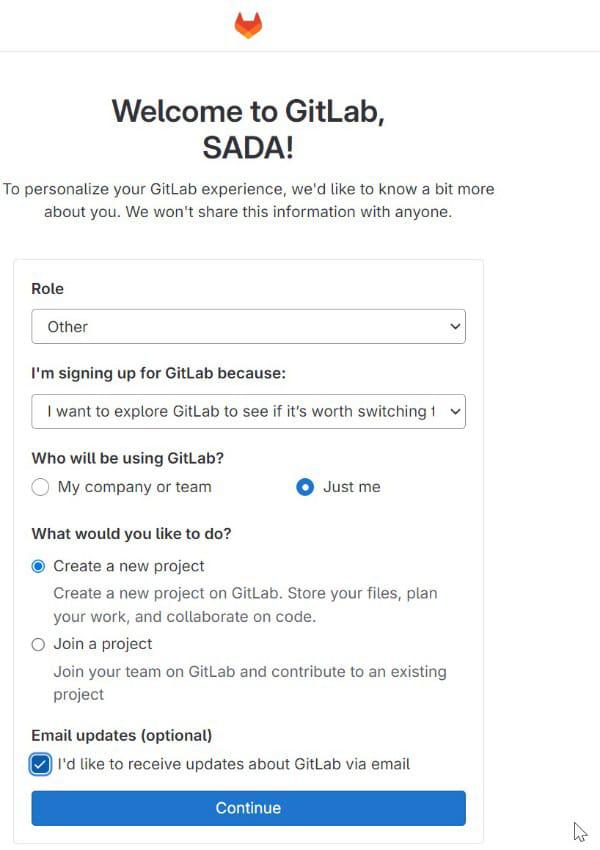
In above option we selected a create a new project, so here we are providing group name and project name and click on create project

The GitLab dashboard is displayed after successful login.

2. Create a Project
After signing in, you can start a new project from the dashboard to organize your work in GitLab.
- After signing in, create a new project by navigating to the dashboard and clicking on "New Project."

- Choose a project name, visibility level, and other settings.

Initialize Repository: If starting from scratch, initialize the repository with a README file. Otherwise, push an existing repository to GitLab.
Here we see our new project was created.
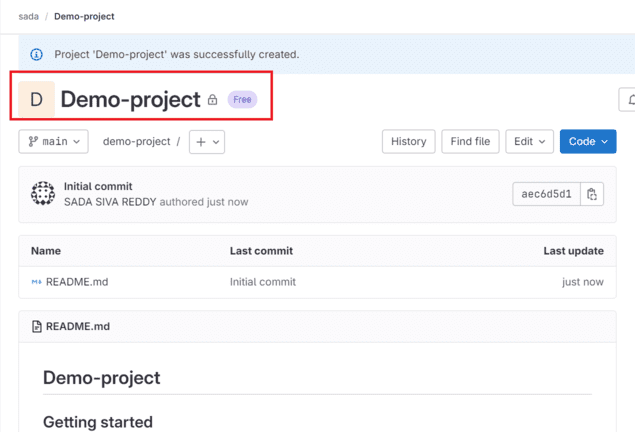
Now add files to our new project. Choose new project or Upload file or New directory

Add your script to the file and click Commit Changes.
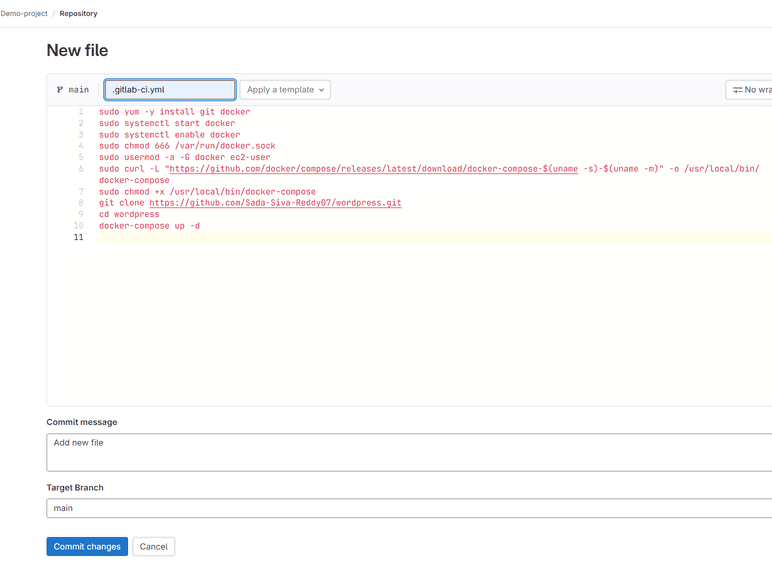
Here we see successfully added a file

Implement Merge Requests: When working on new features or bug fixes, create a new branch, make changes, and open a merge request. Request feedback from team members and iterate on the changes.

3. Set Up CI/CD Pipelines
Define CI/CD pipelines by creating a .gitlab-ci.yml file in your project's repository. Specify stages, jobs, and scripts for building, testing, and deploying your application.
Here is the example script to run CI/CD Pipeline
build-job:
  stage: build
  script:
    - echo "Hello, $GITLAB_USER_LOGIN!"
test-job1:
  stage: test
  script:
    - echo "This job tests something"
test-job2:
  stage: test
  script:
    - echo "This job tests something, but takes more time than test-job1."
    - echo "After the echo commands complete, it runs the sleep command for 20 seconds"
    - echo "which simulates a test that runs 20 seconds longer than test-job1"
    - sleep 20
deploy-prod:
  stage: deploy
  script:
    - echo "This job deploys something from the $CI_COMMIT_BRANCH branch."
  environment: production

When a .gitlab-ci.yml file is added to the repository, GitLab automatically triggers a CI/CD pipeline that includes build, test, and deployment stages.
Run Tests and Deploy: GitLab automatically runs CI/CD pipelines upon new commits or merge requests. Monitor pipeline execution, review test results, and deploy changes to staging or production environments.
The figure below shows a successfully executed pipeline.

Advantages of GitLab CI/CD
GitLab CI/CD streamlines the software development process by automating build, test, and deployment workflows, making development faster and more reliable.
- Automates the entire software delivery process including build, testing, and deployment, which reduces manual effort and saves development time.
- Helps in identifying bugs early in the development cycle by continuously running tests on every commit or merge request.
- Reduces human errors by standardizing the deployment process through a defined pipeline configuration.
- Improves code quality by enforcing automated testing before merging changes into the main branch.
