The post Raspberry Pi Model B Original (2012) Uses in 2026 appeared first on TechOpt.
]]>The projects in this article are ones that the original Model B actually has adequate power to run without sacrificing usability or performance, not just “will run, but not well” projects.
Similarly, a lot of these should work with the Model A. However, keep in mind that the Model A only has 256 MB of RAM, which limits it further.
1. Raspberry Pi Print Server
Make an old USB printer WiFi and AirPrint compatible using an old Raspberry Pi with Raspbian. By connecting the printer to a USB port on the Pi and installing CUPS, you can share your USB printer with your network to make it wireless.
Additionally, CUPS also now supports broadcasting as AirPrint devices. Once the printer is setup in CUPS, you should be able to print to it from your Apple devices as well.
2. Pi-Based Digital Picture Frame
A digital picture frame is probably one of the lowest resource projects you can do. Therefore, this makes it perfect for the original Raspberry Pi. You’ll simply need an old screen with an HDMI input. You can even use a screen with a composite input, since the original Pi has a composite output!
Choose an OS, put your photos on your SD card or a USB key and install some image slideshow software. Some people even get creative with decorative framing around the screen.

3. Raspberry Pi Web Server
You can run a lightweight web server such as nginx or lighttpd on your older Raspberry Pi to serve static web pages and basic websites. You can also try Apache, but keep in mind that Apache is not as lightweight as nginx or lighttpd, so your performance probably won’t be as good.
The original Pi Model B definitely isn’t powerful enough to serve a website to hundreds of users, however, for a few users it should be more than adequate.
4. Self-Host Bitwarden
This is one of my personal favourites. Bitwarden is an opensource password manager that you can self-host. It has accompanying desktop apps, mobile apps, and browser extensions.
The original Pi may not be powerful enough to host full Bitwarden, but it will easily run Vaultwarden. Vaultwarden is an alternative implementation of the Bitwarden API written in Rust, which makes it super fast and less resource-intensive than full Bitwarden. You can still use it with the official Bitwarden apps and extensions.
Simply install docker and spin up the Vaultwarden container. Again, it might not work great for hundreds of users, but our Pi 1 Vaultwarden instance is working great for our family of 6!
5. Internet Radio, Bluetooth or AirPlay Receiver
This one is also a personal favourite to modernize an old stereo system. All you need is a stereo system or set of speakers with an AUX port. This way you can connect the headphone jack of the Raspberry Pi right into the stereo system. Alternatively, if the stereo is older and has an RCA input, you can use a 3.5 mm to RCA adapter.
Install an OS and run your favourite music apps to play directly to your speakers. Additionally, you can setup Bluetooth pairing to use it as a Bluetooth speaker. You can also install shairport-sync to support AirPlay from Apple devices.
Conclusion
The Pi has come a long way since it was first introduced. Even though at first glance the original Raspberry Pi 1 Model B looks severely under-powered by today’s standards, it still has some great uses for applications where a lot of processing power isn’t needed.
The post Raspberry Pi Model B Original (2012) Uses in 2026 appeared first on TechOpt.
]]>The post Install and Run AppImage Software on Linux (Step-by-Step) appeared first on TechOpt.
]]>In this guide, you’ll learn how to run AppImage files on Linux safely and cleanly: how to organize them, make them executable, launch them, and optionally add a shortcut with icon so the app shows up in your applications menu.
You can follow this guide regardless of the distribution or desktop environment you are using!
What you need
- A downloaded
.AppImagefile (from the app’s official site) - A file manager (Dolphin, Files/Nautilus, etc.) and/or a terminal
Step 1: Put your AppImage somewhere organized
Yes, you can run an AppImage straight from your Downloads folder. But if you download a few of these over time, they get messy fast.
A simple structure I like is:
~/bin/for AppImages (and other portable apps)- One folder per app inside
~/bin/(helps keep icons, config files, and updates tidy)
Example:
mkdir -p ~/bin/<app-name>
Then move your AppImage into that folder using your file manager (drag and drop) or the terminal:
mv ~/Downloads/<app-name>.AppImage ~/bin/<app-name>/
Why one folder per app? Some portable apps want read/write access to their own folder (for example, to download an update). Keeping each AppImage in its own folder avoids weird permission issues and keeps everything clean.
What about multi-user systems?
If multiple users need the same AppImage, putting it in one users home folder might not be ideal. In that case, storing it under /opt/<app-name>/ is common, but you must set permissions properly so users can run (and potentially update) it.
Step 2: Make the AppImage executable (required)
Most downloads are not executable by default (this is normal on Linux). To run an AppImage, you must mark it as executable first.
 This is the critical step. AppImage software will not run without doing this step.
Option A: Do it in your file manager (GUI)
- Right-click the AppImage
- Open Properties
- Go to Permissions
- Enable: Allow executing file as program (or your file manager’s equivalent)

Option B: Do it in the terminal (works everywhere)
Change into the folder where the AppImage lives, then run chmod:
cd ~/bin/<app-name>
chmod +x <app-name>.AppImage
Step 3: Run the AppImage
Now you can run your AppImage file in either of these ways:
- Double-click the file in your file manager, or
- Run it from the terminal:
./<app-name>.AppImage
Step 4 (optional): Add the AppImage application to your application menu
These steps will vary a bit depending on your desktop environment, but you should be able to find equivalent settings.
If you’re on KDE Plasma, you can follow these instructions:
- Right-click your application launcher (start menu)
- Click Edit Applications…
- Choose a category (like Utilities)
- Click New Item
- Set the Program to the full path of your AppImage
- Pick an icon (optional but recommended)
- Save
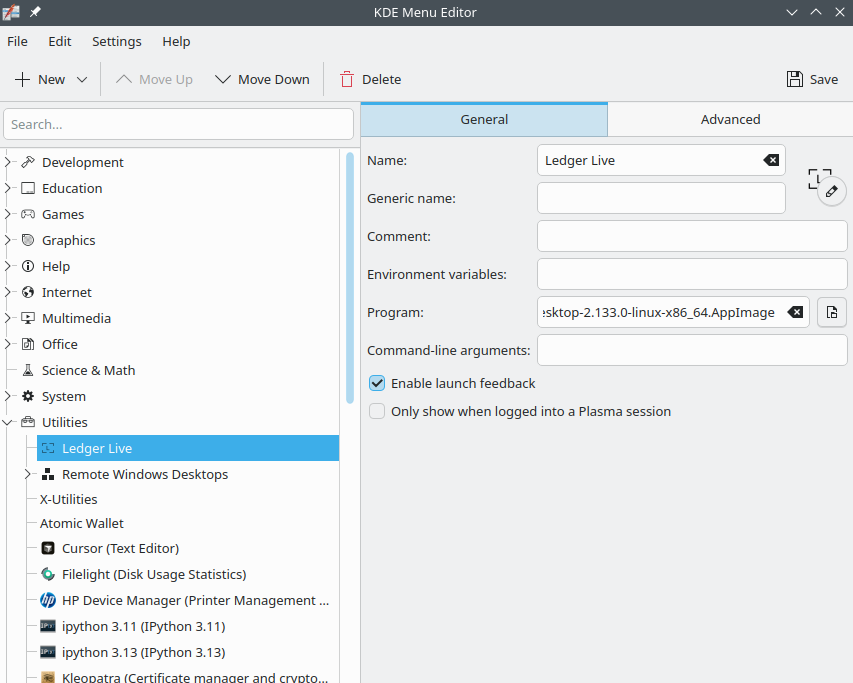
Tip: Download a PNG icon (transparent background looks best) and store it in the same folder as your AppImage so everything stays together.
Step 5 (optional): Use AppImageLauncher to automate menu integration
If you prefer a more automatic approach, AppImageLauncher can integrate AppImages into your menu, move them into a central location, and even provide update/remove entry functionality through your launcher.
It’s not supported on every distro, but if it works on yours, it can save time.
Troubleshooting tips
Nothing happens when you try to run AppImage
Run it from a terminal to see error output:
cd ~/bin/<app-name>
./<app-name>.AppImage
Want to inspect whats inside an AppImage?
You can mount AppImages read-only using:
./<app-name>.AppImage --appimage-mount
Remarks
- AppImages are not installed like traditional packages on Linux: you manage them by keeping the file, updating it (if the app supports it), and deleting it when done.
- A clean folder layout makes it easier to back up, move, or remove apps later.
- If you want the most “native” feel, menu integration is the final piece.
- For those less familiar with Linux,
~is a shorthand placeholder for/home/<user>.
FAQ
Do I have to install anything to run AppImage?
No. You usually just download it, mark it executable, and run it.
Why is my AppImage not executable after downloading?
Because Linux downloads typically remove the executable bit for safety. Therefore, you have to add it back with the GUI permission checkbox or chmod +x.
How do I uninstall an AppImage?
Simply delete the AppImage file (and any shortcuts you created).
The post Install and Run AppImage Software on Linux (Step-by-Step) appeared first on TechOpt.
]]>The post Upgrade openSUSE Leap to 16.0 from 15.6 appeared first on TechOpt.
]]>--releasever flag that I talked about in my 15.5 to 15.6 upgrade guide, you’ve probably run into problems. In this updated guide, I’ll cover the new, official and recommended method to upgrade openSUSE Leap to 16.0 from 15.6 using the openSUSE Migration Tool.
Why the Old --releasever Method No Longer Works
In my previous guide, I showed how you could upgrade openSUSE Leap releases with:
sudo zypper --releasever=16.0 dup
That used to work reliably in earlier Leap versions. However, with SLE (SUSE Linux Enterprise) 16, SUSE introduced major backend and repository format changes. The new openSUSE Leap 16.0 release merges more closely with SLE infrastructure, which means the repositories and release metadata formats have changed significantly.
If you try to use the --releasever flag now, you’ll likely see repository or GPG key errors during the upgrade. That’s because the old repository layout no longer matches Leap 16’s new structure.
The New Official Method: opensuse-migration-tool
Instead of manually changing repositories, Leap 16 introduces a dedicated migration utility designed to handle all the details for you. The tool automatically adjusts your repositories, resolves new dependencies, and manages system configuration changes.
Step 1: Install the Migration Tool
First, fully update your Leap 15.6 system:
sudo zypper refresh
sudo zypper up
Then install the new migration package:
sudo zypper install opensuse-migration-tool
Step 2: Run the Migration Process
Start the migration utility:
sudo opensuse-migration-tool
The tool will analyze your current system, identify obsolete packages, and suggest repository transitions for Leap 16.0. The system prompts you to confirm before proceeding with the distribution upgrade.
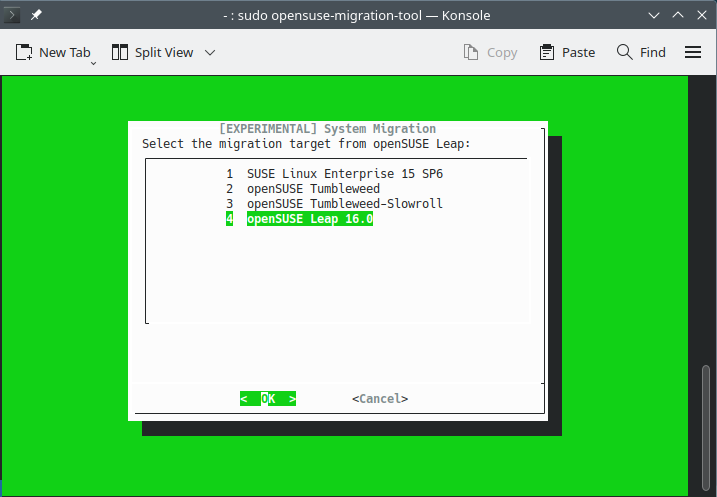
You’ll want to select openSUSE Leap 16.0 with the arrow keys on your keyboard, select OK and hit Enter.
You will probably encounter the following screen about disabling third-party repositories:
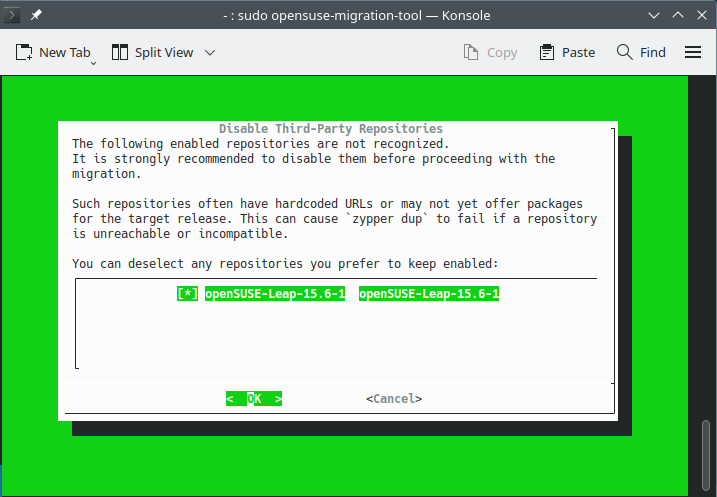
This happens because Leap 16.0 changes how repositories are structured. You can simply hit Enter to confirm.
The upgrade process will then start! Wait a few minutes, then reboot into Leap 16.0 once the process finishes.
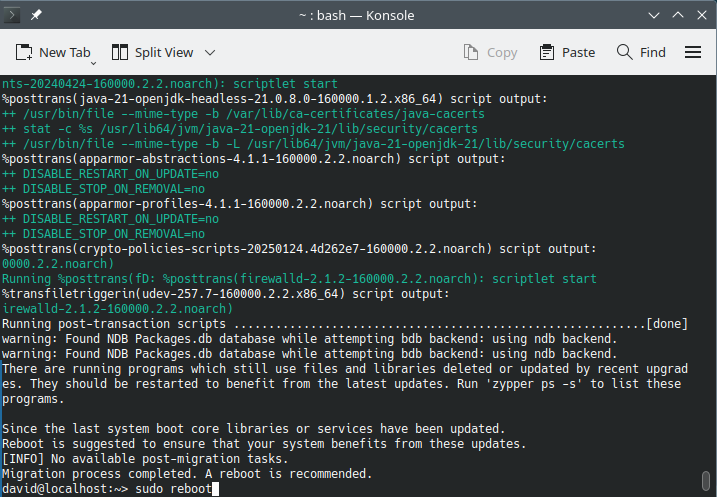
Step 3: Reboot into Leap 16.0
After the migration completes, simply reboot:
sudo reboot
You’ll now be running openSUSE Leap 16.0 with the updated repository structure.
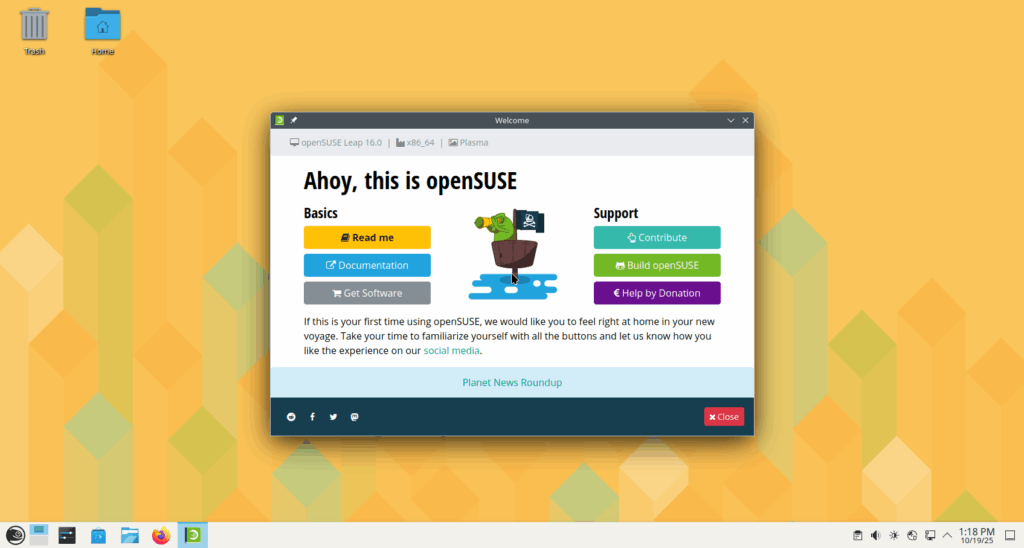
Troubleshooting Tips
- Do not use
zypper dup --releasever=16.0. It may break dependencies. - If you encounter repository signature errors, remove or rename old
.repofiles in/etc/zypp/repos.d/before re-running the migration tool. - Ensure your disk has sufficient space and that all third-party repositories are disabled before starting the upgrade.
Final Thoughts
The openSUSE team has streamlined the upgrade path to make system migrations more reliable and aligned with SUSE’s enterprise ecosystem. While older zypper --releasever methods are now deprecated, the openSUSE Migration Tool simplifies the process and ensures compatibility with the new Leap 16 architecture.
The post Upgrade openSUSE Leap to 16.0 from 15.6 appeared first on TechOpt.
]]>The post How to Make Ethernet Cables: A Complete Step-by-Step Guide appeared first on TechOpt.
]]>This comprehensive guide will walk you through everything you need to know, from selecting the right cable and connectors, to crimping, testing, and troubleshooting your custom cables.
Why Make Your Own Ethernet Cable?
There are several advantages to building your own network cables:
- Custom Lengths: No more coiled-up mess or cables that come up just short. Instead, you can make cables the exact length you need.
- Cost Savings: Bulk ethernet cable and connectors are far cheaper per foot than buying pre-made cables.
- Better Quality Control: You choose the cable type, shielding, and connectors, therefore avoiding cheap copper-clad aluminum (CCA) cables.
- Skill Building: This is a useful DIY skill for anyone interested in networking, home labs, or IT work.
Tools and Materials Needed
Here’s what you’ll need to make DIY ethernet cables successfully:
- Ethernet Cable (Cat6, Cat6a, or Cat5e): Prefer solid copper rather than CCA for best performance and compliance with standards. Cat6 bulk cable on Amazon
- RJ45 Connectors: Choose connectors rated for your cable type (Cat6, Cat6a, or Cat5e). Passthrough connectors are easier for beginners. Cat6 RJ45 passthrough connectors
- RJ45 Crimping Tool: Used to secure connectors to the cable. Most crimpers also include a wire cutter and stripper. RJ45 crimp tool
- Cable Tester (Recommended, but optional): Ensures your wiring is correct and detects any faults. Basic cable tester or advanced network tester
- Strain Relief Boots (Recommended, but optional): Add durability to the connector ends. Strain relief boots
- Wire Cutters/Scissors: For trimming cable and internal wires. Wire strippers/cutters
Tip: Avoid “Cat7” or “Cat8” cables sold cheaply online. These are not officially recognized Ethernet standards and often use questionable materials.
Step 1: Measure and Cut Your Cable
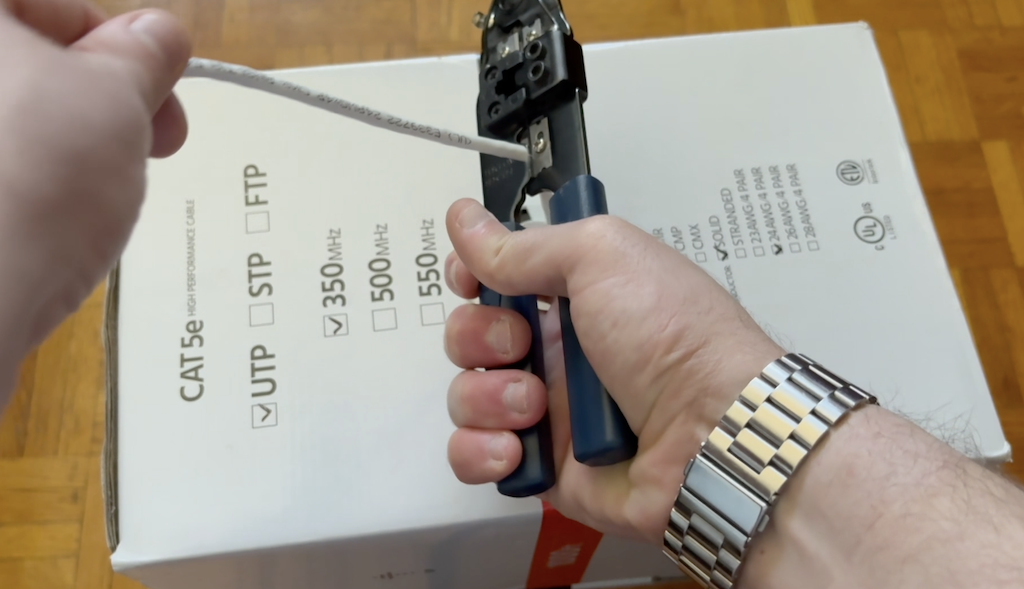
Pull the amount of cable you need from the box, then add roughly 30 cm (about 1 foot) of extra length for trimming and flexibility. Cut the cable cleanly using the crimper’s cutting blade or a pair of wire cutters.
Step 2: Strip the Outer Jacket
Use the stripping blade on your crimping tool (or a dedicated wire stripper) to remove 5–10 cm (2–3 inches) of the outer jacket from both ends of the cable. Be careful not to nick the internal wires.
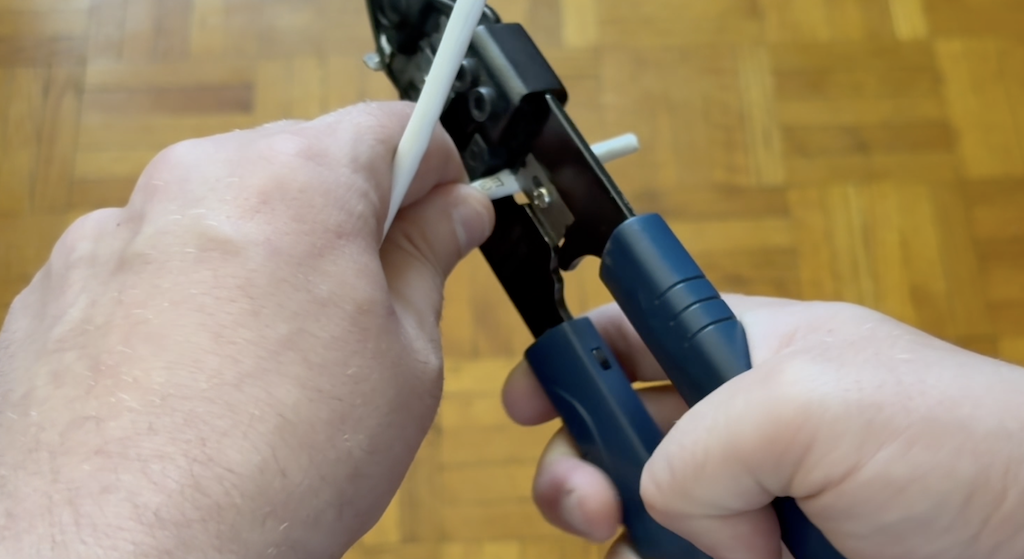
After that, remove the internal string, if present.
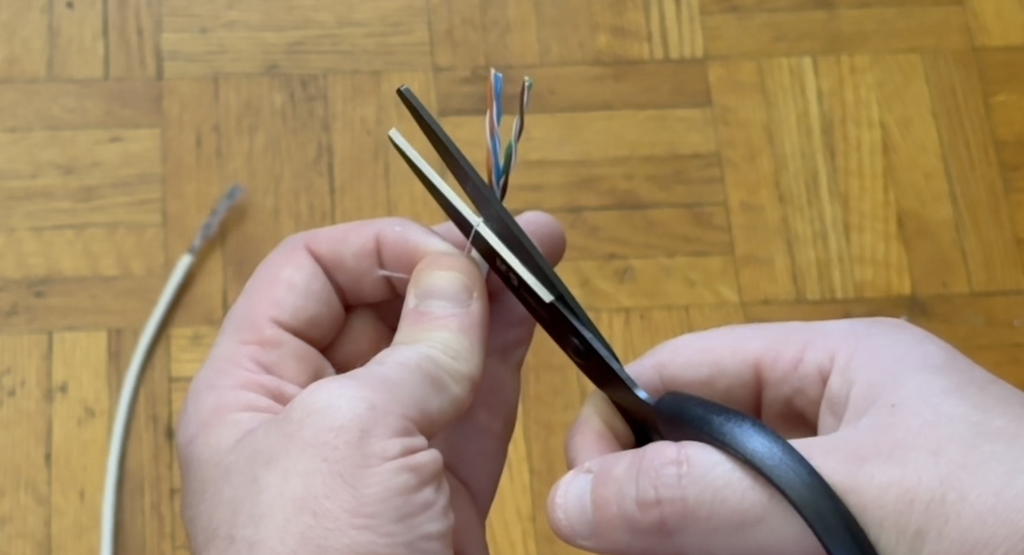
At this stage, slide on the strain relief boots if you’re using them—forgetting them is a common mistake. Therefore, it’s best to add them now. You want the larger side facing outward from the end of the cable on both sides.
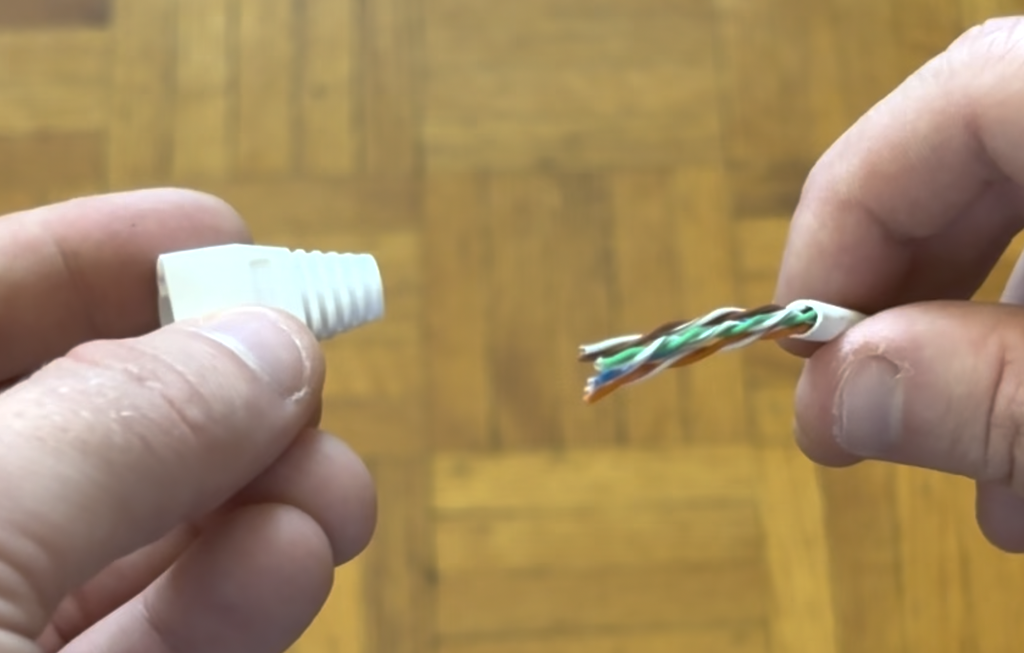
Step 3: Untwist and Arrange the Wires
Inside the jacket are four twisted pairs of wires (8 total). Untwist the pairs and straighten them.
Then, arrange them in either T-568A or T-568B wiring order. Use the same standard on both ends.
T-568A Wiring Order:
- White/Green
- Green
- White/Orange
- Blue
- White/Blue
- Orange
- White/Brown
- Brown
T-568B Wiring Order (Most Common in North America):
- White/Orange
- Orange
- White/Green
- Blue
- White/Blue
- Green
- White/Brown
- Brown
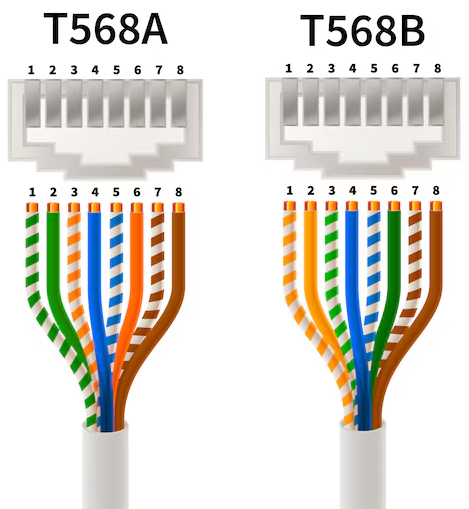
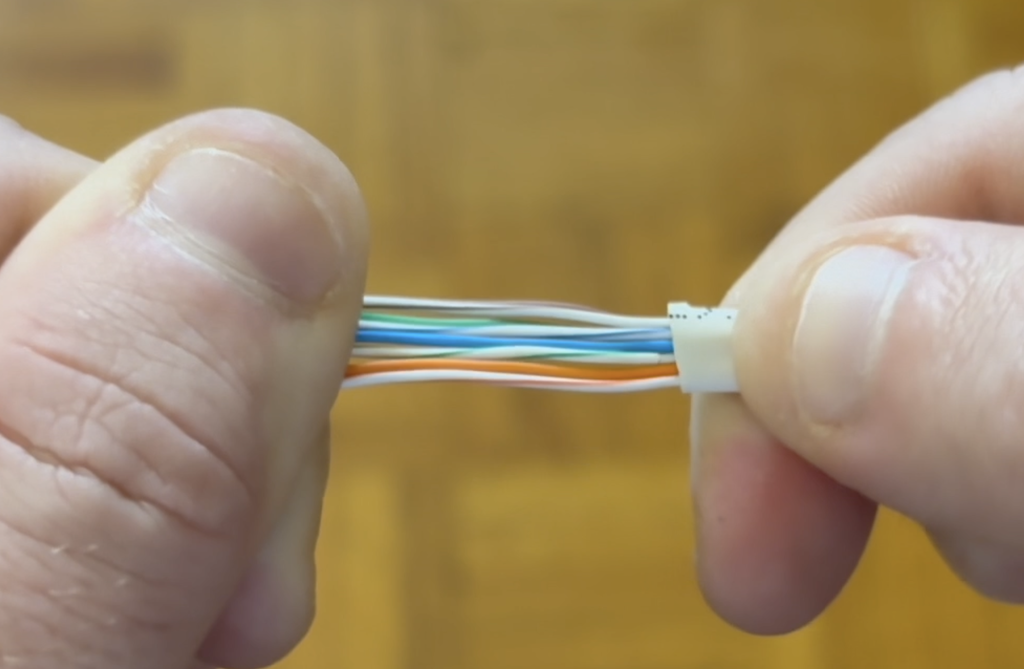
Lay the wires flat and keep them in the correct order. Finally, flatten them gently with your thumb for easier insertion.
Step 4: Trim Wires to Length
For non-passthrough connectors, trim the wires so that they are just long enough to reach the end of the connector when inserted. Cut them evenly so they line up perfectly.
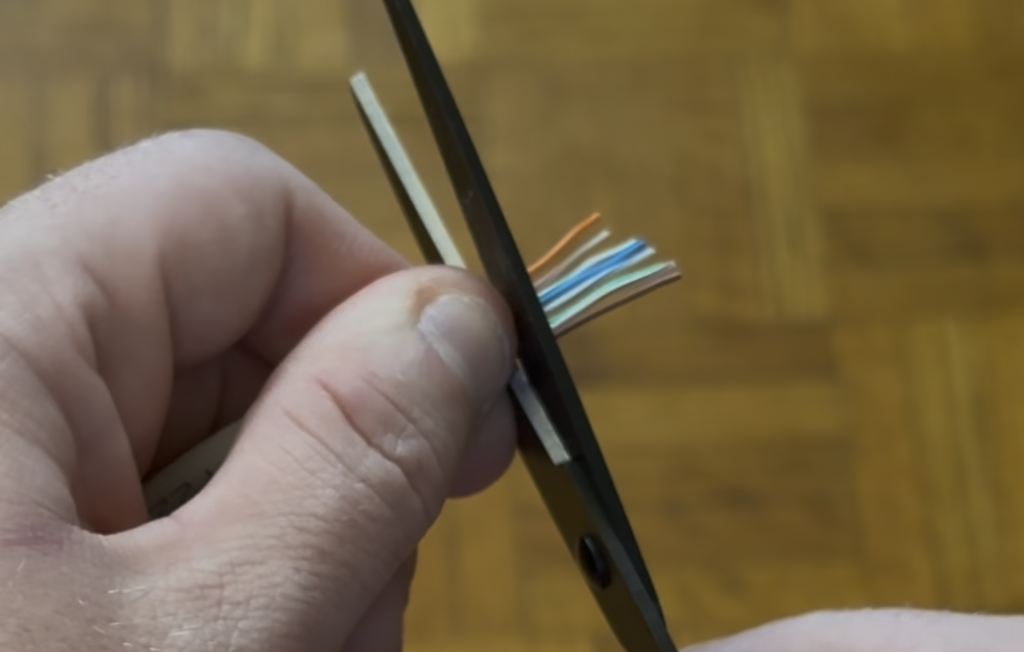
For passthrough connectors, leave them a bit longer since the ends will protrude and be trimmed after crimping.
Step 5: Insert Wires Into the RJ45 Connector
Slide the wires into the connector carefully, ensuring they remain in the correct order. Push firmly until:
- Each wire reaches the very end of the connector.
- The outer jacket passes the strain relief tab for a strong connection.
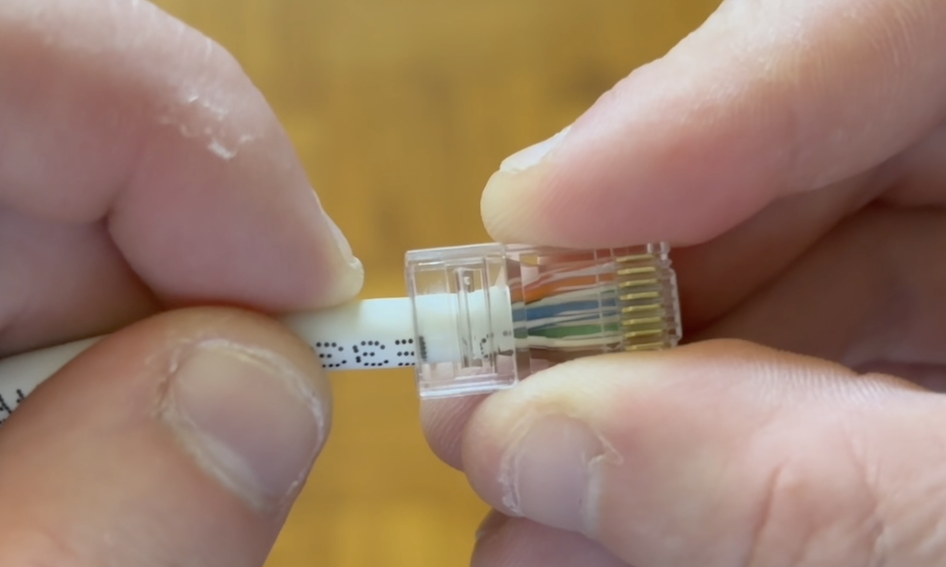
For passthrough connectors, the wires should stick out slightly from the other side.
As soon as you confirm the order, you’re ready to crimp.
Step 6: Crimp the Connector
Place the connector into the crimping tool and squeeze firmly until the pins press down into the wires and the strain relief tab locks onto the outer jacket.
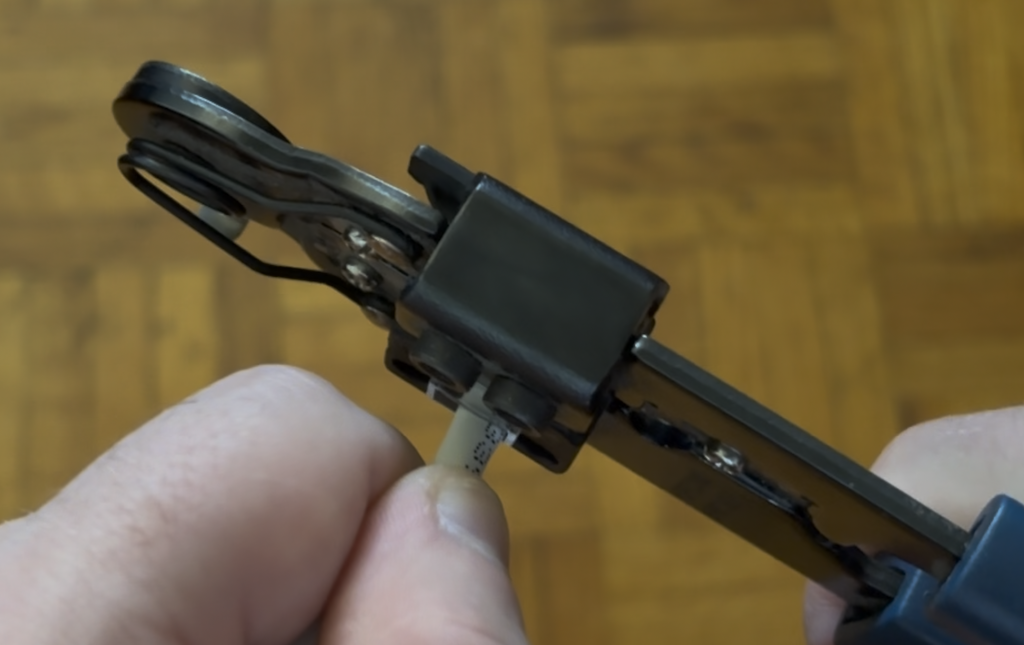
Additionally, for passthrough connectors, trim the wire ends flush with the connector after crimping.
Then, repeat this entire process for the other end of the cable!
Step 7: Test Your Cable
Use a cable tester to confirm that all eight wires are connected in the correct order.

The lights on both ends should flash in sequence.
If any wires are misaligned, cut off the connector and repeat the process on that side.
Once confirmed, your custom ethernet cable is ready for use!
Cat6 vs Cat6a vs Cat5e: Which Should You Choose?
Not all Ethernet cables are created equal. Therefore, here’s a quick comparison to help you decide:
| Category | Maximum Speed | Maximum Bandwidth | Maximum Recommended Length | Best Use Case |
|---|---|---|---|---|
| Cat6 | Up to 1 Gbps (10 Gbps up to 55m) | 250 MHz | 100 m | Home and small office networks, gaming, streaming |
| Cat6a | 10 Gbps up to 100m | 500 MHz | 100 m | High-performance networks, data-heavy tasks, future-proofing |
| Cat5e | 1 Gbps | 100 MHz | 100 m | Budget builds, basic home networking |
Recommendation: Use Cat6 for most home setups, Cat6a if you want to future-proof or need maximum performance for longer runs, and Cat5e only if you already have it on hand or are working with very low-cost builds.
Frequently Asked Questions
Q: Can I mix T-568A on one end and T-568B on the other?
A: Only if you are intentionally creating a crossover cable. Otherwise, use the same wiring standard on both ends.
Q: How long can an Ethernet cable be?
A: Standard twisted-pair Ethernet cables (Cat5e, Cat6, Cat6a) are rated for up to 100 meters (328 feet) in total length. This includes patch cables at both ends. Beyond this length, you may experience signal loss or reduced speeds.
For 10 Gbps on Cat6, keep runs under 55 meters; use Cat6a for longer 10 Gbps runs.
Q: Do I really need a cable tester?
A: While optional, it saves time and frustration by catching miswires before you plug into your network.
Q: Should I ever use CCA cable?
A: No. Instead, always use solid copper cable for performance, safety, and compliance with Ethernet standards.
Troubleshooting Common Issues When Making Ethernet Cables
- Tester Shows Miswired Pair: Re-check wiring order on both ends, re-crimp if needed.
- Cable Doesn’t Click Securely: Ensure the strain relief tab is pressed down properly during crimping. Also ensure that the release tab covers on your strain relief boots aren’t too stiff and pressing down on the release tabs of the RJ45 connectors as a result. You may want to work the rubber of the strain relief boots with your thumbs a bit to stretch and break them in.
- Poor Network Speeds: Test on another device and verify that you’re using solid copper cable, not CCA.
Final Remarks
Learning how to make ethernet cables saves money, eliminates clutter, and gives you full control over your network setup. Whether you’re wiring a home office, building a home lab, or just need a few short patch cables, this DIY approach is a game changer.
Practice a few times and you’ll be making professional-quality network cables in minutes!
If you prefer a video guide, you can watch my video guide below.
The post How to Make Ethernet Cables: A Complete Step-by-Step Guide appeared first on TechOpt.
]]>The post GPU Passthrough to Proxmox LXC Container for Plex (or Jellyfin) appeared first on TechOpt.
]]>In this guide, I’ll walk you through enabling GPU passthrough in Proxmox (or Jellyfin) LXC step by step.
Step 1: Enabling PCI(e) Passthrough in Proxmox
The first step is enabling PCI passthrough at the Proxmox host level. I mostly followed the official documentation here: Proxmox PCI Passthrough Wiki.
I’ll summarize what should be done below.
Enable IOMMU in BIOS
Before you continue, enable IOMMU (Intel VT-d / AMD-Vi) in your system’s BIOS. This setting lets GPUs pass directly through to containers or VMs.
Each BIOS Is different, so if you’re not sure you should check your motherboard’s instruction manual.
Enable IOMMU Passthrough Mode
Not all hardware supports IOMMU passthrough, but if yours does you’ll see a big performance boost. Even if your system doesn’t, enabling it won’t cause problems, so it’s worth turning on.
Edit the GRUB configuration with:
nano /etc/default/grubLocate the GRUB_CMDLINE_LINUX_DEFAULT line and add:
iommu=ptIntel vs AMD Notes
- On Intel CPUs with Proxmox older than v9 (kernel <6.8), also add:
intel_iommu=on - On AMD CPUs, IOMMU is enabled by default.
- On Intel CPUs with kernel 6.8 or newer (Proxmox 8 updated or Proxmox 9+), you don’t need the
intel_iommu=onparameter.
With an AMD CPU on Proxmox 9, my file looked like this in the end:
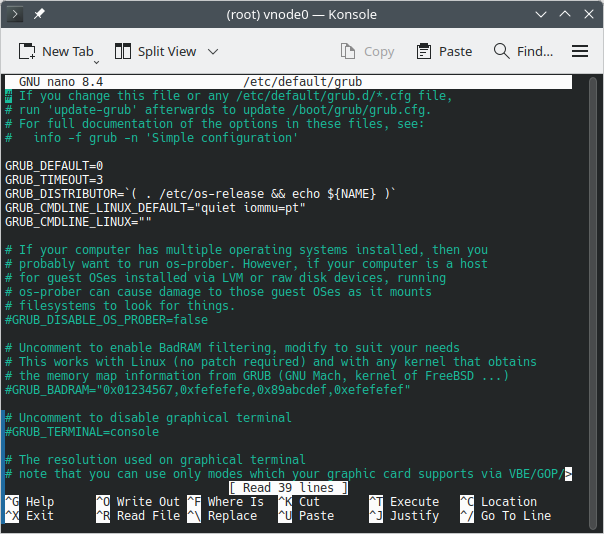
Save the file by typing CTRL+X, typing Y to confirm and then Enter to save.
Then update grub by running:
update-grubLoad VFIO Kernel Modules
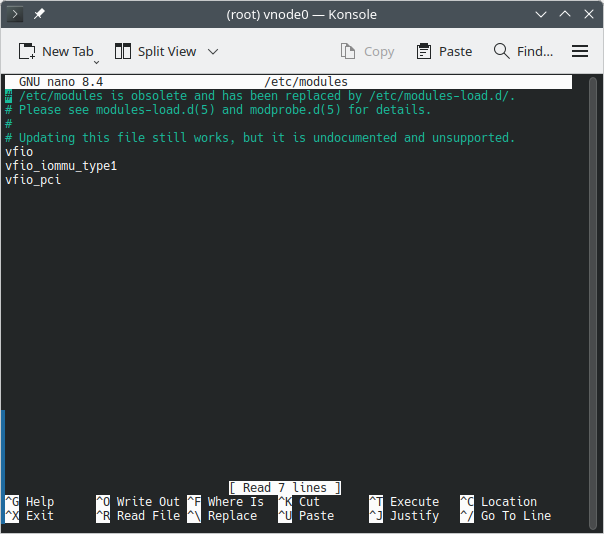
Next, we need to load the VFIO modules so the GPU can be bound for passthrough. Edit the modules file with:
nano /etc/modulesAdd the following lines:
vfio
vfio_iommu_type1
vfio_pci
My file looked like this in the end:
Save and exit, then update initramfs:
update-initramfs -u -k allReboot and Verify
Reboot your Proxmox host and verify the modules are loaded:
lsmod | grep vfioYou should see the vfio modules listed. This is what my output looks like:
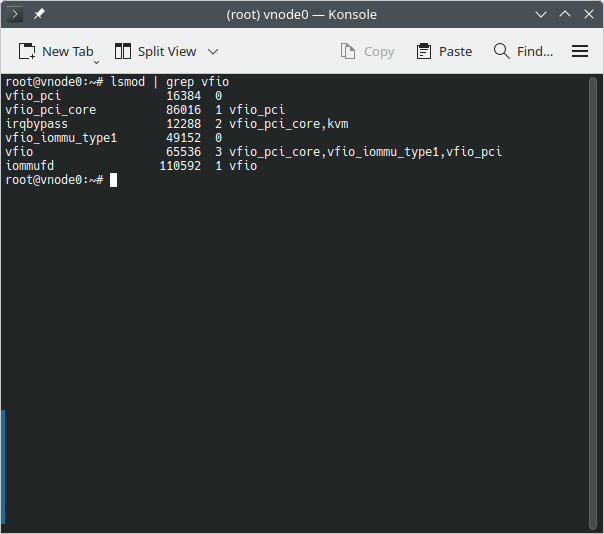
If you don’t get any output, the kernel modules have not loaded correctly and you probably forgot to run the update-initramfs command above.
To double-check IOMMU is active, run:
dmesg | grep -e DMAR -e IOMMU -e AMD-ViDepending on your hardware, you should see confirmation that IOMMU or Directed I/O is enabled:
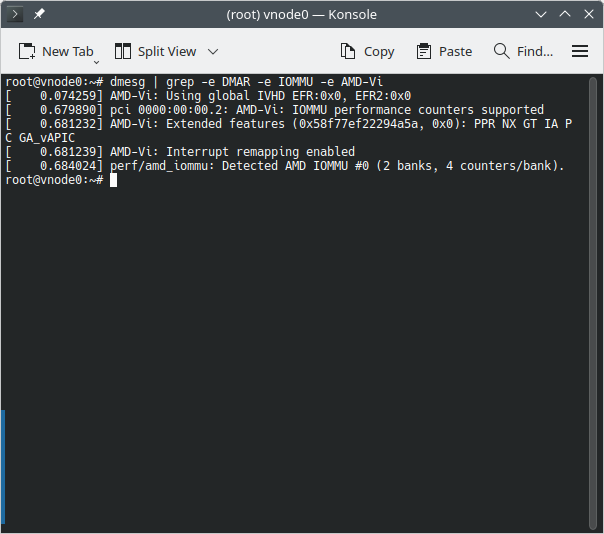
Step 2: Finding the GPU Renderer Device Path
Now that PCI passthrough support is enabled, the next step is to figure out the device path of the renderer for the GPU you want to pass through.
Run the following on your Proxmox host:
ls /dev/driThis will print all the detected GPUs. For example, my output looked like this:
by-path card0 card1 renderD128 renderD129If you only have a single GPU, you can usually assume it will be something like renderD128. But if you have multiple GPUs (as I did), you’ll need to identify which renderer belongs to your Intel Arc card.
First, run:
lspciThis will list all PCI devices. From there, I found my Intel Arc GPU at 0b:00.0:
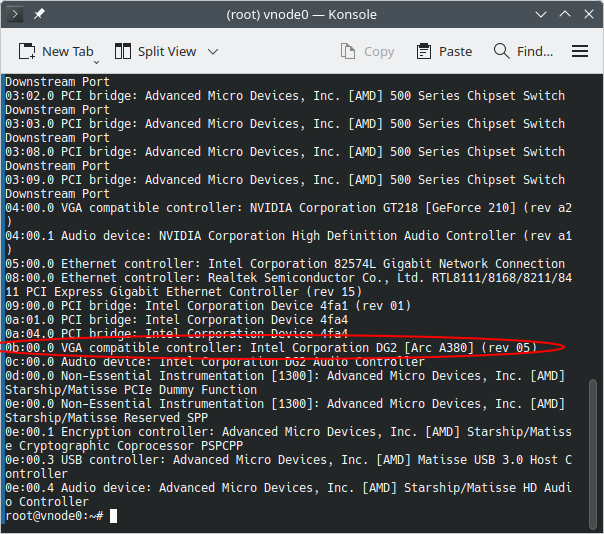
Next, run:
ls -l /dev/dri/by-path/My output looked like this:
lrwxrwxrwx 1 root root  8 Aug 24 11:54 pci-0000:04:00.0-card -> ../card0
lrwxrwxrwx 1 root root 13 Aug 24 11:54 pci-0000:04:00.0-render -> ../renderD129
lrwxrwxrwx 1 root root  8 Aug 24 11:54 pci-0000:0b:00.0-card -> ../card1
lrwxrwxrwx 1 root root 13 Aug 24 11:54 pci-0000:0b:00.0-render -> ../renderD128
From this, I confirmed that my Intel Arc GPU was associated with renderD128. That means the full device path I need to pass to my LXC container is:
/dev/dri/renderD128Step 3: Passthrough GPU Device to the Plex LXC Container
Now that we know the correct device path, we can pass it through to the LXC container.
- Stop the container you want to pass the GPU into.
- In the Proxmox web UI, select your Plex LXC container.
- Go to Resources.
- At the top, click Add → Device Passthrough.
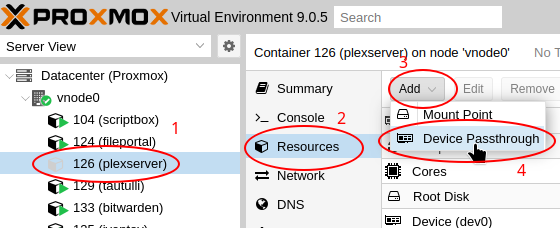
- In the popup, set Device Path to the GPU renderer path you identified in Step 2 (in my case,
/dev/dri/renderD128). - In the Access mode in CT field, type:
0666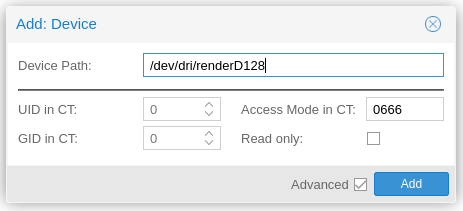
- Click Add.
- Once added, you can start the container again.
A Note About Permissions
Normally, you would configure a proper UID or GID in CT for the render group inside the container so only that group has access. However, in my testing I wasn’t able to get the GPU working correctly with that method.
Using 0666 permissions allows read/write access for everyone. Since this is a GPU device node and not a directory containing files, I’m not too concerned, but it’s worth noting for anyone who takes their Linux permissions very seriously.
Step 4: Installing GPU Drivers Inside the LXC Container
With the GPU device passed through, the container now needs the proper drivers installed. This step varies depending on the Linux distribution you’re running inside the container.
Some distros may already include GPU drivers by default. But if you reach Step 5 and don’t see your GPU as an option in Plex (or Jellyfin), chances are you’re missing the driver inside your container.
In my case, I’m using a Debian container, which does not include Intel Arc drivers by default. Here’s what I did:
- Edit your apt sources to enable the non-free repo:
nano /etc/apt/sources.list - Add
non-freeto the end of each Debian repository line: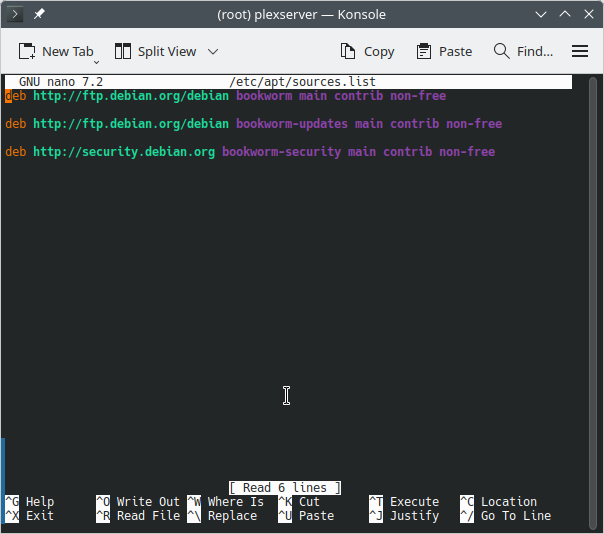
- Refresh apt sources:
apt update - Install the Intel Arc driver package:
apt install intel-media-va-driver-non-free - Restart the container.
For Debian, I followed the official documentation here: Debian Hardware Video Acceleration Wiki.
Note: These steps will vary depending on your GPU make, model and container distribution. Make sure to check the official documentation for your hardware and distro.
Step 5: Enabling Hardware Rendering in Plex
Now that your GPU and drivers are ready, the final step is to enable hardware transcoding inside Plex.
- Open the Plex Web UI.
- Go to Settings (top-right corner).
- In the left sidebar, scroll down and click Transcoder under Settings.
- Make sure the following options are checked:
- Use hardware acceleration when available
- Use hardware-accelerated video encoding
- Under Hardware transcoding device, you should now see your GPU. If not, double-check Step 4. In my case, it showed up as
Intel DG2 [Arc A380] - Select your GPU and click Save Changes.
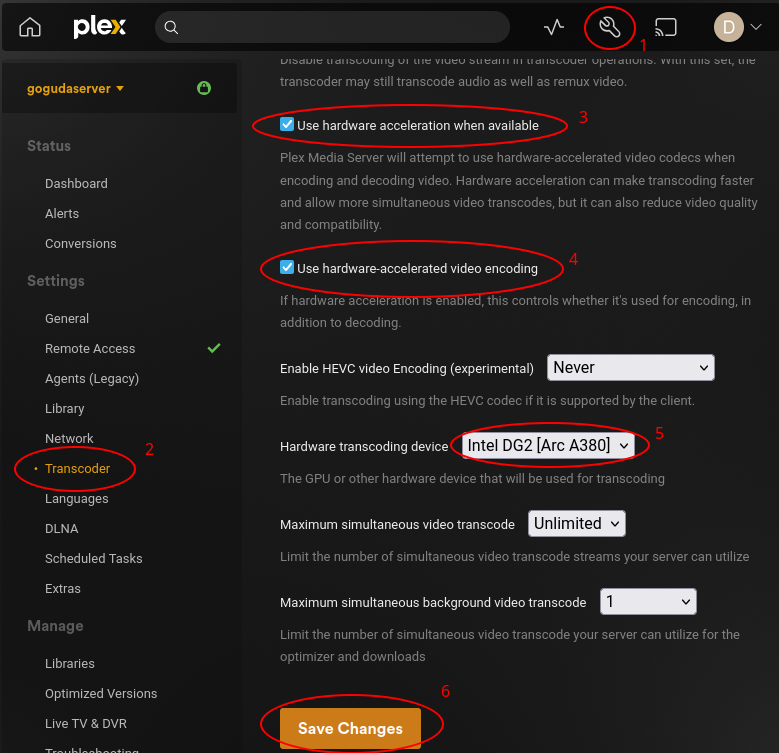
Testing Hardware Transcoding
To verify that hardware transcoding is working:
- Play back any movie or TV show.
- In the playback settings, change the quality to a lower resolution that forces Plex to transcode:
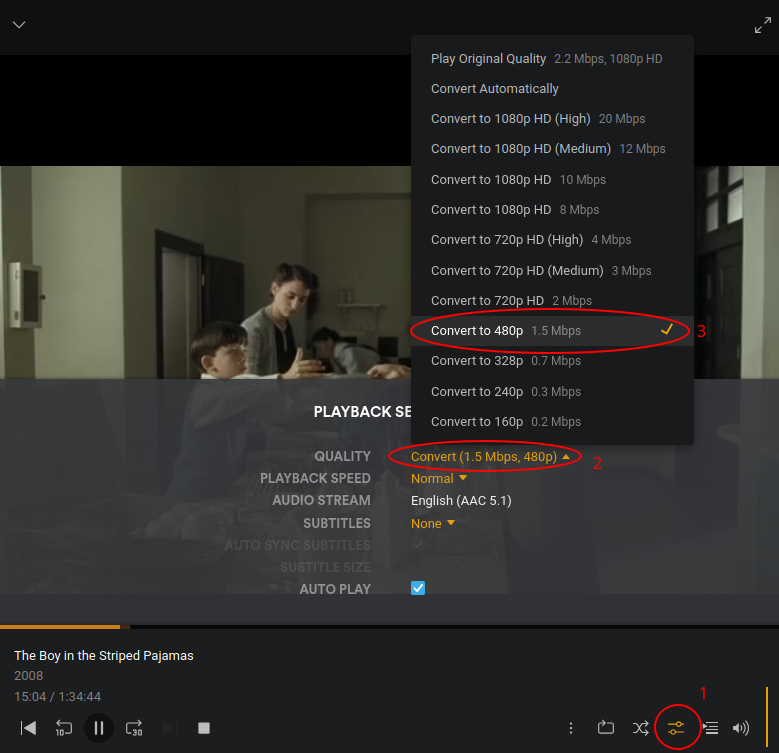
- While it’s playing, go to Settings → Dashboard.
- If the GPU is handling transcoding, you’ll see
(hw)beside the stream being transcoded: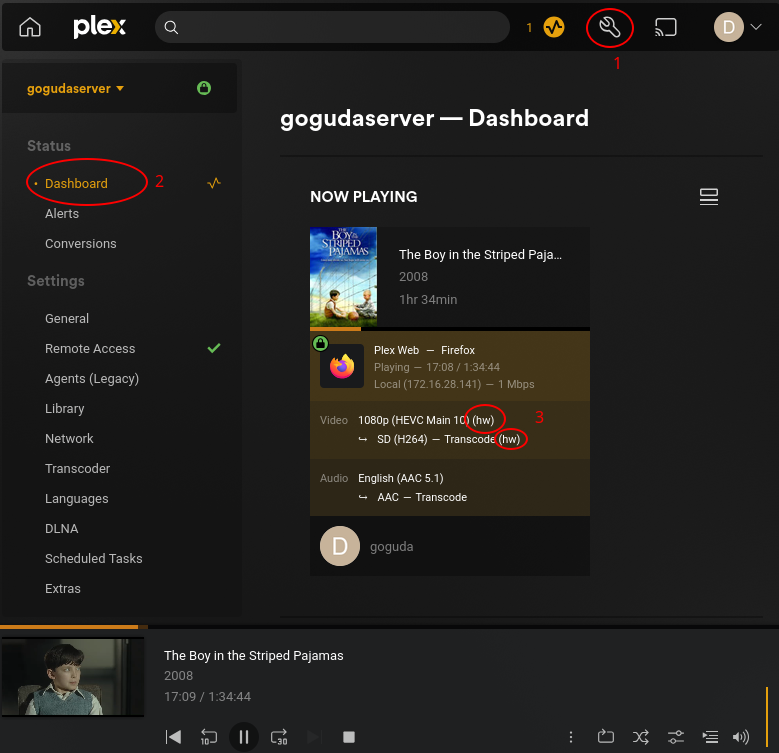
That’s it! You’ve successfully set up GPU passthrough in Proxmox LXC for Plex. These same steps should also work for Jellyfin with minor adjustments for the Jellyfin UI.
The post GPU Passthrough to Proxmox LXC Container for Plex (or Jellyfin) appeared first on TechOpt.
]]>The post Solving Next.js dynamic() Flicker with React.lazy appeared first on TechOpt.
]]>dynamic() function for component-level code splitting, you may have encountered an annoying issue: flickering during rendering of a conditionally-rendered dynamic component. Unfortunately, this is a known issue with the App Router and the dynamic function in Next.js. This behavior can degrade user experience, so solving the Next.js dynamic flicker on your website is crucial.
In this post, I’ll break down:
- Why
next/dynamiccauses flickering - Why it’s worse with nested dynamic components
- When
dynamic()is still safe to use - A practical alternative using
React.lazy()andSuspense - What trade-offs to expect when switching
The Flickering Problem in Next.js
Using dynamic() from next/dynamic is a great way to lazy-load components and reduce your JavaScript bundle size. It also supports options like { ssr: false } to only load components on the client side.
However, when you use these components with the App Router, they often cause a flash of missing or unstyled content, especially during fast navigation or when conditionally rendering dynamic components.
Nested dynamic() calls tend to amplify this issue. For example, a parent component conditionally loading a child via dynamic(), which in turn loads another sub-component dynamically, can make the flickering more severe.
This issue has been reported in GitHub issues and community threads, but a rock-solid fix hasn’t yet made it into the framework.
Interestingly, this flicker seems to affect nested dynamic components more than top-level ones. In my testing, first-level dynamically rendered components used directly in the page file rarely exhibit the issue, which means it’s generally safe to use next/dynamic there to avoid flash of unstyled content (FOUC) during initial mount.
The Better Alternative: React.lazy() + Suspense
One workaround that has proven effective is switching from next/dynamic to native React.lazy() with Suspense. This approach introduces fewer hydration inconsistencies and minimizes flickering, even with nested lazy-loaded components.
Use next/dynamic for components initially rendered on the page, and use React.lazy() for nested components that are rendered conditionally inside those components.
Example 1: Top-level safe usage with next/dynamic
import dynamic from 'next/dynamic';
import { isSignedInAsync } from '../auth';

const PageShell = dynamic(() => import('../components/PageShell'));

export default async function Home() {
  const isSignedIn = await isSignedInAsync();

  if (isSignedIn) return null;

  return <PageShell />;
}
In this example, PageShell is conditionally rendered on the server using dynamic components. This is safe since the dynamic component is rendered with the initial HTML from the server.
Example 2: Nesting with React.lazy() and Suspense
"use client";
import dynamic from 'next/dynamic';

const NestedComponent = dynamic(() => import('./NestedComponent'));

export default function PageShell() {
  const [showNested, setShowNested] = useState(false);

  return (
    <div>
      <h1>Welcome</h1>
      <button onClick={() => setShowNested(true)}>Load Nested Component</button>
      {showNested && (
        <Suspense fallback={<div>Loading nested...</div>}>
          <NestedComponent />
        </Suspense>
      )}
    </div>
  );
}
We can safely use React.lazy() and Suspense inside our dynamically-rendered PageShell component to conditionally render our NestedComponent, and still benefit from lazy-loading and code-splitting.
If we try using the dynamic function instead of React.lazy here, we may get the Next.js dynamic flicker.
Trade-offs of Using React.lazy() Instead of dynamic
While React.lazy() and Suspense often result in smoother rendering, there are two notable downsides:
1. No Server-Side Rendering
Unlike next/dynamic, which lets you disable or enable SSR, React.lazy() only supports client-side rendering. This might hurt SEO if your component needs to be visible to crawlers.
2. Flash of Unstyled Content (FOUC) on Mount
If you do try to use React.lazy() for SSR and use it in the server-rendered HTML, React.lazy() may cause a brief flash of unstyled content because the Next.js bundler doesn’t automatically include the styles for components loaded through React.lazy() in the server-rendered HTML. This limitation can lead to inconsistent rendering.
This is why it’s best to use next/dynamic for components that are visible in the server-rendered HTML, ensuring that styles and structure are present at first paint, while reserving React.lazy() for non-critical or nested components. Using next/dynamic in the initial server-rendered HTML does not seem to cause flickering.
Final Thoughts on Preventing the Next.js Dynamic Flicker
If you’re seeing flickering with next/dynamic and conditional rendering, especially in complex nested layouts, you’re not alone. While the Next.js team continues to evolve App Router, switching to React.lazy() and Suspense where you can may provide a smoother user experience at this time.
To summarize:
- Use
next/dynamicsafely for top-level page components - Use
React.lazy()for nested dynamic imports to reduce flicker
The post Solving Next.js dynamic() Flicker with React.lazy appeared first on TechOpt.
]]>The post Fixing ‘Sequence contains more than one matching element’ Android Build appeared first on TechOpt.
]]>> Task :react-native-device-country:prepareLintJarForPublish
> Task :react-native-device-info:createFullJarRelease
> Task :react-native-device-info:extractProguardFiles
> Task :react-native-device-info:generateReleaseLintModel
> Task :react-native-device-info:prepareLintJarForPublish
> Task :react-native-fbsdk-next:createFullJarRelease
> Task :react-native-fbsdk-next:extractProguardFiles
> Task :app:stripReleaseDebugSymbols
> Task :react-native-fbsdk-next:generateReleaseLintModel
> Task :app:buildReleasePreBundle FAILED
> Task :app:uploadCrashlyticsMappingFileRelease
[Incubating] Problems report is available at: file:///Users/dev/Documents/app/android/build/reports/problems/problems-report.html
FAILURE: Build failed with an exception.
* What went wrong:
Execution failed for task ':app:buildReleasePreBundle'.
> Sequence contains more than one matching element.
* Try:
> Run with --stacktrace option to get the stack trace.
> Run with --info or --debug option to get more log output.
> Run with --scan to get full insights.
> Get more help at https://help.gradle.org.
Deprecated Gradle features were used in this build, making it incompatible with Gradle 9.0.
You can use '--warning-mode all' to show the individual deprecation warnings and determine if they come from your own scripts or plugins.
For more on this, please refer to https://docs.gradle.org/8.14.1/userguide/command_line_interface.html#sec:command_line_warnings in the Gradle documentation.
BUILD FAILED in 1h 6m 21s
1222 actionable tasks: 1208 executed, 14 up-to-date
node:child_process:966
throw err;
^
Error: Command failed: ./gradlew bundleRelease
at genericNodeError (node:internal/errors:984:15)
at wrappedFn (node:internal/errors:538:14)
at checkExecSyncError (node:child_process:891:11)
at Object.execSync (node:child_process:963:15)
at /Users/dev/Documents/app/buildscripts/buildserv/build/build-android.js:8:23
at Object.<anonymous> (/Users/dev/Documents/app/buildscripts/buildserv/build/build-android.js:11:3)
at Module._compile (node:internal/modules/cjs/loader:1529:14)
at Module._extensions..js (node:internal/modules/cjs/loader:1613:10)
at Module.load (node:internal/modules/cjs/loader:1275:32)
at Module._load (node:internal/modules/cjs/loader:1096:12) {
status: 1,
signal: null,
output: [ null, null, null ],
pid: 22055,
stdout: null,
stderr: null
}
Node.js v20.19.3
Cleaning up project directory and file based variables 00:00
ERROR: Job failed: exit status 1If you noticed from the stack trace above, this is a React Native app. I tried deleting my node_modules folder, deleting my build folders, running ./gradlew clean. I would run the build again and again, but nothing worked. The same error kept popping up every time, right near the end of the build.
No amount of –debug or –stacktrace was giving me any sort of additional information. The most information I could get from this error had already been given to me.
ChatGPT and Copilot were no help, suggesting that this is a Kotlin error and most likely resides in a native library I’m using within the app.
But this didn’t make sense, because I was able to build the project on my local system with the latest dependencies just fine. It was only once I sent the build to my GitLab instance, which runs the build on a macOS VM with gitlab-runner, that I started getting this error.
So is the error with the build process, or one of the build tools itself?
Narrowing Down the Cause
After a ton of googling of this error, I finally came across this Google IssueTracker post that pointed me in the right direction. This person describes the exact same issue I’m having.
This person also says that this error started happening after an upgrade to AGP 8.9.0.
Now we’re getting somewhere. It doesn’t look like they’re using React Native, but at this point I was confident the issue isn’t stemming from anything to do with React Native.
AGP is an Android build tool. It’s possible that my macOS VM has a newer version of AGP than my local system does. This would explain why it’s only happening once I send the app to build in the macOS VM.
So, what’s the problem?
Well, it can be traced back to this section here in the app’s build.gradle:
...
splits {
        abi {
            reset()
            enable enableSeparateBuildPerCPUArchitecture
            universalApk false
            include "armeabi-v7a", "x86", "arm64-v8a", "x86_64"
        }
    }
...
This section of the build.gradle file tells gradle to output different APK files for different CPU architectures.
When this part of the build.gradle file is encountered by running the bundleRelease gradle task, the “sequence contains more than one matching element” exception is thrown because bundleRelease expects to be generating a single universal AAB file instead of separate APK files, that can then be uploaded to the Google Play Store.
The Fix
All I did was remove this section from our build.gradle file:
...
splits {
        abi {
            reset()
            enable enableSeparateBuildPerCPUArchitecture
            universalApk false
            include "armeabi-v7a", "x86", "arm64-v8a", "x86_64"
        }
    }
...
And it resolved the issue! We weren’t using the multiple APKs anyways, so I’m not even sure why we had this in our build.gradle file. We only upload the single universal AAB to the Play Store.
Additional Notes
In the issue tracker linked above, Google states that they do not plan on fixing this, since they don’t officially support creating multiple APKs when running bundleRelease. However, if you still need multiple APK support, someone on the issue tracker suggests the following fix:
splits {
        abi {
            // Detect app bundle and conditionally disable split abis
            // This is needed due to a "Sequence contains more than one matching element" error
            // present since AGP 8.9.0, for more info see:
            // https://issuetracker.google.com/issues/402800800

            // AppBundle tasks usually contain "bundle" in their name
            val isBuildingBundle = gradle.startParameter.taskNames.any { it.lowercase().contains("bundle") }

            // Disable split abis when building appBundle
            isEnable = !isBuildingBundle

            reset()
            //noinspection ChromeOsAbiSupport
            include("armeabi-v7a", "arm64-v8a", "x86_64")

            isUniversalApk = true
        }
}
This enables APK splitting while disabling APK splitting for the bundleRelease task, preventing the “sequence contains more than one matching element” error.
The post Fixing ‘Sequence contains more than one matching element’ Android Build appeared first on TechOpt.
]]>The post How to Identify Fake FLAC Files appeared first on TechOpt.
]]>While there’s no foolproof method to detect a fake FLAC, there are some telltale signs based on bitrate and frequency response that can help you spot them. One of my go-to tools for this task is Spek, a free and open-source audio spectrum analyzer.
What Is a Fake FLAC or Fake Lossless Files?
People create fake FLAC files by converting lossy formats—like MP3 or AAC—into lossless containers such as FLAC. Although the file extension and size might suggest high quality, the underlying audio data remains compromised. These files often originate from people who re-encode lossy sources and redistribute them under the guise of high fidelity.
Also note that while FLAC is the most common lossless audio format, other containers such as WAV and ALAC do exist as well. The indicators mentioned in this article for spotting fake lossless audio files are generic and apply regardless of the container format.
Using Spek to Analyze Frequency Spectrum
When you open a file in Spek, it displays the audio spectrum across the entire track. This visual representation reveals how much of the frequency range the file actually contains. A true lossless FLAC will have no abrupt cutoffs in the upper frequencies, whereas fake FLACs often exhibit sharp drop-offs.
Here’s a general guideline for identifying the cutoff frequencies and their corresponding bitrates:
- 11 kHz = 64 kbps
- 16 kHz = 128 kbps
- 19 kHz = 192 kbps
- 20 kHz = 320 kbps
If you notice a sharp cutoff around these frequencies, the file may have been upsampled from a lossy source.

What to Expect from True Lossless FLACs
Depending on the sample rate and bit depth, a legitimate FLAC file should show frequency content extending to the upper limits of the spectrum:
- 44.1 kHz, 16-bit: Should display frequencies up to 22 kHz
- 48 kHz, 16-bit: Should reach up to 24 kHz
- 96 kHz, 24-bit: May extend up to 48 kHz, but a smooth fade to nothing somewhere between 20-30 kHz is normal
- 192 kHz, 24-bit: May extend up to 96 kHz, but a smooth fade to nothing somewhere between 20-30 kHz is normal

You can often spot upsampling when you see a sharp cutoff at 22 kHz. There may also be very faint or random noise in the 22 kHz and up range. This pattern usually means someone took a 44.1 kHz file and padded it to 48 or 96 kHz.

It’s also worth noting that there’s ongoing debate about whether audio content above 20 kHz contributes meaningfully to music. An audio engineer or producer might even intentionally apply a low-pass filter to cut out all frequencies above a certain inaudible range. This will result in a steeper drop-off, even in a genuine lossless file.
Additionally, not all instruments produce frequencies in this high range, so a natural lack of content above 20 kHz doesn’t necessarily indicate the file is fake.
Bitrate as Another Indicator of a Fake FLAC
Another clue is the file’s bitrate. While FLAC is a variable bitrate format, files with noticeably low average bitrates may be suspect. Here are some average bitrate ranges you might expect from real FLAC files:
- 44.1 kHz / 16-bit (CD quality): ~700–1100 kbps
- 48 kHz / 16-bit or 24-bit: ~800–1400 kbps
- 96 kHz / 24-bit: ~2000–3000 kbps (can vary widely depending on the content)
- 192 kHz / 24-bit: ~4000–7000 kbps (can vary widely depending on the content)
If you see a file with a much lower bitrate than expected and frequency cutoffs that match the patterns listed above, the file is almost certainly a fake FLAC.
Trust Your Ears
While visual analysis is helpful, always trust your ears. A song that sounds dull, muffled, or artifacted is likely not true lossless. That said, some minimal or acoustic recordings might not use the entire frequency spectrum and can still be genuine FLACs.
For example, a solo vocal track, acoustic guitar piece, or lo-fi bedroom recording may naturally have limited frequency content, especially in the high end. These types of recordings often focus on midrange clarity rather than full-spectrum detail, so a sparse frequency graph in Spek doesn’t always mean the file is fake.
Final Thoughts
Detecting fake FLAC files takes a combination of tools, knowledge, and critical listening. While Spek and bitrate guidelines provide strong indicators, no method is 100% reliable. Still, by learning to recognize the red flags, you can better curate a truly lossless music library.
The post How to Identify Fake FLAC Files appeared first on TechOpt.
]]>The post How to Run Tails OS in VirtualBox appeared first on TechOpt.
]]>You can test or use Tails OS securely on your computer with this method, and nothing saves after you power off the virtual machine.
Step 1: Download Tails OS ISO
First, download the latest Tails OS ISO file from the official Tails website.

The ISO is found under the Burning Tails on a DVD section. Even though you aren’t burning a DVD, you need to use the ISO file for VirtualBox because VirtualBox boots operating systems from CD/DVD images.
The default Tails OS download on the homepage is a .img file for USB sticks, which supports persistence. However, VirtualBox cannot use persistence and does not support virtual USB drives via .img files, so always choose the ISO.
Step 2: Create a New Virtual Machine for Tails OS in VirtualBox
Open VirtualBox and click on New to create a new virtual machine.
Name and Operating System
Give your VM a name, such as Tails OS.
Select the Tails OS ISO file you downloaded as the ISO Image.
Ensure the following settings are automatically detected, and set them if not:
- Set the type to Linux
- Set the subtype to Debian
- Set the version to Debian (64-bit)
Be sure to check Skip Unattended Installation. This is very important for Tails OS because you want to prevent VirtualBox from creating a default user account or setting a password. Tails OS boots directly into its own secure environment by design.

Hardware
The technical minimum for Tails OS is 2048 MB RAM and 1 CPU core. However, for a smoother experience, I recommend:
- Setting the base memory (RAM) to 4096 MB
- Setting processors to 2 CPU cores or more, if your system allows

Hard Disk
Under the Hard Disk section, select Do Not Add a Virtual Hard Disk.

This setup ensures it’s physically impossible to save anything inside the Tails OS virtual machine. When you stop the VM, you erase everything, keeping your session private and secure.
When you’re happy with your virtual machine settings, click Finish.
Step 3: Boot and Use Tails OS in VirtualBox
Start your virtual machine. Tails OS will boot from the ISO.
Set your language and keyboard layout settings, and click Start Tails.

Tails OS will ask you how you want to connect to the Tor network. If you’re not sure, I suggest choosing Connect to Tor automatically and clicking Connect to Tor.

That’s it! Launch the Tor browser and start browsing the web anonymously from Tails OS.

Now you can use Tails OS in VirtualBox safely, knowing that all your activities are wiped when you shut down the VM!
Remarks
- Nothing will be saved when you shut down the virtual machine. Tails OS booted from the ISO does not support persistence. If you need persistence (the ability to save files or settings between sessions), you should use the default USB installation method instead.
- Do not install VirtualBox Guest Additions. Guest Additions can expose parts of your host system to the virtual machine, which goes against Tails OS’s privacy goals. Besides, when you power off the VM, it will wipe Guest Additions anyway.
- Keep the ISO file. Do not delete the ISO file you downloaded, because your virtual machine will need it every time it boots Tails OS.
- Use open-source virtualization software. Tails OS recommends using open-source virtualization tools like VirtualBox or KVM to run Tails OS because their transparency and auditability align with Tails OS’s privacy philosophy. Proprietary alternatives (such as VMware) are not as easily audited for privacy.
- The Tails OS documentation advises against using VirtualBox because it gets stuck at 800×600 resolution. I’ve found this advice seems outdated. You can set a variety of screen resolutions from the Tails OS display settings menu by right-clicking the desktop. VirtualBox runs Tails OS very well and is a much easier open-source alternative to KVM.
If you prefer a video guide, you can follow along with the video below:
The post How to Run Tails OS in VirtualBox appeared first on TechOpt.
]]>The post Local Account Creation During Windows 11 Setup appeared first on TechOpt.
]]>There are benefits to using a Microsoft account with your PC, but you might still want to use a local account. Some people prefer using a local account for administrative or privacy reasons. Also, you can always sign-in to a Microsoft account at a later time.
You can still create a local account during initial setup, but it’s harder than before. Here are the steps for skipping Microsoft account login and creating a local account in newer versions of the Windows 11 Home out-of-box setup experience.
1. Proceed Through Initial Setup Until the Microsoft Account Screen
Proceed through the initial setup steps by configuring the options and clicking Next. You’ll eventually wind up at the Microsoft account screen.
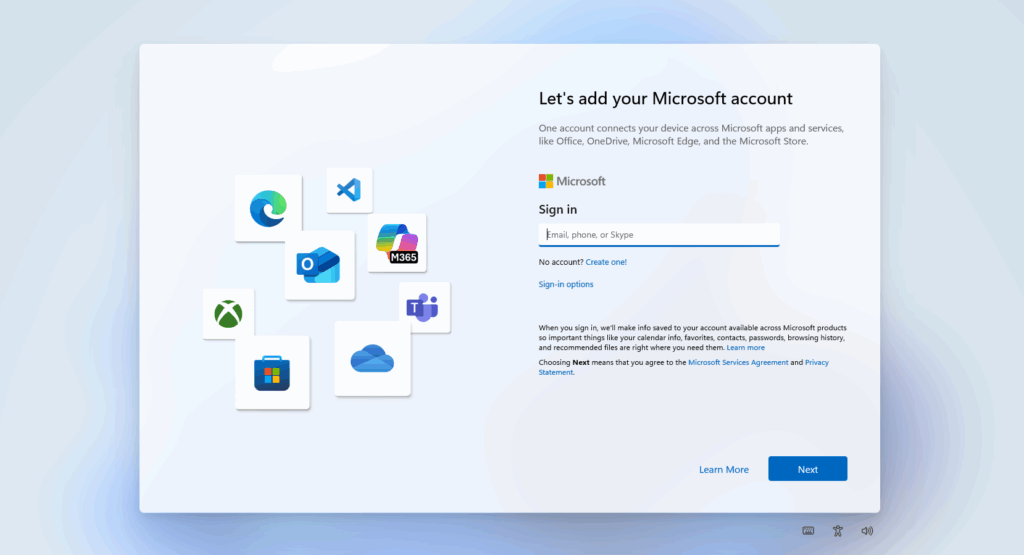
2. Open Command Prompt from Setup with SHIFT+F10
Once you’re in the initial setup wizard shown above, press SHIFT+F10 on your keyboard. This will open a command prompt window.
3. Type start ms-cxh:localonly and Hit Enter
Click inside of the command prompt window and type start ms-cxh:localonly.
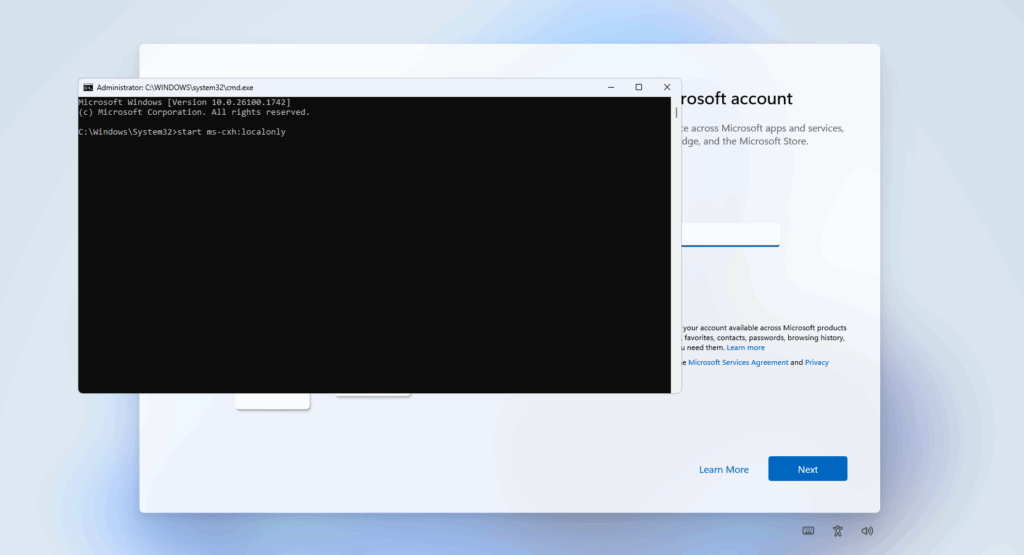
Hit Enter.
4. Create a Local Account
A new screen will open to create a local account. Type a username, password and choose your security questions.
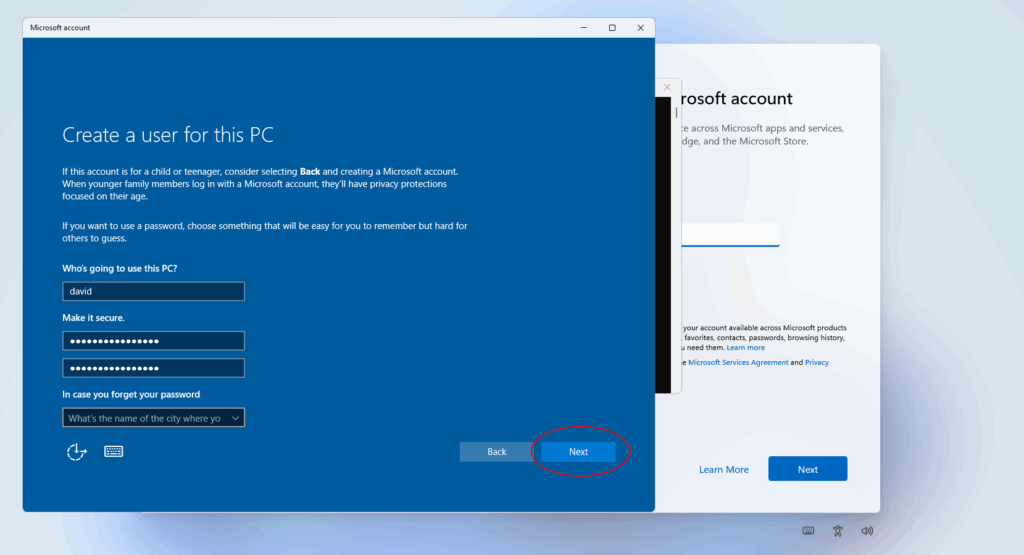
When you’re done, simply click Next to proceed to the desktop as you normally would!
Remarks
- Although you can technically run this command at the beginning of setup, it’s best to get to the Microsoft account screen first to easily configure your system’s region, keyboard settings and network.
- As of right now, you can still create a local account on Windows 11 Pro and Enterprise versions from the setup wizard.
- My opinion is that this clearly shows the direction Microsoft is taking with its consumer line of products. They want us to be reliant on their cloud as much as possible!
Update 05/08/2025: The command previously suggested in this article, oobe\bypassnro, has been disabled by Microsoft as of Windows 11 build 26100. Only the start ms-cxh:localonly command should be used going forward.
If you prefer a video to follow along, you can watch the tutorial on my YouTube channel down below:
The post Local Account Creation During Windows 11 Setup appeared first on TechOpt.
]]>