

If you are ready to take your first steps into the realm of web development, then there cannot be a better way other than writing a ‘JavaScript Hello World’ program as shown below.
Table of Content
This article will walk you through the process of building the classic “Hello World!” in JavaScript program.
So, let’s see different ways to write a —”Hello World” program in Javascript:-
- Display the ‘Hello World’ program through the browser console
- Show the “hello world” inside the alert popup box.
- Display the “hello world” within the HTML DOM element.
Before we get started let’s set up our workspace for JavaScript.
Setting Up Your Environment
You only need a text editor and a web browser to begin. Open your preferred text editor—whether it’s Visual Studio Code, Sublime Text, or another—and create a new file. Give it a name like helloWorld.html to indicate it’s an HTML file.
Start writing your code according to the structure you need, whether it is embedded in JavaScript or an external file.
In this example, we will use embedded JavaScript code within HTML.
<!-- helloWorld.html -->
<!DOCTYPE html>
<html>
  <head>

      <title>Hello World Program</title>

  </head>
  <body>

      <h1>Welcome to JavaScript Hello World program</h1>

      <!-- The embedded JavaScript code would be here -->
      <script type="text/javascript">
        // => Your JavaScript Here
      </script>

  </body>
</html>
According to the above HTML structure, we will write our JavaScript code inside the <script> tag.
Running JavaScript in the Browser: Print “Hello World” in Browser Console
In this program, we will use the console.log function to print the text in the browser console.
Here is the code of JS.
<!-- helloWorld.html -->
<!DOCTYPE html>
<html>
  <head>

      <title>Hello World Program</title>

  </head>
  <body>

      <h1>Welcome to JavaScript Hello World program</h1>

      <!-- The embedded JavaScript code would be here -->
      <script type="text/javascript">
        console.log('Hello, World!');
      </script>

  </body>
</html>
Now, let’s open the browser console by doing the following steps:-
- Right-click on the web page.
- Select the “inspect” object from the menu.
- Navigate to the “Console” tab.
- The output of this program should be printed in the browser console like in the below image.
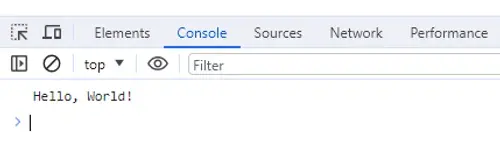
We can also display the same output using JavaScript’s built-in alert function. This is done through a pop-up box that appears on the webpage during actions.
So, let’s see how can we do that in the following section.
Displaying the Message Using the Alert Function in JavaScript
Basically, JavaScript provides us with a simple notification or message to the user while exploring the browser—It is aleret().
Here is an example of its syntax.
alert('Hello, World!');Let’s see what happens if we add this line of code to our webpage.
<!-- helloWorld.html -->
<!DOCTYPE html>
<html>
  <head>

      <title>Hello World Program</title>

  </head>
  <body>

      <h1>Welcome to JavaScript Hello World program</h1>

      <!-- The embedded JavaScript code would be here -->
      <script type="text/javascript">
        alert('Hello, World!');
      </script>

  </body>
</html>
So, when the webpage is loaded the JavaScript will trigger a pop-up on the browser containing a message of — “Hello, World” as a dialog box.
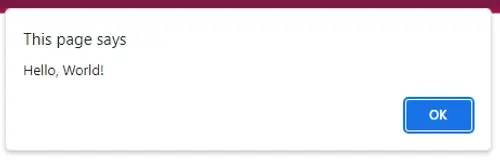
Additionally, there is another way to show — the “Hello, World” text on the webpage using the document.write. Let’s move on to the following part to understand how can we do that.
Using document.write to Print — the “Hello World” in JavaScript
Actually, document.write is a built-in method in JavaScript that allows us to write content directly to the webpage.
This function is executed when the browser starts parsing the HTML. Here is an example.
<script type="text/javascript">
    document.write('Hello, World!');
</script>
Similar Reads
You will learn what the JavaScript valueOf function does and how it works. It returns the primitive value of an…
JavaScript Objects hold values as key and value pairs, and they help you store and access data. Understand the JavaScript…
Math.sin() in JavaScript gives the sine of a number. This number must be in radians. You use it to work…
You have to organize your JavaScript code structure. A clean layout helps you read and fix your code. Whether you…
The this keyword links code, context, and object reference in JavaScript. You can use it to refer to the owner…
JavaScript works with different kinds of values. Each value has a type, known as a data type. These types help…
The ternary operator in JavaScript keeps your code short. It helps you write conditions inside one line. JavaScript lets you…
JavaScript gives you several ways to round numbers, but not all of them round the same way. If you want…
The toSpliced function creates a new array without changing the original array in JavaScript. It returns a copy with new…
The for...of loop appeared to solve the problem of complex loops over arrays and strings. It gives you a way…


