
Описание
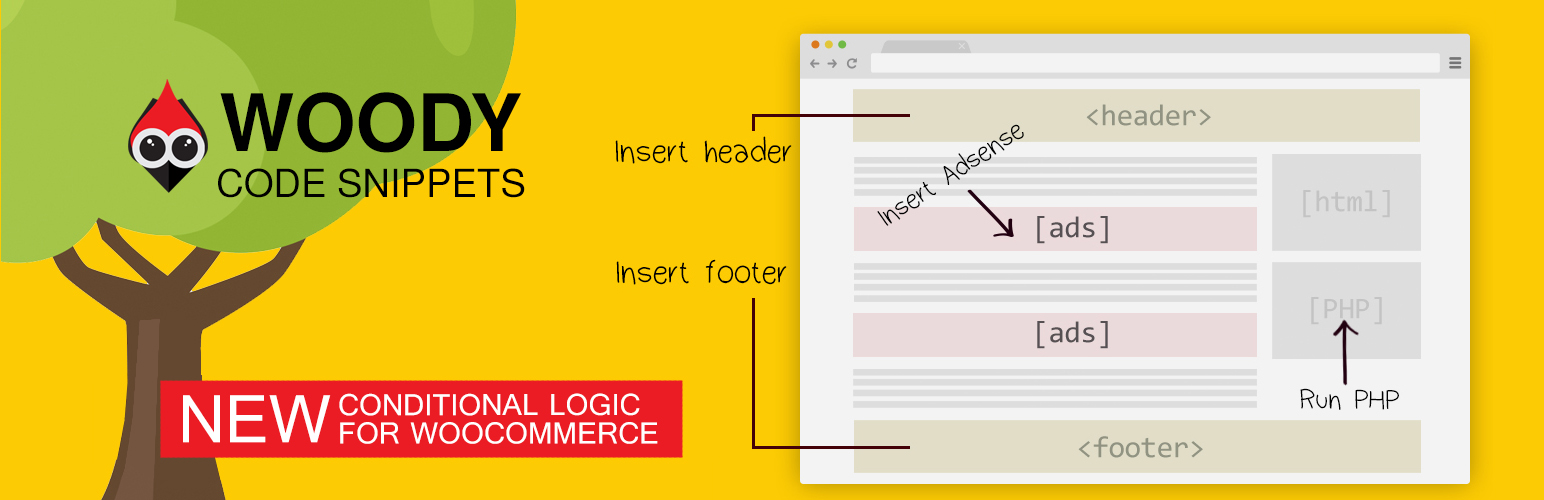
Woody Code Snippets is a WordPress plugin that helps you insert code into your site without editing theme files.
Many WordPress users still add PHP, JavaScript, CSS, tracking pixels, or ad scripts directly into functions.php, header.php, or footer.php. This approach breaks easily when themes update and becomes hard to manage as your site grows.
Woody solves this by giving you a centralized code snippet manager where you can safely add header scripts, footer scripts, PHP snippets, custom CSS, JavaScript, and HTML from the WordPress admin.
You can use Woody as a header and footer code manager, a PHP snippet plugin, or a way to reuse content and scripts across your site using shortcodes or automatic insertion.
Each snippet can be enabled or disabled instantly, placed in specific locations like before content or after paragraphs, and shown only when certain conditions are met.
Quick Links
📘 Documentation – Complete setup and configuration guide
💬 Support Forum – Community help and expert support
⭐ Go Pro – Unlock advanced features and priority support
What Problems Does Woody Solve?
Woody is built for real WordPress workflows. It helps you:
- Insert code into headers and footers without editing theme files
- Add analytics scripts, tracking pixels, and ad code safely
- Manage PHP snippets without touching functions.php
- Reuse scripts and content across pages using shortcodes
- Control where code runs using placement rules and conditions
- Enable, disable, or roll back snippets without breaking your site
Whether you are building client sites, running marketing experiments, or maintaining your own project, Woody gives you control without unnecessary complexity.
How It Works
Woody lets you create code snippets and control where and when they run, all from the WordPress admin.
Example #1
Create a JavaScript snippet and add your analytics or tracking code.
Place it in the site header and add a condition to exclude administrators so your own visits are not tracked.
Example #2
Create a text snippet with reusable content or a shortcode.
Add conditions to show it only to logged-in users, then insert it anywhere using the snippet shortcode or automatic placement rules.
This makes it easy to manage repeated logic and content without editing theme files.
Who Should Use Woody Code Snippets
Woody is designed for:
- Developers who want a structured way to manage custom code
- Marketers adding analytics, ads, and tracking scripts
- Solopreneurs who want flexibility without editing theme files
- Agencies managing multiple sites and shared snippets
If you regularly need to insert code into WordPress, Woody fits naturally into your workflow.
Supported Snippet Types
Woody supports multiple snippet types, so you can manage all custom code in one place. You can create:
- PHP snippets for functions, hooks, classes, and global variables
- JavaScript snippets for analytics, integrations, and interactive features
- CSS snippets to add custom styles without editing theme files
- HTML snippets for markup and layout elements
- Text snippets using the WordPress editor for reusable content
- Ad snippets for ads and banners
- Universal snippets that combine PHP, HTML, CSS, and JavaScript
Why do you need this plugin?
- Insert Google AdSense Ads, Amazon Native Shopping Contextual Ads, Yandex Direct Ads, Media.net on your website.
- Insert Google Analytic Tracking code, Yandex Metrika Tracking Code, Yandex Counter to Header, Footer.
- Insert PHP Code Snippets and execute on your website. Register PHP functions, classes, global variables everywhere.
- Insert Social media widgets, add any external resources widgets.
- Insert Facebook Pixels, Facebook Scripts, Facebook og:image Tag, Google Conversion Pixels, Vk Pixels.
Header and Footer Code Management
Woody works as a full header and footer code manager.
You can insert snippets:
– Into the site header before the closing tag
– Into the site footer before the closing tag
Common examples include analytics scripts, tracking pixels, verification tags, and global JavaScript or CSS.
Advanced Placement Options
Beyond headers and footers, Woody lets you insert snippets into specific locations.
You can place code:
- Before or after post or page content
- Before or after a specific paragraph
- Before or after a post
- Inside archives, categories, and taxonomy pages
- Between posts on archive pages
WooCommerce Pages
Woody supports automatic snippet placement on WooCommerce pages.
You can insert snippets:
- Before or after the product list
- Before or after a single product
- Before or after the single product summary
- After the product title, price, or excerpt
Common use cases include conversion tracking, promotional banners, custom JavaScript, and trust notices.
Shortcodes and Reusable Content
Woody supports shortcodes so you can insert snippets exactly where you need them. You can place snippets inside posts, pages, widgets, and page builders.
With Pro, you can define custom shortcode names that are readable and portable across sites.
Conditional Logic for Code Snippets
Woody allows you to control when a snippet is displayed.
[FREE] Available in the free version:
– User role and registration date
– Page, post type, or taxonomy
– Referrer or cookie value
[PRO] Advanced conditions available in Pro:
– Device type, browser, and operating system
– JavaScript availability or ad blocker detection
– User country, visit depth, time of day, and total visits
Conditions can be combined using AND and OR logic.
Unlock advanced conditions with Woody Pro.
Snippet Management and Organization
Woody includes features to keep snippets organized and easy to manage.
You can:
– Enable or disable snippets instantly
– Control execution order using priorities
– Tag and clone snippets
– Import and export snippets between sites
Code Revisions and Rollback [PRO]
With Pro, Woody automatically saves snippet revisions. You can view previous versions, compare changes, and restore earlier revisions if something goes wrong.
This adds an extra layer of safety when working with custom code.
Cloud Templates and Sync [PRO]
Woody Pro includes cloud-based snippet templates.
You can save snippets as templates and reuse them across multiple sites, which is especially useful for agencies and developers managing repeated setups.
Settings and Developer Options
Woody includes advanced settings for fine-grained control.
You can:
- Preserve HTML entities without automatic conversion
- Execute shortcodes inside snippets
- Enable error email notifications
- Automatically activate snippets on save
- Fully remove plugin data on uninstall
Code Editor
The built-in editor includes:
– Syntax highlighting and line numbers
– Configurable indentation and tab size
– Optional line wrapping
– Automatic bracket and quote closing
– Highlighting of matching variables and functions
Use This Plugin Responsibly
Woody allows you to run custom PHP, JavaScript, and CSS on your site. Always make sure you understand the code you add. Using unverified or outdated scripts may affect site security or stability. On multisite installations, only trusted administrators should have access to snippet creation.
Woody includes safeguards such as snippet disabling, revisions, and error notifications, but it cannot validate third-party code you choose to run.
Support
Need help? Open a new thread in the WordPress support forum, and we will be happy to assist.
Documentation
Learn how to make the most of Woody with our detailed and user-friendly documentation.
Woody is backed by Themeisle, trusted by over 1 million WordPress users worldwide.
Снимки на разширението
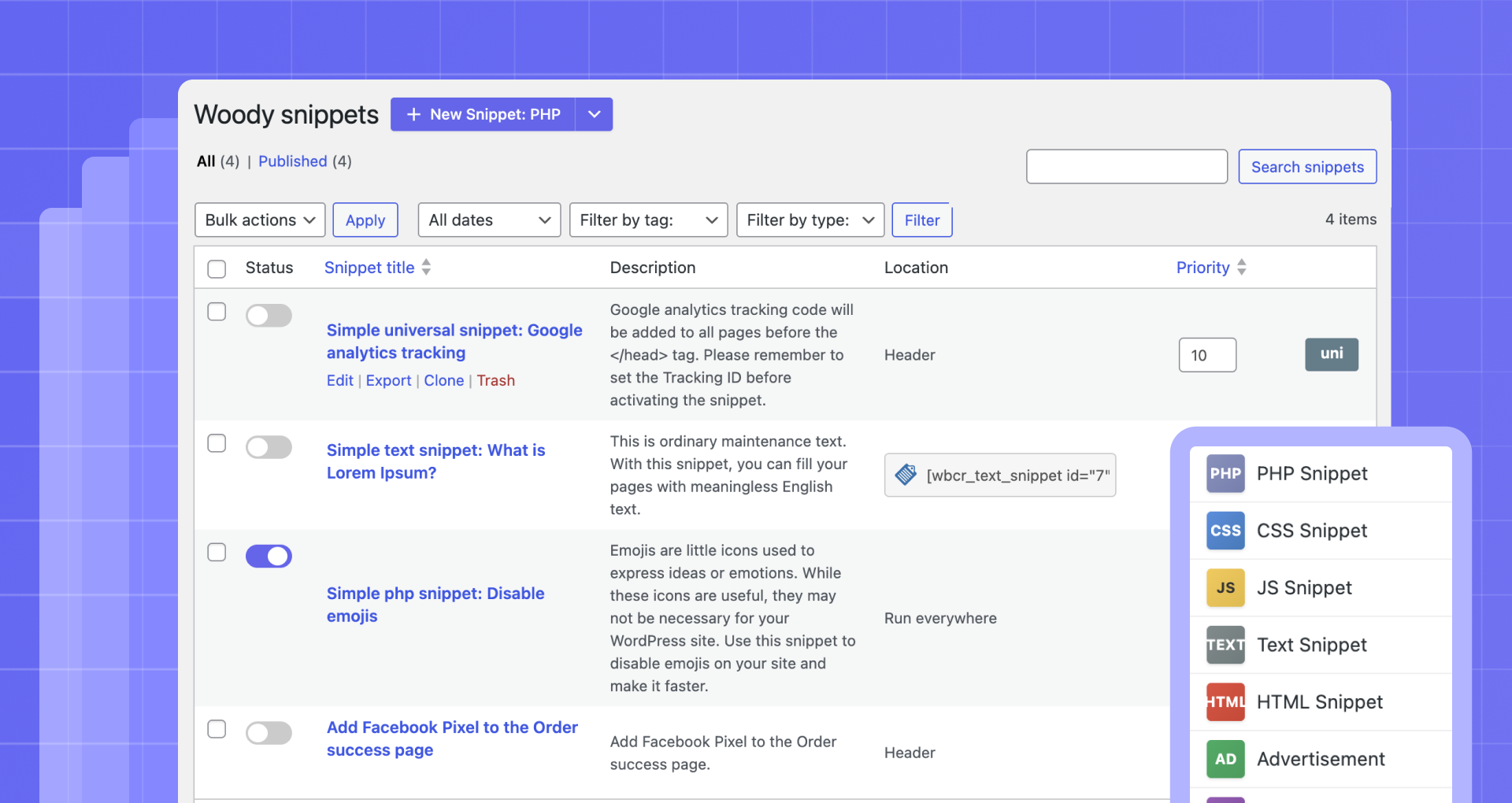
Manage all snippets from one dashboard 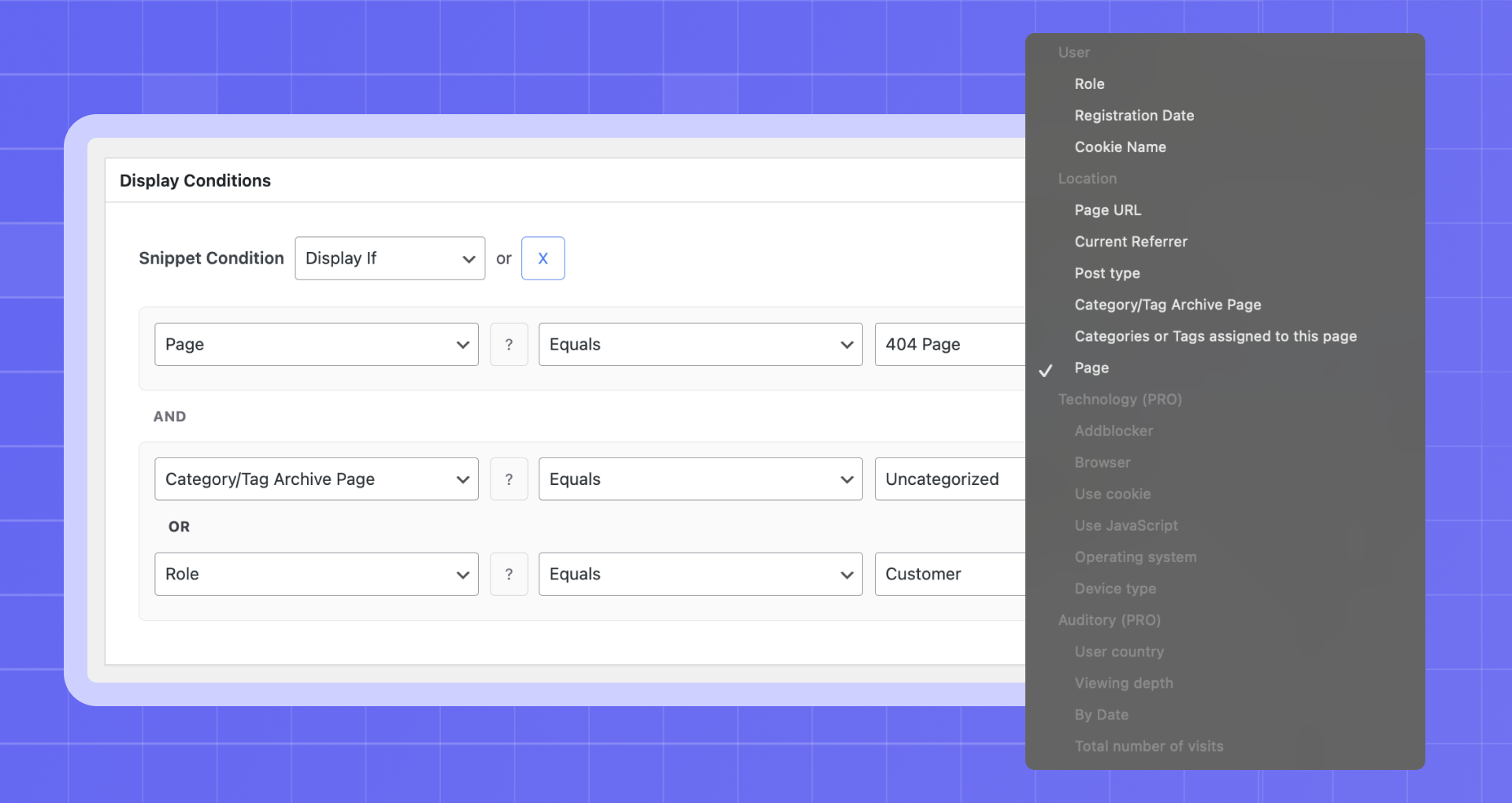
Set conditions to control when snippets load 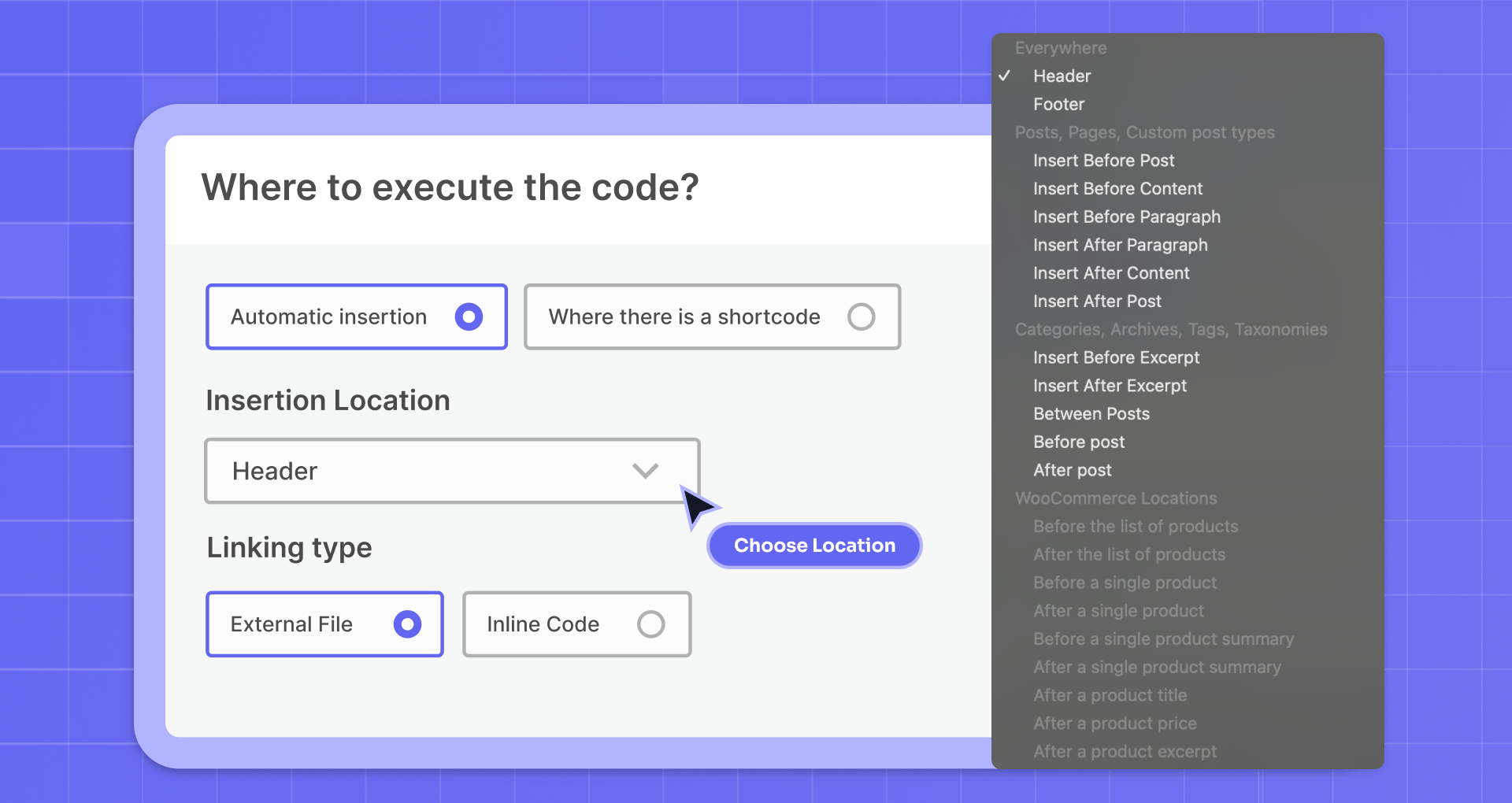
Choose the exact location where the code runs 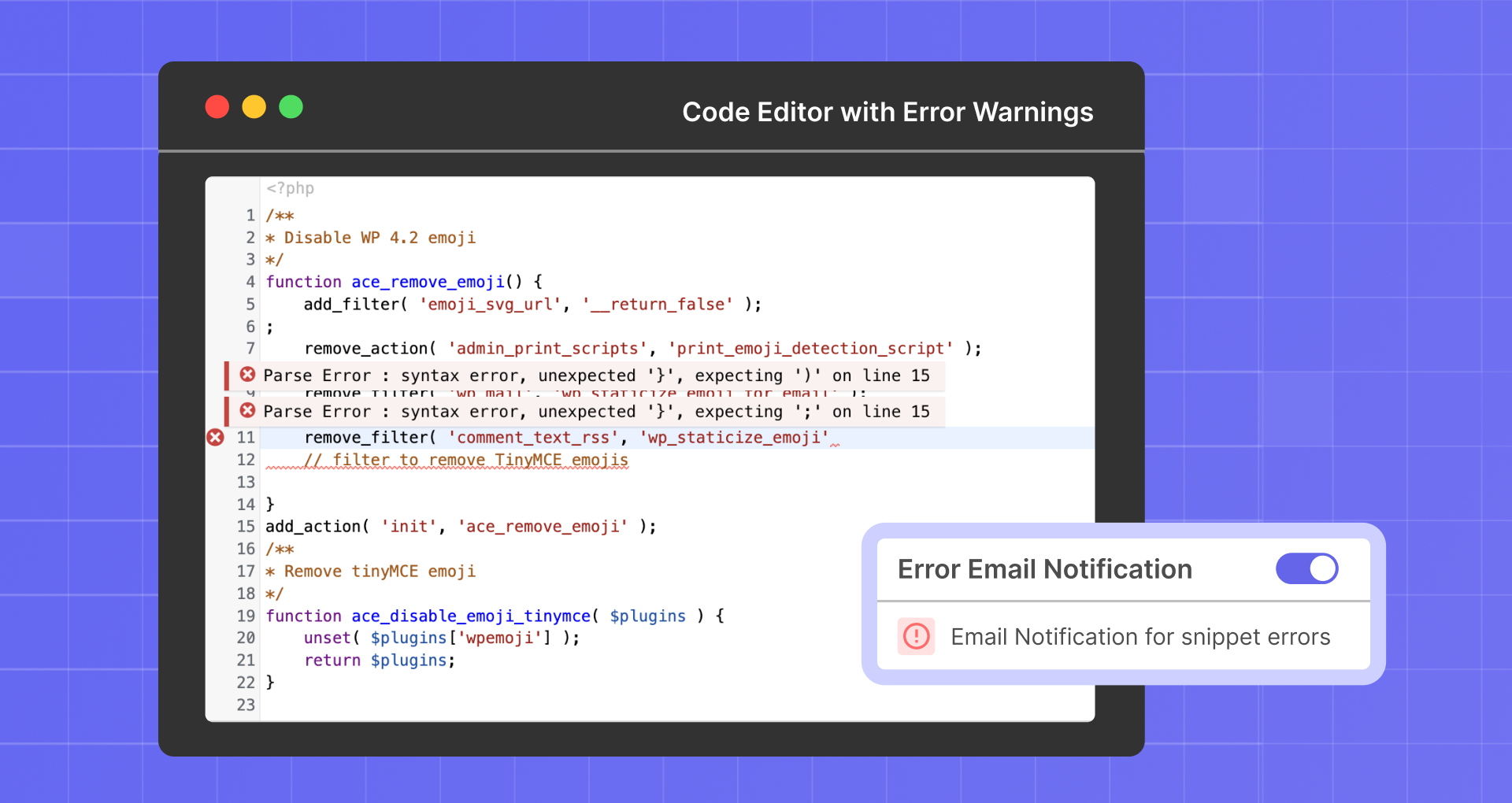
Catch code errors before they affect your site 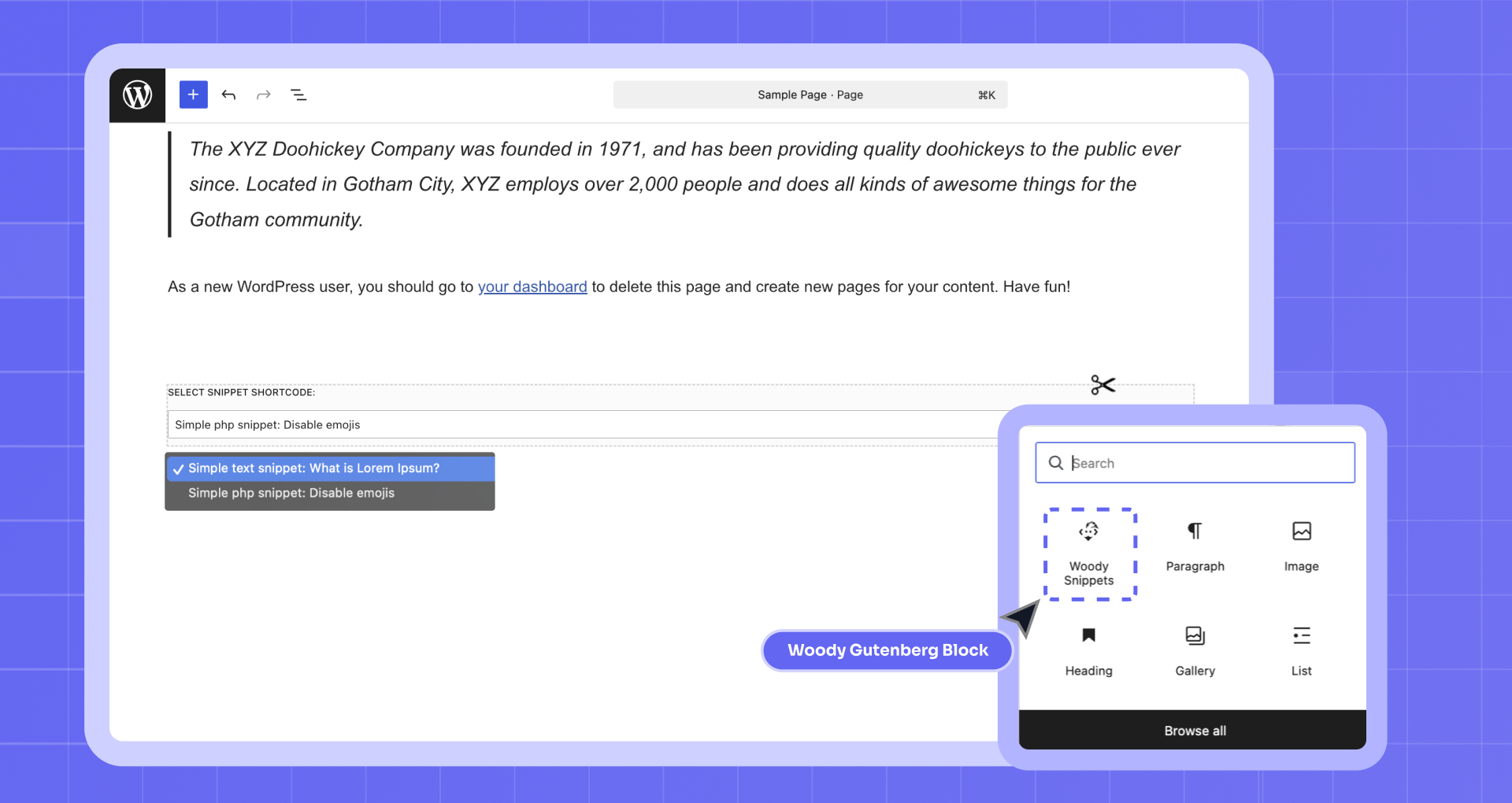
Insert snippets directly inside the editor 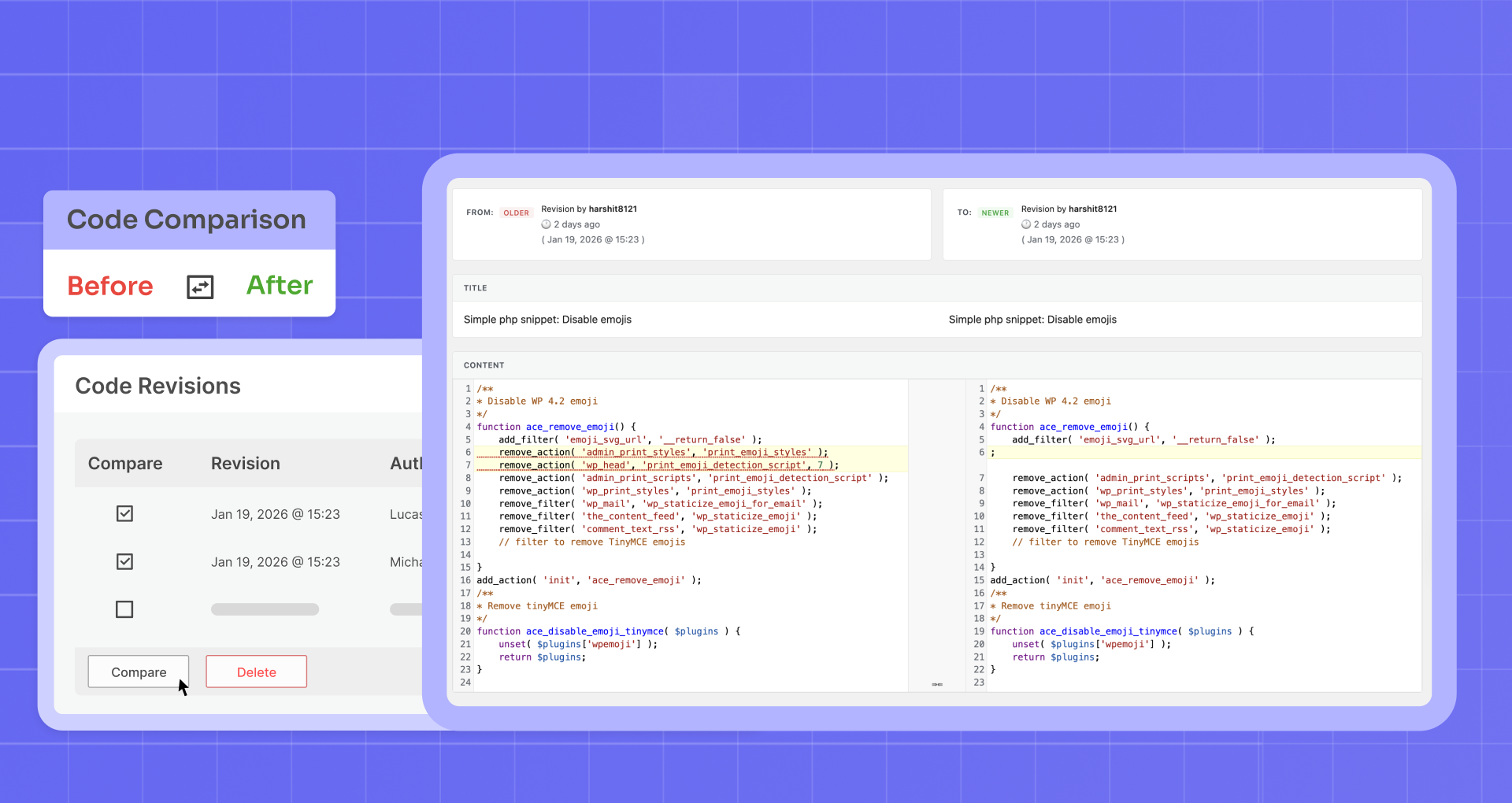
Compare changes and restore previous versions 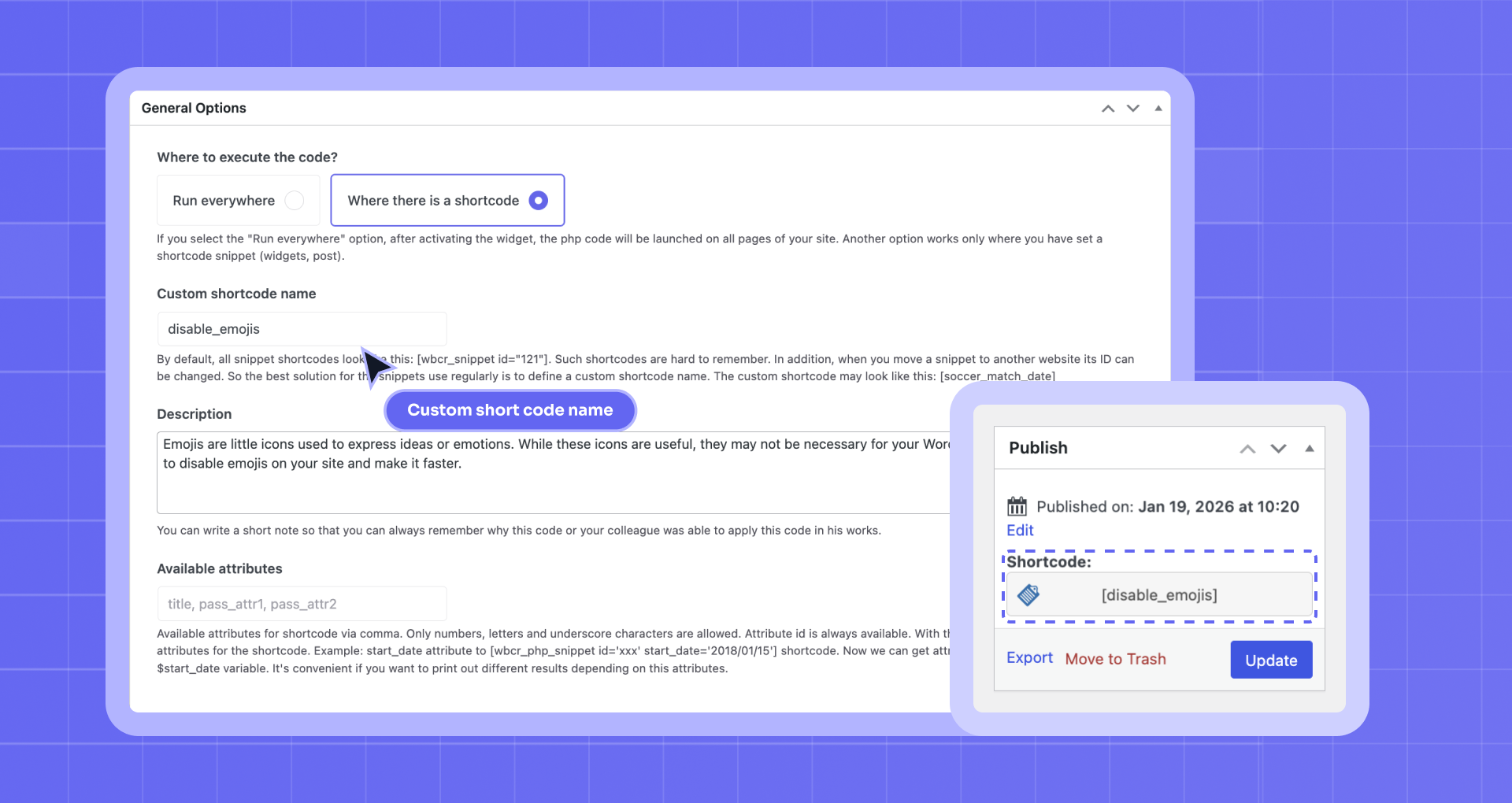
Use custom shortcode names for reusing snippets


Blocks
This plugin provides 1 block.
- Woody Snippets Executes PHP code, uses conditional logic to insert ads, text, media content and external service's code. Ensures no content duplication.
Инсталиране
- Upload the plugin files to the
/wp-content/plugins/plugin-namedirectory, or install the plugin through the WordPress plugins screen directly. - Activate the plugin through the ‘Plugins’ screen in WordPress
- Use the PHP Snippets -> Add snippet, to create a new snippet
ЧЗВ
-
How to pass attributes to a snippet using a shortcode?
-
Add a new attribute “simple” to the shortcode [wbcr_php_snippet id=”xx” simple=”example”].
The attribute “simple” is available in the snippet as the $simple variable. The attribute name can contain Latin letters and lowercase digits. You can also use underscore. -
The snippet code executed with an error and I cannot change it, what should I do?
-
Don’t worry. Mistakes can happen, even with experienced users. Woody includes a Safe Mode that temporarily disables snippet execution so you can fix the issue.
- Go to the safe mode by this link: http://your-site-name.dev/wp-admin/?wbcr-php-snippets-safe-mode
- Edit the snippet in which you made a mistake;
- Leave safe mode by clicking the link: http://your-site-name.dev/wp-admin/?wbcr-php-snippets-disable-safe-mode
Great, now you should not have any issues!
-
How to pass page content to a snippet?
-
Pretty often we’d like to hide a part of a text or a form on particular pages and set up display conditions. You need to wrap the content you’d like to pass to a snippet with shortcodes [wbcr_php_snippet id=”xx” simple=”example”]page content[/wbcr_php_snippet]. Page content in a snippet is located in the $content variable.
-
Does plugin support Gutenberg editor?
-
Yes, it does. You can add there special blocks from our plugin.
-
I used the old plugin Insert php 1.3.0. What should I expect in 2.x.x version?
-
The old version of Insert php 1.3.0 worked this way: you wrapped PHP code with shortcodes [insert_php]php code[/insert_php]. Starting from version 2.x.x and higher, you need to create special snippets to place PHP code. Use a snippet shortcode [wbcr_php_snippetid=”xx”] instead of shortcodes [insert_php][/insert_php] to execute PHP code on pages.
We recommend you to move all your code from the post editor to snippets.
Important! TinyMCE converts double quotes to special characters. So if you place this code on the snippet editor, it may not work. To avoid this problem, replace all special symbols of double quotes in your PHP code with classic double quotes. -
Is there any plugin documentation?
-
You can find the detailed documentation in here.
-
Is plugin compatible with GDPR?
-
Yes, the plugin is fully compatible with GDPR.
-
Can the plugin be completely uninstalled?
-
Go to the settings page and enable the „Complete uninstall“ option. Than, when you delete Woody Code Snippets using the ‘Plugins’ menu in WordPress it will clean up the database table and a few other bits of data. Be careful not to remove Woody Code Snippets by deleting it from the Plugins menu unless you want this to happen.
-
How to remove plugin via ftp client?
-
You have to delete the folder with the plugin, which is located here: wp-content/plugins/insert-php
This will not clear the plugin data from the database. You have to remove the plugin through the admin panel with the „Full Uninstall“ option enabled in order to completely clear the plugin data. -
Will I lose my snippets if I change the theme or upgrade WordPress?
-
No, the snippets are stored in the WordPress database and are independent of the theme and unaffected by WordPress upgrades.
-
Does plugin work with multisite?
-
The plugin doesn’t support multi-sites setup.
Отзиви


Сътрудници и разработчици
“Woody Code Snippets – Insert PHP, CSS, JS, and Header/Footer Scripts” е софтуер с отворен код. Към разширението са допринесли следните хора:
Сътрудници
“Woody Code Snippets – Insert PHP, CSS, JS, and Header/Footer Scripts” е преведено на 3 езика. Благодарности на преводачите за техния принос.
Превеждане на “Woody Code Snippets – Insert PHP, CSS, JS, and Header/Footer Scripts” на вашия език.
Имате интерес към разработване?
Преглеждане на кода, разглеждане на SVN хранилище, или абонамент към програмната история (log) чрез RSS.
Списък с промени
Version 2.7.1 (2026-01-21)
- Added a compatibility check for the Woody Pro version during activation to prevent fatal errors.
Version 2.7.0 (2026-01-19)
New Features
- Export and clone functionality now available in free version
- Active snippets menu item for better snippet management
- New feature to receive emails during fatal error caused by snippets
- New Improved Plugin UI.
- Non-premium snippets can now be accessed via API
- Use IPHub as Geolocation Tool. [PRO]
Enhancements
- Improved PHP code validation before saving
- Better Location terminology for improved clarity
- Added save hotkey support
- Enhanced snippet labels in library for easier identification
- Improved Add Snippet button UI for better user experience
- Updated license management system (SDK-based approach)
Bug Fixes
- Fixed translation and deprecation errors
- Fixed safe mode functionality
- Fixed location number field not appearing with certain conditions
- Fixed inactive snippets not being exported
- Fixed RTL (right-to-left) issues in toggle controls
- Fixed sync modal not appearing for advert type snippets
- Fixed license message display issues
- Fixed critical error with export logs tool permission checking
- Fixed trashing posts from removing associated metadata
Version 2.6.1 (2025-10-21)
- fix error with missing asset files
Version 2.6.0 (2025-10-20)
Woody Snippets plugin has been acquired by Themeisle 🎉
We’re happy to announce that Themeisle is now the new owner of Woody Snippets. This acquisition will help ensure the plugin’s continued development, better support, and exciting new updates in the future.
Your existing setup will continue to work as usual — no action is required on your part.
2.5.1
- Fixed: [insert_php] shortcodes are no longer supported due to the security risk to your site.
- Fixed: Compatibility with WordPress 6.5
- Fixed: Compatibility with php 8.3
2.5.0
- Fixed: Compatibility with WordPress 6.4
- Fixed: Compatibility with php 8.2
2.4.10
- Minor fixes
- New API for Snippets Library
2.4.9
- WP 6.2 compatibility
2.4.8
- Fixed: Reset priority when saving snippet
2.4.7
- Fixed: Some bugs and issues
2.4.6 (31.05.2022)
- Fixed: Compatibility with WordPress 6.0
- Fixed: Some bugs and issues
2.4.4 (23.03.2022)
- Fixed: Compatibility with WordPress 5.9
- Added: Compatibility with premium plugin
2.4.4 (23.03.2022)
- Allow post editors to use snippet shortcodes
- Fixed a bug in TinyMCE
2.4.3
- Updated plugin framework
- Added warning notice that using the plugin may be dangerous
- Added additional security measures for multisites
2.4.2
- Fix: Snippets library not load
- Turn off redirect after activate
2.4.1
- Fix: Snippets not working after updating to version 2.4.0, if Woocommerce is activated
2.4.0
- Add: Insertion locations for Woocommerce (PRO)
- Add: Snippet conditional execution logic for Woocommerce
- Tweak: Improved performance
- Up the minimum version of PHP -> 7.0
2.3.10
- Fixed: Hot fix
2.3.9
- Fixed: jQuery.fn.load() and other bugs after update to WordPress 5.5
2.3.8
- Added: „Execute shortcodes in snippets“ option in plugin settings. OFF by default!
2.3.7
- FIX: WPML compatibility
2.3.6
- Add WPML compatibility
- Fix snippet switch
2.3.5
- Fixed „Warning: filter_var()“. The attributes of the snippets work
2.3.2
- Fixed: compatibility with PHP 7.4.
- Added: JS snippets support attributes
- Added: Filter by type of the snippet.
- Added: Priority of snippets execution.
- Added: Sorting by priority.
- Added: Sorting by name.
- Added: New Advertisement snippet type.
- Added: Conditional logic for current page taxonomies
2.3.1 (26.11.2019)
- Fixed: Bug with images on the about page.
2.3.0 (19.11.2019)
- Fixed: Minor bugs
- Fixed: Import/Export. When user selected some files and clicked to submit, he could be get error „No files selected!“
- Added: Video preview for every snippets in the library.
2.2.9 (16.09.2019)
- Fixed: Due to a problem with WPML, we were forced to cancel the added WPML compatibility in the previous version.
- Fixed: Security issue
2.2.8 (13.09.2019)
- Added: Compatibility with WPML proposed in the support forum
- Fixed: Security issue
- Fixed: Some users saw the code in the plugin description column. This could lead to JavaScript execution, which led to problems using the plugin Issue #1, Issue #2.
- Fixed: Conditional logic for taxonomies worked only inside singular posts. In taxonomies, tags, and categories, this did not work Issue #3
2.2.7
- Fixed: Critical php errors
2.2.6
- Fixed: Some issues with plugin security.
- Fixed: After save JS snippets, the html tags in javascript code were cut out in compiled code.
- Fixed: Minor bugs
2.2.5
- Fixed: Some issues with plugin security.
- Fixed: When you save the php snippet (running everywhere), there is a conflict with himself.
- Fixed: A notification to install the premium version did not hidden, even if the premium plugin was installed.
- Fixed: Removed spaces in beginning and end of the universal snippets. Please make fix your snippets if you have missing spaces at the beginning and end of the universal snippet.
2.2.4
- Fixed: Php error (Cannot declare class Post)
- Fixed: Some hooks did not work, when using php snippet with space to run everywhere.
- Fixed: Slashes removed in css snippet: \f058 becomes f058
2.2.2
- Fixed: Disabled wpautop for snippets
- Fixed: Added compatibility with plugin Robin image optimizer
2.2.1
- Warning: Support for the old shortcodes ([insert_php]) has been discontinued for new users. Users who have upgraded from version 1.3.0 still have support [insert_php].
- Fixed: Removed warnings about support for old shortcodes for new users.
- Fixed: Сkeditor editor over the code editor, the issue is related to The Rex theme
- Fixed: Warning Invalid argument supplied for foreach(). (It’s the warning in plugin insert-php (method getMetaOption) because get_post_meta could return non-array value if $single is true.)
- Fixed: Some users lost the code editor
- Fixed: Infinite redirect after updating or installing a plugin
- Fixed: Infinite redirect on multisites
- Added: New snippet type: Html. Perfect for you if you do not use php code.
- Added: New snippet type: JavaScript
- Added: New snippet type: Css
- Added: JS and CSS snippets can be asset as external files
- Added: Compatible with WordPress 5.2
- Added: Multisite support
- Added: Premium plugin support added
- Added: Added setting: „Complete Uninstall“. When the plugin is deleted from the Plugins menu, also delete all snippets and plugin settings.- Added: Added setting: „Complete Uninstall“. When the plugin is deleted from the Plugins menu, also delete all snippets and plugin settings.
- Added: Added setting: „Support old shortcodes [insert_php]“. If you used our plugin from version 1.3.0, then you could use the old shortcodes [insert_php][/insert_php]; from version 2.2.0 we disabled this type of shortcodes by default, as their use is not safe. If you still want to execute your php code via [insert_php][/insert_php] shortcodes, you can enable this option.
- Added: Added setting: „Keep the HTML entities, don’t convert to its character“. If you want to use an HTML entity in your code (for example > or „), but the editor keeps on changing them to its equivalent character (> and “ for the previous example), then you might want to enable this option.
2.1.91
- Fixed: some users were redirected to about page an infinite number of times
- Fixed: safe mode did not work, since it could be started only after the snippet
- Added: php lint for code editor
- Added: hook wbcr/factory/bootstrap/cache_enable to disable caching of Woody assets. Some users use cdn, it may be useful to them.
2.1.9
- Fixed: demo snippets were created several times, because of which it could bring a headache
- Fixed: it was impossible to hide metaboxing with ads
- Fixed: some users were redirected to about page an infinite number of times
2.1.7
- Fixed: Multisite minor bug
2.1.6
- Fixed: shortcodes don’t work in No Cache Ajax Widgets plugin
- Fixed: in Gutenberg when creating a block, the drop-down list is not saved the state of selected option
- Fixed: menu was not displayed in multisite
- Fixed: fixed php bug with import_upload_size_limit function in multisite
2.1.5
- Fixed: It was impossible to change theme style for code editor
- Fixed: After updating plugin, formatting for code editor was destroyed
- Fixed: Safe mode doesn’t work for scripts running with shortcode [insert_php]
2.1.4
- Fixed: plugin tries to process shortcodes in php code, which causes conflict with do_shortcode
- Fixed: visual composer compatibility added
2.1.3
- Fixed: bug with escape html code in snippets editor, if you entered the textarea tag, it could destroy the editor.
2.1.2
- Added: 3 new snippet types. You can use PHP, text, and universal snippets.
- Added: Snippet export/import.
- Added: Conditional logic for text and universal plugins. You can show/hide snippets based on certain conditions.
- Added: Gutenberg support. A new unit for Gutenberg has been added. There you can select available snippets. You can also send content from the editor to a snippet.
- Improved: Support of attributes that are sent to snippets through shortcodes. Now you can use shortcode attributes to send additional values inside snippets. You can limit the number of supported attributes.
- Added: WordPress 5.x.x support.
- Improved: The code editor support. Now it has an inbuilt syntax checker and auto-complete.
- Added: TinyMCE rich-text editor for text snippets.
- Added: Snippet auto-placement on all website. You can automatically place the code to head or footer on all pages. Or you can insert the ad code to all posts (check out the documentation to learn more).
- Added: demo snippet auto-creation on plugin installation.
- Added: special feature to uninstall the plugin. If enabled, all snippets and plugin data will be removed along with the plugin.
- Fixed: error in values sent through shortcode attributes.
- Fixed: error in visual unit preview in Gutenberg editor.
- Fixed: snippet counter for tags.
- Changed: plugin name.
- Changed: plugin icons.
- Changed: plugin description.
2.0.6
- Changed the way to safely save snippets. Now in case of an error, you will not lose the snippet changes. And also now there is no verification for snippets created for shortcodes, because of what many users had a problem with saving their old code.
- You can get the values of the variables from the shortcode attributes. For example, if you set the my_type attribute for the shortcode [wbcr_php_snippet id=“2864″ my_type=“button“], you can get the value of the my_type attribute in the snippet by calling $my_type var.
- Added feature to set tags for snippets
- Added an instruction on how to export and import your own snippets
- Some bugs fixed.
2.0.4
- Fixed critical bug with $wp_query. It was a conflict with some plugins that overwritten the global variable $wp_query.
- All created and updated snippets by default, are now active.
2.0.2
Fixed a bug where you do not have enough permissions to view the page.
2.0.1
Attention! This new 2.0 plugin version, we added the ability to insert php code using snippets. This is a more convenient and secure way than using shortcodes [insert_php] code execute [/ insert_php]. However, for compatibility reasons, we left support for [insert_php] shortcodes, but we will depreciate them in the next versions of the plugin.
We strongly recommend you to transfer your php code to snippets and call them in your posts/pages and widgets using [wbcr_php_snippet id = „000“] shortcodes.
1.3
Fixed issue with str_replace() when haystack contained a slash character.
1.2
Changed handling of content.
1.1
Bug fix. Added ob_end_flush(); and changed variable names to remove opportunity for conflict with user-provided PHP code.
1.0
First public distribution version.
