Getting started
1. Add files to your workspace
You can use Zo as cloud storage, take notes, transcribe audio, generate images, and more. And you can chat with AI to work with any kind of file.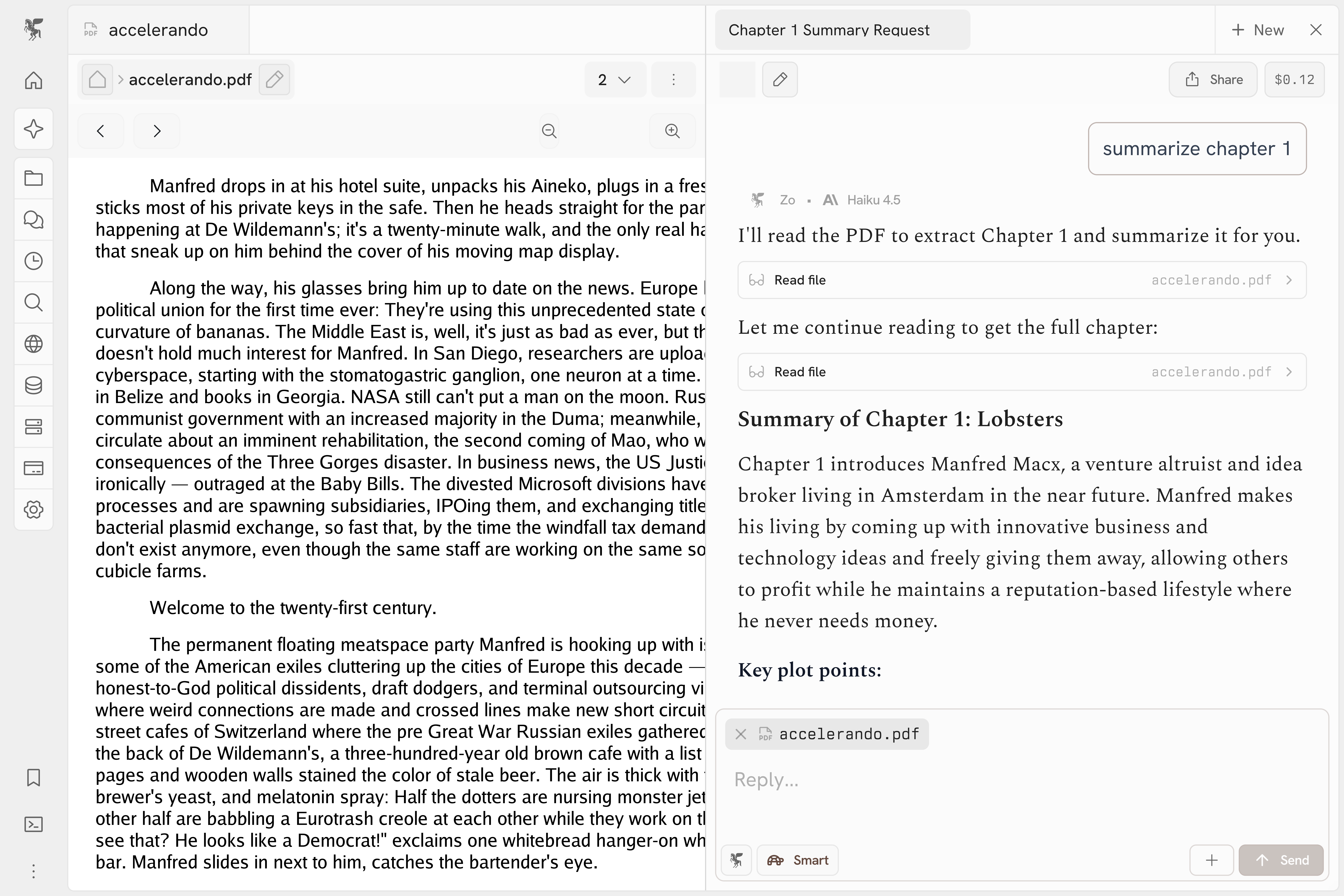
Download the Zo desktop app to sync files to your Zo.
2. Use integrations to connect the tools you use
Try texting or emailing Zo to ask questions or build projects.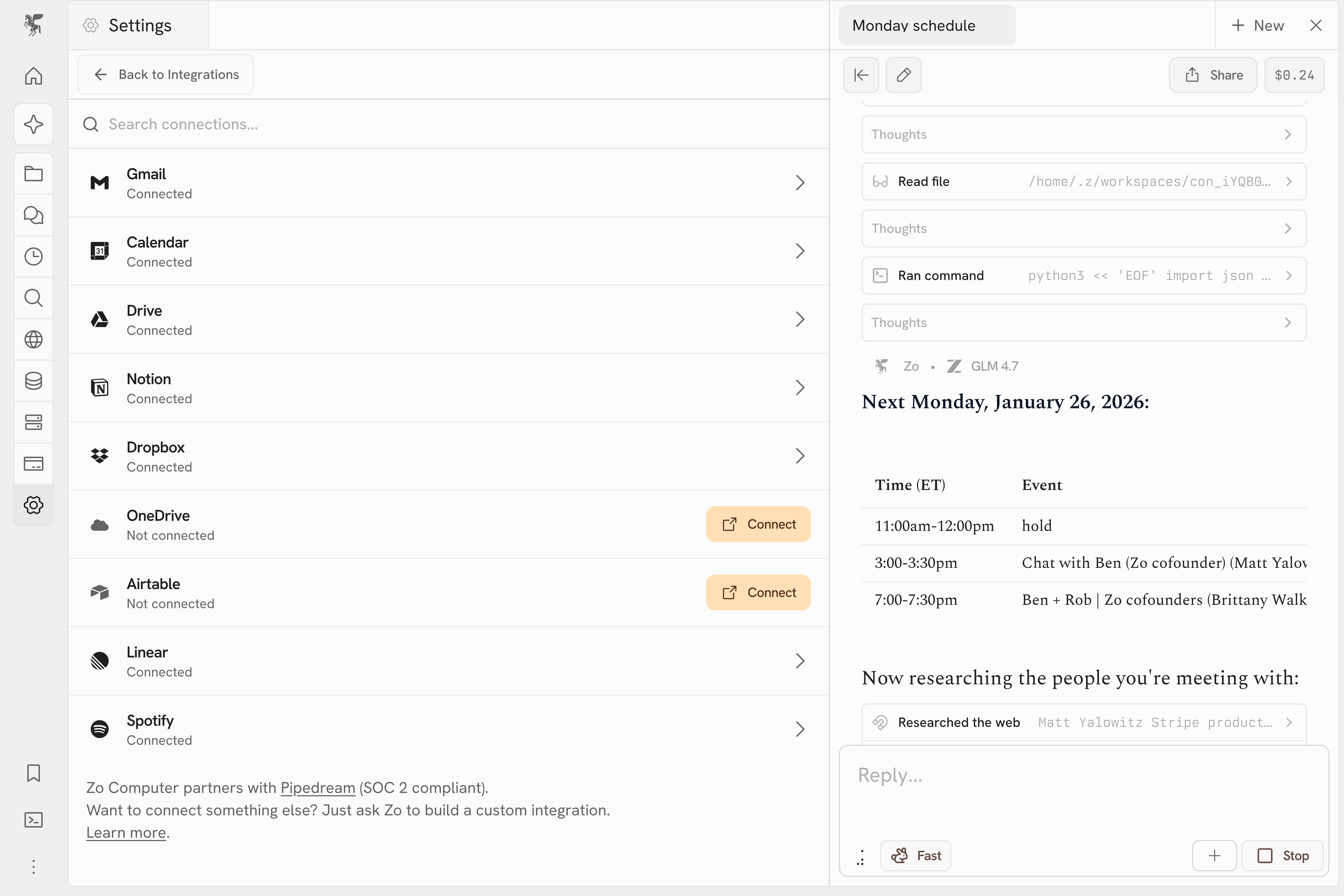
If there’s an integration we don’t support, try asking Zo to build a custom
integration. Zo can write and run code, so nearly anything is possible.
3. Save an article to your knowledge base
If you send Zo a URL in the chat (or using text or email), Zo will automatically save the webpage to your workspace.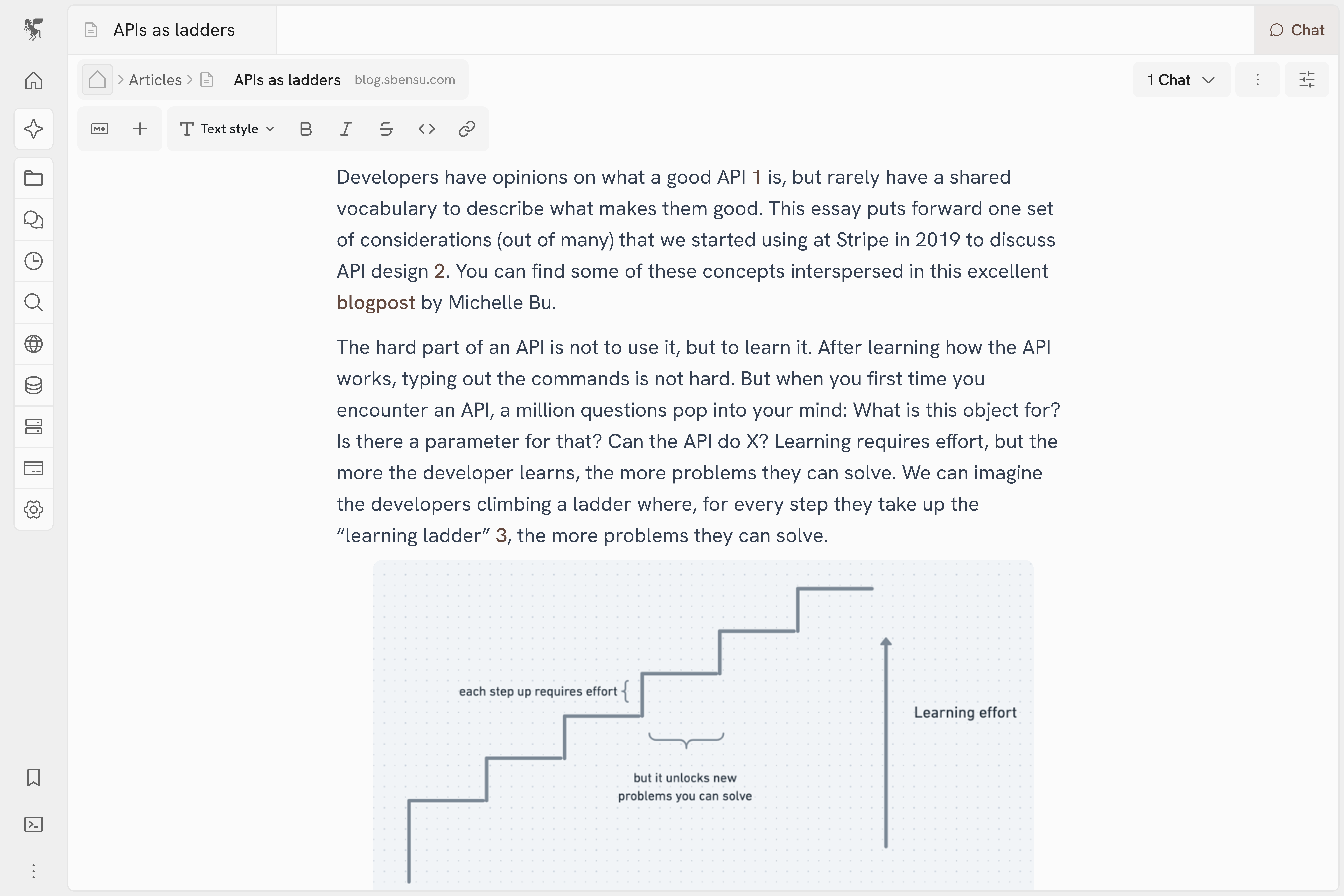
Zo comes with many powerful web tools. For example, Zo will automatically grab
the transcript from YouTube videos. Zo can search for Google Maps locations,
Twitter trends, people, and much more. All the tools your AI has access to are
listed in our documentation.
4. Create a scheduled task, your first AI automation
You can ask Zo to do anything on a schedule. For example, try asking Zo to send you a daily news summary, on a topic of your choice.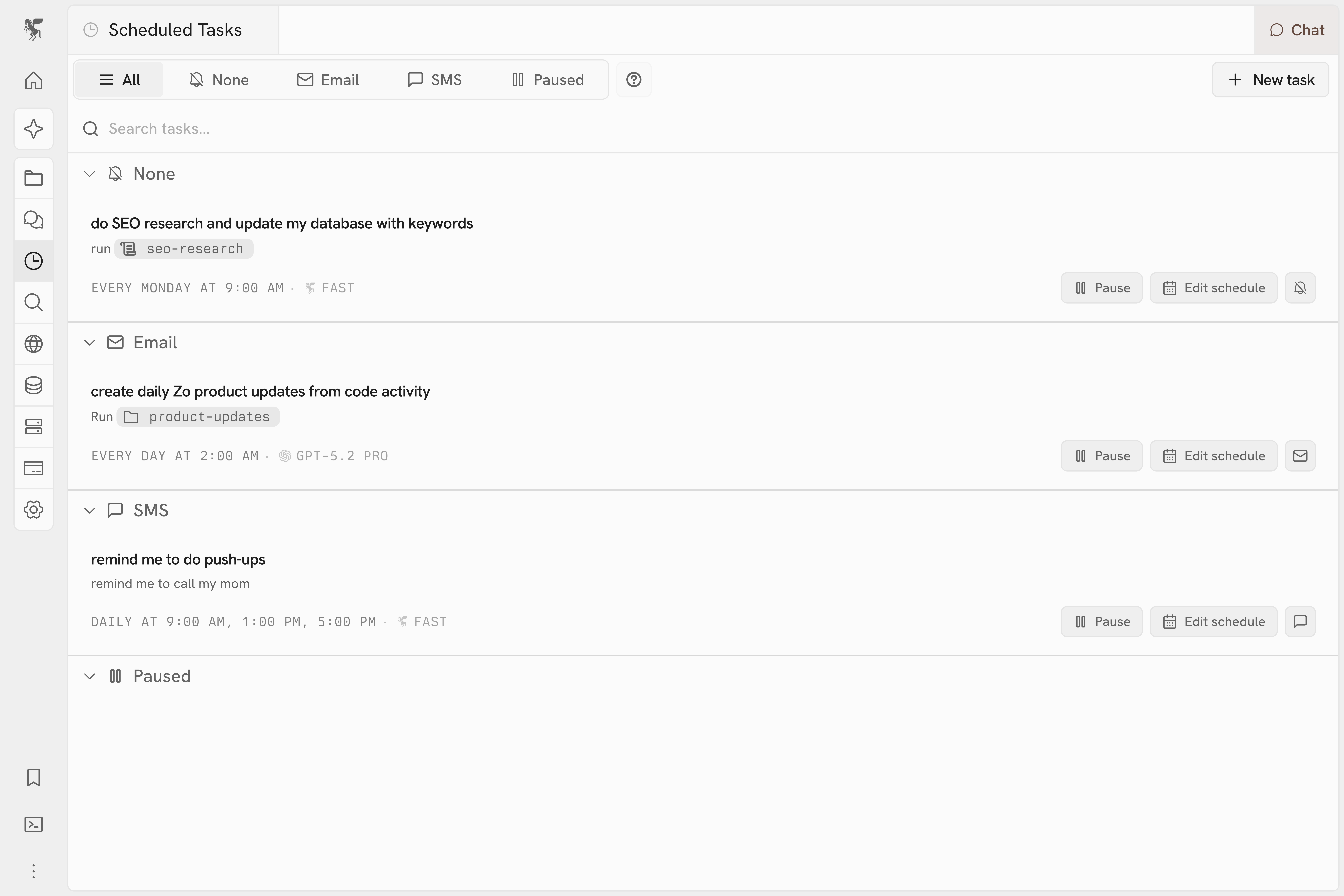
By default, scheduled tasks will not notify you, but you can ask Zo to email
or text you if you’d like. You can also try asking Zo to notify you
conditionally: “text me only if this product is on sale”
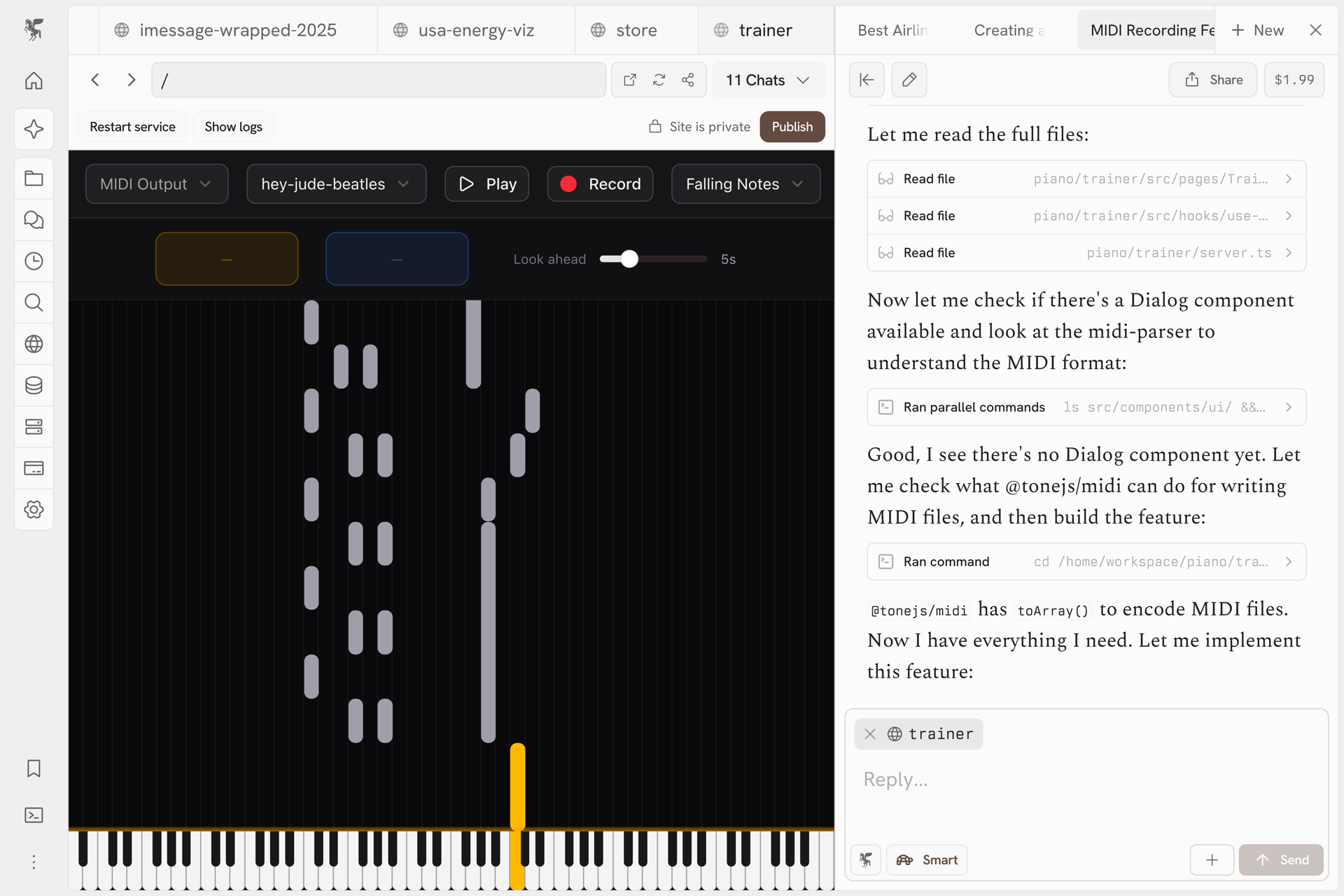
5. Create a site hosted on Zo
You can vibe code sites, data analysis, and other tools using Zo. Because your Zo is your personal server, hosting what you build is easy — it comes built-in.