monday.com

monday.com is a cloud-based project management program. With the monday.com app in Make, you can manage the boards, groups, teams, users, items, updates, subscribers, files, and agents in your monday.com account.
Requirements
To use the monday.com app in Make, you must have a monday.com account.
To create a monday.com Agent (beta) connection, you must also have a custom agent and its API key from your monday.com account.
To use the Run monday.com AI (beta) and Run Platform Agent (beta) modules, you must enable External AI gateway access in your monday.com account.
monday.com Version 1 is now legacy and its maintenance has ended. Make supports two versions of the monday.com app (Version 1 and Version 2).
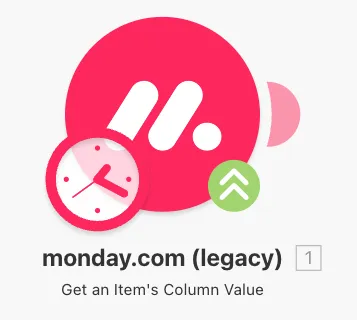
To keep your scenarios running, click the upgrade arrow on your monday.com modules to switch to the Version 2.
For more information, see monday.com app v1 to v2 transition.
Connect monday.com and Make
To get started, you must first create a connection between Monday.com and Make, allowing the two services to communicate.
The monday.com app supports two connection types:
- The monday.com connection uses a personal API token.
- The monday.com Agent (beta) connection uses the API key of a monday.com custom agent. The Watch Agent Events (beta) and Send Agent Response (beta) modules require it.
Create a monday.com connection
To create a monday.com connection, you must obtain a personal API token in your monday.com account and create the connection in Make.
Obtain a personal API token in monday.com
To obtain a personal API token:
Log in to your monday.com account.
Click your profile icon > Admin.
Navigate to the API section.
To use a new token, click Create a new API Token, copy the Personal API Token, and store it in a safe place. To use an existing token, copy the Personal API Token.
You'll use this value in the API key connection field in Make.
Create a connection in Make
To create a connection:
Log in to your Make account, add a monday.com module to your scenario, and click Create a connection.
If you add a module with an instant tag, click Create a webhook, then Create a connection.
Under Connection type, select monday.com.
Optional: In the Connection name field, enter a name for the connection.
In the API key field, enter the Personal API Token you copied from your monday.com account.
Click Save.
If prompted, authenticate your account and confirm access.
You've successfully created the connection and can now use the monday.com app in scenarios. If you want to make changes to your connection in the future, follow the steps here.
Create a monday.com Agent (beta) connection
The monday.com Agent (beta) connection uses the API key of a monday.com custom agent. Before you connect, obtain an agent API key from monday.com. monday.com shows the key once when you create the agent, so store it in a safe place.
Each agent has its own API key, so you must create a new connection for each agent.
Create the monday.com Agent (beta) connection
To create a connection:
Log in to your Make account, add a monday.com module that supports this connection type to your scenario, and click Create a connection.
If you add a module with an instant tag, click Create a webhook, then Create a connection.
Under Connection type, select monday.com Agent (beta).
Optional: In the Connection name field, enter a name for the connection.
In the API Key field, enter the agent API key you got from monday.com.
Click Save.
You've successfully created the connection and can now use the monday.com agent modules in your scenarios.
monday.com Agent (beta) connection limitations
This connection type has the following limitations:
- Access: A new agent starts without access to boards or docs. It gains access from resources it creates and resources that you grant to it. Manage its access in your monday.com account in agent settings.
- Empty results: If the agent can't access a board, some modules return an empty list instead of an access error. Give it access in your monday.com account.
- Capabilities: An agent API key can't do everything a user token can. For more information, see monday.com agent API key capabilities.
Module support for the monday.com Agent (beta) connection
The Watch Agent Events (beta) and Send Agent Response (beta) modules require a monday.com Agent (beta) connection, and most other modules support it.
The following modules don't support this connection type:
- Add a File to a File Column Value
- Add a File to an Update
- Run monday.com AI (beta)
- Run Platform Agent (beta)
- Watch Board's Column Values
- Watch Board's Items (instant and polling)
- Watch Board's Items by Column Values
- Watch Board's Subscribers
- Watch Board's Updates
- Watch Events
- Watch Group's Items
- Watch Item's Column Value
- Watch Item's Name
- Watch Item's Updates
- Watch Team's Users
- Watch Users
Create a monday.com webhook
The monday.com app has instant modules: webhooks that watch for certain changes in monday.com and immediately start your scenario when those changes happen. To use these modules, you must set up the webhook in your monday.com account.
To create a webhook:
Add a monday.com instant module to your scenario and click Create a webhook.
Optional: Enter a name for the webhook in the Webhook name field.
In the Connection field, select a connection for the webhook.
If you haven't created a monday.com connection yet, refer to the Connect monday.com and Make section above.
Click Save > Copy address to clipboard. You'll paste this address in your monday.com account.
Log in to your monday.com account.
In the left sidebar, select your item under the workspace name. If you don't have any item in your workspace, click + icon to create one.
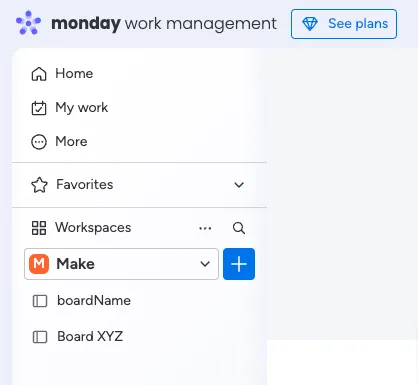
Click Automate.
Search for webhooks that will appear under Integrations and select it.
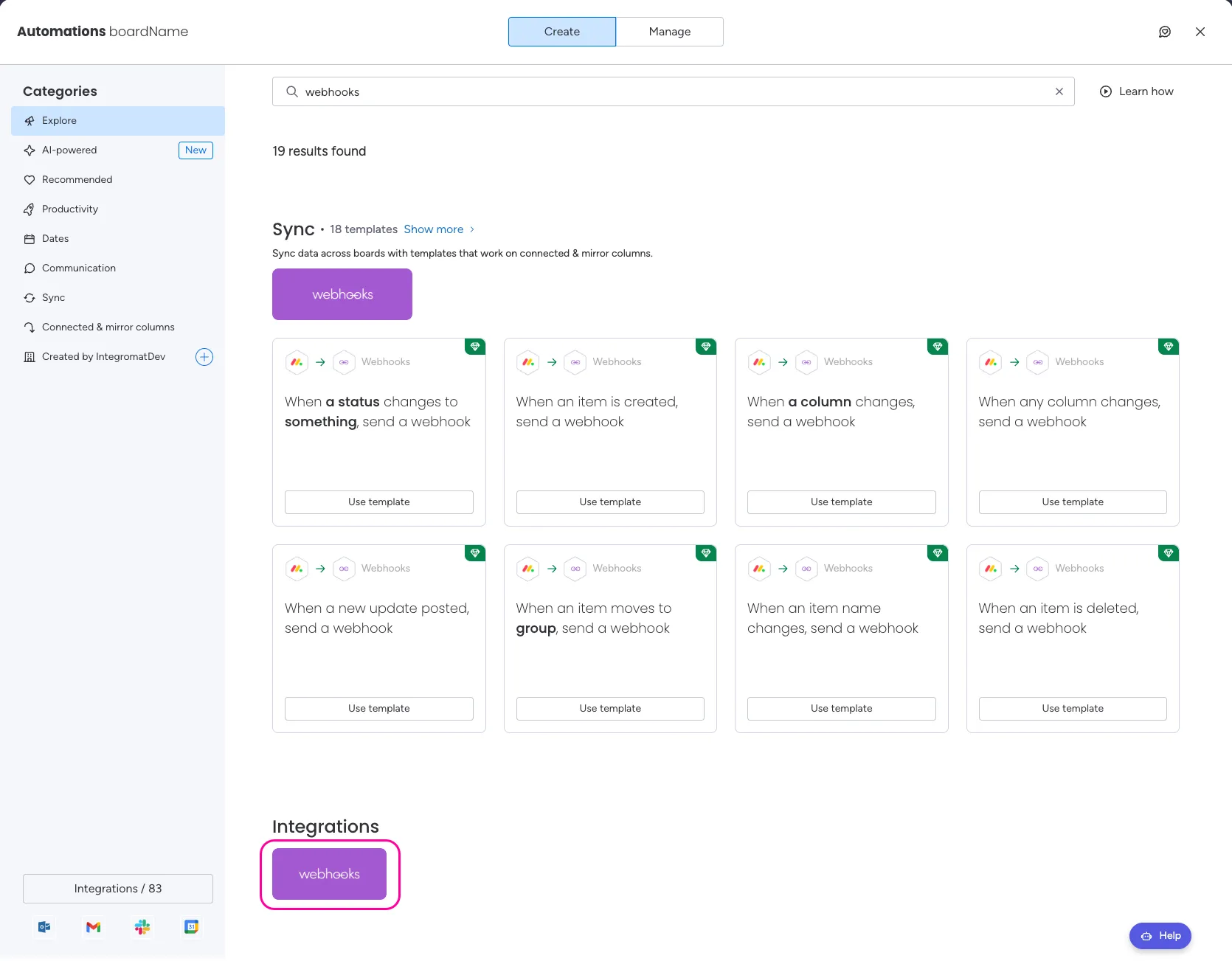
Select a template that you want to use.
To register a new webhook, click Use another account.
In the Webhook URL field, paste the webhook URL copied in step 4.
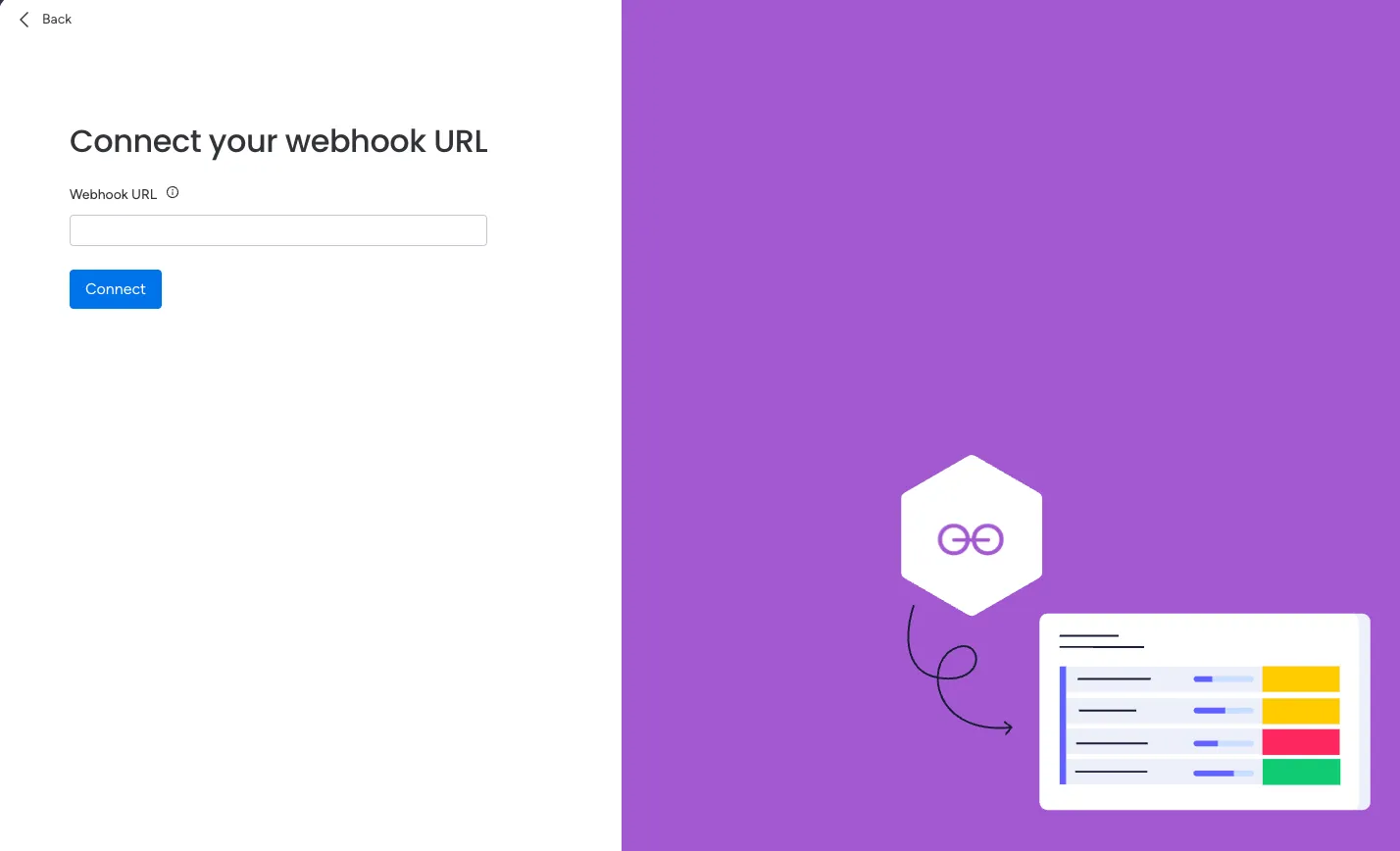
Click Connect > Create automation.
Once your webhook is set up, it's recommended to run the module and trigger the event once to ensure the Make scenario will allow you to map the values available in the output properly. This helps you see that your automation works as expected.
Your webhook is now set up. When the selected change occurs in monday.com, Make will immediately be notified and start your scenario.
monday.com modules
After connecting to the monday.com app, you can use the following types of modules to build your scenarios.
Templates
You can look for monday.com templates in Make's template gallery, where you'll find thousands of pre-created scenarios.
