
Create Beautiful
Screen Recordings
Mac screen recorder with automatic zoom and smooth motion for polished demos, tutorials, and social videos.
No watermark · Your recordings stay on your Mac

Who uses Screen Recorder
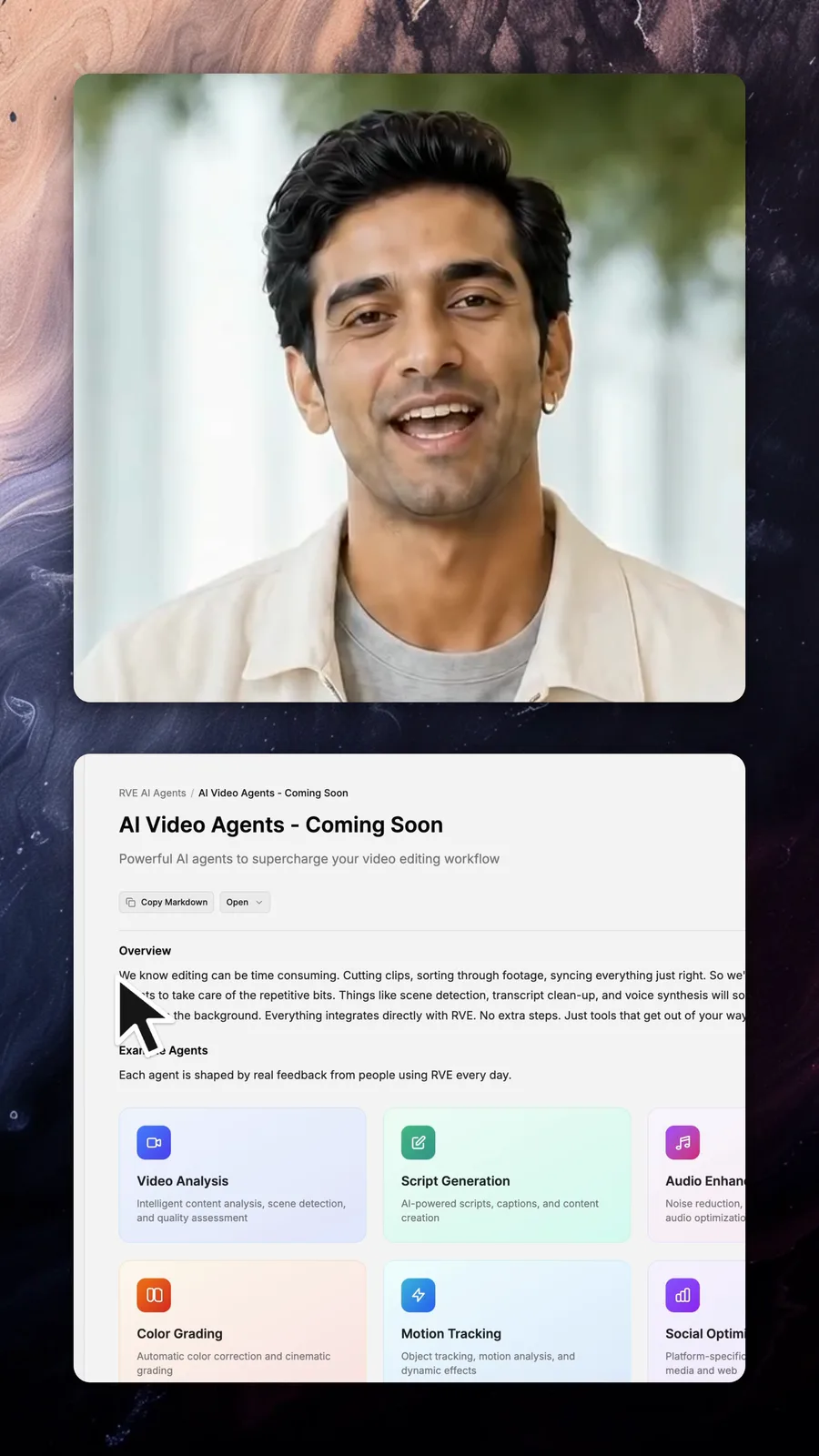
Founders, educators, creators, and support teams use our Screen Recorder to create polished, engaging screen recordings in minutes. Add automatic zooms, cursor effects, camera overlays, or jump into the editor and customise everything yourself. Turn your simple screen recordings into something people actually want to watch.
The editor
Record your screen.
Edit with our editor.
Your recording opens on the timeline immediately. Trim clips, add zooms and captions, change the layout, and export. No import and no upload.
Built-in timeline editor
Layout templates
Edit for every platform.
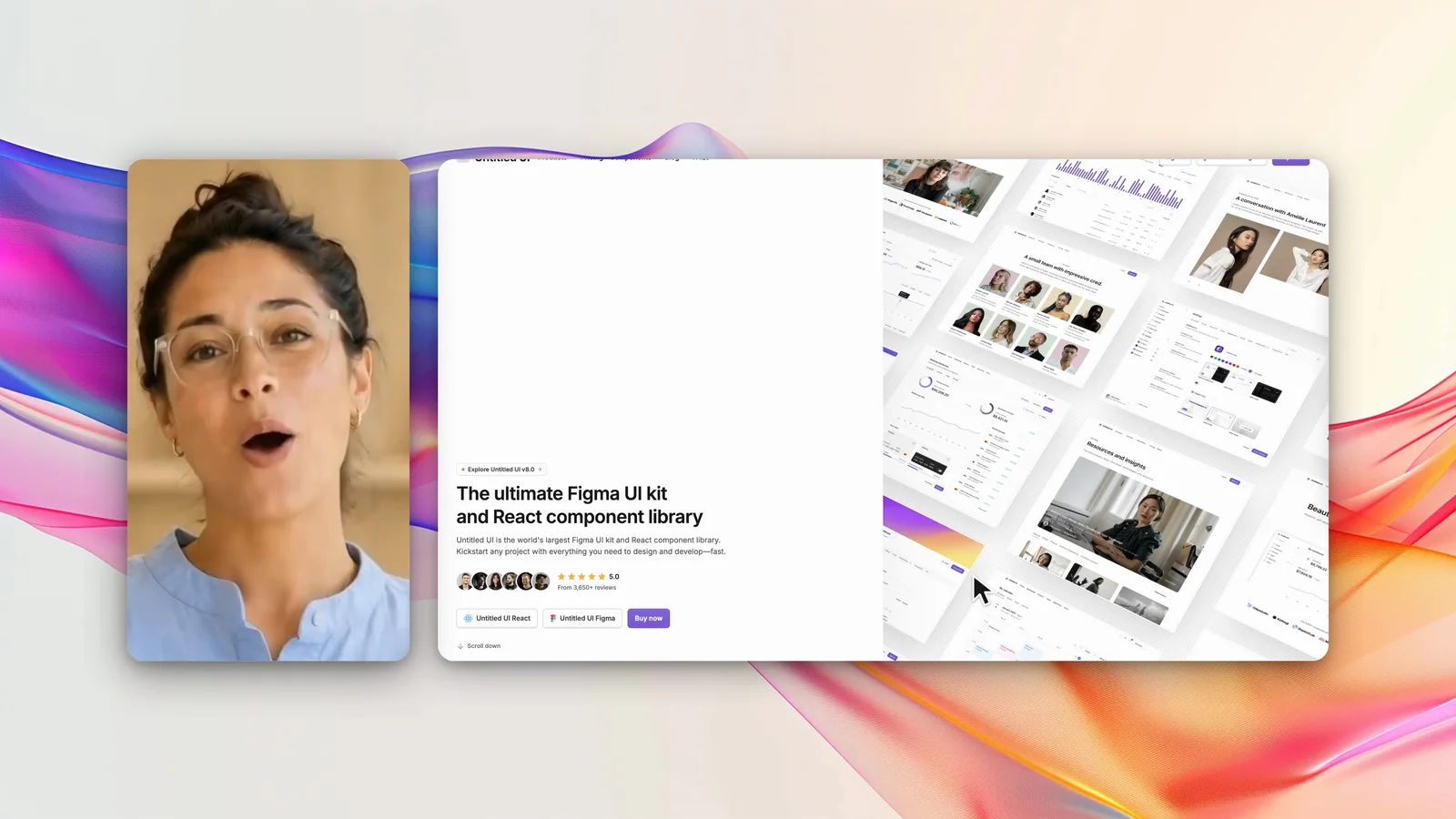
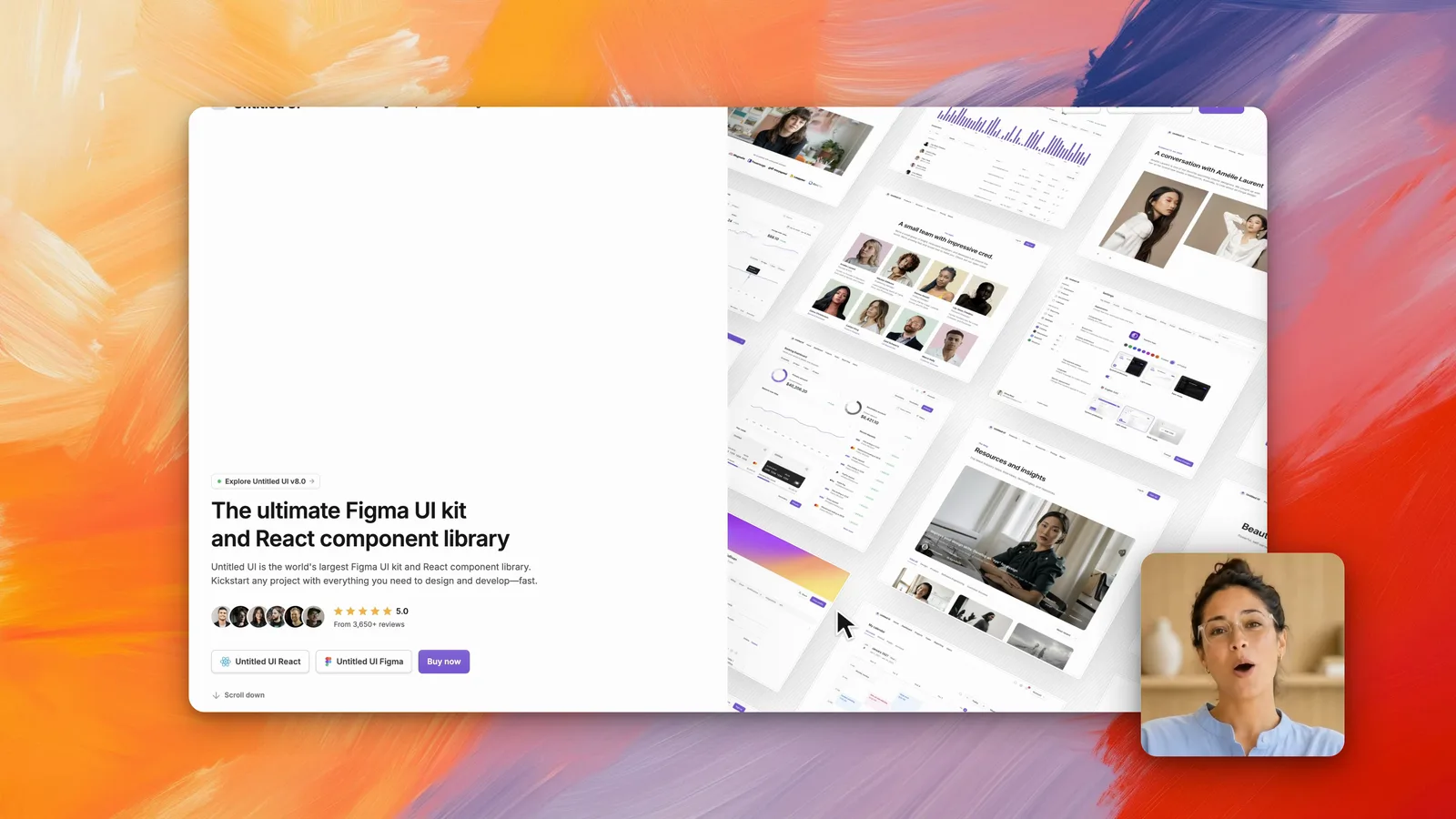
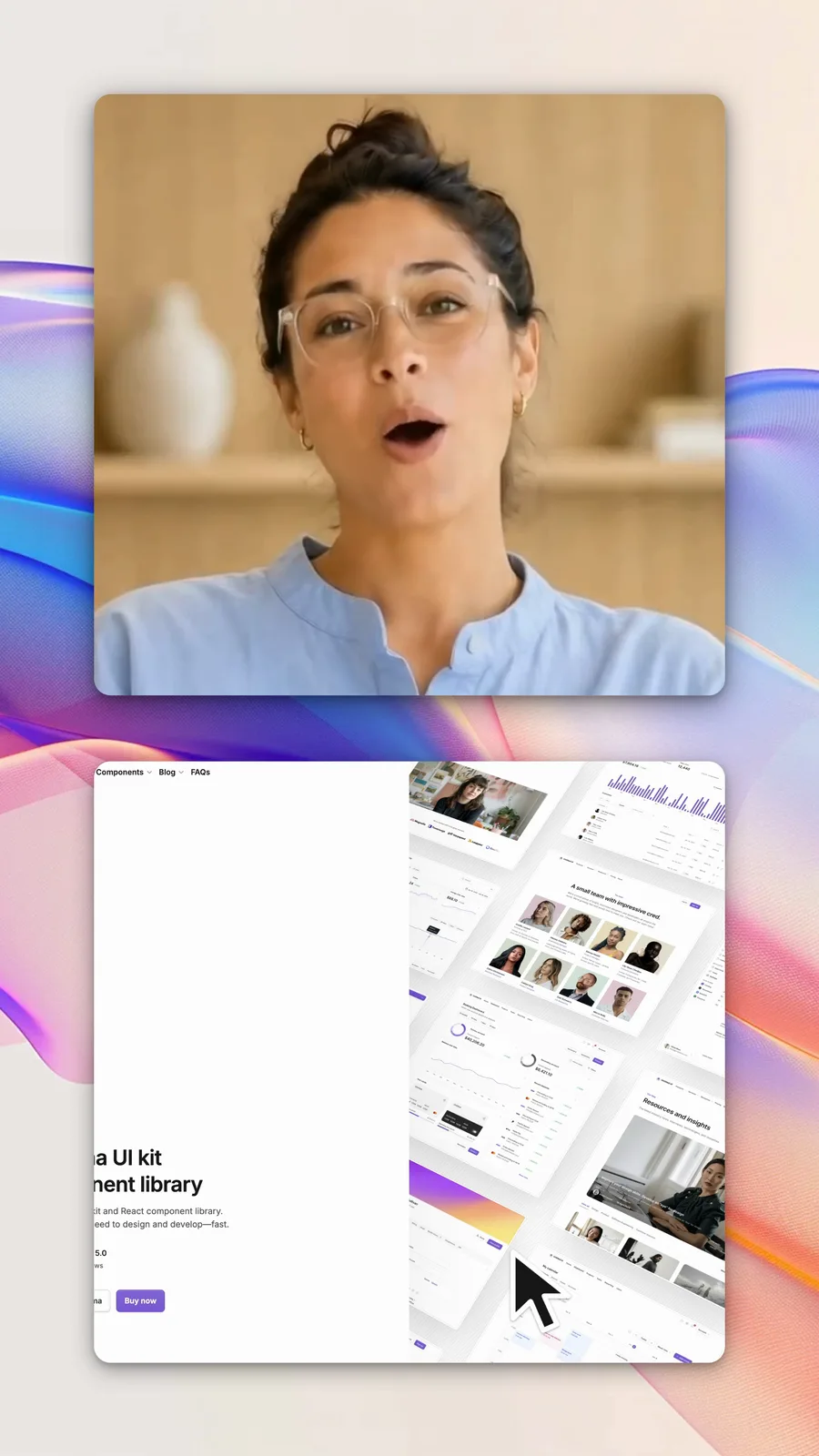
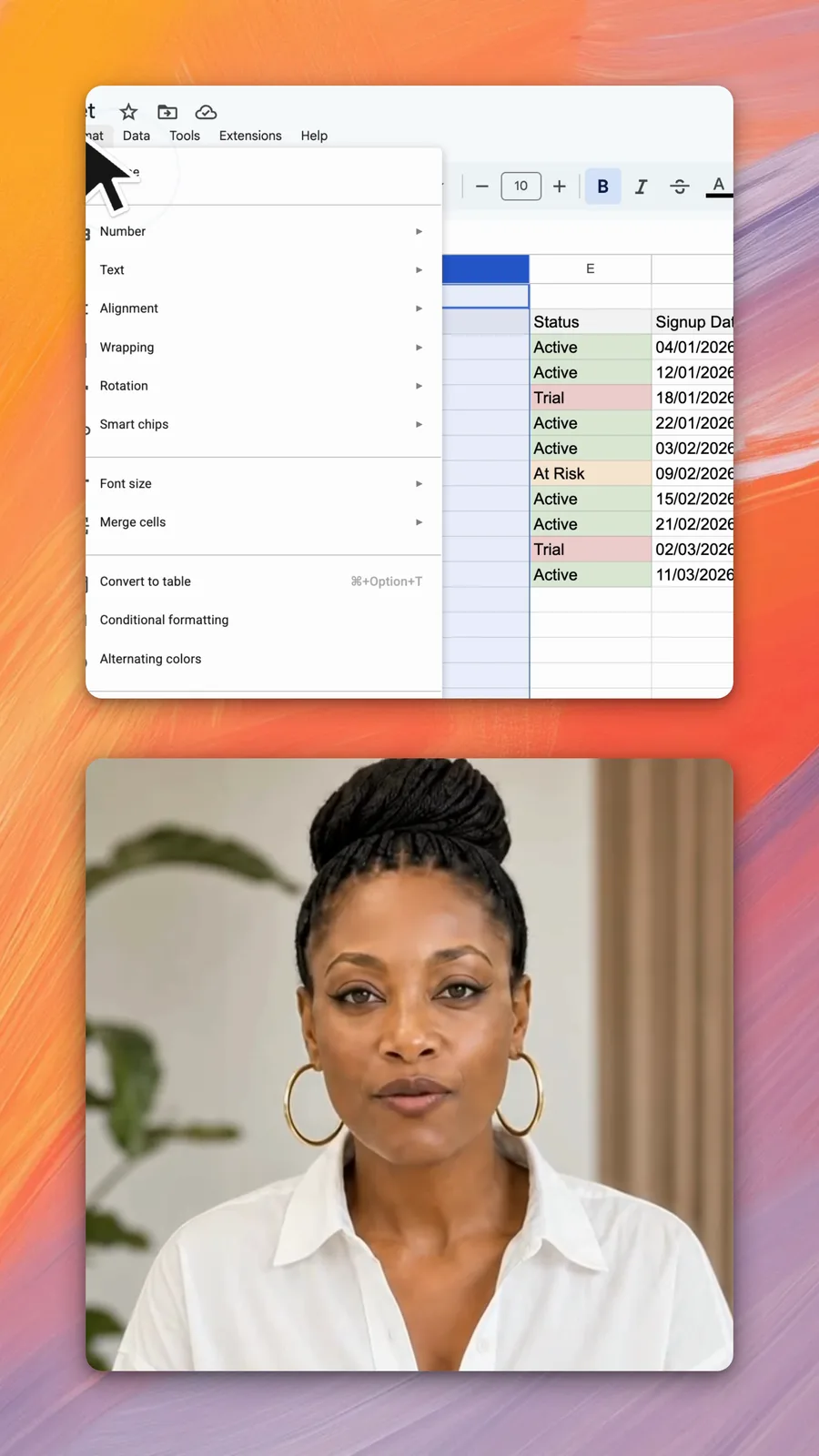
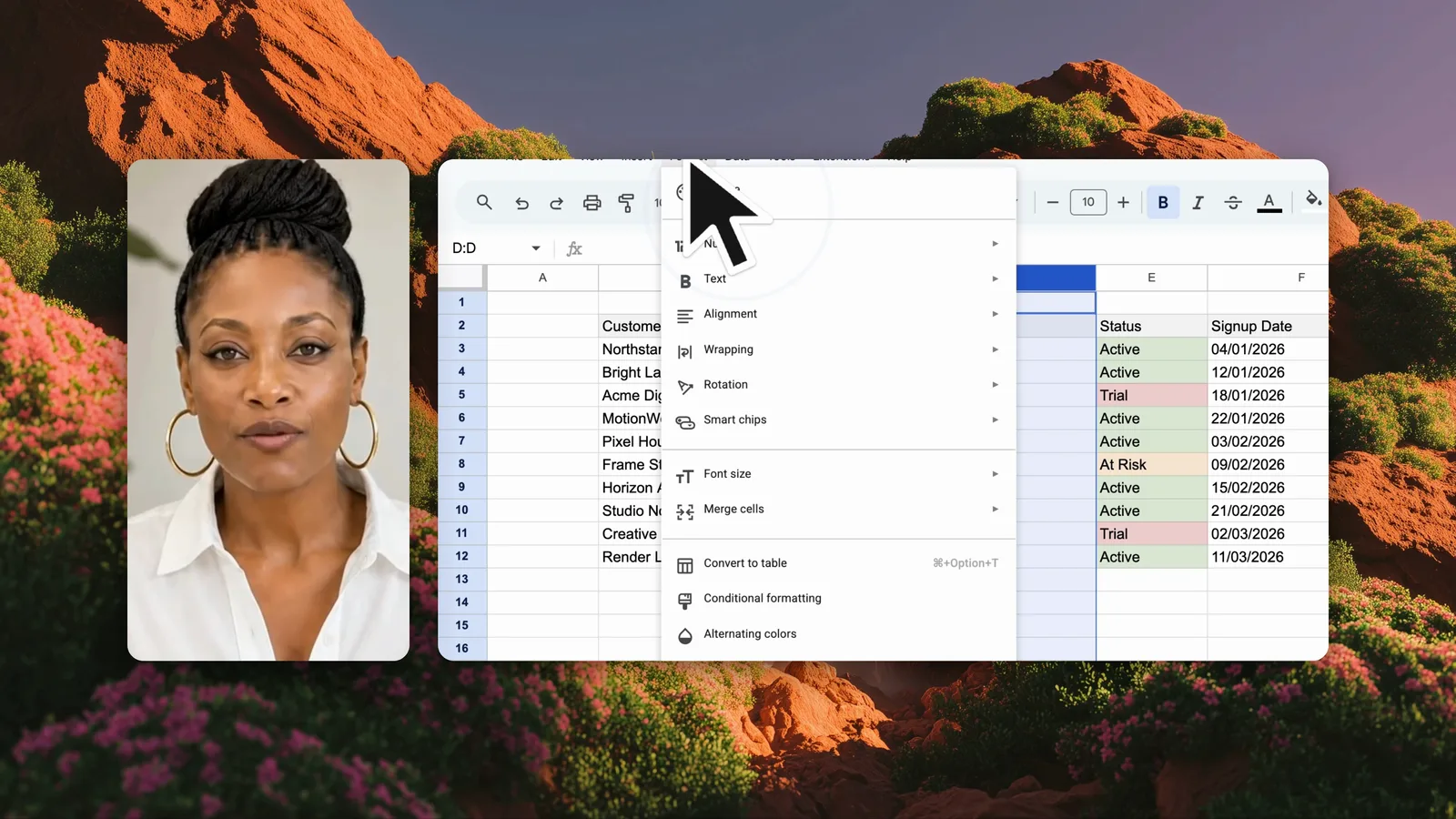
Put the camera beside the screen, over it, or above it in a tall frame for phones. Each layout arranges the screen, camera, and background for you.
On the timeline
Everything you need to
finish the video.
Trim, caption, add media, and control the pace without leaving the app.
- 01
Trim and split
Cut the dead time from each end, and split a clip wherever you want.
- 02
Undo and redo
Step back through every change. Nothing is committed until you export.
- 03
Automatic zoom
The frame follows the cursor, so small text stays readable.
- 04
Cursor effects
The cursor is recorded on its own, so you can resize it, restyle it, and highlight clicks after you record.
- 05
Change the background
Drop the recording onto a colour, a gradient, or an image.
- 06
Record your face
Record your camera with the screen, then move and resize it on the canvas.
- 07
Images and video
Bring in a logo, a screenshot, or another clip and place it on the timeline.
- 08
Sound
Add music or a sound effect from the built-in sound library.
- 09
Free auto transcription
Talk while you record. When you stop, Whisper transcribes your English speech on your Mac and adds the captions. No upload, no account, and no cost.
The editor
A pro editor.
Built in.
Trim, zoom, add your camera, and export. No second app.

How it works
Record, edit, and export
in four steps.
Choose what to capture, make the recording, edit it on the timeline, and export an MP4.
- #1

Open the app
Screen Recorder starts on the window you record from. There is no account to create.
- #2

Pick your screen or an area
Take a whole display, or drag a rectangle over the part that matters.
- #3

Design with our Editor
The editor opens the moment you stop. Trim, split, zoom, and add whatever the story needs.
- #4
Render your video
Export an MP4 at the original size, or at 720p, 1080p, or 4K, ready to send or upload.
Captions
Free transcripts.
Made on your Mac.
Whisper turns your voice into a transcript on your Mac. No upload, no account, and no cost. Then pick a caption style.
Transcript
On this Mac- Cost
- Free
- Uploads
- None
- Transcription
- On device
Good to know
Common
questions.
Answers about recording, editing, layouts, privacy, and export.
What is Screen Recorder?
Screen Recorder is a Mac app for polished screen recordings. It records your screen, cursor, camera, and voice, adds an automatic zoom that follows the cursor, and opens the recording in a timeline editor that exports an MP4.
What makes Screen Recorder different?
Screen Recorder combines screen capture, automatic zoom, an editable cursor, camera recording, free local captions, and a timeline editor in one Mac app. Your recording opens in the editor as soon as you stop.
Can I edit a recording without importing it?
Yes. The editor opens your recording on the timeline immediately. You can split, crop, add zooms, images, video, and sound, change the background, and export without moving the file to another app.
Can I make tall videos for phones?
Yes. Place the camera over the screen or beside it. The layouts with the camera above or below the screen give a tall 9:16 frame for phones. Screen Recorder arranges the screen, camera, and background for you.
Can I record my camera and microphone?
Yes. Record your screen with your camera and your microphone, or with the system sound. One recording takes the microphone or the system sound, not both. You can move and resize the camera in the editor.
Do my recordings stay private?
Yes. Recordings stay on your Mac and are not uploaded. Screen Recorder saves them in the Movies/Screen Recorder folder.
Does Screen Recorder add a watermark or time limit?
No. Screen Recorder adds no watermark and applies no recording time limit.
What can I export?
Export an MP4 at the original size, or at 720p, 1080p, or 4K. The finished file is ready to upload to YouTube, Slack, Notion, or another service.
How much does Screen Recorder cost?
Screen Recorder costs $49 as a one-time payment. There is no subscription, and one license key works on up to 3 Macs.
Which Macs can run Screen Recorder?
Screen Recorder runs on Apple silicon Macs with macOS 14 or later.
Examples
Videos made in
Screen Recorder.
These clips were recorded, edited, and exported in the app.
Get started today
Create screen recordings
worth watching.
Record your screen, add automatic zooms, edit on the timeline, and export an MP4.
