New to Rust? Grab our free Rust for Beginners eBook Get it free →
Send an HTML File with Express
Learn how to send an HTML file in Node.js using Express and res.sendFile. Discover step-by-step methods and boost your web app skills. Start reading now!

An HTML page can stay in a file in your project and be returned by an Express route. Express’s res.sendFile() sends a file from the server’s filesystem as the response to an HTTP request.
I’ll show how to add an HTML file and return it from an Express route with res.sendFile(), including how to set its path. I’ll explain when express.static() maps a directory of assets to URL paths instead.
TL;DR: Send a file with res.sendFile
Use Express’s res.sendFile() inside a route and give it an absolute file path, or a relative filename with an absolute root option.
- Use path.join() to build a filesystem path.
- Use express.static() when a directory contains assets that should map to URLs.
- Keep user input out of filesystem paths unless you validate it and contain access.
What does res.sendFile do?
res.sendFile() transfers a file from the server’s filesystem as the response to an HTTP request. Express derives the response content type from the file extension, so an HTML file is served as HTML.
For this page, res.sendFile() fits because the HTML already lives in public as a separate file.
| Response method | What it returns | Use it when |
|---|---|---|
| res.send() | A value such as an HTML string or JSON object. | The response body is created in the route. |
| res.sendFile() | Contents of a file on the server. | The route returns a known file. |
| res.render() | HTML generated from a view template. | The page inserts data into a template. |
For route setup context, see the CodeForGeek guide to Express res.sendFile(). This page focuses on the specific case of returning an HTML file and resolving its path.
How to send an HTML file with Express
For this example, GET / returns public/index.html.
Step 1: Create the project and install Express
Install Express in the project and keep the HTML file in a folder the application controls, such as public.
npm init -y
npm install express
Use npm init -y in a new project folder. Keep the existing package.json when working in an app that already has one. Add Express with npm install express, then run app.js using the module format that project already uses.
Step 2: Add the HTML file
Add a page title and body that fit the route. The example uses one document with a Home heading and a short message.
<!doctype html>
<html lang="en">
  <head>
    <meta charset="utf-8">
    <title>Home</title>
  </head>
  <body>
    <h1>Home</h1>
    <p>Express sent this file from the server.</p>
  </body>
</html>
This is a static page: its contents are the same for each request. Put stylesheets, client-side scripts and images in the same public directory when the page references them.
Step 3: Connect a route to the file
Import Express and Node’s path module, then map GET / to the HTML file under public using a root derived from the module path.
const express = require('express');
const path = require('node:path');

const app = express();
const publicRoot = path.join(__dirname, 'public');

app.get('/', (req, res) => {
  res.sendFile('index.html', { root: publicRoot });
});

app.listen(3000, () => {
  console.log('Listening on port 3000');
});
Save this as app.js beside the public directory, run node app.js, then visit http://localhost:3000/. The browser should show Home. Choose another port if an existing local process has claimed 3000.
The handler responds to GET requests for /. A browser address bar makes a GET request, while a form may submit POST to a different route. Keep this route for viewing the page and handle submitted data in a separate handler.
I ran the request check against this route and received status 200. The content type was text/html. The body contained the page title, as the screenshot shows.
status: 200
content-type: text/html; charset=utf-8
contains title: true
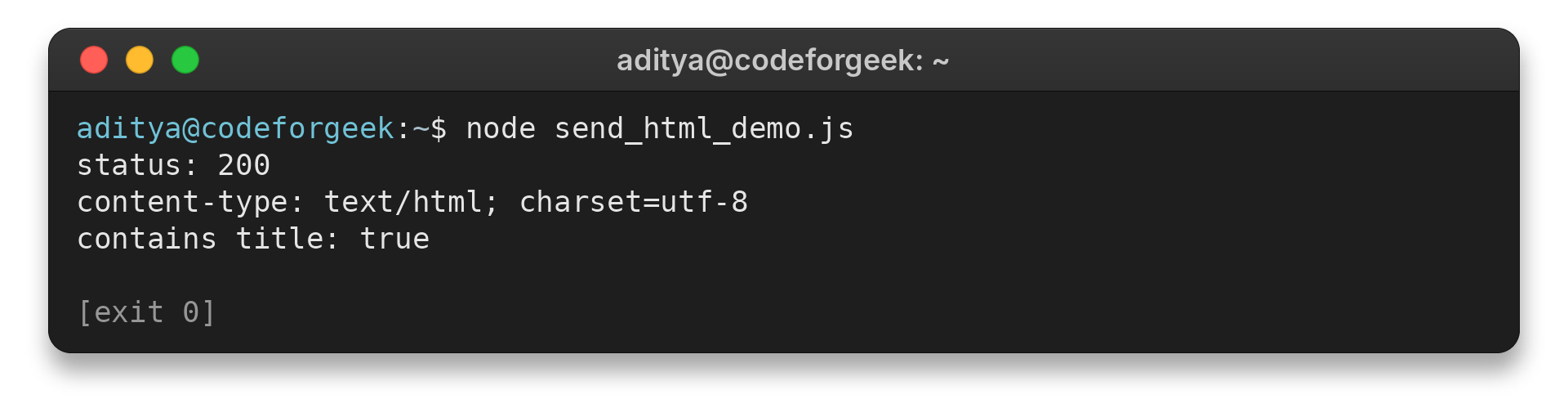
The content type confirms the response is marked as HTML, and the title check confirms the returned body came from the page file. For an interactive site, add a route for each page or use a template when its content depends on request data.
Path, file and static-serving issues
Path errors can come from lookup or response behavior. The checks below separate those cases before you change a route.
Why does res.sendFile require an absolute path?
res.sendFile() requires an absolute file path or an absolute root for a relative filename.
| Path form | What happens | Use |
|---|---|---|
| res.sendFile(‘index.html’) | Rejected because the path is relative and no root is set. | Add an absolute root or build an absolute file path. |
| path.join(__dirname, ‘public’, ‘index.html’) | Resolves from the module’s directory. | Use when you need the complete file path. |
| res.sendFile(‘index.html’, { root: publicRoot }) | Express resolves the name under the configured root. | Use for a fixed file under a known directory. |
__dirname gives the application module’s directory, so the example builds publicRoot from its source file rather than Node’s launch directory.
When root is set, Express checks that the resolved file stays inside that directory.
How do I use res.sendFile with ES modules?
Native ES modules do not define __dirname. Derive the module directory from its URL with Node’s fileURLToPath() and path.dirname(), then use that directory as the basis for publicRoot.
For this syntax, save the file with an .mjs extension or set the package type to module. The CommonJS example earlier uses require(), so keep each file consistent with its module format.
import express from 'express';
import path from 'node:path';
import { fileURLToPath } from 'node:url';

const __filename = fileURLToPath(import.meta.url);
const __dirname = path.dirname(__filename);
const publicRoot = path.join(__dirname, 'public');

const app = express();
app.get('/', (req, res) => {
  res.sendFile('index.html', { root: publicRoot });
});
For module-relative path details, see Node’s ES module documentation.
When should I use express.static instead?
Use express.static() to mount public at /assets, letting linked stylesheets, scripts and images receive predictable URLs without a route for each file.
app.use('/assets', express.static(path.join(__dirname, 'public')));
With that mount path, a file at public/css/site.css is requested at /assets/css/site.css. The browser URL uses the mount prefix followed by the file’s path inside public. See the guide to serving static files in Express for the directory-middleware case.
A relative href such as assets/css/site.css resolves from the browser’s current page URL. A root-relative href such as /assets/css/site.css starts at the site root, so it stays consistent when the page route is nested. For example, on /docs/setup, the relative form resolves under /docs/, while the root-relative form still begins with /assets/.
<link rel="stylesheet" href="/assets/css/site.css">
If the stylesheet returns 404, compare its URL with the mount prefix and its path under the configured directory. For multiple public directories, Express checks them in the order each express.static() middleware is added, so keep overlapping filenames in mind.
What if the file is missing or the browser downloads it?
A missing file produces an error response. Express’s default error handling can take over when you do not supply a callback. If you add a callback to res.sendFile(), you take responsibility for handling the error and completing the response or passing it to error middleware.
A 404 may indicate an unmatched route or a missing file beneath public.
Keep filenames fixed or validate an authorized identifier and map it to an allowlisted filename instead of joining raw request input into a path.
res.sendFile('index.html', { root: publicRoot }, (err) => {
  if (err) {
    return next(err);
  }
  console.log('HTML response finished');
});
Pass the route’s next function to the error middleware rather than trying to send a second response. A connection can fail after some bytes have been sent, so inspect res.headersSent before writing an error response yourself.
Express calls the callback when the transfer completes or fails. A success log marks the server-side transfer. The response status and body remain the checks a client can observe.
| Response detail | What it tells you |
|---|---|
| Status | Whether the route completed or returned an error. |
| Content-Type | The media type Express inferred from the file extension. |
| Content-Disposition | Whether the response is marked as an attachment. |
| Cache-Control | How the browser and intermediaries may cache the response. |
If the browser downloads HTML, inspect its Content-Disposition header because res.download() marks the response as an attachment.
The options object documents maxAge for Cache-Control and immutable for assets whose URLs will not change during the cache period. Set a cache lifetime when the application has a clear policy for page changes.
Conclusion: Resolve the file path on the server
Open the route in a browser to verify the intended page title and status, then check /assets URLs separately if the page links stylesheets or scripts.
For API responses, use the CodeForGeek guide to reading form data in Node.js when the next task is handling submitted values. The Express response API documents sendFile options and callback behavior, and the static-files guide covers directory middleware.
FAQ
These answers cover common choices when an Express route returns a file.
How do I send an HTML file in Node.js?
Create an Express route and call res.sendFile() with an absolute path or a relative filename and an absolute root option.
Can res.sendFile use a relative path?
Yes, when you set the root option to an absolute directory. Express checks that the relative path resolves within that root.
Should I use res.sendFile or express.static?
Use res.sendFile for a specific file chosen by a route. Use express.static to map a directory of assets to URL paths.
Why does res.sendFile return a not found error?
Check that the file exists under the path or root you configured. A relative path without root is not sufficient.