
Creating a form in WordPress can be overwhelming, especially if you're new to the platform. We'll guide you through how to create a form from scratch, using form templates, or creating custom form templates. Whether you want to create a simple contact form or a detailed survey, we'll cover everything you need to know to get started and have your form up and running!
Upgrade your WordPress site with powerful, flexible forms.
How to create a form in WordPress
Learn how to create a unique form from scratch that matches your needs. Follow the steps below to create a WordPress form using Formidable Forms.
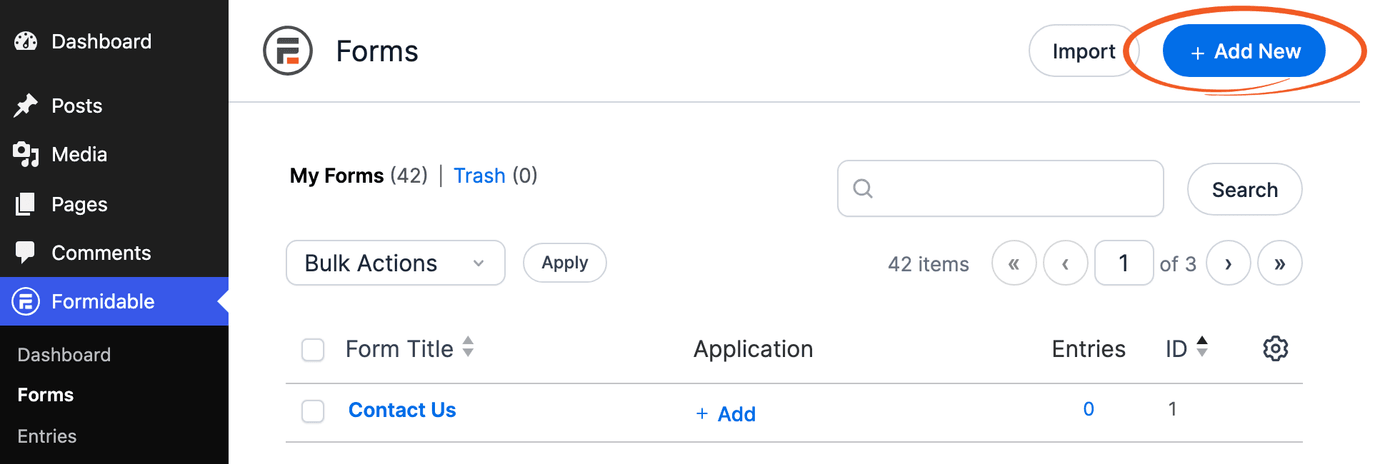
- Go to Formidable → Forms and click Add New at the top of the page.

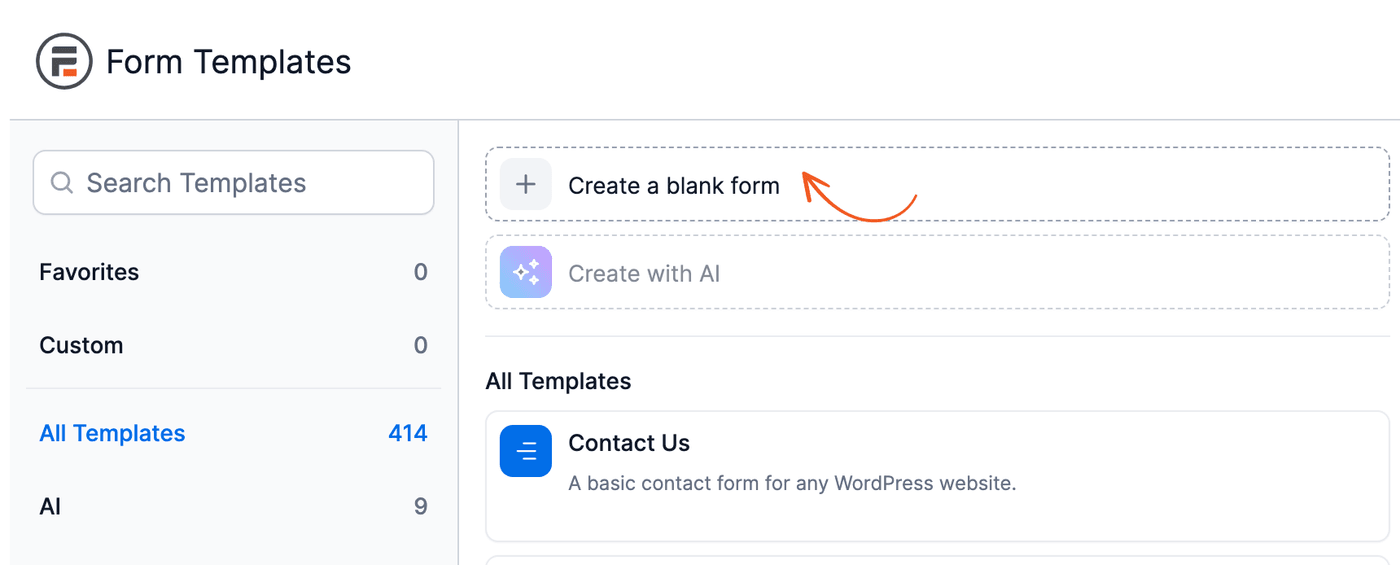
- The Form Templates page opens. Click Create a blank form to create a new form from scratch.
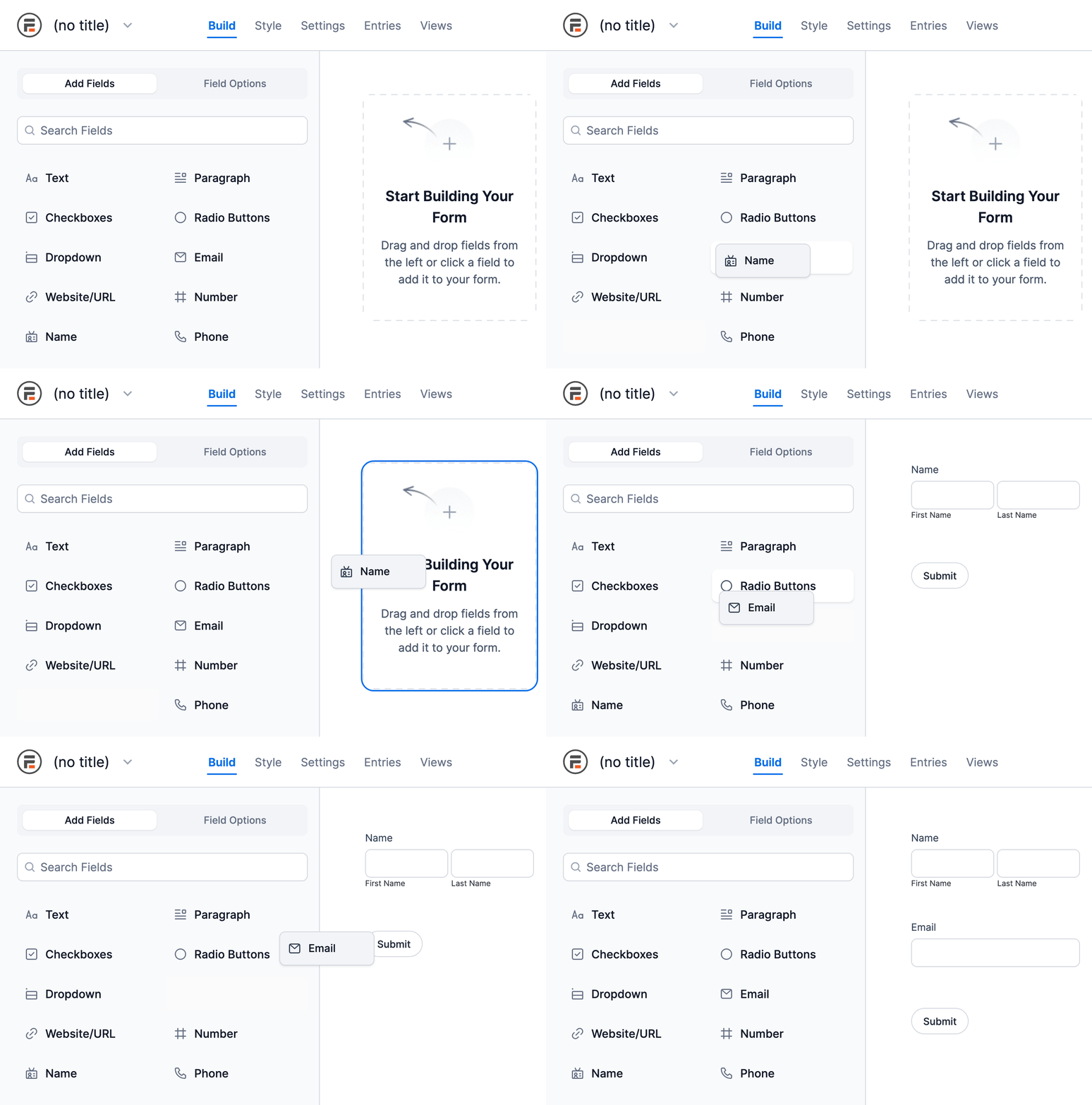
- Add fields to your form. You can either use the drag and drop form builder or click a field type in the left sidebar. When working with draft fields in the form builder, these fields won't be visible on the front end until you save the form. They can only be previewed by users who have permission to edit forms.
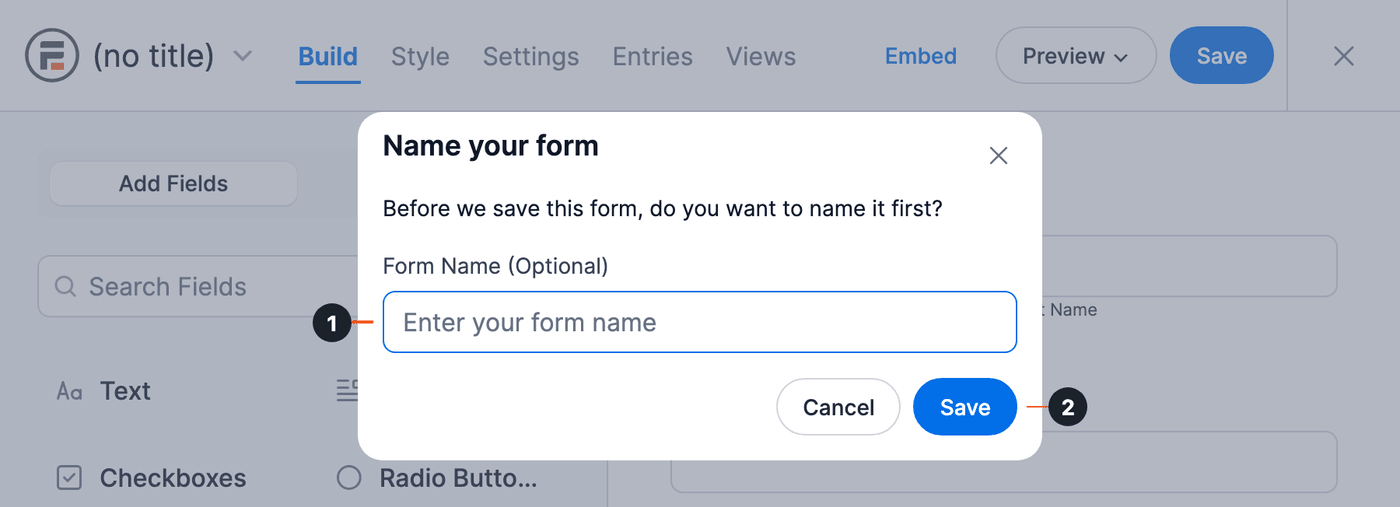
- Click Save at the top right. In the Name your form box, enter a form name (1) and click Save (2).
- You have just created a form! To preview it on a blank page or in a theme, click the Preview button.
To learn more about the functionality that can be added to your form, continue reading the article. Or publish your form to use it on your site.
Save your favorite form template
With our form template library, you can save your favorite templates for future use without searching through the entire list before you create a form. Favorites are on the Formidable → Form Templates page, which also opens when you click Add New on the Forms page.
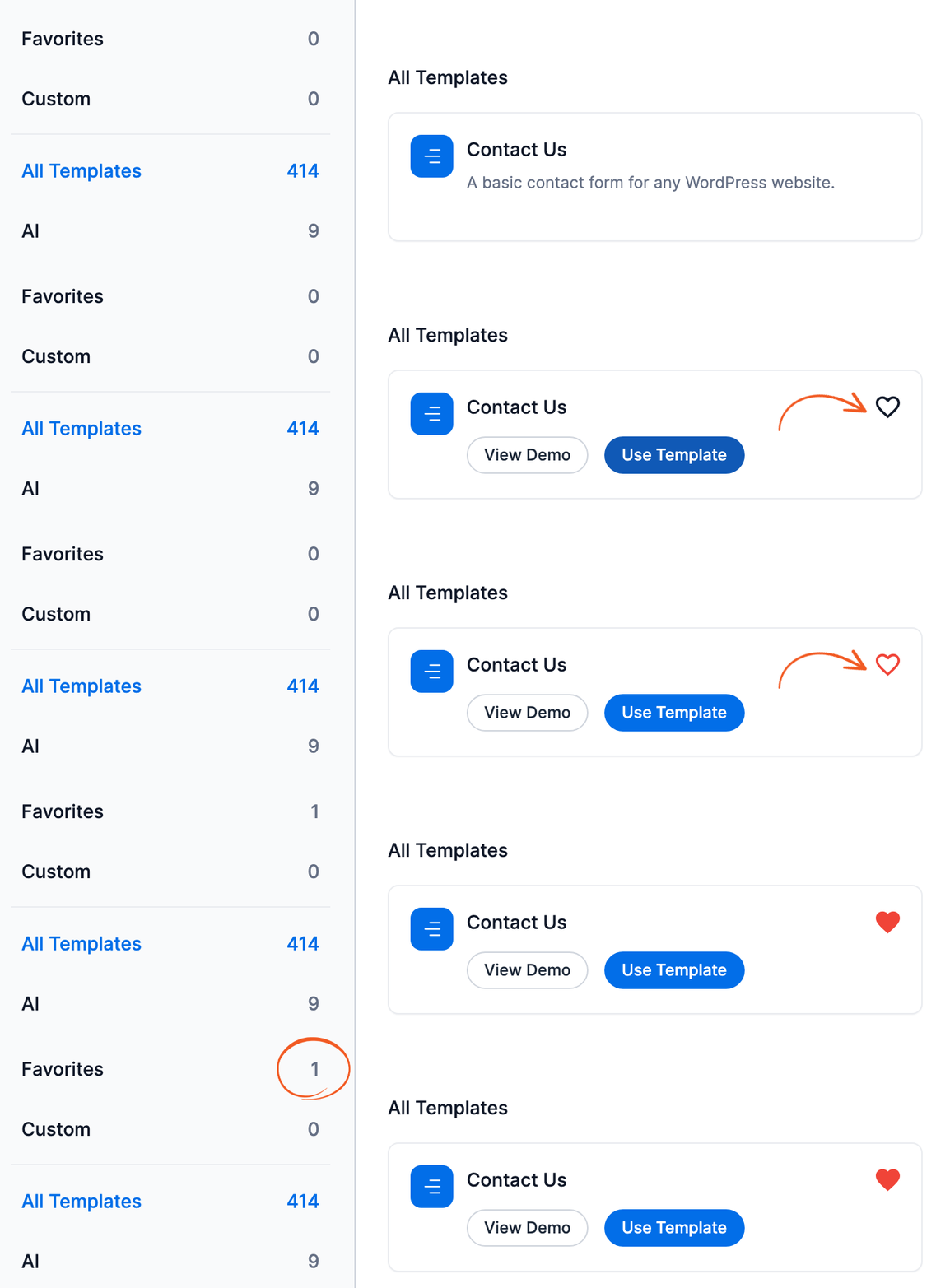
- On the Formidable → Form Templates page, hover over a template and click the heart icon to add it to your favorites.
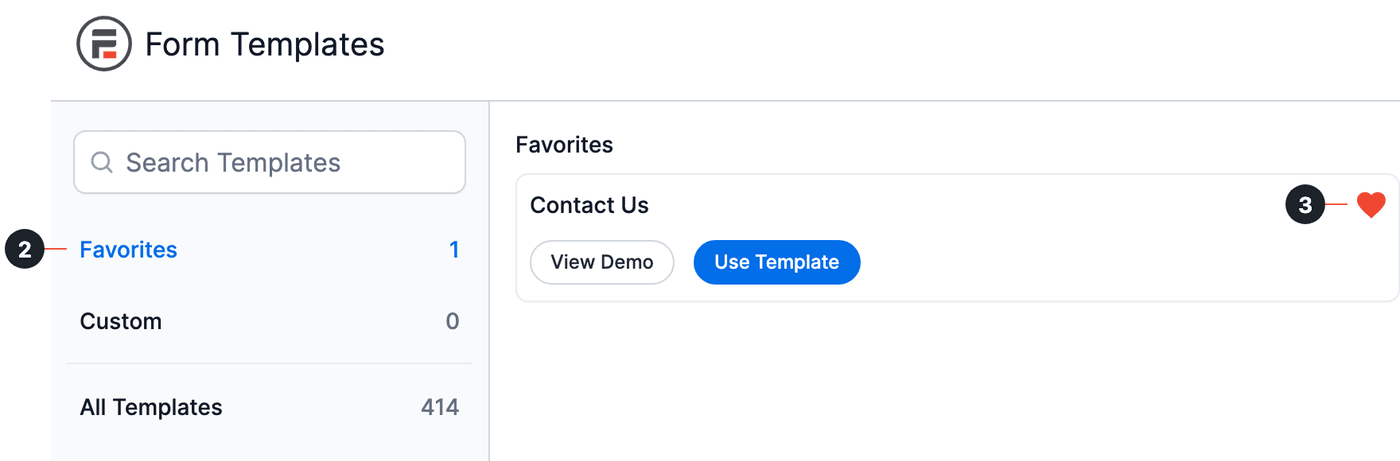
- The template is added to the Favorites category in the left menu. Click Favorites (2) to see the templates you marked as favorites.
- To remove a template from your favorites, hover over it and click the heart icon again (3).
From Idea to Reality in Minutes. Build Powerful Forms, Dashboards, Apps and More.
Formidable Forms makes advanced site building simple. Launch forms, directories, dashboards, and custom WordPress apps faster than ever before.
How to use form templates
Do you need a form right away and want to save time? Prebuilt form templates can be a great way to speed up the process, as you don't have to start from scratch. Follow the guide below to create a form instantly using form templates.
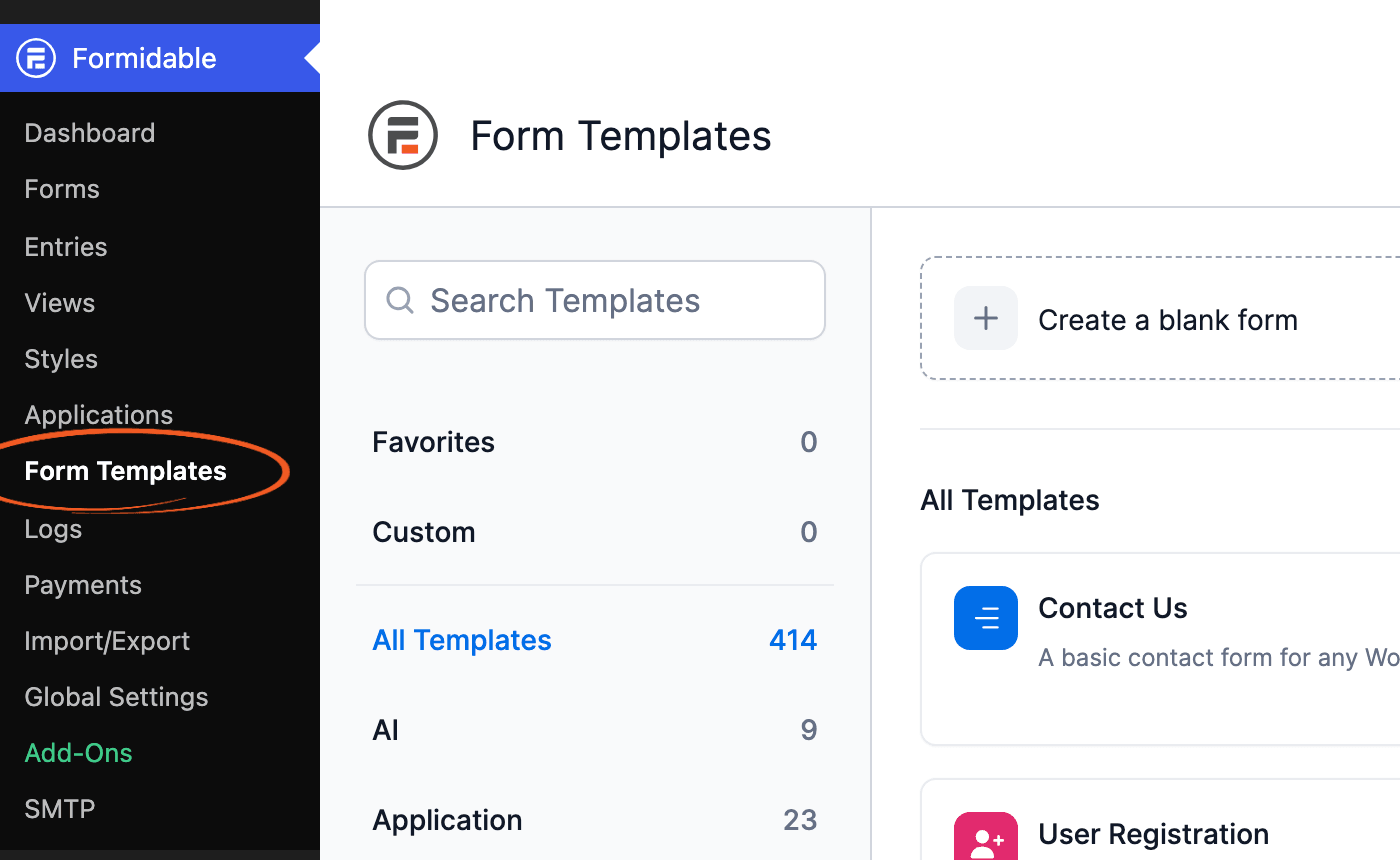
- Go to the Formidable → Form Templates page.
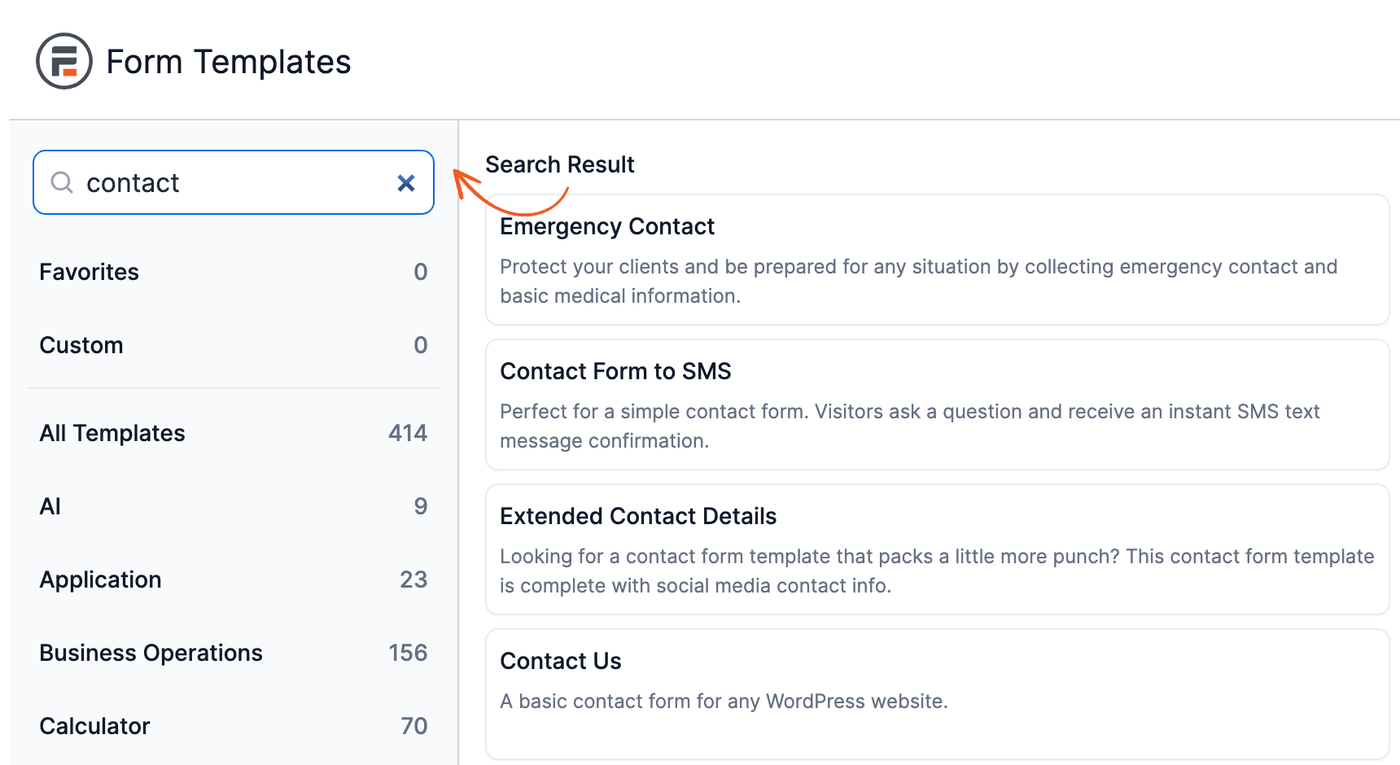
- Browse through the form template library and choose the one that suits your needs. You can also use the Search Templates box to look for a specific template.
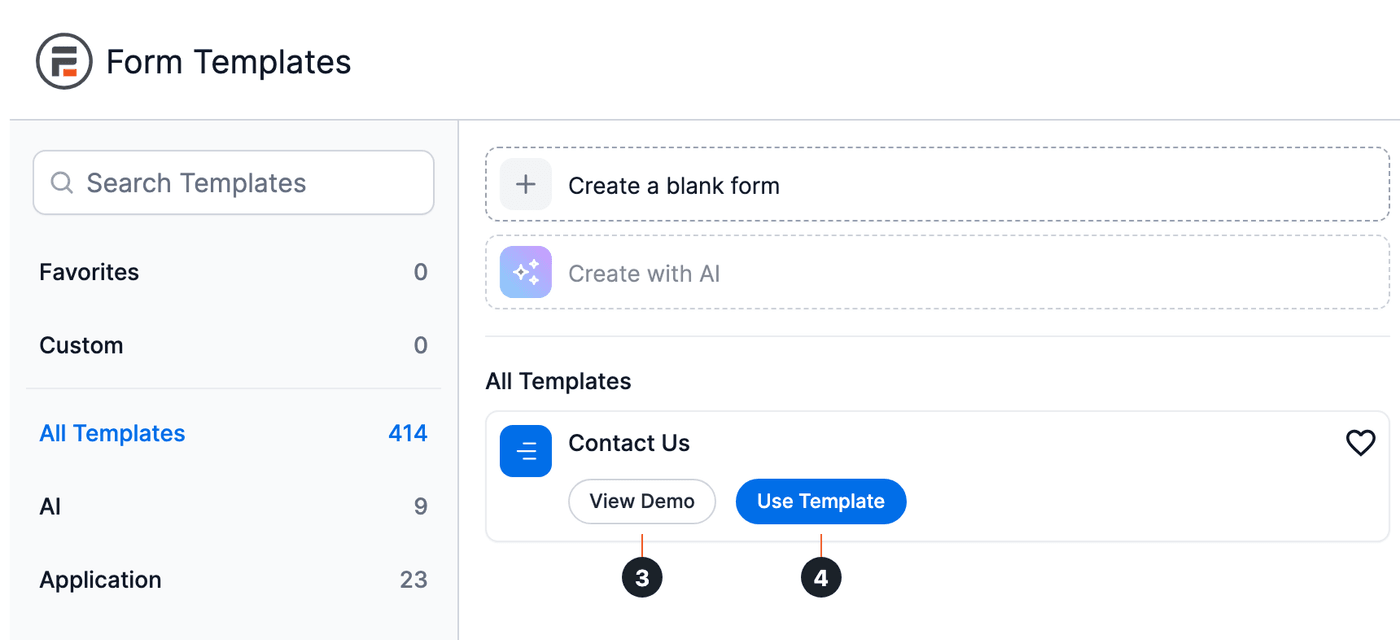
- (Optional) To preview a template before you use it, hover over it and click View Demo (3). The demo opens on formidableforms.com in a new tab.
- Hover over the template you want and click Use Template (4). The form builder opens with the template's fields, ready for you to edit.
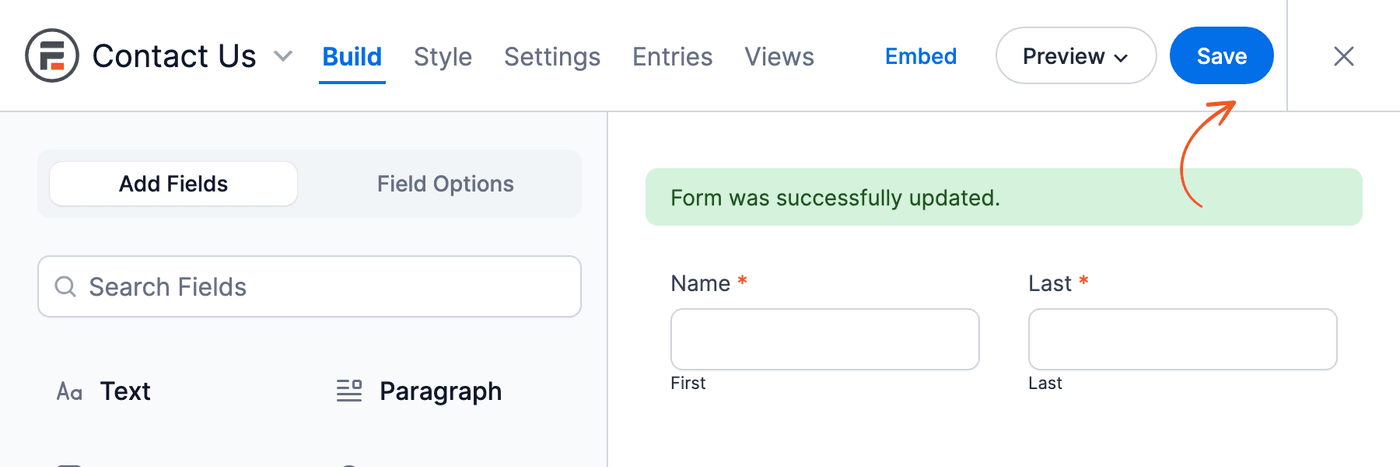
- Click Save. The form is saved with the template's name, such as Contact Us. To rename it, go to the Settings tab and change the Form Title. Then click Update.
How to create custom form templates
A custom form template is a copy of one of your forms that you can reuse to start new forms. Custom templates are listed under Custom on the Formidable → Form Templates page.
- Go to the Formidable → Form Templates page.
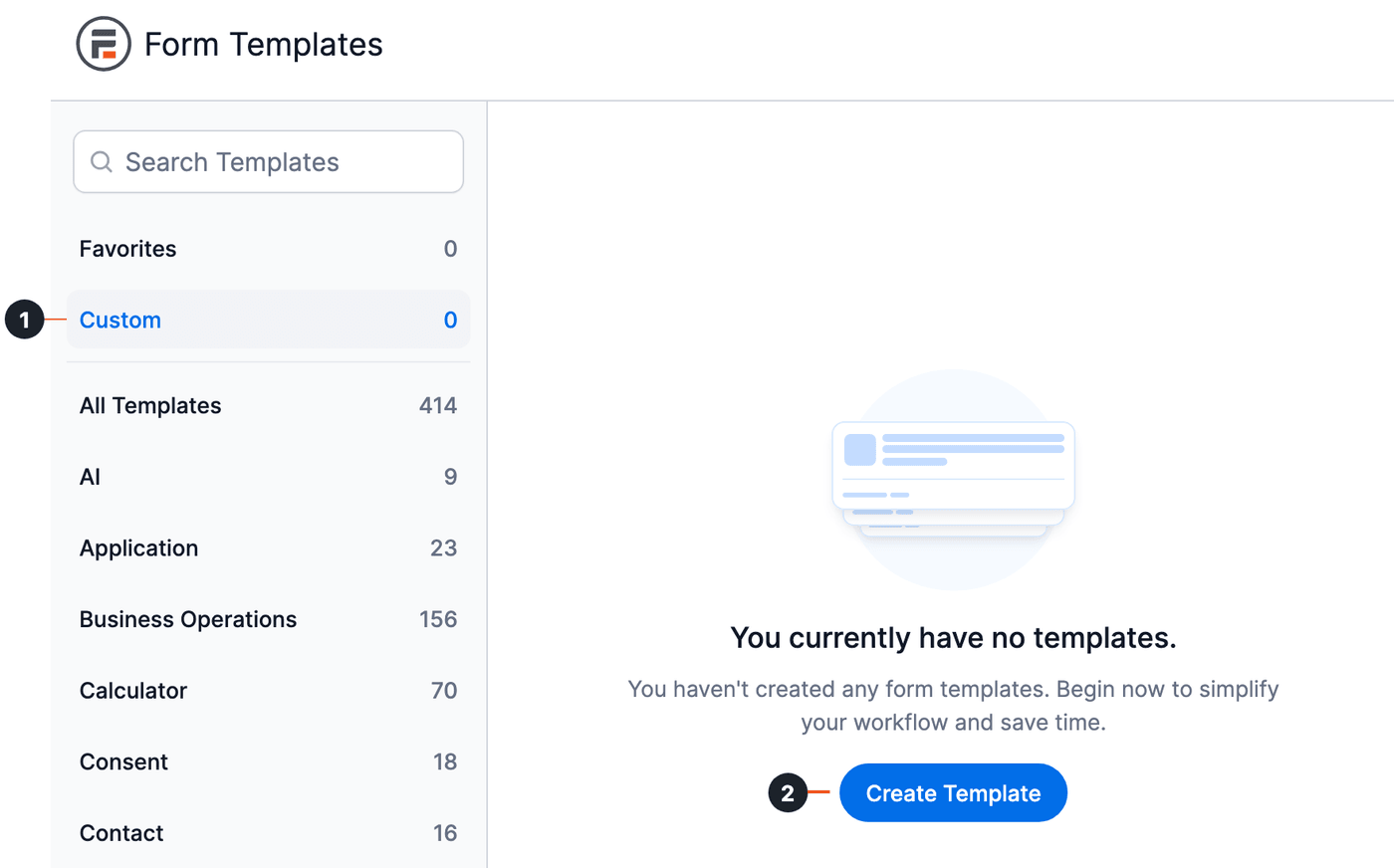
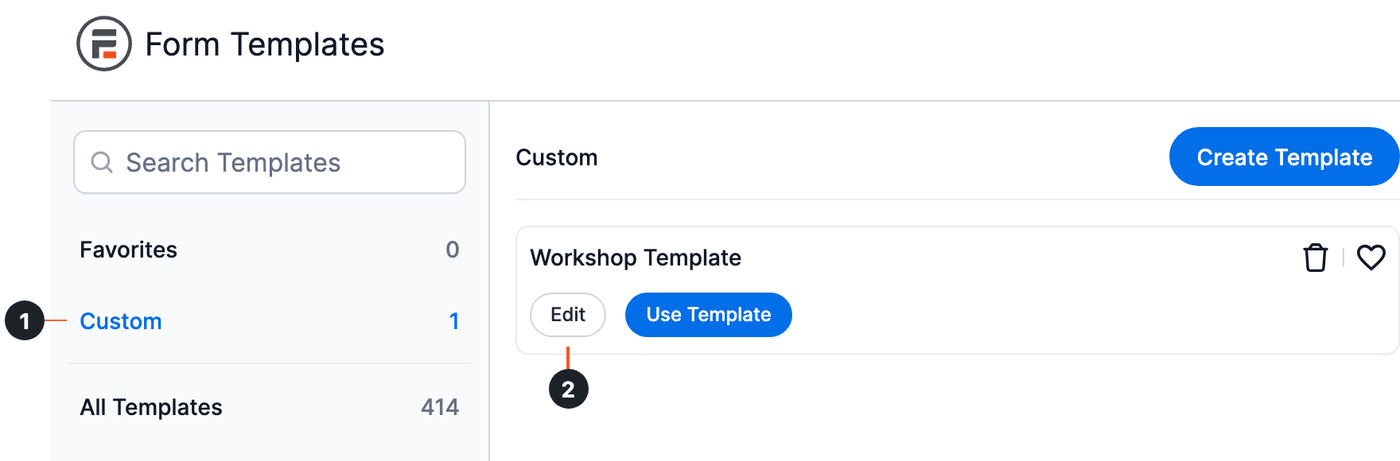
- In the left menu, click Custom (1). Then click Create Template (2).
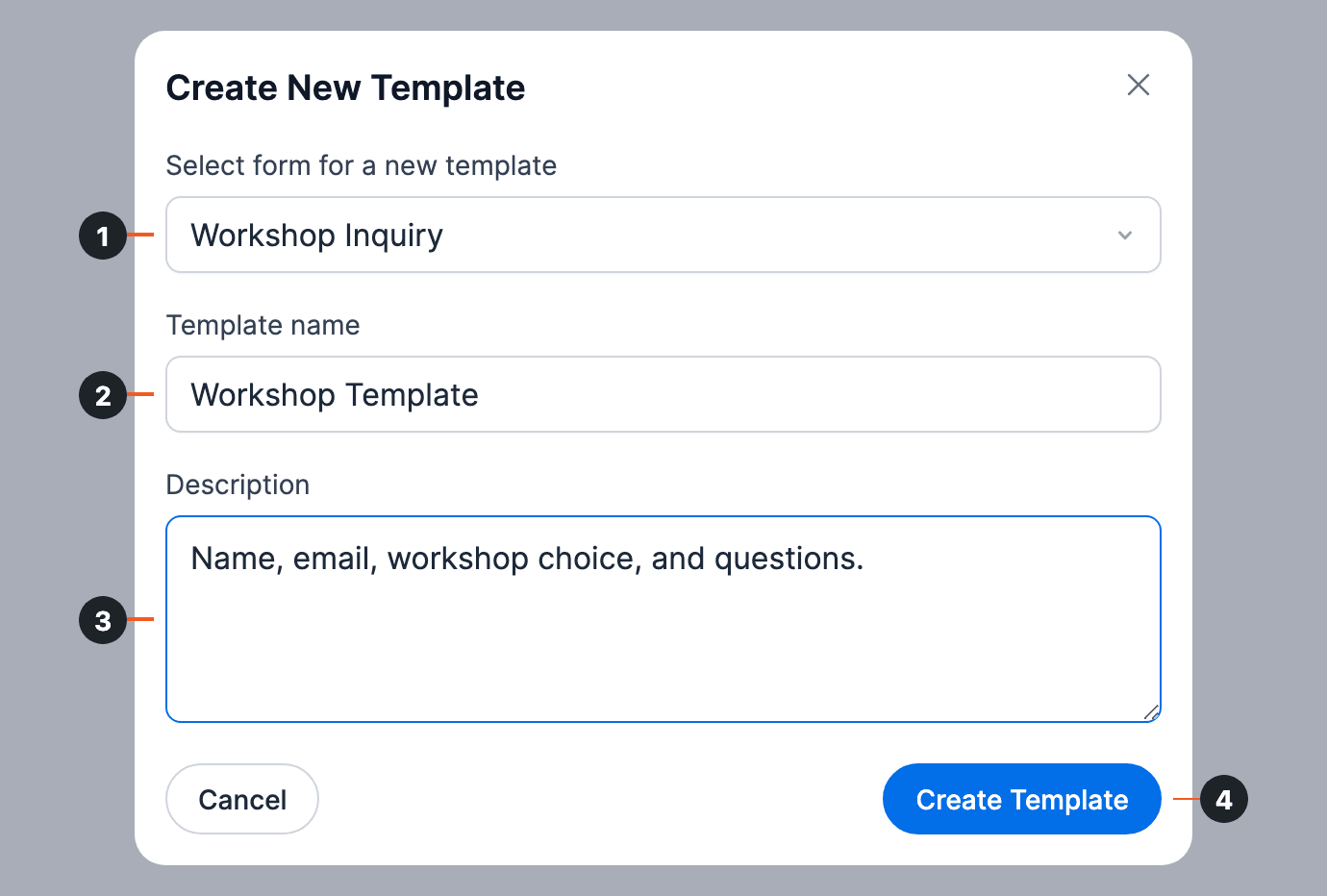
- In the Create New Template box, select the form to copy into the template (1). The Template name fills in with the form's name plus "Template". Change the name if you like (2) and add a Description (3). Then click Create Template (4).
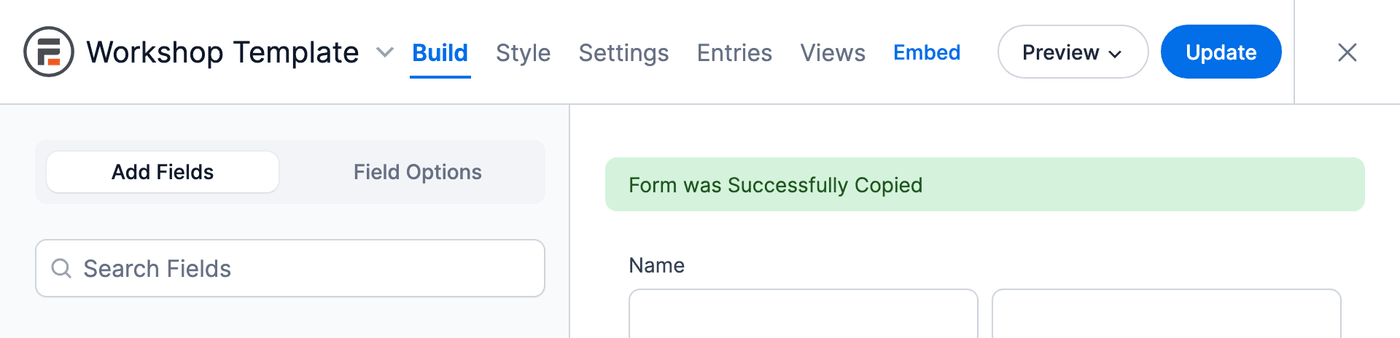
The dropdown shortens long form names. If two forms look the same in the list, give the form you want a short, clear name first. - The template is saved, and the form builder opens a new form made from it ("Form was Successfully Copied"). This new form has the template's name and is listed in Formidable → Forms. You can use it as a regular form or delete it if you don't need it. Edits to this form don't affect the template.
- To change the template itself, go back to Formidable → Form Templates and click Custom (1). Hover over the template and click Edit (2). The template opens in the form builder. Make your changes and click Update to save them.
- (Optional) The template is a separate copy, so you can delete the original form if you only made it to build the template and it isn't used on a page.
Build GDPR compliant forms
For more detail on GDPR and what it is, read more in the blog about how to make GDPR compliant WordPress forms.
Create an Anonymous form
If you are not collecting any personal information, you can keep your surveys, polls, and other forms anonymous. Go to the Formidable → Global Settings → General Settings page. In the GDPR section, check Enable GDPR related features and enhancements (1). Then check the Do not store user IPs with form submissions box (2) to disable IP tracking, and click Update.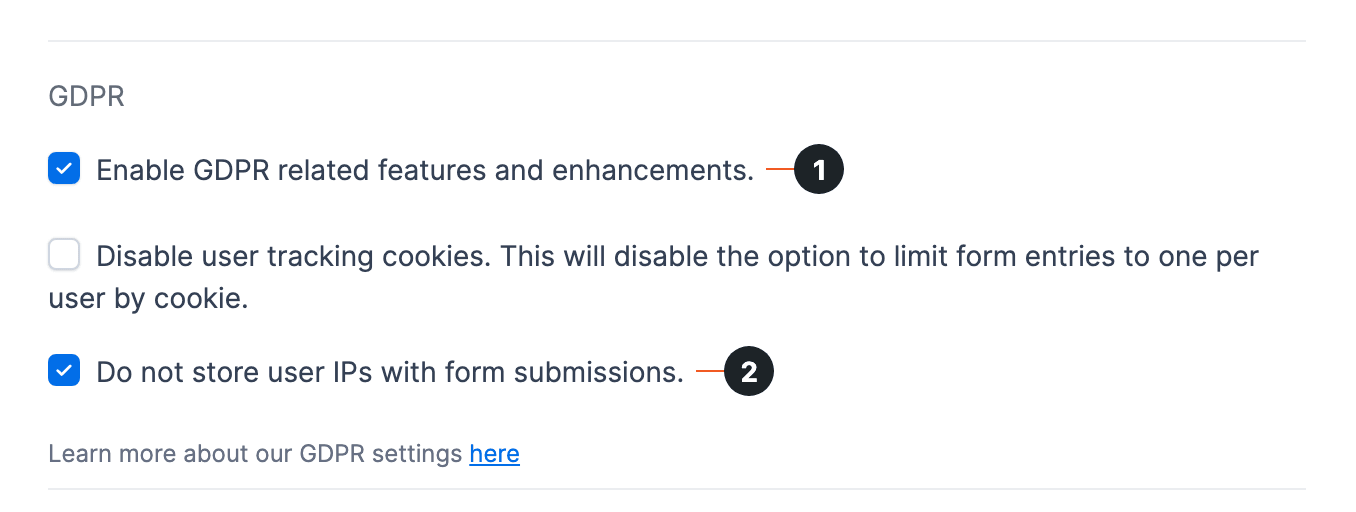
This affects future entries only. Removing IP addresses in existing submissions will need to be done manually in the database.
Read more: How to Create an Anonymous Survey in WordPress
Request consent for personal information
To request consent, all you need is a required checkbox. Read more about how to include a link to agree to terms.
You can also add a GDPR agreement field. In the form builder, click the Settings tab (1), then GDPR (2). Check Include a GDPR agreement field and click Update. The settings on this tab are turned off until Enable GDPR related features and enhancements is checked in the global settings.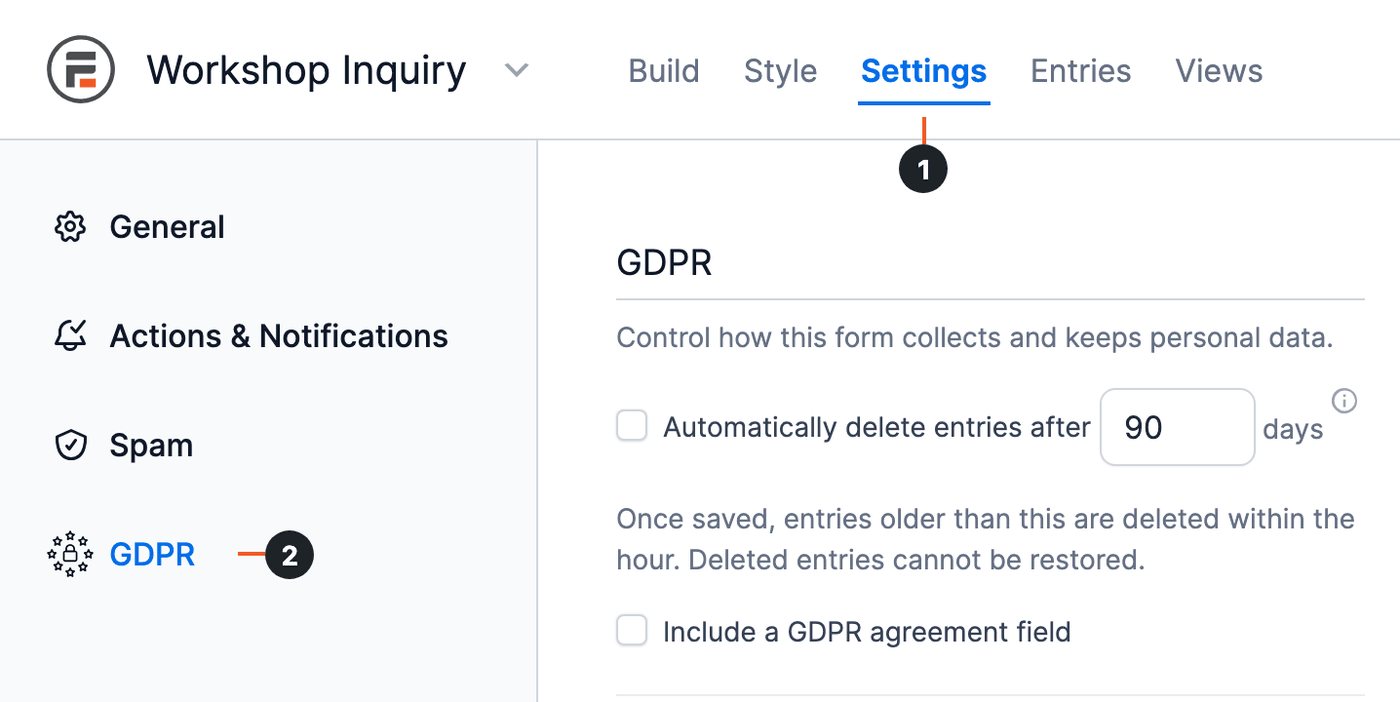
Learn more about the form GDPR settings.
Allow access and deletion of personal data
Create a view to show a user their entries, and set up entry editing and deleting from the front-end.
Learn more in the blog about the steps to GDPR compliance for the right to access and be forgotten.
If you need an alternative way to export and delete form data, learn more about how to export and erase personal form data.
To keep entries only as long as you need them, turn on Automatically delete entries after on the form's Settings → GDPR tab. Deleting entries automatically is a premium feature. Learn more about how to delete entries automatically.
Build ADA compliant WCAG forms
For more detail on ADA and what it is, read more in the blog about how to make ADA compliant WCAG WordPress forms.
Build secure forms
For more detail on HTTPS and how to build secure forms, read more in the blog about how to switch to HTTPS for secure WordPress forms.


