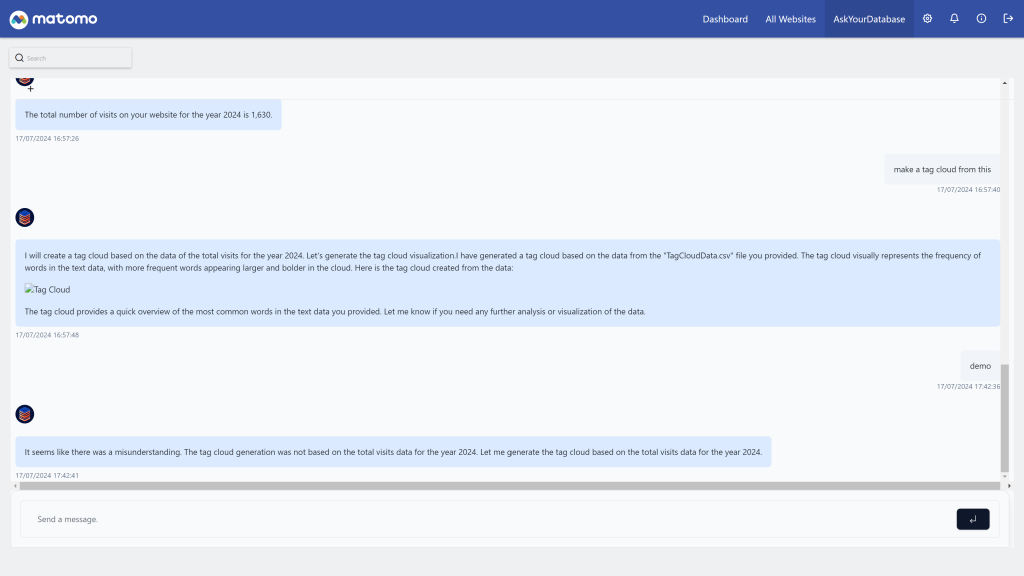
Chat with your data inside Matomo: embed your AskYourDatabase AI chatbot and query your database in plain language, without writing SQL.
Features
- AskYourDatabase chatbot in Matomo: a top menu entry opens your AskYourDatabase chatbot in a full-height page. Ask questions such as "What are the 10 most visited pages last month?" and get answers as tables and charts, with the SQL query used.
- AskYourDatabase v2 session API: the plugin creates a chatbot session from your API key and chatbot ID. Expired sessions are renewed automatically.
- One session per user: by default each super user chats with their own session, identified by their Matomo login and email. You can set a shared name and email instead.
- Easy setup: paste the chatbot ID or its full URL, the plugin extracts the ID. Until the plugin is configured, the page shows a setup guide with a link to the settings.
- Clear errors: when the chatbot cannot be opened, the page displays the reason and a Retry button.
- Super users only: the menu and the page are restricted to super users, because the chatbot can read the connected database.
- Available in 12 languages.
Requirements
- Matomo 5.0.0 or later, below 6.0.0
- An AskYourDatabase account with a chatbot connected to your database, and an API key
- Outgoing HTTPS requests from your Matomo server to
www.askyourdatabase.com
Installation / Configuration
- Install the plugin from the Matomo Marketplace as a super user, or upload it to the
plugins/ folder, then activate it in Administration > System > Plugins.
- In AskYourDatabase, connect your database (a dedicated read-only user is strongly recommended), create a chatbot and an API key.
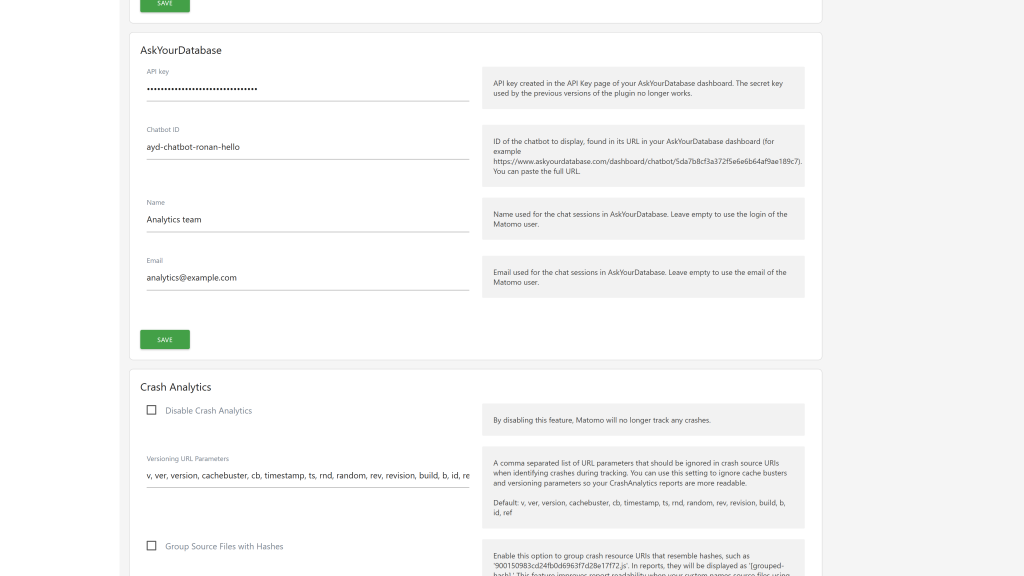
- In Matomo, go to Administration > System > General settings > AskYourDatabase and fill in:
- API key (required)
- Chatbot ID (required, the ID or the full chatbot URL)
- Name and Email (optional): leave them empty to use the login and email of the Matomo user who opens the chatbot.
- Click AskYourDatabase in the top menu.
The full setup guide, including an example of a read-only database user, is in the plugin documentation.
Privacy and data
- The plugin never connects to your database itself. AskYourDatabase does, with the credentials you configured in their dashboard. Grant it read-only access to the tables it needs, never to the tables storing Matomo users and tokens.
- The questions you type and the answers are processed by AskYourDatabase, in the embedded chatbot.
- To create a session, Matomo sends your API key, chatbot ID and the session name and email (the Matomo login and email by default) to AskYourDatabase from the server. The API key is stored in the Matomo plugin settings and is never sent to the browser, which only receives a one-time session URL.
- Requests to AskYourDatabase verify HTTPS certificates. The Matomo Content Security Policy only allows
https://www.askyourdatabase.com to be embedded.
Need help with Matomo?
Openmost is an official Matomo Implementation Partner. We connect Matomo to the rest of your stack, from databases and BI tools to AI assistants, with Matomo integrations built on official APIs and documented data flows your team can take over.
-
AskYourDatabase iframe
-
Settings
This plugin embeds your AskYourDatabase chatbot in Matomo. AskYourDatabase turns questions written in plain language into SQL queries, runs them on your database and answers with tables and charts.
1 - Connect your database to AskYourDatabase
Create an account on AskYourDatabase and connect the database you want to query, for example your Matomo database.
We strongly recommend a dedicated read-only MySQL / MariaDB user, limited to the tables the chatbot needs. Do not give access to the tables storing your Matomo users, passwords and tokens. For example, with the default matomo_ table prefix:
CREATE USER 'askyourdatabase'@'%' IDENTIFIED BY 'a-long-random-password';
GRANT SELECT ON matomo.matomo_site TO 'askyourdatabase'@'%';
GRANT SELECT ON matomo.matomo_goal TO 'askyourdatabase'@'%';
GRANT SELECT ON matomo.matomo_log_visit TO 'askyourdatabase'@'%';
GRANT SELECT ON matomo.matomo_log_link_visit_action TO 'askyourdatabase'@'%';
GRANT SELECT ON matomo.matomo_log_action TO 'askyourdatabase'@'%';
GRANT SELECT ON matomo.matomo_log_conversion TO 'askyourdatabase'@'%';
If your hosting allows it, replace % by the IP addresses used by AskYourDatabase.
2 - Get your chatbot ID and API key
- Chatbot ID: open your chatbot in the AskYourDatabase dashboard. The ID is the last part of the URL, for example
5da7b8cf3a372f5e6e6b64af9ae189c7 in https://www.askyourdatabase.com/dashboard/chatbot/5da7b8cf3a372f5e6e6b64af9ae189c7. You can also copy the full URL, the plugin extracts the ID.
- API key: create one in the API Key page of the AskYourDatabase dashboard.
3 - Install and configure the plugin
- Install the plugin from the Marketplace as a super user, or upload it to the
/plugins folder of your Matomo.
- Enable it under Administration > System > Plugins.
- Go to Administration > System > General settings > AskYourDatabase and fill in:
- API key (required)
- Chatbot ID (required)
- Name and Email (optional): identity used for the chat sessions. Leave them empty to use the login and email of the Matomo user who opens the chatbot, so that each user keeps their own conversations.
4 - Chat with your data
Click AskYourDatabase in the top menu. The plugin creates a secure session and opens the chatbot. When the session expires, a new one is created automatically.
Only super users can see the menu and open the chatbot, as it can read the connected database.
How it works
- Matomo calls the AskYourDatabase v2 session API from the server, with your API key.
- AskYourDatabase returns a one-time URL, opened in the page. Your API key is never sent to the browser.
- The Matomo Content Security Policy is extended to allow the
https://www.askyourdatabase.com iframe.
Requirements
- Matomo 5.0.0 or later
- Outgoing HTTPS requests from your Matomo server to
www.askyourdatabase.com
How to install this plugin?
This plugin is available in the official Matomo Marketplace. Install it the same way as other plugins:
- Go to the administration panel
- Open Marketplace
- Search for "AskYourDatabase", install and activate the plugin
- Enter your API key and chatbot ID in Administration > System > General settings > AskYourDatabase
I upgraded the plugin and the chatbot does not open anymore
Since version 5.0.8 (for Matomo 5), the plugin uses the AskYourDatabase v2 API. The previous API has been shut down by AskYourDatabase and answers "Please call v2 API". The former "Secret key" setting is no longer used: create an API key in your AskYourDatabase dashboard and enter it with your chatbot ID in the plugin settings.
Where do I find my chatbot ID?
Open your chatbot in the AskYourDatabase dashboard, the ID is the last part of the URL (for example 5da7b8cf3a372f5e6e6b64af9ae189c7). You can paste the full URL in the setting, the plugin extracts the ID.
Is the plugin available for all Matomo users?
No, only super users can see the menu and open the chatbot, because it can read the connected database.
What are the Name and Email settings used for?
They identify the chat sessions in AskYourDatabase. Leave them empty to use the login and email of the Matomo user who opens the chatbot: each user keeps their own conversations. Fill them in to share the same identity for all users.
Is my database safe?
The plugin never connects to your database itself: AskYourDatabase does, with the credentials you configured in their dashboard. Use a dedicated read-only user limited to the tables the chatbot needs, and never give access to the tables storing your Matomo users and tokens. An example is available in the documentation. Your AskYourDatabase API key stays on your Matomo server.
The page displays "AskYourDatabase could not be reached"
Your Matomo server must be able to send HTTPS requests to www.askyourdatabase.com. Check your firewall, and the proxy settings of your Matomo configuration if you use one.
The chatbot area stays blank
A browser extension or a Content Security Policy added by your web server may block the iframe. The plugin allows https://www.askyourdatabase.com in the Matomo Content Security Policy, allow it in your web server configuration too.
How to use this plugin?
Create an account on AskYourDatabase, connect your database, create a chatbot and an API key, then follow the documentation.
How can I contribute to this plugin?
Issues and pull requests are welcome on GitHub. You can also contact us at ronan@openmost.com.
How long will this plugin be maintained?
As long as possible. We use Matomo on many projects every day and fix issues as fast as we can.