

TrueForge’s approach
There are two common patterns for combining agents with sandboxes:
TrueForge uses sandbox as tool: the agent loop and credentials stay in the harness; the sandbox only runs code, file, and shell operations.
That means:
- Model and MCP credentials never enter the sandbox.
- Conversation state survives a sandbox crash.
- A sandbox is created only when the agent actually needs one — simple Q&A and MCP calls incur no sandbox cost.
Configuring a provider
Daytona is the only sandbox provider supported today. Support for additional providers is planned. Open Settings → Sandbox providers, pick the Daytona preset from the catalog, and paste your API key.Create the Daytona API key with the
write:sandboxes, write:snapshots, and manage:secrets scopes.
TrueForge builds and clones snapshots for environments and syncs secrets to Daytona, so
saving the provider fails if any of these scopes are missing, even when the key is otherwise valid.Environments
A sandbox environment is a reusable blueprint for the sandboxes your agents create. It captures the base image and an optional build script, the CPU, memory, and disk to allocate, environment variables, outbound network rules, and secrets. When an agent provisions a sandbox, TrueForge clones the environment that agent points at. Open Envs in the sidebar to see your environments and create new ones. Each row shows its build status, resources, networking, and when it was last updated.A reserved default environment is created for you when you configure the provider. It uses the platform image and the name
default, with 1 CPU, 1 GB of memory, and 3 GB of disk. You cannot create or delete an environment named default.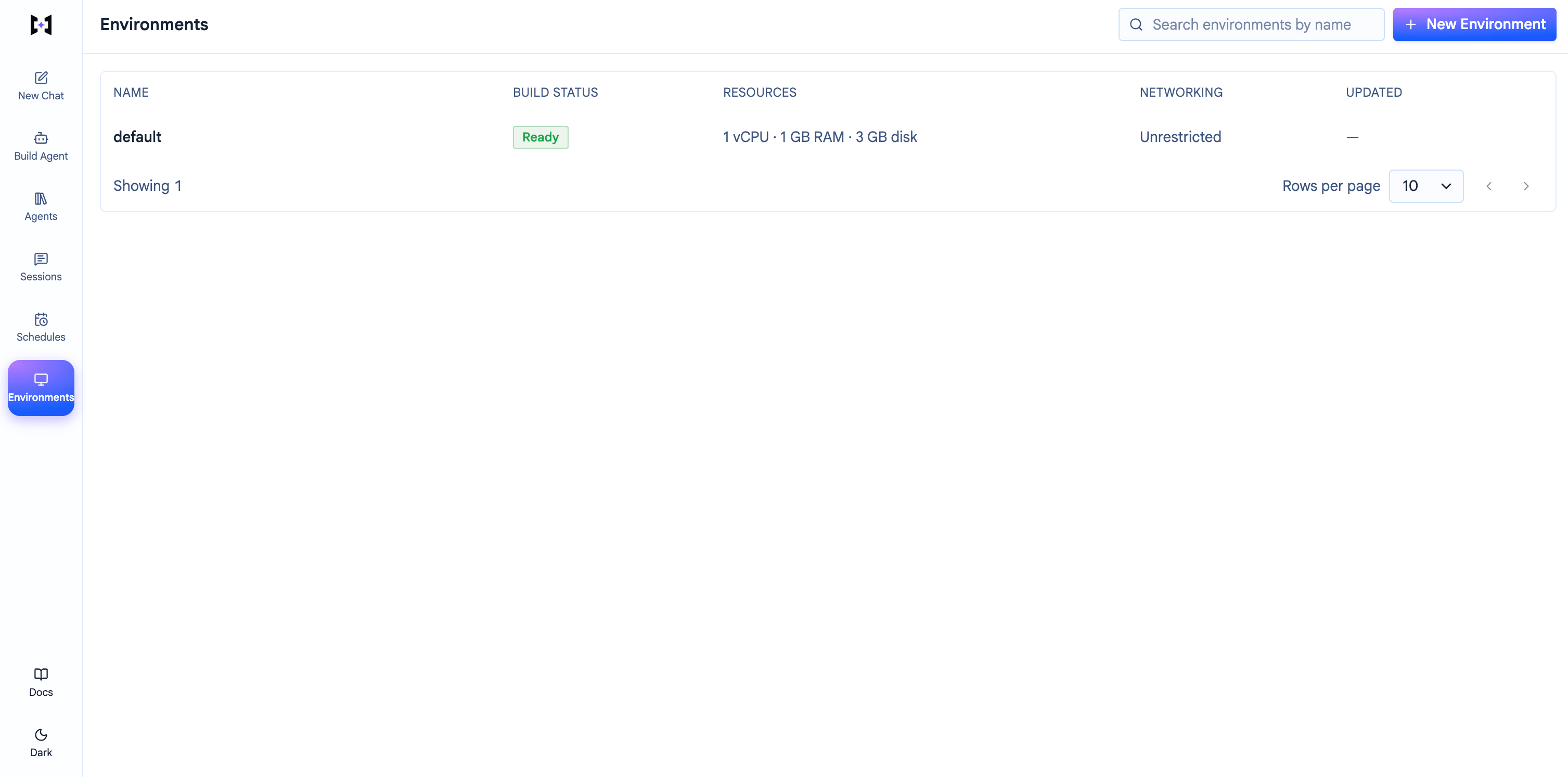
The Environments page: the reserved default environment, plus any you create.
Creating an environment
Click New Environment, give it a name your agents will reference, then set what you need: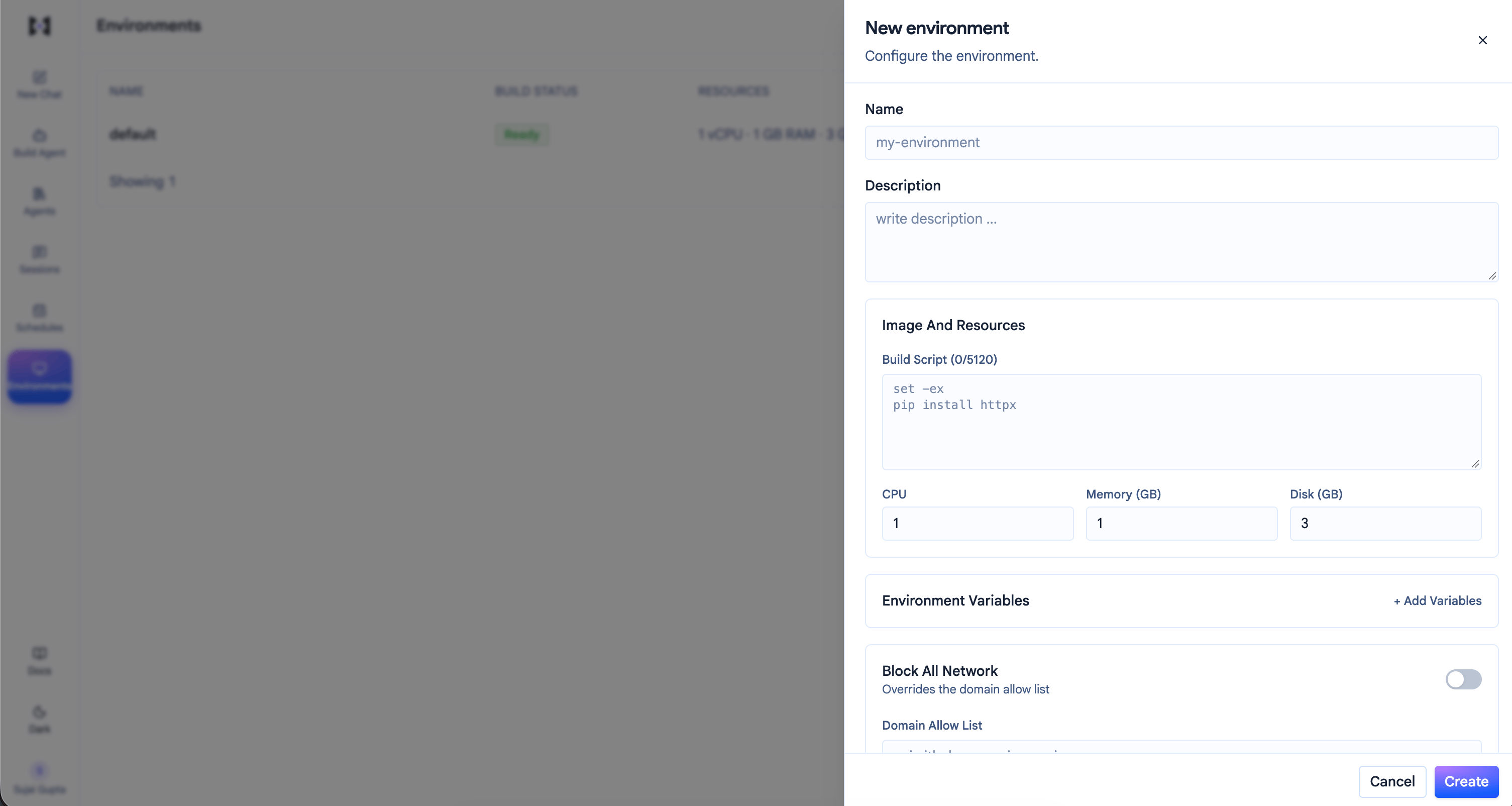
Creating an environment: image and resources, environment variables, networking, and secrets.
Build status and rebuilds
A new or edited environment shows Building while TrueForge bakes its snapshot, then Ready. Only Ready environments can be selected on an agent.- Changing the build script or CPU / memory / disk bakes a new snapshot. The environment returns to Building, and sandboxes that already exist keep the old snapshot until they are replaced.
- Changing environment variables, networking, or secrets reuses the current snapshot, so there is no rebuild.
Network policy
A sandbox runs code the agent writes, so you may want to limit what it can reach on the network. By default egress is unrestricted. Each environment has two controls under Networking to tighten that:- Domain allow list: a comma-separated list of hosts the sandbox may reach, for example
api.github.com,api.openai.com. Requests to any host not on the list are blocked. Use this to scope the sandbox to the services a task actually needs. - Block all network: no outbound access at all. The domain allow list and secrets are ignored while this is on. Use it for environments that only run local code and file operations.
Secrets are network-scoped: each one names the hosts its value may be sent to, so a credential is only forwarded to destinations you approve, even if the sandbox could otherwise reach them. Because of this, secrets cannot be added while Block all network is on.
Networking changes take effect when a sandbox is created, so an existing session keeps its current policy until its sandbox is replaced. See How changes reach a running session.
Secrets
Secrets hold credentials the sandbox needs for its own outbound calls, such as an API token or git credentials. They are not model or MCP credentials, which stay in the harness (see Credential safety). Add secrets per environment under Secrets. Each one has:- Env name: the environment variable the sandbox process sees, for example
GITHUB_TOKEN. - Value: the credential itself. TrueForge does not store it in plaintext, and API and UI reads return a redacted stand-in. Leave the stand-in in place to keep the stored value, or type a new value to rotate it.
- Hosts: the destinations the value may be sent to. The sandbox process sees the variable, but the provider only forwards the value to these hosts.
How changes reach a running session
An environment’s settings are read when a sandbox is created, so changing them normally affects only new sessions. The exception is secrets: saving the environment syncs them to the provider right away, even while a snapshot rebuild is still Building. This table covers every field.Enabling the sandbox on an agent
The sandbox is off by default per agent. Turn it on in the agent builder when you need code execution, skills, or Code Mode. You can also setconfig.sandbox.enabled in the agent spec when creating agents via the SDK.
Optional controls:
- File downloads: let users download files the agent produces (on by default in the chat UI).
- Environment: the environment a sandbox is cloned from. Leave it as default, or pick one you created (only Ready environments appear).
config.sandbox.environment_name on the agent spec; omit it to use default:
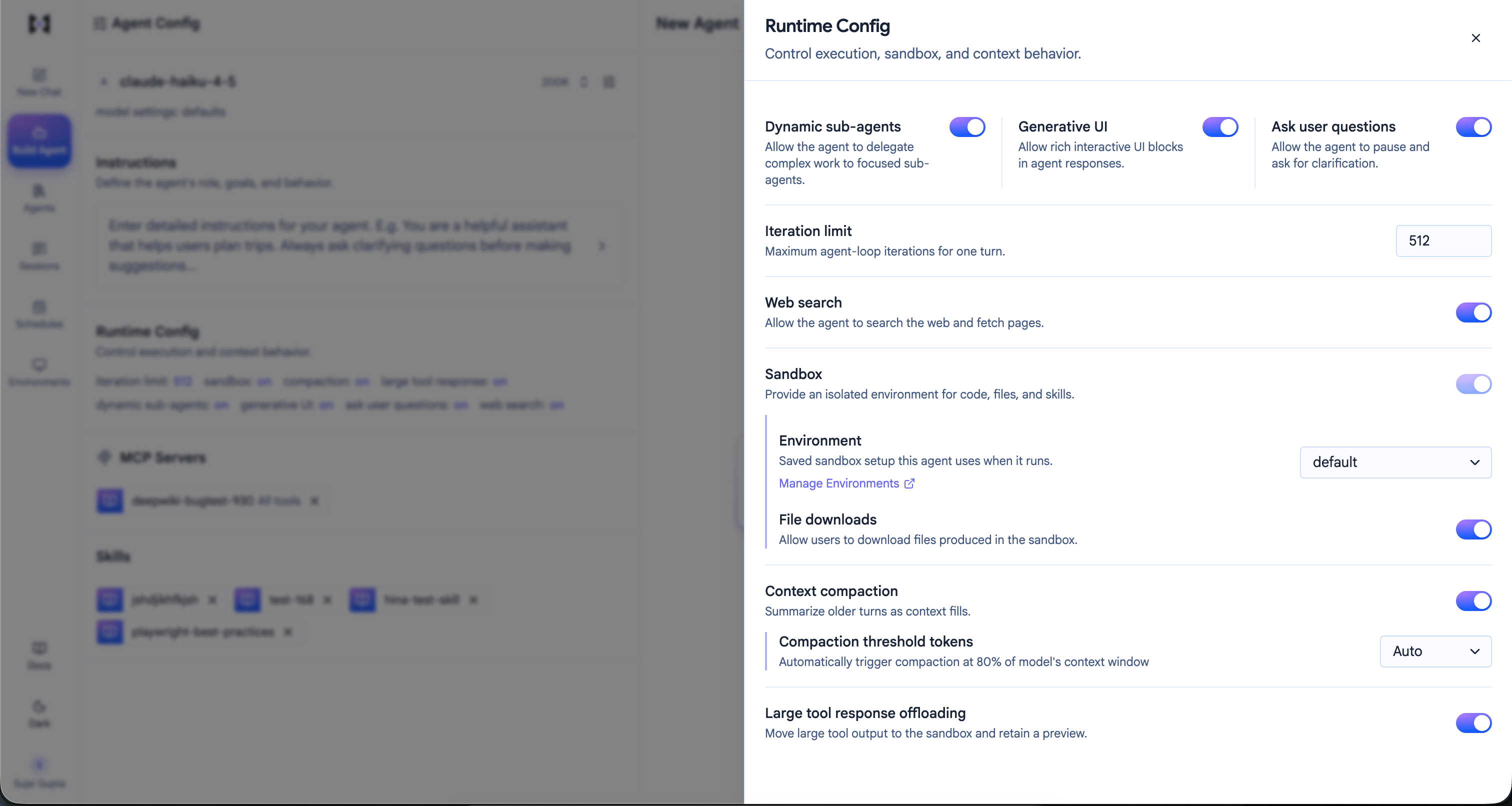
The agent's Environment selector in Runtime Config, with a Manage Environments link.
Lifecycle
- Provisioned on demand when the agent needs code, files, skills, or Code Mode.
- Reused across turns in the same session (files persist).
- Stopped after idle time, then archived and eventually deleted per the provider settings.
- Editing the agent’s environment does not change a sandbox that already exists, with one exception: secrets sync immediately. See How changes reach a running session.
Credential safety
- Model and MCP credentials stay in the harness.
- MCP calls from Code Mode scripts are bridged back to the harness — the sandbox never holds those tokens.
- Environment secrets are provider-managed and network-scoped. Rotating a value reaches existing session sandboxes immediately; adding a secret does not, so start a new session for it.
