

Finding a file or changing folders in Linux starts with knowing where your commands are running. A shell reads commands and runs them, while the terminal displays your input and the results.
I’ll show you how to check your location and move with paths, then create and work with files in a practice directory.
TL;DR: Linux command line basics
The Linux command line lets you give text instructions through a shell running in a terminal. Check your location with pwd, inspect it with ls, and change it with cd before creating, copying, moving or removing files.
- Use pwd to print the working directory and ls -la to include hidden entries.
- Use cd path to move. A path beginning with / is absolute, while a name such as Documents is relative to your current directory.
- Use mkdir, touch, cp and mv to manage practice files. Check the path carefully before using rm.
What is the Linux command line?
The Linux command line is a way to control a computer by entering text commands. A terminal is the window that displays your input and output, while a shell such as Bash reads a command and runs a built-in operation or another program.
A prompt appears when the shell is ready. It often includes a username, computer name and current directory, but its appearance depends on the shell configuration. Type a command in lower case and press Enter.
Output appears below it when available, although a successful command can return to the prompt without a message.
The command ls -l Documents illustrates the usual structure: ls names the command, -l selects a long listing, and Documents gives the target path.
| Term | Meaning |
|---|---|
| Terminal | The window or device that displays typed input and program output. |
| Shell | The program that reads a command line, expands shell syntax and runs built-ins or programs. |
| Root directory | The beginning of Linux’s unified file tree, written as a single slash. |
| Absolute path | A full path beginning with a slash, such as /home/sam/Notes/todo.txt. |
| Relative path | A path interpreted from the shell’s current working directory. |
| Dot shortcuts | A single dot means the current directory. The double-dot path refers to its parent. |
Bash expands the tilde shortcut to the home directory associated with your account. That directory is usually inside /home.
The shell processes a command before running it. It separates words, expands home shortcuts and wildcards, then passes the resulting arguments to a built-in or program. Quoting a spaced filename keeps it as one argument rather than two.
Command names and file names are case-sensitive. Flags also depend on the command: lowercase l in ls -l requests a long listing, while uppercase letters may mean something else. Check the command’s help when an option is unfamiliar.
How to navigate and manage files step by step
Work in a practice directory so each command has a predictable target, with each step checking the location before it changes files.
Step 1: Check where the shell is working
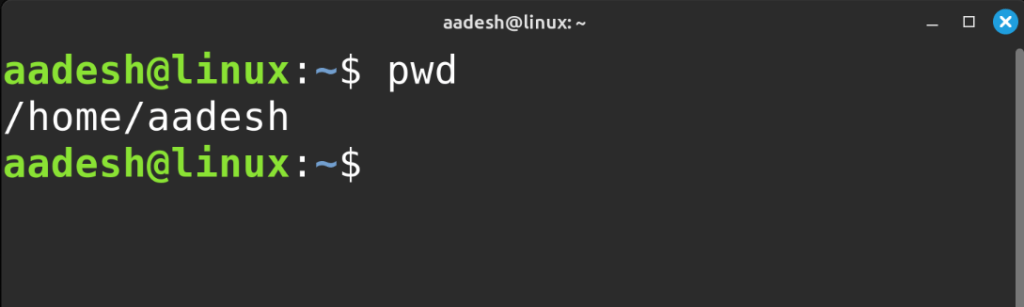
Run pwd to print the present working directory, the starting point for relative file paths and the location to check before changing files.
pwd
ls -la
Add -l to see permissions, owner, size and modification time in a long listing. The ls command lists names, and -a includes entries beginning with a dot.
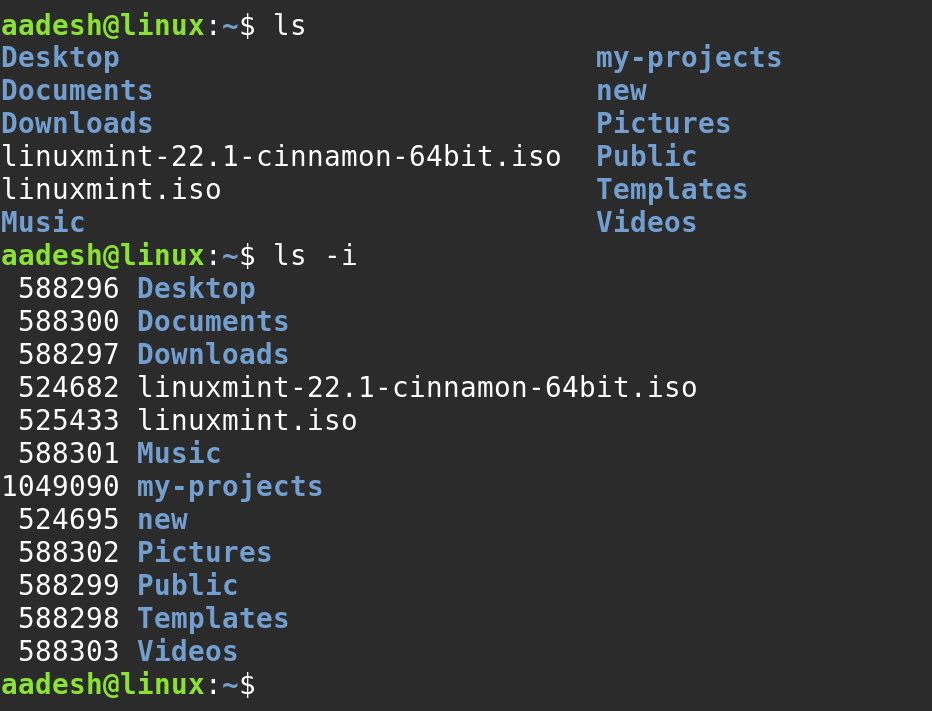
The old example ls -i displays inode numbers rather than general file details. To combine the two listing options, use ls -la.
Step 2: Move with absolute and relative paths
cd changes the shell’s working directory. A relative path starts from where you are, while an absolute path starts at / and works regardless of the current location.
cd Documents
pwd
cd ..
cd ~
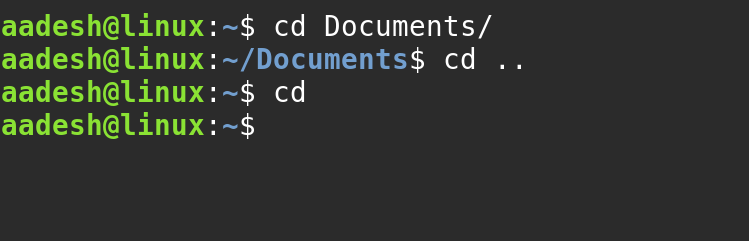
Here, cd Documents enters a child directory, cd .. moves up to its parent, and cd ~ returns home. Running cd with no argument also returns to your home directory.
If a directory name contains spaces, quote it, as in cd “Project Files”. You can also use an absolute path such as cd “/home/sam/Project Files”. Without quotes, the shell treats the portion after the space as another argument.
Tab completion can fill in a name and often inserts the escaping needed for spaces.
Use ls after changing directories to see what is there. If cd Documents reports that the path does not exist, check capitalization and your location with pwd. Linux file and directory names are case-sensitive, so Documents and documents can refer to different paths.
Step 3: Create a directory and a file
Before creating anything, enter a dedicated practice folder and confirm it is the target directory, then use mkdir to create directories and touch for empty files whose names do not exist.
mkdir command-practice
cd command-practice
touch notes.txt
ls -l
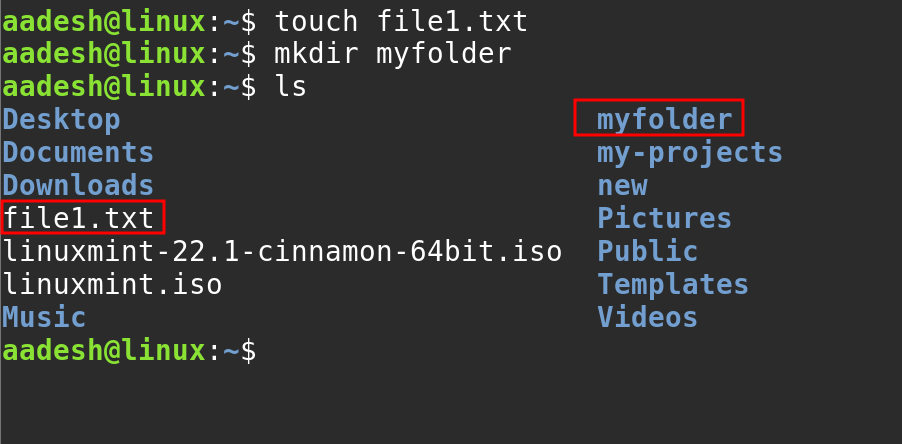
If mkdir says the directory already exists, inspect it with ls rather than assuming it is empty. The -p option creates missing parent directories and does not report an error when the requested directory already exists.
Step 4: Copy and rename a file
cp leaves the source in place and creates a copy at the destination. mv moves a path or renames it when the source and destination are in the same directory.
cp notes.txt notes-backup.txt
mv notes-backup.txt notes-copy.txt
ls -l
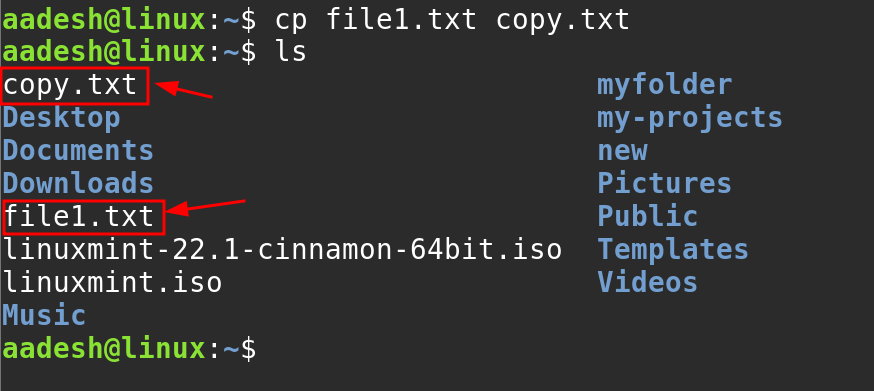
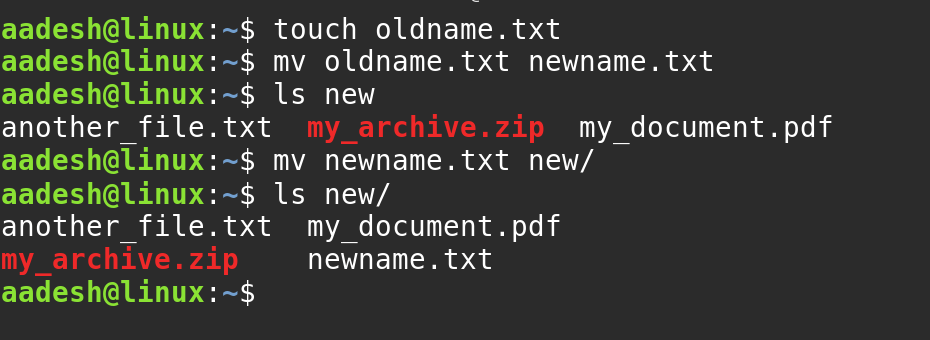
Check the destination before copying if it may already contain a file with that name. A copy can replace an existing destination, depending on the command options and interactive settings. For a directory tree, use cp -r source-dir destination-dir and verify both paths before running it.
Step 5: Read a file and remove the practice copy
Use cat for a short text file, or less when you want to page through a longer one. Remove only the practice copy after listing the directory and confirming its exact name.
cat notes.txt
ls
rm notes-copy.txt
ls
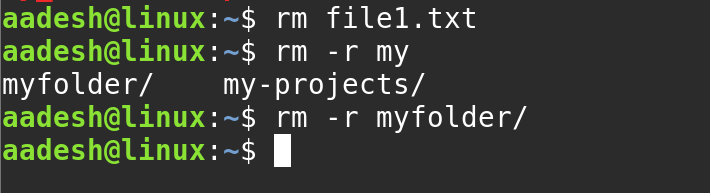
rm removes files directly. To remove a directory and its contents, the recursive option is rm -r directory-name. Avoid adding force flags to commands you have not checked, and never run a recursive remove against a path you have not verified with pwd and ls.
Step 6: Practice with a checked example
I ran a small named script to create a directory and file, list the resulting paths, and read the first line back. It keeps the example inside its practice folder and prints each check.
python3 cli_path_demo.py
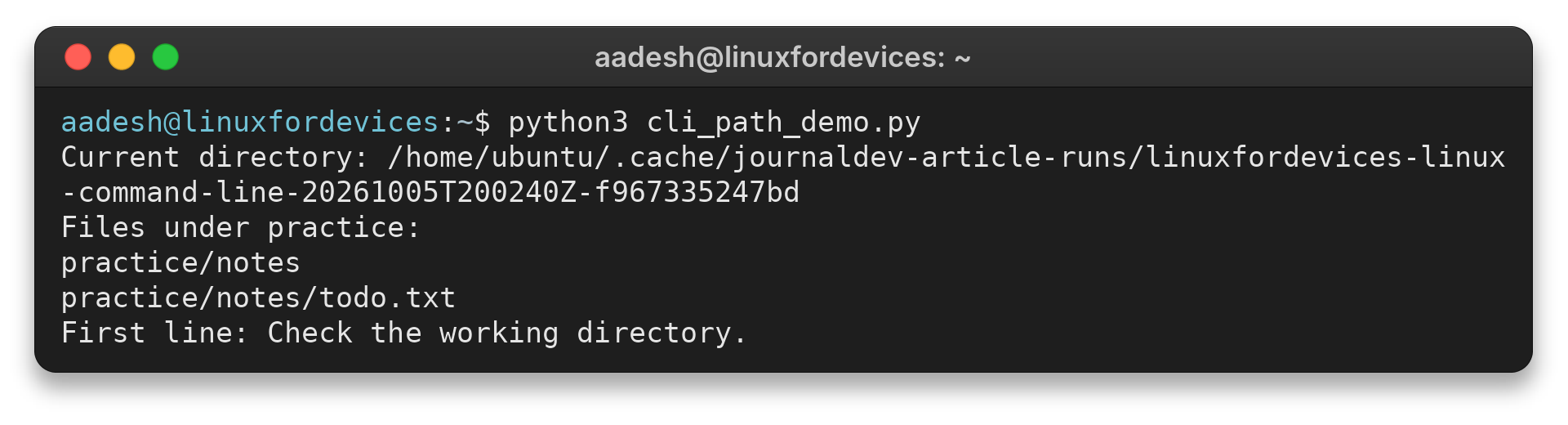
Current directory: /home/ubuntu/.cache/journaldev-article-runs/linuxfordevices-linux-command-line-20261005T200240Z-f967335247bd
Files under practice:
practice/notes
practice/notes/todo.txt
First line: Check the working directory.
The output names the directory and file, then displays the first line read from the file. Your own current directory will differ, so rely on the path your terminal prints rather than copying this machine-specific location.
What should you check before changing files?
Paths and shell expansion can change which item a command affects. Pause when a name contains spaces, a wildcard, or a directory you did not intend to modify.
| Situation | What to check |
|---|---|
| Unsure where a relative path starts | Run pwd, then inspect the target with ls. |
| Filename has spaces | Quote the whole path, such as “draft notes.txt”. |
| Need hidden entries | Use ls -a. Names beginning with a dot are hidden by convention. |
| Command reports no output | That may indicate success. Check the result with ls or pwd. |
| Removing a directory tree | Confirm the exact target before using rm -r. |
Bash treats spaces as separators between words unless they are quoted or escaped. Single quotes preserve the enclosed text literally. Double quotes also keep spaces together but still allow variable expansion, such as “$HOME”.
Choose quotes based on whether the shell should expand what is inside them. For a literal filename containing a dollar sign, single quotes stop variable expansion. For a path that includes your home directory, double quotes allow the shell to expand the variable while keeping the resulting path together as one argument.
An unquoted asterisk is a wildcard that Bash expands to matching names in the current directory. For example, ls *.txt lists matching text files. If you want the asterisk to be a literal character rather than part of a filename match, quote it.
A wildcard is not a search through every directory. It matches names in the directory where the command is run unless you include a path.
If no name matches, Bash normally passes the unmatched expression through unchanged, and the command may report that the path does not exist. Use ls first when you are unsure which files match.
For quick help, try command –help for a program’s option summary or man command for its manual page. In Bash, help cd explains the built-in cd command. Press q to leave a manual page shown by the usual pager.
A pipe sends the output of one command to another command as input. For example, ls | less displays a long directory listing one screen at a time, so you can move through it without changing the files.
Redirection sends output to a file instead of the terminal. The greater-than operator writes a new file or replaces an existing file, while two greater-than signs append to an existing file. Check the destination before using either form, since redirection can overwrite data without asking.
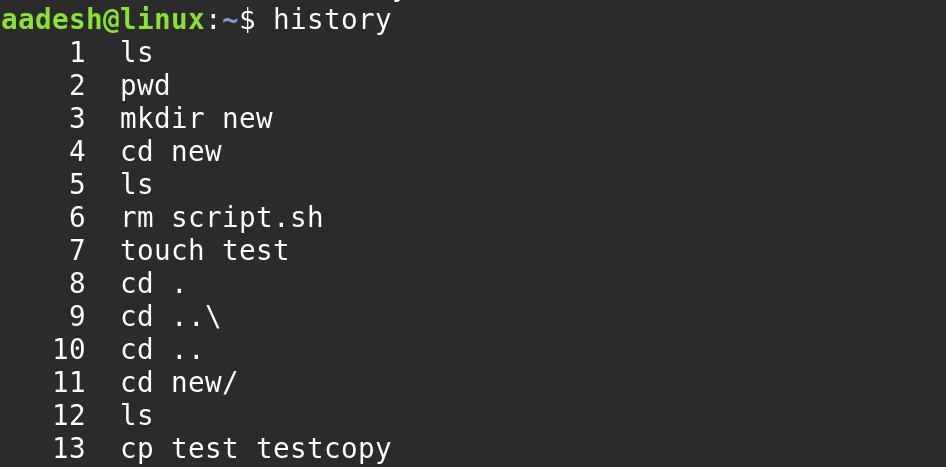
Command history and Tab completion can reduce retyping. Use the Up Arrow to recall an earlier command, or press Tab after entering part of a path.
If multiple names match, the shell may need a second Tab press to show the choices. Read a recalled command before pressing Enter, particularly if it contains rm. A line saved in history is only a record of what was typed, not proof that it is safe to run again from the current directory.
What to do next with the Linux command line
Once the file workflow feels familiar, choose one command you use often and read its manual page before adding options. The built-in help and manual commands work from the shell without changing files.
help cd
man ls
Use help for Bash built-ins such as cd, and man for a command with a manual page. Press q to leave the manual pager, then try the command on a practice path and check the result with pwd or ls.
Conclusion: Check your location before acting
The command line is clearer when you separate the terminal window from the shell and check the working directory before file operations. Start with pwd and ls, use paths deliberately, and verify a removal target before running rm.
For focused practice, continue with the Linux cd command guide, the ls command guide, and the tutorials for mkdir, cp, mv and rm. The terminal aliases guide explains one way to shorten commands you use often.
What are some basic Linux command line commands?
Start with pwd to print your working directory, ls to list entries, and cd to change directories. Use mkdir and touch to create practice paths, cp to copy, mv to move or rename, and rm only after checking the target.
What is the difference between a terminal and a shell?
A terminal is the text window or device that displays input and output. A shell such as Bash reads the commands entered there and runs built-ins or programs.
How do I move to my home directory in Linux?
Run cd with no argument or use cd ~. Both take the shell to the home directory associated with your account.
How do I use a path that contains spaces?
Put the path in quotes, for example cd “Project Files”. Quoting keeps the spaces inside one argument instead of letting the shell split the name.
How can I practice Linux commands safely?
Create a dedicated practice directory, use pwd and ls to verify where you are, and work only with files you created there. Inspect the exact target before using rm or rm -r.
