

JavaScript localStorage is a Web Storage API used to store key-value data in the browser. Unlike sessionStorage, the data remains available even after the browser is closed and reopened, until it is manually cleared.
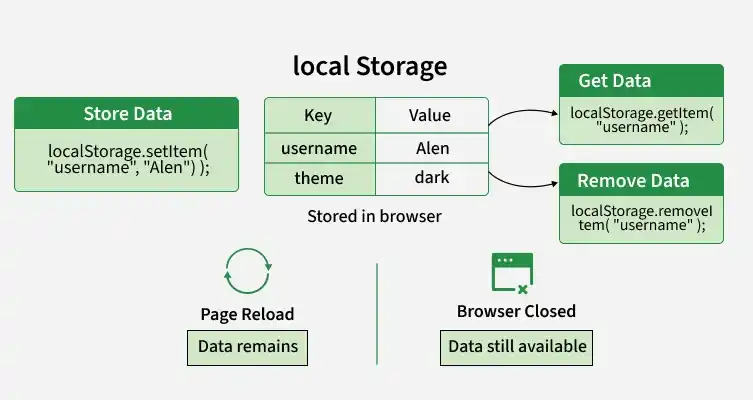
- Stores data as key-value pairs in the browser.
- Data persists across page reloads and browser sessions.
- Data is associated with the origin that stored it.
- Values are stored as strings and are not automatically sent with HTTP requests.
Syntax
window.localStorageSince localStorage is available on the window object, window. can be omitted:
localStorageMethods of localStorage
Here are the commonly used methods and properties:
- setItem(key, value): Stores or updates a key-value pair.
- getItem(key): Retrieves the value associated with a key.
- removeItem(key): Removes a specific key-value pair.
- clear(): Removes all stored items.
- key(index): Returns the key at the specified index.
- length: Returns the number of stored items.
Working with localStorage
The localStorage object provides methods to store, retrieve, update, and remove data in the browser.
1. Store Data
The setItem() method stores a value using a specified key.
localStorage.setItem("username", "Alen");2. Retrieve Data
The getItem() method retrieves the value associated with a key. It returns null if the key does not exist.
const username = localStorage.getItem("username");

console.log(username);
3. Update Data
Calling setItem() with an existing key updates its value.
localStorage.setItem("username", "Alex");4. Remove Data
The removeItem() method removes a specific item from localStorage.
localStorage.removeItem("username");5. Clear All Data
The clear() method removes all items stored for the current origin.
localStorage.clear();6. Check Stored Items
The length property returns the number of stored items.
console.log(localStorage.length);The key() method returns the key at a specified index.
console.log(localStorage.key(0));Example of localStorage
The following example demonstrates how to store, retrieve, and remove data using localStorage.
<!DOCTYPE html>
<html lang="en">

<head>
    <meta charset="UTF-8">
    <meta name="viewport" content="width=device-width, initial-scale=1.0">
    <title>JavaScript localStorage</title>
</head>

<body>

    <h2>Working with localStorage</h2>

    <label>Enter Key:</label>
    <input type="text" id="key">

    <br><br>

    <label>Enter Value:</label>
    <input type="text" id="value">

    <br><br>

    <button id="setBtn">Set Item</button>
    <button id="getBtn">Get Item</button>
    <button id="removeBtn">Remove Item</button>

    <p id="result"></p>

    <script>
        const keyInput = document.getElementById("key");
        const valueInput = document.getElementById("value");
        const result = document.getElementById("result");

        document.getElementById("setBtn").addEventListener("click", () => {
            localStorage.setItem(
                keyInput.value,
                valueInput.value
            );

            result.textContent = "Item stored successfully.";
        });

        document.getElementById("getBtn").addEventListener("click", () => {
            const value = localStorage.getItem(keyInput.value);

            result.textContent = value ?? "No item found.";
        });

        document.getElementById("removeBtn").addEventListener("click", () => {
            localStorage.removeItem(keyInput.value);

            result.textContent = "Item removed successfully.";
        });
    </script>

</body>

</html>
- setItem() stores the entered key-value pair.
- getItem() retrieves the value using its key.
- removeItem() removes the selected item.
- The stored data remains available after reloading or reopening the browser.
Output:
Storing Objects and Arrays
localStorage stores values as strings. To store objects or arrays, use JSON.stringify() to convert them into a JSON string and JSON.parse() to convert them back.
const user = {
    name: "Alen",
    age: 30
};

localStorage.setItem("user", JSON.stringify(user));

const storedUser = JSON.parse(
    localStorage.getItem("user")
);

console.log(storedUser.name);
console.log(storedUser.age);
Here, JSON.stringify() converts the object into a string before storing it, while JSON.parse() converts the stored string back into an object.
Output:
Alen
30
