

Code Editor
Advanced File Manager includes a built-in Code Editor that allows developers to write, edit, and update code files directly from the file manager. This eliminates the need for external editors and enables users to perform multiple file-related tasks—such as writing, modifying, and maintaining code—without leaving the dashboard.
The Code Editor supports commonly used file types including .php, .css, .html, and more.
To Access Navigate to File Manager right click on any file with file types including .php, .css, .html, and select the code editor.
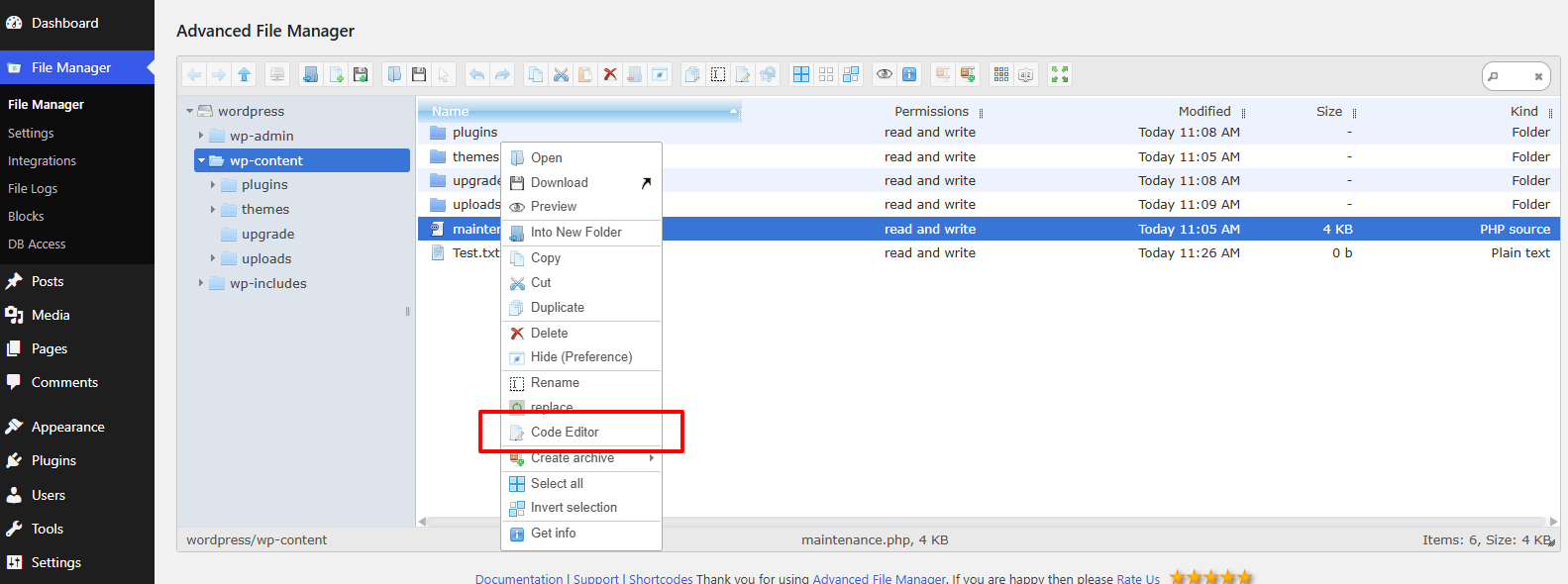
How to Use the Code Editor
To access and use the Code Editor, follow these steps:
- Navigate to Advanced File Manager.
- Select any supported code file (for example, .php, .css, .html).
- Right-click the selected file to open the action menu.
- Choose Code Editor from the list.
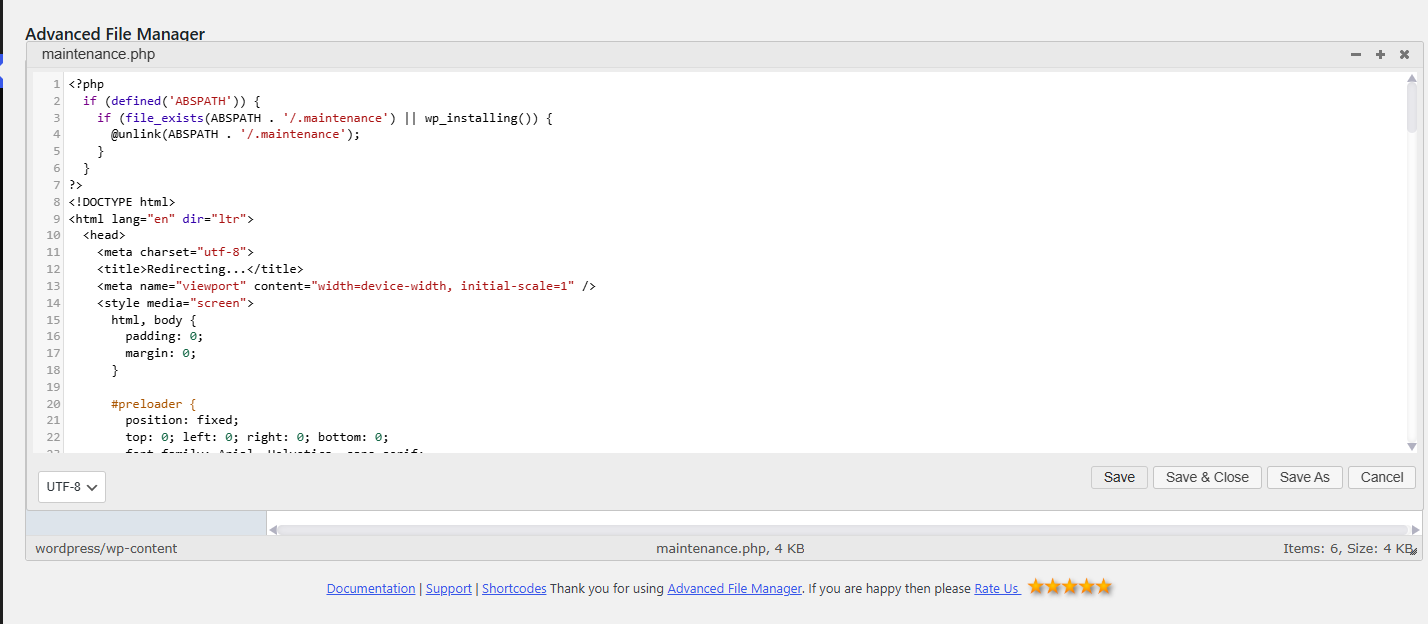
The Code Editor will open, allowing you to edit, add, or update your code as needed.
What’s New in the Advanced File Manager Code Editor
The Code Editor now includes 50+ built-in themes, allowing users to customize the editor’s appearance based on their preferences.
Enable Code Editor Themes
- Navigate to Settings → Code Editor Theme.
- Enable the theme option.
- Select your desired theme from the dropdown menu.
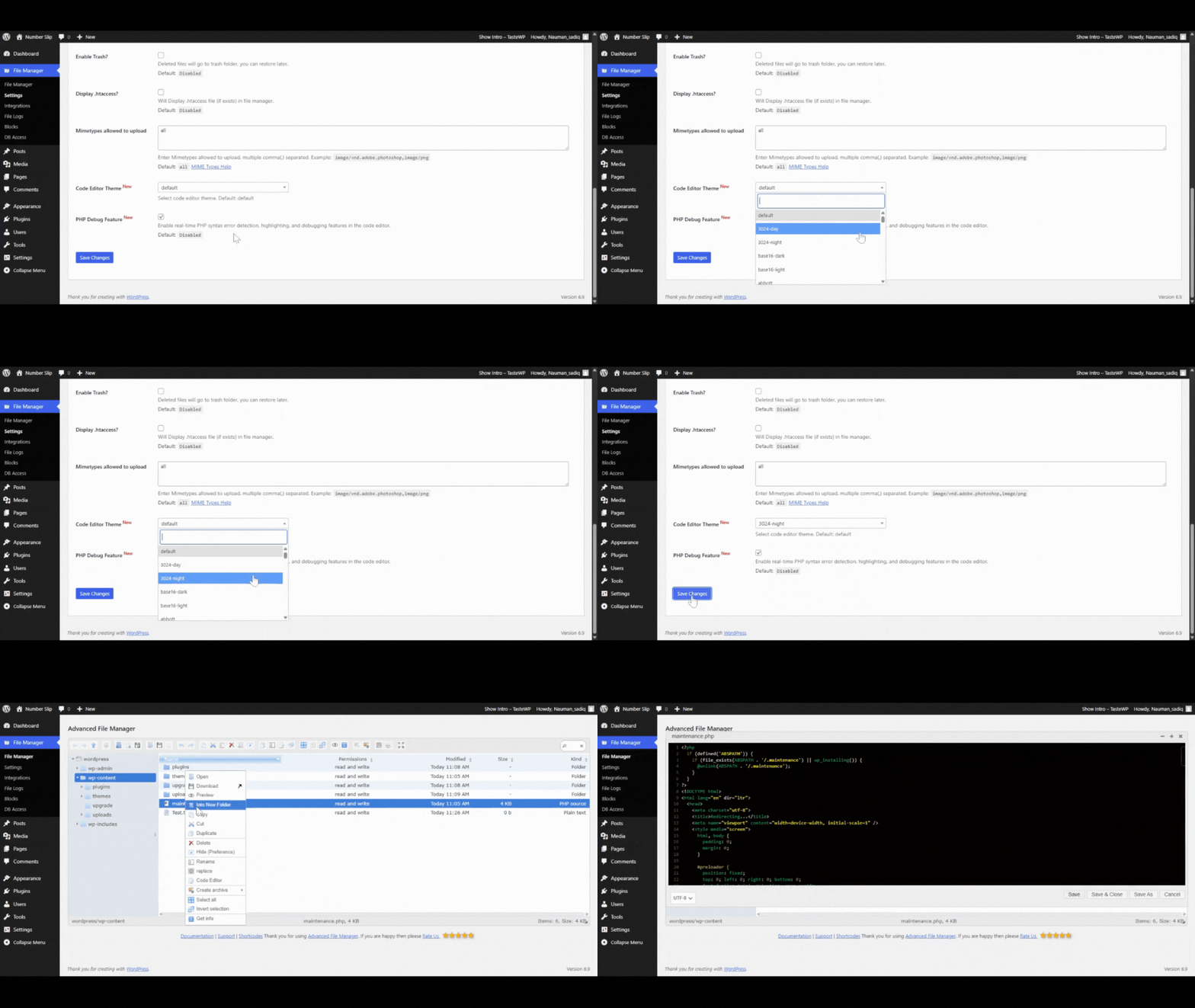
Once enabled, the selected theme will be applied instantly to the Code Editor.
If you need further assistance or encounter any issues, please don’t hesitate to contact our Support Team. Our experts are always available to help troubleshoot problems and provide timely resolutions. We take pride in delivering reliable support and an excellent customer experience.

