

Dropbox
The File Manager Dropbox Integration is a game-changer! It helps you save time and effort by allowing you to back up your files directly to Dropbox or upload and manage your files on File Manager instantly through Dropbox. This seamless integration makes development smoother and more efficient.
If you haven’t yet upgraded to the Pro business plan, now’s the perfect time! Buy now to unlock this powerful feature and take your file management to the next level. Get now Advanced File Manager Plan!
Follow these simple steps to quickly integrate Dropbox with your Advance File Manager plugin, and start managing your files like a pro!
To use the Dropbox feature, you must first log in or sign up for a Dropbox Account.
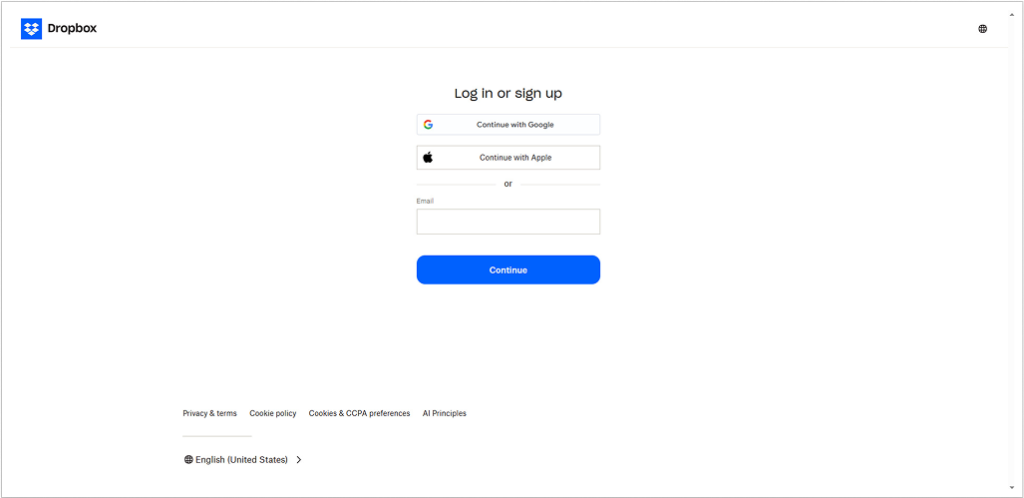
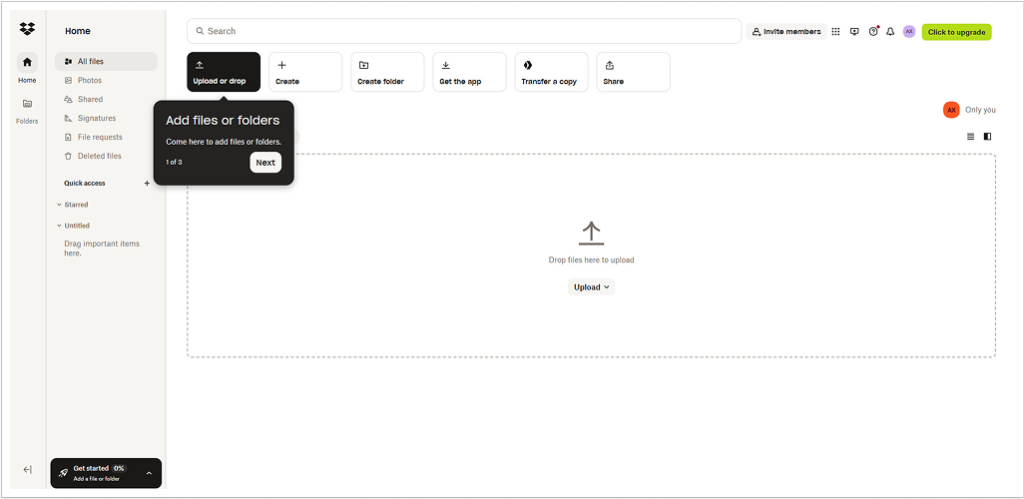
Once you’re logged in, you’ll be directed to your Dropbox dashboard.
Navigate to Advance File Manager > Integration > Dropbox.
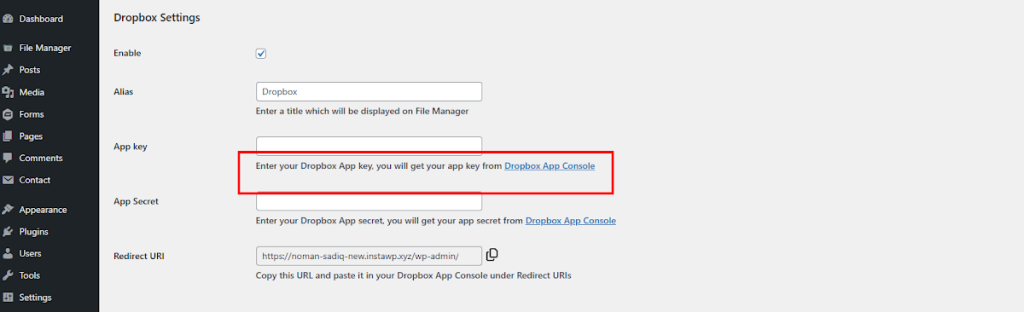
In the Dropbox Settings, enable the checkbox and add your custom Alias. To get the App Key and App Secret Key, you’ll need to create an app in the Dropbox App Console.
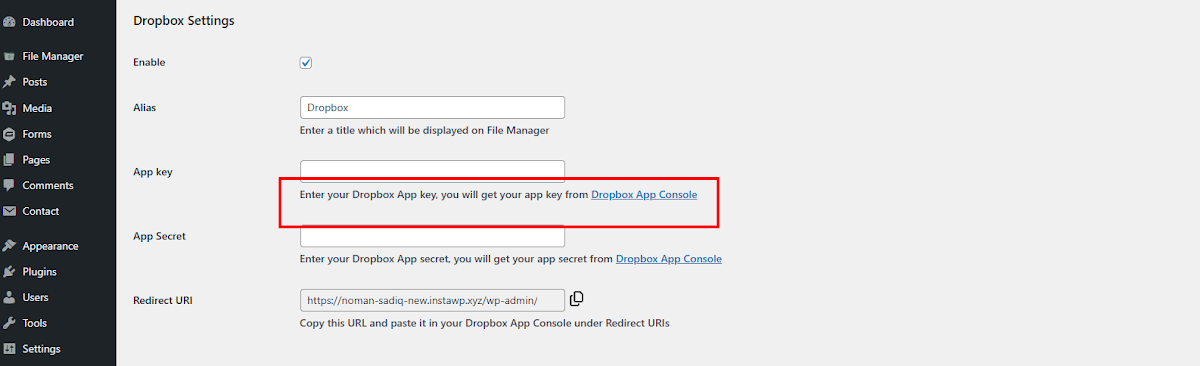
Dropbox App Configuration
Click on Create App to proceed with the setup and continue configuring your integration.
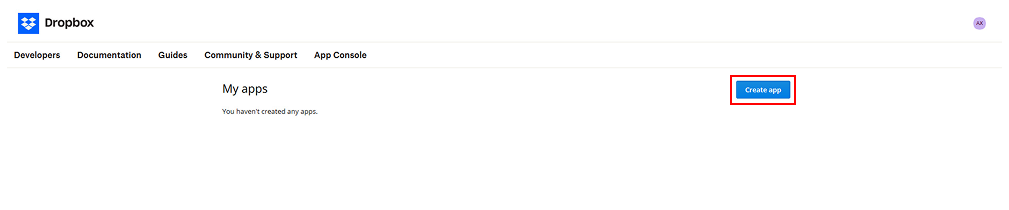
Select the desired ‘API’ and ‘access type,’ then provide a name for your app. After reviewing the terms and conditions, check the box to agree. Finally, click Create App to proceed to the next step.

Copy the Redirect URL from the Dropbox settings in the plugin and paste it into the ‘’OAuth [Redirect URIs]’’

In the Permissions section, select the checkboxes to proceed with the setup.
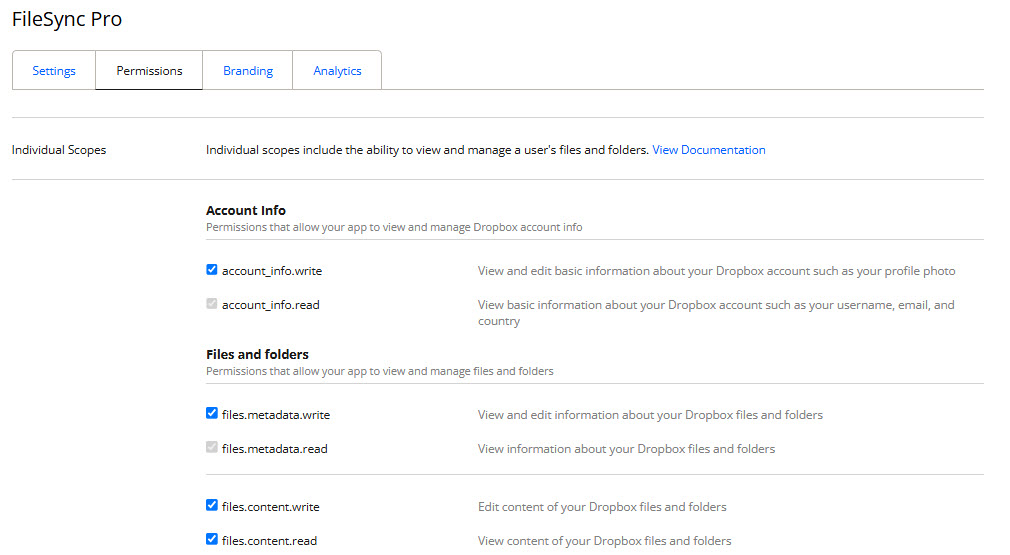
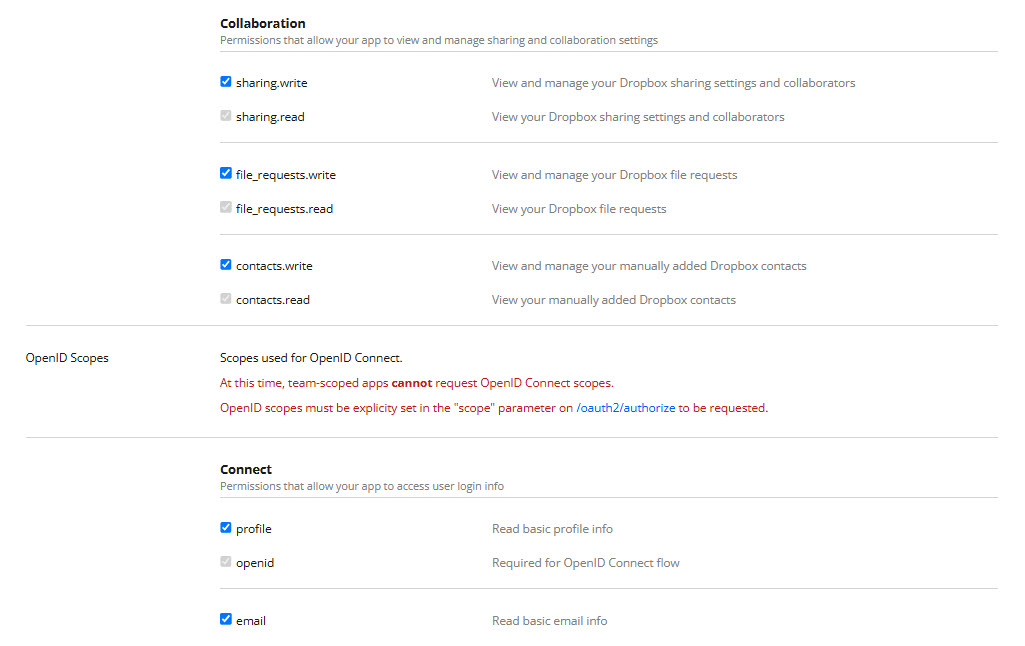
In the Branding section, fill in the required credentials and click Save Changes.
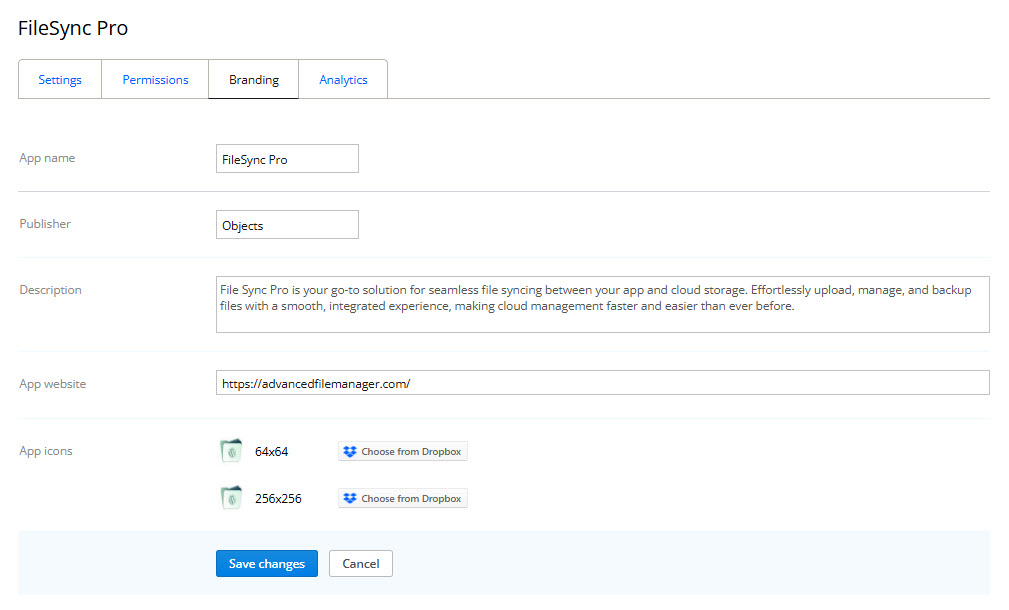
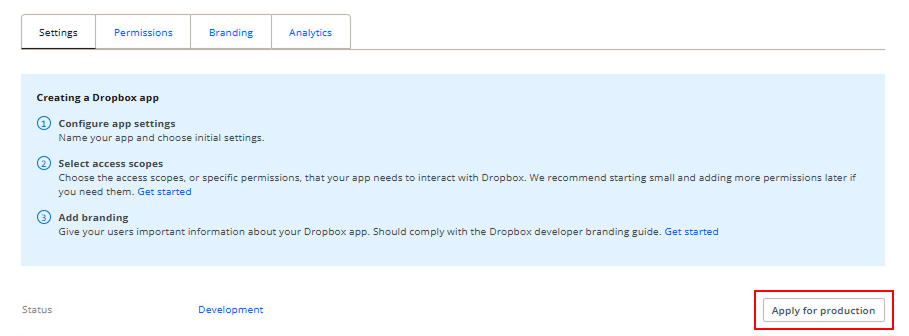
Now, go back to the Settings and click on Apply for Production.
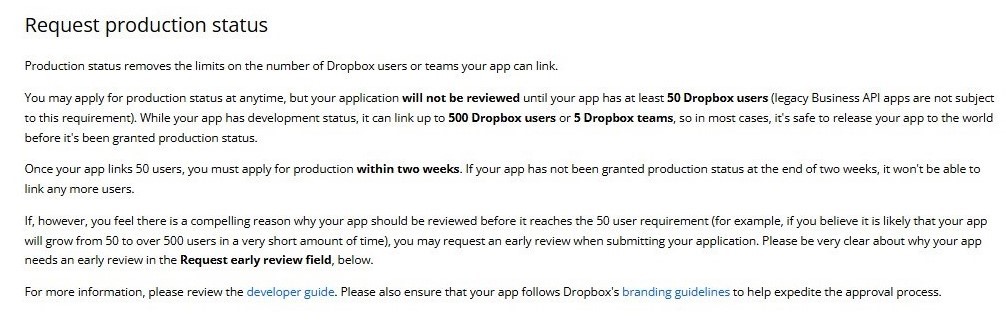
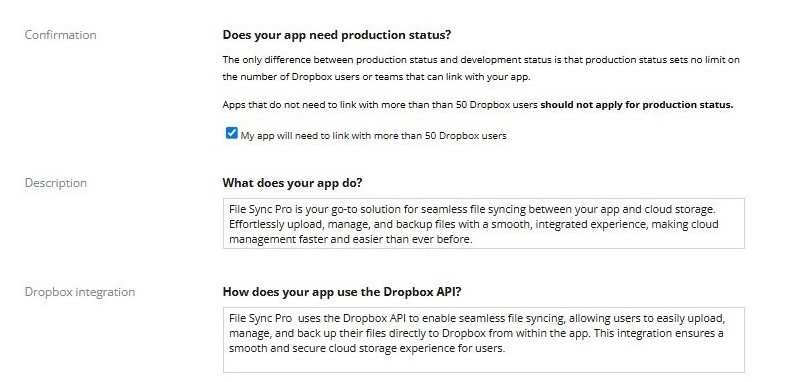
On the Request Production Status page, fill out the required valid details and click Submit to complete the process.


Yee Haa! Your app has been successfully created!

Plugin Site Setup
Plugin Site Setup
Navigate to Dropbox, then insert the App Key and App Secret. After that, click Save Changes and Connect Dropbox to start using this feature.

You have successfully configured the Dropbox driver with WordPress. Don’t hesitate to contact our Support Team if you are still having difficulty or encounter any other issues. Our team of experts will troubleshoot all your problems and promptly provide you with a resolution. We take great pride in going above and beyond to provide excellent customer service.

