

Do you want to edit WordPress code but worry about breaking your site?
To move beyond the standard settings and limitations, you will often need to learn to edit WordPress code. These changes give you precise control over your site’s design, layout, and functionality, which are far beyond what default settings allow.
WordPress relies on several different coding languages, primarily HTML, CSS, PHP, and JavaScript. Each serves a very different and essential purpose that makes WordPress the best in the business.
We will walk you through the simplest and safest ways to make these edits, from using built-in WordPress functions to other, safer methods.
Understanding WordPress Code
To safely and effectively edit your site, you must first understand how WordPress organizes its many files. The WordPress file structure is typically divided into three major categories, which are as follows:
- Core files
- Theme files
- Plugin files
Each control different parts of your website. Knowing the difference between them is the key to safe WordPress code customization. Let’s take a look at each one of them one by one.
Types of WordPress Files
As discussed, these are the three WordPress files:
Core Files
These files are the engine that runs WordPress itself.
The Core files include all the scripts and programming that create the dashboard (wp-admin) and power the main features and functions (wp-includes). You should never edit WordPress core files on a live site. Any change you make here will be overwritten (deleted) the next time WordPress updates to a new version. Editing the core files is also the quickest way to accidentally break your entire website.
Theme Files
Theme files control the visual design, look, and layout of your website. They are stored in the wp-content/themes folder. Every piece of your site’s front end, such as the header, footer, sidebar, and how your blog posts look, is defined by a theme file.
This is the first place you should look when you want to change colors, spacing, or add special layout features. WordPress includes a built-in Theme File Editor that lets you modify theme files directly from the dashboard, though this method carries risk.
To make theme changes safely, developers strongly recommend creating a Child theme of WordPress first. A child theme acts as a protective layer that inherits styles and functionality from the parent theme while keeping your custom code safe during updates. If you make your custom code edits only in the child theme, your changes will not be lost when the original parent theme is updated.
Plugin Files
Plugin files add new features and functionality to your WordPress site. This could be anything from a contact form to a full e-commerce (online store) system. All plugins live in the wp-content/plugins folder. Similar to core files, you should avoid editing plugin files directly in almost all cases. If the plugin developer releases an update, it will completely erase any custom code you added, and you will have to start over.
The Role of Code Languages in WordPress
Four types of languages run the three types of files that we learned about earlier. Here’s what each coding language functions:
PHP (Hypertext Preprocessor)
PHP is the most important language in WordPress. It is a server-side scripting language, which means it runs on your web server, not in the user’s browser. PHP is responsible for the heavy lifting: it connects to your site’s database, fetches content (such as the text of a blog post or a list of comments), and builds the final HTML page before sending it to the visitor.
HTML (HyperText Markup Language)
HTML provides the structure for all web content. If you imagine a house, HTML is the basic frame and foundation. It uses tags (like <p> for paragraph and <h1> for heading) to tell the browser what each piece of content is. Every web page generated by PHP is ultimately an HTML document.
CSS (Cascading Style Sheets)
CSS controls the appearance and style of your HTML structure. If HTML is the house frame, CSS is the paint, the wallpaper, and the furniture. It determines the colors, fonts, spacing, and layout of elements on the page. When you want to edit WordPress CSS or add Custom CSS, you are changing how your content looks.
JS (JavaScript)
JavaScript is the language that handles dynamic, interactive features on your site. Unlike PHP, it runs on the client-side (inside the user’s web browser). When you see a drop-down menu smoothly animated open, an image slider rotating, or a form validating information without reloading the page, that functionality is powered by JavaScript.
Why Edit WordPress Code?
You might wonder why you need to go into the code when WordPress offers thousands of themes and plugins. The truth is that pre-made themes and settings can only take your site so far. Eventually, you will hit a wall where you cannot achieve a specific look or unique function without some WordPress code customization.
Editing the code gives you complete control. For instance, if you want to perfectly align a button or change the font size on only one specific page, you would need to jump into the backend.
Strategic code edits can improve performance and reduce security risks when they replace unnecessary or bloated plugins. Instead of installing a heavy new plugin for every minor feature, you can often add just a few lines of code to your child theme. This keeps your site fast, clean, and unique.
How to Edit WordPress Code?
There are numerous ways to modify your WordPress site, ranging from simple, beginner-friendly tools built right into your dashboard to more advanced methods involving direct file access. When it comes to making changes, always start with the easiest, safest method first, which often means using a plugin that prevents fatal errors—more on this later.
Editing HTML in WordPress
Using Gutenberg’s Custom HTML Block
The default WordPress editor, Gutenberg, makes adding custom HTML very simple.
For any post or page, you can add a “Custom HTML” block anywhere you need to insert your code. This is a safe way to add specific elements (like embed codes or simple layout changes) without affecting the rest of your site.
Navigate to your site, open the page or post where you want to add a custom HTML block, type “/custom html” or select the “Custom HTML” block from the block inserter (+ icon).
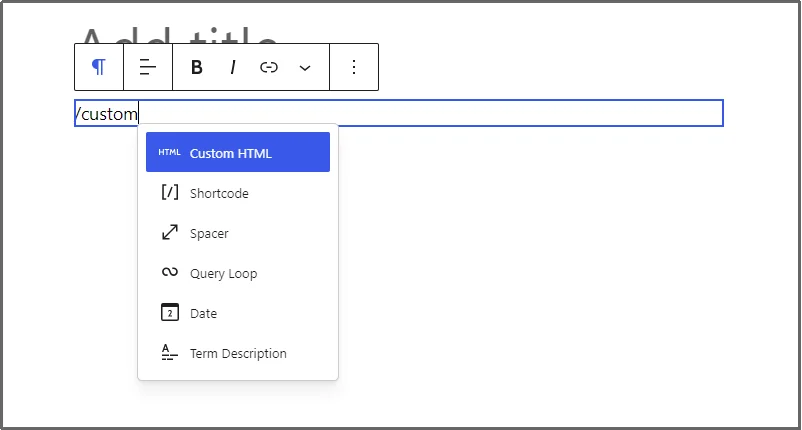
Using the Classic Editor to Edit WordPress Code
If you are using the older Classic Editor, you can switch the editing mode from “Visual” to “Code.”
The Text mode displays all the underlying HTML for your content. This allows you to directly change tags and attributes within the body of your page or post.
Be careful, as errors here can easily break your content’s layout.

Editing HTML in Widgets and Templates
Most WordPress themes allow you to place HTML into sidebar or footer areas using a Custom HTML Widget.
Additionally, if you are working with a Full Site Editing (FSE) theme, you can edit the HTML structure of site-wide elements, such as the header or footer, directly within the Site Editor interface.
Editing PHP in WordPress
PHP is the scripting language that handles all the backend logic, connects to the database, and generates the HTML pages you see.
When you want to add new features, custom functions, or change how content is pulled from the database, you need to edit the WordPress PHP.
Since PHP is so vital to your site’s function, even a small mistake can trigger the “White Screen of Death” (WSOD), making your site temporarily inaccessible. Hence, when making any custom PHP changes to your site’s appearance or functionality, you must use a Child theme.
A child theme is simply a theme that inherits the look and feel of another theme (the parent theme). When you place your custom PHP code into your child theme’s files, it keeps that custom code separate from the parent theme.
This means when the parent theme developer releases an update, your unique code will not be erased.
Editing functions.php and Template Files
The two main files where you will edit WordPress PHP code are functions.php and your theme’s template files (like index.php or page.php). Here’s what they do and where to find them:
- functions.php: This file is where you add custom functions, filters, and actions that change how WordPress behaves across your entire site. For example, adding a new image size or defining a custom shortcode is done in the functions.php file of your child theme.
- Template Files: These files control the layout of specific parts of your site. If you want to change the structure of how a single blog post displays, you would edit the single.php template file in your child theme.
You can access and edit these files using the Theme File Editor or by using an FTP client via WordPress FTP access or simply using a WordPress File Manager plugin.
As discussed in the “Understanding WordPress Files” section, you must never edit the WordPress Core files.
These files are the essential scripts that make WordPress work, and any changes you make will be destroyed the next time you update WordPress.
More importantly, editing these files greatly increases the risk of introducing severe security vulnerabilities or causing your entire site to stop working.
Editing CSS in WordPress
When you want to change the visual presentation of your site—things like fonts, colors, spacing, and element sizes, you will be looking to edit WordPress CSS. There are several safe ways to inject your Custom CSS in WordPress without breaking your theme.
Using the Customizer
This is, by far, the safest and easiest method for adding simple custom styles using the Customizer.
Navigate to Appearance and then Customize, and select Additional CSS. It gives you a dedicated area to place your code.
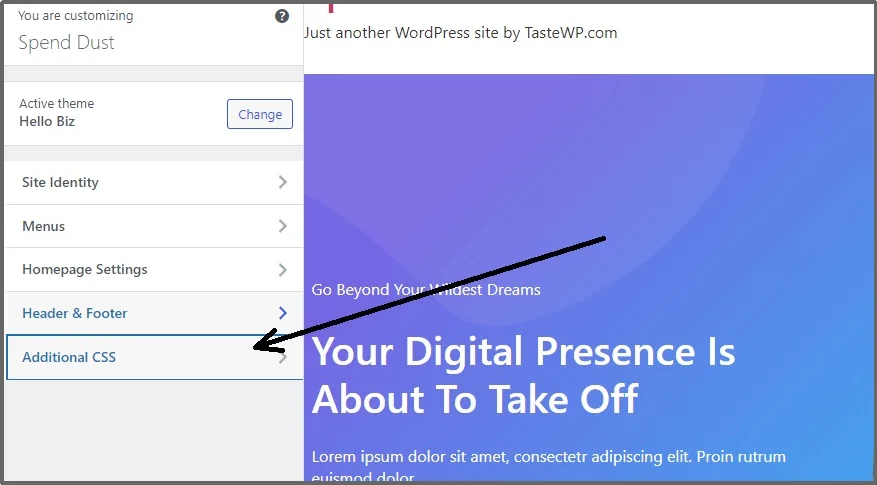
Any CSS you add here is saved to the database and will override the theme’s default styles, and it will not be lost when your theme is updated.
Editing style.css in Your Theme
You can directly modify your theme’s style.css file using the built-in WordPress Theme Editor. Access it by navigating to Appearance and then Theme File Editor. This is where your theme’s main styles are stored.
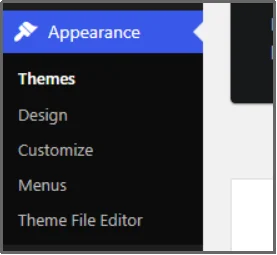
However, it’s important to use the child theme to prevent your custom code from being wiped out the next time the parent theme is updated.
When you use a child theme, you place your custom CSS inside the child theme’s style.css file.
Using FTP Client to Modify CSS Files
For larger changes or when you want to modify a CSS file that isn’t the main style.css, you will need to use an FTP (File Transfer Protocol) client.
An FTP client allows you to connect to your server using your WordPress FTP access. You can then download the specific CSS file, found in the wp-content/themes/[your-theme-name] directory, edit it on your computer, and upload it back to the server.
Editing JavaScript in WordPress
JavaScript (JS) is used to create dynamic and interactive elements that run on the visitor’s web browser, not on your server. When you want to add features like complex animations, dynamic form validation, or third-party tracking scripts, you will be looking to edit JavaScript in WordPress.
Most of the JavaScript files that control your site’s functionality are stored in subfolders within your theme’s or plugin’s directory. For a theme, you will often find JS files in a folder named /js/ or /assets/js/ inside your main theme folder (wp-content/themes/[your-theme-name]).
Similarly, plugins have their own dedicated folders containing their scripts.
There are two primary ways to add custom JavaScript to your site:
- Directly via header.php or footer.php: You can add the <script> tags that link to your custom JS file right into the theme’s header.php or footer.php files using the WordPress Theme Editor or WordPress FTP access. However, this is generally discouraged because it bypasses WordPress’s loading system and can cause performance or compatibility issues.
- Using the Enqueue Method: The safest and best practice is to use a PHP function called wp_enqueue_script(). This function, which is placed inside your child theme’s functions.php file, correctly registers and loads your JavaScript file into WordPress. It ensures the script loads in the right order and avoids conflicts with other scripts, which improves site performance and stability.
That’s about it. That’s how you can edit WordPress code.
The Better Way to Edit WordPress Code
As you can see, most of the methods mentioned above for WordPress code customization, such as using the WordPress Theme Editor or securing WordPress FTP access require careful knowledge of the file structure and carry the high risk of causing a critical error. Even one misplaced character in a PHP file can result in the “White Screen of Death” (WSOD), instantly taking your site offline.
For beginners and busy site administrators who need a safer, faster way to make small code adjustments without leaving the dashboard, there is a better solution: a WordPress file manager plugin called Advanced File Manager.
Also Read: WordPress File Manager vs FTP Client.
Advanced File Manager brings the full power of an FTP client right into your WordPress admin area. It allows you to safely browse, upload, download, and edit any file on your server (HTML, CSS, PHP, and JavaScript) directly within your web browser. This eliminates the need for external software and reduces the risk associated with manually uploading and downloading files.
Why Choose the Advanced File Manager plugin?
While there are several file manager plugins available, we recommend Advanced File Manager for its comprehensive feature set, ease of use, and robust safety features. It is built to simplify the technical aspects of file management, making editing WordPress code tasks quick and error-free. Here are a few exciting features of the plugin:
- FTP-Free Management: The plugin lets you perform all critical file operations—copy, paste, rename, upload, download, and edit—directly from your WordPress dashboard. This removes the need for external software like an FTP client or accessing your hosting control panel.
- Front-End File Management: Grant controlled file access to specific users or roles on the front end, allowing them to upload, edit, or organize files without giving them access to the WordPress admin dashboard. This is especially useful for client portals, learning platforms, and collaborative projects.
- AI-Powered Coding Assistant: With the built-in AI Code Pilot, the plugin assists you while writing or editing code by suggesting fixes, completing snippets, and flagging potential issues in PHP, HTML, CSS, and JavaScript. This reduces human error, speeds up development, and helps prevent critical mistakes before they reach production.
- Cloud Integrations: Manage files stored on third-party platforms like Google Drive, Dropbox, Amazon S3, and even GitHub repositories from a single interface. This centralized workflow simplifies file synchronization, version control, and remote asset management.
- Secure Code Editor: Advanced File Manager comes with a powerful, built-in code editor that features syntax highlighting for HTML, CSS, PHP, and JavaScript. It helps you spot syntax errors before saving, reducing the risk of critical errors like WSOD (White Screen of Death).
- Drag-and-Drop Interface: You can quickly upload files and even move them between folders using simple drag-and-drop actions. This functionality significantly speeds up your workflow when managing large media libraries or uploading new files.
- Archive Management: The plugin allows you to create and extract archives (like Zip archives) with a single click. This is incredibly useful for backing up your theme files before making major edits or for easily installing plugins or themes that are provided in a compressed format.
- Role-Based Access Control: For security, you can define exactly which users or user roles (like Editor or Contributor) have access to the file manager. This crucial feature protects your sensitive files from being accidentally or maliciously edited by unauthorized people.
- Quick File Search: The plugin includes advanced file search and sorting features. This helps you quickly locate a specific template file, like single.php, or find a stylesheet buried deep within a theme’s folders, saving you valuable time.
Before making the changes, go to the plugin’s settings.
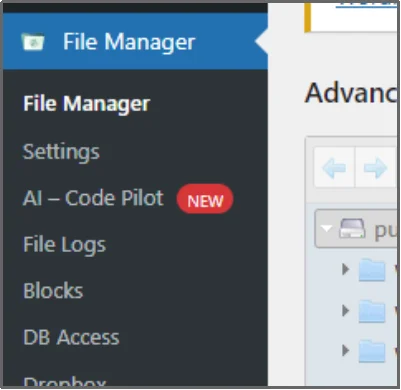
Scroll to the end.
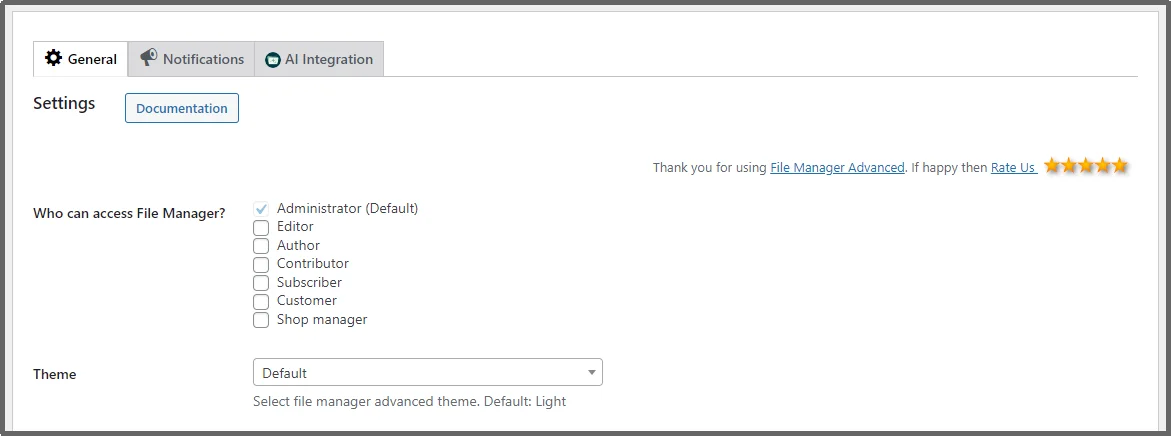
Enable the PHP Debug Feature using the checkbox.
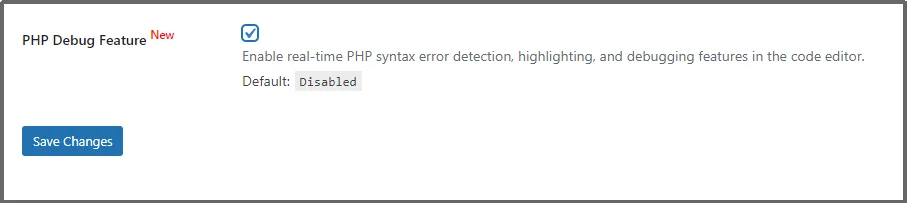
Click Save Changes.
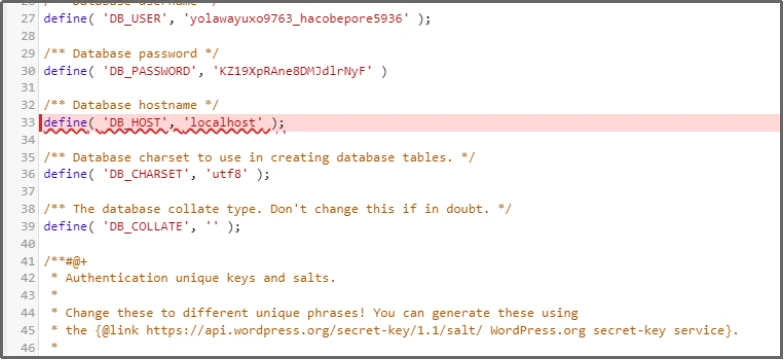
Now, go to the Code Editor. For this example, let’s edit the wp-config file.
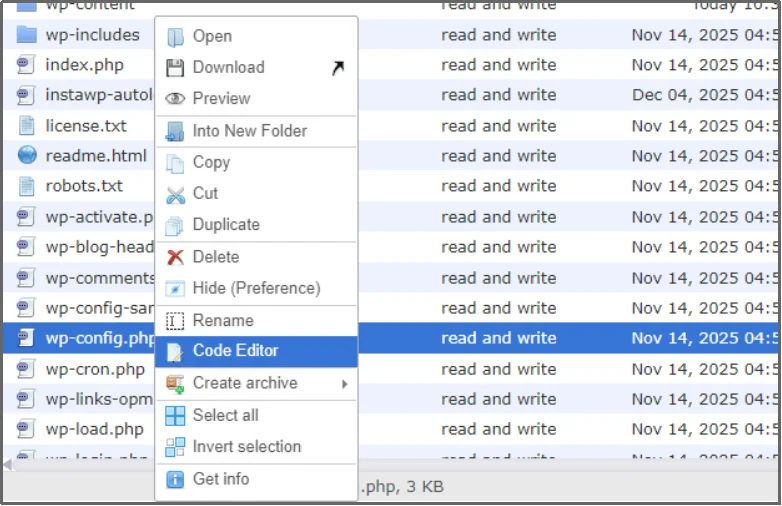
And it will mark any piece of missing or incorrect code that may cause a critical error.
Alternatively, you can code with AI Code Pilot, which assists you while you code.
Learn more: Advanced File Manager Pro v3.3.0 Brings AI Coding Assistant to Your WordPress Code Editor
Editing WordPress Code: Best Practices
Editing the code behind your WordPress site gives you incredible power to customize, but this power comes with a significant responsibility to protect your site. Following these simple best practices will help you make changes safely and avoid catastrophic errors.
- Always Use a Child Theme: This is the most essential rule for WordPress code customization. A child theme acts as a protective layer over your primary (parent) theme. If you edit the parent theme directly, all your custom HTML, CSS, and PHP code will be instantly erased when the theme updates.
- Make a Full Site Backup: Before touching any code, whether you use WordPress FTP access, the WordPress Theme Editor, or a plugin, create a complete backup of your site’s files and database. If an error occurs (especially when editing PHP), you can restore your entire website with a single click, saving you hours of recovery time.
- Use Dedicated Plugins for Functions: If you are only adding small chunks of PHP, CSS, or JavaScript code (like Google Analytics tracking or a custom login message), use a specialized code snippet plugin or manage them through Advanced File Manager instead of editing functions.php directly on a live site
- Never Edit Core or Plugin Files: As a reminder, you should only edit files in your active theme or child theme. Do not edit the files in the main /wp-admin/, /wp-includes/, or /wp-content/plugins/ directories. Any change you make will be lost on the next update and may expose your site to security vulnerabilities.
- Test Changes on a Staging Site: For any large or complicated code edits, especially when dealing with PHP, always test your changes on a staging site first. A staging site is an exact copy of your live site that is not visible to the public. You can break it, fix it, and confirm everything works ideally before deploying to your live website.
Control Your Code, Don’t Fear It
You now have a solid understanding of how to safely edit WordPress Code, from knowing the difference between HTML, CSS, PHP, and JavaScript to applying best practices like using a child theme in WordPress. While methods like WordPress FTP access and the built-in WordPress Theme Editor are powerful, they are often slow and carry the risk of fatal errors.
To truly gain control over your site’s files and make quick, confident edits, you need a tool that brings safety and efficiency right to your dashboard. Advanced File Manager is that tool. It empowers you to perform complex WordPress code customization without ever needing to leave your admin area or risk your site with external tools. Stop fearing the code and start mastering it.
Ready to edit any file on your WordPress site with a built-in code editor, PHP debugger, and the best security controls? Upgrade to Advanced File Manager premium today and manage your code like a pro!
Frequently Asked Questions
How do I edit code in WordPress?
The safest and easiest way is by using a WordPress file manager plugin like Advanced File Manager. This allows you to edit HTML, CSS, PHP, and JavaScript files directly from your WordPress dashboard, reducing the risk of error compared to using FTP.
How do I edit my HTML code?
For content, use the Custom HTML block in the Gutenberg editor. For theme files (like header.php), use a dedicated tool like Advanced File Manager, which provides a secure, in-dashboard code editor for quick and safe edits.
Is WordPress an HTML editor?
WordPress itself is a Content Management System (CMS) built mainly on PHP, which generates HTML. It includes basic tools like the Gutenberg Custom HTML block, but for site-wide or advanced file editing, you need a specialized tool or plugin like Advanced File Manager.
Is Notepad++ a good HTML editor?
Yes, Notepad++ is a reliable and popular text editor for writing HTML, CSS, and other code on your desktop. However, to get those edited files back onto your WordPress server, you will still need to use WordPress FTP access or a seamless plugin like Advanced File Manager.
Can I edit the source code in WordPress?
You can edit the source code of your theme and plugin files (HTML, CSS, PHP, JavaScript). However, editing source files directly without safeguards is risky and can cause your website to crash if done incorrectly.


