

Have you ever wondered how WordPress decides which theme file to use when someone visits a page on your website?
Every time a visitor clicks a link, WordPress runs a behind-the-scenes decision process to determine which template file should render that page.
This logic, known as the WordPress template hierarchy, is the backbone of how your theme renders different types of content. It acts as a set of directions, ensuring that your content always looks organized and professional. Without these rules, your site would struggle to show your posts, pages, or archives correctly.
Learning how this system operates is the first step toward mastering your website’s layout. It gives you more control over your digital space and helps you understand the hidden structure of your theme.
Let’s break down exactly how the WordPress template hierarchy works.
What is WordPress Template Hierarchy?
The WordPress template hierarchy is a predefined set of rules that WordPress follows to determine which theme file is responsible for displaying a specific page.
Think of it as a decision tree. When someone visits a URL on your site, WordPress checks the active theme (and the parent theme, if a child theme is in use) to locate the most suitable template file to render that content.
According to the official WordPress Developer Documentation, template files are loaded in a strict priority order, from the most specific match to the most general fallback. This continues until it reaches the final “catch-all” file, ensuring WordPress can fall back to a valid template file instead of failing to render the page.
How does WordPress Template Hierarchy Work?
The WordPress template hierarchy operates on a “most specific to most general” matching rule. When a visitor requests a page, WordPress goes through these three main steps:
- Parse the Query: WordPress analyzes the request using its request parsing process and WP_Query to determine what type of content is being requested, such as a single post, a static page, or a category archive.
- Search the Theme: Based on the query, WordPress searches the active theme (and parent theme, if applicable) for the most specific matching template file, following a predefined priority order.
- Follow the Fallback Path: If a specific template (for example, category-news.php) is not found, WordPress progressively falls back to more general templates like category.php, and ultimately to index.php.
This “fallback” system is vital. It allows developers to create custom designs for specific sections while relying on a single base template for everything else. This keeps the site lightweight and organized.
The Order of Priority
To see this in action, let’s look at how WordPress handles a category archive page. If a user visits the “Travel” category, WordPress looks for files in this exact order:
- category-slug.php: Specifically for the category slug (e.g., category-travel.php).
- category-id.php: Specifically for the category’s unique ID number.
- category.php: The general template for all categories.
- archive.php: The general template for all archives (dates, authors, etc.).
- index.php: The final fallback for the entire site.
WordPress Template Hierarchy Breakdown
To make things easy, we can group the template hierarchy into seven main categories. Each category has its own specific list of files that WordPress searches for. This breakdown clearly shows which template files control each part of your WordPress site.
Front Page and Home Page
This is the very first thing people see when they visit your site. WordPress looks for these files in this order:
- front-page.php: Used when a static front page is set in the WordPress Reading Settings.
- home.php: Used for the blog posts index, whether it appears on the front page or on a separate page.
- index.php: The final fallback.
Single Posts
These are the files that control how your individual blog articles look:
- single-{post_type}-{slug}.php: A specific template for one unique post.
- single-{post_type}.php: A template for a custom post type (like “Products”).
- single.php: The general template for all single posts.
- singular.php: Used for single posts and pages when no more specific single or page template exists.
- index.php: The final fallback.
Single Pages
Static pages, like your “About Us” or “Contact” page, follow this path:
- Custom Template File: Any special template you manually assigned to the page.
- page-{slug}.php: A file named after the page’s slug (e.g., page-about.php).
- page-{id}.php: Named after the page’s unique ID.
- page.php: The general template for all static pages.
- index.php: The final fallback.
Category and Tag Pages
When someone clicks on a category or tag to see a list of posts, WordPress looks here:
- category-{slug}.php or tag-{slug}.php: For a specific category or tag.
- category.php or tag.php: The general template for all categories/tags.
- archive.php: The general template for all types of archives.
- index.php: The final fallback.
Custom Taxonomy Pages
If your site uses custom taxonomies (such as genre, location, or type), WordPress follows a separate taxonomy-specific hierarchy to display those archive pages. When a visitor views a custom taxonomy term, WordPress looks for template files in the following order:
- taxonomy-{taxonomy}-{term}.php: Used for a specific taxonomy term (for example, taxonomy-genre-fiction.php).
- taxonomy-{taxonomy}.php: Used for all terms within a specific custom taxonomy (for example, taxonomy-genre.php).
- taxonomy.php: The general template for all custom taxonomies.
- archive.php: The general archive template fallback.
- index.php: The final fallback template.
Custom Post Types (CPTs)
If you have created special content types (like “Portfolios”):
- single-{post_type}.php: Controls individual custom post type entries.
- archive-{post_type}.php: Used for the main archive list of those items.
- archive.php: The general archive fallback.
- index.php: The ultimate safety net.
Search Results Pages
When someone uses your site’s search bar:
- search.php: The specific layout for search results.
- index.php: Used if no search template exists.
404 Error Pages
When a visitor tries to visit a page that doesn’t exist:
- 404.php: The custom “Page Not Found” template.
- index.php: The final fallback if no 404 file is present.
Where to Locate WordPress Template Hierarchy?
If you want to see these files in action, you need to look inside your website’s “engine room.” All the files that make up the hierarchy are stored within your theme’s folder. You won’t find these files inside the WordPress admin interface itself; instead, you have to access your site’s server files.
The standard path to find these templates is /wp-content/themes/your-theme-name/. Inside this folder, you will see a list of PHP files like header.php, footer.php, and the all-important index.php.
How to Access and Edit WordPress Template Hierarchy
Now that you know how the hierarchy works, the next question is: how do you actually find these files to work with them? There are several ways to dive into your site’s “engine room,” but some are much easier than others. Here are four ways to do so:
1. FTP (File Transfer Protocol)
Using FTP is a traditional way to manage files.
However, it requires you to download external software, such as FileZilla, to your computer.
You also have to contact your hosting provider to find your specific FTP credentials, which can be a hassle. The main drawback is that you must leave the WordPress dashboard for even small changes, which disrupts workflow.
2. cPanel File Manager
Most hosting accounts include a cPanel dashboard with a File Manager.
The benefit is that it is a web-based tool, so you do not need to download extra software.
However, the interface often feels outdated and clunky. It also requires you to log in to a completely different account, which adds an extra layer of security steps and time to your workflow.
3. WordPress Theme Editor
WordPress has a built-in editor under the “Appearance” menu. While it seems convenient because it is already in your dashboard, it is actually quite limited and risky. It does not provide a safety net if you make a coding error, which can lead to the “White Screen of Death.”
Additionally, many security plugins disable this feature entirely to protect your site from hackers, making it unreliable.
4. A File Manager Plugin
A file manager plugin is the most modern and efficient way to handle your site’s structure. It brings the power of a desktop file manager directly into your WordPress sidebar.
You don’t need to chase down passwords or open new tabs. It is the perfect middle ground—offering the professional tools of FTP with the ease of staying right where you are working.
Advanced File Manager: The Best Choice For WordPress File Management
When it comes to managing your site’s structure, Advanced File Manager is a powerful option for managing WordPress theme files directly from the dashboard. It is trusted by over 200,000 active WordPress users for file and theme management.
The plugin is currently trusted by over 200,000+ active users who rely on it daily to maintain their websites. It has earned a positive reputation for being fast, secure, and incredibly easy to use.
Whether you are a beginner looking to understand your theme or a developer building custom layouts, this plugin is an essential part of your toolkit.
What makes this plugin stand out from the rest?
Here are some of the powerful features that make it the best solution for handling your template files:
- Copy, Paste, Rename, and more: Easily perform complete site operations for any file or folder directly in your dashboard.
- Drag-and-Drop Uploads: Drag the file and drop it on the Advanced File Manager to upload. It’s that easy!
- FTP-Free File Management: Hassle-free management without using FTP clients or hosting control panels, making file handling faster, simpler, and more beginner-friendly.
- Front-End File Access: Let specific users upload or organize files from the actual website page. This is great for teams or clients who don’t need to see the “back-end” admin area.
- AI Coding Assistant: Get help writing code with the AI Code Pilot. It suggests fixes and helps finish snippets in PHP, CSS, and JS to prevent site-breaking mistakes.
- Cloud Storage Connections: Connect directly to Google Drive, Dropbox, Amazon S3, and GitHub. This lets you manage your remote files from a single dashboard.
- Search & Sorting: Quickly find the exact file you need, even with thousands of folders. It makes navigating complex themes much faster.
- Easy ZIP Tools: Compress or extract ZIP archives right on your server. This is perfect for moving themes or creating quick backups.
- Professional Code Editor: Edit important files like functions.php instantly. It includes line numbers and color-coded text to make code easier to read.
- Custom User Permissions: You decide which staff members can see or change files based on their User Role. This keeps your most sensitive data safe.
- Hide Secret Files: Choose specific folders or files to keep invisible. This ensures that even users with access can’t see things they aren’t supposed to.
- Secure Private Folders: Create a locked folder for sensitive documents. These files cannot be found by typing a web address (URL) into a browser.
- Global Language Support: The plugin supports many languages, so users worldwide can manage their sites comfortably.
- Instant File Previews: View images, videos, or PDFs in your dashboard without downloading them to your computer.
- And much more! Check out the complete features list.
With the Advanced File Manager, just download the plugin. Navigate to the file manager tab, wp-content, and themes.
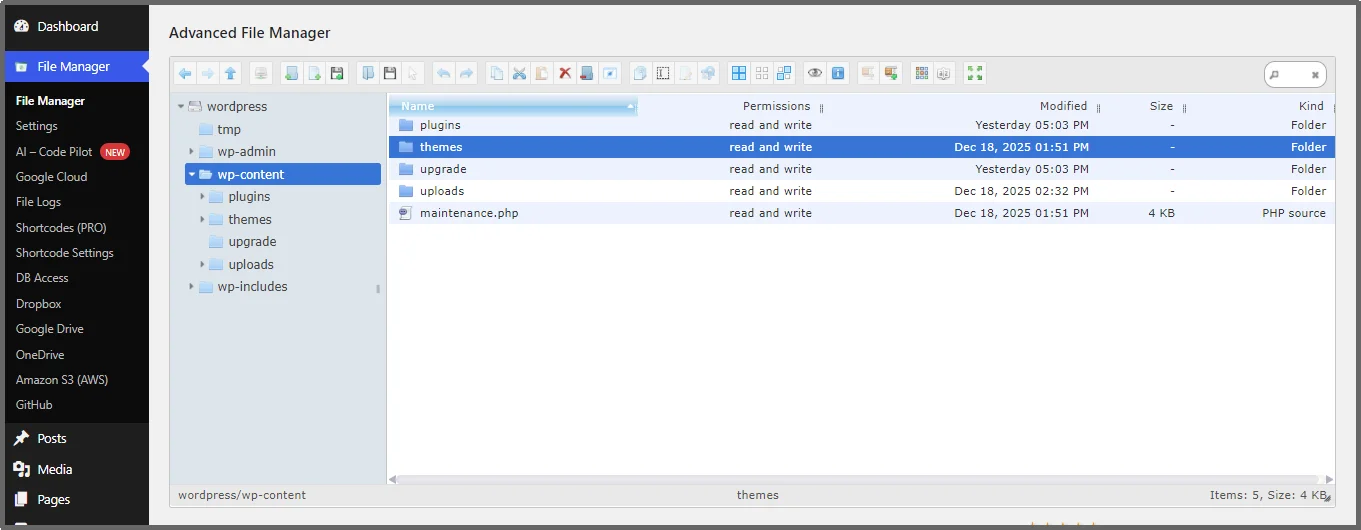
Double-click the Themes folder to see all downloaded and active themes.
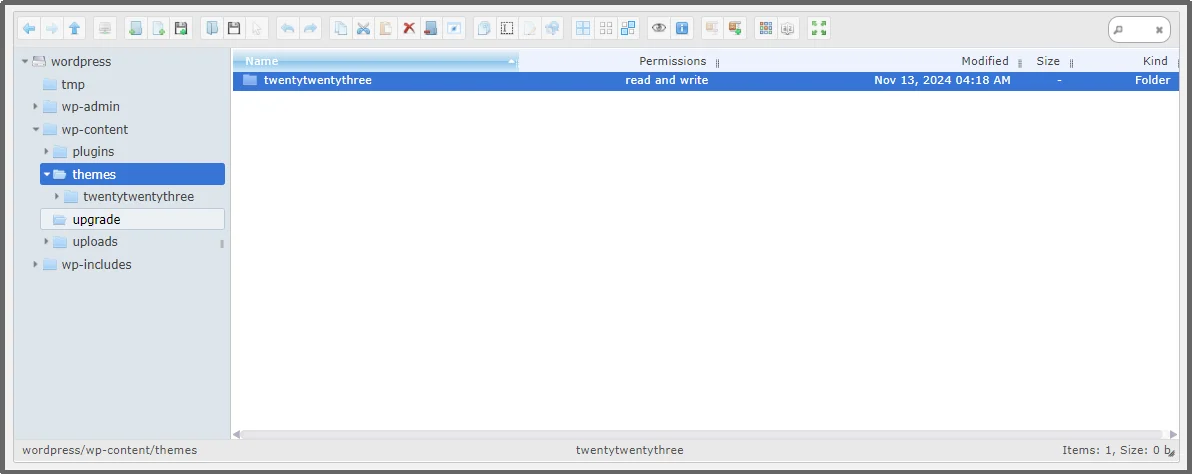
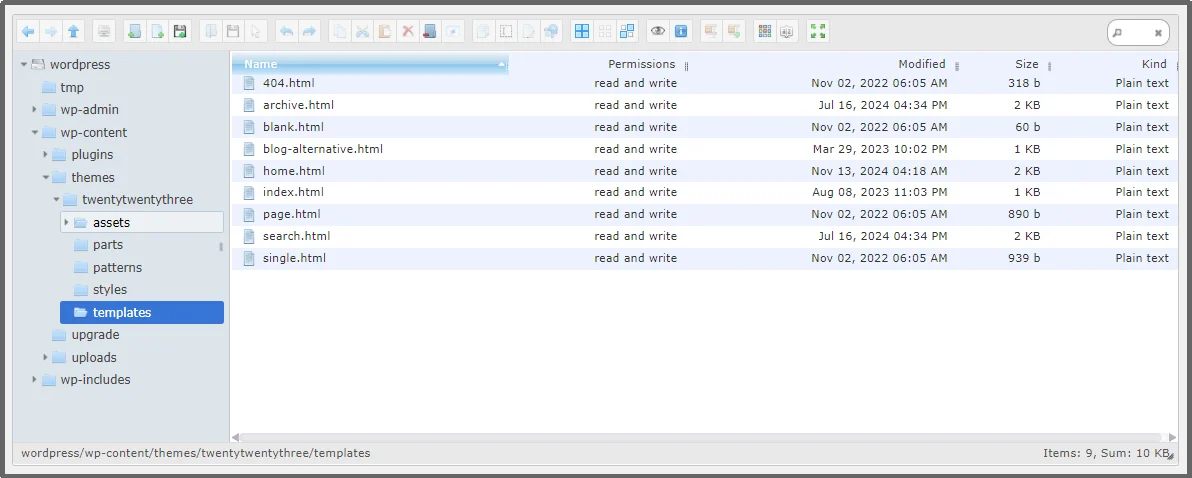
Go to the template files to see all the files.
To edit them, simply right-click on the file that you want to edit and click Code Editor.
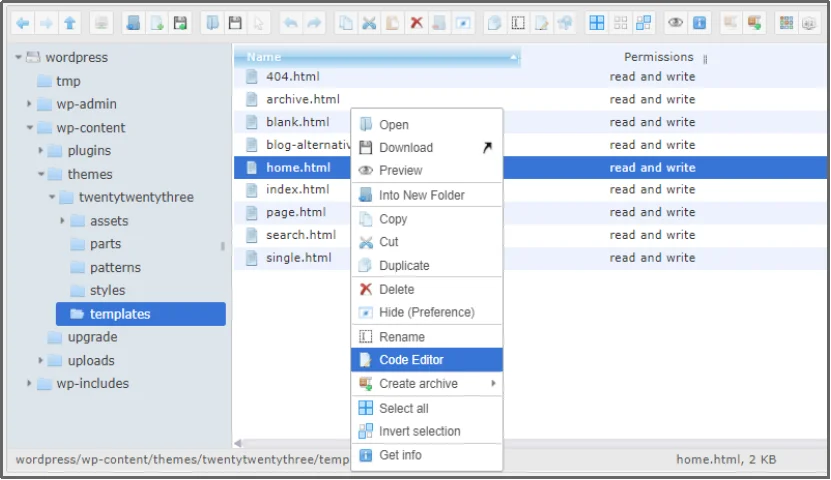
That’s how you can edit the WordPress template hierarchy.
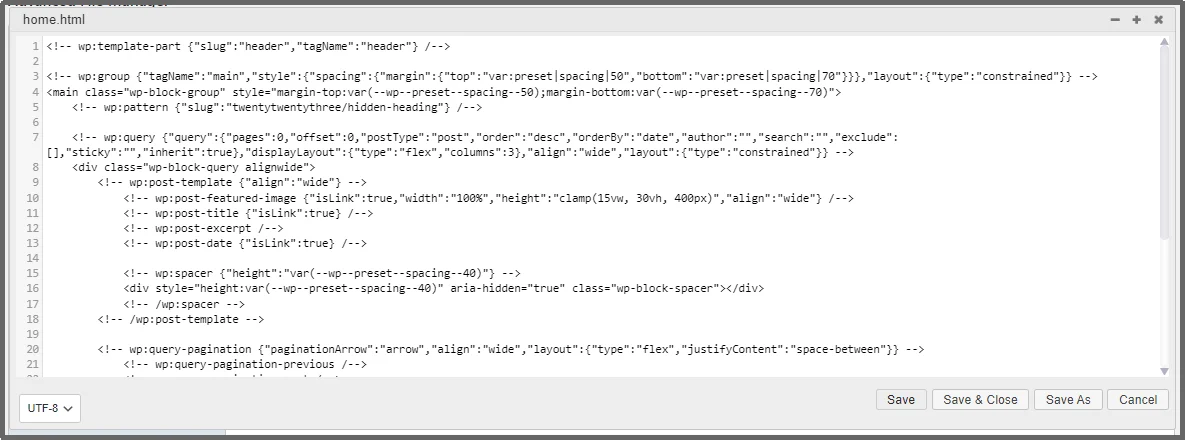
Play Safe When Editing Code with Advanced File Manager
Editing your website’s core files can be a nerve-wracking task. Even the most experienced developers know that a single tiny mistake—like a missing comma or a forgotten semicolon—can be a disaster.
In the world of PHP, one small typo can trigger the “White Screen of Death,” as we already discussed. This completely shuts down your site, leaving you and your visitors locked out and often forcing you to scramble to fix the code over a slow FTP connection just to get your site back online.
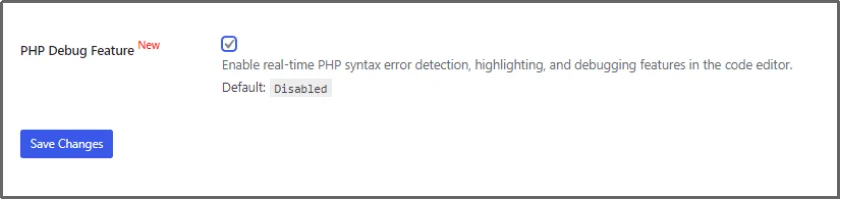
To reduce this risk, Advanced File Manager includes a built-in PHP debug feature designed to catch errors before they break your site.
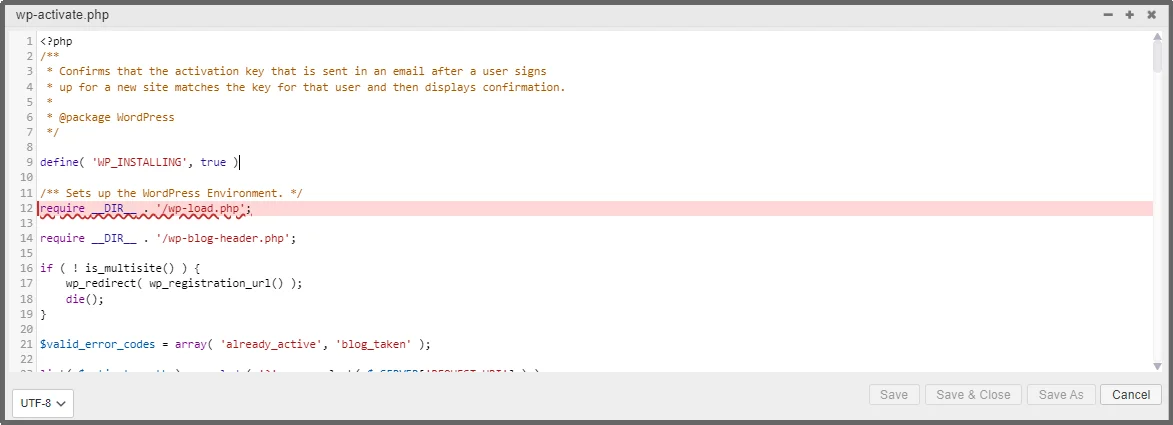
Unlike the basic WordPress editor, the PHP Debug Feature is designed to prevent accidents before they happen. It scans your code in real-time and identifies syntax errors. Most importantly, it features a “safety lock” that prevents saving files when PHP syntax errors are detected.
By checking your work before it goes live, the plugin ensures that your site stays up and running, no matter how many changes you make to your WordPress Template Hierarchy.
To enable the feature, navigate to the plugin’s settings, scroll down to the dedicated settings, enable it, and save the settings.
Now, you can confidently edit code without worrying about fatal errors, as the feature will prevent saving the file and highlight the faulty line.
Take Control of Your WordPress Theme Structure Today
Understanding the WordPress Template Hierarchy is like finding the secret map to your website’s structure. It gives you the power to customize every corner of your site, from unique category layouts to custom post designs. However, having the map is only half the battle—you also need the right tools to navigate it.
Advanced File Manager is a complete control center for your WordPress site. By removing the need for slow FTP clients and risky manual edits, it allows you to focus on what matters: building a beautiful, functional website. Don’t let technical hurdles hold you back from perfecting your site’s layout! Download Advanced File Manager now and code with confidence.


