

Descripció
The uploads directory is where the files of the WordPress library are stored. Unfortunelty, this directory is not protected. A person who wants to see all your library could list it instantly going to : http://yourwebsite/wp-content/uploads . This plugin will hide the content by adding an index.php file on the root of your uploads directory or by setting an htaccess which will return a 403 error (Forbidden Access).
- Depending on your server setting, the htaccess option could be disabled.
New Features in Version 0.6.0:
- Image Watermarking: Add text watermarks to your uploaded images with customizable position, opacity, and font size.
- Right-Click Protection: Prevent users from right-clicking to download or save your images.
- Password Protection: Secure individual media files with passwords. Multiple passwords can be set for each file with custom labels.
- Access Logging: Track who accesses your password-protected files with detailed logs including IP address and user agent.
Available languages:
- English
- Français
- Español
- Italian (thanks to Marko97)
Captures
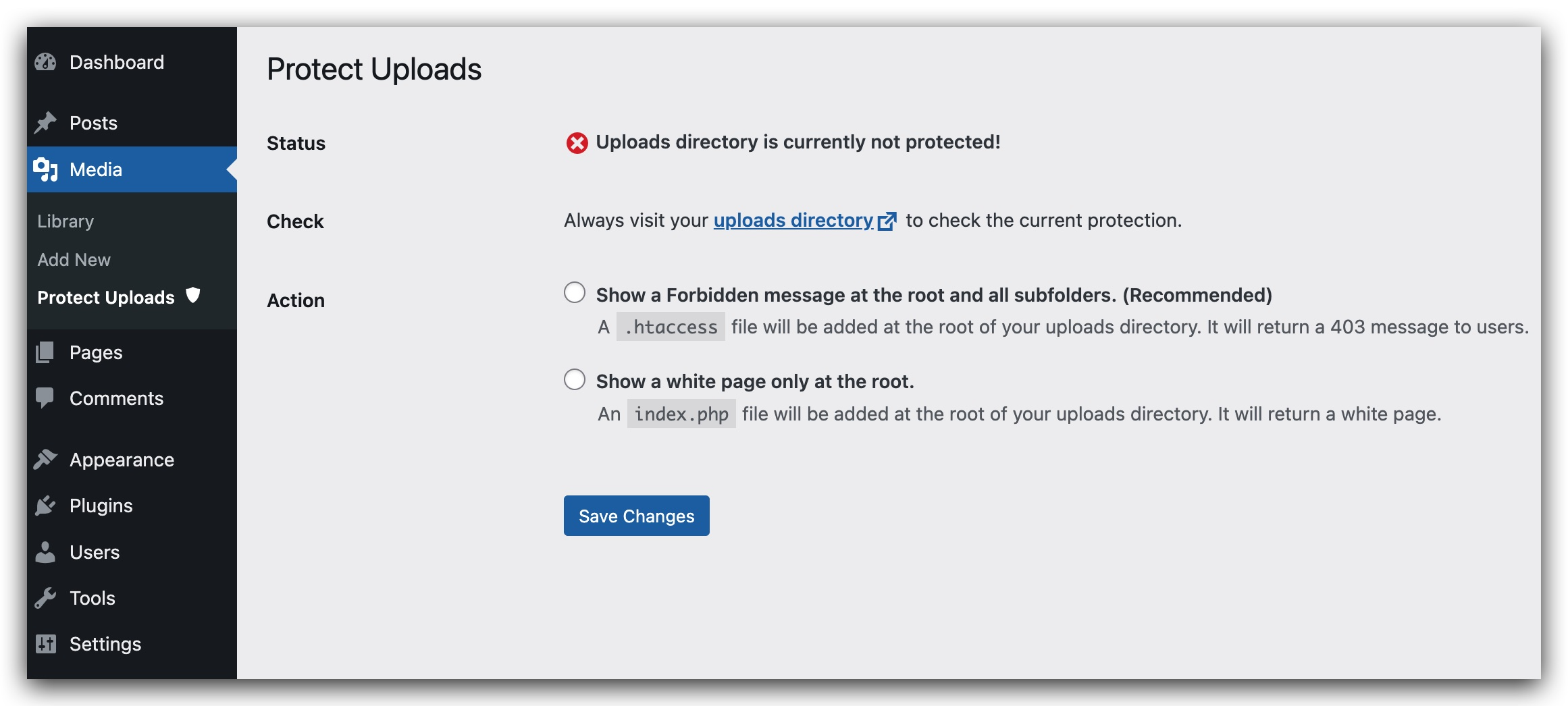
Administration Page for the plugin.

Instal·lació
- Upload
protect-uploadsfolder to the/wp-content/plugins/directory - Activate the plugin through the ‘Plugins’ menu in WordPress
- Configure protection options in Settings Media Protect Uploads
Note: GD library is needed for watermarking functionality and being able to create a .htaccess file in uploads directory.
PMF
-
How do I add a password to a media file?
-
- Enable password protection in Settings Media Protect Uploads
- Edit any media file in your Media Library
- Scroll down to the “Password Protection” section
- Add one or more passwords with descriptive labels
-
How does watermarking work?
-
When enabled, watermarking automatically adds text to images when they are uploaded. You can customize:
– The watermark text (defaults to your site name)
– Position (top-left, top-right, bottom-left, bottom-right, center)
– Opacity (0-100%)
– Font size (small, medium, large) -
Can I password protect only certain file types?
-
Yes, password protection works for all media file types including PDFs, images, videos, and documents.
Ressenyes


Col·laboradors i desenvolupadors
«Protect Uploads» és programari de codi obert. La següent gent ha col·laborat en aquesta extensió.
Col·laboradors
Traduïu «Protect Uploads» a la vostra llengua.
Interessats en el desenvolupament?
Navegueu pel codi, baixeu-vos el repositori SVN, o subscriviu-vos al registre de desenvolupament per fisl de subscripció RSS.
Registre de canvis
0.6.0
- Added image watermarking with customizable text, position, opacity, and font size
- Added right-click protection to prevent image downloads
- Added password protection for individual media files
- Added access logging for password-protected files
- Added multiple password support with custom labels
- Added security enhancements throughout the plugin
- Improved file serving with better security checks
- Added font size control for watermarks
- Enhanced error handling and logging
0.5.2
- Removed unused css
0.4
- Fix potential security issues.
- Remove recursive loop that creates indexes.
0.3
- Simplify UI admin.
- check presence of index.html.
- Remove option value managing current protection status.
- Reorganizing code and making it more modular and simple.
- Remove useless pieces.
0.2
- Add security check to form in admin page.
- Add sidebar for admin page
- Add Italian translation (thanks to Marko97).
- Try to fix the wrong message saying that Protection is disabled eventhough it is actually working.
0.1
- Initial release
