Automatically convert contained database to non-contained for replication

This article was recently published on dev.getroadmap.com:


In one of my previous posts, I described how to setup replication to an Azure SQL database. This works like a charm, and I still highly recommend using this when you want to migrate data from an on-premise server (or Azure VM) to a Azure SQL db (PaaS).

But in our environment, we use SQL Server 2016 and contained databases for some of our datasets. Unfortunately (but totally understandable), you can’t setup replication from a contained database. So how do you deal with this? For our use-case, I’ve written a script to automatically change the database from contained to non-contained. And because I’m probably not the only one who needs to do this, I’d like to share it with you.

 
Steps to take
It might sound a bit difficult, but when you think about it, it’s actually quite easy. To go from a contained database with a user to a non-contained database with a login, you need to take the following steps:

 
1) Duplicate user as login on server level
2) Drop user on database level
3) Alter database to non-contained
4) Add login to database

 
The script
Before you start using this, I want to warn you. Using this script on your server(s) or in production is at your own risk. This worked for me, but maybe it doesn’t on your server(s)!

In order to let this script work, you must be able to stop applications and queries from executing on your database. In our case, we can just stop the service(s) that use a specific database (that’s the advantage of micro services). The reason for this is that you must be able to obtain an exclusive lock on the database, in order to switch from contained to non-contained.

If you can manage this, the script below could work for you too:

--====================================================================================================
/* 1 - Duplicate user on instance level as login */

USE master
GO

CREATE LOGIN [Login non-contained database] WITH PASSWORD=[Password]', DEFAULT_DATABASE=[master], CHECK_EXPIRATION=OFF, CHECK_POLICY=OFF
GO

--====================================================================================================
/* 2 - Drop user on database level */

USE [Contained database name]
GO

DROP USER [User contained database]
GO

--====================================================================================================
/* 3 - Alter database to non-contained */ 

USE master
GO

ALTER DATABASE [Contained database name] SET CONTAINMENT = NONE WITH NO_WAIT
GO

--====================================================================================================
/* 4 - Add login to database */

USE [Non-contained database name]
GO

CREATE USER [User non-contained database] FOR LOGIN [Login non-contained database]
GO

ALTER ROLE [db_datareader] ADD MEMBER [User non-contained database]
GO

ALTER ROLE [db_datawriter] ADD MEMBER [User non-contained database]
GO

--====================================================================================================

 
Or, to make it easier to read, an example with actual names:

--====================================================================================================
/* 1 - Duplicate user on instance level as login */

USE master
GO

CREATE LOGIN [Login_RW] WITH PASSWORD=N'Password123!', DEFAULT_DATABASE=[master], CHECK_EXPIRATION=OFF, CHECK_POLICY=OFF
GO

--====================================================================================================
/* 2 - Drop user on database level */

USE ContainedDatabase
GO

DROP USER Login_RW
GO

--====================================================================================================
/* 3 - Alter database to non-contained */ 

USE master
GO

ALTER DATABASE ContainedDatabase SET CONTAINMENT = NONE WITH NO_WAIT
GO

--====================================================================================================
/* 4 - Add login to database */

USE ContainedDatabase
GO

CREATE USER Login_RW FOR LOGIN Login_RW
GO

ALTER ROLE [db_datareader] ADD MEMBER Login_RW
GO

ALTER ROLE [db_datawriter] ADD MEMBER Login_RW
GO

--====================================================================================================

 
Conclusion
Even though I thought that using a contained database could be a big blocking factor for us in the process of migrating data to Azure, it really wasn’t that big of a deal. Especially now that we automated the process, it doesn’t add more than 5 minutes to the process of replicating data to Azure.

Replication: Snapshot Agent fails on date conversion

This article was recently published on dev.getroadmap.com:


In the previous post I wrote, I explained how to setup replication from an on-premise SQL Server instance to an Azure SQL database. While doing this, I came across a very strange issue (or maybe even bug) when setting up replication.

 
The problem child
After working on reproducing the issue for a day, and trying to reduce the issue to a small-scale problem, I came to the conclusion that the problem was (probably) caused by a single primary key on a table in the database:

CREATE TABLE dbo.BuggedTable
	([Day] DATE NOT NULL,
	 SomeId VARCHAR(50) NOT NULL,
	 Amount INT NOT NULL,
	 CONSTRAINT PK_BuggedTable PRIMARY KEY CLUSTERED 
		([Day] ASC,
		SomeId ASC
		)
	)
GO

 
Creating publication & subscriber
The setup of the publication and subscriber wasn’t that difficult. As I said before, there are a few things you need to configure differently then you would do for SQL Server to SQL Server replication.

So I won’t talk you through the whole process again, but refer you to the articles instead.

 
Generate initial snapshot
Once the publication and subscription are in place, it’s time to generate the initial snapshot. The snapshot agent prepares the snapshot that contains the schema and data, needed to initialize the subscriber(s):

Image

 
In some cases it takes a while, but in the end, I found this “warning” on my screen:

Image

 
When you dig into this by opening the agents tab in the replication monitor, you see the actual error:

Image

 
The complete error states:

Error messages:
Message: Query for data failed
Stack: at Microsoft.SqlServer.Replication.Snapshot.SqlServer.NativeBcpOutProvider.ThrowNativeBcpOutException(CConnection* pNativeConnectionWrapper)
at Microsoft.SqlServer.Replication.Snapshot.SqlServer.NativeBcpOutProvider.BcpOut(String strBcpObjectName, String strBcpObjectOwner, String strBaseBcpObjectName, Boolean fUnicodeConversion, String strDataFile, String strLoadOrderingHint, String strWhereClause, Boolean useTableLockHint, Int32 bcpFileFormatVersion)
at Microsoft.SqlServer.Replication.Snapshot.SqlServer.BcpOutThreadProvider.DoWork(WorkItem workItem)
at Microsoft.SqlServer.Replication.WorkerThread.NonExceptionBasedAgentThreadProc()
at Microsoft.SqlServer.Replication.AgentCore.BaseAgentThread.AgentThreadProcWrapper() (Source: MSSQLServer, Error number: 0)
Get help: http://help/0
Message: Conversion failed when converting date and/or time from character string.
Stack: (Source: MSSQLServer, Error number: 241)
Get help: http://help/241

 
First I thought that the DATE column being part of the primary key was the problem. But then again, another table in a different database had the combination of a DATE and a UNIQUEIDENTIFIER as a primary key. So that couldn’t be it.

 
Digging deeper
During my investigation to this issue, I found the following:

– There was enough space on the disk for the snapshot
– Other database with DATE in primary key (PK) worked (even though combination was DATE + UNIQUEIDENTIFIER, instead of DATE + VARCHAR)
– Adding “-UseInprocLoader” to Snapshot Agent job doesn’t work

So after digging a bit deeper, and trying to reduce the issue to a small-scale problem, I found:

– Reproduced in an empty (new) database, with just the failing table as single object in the database –> STILL FAILS
– Changed object in test DB to use newly created IDENTITY(1,1) as PK, and added Unique Constraint to old PK columns –> WORKS
– Make DATE column part of different PK (together with IDENTITY), and no Unique Constraint –> WORKS
– Changing the PK to just the VARCHAR column –> WORKS
– Changing the PK to just the DATE column –> WORKS
– Setting database on local instance (SQL 2016 Dev) to comp. 110, just like on test –> WORKS

After a lot of different variables in the test-setup, I found out that it’s probably an old bug that wasn’t properly patched when upgrading the SQL Server engine to a newer version. Let me elaborate on that:

– The bug is reproducible on the test server, which is an upgraded engine from SQL 2012 or 2014 to SQL 2016 RTM
– The bug is reproducible on the production server, which is an upgraded engine from SQL 2014 to SQL 2016 RTM
– The bug is not reproducible on a clean install of SQL 2014
– The bug is not reproducible on a clean install of SQL 2016 RTM
– The bug is not reproducible on a clean install of SQL vNext CTP

 
Finding a work-around
Because I couldn’t find a work-around for this issue, I requested the help from Justing Langford (Blog | @JustinLangford) from Coeo. He pointed me to an article that describes a few possible work-arounds.

For me, adding a row filter for the table did the trick:

Image

 
As described in the article mentioned above, adding the row filter disables the BCP partioning for this article (table), and the snapshot agent completed without any problem:

Image

 
Conclusion
Although this bug should’ve been fixed ages ago, it looks like it (re)appeared again after an engine upgrade. I’m not sure how this happened, but all I know is that it took me about 3 days to find, reproduce, reduce and work around the problem.

So hopefully this article will save you that time!

Setting up replication from on-premise SQL Server to Azure SQL DB

This article was recently published on dev.getroadmap.com:


For performance reasons we are looking for a way to split our write-operations from our read operations. A good way to do that is by duplicating the database onto another server (on-premise) or platform (Azure SQL DB). When you look at the options (Availability Groups (AG), database mirroring, clustering, replication, Azure sync groups, etc.) the easiest way to quickly duplicate a database and keep the data up-to-date at the same time is SQL Server replication.

Replication to another on-premise instance is easy. You just follow the steps in the wizard, it works out-of-the-box, and the chances of this process failing are small. With replicating data to an Azure SQL database it’s a bit more of a struggle. Just one single word took me a few HOURS of investigation and a lot of swearing…

 
Setting up replication and databases
Before you start with setting the whole thing up, make sure that the replication is installed on your instance. If this is not done yet, install the needed components via the installer. This component can be installed without rebooting the server, or the need to restart the instance.

If you needed to install replication, make sure you restart the SQL Server Agent. For some reason, the configuration change works on the instance without any problems, but the Agent can’t run the needed jobs until you restart it.

The next step is creating 2 databases: a publisher (on the on-premise instance) and a subscriber (an Azure SQL database):

Image

 
And create a table that can be replicated:

CREATE TABLE dbo.SomeObject
	(ID INT IDENTITY(1,1),
	 SomeValue VARCHAR(100),
	 PRIMARY KEY (ID))

 
Setup the publisher
Now that you have 2 databases, it’s time to setup the publisher. I’m not guiding you through the whole replication setup (there are plenty of tutorials out there that are WAY better than my explanation), but I’ll show you the highlights.

First, start by clicking “New Publication” on your on-premise instance:

Image

 
I chose to run the distributor on the same server.

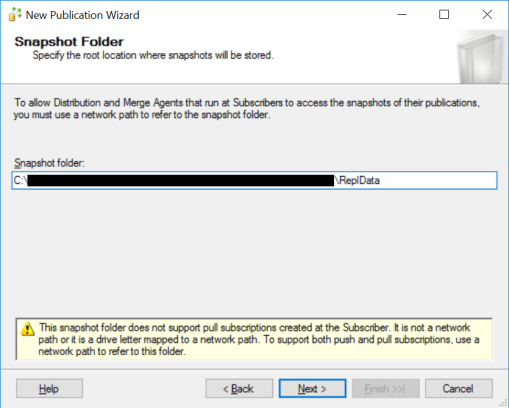
If you follow the wizard, it will prompt you with the question on where to store the snapshots:

Image

 
Copy this link into for example notepad, because it comes in handy later in the process.

As publication type, choose “Transactional publication”:

Image

 
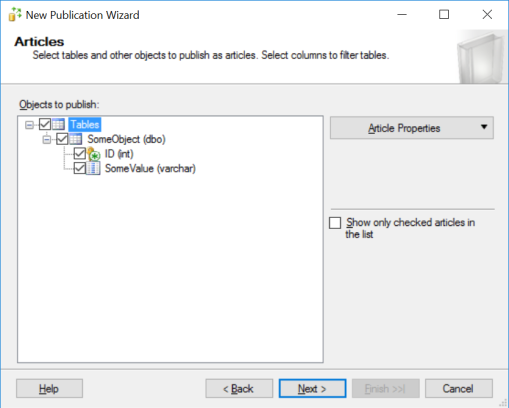
Again, follow the wizard and choose the objects you want to replicate (in my case just that single table):

Image

 
For the security settings, I chose to use the SQL Server Agent

After finishing the steps in the wizard, give your publication a name, and finish this setup.

 
Create a subscriber
On the on-premise instance, right-click the newly created publication, and add a new subscriber:

Image

 
The distribution agent will remain on the distributor (push subscription).

When you’re prompted to add a subscriber, choose “Add SQL Server Subscriber”:

Image

 
Here comes the part that took me a while to figure out. When you try to replicate changes to an Azure SQL database, and you use the normal connection, it will fail to connect in the end. But if you use a secure connection, replication works like a charm. So make sure you use the following server name ([Server Name].database.secure.windows.net):

Image

 
Adding that single word took me an hour or so to figure out. Hopefully this will save you a few hours of investigation, looking for dodgy error messages, ending up in finding an “errorcode 40852”, and leading you to the solution.

When this is set up, select the target database (subscriber):

Image

 
When you’re prompted for the distribution agent security information, make sure you use a SQL Server login that has the correct permissions on the Azure SQL database:

Image

 
Start the replication
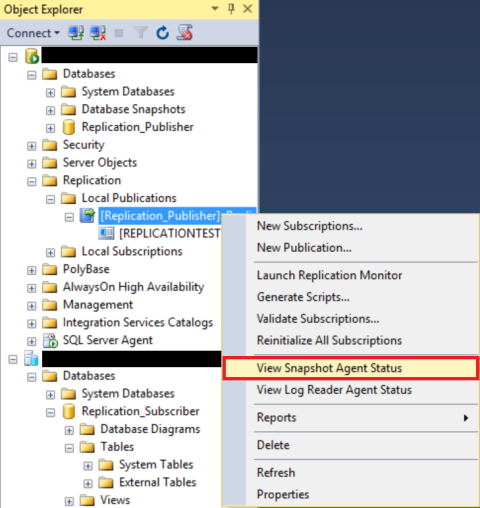
Now that everything is in place and configured, it’s time to create the initial snapshot. This snapshot will be used to create all the objects and data that are supposed to be replicated on the Azure SQL database. Open the snapshot agent by clicking “View Snapshot Agent Status” on the publication:

Image

 
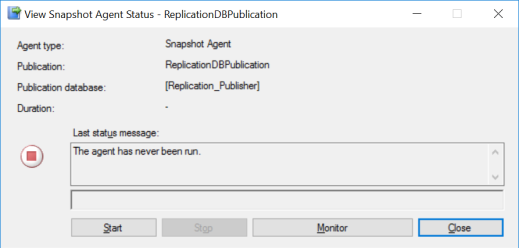
The snapshot agent hasn’t run yet, so press “Start” to start the process:

Image

 
When this process has completed, you should see something similar like this:

Image

 
Now it’s time for a final test. Insert a record on the source database (publisher):

INSERT INTO dbo.SomeObject
	(SomeValue)
VALUES
	('Test value')

 
You should see this record pop-up on the subscriber after a few seconds (default latency is 5 seconds):

SELECT *
FROM dbo.SomeObject

 
You can also check the “Synchronization Status”, and you should see a command being replicated:

Image

 
Conclusion
Out of all the available options, I still think replication is the easiest way to replicate data into Azure. The only downside is that there doesn’t seem to be a lot of information about this, especially when you look at the “database.SECURE.windows.net” part.

If you need more than just the one-way traffic, or you want a bit more functionality, maybe replication isn’t your weapon of choice. But for me, it worked like a charm… Eventually…

Easy pivot: From key-value pairs to columns

This article was recently published on dev.getroadmap.com:


If there is one thing I pretty much hate doing in T-SQL it’s PIVOT and UNPIVOT. Even though I used it a few times in the last couple of years, it’s an adventure to find out how it works every time. And I know a lot of people struggle with this part of T-SQL, so let’s take a look at a (hopefully) simple example.

 
Key-Value pairs
The idea of using key-value pairs to store data isn’t new, but with the rapid development of cloud solutions like Azure and the hype around NoSQL databases, using key-value pairs to store data got a big boost. Especially developers (in my experience) love using key-value pair to store their data, because it’s easy for them to consume the data in an application. But it gives the database professional an extra challenge because we’re used to retrieve columns with values instead of a record per value. So how can we turn those key-value pairs into rows?

 
Flights
To show you how to change key-value pairs to columns, let’s create an example based on flights. If one of our customers needs to travel and they take the plane, there is some basic information we need to show them the flight status in the app. So let’s create a table to store that dataset:

CREATE TABLE dbo.Flights
(
	FlightId UNIQUEIDENTIFIER,
	[Key] VARCHAR(255),
	[Value] VARCHAR(255)
)

 
and insert a flight:

INSERT INTO dbo.Flights
	(FlightId, [Key], [Value])
VALUES
	('2A0C8B05-682A-41CE-8516-C6070CD92851', 'FlightId', '3074e015-62b2-4f76-a8b1-463c53cd79c5'),
	('2A0C8B05-682A-41CE-8516-C6070CD92851', 'AirlineIATACode', 'VY'),
	('2A0C8B05-682A-41CE-8516-C6070CD92851', 'FlightNumber', '8336'),
	('2A0C8B05-682A-41CE-8516-C6070CD92851', 'DepartureAirportCode', 'RTM'),
	('2A0C8B05-682A-41CE-8516-C6070CD92851', 'DepartureAirportName', 'Rotterdam The Hague Airport'),
	('2A0C8B05-682A-41CE-8516-C6070CD92851', 'DepartureDateTime', '2016-08-12 12:15'),
	('2A0C8B05-682A-41CE-8516-C6070CD92851', 'DepartureTerminal', '1'),
	('2A0C8B05-682A-41CE-8516-C6070CD92851', 'Gate', NULL),
	('2A0C8B05-682A-41CE-8516-C6070CD92851', 'ArrivalAirportCode', 'BCN'),
	('2A0C8B05-682A-41CE-8516-C6070CD92851', 'ArrivalAirportName', 'Barcelona–El Prat'),
	('2A0C8B05-682A-41CE-8516-C6070CD92851', 'ScheduledArrivalDateTime', '2016-08-12 14:14'),
	('2A0C8B05-682A-41CE-8516-C6070CD92851', 'FlightIsCancelled', '0')

 
So now we have a dataset that consists of 12 key-value pairs:

Image

 
Converting to columns
But when you’re running a query you would like to have columns instead of rows. So by using a PIVOT statement, you can convert these rows into columns:

SELECT
	FlightId,
	AirlineIATACode,
	FlightNumber,
	DepartureAirportCode,
	DepartureAirportName,
	DepartureDateTime,
	DepartureTerminal,
	Gate,
	ArrivalAirportCode,
	ArrivalAirportName,
	ScheduledArrivalDateTime,
	FlightIsCancelled
FROM
	(
		SELECT
			FlightId,
			[Key],
			[Value] 
		FROM dbo.Flights
	) AS SourceTable
PIVOT
	(
	MIN([Value])	--Needs to be an aggregate function
	FOR [Key] IN
		(
			AirlineIATACode,
			FlightNumber,
			DepartureAirportCode,
			DepartureAirportName,
			DepartureDateTime,
			DepartureTerminal,
			Gate,
			ArrivalAirportCode,
			ArrivalAirportName,
			ScheduledArrivalDateTime,
			FlightIsCancelled
		)
	) AS PivotOutput

 
Because the keys are always the same for flights, I can add those Key-names in the PIVOT statement. But because the PIVOT statement needs an aggregate function to retrieve the value, I needed to add the MIN() function but this doesn’t change the output in any way.

Now we have the same dataset, but converted into rows:

Image

 
So from now on, converting key-value pairs to columns shouldn’t be a problem anymore!

Comparing execution plans with SSMS

In SQL Server 2016 (now available as CTP 3.0), a new feature is shipped: Execution Plan Comparison Tool. This new (and very cool) feature allows you to compare 2 execution plans within SQL Server Management Studio (SSMS). And according to Amit Banerjee (Blog | @banerjeeamit), this feature is also available in the “SSMS – September 2015” release (more info here). Let’s take a look at this new feature.

Creating resources
To generate an execution plan that we can compare later on, let’s create a table with some data first:

USE Sandbox
GO


CREATE TABLE dbo.T1
	(ID INT IDENTITY(1,1),
	 VAL VARCHAR(10))
GO


INSERT INTO T1
	(VAL)
VALUES
	('X')
GO 10

 
To generate some execution plans, run the queries below with the “actual execution plan” on, and safe these plans to disk:

SELECT *
FROM T1 AS T1
INNER JOIN T1 AS T2 ON T1.ID = T2.ID

 
and:

SELECT *
FROM T1 AS T1
INNER JOIN T1 AS T2 ON T1.ID = T2.ID
INNER JOIN T1 AS T3 ON T1.ID = T3.ID

 
I’ve also made the 2 plans that were generated available for download here and here.

 
Comparing execution plans
To compare execution plans in, you need to open the first execution plan from SSMS. In the plan-window, right-click and click on “Compare Showplan”:

Image

 
Now a pop-up window will open, that asks you what plan you want to use to compare it with. Now open “Test2.sqlplan”. The compare window opens, and you can compare plans:

Image

 
As you can see, parts of the plan that are the same in both execution plans, are colored the same. These colors are randomly chosen, and can be different every time you compare 2 plans. This makes it easy to determine where both plans are equal or differ.

If you click on one of the highlighted parts in the execution plan, the other plan will center its view on that part of the plan (unfortunately it’s a bit hard to see that with these small execution plans). If you click on a highlighted part, you can see that there is a blue rectangle drawn around the object:

Image

 
Another really cool thing is the properties windows. If you don’t have that open by default, right-click on the first object in the execution plan (the SELECT part), and click on “Properties”. This shows 2 property-windows, in which you can compare the memory grant for both plans for example:

Image

 
Conclusion
At this moment, you need to save both execution plans to disk in order to compare them. If you try to compare an execution plan of a query you just ran without saving it, it throws an exception:

Image

 
But in my opinion this is just a minor issue, and I think this will be fixed in one of the next releases.

Comparing execution plans is definitely something I’ve been missing for years. Especially when you have 2 really big plans, this can really help you speed up the analysis and debug process.

Even though I’m pretty used to using SQL Sentry Plan Explorer to open execution plans, that doesn’t give me the option to compare plans (yet). At least not in the free version of the tool, that I always recommend to colleagues and friends to use.

This is another one of the really cool features in the overhauled SSMS, and I think the SQL Server team is rocking this new release.

Tracking query progress with Live Query Statistics

How frustrating is it, to run a query on a database and it seems to be “stuck”. We’ve all seen that happen right? But how can you tell what the problem is, without letting the query complete (which could take a long time)? Microsoft (or actually the SQL Server team) gave us a new toy to play with that can help us in situations like this, and this tool is called “Live Query Statistics”.

 
Creating resources
To show you how the Live Query Statistics work, let’s create a sample table first, and insert 1.000 rows:

CREATE TABLE LiveQueryStats
	(ID INT IDENTITY(1,1),
	 VALUE VARCHAR(10))
GO

INSERT INTO LiveQueryStats
	(VALUE)
VALUES
	('X')
GO 1000

 
Because we want to actually see something happen, let’s multiply the number of rows coming from the single table by using the query below:

SELECT *
FROM LiveQueryStats T1
CROSS APPLY LiveQueryStats T2
CROSS APPLY LiveQueryStats T3

 
The query will return 1 billion rows (1.000.000.000), and will run for a while. This gives you the opportunity to look at the different features without rushing or losing your running query.

 
Live execution plan
Before running the query above, you need to enable the Live Query Statistics just like you would do to the normal execution plan. This is an extra button added in the SQL Server 2016 SSMS (and the downloadable version of course). When that’s enabled, you can execute the query, and SQL Server Management Studio (SSMS) will automatically switch to the live execution plan.

In this execution plan, you’ll see the data flow through the components, so you can actually see what SQL Server is doing at a specific moment:

Image

 
Query completion percentage
Another great addition is the overall completed percentage, that you can find at the bottom of your SSMS. This shows you the percentage of completion, that can help you estimate the time till completion:

Image

 
Live rowcount
The properties window normally shows you the in-depth information of your query after completion (number of threads, memory grant, etc). With the live execution plan enabled, it can provide you with real-time statistics as well:

Image

 
Live execution plan from Activity Monitor
From the Activity Monitor you can also open the live execution plan of running queries on your instance. In the Activity Monitor, you have an additional tab in SQL Server 2016 called “Active Expensive Queries”. In this tab you can right-click on a running query, and click on “Show Live Execution Plan”. This opens a new tab in SSMS with the execution plan:

Image

 
Unfortunately this only works for queries that have the live statistics enabled before execution. I don’t expect this to change in the final product, mainly because of the negative performance impact this feature can have on your queries and instance.

 
Drawbacks, Limitations and Bugs
Because this is only a CTP version of SQL Server 2016, we can expect some bugs and limitation, so I’ll be the last one to judge. And I don’t think these limitations are a big drawback on the feature.

One of these bugs is a crashing SSMS. If you open a live execution plan from the Activity Monitor, and close that tab, SSMS crashes every now and then.

Image

 
Another weird thing is that exiting SSMS by clicking on the close button (top right) when the live execution plan is open, causes the list of recently used SQL Servers (the list used when connecting object explorer for example) to be cleared for some reason.

This behavior is reproducible, so I think this is a small bug in SSMS, or the fact that I upgraded this instance from the first CTP version till the current version. But I’m sure this will be fixed by the SQL Server Team in the next releases.

 
The biggest pitfall (in my opinion) of this feature is also mentioned in the documentation. This feature is “primarily intended for troubleshooting purposes” and “can slow the overall query performance”. And I know, it look SO COOL to have this on all queries you’re running, but please be careful with this. Don’t enable this on every running query, but only use this to debug issues!

Another limitation for this feature (at least at the moment I’m writing this), is the use in combination with columnstore indexes, memory optimized tables and natively compiled stored procedures. You can read more about this here.

And I shouldn’t even have to mention this, but remember: you can only use Live Execution Plans when you have SHOWPLAN permissions on the database (same permissions you need to view normal execution plans).

 
Alternatives
One of the questions I had when I read about this: are there any alternative for this? One of the only things that come to mind is the “Track My Query” tool, written by Matan Yungman (Blog | @MatanYungman). This tool allows you to monitor your query, and it will show you what part of your query is currently running. For more in-depth information, I recommend the SQLBits session where he explains the inner-workings of this tool. I’ve seen this session in person, and it was an interesting session.

 
Conclusion
With all these awesome new features that will be shipped in SQL Server 2016, I think there’s a whole new way of looking at SQL Server as a product. I’ve always liked working with SQL Server, but this version is taking it to the next level.

With all these new features, debugging issues is going to be a bit easier, developing new stuff is going to be faster, and the overall usability is going to skyrocket. I can’t wait to get my hands on the finished product!

Where to find backup- and restore history

Interesting questions don’t always need to be hard to answer. Earlier this week I was asked “How can I see what backup was restored on environment X?”. The answer is as interesting as the question…

 
Backup
To see what backups are taken, you can take a look at the history of your maintenance job (depending on whatever type you use in your environment). But there is another way: just ask SQL Server.

First, let’s create a new database named Sandbox (before you run the scripts in this blog post, change or create the directories that are used!):

USE master
GO

CREATE DATABASE Sandbox
	ON PRIMARY (NAME = N'Sandbox', FILENAME = N'C:\Database\Sandbox.mdf', SIZE = 4096KB, FILEGROWTH = 1024KB)
	LOG ON (NAME = N'Sandbox_log', FILENAME = N'C:\Database\Sandbox_log.ldf', SIZE = 1024KB, FILEGROWTH = 1024KB)
GO

 
Before we start to backup this database, I want to make sure the information I see is only for this backup. In order to do so, I’m going to cycle the SQL Server error log, and clean all my backup history from msdb. You can do that by running these statements:

EXEC sys.sp_cycle_errorlog
EXEC msdb.dbo.sp_delete_backuphistory @oldest_date =  '2016-01-01'

 
By setting the “@oldest_date” to a date in the future, all backup history will be deleted.

Now that we’ve done that, let’s take a backup of our database:

BACKUP DATABASE [Sandbox]
 TO DISK = N'C:\Database\Backup\Sandbox_2010828_0832.bak' WITH STATS = 10;
GO

 
The backup will complete in an instant, because there is no data to backup:

Image

 
The result of the backup can be found in 2 locations. The first one is the SQL Server error log:

EXEC xp_readerrorlog

 
If you search in the error log you can find the exact time the backup was taken, the amount of pages that were processed, the location of the backup file, etc (image clickable for larger version):


Image

 
The SQL Server error logs are also available from the SQL Server Management Studio (SSMS). If you connect to your instance with the object explorer, and navigate to Management -> SQL Server Logs, you can find the same information.

The second location you can use to retrieve this information is msdb. The msdb contains the history of your backups:

Image

 
You can retrieve this information by running a query on the backup-tables:

SELECT
	B.user_name,
	B.database_name,
	M.physical_device_name,
	B.backup_start_date,
	B.backup_finish_date,
	CASE B.type
		WHEN 'D' THEN 'Database'
		WHEN 'L' THEN 'Log'
	END AS BackupType
FROM msdb.dbo.backupset B
INNER JOIN msdb.dbo.backupmediafamily M ON M.media_set_id = B.media_set_id

 
Restore
The information for restored backups can also be found in the same 2 locations. Let’s take a backup of the Sandbox database first:

USE master
GO

RESTORE DATABASE Sandbox
FROM DISK = N'C:\Database\Backup\Sandbox_2010828_0832.bak' WITH REPLACE, STATS = 10
GO

 
If we look at the SQL Server error log again we can find the restore time, used backup, etc:


Image

 
We can also query the msdb again. But this time, we need to use the restore-tables:

SELECT
	destination_database_name,
	user_name,
	restore_date,
	destination_phys_name
FROM msdb.dbo.restorehistory H
INNER JOIN msdb.dbo.restorefile F ON F.restore_history_id = H.restore_history_id

 
This shows you all recent restores on your instance:

Image

 
Conclusion
Being able to retrieve the information you need to determine which database was backed-up or restored can help you solve some weird issues. In my case, it explained why a certain record wasn’t restored on environment X: it was inserted after the backup was taken. Issues like that can be quite hard (or even impossible) to find without information about backups and restores.

Obfuscating your data with SQL Server 2016 Dynamic Data Masking

In today’s IT landscape, data security is a big deal. Just ask people like Troy Hunt (Blog | @troyhunt), who is a security expert, how losing data can destroy your company. Companies all over the world lose data every single day, and you might not even be aware of this. I’m still seeing companies who give all IT employees admin permission on the whole IT infrastructure: from webserver to database servers, and from customer relations system to financial system. But why is it still a struggle for IT professionals to protect their data? In some companies they don’t even hash passwords, let alone protect them with a certificate or even heavier protection.

In this blog I’m not going to tell you how to secure your data, because honestly I’m not an expert at that. I do want to introduce you to a new way to obfuscate your data, that was introduced in SQL Server 2016. According to Wikipedia obfuscation means: “(…)the obscuring of intended meaning in communication, making the message confusing, willfully ambiguous, or harder to understand”. Or in easy terms: make it harder to read for your users and/or employees. Let’s take a look at an example.

If I would give you an email address like “[email protected]”, it’s really easy to guess the name of the person. Let’s be honest, it’s not rocket science right?! But what if I would give you the email address “Jo*****@d*****.com”, would you still guess the name correctly? Yes I agree with you there’s a small chance you might guess the name right, but those chances are slim. And instead of writing your own code to obfuscate data this way, with SQL Server 2016 you’ll get it out of the box.

Creating resources
The following is tested on SQL Server CTP 2.1. If you’re not running that version or higher, this might mean the scripts or test cases might not work the same as in my case.

In order to test this new feature, let’s create a new database first:

USE master
GO

CREATE DATABASE DynamicDataMasking ON PRIMARY 
(NAME = N'DynamicDataMasking', FILENAME = N'C:\Database\DynamicDataMasking.mdf')
LOG ON
(NAME = N'DynamicDataMasking_log', FILENAME = N'C:\Database\DynamicDataMasking_log.ldf')
GO

 
Now let’s create a table called Users:

CREATE TABLE dbo.Users
	(UserID INT IDENTITY(1,1),
	 FirstName VARCHAR(100),
	 LastName VARCHAR(100),
	 Address VARCHAR(100),
	 DateOfBirth DATE,
	 SocialSecurityNumber VARCHAR(15),
	 Email VARCHAR(100))

 
This table contains some basic information about the users of our application. And of course we need some user data in the table. I’ve used Redgate’s SQL Data Generator to generate data for my table. Because I’ve generated a full table, I’ve made the script available here.

 
Now that we have a table with sensitive data, let’s look at the ways of obfuscating this data. From SQL Server 2016 onwards you get to use the Dynamic Data Masking feature. This means you can add a “mask” on top of your data. This is done by altering the columns in your table:

ALTER TABLE <TableName>
ALTER COLUMN <ColumnName> ADD MASKED WITH (FUNCTION = '<FunctionName>')

 
This takes care of the data obfuscation for you, and you can determine the level of obfuscation by using specific functions:

Default: Completely replaces the value in the column with “xxxx”
Email: Replaces the email address with X’s, except for the first character, and the Top-level domain
Custom: The most dynamic of the 3 functions. This allows you to configure a prefix and suffix, and replaces the rest of the values with X’s

 
Let’s add masks to the columns in our table:

ALTER TABLE dbo.Users ALTER COLUMN FirstName ADD MASKED WITH (FUNCTION = 'default()')
ALTER TABLE dbo.Users ALTER COLUMN LastName ADD MASKED WITH (FUNCTION = 'partial(1,"XXXXXXXXXX",1)')
ALTER TABLE dbo.Users ALTER COLUMN Address ADD MASKED WITH (FUNCTION = 'partial(10, "XXXXX", 0)')
ALTER TABLE dbo.Users ALTER COLUMN City ADD MASKED WITH (FUNCTION = 'partial(3, "XXXXX", 0)')
ALTER TABLE dbo.Users ALTER COLUMN State ADD MASKED WITH (FUNCTION = 'partial(4, "XXXXX", 0)')
--Country no masking
ALTER TABLE dbo.Users ALTER COLUMN DateOfBirth ADD MASKED WITH (FUNCTION = 'default()')
ALTER TABLE dbo.Users ALTER COLUMN SocialSecurityNumber ADD MASKED WITH (FUNCTION = 'partial(0,"XXX-XX-",4)')
ALTER TABLE dbo.Users ALTER COLUMN Email ADD MASKED WITH (FUNCTION = 'email()')

 
Testing data masking
Now that we have a table with masked data, how does that look from different perspectives? Let’s create 2 users: an application login with just read permissions, and an admin login with db_owner permissions:

USE master
GO

CREATE LOGIN [AppLogin]
	WITH PASSWORD = 'TestPass',
	--SID = 0xDB9ED49EF06F3A40B5024B36F5CDD658,
	DEFAULT_DATABASE = [master],
	CHECK_POLICY = OFF,
	CHECK_EXPIRATION = OFF
GO

CREATE LOGIN [AdminLogin]
	WITH PASSWORD = 'TestPass',
	--SID = 0xDB9ED49EF06F3A40B5024B36F5CDD658,
	DEFAULT_DATABASE = [master],
	CHECK_POLICY = OFF,
	CHECK_EXPIRATION = OFF
GO


USE DynamicDataMasking
GO

CREATE USER AppLogin FOR LOGIN AppLogin WITH DEFAULT_SCHEMA = dbo
GO

ALTER ROLE db_datareader ADD MEMBER AppLogin
GO

CREATE USER AdminLogin FOR LOGIN AdminLogin WITH DEFAULT_SCHEMA = dbo
GO

ALTER ROLE db_owner ADD MEMBER AdminLogin
GO

 
Now open up 2 new SSMS tabs, and log in with the 2 accounts. In both sessions run the query below:

USE DynamicDataMasking
GO

SELECT * FROM dbo.Users

 
The difference is clearly visible when you select the top 10 records in both sessions:

Image

 
In the admin connection you get to see the full dataset, and in the application login the masked dataset is returned.

 
Querying data
The retrieval and querying of data isn’t changed when you have data masks applied. If you run a query where you search for users with a specific first name, the correct results is returned:

SELECT *
FROM dbo.Users
WHERE FirstName = 'Jeffrey'

 
Security issues
Now we get to the interesting part: the security issues. Even though this is not a form of data encryption, I did expect this could be a part of data security. But unfortunately this was a false sense of security…

Let’s try a normal query on the masked data, with the AppLogin session:

USE DynamicDataMasking
GO

SELECT * FROM dbo.Users

 
This returns the data as expected: masked. But is there any way around this? Let’s make the AppLogin a db_owner on another database (run this statement with a user that has permissions to do this):

USE Sandbox
GO

CREATE USER AppLogin FOR LOGIN AppLogin WITH DEFAULT_SCHEMA = dbo
GO

ALTER ROLE db_owner ADD MEMBER AppLogin
GO

 
So the AppLogin is still db_datareader on the DynamicDataMasking database, and db_owner on the Sandbox database. Now let’s run the query below:

USE Sandbox
GO

SELECT *
FROM DynamicDataMasking.dbo.Users

 
Well, that’s awkward! If your application login has db_owner permissions on another database, you can query the data from the users table without the data masks!

But I know what you’re thinking. My application logins aren’t db_owner anywhere so I’m safe. WRONG! Let me show you another example:

USE DynamicDataMasking
GO

SELECT
	U1.*
FROM dbo.Users U1
INNER JOIN dbo.Users U2 ON U2.USerID = U1.UserID

 
Well hello precious data! If you just join a table to ANY other table (or join it to itself), all data is returned without masking.

This must be all right? There’s one last thing…

Let’s try to insert the masked data into a temp table, and select that result:

USE DynamicDataMasking
GO

SELECT *
INTO #UsersTemp
FROM dbo.Users

SELECT *
FROM #UsersTemp

DROP TABLE #UsersTemp

 
I’m not sure what the idea behind of this feature was, or how the SQL Server designed it, but this sounds like a real security issue to me. I expect my data to be obfuscated for my application users, but it’s the complete opposite. If you have a direct connection to the database (and not through an application only) it’s really easy to get a hold of the unmasked data.

 
Conclusion
Even though I really like this feature (and yes, I’m serious!) there are some things the SQL Server team needs to look at. If you’re expecting your data to be masked for all non-admin users, you’re in for a nasty surprise.

Hoping this will be fixed soon, I’ve created a Connect item for this. If you agree with me on this, and you think it’s a problem as well, please up-vote it or leave a comment in the connect item. There is also a specific item for the join issue. Let’s make sure the SQL Server team is aware of these issues.

Time traveling with SQL Server 2016: Temporal tables

Since the release of the first publicly available SQL Server 2016 CTP2, we have a whole list of new and cool features we can start using. One of those features is called temporal tables (or system-versioned tables). So what are temporal tables, and how can you use them?

 
What is a temporal table?
To understand the functionality of temporal tables, we first need to agree on the definition of a table in SQL Server. If you run a query on a table that contains data, that query can only return the current version of a record. This means you can only see the current “truth”, and there’s no way to travel back in time to see older versions of this record.

Temporal tables give you the opportunity to time travel in SQL Server. For every data change (Update, Delete and Merge) in your table, a historical copy is stored in a history table. The table on which you enabled this data tracking is changed to a “System-Versioned” table.

Image

 
How does it work?
For every update or delete on a table where system_versioning is enabled, a historical copy of the record is stored:

Image

The original image can be found in this blog post, written by Manoj Pandey (Blog | @manub22).

 
But how does that work? Let’s start by creating a table we will use to test system-versioned tables:

CREATE TABLE dbo.BankAccount
	(AccountNumber INT CONSTRAINT PK_BankAccount_TransactionID PRIMARY KEY,
	 AccountBalance FLOAT);

 
In order to make a table a system-versioned table, we need to add 2 datetime2 columns to our newly created table. SQL Server will use these columns to store a from- and to-date that will indicate the valid period of time of the record. By telling SQL Server to use these 2 columns with the keywords “PERIOD FOR SYSTEM_TIME”, SQL Server knows that it needs to use these columns when querying data from the history table:

ALTER TABLE dbo.BankAccount
ADD ValidFrom datetime2 GENERATED ALWAYS AS ROW START HIDDEN NOT NULL,
	ValidTo datetime2 GENERATED ALWAYS AS ROW END HIDDEN NOT NULL,
	PERIOD FOR SYSTEM_TIME (ValidFrom, ValidTo);

 
Image
In the above script, the “HIDDEN” keyword is used. This can only be used from CTP 2.1 and higher. What HIDDEN does, is hide the columns in your original table to make sure application- and database code isn’t going to fail because you added these 2 new columns. You can still query the columns, but if you run a “SELECT *” query these columns won’t be returned.

 
When that’s done we can enable system-versioning on the table:

ALTER TABLE dbo.BankAccount
SET (SYSTEM_VERSIONING = ON (HISTORY_TABLE = dbo.MyBankAccountHistory));

 
Data changes & history
Now we can take a look at how data changes are captured, and history is recorded. Before you execute any of the statements below, enable the execution plan in your SSMS. If we insert a new record, no history is created:

INSERT INTO dbo.BankAccount
	(AccountNumber, AccountBalance)
VALUES
	(2147483647, 10000)

 
We just see the expected Clustered Index Insert, nothing special:

Image

 
Now, let’s update the bank account balance (the WAITFOR is added just to make sure we have a clear difference in change time for the next few steps):

UPDATE dbo.BankAccount
SET AccountBalance = AccountBalance - 2500

WAITFOR DELAY '00:01:00'

UPDATE dbo.BankAccount
SET AccountBalance = AccountBalance + 1000

 
If you look at your execution plan, you’ll see an extra DML command in the execution plan:

Image

 
Besides the expected Clustered Index Update, there is an extra Clustered Index Insert. This is the insert statement that is generated by SQL Server, to insert a record in the history table. There’s no user interaction needed to store historical data. SQL Server will take care of that process for you.

 
Time travelling
Now that we store historical data, it’s time to start the actual time travelling. To paint a complete picture, this is a timeline of the data inserts and updates:

Image

 
Now that we have a clear timeline, let’s start our time travel. Besides creating and maintaining the history table, you also get to use a bit of new syntax in your query. For system-versioned tables, you can use the “FOR SYSTEM_TIME” clause in your query. In order to show you the timeline in SQL Server, let’s use this new syntax to query our history per minute:

SELECT * FROM dbo.BankAccount FOR SYSTEM_TIME AS OF '2015-07-09 09:42:00' --No data available
SELECT * FROM dbo.BankAccount FOR SYSTEM_TIME AS OF '2015-07-09 09:43:00' --First insert
SELECT * FROM dbo.BankAccount FOR SYSTEM_TIME AS OF '2015-07-09 09:44:00' --First update
SELECT * FROM dbo.BankAccount FOR SYSTEM_TIME AS OF '2015-07-09 09:45:00' --Second update
SELECT * FROM dbo.BankAccount FOR SYSTEM_TIME AS OF '2015-07-09 09:46:00' --No other changes

 
Remember, this is based on my data. So if you want to query your timeline, change the datetime string based on your data!

So basically, you can start querying your data by using a specific point in time:

DECLARE @PointInHistory DATETIME2
SET @PointInHistory = '2015-07-09 09:45:00'

SELECT * FROM dbo.BankAccount FOR SYSTEM_TIME AS OF @PointInHistory

 
Besides the actual point in time, you can use 3 other ways to query your data:

SELECT AccountNumber, AccountBalance, ValidFrom, ValidTo
FROM dbo.BankAccount
FOR SYSTEM_TIME FROM '2015-07-09 09:43:00' TO '2015-07-09 09:45:00'


SELECT AccountNumber, AccountBalance, ValidFrom, ValidTo
FROM dbo.BankAccount
FOR SYSTEM_TIME BETWEEN '2015-07-09 09:43:00' AND '2015-07-09 09:45:00'


SELECT AccountNumber, AccountBalance, ValidFrom, ValidTo
FROM dbo.BankAccount
FOR SYSTEM_TIME CONTAINED IN ('2015-07-09 09:43:00', '2015-07-09 09:45:00')

 
Table changes
In practice you’ll not only see data changes happening on tables, but you’ll also have schema changes on your table once in a while. But how does a temporal table cope with schema changes? Let’s try to add a column to our table:

ALTER TABLE dbo.BankAccount ADD NewColumn VARCHAR(10)

This results in an error:

Image

 
In order to add a column, we need to disable the system-versioning first, before we add the new column:

ALTER TABLE dbo.BankAccount SET (SYSTEM_VERSIONING = OFF)
GO

ALTER TABLE dbo.BankAccount ADD NewColumn VARCHAR(10)
GO

 
Now let’s enable system-versioning again:

ALTER TABLE dbo.BankAccount
SET (SYSTEM_VERSIONING = ON (HISTORY_TABLE = dbo.MyBankAccountHistory))
GO

 
This results in another error:

Image

 
So we first need to add the same column to the history table, before enabling system-versioning again:

ALTER TABLE dbo.MyBankAccountHistory
ADD NewColumn VARCHAR(10)
GO

ALTER TABLE dbo.BankAccount
SET (SYSTEM_VERSIONING = ON (HISTORY_TABLE = dbo.MyBankAccountHistory))
GO

 
Image
Disabling system-versioning means that for a short period of time, you could loose historical data. A possible way to get around this, is by setting your database in single user mode before you disable it. This prevents other user settings from changing data in that table. If you run this in your production environment, this might not be your best option though! By disabling system-versioning, historical data will not be removed.

 
Indexing historical data
Performance isn’t only important when you query your “normal” tables, but also if you want to query your newly created temporal tables. If you want to write a business process that uses your historical data, you need to make sure this doesn’t slow down your application. But how do you achieve that?

Just like on a normal table, you can create indexes no the history table. This table is basically a normal table, so there’s no reason why you can’t create indexes on it:

CREATE NONCLUSTERED INDEX IDX_MyHistoricalData
ON dbo.MyBankAccountHistory (AccountNumber, AccountBalance)

 
Historical data cleanup
It’s really great to store historical versions of your records in a separate table, but this also provides you with new challenges. You need more storage for your data, and you might want to remove data after a certain period of time. At this point in time, system-versioned tables don’t have a cleanup process. This might change in the future, but right now you need to cleanup these tables yourself. So if you want (or need) to cleanup old data, you need to write a small process yourself. This can be as easy as writing a query to run through all system-versioned tabled and delete old data, and schedule that in a SQL Server Agent job. But again, this is something to keep in mind when you start working with temporal tables.

I had a really good conversation about this with Borko Novakovic (@borko_novakovic), who is the Program Manager for this part of SQL Server. The code below is an example of such a process, that Borko provided:

BEGIN TRAN 

    /*Drop versioning to allow deletion of historical data*/
       ALTER TABLE dbo.BankAccount
              SET (SYSTEM_VERSIONING = OFF)
 
       /*DELETE MyBankAccountHistory table*/
       DELETE
       FROM dbo.MyBankAccountHistory
       WHERE ValidTo < '2015.01.01'
       
       /*Re-establish versioning*/
       ALTER TABLE dbo.BankAccount
              SET (SYSTEM_VERSIONING = ON
                  (HISTORY_TABLE  = dbo.MyBankAccountHistory,
                   DATA_CONSISTENCY_CHECK = OFF));

COMMIT

 
Deleting data without disabling system-versioning doesn’t work, because you’ll get an error like this:

Image

 
I do want to thank Borko again for his time. He helped me out a lot, and I’m thankful he took the time to do that. Thanks Borko!!!

 
Remove system-versioning
Removing system-versioned tables from your systems takes one extra step, because just executing a “DROP TABLE” statement doesn’t work. SQL Server will prevent you from dropping temporal tables, without you first disabling it. Let’s start by disabling system-versioning:

ALTER TABLE dbo.BankAccount SET (SYSTEM_VERSIONING = OFF)
GO

 
This disables the system-versioning on your original table, and transforms the history table to a normal table. If you want to get rid of the tables, you can just drop them both like you would normally do:

DROP TABLE dbo.BankAccount
GO
DROP TABLE dbo.MyBankAccountHistory
GO

 
Resources
Besides this blog, there are 2 fantastic posts you need to read about this topic, written by Itzik Ben-Gan (Blog | @ItzikBenGan), that you can read at SQLMag.com (Part 1, Part 2).

One thing you definitely MUST SEE is a video with Borko and Scott Klein (Blog | @SQLScott) on Channel 9. In this video, Borko explains the idea behind temporal tables, and shares some insights on this new feature.

Other information on temporal tables can be found on MSDN:

Temporal Tables
sys.tables
SQL Server 2016 (MSDN root)

Design a site like this with WordPress.com
Get started