Build 2017: Administrating databases via Azure portal and Cloud Shell

This week I attended the Build conference in Seattle, and during the keynote on the first day (at around 1:01:00), Scott Hanselman (Blog | @shanselman) revealed the Cloud Shell integration in the Azure portal. This means that you can use Bash in the Azure portal as of the 10th of May 2017. If you ask me, that’s a HUGE addition to the portal, because now you can actually administer your Azure subscription by only using the portal instead of external tools!

 
Creating storage account for Bash
When you log in to the Azure portal and click on the button for Cloud Shell (top right corner), you are asked to create a storage account to persist your “$Home” directory. There are some costs involved, but it’s needed to make the integrated tool work:

Image

 
Once you clicked the “Create storage” button, your Cloud Shell will be created:

Image

 
Connecting to a database
Now that your Cloud Shell is ready to go, you can start using Bash. This means you can also use sqlcmd from within Bash.

You can connect to a database with sqlcmd, by using the following command:

sqlcmd -S servername.database.windows.net -U username -P password

 
Once the connection to your database has been made, you can run queries against it. For example, request all the database names from your server/instance:

Image

 
Support on mobile apps
The Cloud Shell can’t only be found in the Azure Portal, but they also announced that the feature is included in the mobile apps for Android and iPhone. This allows you to administer your resources when you’re on the road as well.

 
Conclusion
Now that Microsoft is supporting both Windows and Linux on their Azure platform, the integration and usability of the portal needed to be improved as well. By adding Cloud Shell to the web portal, they’ve taken a huge step in my opinion. And pretty soon they are going to support PowerShell as well:

Image

 
Even though this is one of the smallest announcements on Build this year, I think this might have a big impact on the administrative part of a lot of people and jobs out there. Especially now that you can use a single tool (the portal) for everything you need to do. Another example shown by Scott is creating a list of resources from Bash. Now at least that’ll save me some time, and I can’t be the only one…

Replication: Snapshot Agent fails on date conversion

This article was recently published on dev.getroadmap.com:


In the previous post I wrote, I explained how to setup replication from an on-premise SQL Server instance to an Azure SQL database. While doing this, I came across a very strange issue (or maybe even bug) when setting up replication.

 
The problem child
After working on reproducing the issue for a day, and trying to reduce the issue to a small-scale problem, I came to the conclusion that the problem was (probably) caused by a single primary key on a table in the database:

CREATE TABLE dbo.BuggedTable
	([Day] DATE NOT NULL,
	 SomeId VARCHAR(50) NOT NULL,
	 Amount INT NOT NULL,
	 CONSTRAINT PK_BuggedTable PRIMARY KEY CLUSTERED 
		([Day] ASC,
		SomeId ASC
		)
	)
GO

 
Creating publication & subscriber
The setup of the publication and subscriber wasn’t that difficult. As I said before, there are a few things you need to configure differently then you would do for SQL Server to SQL Server replication.

So I won’t talk you through the whole process again, but refer you to the articles instead.

 
Generate initial snapshot
Once the publication and subscription are in place, it’s time to generate the initial snapshot. The snapshot agent prepares the snapshot that contains the schema and data, needed to initialize the subscriber(s):

Image

 
In some cases it takes a while, but in the end, I found this “warning” on my screen:

Image

 
When you dig into this by opening the agents tab in the replication monitor, you see the actual error:

Image

 
The complete error states:

Error messages:
Message: Query for data failed
Stack: at Microsoft.SqlServer.Replication.Snapshot.SqlServer.NativeBcpOutProvider.ThrowNativeBcpOutException(CConnection* pNativeConnectionWrapper)
at Microsoft.SqlServer.Replication.Snapshot.SqlServer.NativeBcpOutProvider.BcpOut(String strBcpObjectName, String strBcpObjectOwner, String strBaseBcpObjectName, Boolean fUnicodeConversion, String strDataFile, String strLoadOrderingHint, String strWhereClause, Boolean useTableLockHint, Int32 bcpFileFormatVersion)
at Microsoft.SqlServer.Replication.Snapshot.SqlServer.BcpOutThreadProvider.DoWork(WorkItem workItem)
at Microsoft.SqlServer.Replication.WorkerThread.NonExceptionBasedAgentThreadProc()
at Microsoft.SqlServer.Replication.AgentCore.BaseAgentThread.AgentThreadProcWrapper() (Source: MSSQLServer, Error number: 0)
Get help: http://help/0
Message: Conversion failed when converting date and/or time from character string.
Stack: (Source: MSSQLServer, Error number: 241)
Get help: http://help/241

 
First I thought that the DATE column being part of the primary key was the problem. But then again, another table in a different database had the combination of a DATE and a UNIQUEIDENTIFIER as a primary key. So that couldn’t be it.

 
Digging deeper
During my investigation to this issue, I found the following:

– There was enough space on the disk for the snapshot
– Other database with DATE in primary key (PK) worked (even though combination was DATE + UNIQUEIDENTIFIER, instead of DATE + VARCHAR)
– Adding “-UseInprocLoader” to Snapshot Agent job doesn’t work

So after digging a bit deeper, and trying to reduce the issue to a small-scale problem, I found:

– Reproduced in an empty (new) database, with just the failing table as single object in the database –> STILL FAILS
– Changed object in test DB to use newly created IDENTITY(1,1) as PK, and added Unique Constraint to old PK columns –> WORKS
– Make DATE column part of different PK (together with IDENTITY), and no Unique Constraint –> WORKS
– Changing the PK to just the VARCHAR column –> WORKS
– Changing the PK to just the DATE column –> WORKS
– Setting database on local instance (SQL 2016 Dev) to comp. 110, just like on test –> WORKS

After a lot of different variables in the test-setup, I found out that it’s probably an old bug that wasn’t properly patched when upgrading the SQL Server engine to a newer version. Let me elaborate on that:

– The bug is reproducible on the test server, which is an upgraded engine from SQL 2012 or 2014 to SQL 2016 RTM
– The bug is reproducible on the production server, which is an upgraded engine from SQL 2014 to SQL 2016 RTM
– The bug is not reproducible on a clean install of SQL 2014
– The bug is not reproducible on a clean install of SQL 2016 RTM
– The bug is not reproducible on a clean install of SQL vNext CTP

 
Finding a work-around
Because I couldn’t find a work-around for this issue, I requested the help from Justing Langford (Blog | @JustinLangford) from Coeo. He pointed me to an article that describes a few possible work-arounds.

For me, adding a row filter for the table did the trick:

Image

 
As described in the article mentioned above, adding the row filter disables the BCP partioning for this article (table), and the snapshot agent completed without any problem:

Image

 
Conclusion
Although this bug should’ve been fixed ages ago, it looks like it (re)appeared again after an engine upgrade. I’m not sure how this happened, but all I know is that it took me about 3 days to find, reproduce, reduce and work around the problem.

So hopefully this article will save you that time!

Setting up replication from on-premise SQL Server to Azure SQL DB

This article was recently published on dev.getroadmap.com:


For performance reasons we are looking for a way to split our write-operations from our read operations. A good way to do that is by duplicating the database onto another server (on-premise) or platform (Azure SQL DB). When you look at the options (Availability Groups (AG), database mirroring, clustering, replication, Azure sync groups, etc.) the easiest way to quickly duplicate a database and keep the data up-to-date at the same time is SQL Server replication.

Replication to another on-premise instance is easy. You just follow the steps in the wizard, it works out-of-the-box, and the chances of this process failing are small. With replicating data to an Azure SQL database it’s a bit more of a struggle. Just one single word took me a few HOURS of investigation and a lot of swearing…

 
Setting up replication and databases
Before you start with setting the whole thing up, make sure that the replication is installed on your instance. If this is not done yet, install the needed components via the installer. This component can be installed without rebooting the server, or the need to restart the instance.

If you needed to install replication, make sure you restart the SQL Server Agent. For some reason, the configuration change works on the instance without any problems, but the Agent can’t run the needed jobs until you restart it.

The next step is creating 2 databases: a publisher (on the on-premise instance) and a subscriber (an Azure SQL database):

Image

 
And create a table that can be replicated:

CREATE TABLE dbo.SomeObject
	(ID INT IDENTITY(1,1),
	 SomeValue VARCHAR(100),
	 PRIMARY KEY (ID))

 
Setup the publisher
Now that you have 2 databases, it’s time to setup the publisher. I’m not guiding you through the whole replication setup (there are plenty of tutorials out there that are WAY better than my explanation), but I’ll show you the highlights.

First, start by clicking “New Publication” on your on-premise instance:

Image

 
I chose to run the distributor on the same server.

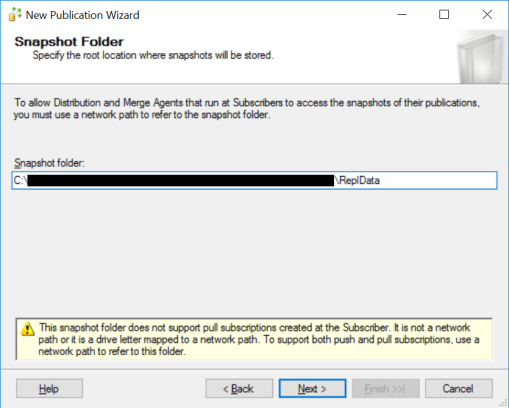
If you follow the wizard, it will prompt you with the question on where to store the snapshots:

Image

 
Copy this link into for example notepad, because it comes in handy later in the process.

As publication type, choose “Transactional publication”:

Image

 
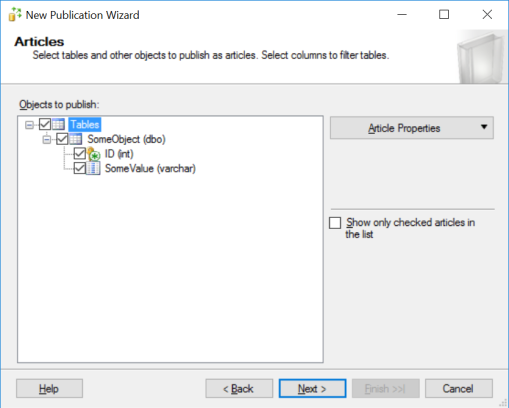
Again, follow the wizard and choose the objects you want to replicate (in my case just that single table):

Image

 
For the security settings, I chose to use the SQL Server Agent

After finishing the steps in the wizard, give your publication a name, and finish this setup.

 
Create a subscriber
On the on-premise instance, right-click the newly created publication, and add a new subscriber:

Image

 
The distribution agent will remain on the distributor (push subscription).

When you’re prompted to add a subscriber, choose “Add SQL Server Subscriber”:

Image

 
Here comes the part that took me a while to figure out. When you try to replicate changes to an Azure SQL database, and you use the normal connection, it will fail to connect in the end. But if you use a secure connection, replication works like a charm. So make sure you use the following server name ([Server Name].database.secure.windows.net):

Image

 
Adding that single word took me an hour or so to figure out. Hopefully this will save you a few hours of investigation, looking for dodgy error messages, ending up in finding an “errorcode 40852”, and leading you to the solution.

When this is set up, select the target database (subscriber):

Image

 
When you’re prompted for the distribution agent security information, make sure you use a SQL Server login that has the correct permissions on the Azure SQL database:

Image

 
Start the replication
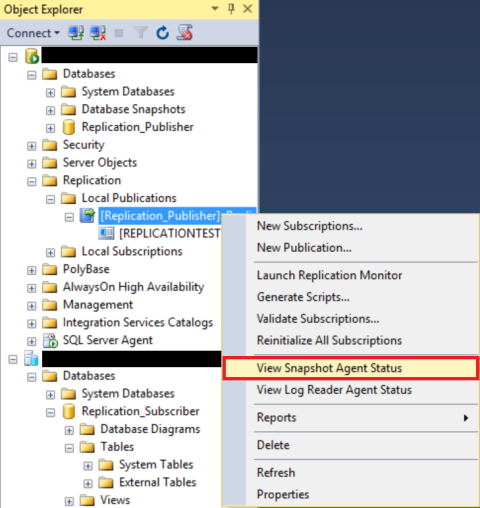
Now that everything is in place and configured, it’s time to create the initial snapshot. This snapshot will be used to create all the objects and data that are supposed to be replicated on the Azure SQL database. Open the snapshot agent by clicking “View Snapshot Agent Status” on the publication:

Image

 
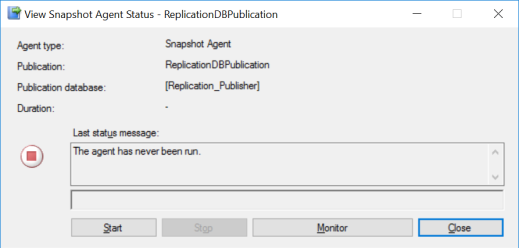
The snapshot agent hasn’t run yet, so press “Start” to start the process:

Image

 
When this process has completed, you should see something similar like this:

Image

 
Now it’s time for a final test. Insert a record on the source database (publisher):

INSERT INTO dbo.SomeObject
	(SomeValue)
VALUES
	('Test value')

 
You should see this record pop-up on the subscriber after a few seconds (default latency is 5 seconds):

SELECT *
FROM dbo.SomeObject

 
You can also check the “Synchronization Status”, and you should see a command being replicated:

Image

 
Conclusion
Out of all the available options, I still think replication is the easiest way to replicate data into Azure. The only downside is that there doesn’t seem to be a lot of information about this, especially when you look at the “database.SECURE.windows.net” part.

If you need more than just the one-way traffic, or you want a bit more functionality, maybe replication isn’t your weapon of choice. But for me, it worked like a charm… Eventually…

My first 12 months working for a start-up

On December 1st of last year, I joined a new start-up called Roadmap as a DBA (Database Administrator). This start-up was founded 8 months earlier, and 2 of the members of the initial team were very close friends of mine. After a few months they needed some help in the area of data, and I was looking for a new challenge at that time. So 1 plus 1 equals 2, and after a short conversation with HR, the CEO and sharing a lot of laughs, they offered me the opportunity to embark on a new adventure.

My first day was a… ehm… let’s stick with “special” day. On this “Roadmap Day” every member of the team shared his or her thoughts about the past year, and their plans for the new year in a short presentation. But, and I say this with the knowledge I have now, this day started “the Roadmap way”. Before I knew it, I shook hands with a lot of people that would become colleagues, of which I could hardly remember the names of until many weeks after this event took place (I’m really bad with remembering names, which also doesn’t help). Then it became rather awkward. We started to jump, dance, and do all other kinds of funny stuff to “kickstart the day”. Coming from a “normal company”, this took some time to adjust to. But if you think you’ve seen the worst, wait till I tell you about… Neh… I’ll tell you about that over beers sometimes. Ask me about it, and we’ll have a great evening with a lot of laughs, I promise you!

 
Getting ready for a “normal” workday in the office
After this experience, the first day in the office started. I was handed the credentials to my email account, and had a talk over a cup of coffee with the 2 friends that already worked with the company. This talk included all kinds of information including the catch phrases: “cloud-first company”, “cool new technologies” and “do whatever you want, as long as it brings you and the company forward”.

As you can imagine, coming from a (again) “normal company” and joining a bunch of (semi-professional) lunatics was quite a culture shock (more than once I called this group a sect to be honest). All of a sudden nobody told me what to do anymore. I was handed over the credentials for the database servers, the domain (Active Directory), and they just let me go berserk. So with no idea where to start, I did what every DBA would do: check the configuration of the production environment. That should’ve been the first warning sign already. The entire production environment was literally build by developers…

And if that wasn’t a big enough culture shock, on the first day of my second week they decided in a scrum-like stand-up to give employees control over their holidays. So basically it meant that you can take as much time off, whenever you want to and how long you want to. I can’t emphasize this enough: coming from previous companies with a default policy of 20 to 25 days (this is normal in the Netherlands) where I needed to ask 3 or more people for permissions, this was kind of hard to cope with.

 
The first 2 months
During my first months, I considered my options regarding the company, the team and the job. Would this be the company for me? Would I be able to cope with the working environment? Would I fit in with this group of people? Looking back at this, one of the reasons I stayed was the fact that I was working with friends again, because I missed that the last couple of years. They kept me on the right track, and for that I’m very grateful, and can’t thank those 2 guys enough!

After about 2 or 3 months, I started to notice the change in the performance and stability of the platform, and my team. This meant I was getting more comfortable with suggesting and making changes, and the team responded in a different way. They’d seen what I could do, and all of a sudden they started asking questions. This was the first indication for me that things were improving.

 
Do whatever you want
One of the strangest concepts at first when I started at Roadmap was to “do whatever you want, as long as it brings you and the company forward”. So I decided to test this out.

On June 1st Microsoft released the long awaited RTM version of SQL Server 2016. For me, as a data professional, that meant new and shiny stuff to play with. But instead of installing it on a VM on my laptop (which I was used to in previous companies), I decided to use some of our production hardware. So I literally installed SQL Server 2016 during my morning coffee, put it into the production domain, and cautiously shared with 2 colleagues what I had done.

The reaction was nothing less than enthusiastic. They wanted to know all kinds of stuff: What are the cool new features that we can use to solve issues we have right now?! How can we leverage this when we think about information security?! When can we migrate our production server to SQL Server 2016?!

Every single one of these responses blew me away. I was used to responses as: “can’t you do this during the weekends, on your laptop, and in your own time?”. This gave me another boost to try and start leading the data- and operations-revolution for the Roadmap platform.

 
Getting more responsibility
At previous companies I worked for, I was always told what to do. As mentioned before, that’s not Roadmap. But by taking the lead in certain conversations, projects and areas, I showed people what my addition to the company could be.

To my surprise, after only a short period of working for Roadmap I was given on-call duty. So without the proper experience within the company, and without knowing all the systems, I was responsible for keeping the business alive. It couldn’t get any scarier that that!

After working 8 months together with the team, we decided to start working on splitting up roles and responsibilities. This meant that from that point on I was responsible for IT operations and the data platform. I’d never dared dream about this happening so fast, even if I would’ve known I was ready for this. To be honest, I think Roadmap is the only company that would give me such an opportunity so shortly after joining the company, so I’m very grateful for that!

 
The team
Over the past months, the team grew closer and closer. And not only the direct colleagues with who I worked, but also the rest of the team. It might be a cliché, but the colleagues started to be more than colleagues, they became acquaintances. And after a few more months, they started to become friends.

And I know how this sounds. Before I joined Roadmap I would’ve been the first one to call b*llshit on that! But you know, Roadmap has changed me. Even the colleagues of which I least expected it, became people I would love to have a beer with on a Friday night. I didn’t realize that until I started writing this blog…

 
And of course, there are downsides…
But in all honesty, of course there are downsides to working for a start-up. Especially the last few months were crazy! There were moments of stress, frustration and hopelessness. At certain times I even felt like killing my colleagues.

Crazy working days turned into crazy workweeks. Normal 8 hour workdays ended up in 16-hour workdays. There were weeks when I had to survive on 2/3/4-hour catnaps between workdays. Nights turned into sleepless nights. There were nights in which I started working at 4AM from home, put in an hour or two, before getting into the car and drive to the office. But in the end, it all worked out for me.

In all honesty, I don’t expect anyone to fully understand this. I don’t even understand it at moments! This might be something you have to experience yourself before you can understand why I accepted this. In any other “regular” job I wouldn’t have done this, but for some reason it’s part of the job at this point in time.

You know what kept me going (besides the tons and tons of coffee)? The team of crazy bastards (and I say this with a lot of love). The team that has a clear goal for the company. The team that is motivated enough to spend private time on bringing the company forward. I’ve had moments where the name on the building didn’t really matter anymore, but I kept going for the team. They changed me, and made me into someone who wants to constantly improve and broaden his horizon, more than I already was. They gave me the confidence I needed, at the time that I needed it the most. And there’s no way to pay them back for that, besides giving it my best to bring Roadmap forward.

And trust me, you’re going to hear from us soon, because we’re going to take over the world with Roadmap!

“You gotta fight ’til it hurts,
and then you do it again

Ain’t no room for second place,
Go big or go home!

Dust off and then come back for more”

 
Source: Five Finger Death Punch – Back For More

T-SQL Tuesday #82 – To the cloud… And beyond!!!

T-SQL Tuesday is a recurring blog party, that is started by Adam Machanic (Blog | @AdamMachanic). Each month a blog will host the party, and everyone that want’s to can write a blog about a specific subject.

This month the subject is “To the cloud… And beyond!!!”. If you want to read the opening post, please click the image below to go to the invitation.


Image

 
As I mentioned in the invitation, Azure allows us to easily host and scale our platform. But it also comes with a whole new set of challenges. Some of the observations I made in the last few months:

 
Agent is missing in action…
One of the biggest challenges for me when I started migrating stuff to Azure was the missing SQL Server Agent. I never thought about how often I actually used it until I missed it! There’s no more “let me quickly schedule this script for tomorrow morning” anymore.

And although there are multiple solutions to this problem available in Azure (Scheduler, Automation) I picked the easy way out. Because we’re running 2 platforms in parallel (an on-premise private cloud and Azure), I decided to create a VM in the private-cloud platform to run operational tasks like scheduled maintenance for example. This is not a solution I would like to keep for the upcoming years, but it allows us to easily run scheduled tasks, without losing time on figuring out how Azure Automation or Scheduler works.

For more information on this, please read this post.

 
Contained datastore
A thing that can make migrations to the cloud a bit more difficult, is that Azure SQL databases are basically a contained datastore (you would call it a “contained database” when you run it on-premise). This means that you (by default) can’t connect from one database to the other. This could mean that you need to rewrite your applications or stored procedures, or maybe even redesign your entire database/application/domain model.

This also means that running a stored procedure from the Ola Hallengren’s maintenance solution can only be done on the specific database, and not from the master database like the on-premise version does. These small challenges can be overcome, but it does mean code-duplication in your databases because the maintenance procedures need to be deployed to every single database.

 
Running database maintenance
Just like on-premise databases, Azure SQL databases also need to be serviced every now and then. To make sure I’m not reinventing the wheel I’ve re-used a solution that has proved its worth in practice: Ola Hallengren’s “SQL Server Maintenance Solution”.

But because every Azure SQL database is a contained datastore, I’ve made some minor changes to his solution. You can read more about that here.

 
Performance issues & alerting
One of the biggest differences for me between an on-premise database and an Azure SQL database is how I need to determine the cause of performance problems and solving them. When you’re working on a on-premise database it’s easy to just look at the CPU and RAM used by your instance, and watch the disk IO in the performance monitor in Windows. But you don’t have those in Azure of course. There you need to work with “DTU” percentages, and “Data IO” and “Log IO” counters. But DTU (Database Transaction Unit) makes monitoring performance a bit too abstract if you ask me. Just look at the explanation Microsoft gives us regarding DTU:


The Database Transaction Unit (DTU) is the unit of measure in SQL Database that represents the relative power of databases based on a real-world measure: the database transaction. We took a set of operations that are typical for an online transaction processing (OLTP) request, and then measured how many transactions could be completed per second under fully loaded conditions.

For example, a Premium P11 database with 1750 DTUs provides 350x more DTU compute power than a Basic database with 5 DTUs.

 
One thing I’m really happy with is that Adam Machanic published a new version of his sp_WhoIsActive for Azure a few months ago. This gives me the opportunity to quickly look at the results to find a cause of the performance issues.

 
When after a while you have a gut feeling about what the performance of your databases, you run into a new challenge with monitoring: the monitoring of DTU usage has a maximum retention of just 1 hour. This gives me another challenge, because I would like to see a longer retention. I definitely don’t want to over-scale my databases, so in some cases a long running process can trigger this alert. And when this happens during the day it’s annoying, but still okay. But it also woke me up in the middle of the night during an on-call rotation. This forced me to set some of the alerts on the maximum value of 45 minutes / 1 hour, and just disable others. In my opinion, this could use some work by Microsoft.

 
Conclusion
So in general I’m REALLY satisfied with the functionality that Azure SQL database provides us with, even though there’s always something to wish for of course. The move to Azure gives me as a DBA a new set of challenges and (in some cases) demands other/new skills, but it also allows me to do more than just manage a bunch of databases. I’m now also a part-time system administrator, network admin, (data)architect, developer, etc. This is something I personally really like, because it’s exactly that that allows me to broaden my horizon, and use a set of skills I didn’t for a while when working on on-premise databases.

So even though some people were afraid the DBA role would disappear because of the cloud-uprise, I’m convinced it will be here to stay except it will be a role with more skills needed than before, and I think that’s a good thing.

Invitation: T-SQL Tuesday #82 – To the cloud… And beyond!!!

T-SQL Tuesday is a recurring blog party, that is started by Adam Machanic (Blog | @AdamMachanic). Each month a blog will host the party, and everyone that want’s to can write a blog about a specific subject.

Image

 
This month I’ll be the T-SQL Tuesday host, and I’m really honored! Thanks for inviting me to be the host Adam!

 
The topic
When Adam asked me if I wanted to host another T-SQL Tuesday, I immediately knew a topic I wanted to talk about: The cloud, and (if you want to) specifically about Azure SQL database.

Last time we blogged about the cloud was back in december of 2013, when Jorge Segarra hosted this monthly party. Since then, “the cloud” (to use that buzz-word again) has changed a lot, and I think the possibilities are endless nowadays.

The reason I would like to see you all blog about this topic, is that I’m working with Azure SQL databases a lot now since I switched jobs in December. Currently I’m working for a small start-up that has a cloud-first focus. This means the main (if possible) host for our (data)platform is Azure. And although hosting our platform in Azure makes it easier for us to scale parts of that platform, it also gives us new challenges to overcome. And I’m probably not the only one with that experience…

So with that said, I would like to give you the opportunity to blog about the cloud, in the broadest sense that you can imagine. I’m imagining really interesting blogs about migrating to the cloud, missing features in Azure SQL database, how you’re determining the cause of and solving performance problems, etc. Please surprise us all with your view on the cloud.

 
The rules
– Your post must be published between 00:00:00 UTC and 23:59:59 UTC on Tuesday 13th of September
– Include the T-SQL Tuesday logo in the top of your post, and your post must link back to this one (trackback and comments are moderated, so it might take some time before they’re visible) or tweet about it using the hashtag #TSQL2sDay
– If you like this, check Steve Jones’ (Blog | @way0utwest) blog post that contains the list of topics, and contact Adam Machanic (Blog | @AdamMachanic) if you’d like to host this party yourself

Easy pivot: From key-value pairs to columns

This article was recently published on dev.getroadmap.com:


If there is one thing I pretty much hate doing in T-SQL it’s PIVOT and UNPIVOT. Even though I used it a few times in the last couple of years, it’s an adventure to find out how it works every time. And I know a lot of people struggle with this part of T-SQL, so let’s take a look at a (hopefully) simple example.

 
Key-Value pairs
The idea of using key-value pairs to store data isn’t new, but with the rapid development of cloud solutions like Azure and the hype around NoSQL databases, using key-value pairs to store data got a big boost. Especially developers (in my experience) love using key-value pair to store their data, because it’s easy for them to consume the data in an application. But it gives the database professional an extra challenge because we’re used to retrieve columns with values instead of a record per value. So how can we turn those key-value pairs into rows?

 
Flights
To show you how to change key-value pairs to columns, let’s create an example based on flights. If one of our customers needs to travel and they take the plane, there is some basic information we need to show them the flight status in the app. So let’s create a table to store that dataset:

CREATE TABLE dbo.Flights
(
	FlightId UNIQUEIDENTIFIER,
	[Key] VARCHAR(255),
	[Value] VARCHAR(255)
)

 
and insert a flight:

INSERT INTO dbo.Flights
	(FlightId, [Key], [Value])
VALUES
	('2A0C8B05-682A-41CE-8516-C6070CD92851', 'FlightId', '3074e015-62b2-4f76-a8b1-463c53cd79c5'),
	('2A0C8B05-682A-41CE-8516-C6070CD92851', 'AirlineIATACode', 'VY'),
	('2A0C8B05-682A-41CE-8516-C6070CD92851', 'FlightNumber', '8336'),
	('2A0C8B05-682A-41CE-8516-C6070CD92851', 'DepartureAirportCode', 'RTM'),
	('2A0C8B05-682A-41CE-8516-C6070CD92851', 'DepartureAirportName', 'Rotterdam The Hague Airport'),
	('2A0C8B05-682A-41CE-8516-C6070CD92851', 'DepartureDateTime', '2016-08-12 12:15'),
	('2A0C8B05-682A-41CE-8516-C6070CD92851', 'DepartureTerminal', '1'),
	('2A0C8B05-682A-41CE-8516-C6070CD92851', 'Gate', NULL),
	('2A0C8B05-682A-41CE-8516-C6070CD92851', 'ArrivalAirportCode', 'BCN'),
	('2A0C8B05-682A-41CE-8516-C6070CD92851', 'ArrivalAirportName', 'Barcelona–El Prat'),
	('2A0C8B05-682A-41CE-8516-C6070CD92851', 'ScheduledArrivalDateTime', '2016-08-12 14:14'),
	('2A0C8B05-682A-41CE-8516-C6070CD92851', 'FlightIsCancelled', '0')

 
So now we have a dataset that consists of 12 key-value pairs:

Image

 
Converting to columns
But when you’re running a query you would like to have columns instead of rows. So by using a PIVOT statement, you can convert these rows into columns:

SELECT
	FlightId,
	AirlineIATACode,
	FlightNumber,
	DepartureAirportCode,
	DepartureAirportName,
	DepartureDateTime,
	DepartureTerminal,
	Gate,
	ArrivalAirportCode,
	ArrivalAirportName,
	ScheduledArrivalDateTime,
	FlightIsCancelled
FROM
	(
		SELECT
			FlightId,
			[Key],
			[Value] 
		FROM dbo.Flights
	) AS SourceTable
PIVOT
	(
	MIN([Value])	--Needs to be an aggregate function
	FOR [Key] IN
		(
			AirlineIATACode,
			FlightNumber,
			DepartureAirportCode,
			DepartureAirportName,
			DepartureDateTime,
			DepartureTerminal,
			Gate,
			ArrivalAirportCode,
			ArrivalAirportName,
			ScheduledArrivalDateTime,
			FlightIsCancelled
		)
	) AS PivotOutput

 
Because the keys are always the same for flights, I can add those Key-names in the PIVOT statement. But because the PIVOT statement needs an aggregate function to retrieve the value, I needed to add the MIN() function but this doesn’t change the output in any way.

Now we have the same dataset, but converted into rows:

Image

 
So from now on, converting key-value pairs to columns shouldn’t be a problem anymore!

Running maintenance on Azure SQL databases

This article was recently published on dev.getroadmap.com:


To keep your data healthy and topfit, we all know you need to run something called database maintenance on your databases. This prevents things like performance problems or unrecoverable data from happening, and that is sort of the core business of DBA’s. And when we look at how this can be performed on a regular basis, an on-premise instance is a bit easier to maintain than an Azure SQL database. That’s why I want to share our experience with you on that, hoping that it can save you some time when you start implementing this.

 
Platform setup
In order to get a better understanding of why certain choices were made, I want to share a very basic version of the setup of our environment.

Our platform consists of 2 mayor parts: a private cloud part (that we see as “on-premise”), and an Azure part. Those 2 parts combined make our platform, and this platform hosts all of our services, applications, databases, etc. The development approach we use is everything should be designed with cloud-first in mind, but only if it’s the right tool for the job, and with the exclusion of some data.

The databases we use in Azure are all what Microsoft calls “Azure SQL databases”. This means that there are no virtual machines of any kind are running on our Azure-part of the platform, also known as DBaas (Database as a Service).

When I draw this platform, and only focus on the data part, it will look something like this:

Image

 
One of the advantages of this setup is that we can leverage the power of both parts of the platform. As you’ll see later on in this blog, there are some things that we (need to) run from the on-premise instances and some things fully on Azure.

 
Big shoutout to Ola
Before I’m going into detail, I want to give full kudos to Ola Hallengren (Website | @olahallengren). He has spend a lot of his time to build a SQL Server Maintenance Solution that is completely free for everyone to use. And he did such an excellent job a lot companies (also huge companies) use his solution to run maintenance tasks on their databases.

None of the scripts below are written by me, but only small changes are made in order to make things more clear when the solution is deployed to an environment. The original scripts can be downloaded via the download page on Ola’s website.

 
Backups & Integrity check
Taking backups of your database and making sure there is no corruption in the datafiles is an essential part of the maintenance solution written by Ola. But because Azure SQL databases have a build-in maintenance solution (for example backups: full backups weekly, differentials hourly, and transaction log every 5 minutes, source), we don’t need to worry about that ourselves.

 
Index maintenance & Update Statistics
Indexes and statistics are the core of your performance-based maintenance processes. These make sure your queries run fast, and should provide you with a stable and predictable performance. This is especially needed on an Azure database, since you can’t monitor it like you would with an on-premise database.

Because Azure SQL databases are run on shared hardware that you can’t monitor yourself, Microsoft provides us with a number of different performance counters that we can use to check the status/health of our databases. The most important counters are CPU usage, Data IO, Log IO and DTU usage (a combination of the previously mentioned counters). The DTU counter is the most abstract (to me at least), because it’s explained by Microsoft as:


The Database Transaction Unit (DTU) is the unit of measure in SQL Database that represents the relative power of databases based on a real-world measure: the database transaction. We took a set of operations that are typical for an online transaction processing (OLTP) request, and then measured how many transactions could be completed per second under fully loaded conditions.

For example, a Premium P11 database with 1750 DTUs provides 350x more DTU compute power than a Basic database with 5 DTUs.

 
And for me, who is was used to monitoring physical hardware, that is a bit of a different approach when digging into performance-related issues. And it’s not that index and statistics maintenance isn’t important when you work on a on-premise database, but it’s a slightly bigger challenge to monitor the direct effects of a index rebuild or statistics update.

But because every Azure SQL database is a contained database, you need to deploy the stored procedures from Ola’s solution to every single database. So to keep it clear for everyone which table and stored procedures belong to the maintenance solution, I’ve changed Ola’s scripts slightly to create all objects in a specific schema named “dba”. So first of all, let’s create the schema:

CREATE SCHEMA dba
GO

 
And then create the used to log all of the maintenance commands and their outcome:

CREATE TABLE dba.CommandLog
	(ID INT IDENTITY(1,1) NOT NULL CONSTRAINT PK_CommandLog PRIMARY KEY CLUSTERED,
	 DatabaseName sysname NULL,
	 SchemaName sysname NULL,
	 ObjectName sysname NULL,
	 ObjectType CHAR(2) NULL,
	 IndexName sysname NULL,
	 IndexType TINYINT NULL,
	 StatisticsName sysname NULL,
	 PartitionNumber INT NULL,
	 ExtendedInfo XML NULL,
	 Command NVARCHAR(MAX) NOT NULL,
	 CommandType NVARCHAR(60) NOT NULL,
	 StartTime DATETIME NOT NULL,
	 EndTime DATETIME NULL,
	 ErrorNumber INT NULL,
	 ErrorMessage NVARCHAR(MAX) NULL)
GO

 
Now that these are created, you can create the stored procedure that execute the actual index and statistics maintenance. They are too long to post here as code snippet, but you can download the CommandExecute script here, and the IndexOptimze script here.

But because we want to schedule these procedures later on, I decided to create an additional stored procedure in every database, that is deployed alongside the maintenance objects:

CREATE PROCEDURE dba.ExecuteMaintenance
AS


EXECUTE dba.IndexOptimize
 @Databases = '<Insert database name>',
 @FragmentationLow = 'INDEX_REORGANIZE',
 @FragmentationMedium = 'INDEX_REORGANIZE,INDEX_REBUILD_ONLINE,INDEX_REBUILD_OFFLINE',
 @FragmentationHigh = 'INDEX_REBUILD_ONLINE,INDEX_REBUILD_OFFLINE',
 @FragmentationLevel1 = 5,
 @FragmentationLevel2 = 30,
 @UpdateStatistics = 'ALL',
 @LogToTable = 'Y',
 @Execute = 'Y'

GO

 
This allows us to run maintenance with specific options on the different databases.

Scheduling
After this was all set up, I needed to come up with a way to run these procedures on a schedule. And as you might know, Azure SQL databases don’t have a SQL Server Agent so that’s were our on-premise platform comes in handy. Just for this I created a new virtual machine in our private cloud, and installed SQL Server on that machine to utilize the SQL Server Agent. This server (operations server) runs all of the scheduled operational jobs (including maintenance and some monitoring jobs) on our Azure environment.

But to run a proces from this operations machine on one of our Azure databases I needed to create a linked server first:

EXEC sp_addlinkedserver 
 @server=N'ServerName__DatabaseName', 
 @srvproduct=N'Azure SQL Db',
 @provider=N'SQLNCLI', 
 @datasrc=N'<SERVERNAME>,1433',
 @catalog='DatbaseName';
 GO

EXEC sp_addlinkedsrvlogin 
 @rmtsrvname = 'ServerName__DatabaseName', 
 @useself = 'FALSE', 
 @locallogin=NULL,
 @rmtuser = '<USERNAME>',
 @rmtpassword = '<PASSWORD>'
 GO

 
And all that’s left now is to create a SQL Server Agent job, that executes the “ExecuteMaintenance” stored procedure on the Azure database:

EXEC [<LinkedServerName>].<DatabaseName>.dba.ExecuteMaintenance

 
The reason I choose this approach is that I didn’t want to lose any time on figuring out how the Azure Scheduler or Automation works, at the moment I was implementing the maintenance solution.

But if you want to have a good resource on that, please check out Pieter Vanhove (Blog | @Pieter_Vanhove) blog, because he wrote a great blog post about that.

 
Conclusion
When I look at how this solution is set up, I’m the first one who admits that this isn’t a perfect or ideal solution. But in the end, this gives the rest of the team a clear solution when they need to start or restart the maintenance process: Just log in to the operations server, start the SQL Server Management Studio (SSMS), open the SQL Server Agent jobs, find the job associated with the database they want to run the maintenance on, and that’s it. But for future scalability and maintainability, we might need to implement another solution to do this.

SSRS Reporting automation with .NET

This article was recently published on dev.getroadmap.com in 2 separate posts:
SSRS Reporting automation with .NET
Application Authentication via https using NTLM:


SQL Server Reporting Services (SSRS) is a great way to create an overview or analysis of your data, that you can share with other people as a report. But what if you have a report that you need to share with a large group of people, but they need it with 50 different parameters (like CustomerID for example), and they want to receive it in Excel or PDF? Are you manually going to execute the report with 50 different parameters, export them to the specific file format, and email those files? I don’t think so. Automating this process is easy if you write a small tool for this, and if you use the “Report Server Web Service URL”.

 
ReportServers vs Reports
Before we’re diving into the .NET code, first let’s see what the difference is between the URL’s “http:// [servername] :80/ReportServer” and “http:// [servername] :80/Reports”. If you navigate to your SSRS server, you’ll be redirected to “http:// [servername] :80/Reports”. This is the default webinterface that you use to open reports, manage subscriptions, etc:

Image

 
If you go to “http:// [servername] :80/ReportServer”, you’ll end up in the webservice of SSRS. This allows you to open reports, and as a bonus: add parameters to your http request, so you can automatically execute reports from a URL. This is also called the “SSRS Virtual Directory”:

Image

 
Building a URL
Now that we know that we need to use the webservice, we can start building our URL. First, let’s start with the base-URL. I’ve created a folder in SSRS called “Test”, and a report called “TestReport”. So the base-URL will be: “http:// [servername] :80/ReportServer/Pages/ReportViewer.aspx?%2fTest%2fTestReport”. And because my report has 2 date-parameters (From and To), I need to add these to the URL: “&From=2015-12-01&To=2015-12-08”.

This URL doesn’t run the report yet, until you add the command for that to the URL: “&rs:Command=Render”. So your complete URL will look like: “http:// [servername] :80/ReportServer/Pages/ReportViewer.aspx?%2fTest%2fTestReport&From=2015-12-01&To=2015-12-08&rs:Command=Render”

One thing to keep in mind is that you need to add the dates in the URL in the correct format (yyyy-MM-dd). If you don’t do that, SSRS will throw an exception.

 
Where to find these URL’s
If you log on to your SSRS server, you can start the “Reporting Services Configuration Manager”. This is the configuration tool for your SSRS instance.

In this tool you can configure both the webinterface URL:

Image

 
And the virtual directory:

Image

 
Text parameter in URL
But SSRS can also have text-fields as input for your report. These can also be added to the URL. Just like the parameters above, you just add the parameter name and value to the URL: “http:// [servername] :80/ReportServer/Pages/ReportViewer.aspx?%2fTest%2fTestReport&From=2015-12-01&To=2015-12-08&FreeText=This is a test…&rs:Command=Render”.

After some testing I’ve found out that you can use any character in the text parameter you want to, except for the &-sign. If you use that, SSRS will think it’s a parameter or command and won’t accept the URL. And there’s also the (browser) limitation of the URL length. Testing proves that the limit is 7926-7931 characters. If your URL is below 7926 characters, it works like a charm. If you go above that (between 7926 and 7931) the behavior of SSRS gets buggy, and above 7931 characters SSRS will throw an exception.

 
Export to file
Exporting your report to file can also be added to the URL. By adding “&rs:Format=EXCEL” to the end of the URL tells SSRS to export your report to Excel: “http:// [servername] :80/ReportServer/Pages/ReportViewer.aspx?%2fTest%2fTestReport&From=2015-12-01&To=2015-12-08&FreeText=This is a test…&rs:Command=Render&rs:Format=EXCEL”.

This output can be used to automatically store this file on disk or email it with a .NET application.

 
Export formats
There are several export formats in the webinterface of SSRS:

Image

 
The available output formats depend on the version of SSRS you’re using. In SQL Server 2016 you have all the same export formats as you have in SQL Server 2014, but they added PowerPoint to that list.

 
Creating the application
To automatically download an exported report, I’ve created a “Windows Forms Application”. In this applications we need to do 3 things:

– Determine variable values
– Build a URL
– Download/Export the report

To determine the variable values, I added 2 “DateTimePickers”to the form, and a “TextBox” for the CustomerID. Other than that, there are 2 buttons: 1 to get the URL (might come in handy for testing), and 1 to export the report in the selected format. There’s also a “TextBox” so that you can configure the drop-folder for the files:

Image

 
Build URL
In order to build the URL we need 5 pieces:

– The SSRS servername or URL
– The folder of the report (if it’s not in the root)
– The report name
– The parameters needed for executing the report
– The export format

In my case the folder (“Test”) and report name (“SSRSAutomationTestReport”) are known, so I hard-coded them:

string ReportServer = 
    "http://"
    + ReportServerURL
    + "/ReportServer/Pages/ReportViewer.aspx?%2fTest%2fSSRSAutomationTestReport"
    + "&From="
    + DT_From.Value.Date.ToString("yyyy-MM-dd")
    + "&To="
    + DT_To.Value.Date.ToString("yyyy-MM-dd")
    + "&CustomerID="
    + TB_CustomerID.Text
    + "&rs:Command=Render";

if (RB_Excel.Checked)
{
    ReportServer += "&rs:Format=EXCEL";
}

if (RB_PDF.Checked)
{
    ReportServer += "&rs:Format=PDF";
}

 
This results in the URL that you can use to export the report to a specific file format (in my case either Excel or PDF).

Download the file
To download the file we need to use the “CredentialCache”, because when you use the SSRS webservice to execute a report, an NTLM challenge takes place. The “CredentialCache” will solve the 2-step authentication for you. After that, you can use “WebClient” to download the file. This will look like this:

var url = new Uri(ReportURL);

string FileExtension = ".pdf";

if (RB_Excel.Checked)
    FileExtension = ".xls";

var location = TB_Dropfolder.Text + "SSRSAutomationTestReport - Customer " + TB_CustomerID.Text + FileExtension;

// When calling for the url a NTLM challenge takes place
// Once this challenge takes place the GetCredentials will automagically be called via de CredentialCache
// This will resolve the 2 step authentication
// Requirement: the uri for the cache must be the Scheme + Host of the domain
var cc = new CredentialCache();
cc.Add(new Uri(string.Format("{0}://{1}", url.Scheme, url.Host)), "NTLM", new NetworkCredential(Username, Password, Domain));

using (var client = new WebClient())
{
    client.Credentials = cc;
    client.DownloadFile(url, location);

    MessageBox.Show("Report is exported");
}

 
Download the resources
To show you how I solved this, I’ve made the resources available for download. You can download the SSRS report here, and the Windows Forms application here.

Please feel free to download them, try them out for yourself, and let me know what you think.

Comparing execution plans with SSMS

In SQL Server 2016 (now available as CTP 3.0), a new feature is shipped: Execution Plan Comparison Tool. This new (and very cool) feature allows you to compare 2 execution plans within SQL Server Management Studio (SSMS). And according to Amit Banerjee (Blog | @banerjeeamit), this feature is also available in the “SSMS – September 2015” release (more info here). Let’s take a look at this new feature.

Creating resources
To generate an execution plan that we can compare later on, let’s create a table with some data first:

USE Sandbox
GO


CREATE TABLE dbo.T1
	(ID INT IDENTITY(1,1),
	 VAL VARCHAR(10))
GO


INSERT INTO T1
	(VAL)
VALUES
	('X')
GO 10

 
To generate some execution plans, run the queries below with the “actual execution plan” on, and safe these plans to disk:

SELECT *
FROM T1 AS T1
INNER JOIN T1 AS T2 ON T1.ID = T2.ID

 
and:

SELECT *
FROM T1 AS T1
INNER JOIN T1 AS T2 ON T1.ID = T2.ID
INNER JOIN T1 AS T3 ON T1.ID = T3.ID

 
I’ve also made the 2 plans that were generated available for download here and here.

 
Comparing execution plans
To compare execution plans in, you need to open the first execution plan from SSMS. In the plan-window, right-click and click on “Compare Showplan”:

Image

 
Now a pop-up window will open, that asks you what plan you want to use to compare it with. Now open “Test2.sqlplan”. The compare window opens, and you can compare plans:

Image

 
As you can see, parts of the plan that are the same in both execution plans, are colored the same. These colors are randomly chosen, and can be different every time you compare 2 plans. This makes it easy to determine where both plans are equal or differ.

If you click on one of the highlighted parts in the execution plan, the other plan will center its view on that part of the plan (unfortunately it’s a bit hard to see that with these small execution plans). If you click on a highlighted part, you can see that there is a blue rectangle drawn around the object:

Image

 
Another really cool thing is the properties windows. If you don’t have that open by default, right-click on the first object in the execution plan (the SELECT part), and click on “Properties”. This shows 2 property-windows, in which you can compare the memory grant for both plans for example:

Image

 
Conclusion
At this moment, you need to save both execution plans to disk in order to compare them. If you try to compare an execution plan of a query you just ran without saving it, it throws an exception:

Image

 
But in my opinion this is just a minor issue, and I think this will be fixed in one of the next releases.

Comparing execution plans is definitely something I’ve been missing for years. Especially when you have 2 really big plans, this can really help you speed up the analysis and debug process.

Even though I’m pretty used to using SQL Sentry Plan Explorer to open execution plans, that doesn’t give me the option to compare plans (yet). At least not in the free version of the tool, that I always recommend to colleagues and friends to use.

This is another one of the really cool features in the overhauled SSMS, and I think the SQL Server team is rocking this new release.

Design a site like this with WordPress.com
Get started