
Inspiration
Upwards of 15 billion trees are cut down each year in the world, and much of the paper created from these trees are going towards making forms of all kinds like bank account form, national identity forms and so on. This landed me to PaperFreeForm. PaperFreeForm is inspired by how Notion works (and look) so you can start adding form elements by triggering the command popover, just type / at the beginning of a text element.
You can add as many blocks as you want and customize the look of your form by selecting a font typeface, changing the font size, or selecting a wider layout.
We all have used Notion or at least have heard of it, this project emerges by trying to build an app like Notion, and what can I first thought was to make a form builder. Most of the form builders out there are the drag and drop ones, but using the mouse takes time and it's boring. The idea was to make something that could be used with the keyboard, and it should be easy to use like editing a document.
What it does
It lets you create beautiful forms but the Notion way 😼.
How I built it
For the design process, as it was an app inspired by an existing one, I jumped straight to writing code and designing in the browser. But before this I first thought of what components would be needed for this app.
From the notion app I extracted the following components which I could use into my app.
- Sidebar
- Editor Navbar with customization options
- Header icon and cover image
- Command popover with filtering options
After extracting those components, I first started by working on the form creator page, as it is the most complex part of the app.
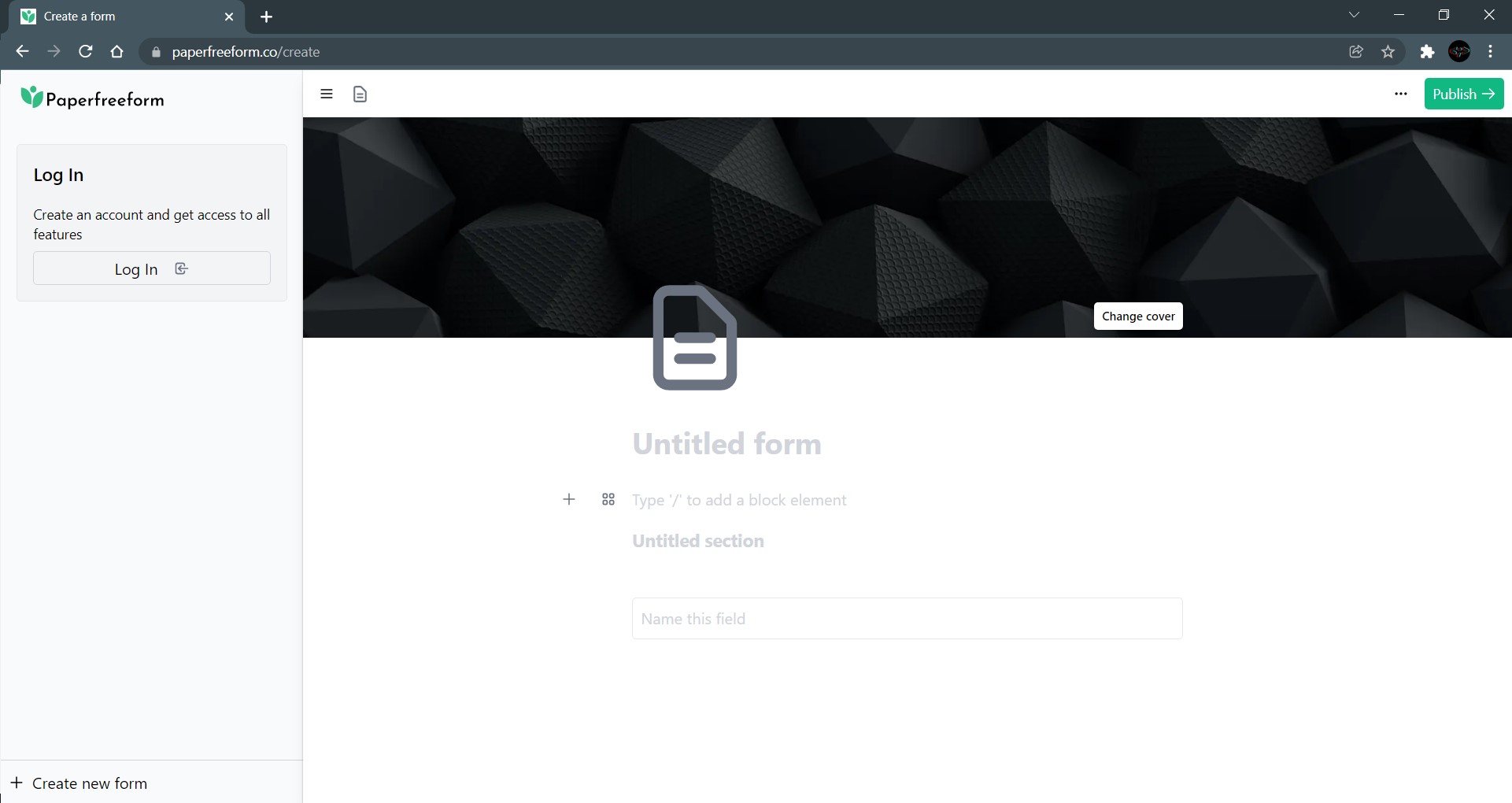
The creator page contains all of the app's complexity; it is the main feature. From there, you can create a new form, customise its styling, upload an icon and cover image, and add form blocks.
Each of these elements is managed by a global state using Jotai, a state management library similar to Recoil; the form title is stored on its own state; the icon and cover are stored as object values on a header state; and styles are stored as object values on a header state. Finally, the blocks state is where all of the form blocks are saved and updated with the block properties that have been chosen.
🖼️ Unsplash
I wanted to integrate the Unsplash API for the header element so that the user could search and select a cover image from a large library of stock images.
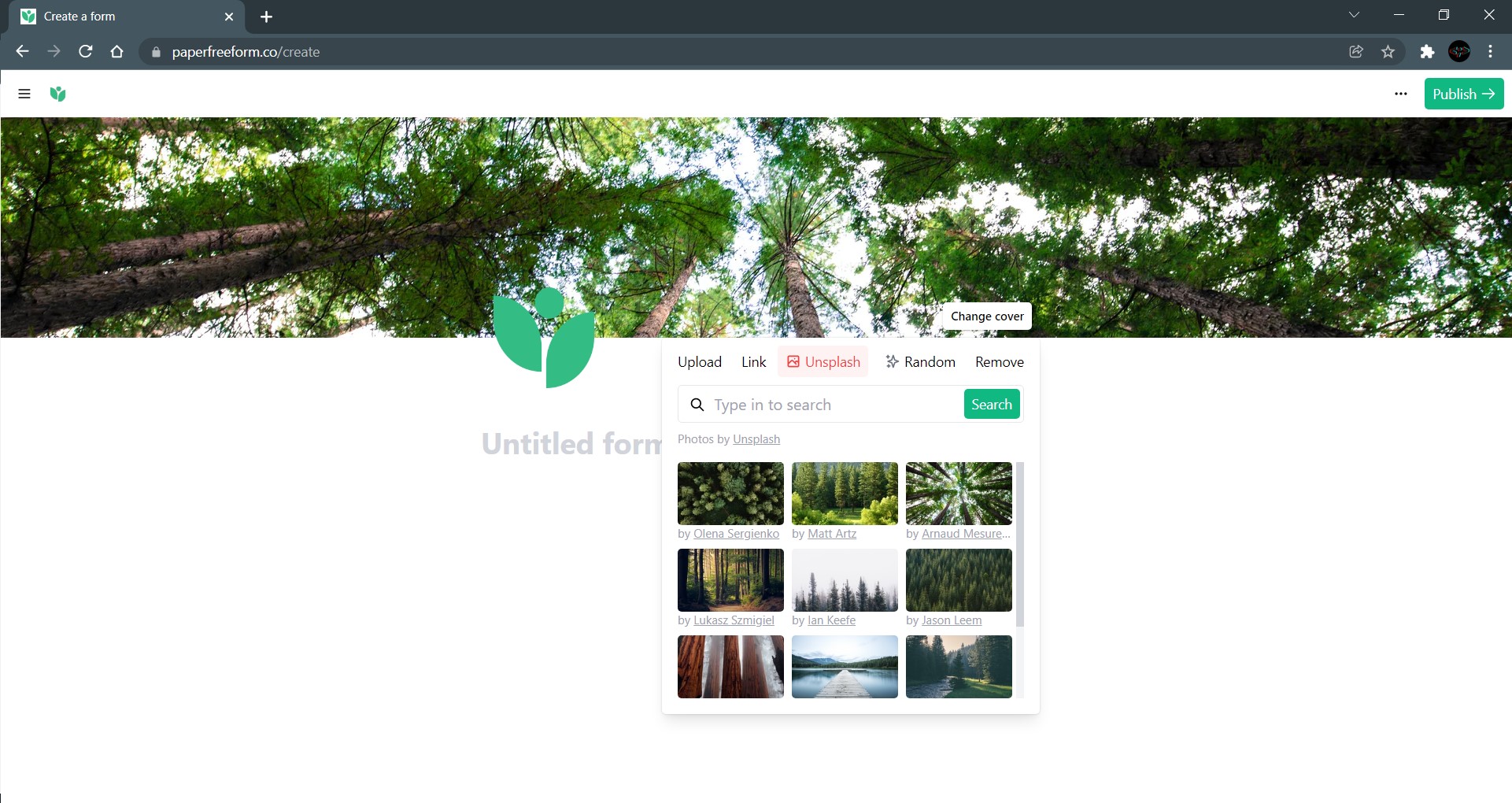
I used a react-infinite-scroll-component for the Unsplash integration, which is especially useful for fetching data as the user scrolls, allowing us to fetch more images without having to search again. Data is retrieved using Next.js serverless api routes.
Accessible components
While I was styling with Tailwind, I also used the HeadlessUI library to quickly create accessible components. It's a great way to create elements like Popovers, Tabs, Modals, and more without having to worry about aria properties or keyboard events.
🧱 Blocks
The app's core is made up of blocks, and the form elements are stored as JSON objects within the blocks state. When I first started working on this app, I had no idea how to create a "builder-like" app; I first considered how I would store the elements; after many attempts, I settled on using JSON objects inside an array; each object was an element with its own properties, and I could easily update its values and render an element.
{
    "tag": "p", // tag to render !required
    "label": "Text block", // label show on command popover !required
    "placeholder": "Type '/' to add a block element", // placeholder shown in editor to guide user
    "icon": "text.svg", // reference to icon for command popover !required, icons are stored inside ./public/img/icons/
    "props": {
      "className": "leading-normal py-1" // styling classes for the element, we can use any Tailwind utility as the blocks.json is also purged by Tailwind
    }
  },
With this structure in place, it is now easier to create and add new blocks to the app. When a user changes an element, the app replaces the old values and properties with the new ones, and as we add more blocks, they appear automatically on the command popover.
Then, using the React.createElement() function, we render each element and pass each block's properties. This is how it looks for form elements.
React.createElement(block.tag, {
  // include all defined props in `blocks.json`
  ...block.props,
  // override the placeholder value for the one user specified while editing the form
  placeholder: block.value,
  // register the element for `react-hooks-form` event handling
  // if user did not specify a value, we register it as an "Untitled question"
  ...register(
  `${ block.value ? sanitize(block.value) : 'Untitled question' }`, { required: true }
  ),
})
The tag property is ignored when editing a block, and an editable div element is rendered instead. This is because if the tag element is rendered when editing, inputs do not expand their width as you type, for example, we want to make the block editable and a div element styled to look like the element. Also, when listening for input events, we do not enter complications; the content of a p, div, or any other dom element is stored on element.textContent, whereas the content of an Input or any form element is stored on element.value.
Dashboard
The repository for all of your form data; it is password-protected, but if you choose to share your responses page, everyone will be able to see your responses tab.
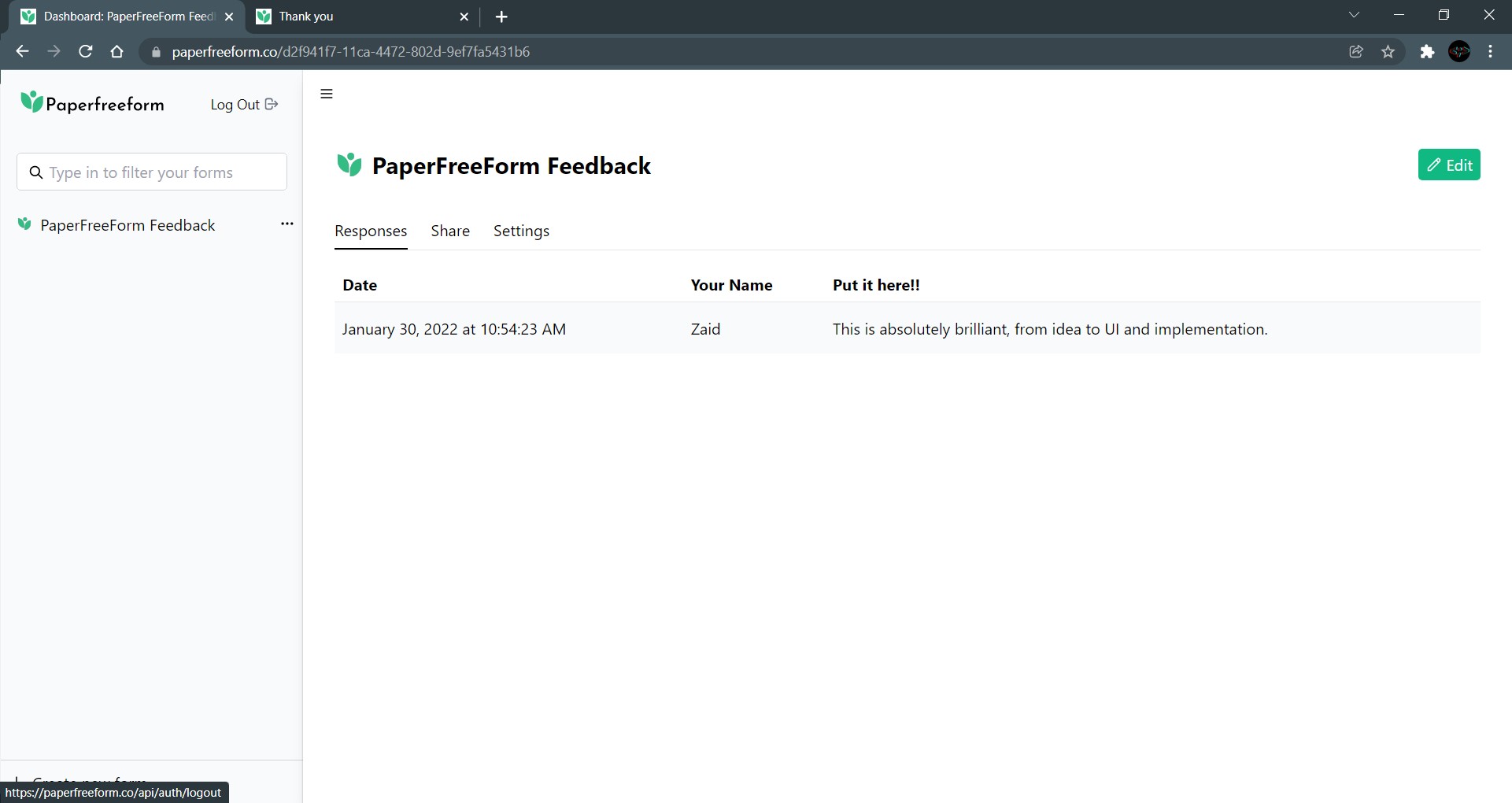
The dashboard is where you can see all of your form responses. It is primarily defined by a sidebar that contains all of your owned forms and a tabs panel that contains the form details.
Form view
Finally, viewing a form and sending a response does not require authentication, so feel free to share this URL with anyone.
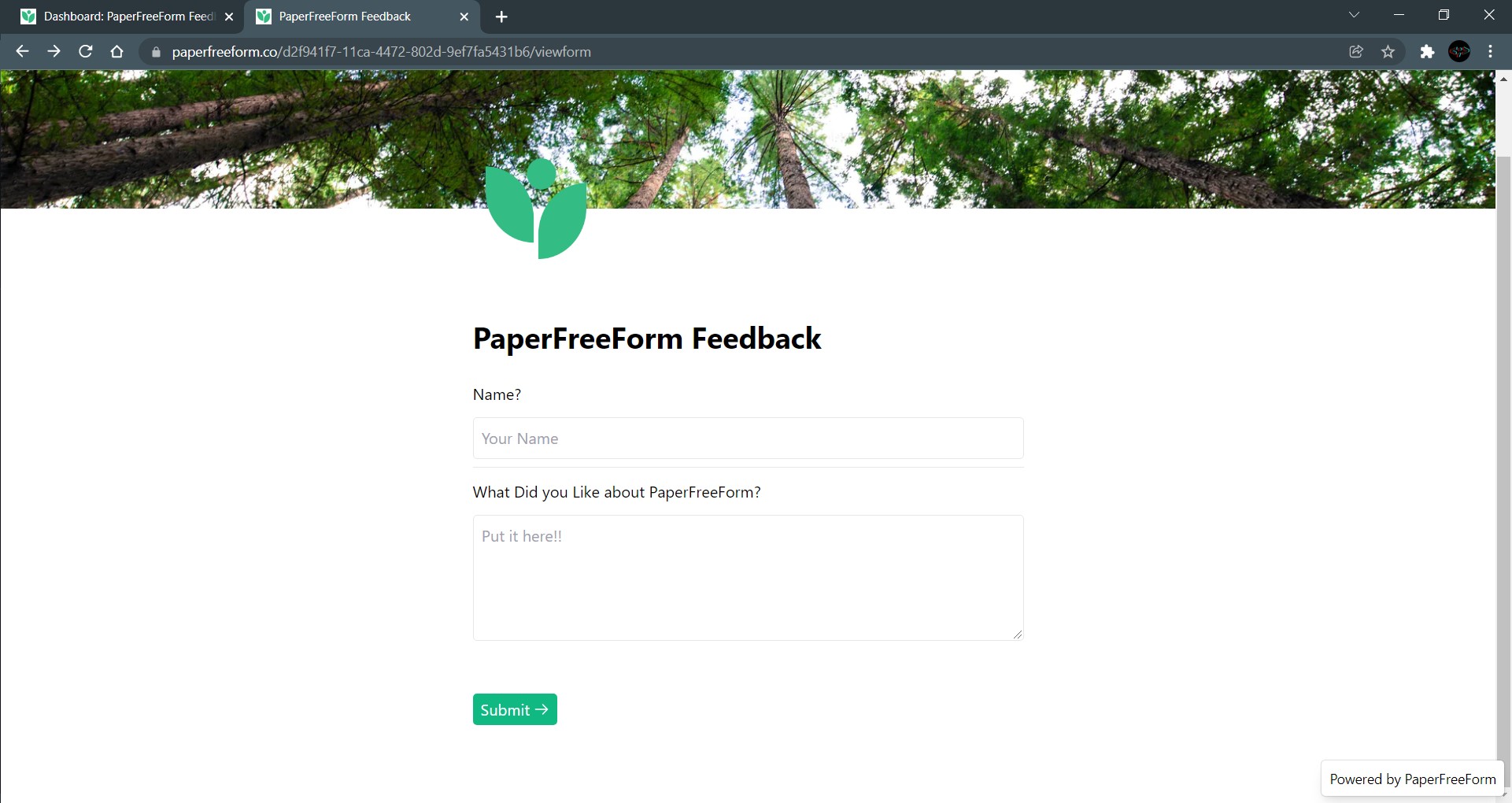
This view is identical to the editor view, except that instead of a div, we render the element tags. We also register each of the form elements in order to manage the submission using react-hook-form, and we store this data in the responses table. For the time being, every form element you add will have the required attribute.
SWR
SWR is a hooks library created by the Next.js team. SWR is a strategy that first returns stale data from cache, then sends the fetch request (revalidates), and finally returns the most recent data. This library was used to retrieve form data from HarperDB and display it on the dashboard, form edit page, and viewform page.
🔐Authentication with Auth0
Auth0 includes dozens of libraries for your preferred framework or language for authentication. As I used Next.js, the right solution for me was the @auth0/nextjs-auth0 package; it was simple to integrate authentication into my app using this package; all you have to do is follow Auth0's instructions.
The Auth0 Next.js SDK comes with more utilities such as handling authentication for API routes and external APIs.
So easy to add authentication to our apps, with just a few lines of code.
What's next for PaperFreeForm
I still have some ideas for PaperFreeForm, and I intend to improve the block's API while also upgrading the entire codebase. Here's a breakdown of what I intend to add.
- More block elements with attribute customization, set if it's required or no, hidden blocks, etcetera.
- Checkboxes and radio elements.
- Conditional logic, to show a hidden section or element if a condition is meet.
- Collaborative features, invite more people to collaborate on a workspace.
- Better styling options and custom form elements.
- Choose a template when creating a new form.
Built With
- auth0
- harperdb
- jotai
- next.js
- react
- tailwind.css
- vercel


Log in or sign up for Devpost to join the conversation.