Getting started with DPL data
This guide explains how to access Parse.ly Data Pipeline data, including the publicly available demo data and customer-specific Data Pipeline data.
Watch the Data Pipeline getting started video
Download Data Pipeline data using AWS CLI
Setting up AWS CLI locally is simple. Follow the AWS CLI installation instructions.
Set up credentials to access a private Data Pipeline S3 bucket. This step is not necessary for the demo data public S3 bucket.
aws configure --profile parsely_dpl
AWS Access Key ID [None]: ENTER ACCESS ID
AWS Secret Access Key [None]: ENTER SECRET KEY
Default region name [None]: us-east-1
Default output format [None]: jsonDownload one file
Download files from a Parse.ly Data Pipeline S3 bucket or from the public Parse.ly S3 bucket with demo Data Pipeline data.
For the demo Parse.ly Data Pipeline data
aws --no-sign-request s3 cp s3://parsely-dw-parse-ly-demo events/file_name.gzFor a private customer-specific S3 bucket Make sure to use the profile flag
aws s3 cp s3://parsely-dw-bucket-name-here events/file_name.gz --profile parsely_dplDownload all files
Download all files in an S3 bucket using the commands below. This may involve a large amount of data.
For the demo Parse.ly Data Pipeline data
aws --no-sign-request s3 cp s3://parsely-dw-parse-ly-demo . --recursiveFor a private customer-specific S3 bucket Make sure to use the profile flag
aws s3 cp s3://parsely-dw-bucket-name-here . --recursive --profile parsely_dplCopy the data to an S3 bucket
AWS CLI provides a simple method to copy data to an S3 bucket locally.
For the demo Parse.ly Data Pipeline data
aws s3 --no-sign-request cp s3://parsely-dw-parse-ly-demo s3://your-bucket-here --recursiveFor a private customer-specific S3 bucket Make sure to use the profile flag
aws s3 cp s3://parsely-dw-bucket-name-here s3://your-bucket-here --recursive --profile parsely_dplCopy Data Pipeline data to Redshift or Google BigQuery
Parse.ly provides a GitHub repository for these use cases.
The README.md in the repository linked above contains detailed installation and usage instructions. The following examples demonstrate common tasks after installing the parsely_raw_data repository.
Copy S3 data to a Redshift database
This command creates an Amazon Redshift table using the specified Parse.ly schema and loads the Data Pipeline data into the new table.
python -m parsely_raw_data.redshiftCopy S3 data to Google BigQuery
This command creates a Google BigQuery table using the specified Parse.ly schema and loads the Data Pipeline data into the new table.
python -m parsely_raw_data.bigqueryQuery Data Pipeline data using AWS Athena
AWS Athena provides a SQL interface to query S3 files directly without moving data.
- Create an Athena table using the Parse.ly Data Pipeline Athena schema
- Load the data into the recommended year-month partitions:
ALTER TABLE table_name_here ADD PARTITION (year='YYYY', month='MM') location 's3://parsely-dw-bucket-name-here/events/YYYY/MM'
- Use Athena to query the Data Pipeline data
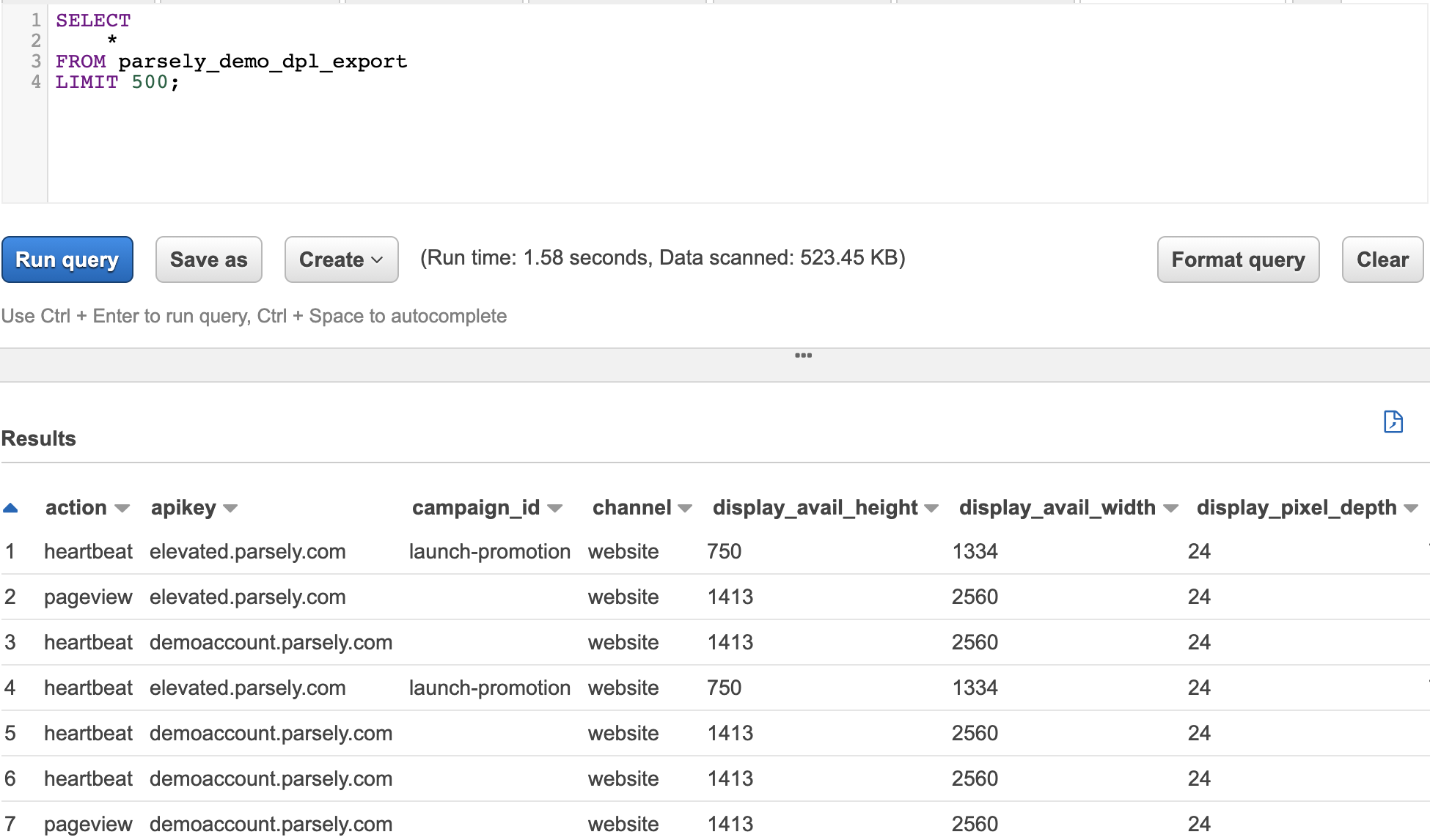
Getting started queries to answer common questions
These queries are formatted for use with Athena to query the Data Pipeline data.
Retrieve all records
This query retrieves all records from the Athena table that reads from S3 files. This query retrieves only loaded partitions (see section above). More specific partitions reduce Athena query costs.
select * from parsely_data_pipeline_table_nameBot traffic investigation
Bot traffic continues to evolve. Investigate the user agent and IP address for a specific post on a certain day using the following query as a template.
select
  user_agent,
  visitor_ip,
  count(action) as pageviews
from parsely_data_pipeline_table_name
where
  year = 'yyyy' and --this makes the query cheaper!
  month = 'mm' and --this makes the query cheaper!
  action = 'pageview' and
  url like '%only-include-unique-url-path-here%' and
date(ts_action) = 'yyyy-mm-dd'Engaged-time by referrer type
This is a template query to retrieve engaged time by referrer category.
select
  channel,
  ref_category,
  sum(engaged_time_inc) as engaged_time_seconds,
  sum(engaged_time_inc)/60 as engaged_time_minutes
from parsely_data_pipeline_table_name
where
  year = 'yyyy' and
  month = 'mm'
group by 1,2
order by 3 descView conversions
Conversions data is included in Data Pipeline data. Query conversions data using the following template.
select
  *
from parsely_data_pipeline_table_name
where
  year = 'yyyy' and --this makes the query cheaper!
  month = 'mm' and --this makes the query cheaper!
action = 'conversion'Use dbt and a pre-formatted star schema to organize Data Pipeline data in Redshift
The dbt (data build tool) automates SQL table creation and data pipeline management for Parse.ly data. It generates queryable tables for page views, sessions, loyalty users, subscribers, engagement levels, and read time. The tool handles incremental loading of new data from S3 to SQL tables, reducing configuration time and enabling faster custom query development.
More information is available in the Parse.ly dbt Redshift repository.
How to get started
- Install dbt and requirements from the main
/dbt/folder one level up:pip install -r requirements.txt - Edit the following files:
~/.dbt/profiles.yml: Input profile, Redshift cluster, and database information. Refer to the dbt profile configuration documentation.settings/default.py: This is the one stop shop for all parameters that need to be configured.
- Test the configuration by running
python -m redshift_etl. A fully updatedsettings/default.pyfile requires no additional parameters. Arguments provided at runtime override settings indefault.py. - Schedule
redshift_etl.pyto run on an automated schedule. Daily runs are recommended.
Schemas/models
- Users Table Grain: One row per unique user ID based on IP address and cookie. This table provides Parse.ly Data Pipeline lifetime engagement data for each user, including loyalty and rolling 30-day loyalty classification.
- Sessions Table Grain: One row per user session. A session represents any activity by one user without being idle for more than 30 minutes. The session table includes total engagement and page view metrics for the entire session, as well as the user types at the time of the session. This enables simplified identification of conversions into loyalty users and subscribers.
- Content Table Grain: One row per article or video. This table contains only the most recent metadata for each article or video and enables simplified reporting and aggregation when metadata changes throughout the article’s lifetime.
- Campaigns Table Grain: One row per campaign. This table contains only the most recent description for each campaign.
- Pageviews Table Grain: One row per page view. This table contains the referrer, campaign, timestamps, engaged time, and at-time-of-engagement metadata for each page view. The page views are organized to show the order and flow of page views within a session for a single user.
- Videoviews Table Grain: One row per videoview. This table contains the referrer, campaign, timestamps, engaged time, and at-time-of-engagement metadata for each video view. The video views are organized to show the order and flow of video views within a session for a single user.
- Custom events Table Grain: One row per custom event sent through the Parse.ly Data Pipeline. This is any event that is not:
pageview,heartbeat,videostart, orvheartbeat. These can be specified in thedbt_project.ymlfile and contain keys to join to users, sessions, content, and campaigns.
Last updated: December 24, 2025
