

Self-Service SSO via SAML
Currently, Vantage supports self-service connection for SAML. If you’d like to
connect one of the other supported IdPs (e.g., Google Workspace or Windows
Active Directory), view the instructions below. If you do not see your IdP
listed, contact Vantage Support.
What Is SAML SSO?
SAML is an XML-based open standard for exchanging authentication and authorization data between parties. It enables secure and standardized communication between identity providers, service providers, and users. SAML allows for seamless and secure access to web applications and services. Before you can connect your IdP to Vantage, you will need the following:- A valid account with a SAML IdP
- Owner role access to Vantage
- Your IdP’s signing certificate and sign-on URL
Connect Your SAML IdP
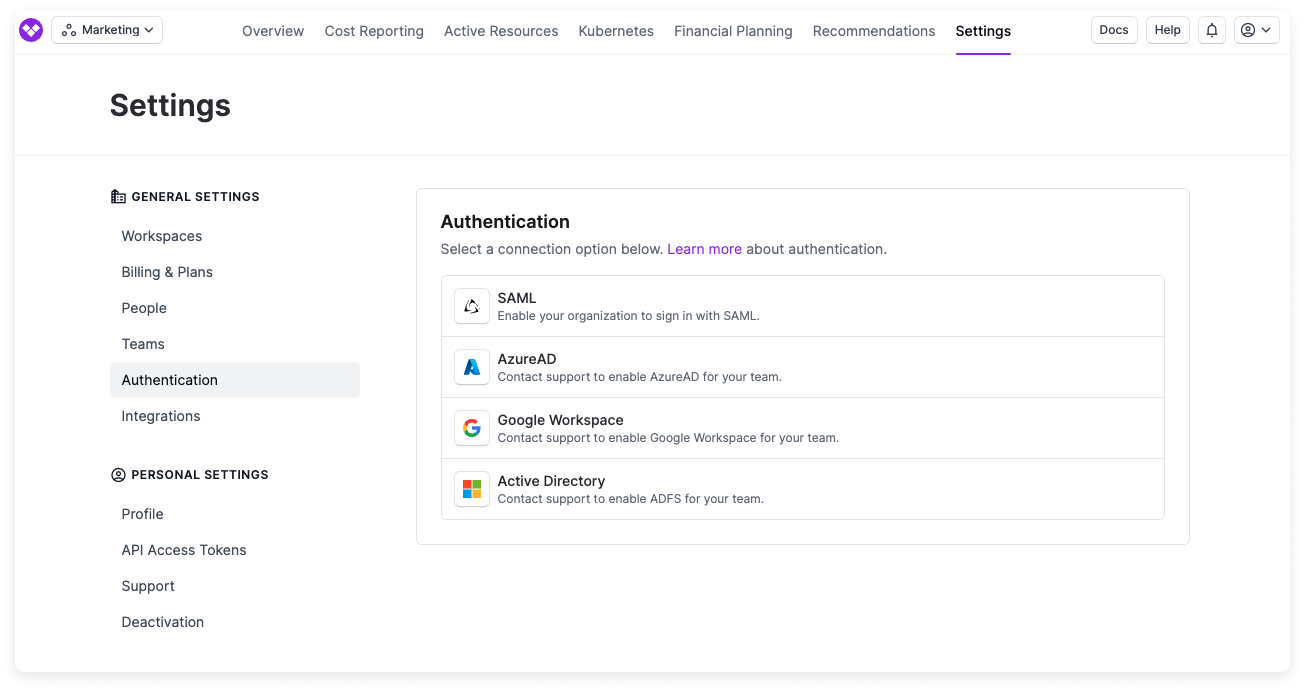
From the Vantage console, navigate to the Authentication page.
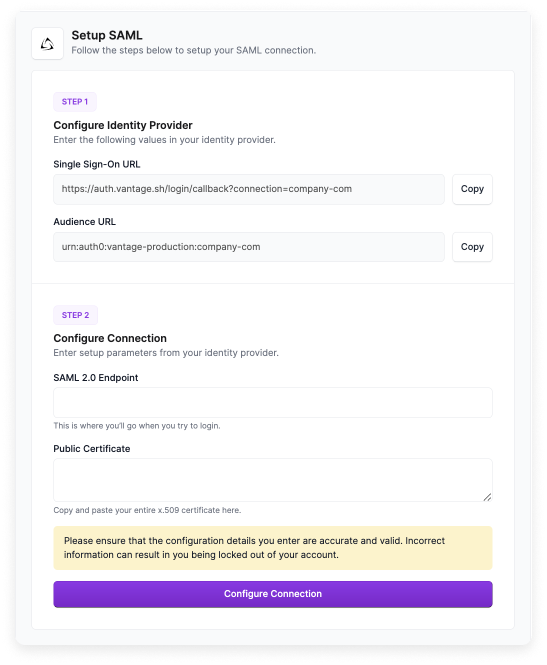
Copy the Single Sign-On URL and Audience URL that are provided on screen. You will need both of these URLs for your IdP’s configuration.
Expand to view example image
Expand to view example image
To add a logo to your connection’s thumbnail, use the provided Vantage Logo.
Once you create the Vantage application within your IdP, copy the following information:
- Copy the SAML Sign-On URL provided by your IdP, then paste it into the SAML 2.0 Endpoint field of the Vantage SAML page.
- Copy the Signing Certificate provided by your IdP, then paste it into the Public Certificate field of the Vantage SAML page.
Ensure you’ve entered the correct credentials, then click Create Connection. You’ll be redirected back to the Authentication page, where you will be able to see your connection.
To enable the connection, switch the Active toggle to on. You will remain logged in to Vantage, but the next time you attempt to log in, you will be redirected to your IdP’s sign-on page.
Optional: If you would like to set up SSO group mappings based on your existing Vantage teams, see the SSO Group Mappings instructions below.
Example: Create a SAML SSO Connection with Okta
For detailed instructions, see the Okta support
documentation.
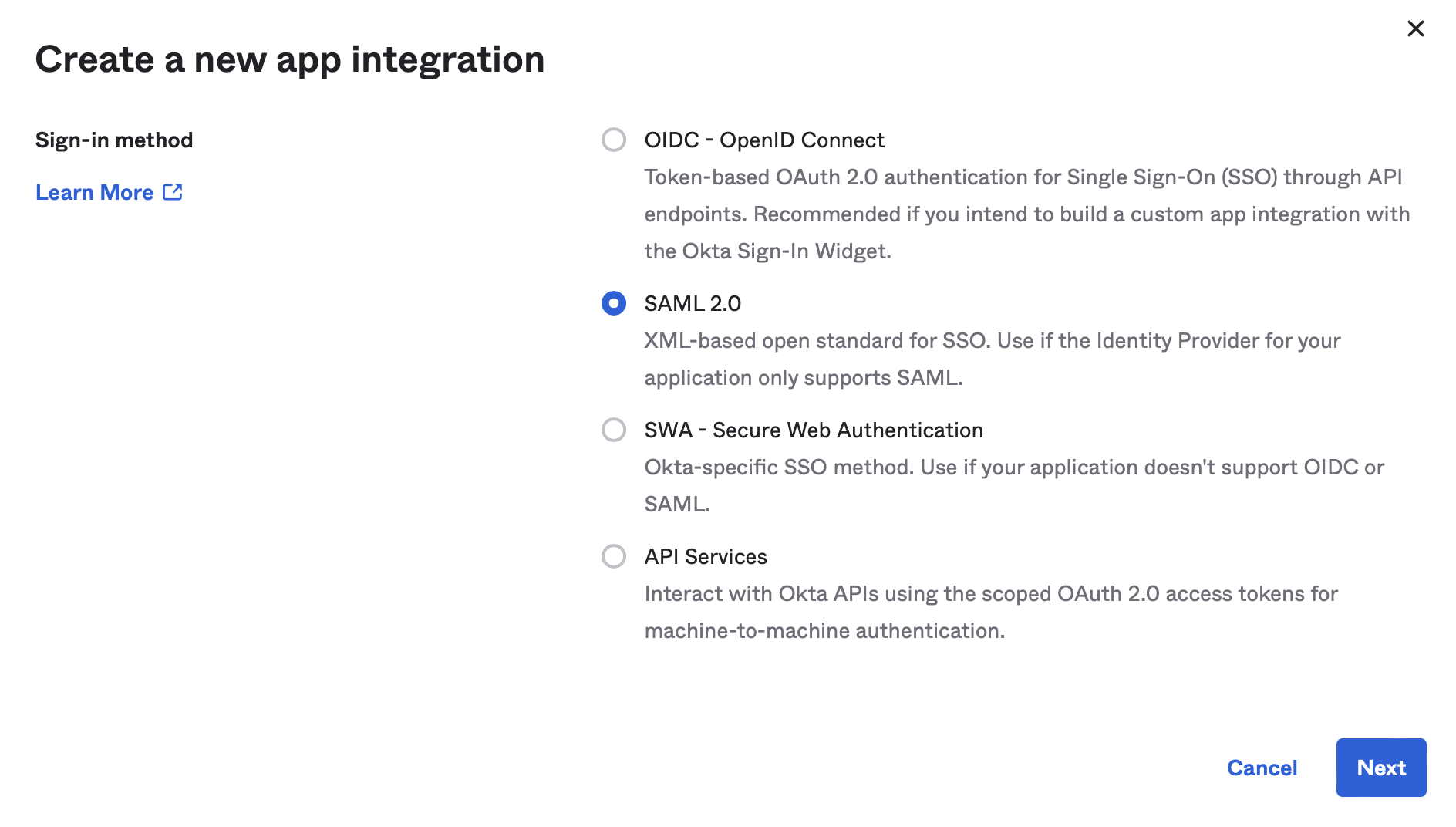
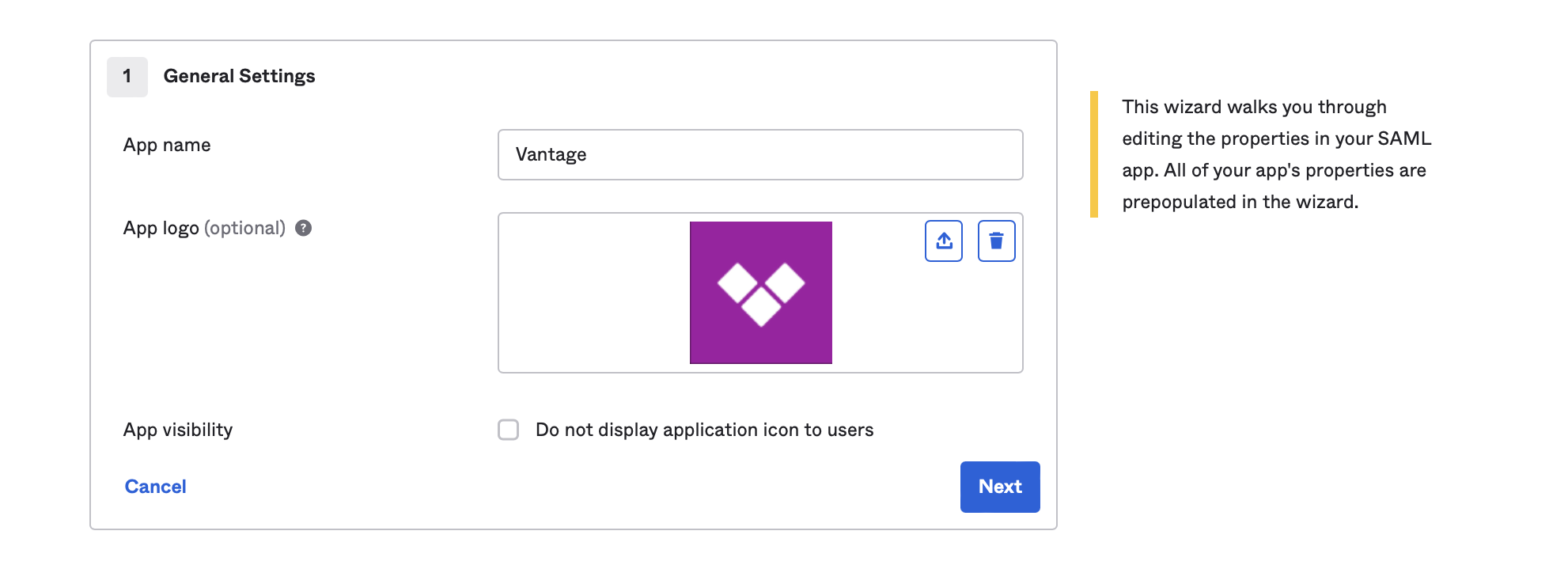
For App Logo, upload the Vantage Logo, then click Next.
Expand to view example image
Expand to view example image
Enter the requested Single sign on URL (for example,
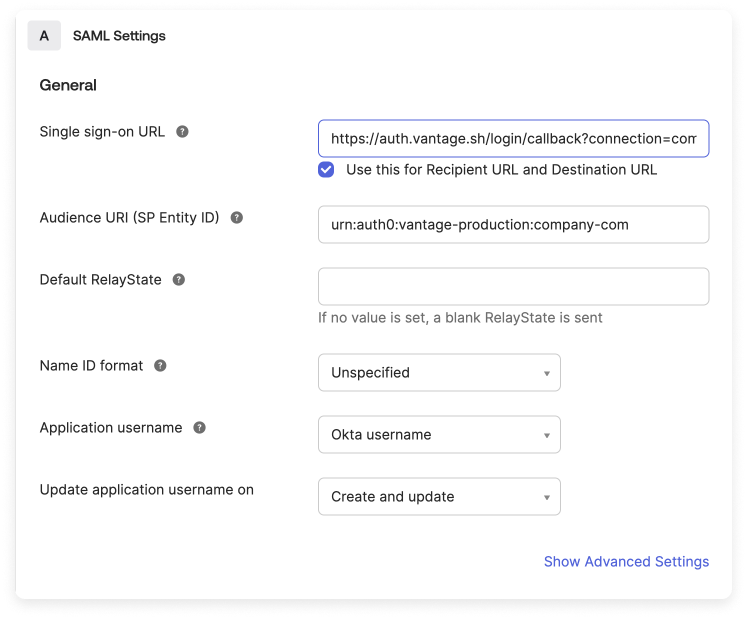
https://auth.vantage.sh/login/callback?connection=company-com) and Audience URI (SP Entity ID) (for example, urn:auth0:vantage-production:company-com), provided on the Vantage Authentication setup page.Expand to view example image
Expand to view example image
Once the app integration is set up, copy the Okta-provided Identity Provider Single Sign On URL and X.509 Certificate back into Vantage.
Test Your SSO Configuration
The recommended steps for testing your SSO configuration are as follows:Once your connection is enabled, do not close or log out of your current Vantage application session.
Open a private browser or incognito window, and visit https://console.vantage.sh.
Enter your email address. If your SSO connection is configured correctly, you will be redirected to your IdP.
Disconnect Your IdP
If you ever need to disconnect your IdP from Vantage:Navigate to the Authentication page.
Set Up Other IdPs
If you do not see your IdP listed, please contact Vantage
Support.
Authenticate with Azure AD
The following instructions are based on the Microsoft
documentation.
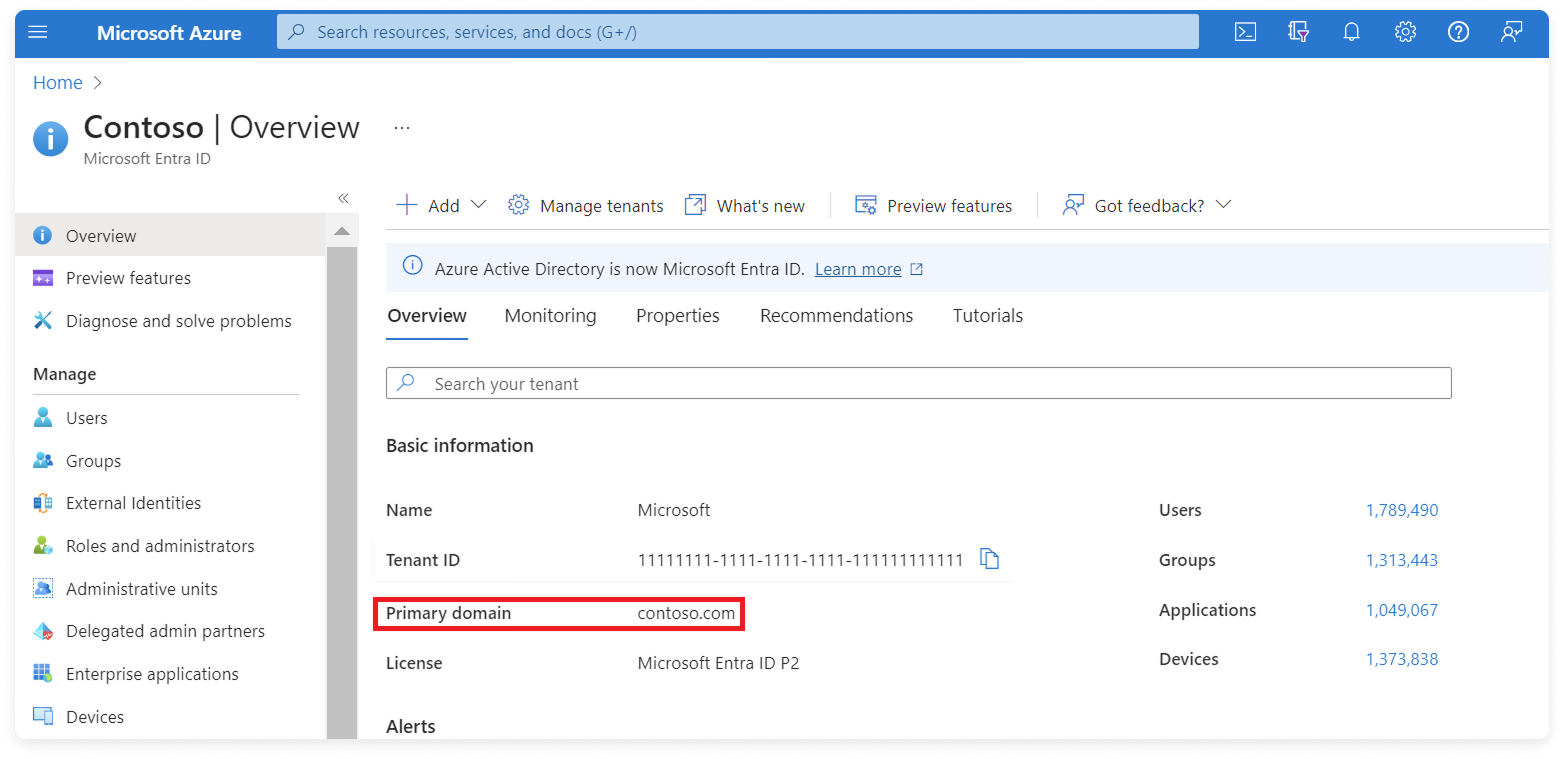
Step 1 - Obtain Your Primary Domain from Microsoft Entra ID
Expand to view example image
Expand to view example image
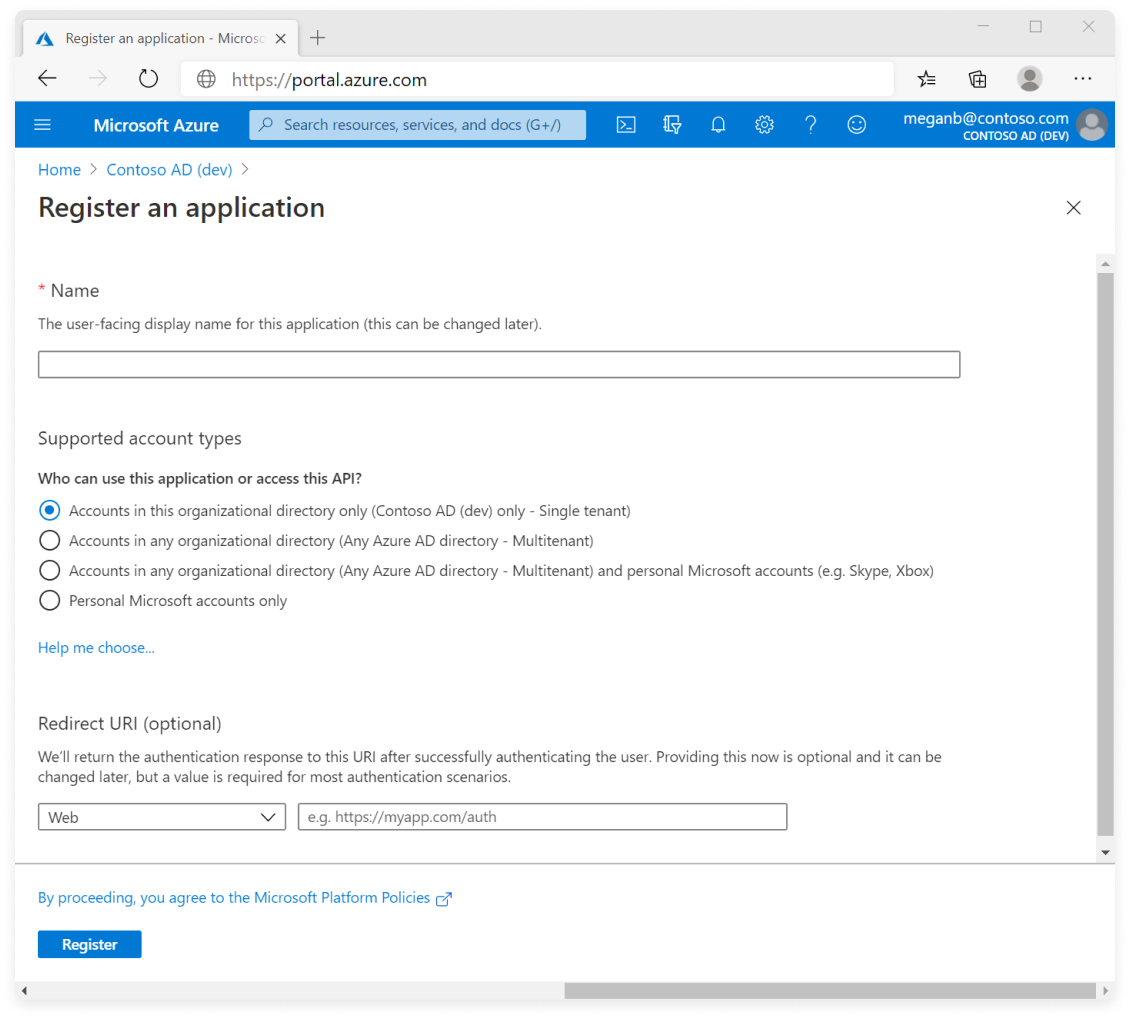
Step 2 - Register an OAuth Application with Azure
Expand to view example image
Expand to view example image
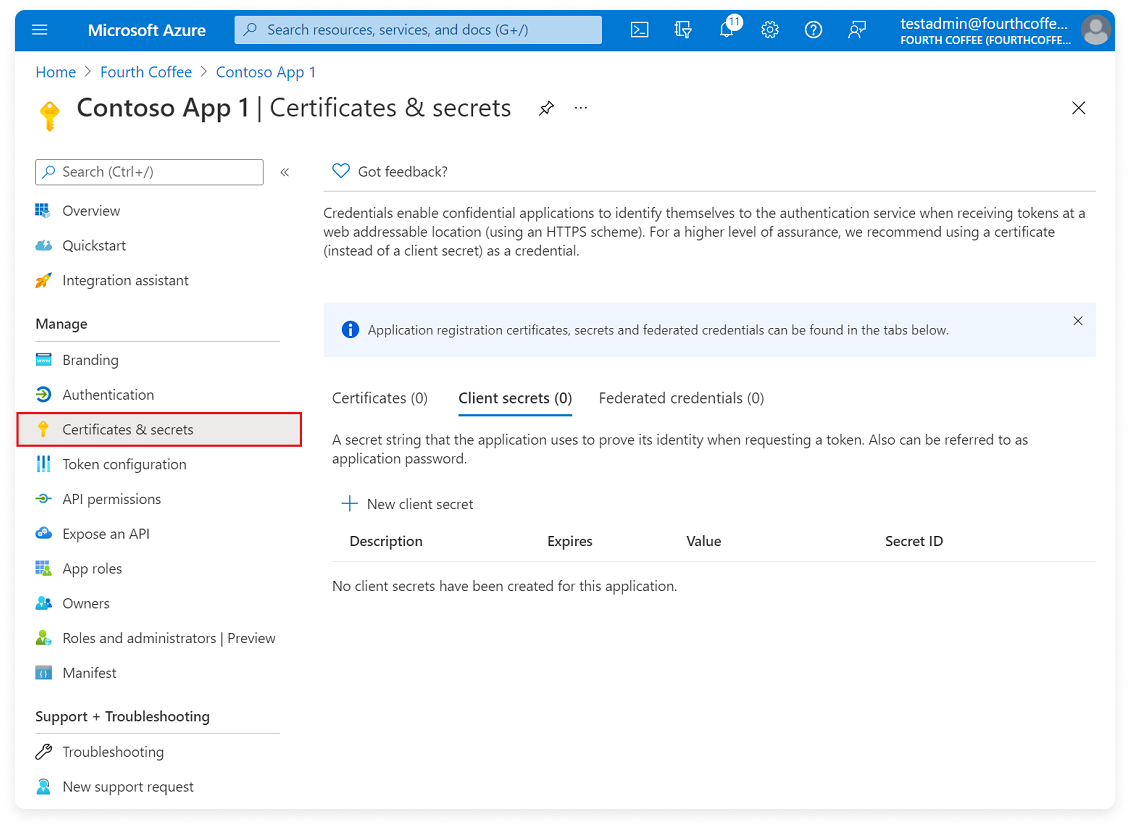
Step 3 - Generate a Client Secret
Expand to view example image
Expand to view example image
Step 4 - Add API Permissions
Expand to view example image
Expand to view example image
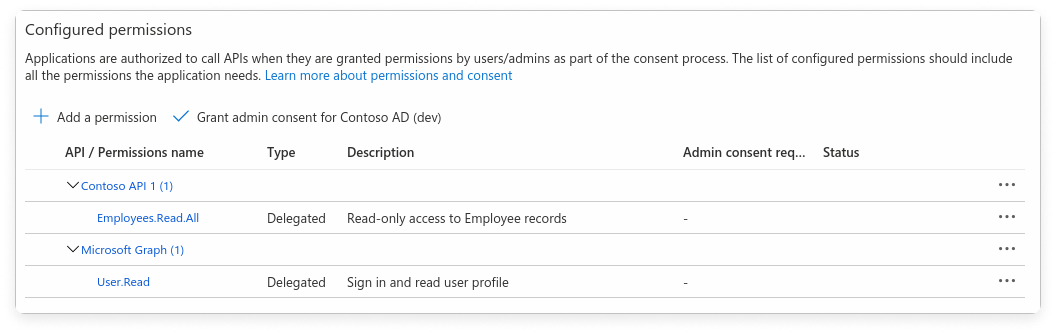
Under the Microsoft APIs tab, find and select the appropriate permissions required by Vantage (e.g.,
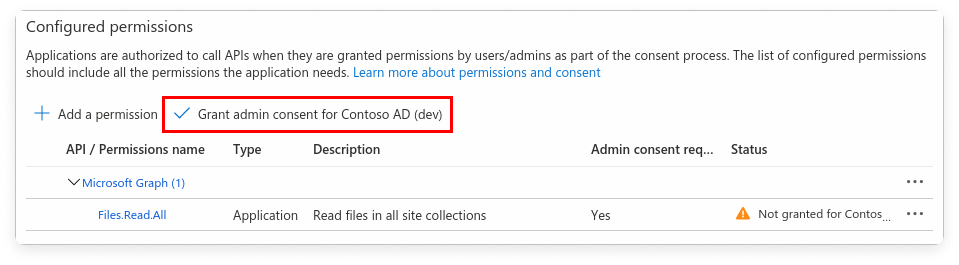
Directory.Read.All, User.Read).Step 5 - Grant Admin Consent (If Required)
Expand to view example image
Expand to view example image
Step 6 - Add Credentials to Vantage
Navigate to the Authentication screen in Vantage.
Under Step 2, enter the following information:
- Primary Domain: The value you obtained in step 1. Ensure you enter only the domain name (e.g.,
yourcompany.com). Do not includehttp://www. - Client ID: The client ID you obtained in step 2.
- Client Secret: The secret you obtained in step 3.
Authenticate with Google Workspace
The following instructions are based on the Google
documentation.
Step 1 - Register an OAuth Application with Google
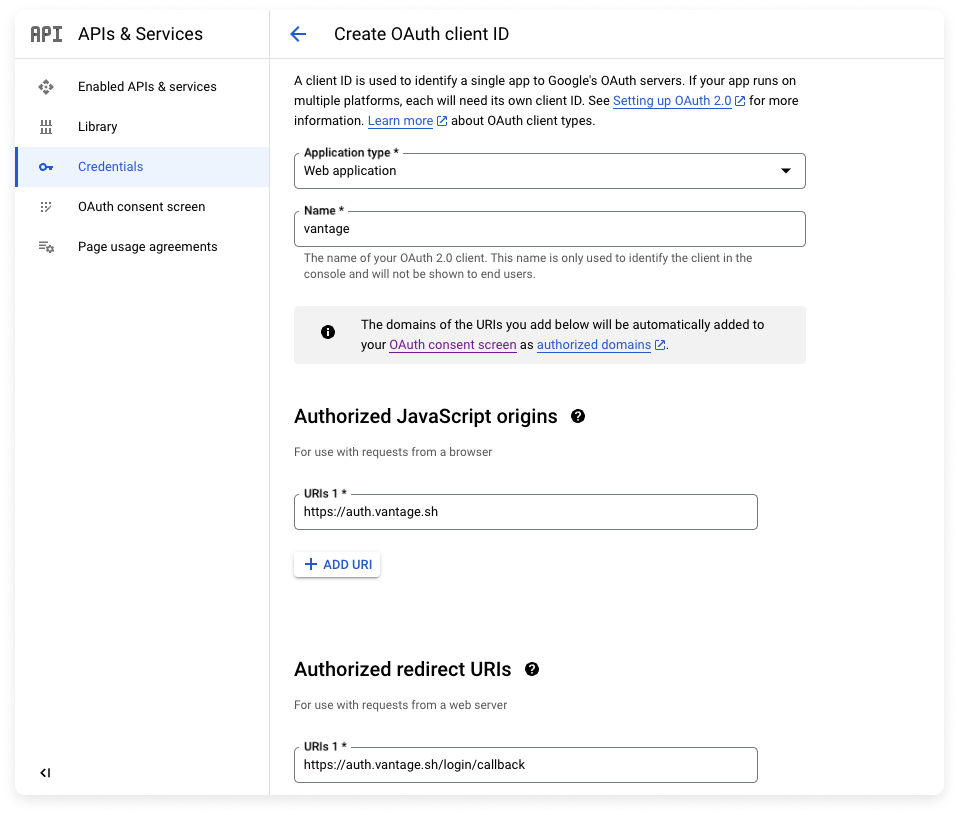
From the Google API Console, select an existing project or click CREATE PROJECT.
At the top, click CREATE CREDENTIALS > OAuth client ID.
If this is your first time working with this Google project, you will have to configure your consent screen. Follow the Google documentation linked
above.
Click to view example image
Click to view example image
Step 2 - Obtain Application Credentials and Contact Vantage Support
- Copy your app’s CLIENT ID and CLIENT SECRET.
- Contact Vantage Support for information on how to send these credentials to finish connecting with the Vantage app.
Authenticate with Rippling
Vantage is available in the Rippling App Shop, where you can find instructions for connecting your Vantage account to Rippling.Set Up SSO Group Mapping for Teams
With the SSO Team Assignment feature, you can automatically assign users to Vantage teams that match the name of a corresponding SSO group.Prerequisites
To use the SSO Team Assignment feature, you will need to have teams already set up in Vantage. See the Role-Based Access Control: Create Teams documentation for information on how to create teams in Vantage.Enable SSO Team Assignment
Vantage will match SSO groups to Vantage teams based on the case-sensitive name of the SSO group. If a team name in Vantage matches an SSO group name, the user will be placed into that team in Vantage. Users will be mapped into the appropriate teams during their next login.
Create Custom Mappings
If your team names in Vantage do not match your identity provider, or you want multiple groups to be added to the same team, you can create custom mappings.In the SSO Group Name column, enter the group names from your SSO provider. The SSO Group Name you enter should match the corresponding name in your identity provider. Note that the mapping is case-sensitive.
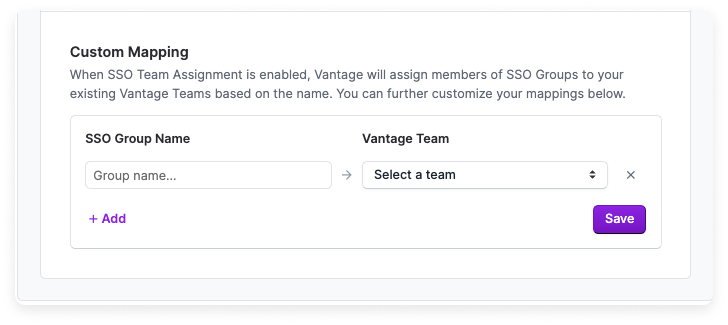
A user’s teams are updated on every login. Vantage will also automatically
remove users from teams that are no longer present in the SSO groups list.
Group Mapping in Okta — Enabling groups Attribute
Vantage uses the groups field in the SSO payload for matching SSO groups to Vantage teams. As long as your identity provider can pass a groups attribute in the payload, you can use SSO group mapping. For some providers, like Okta, you may need to enable group mapping.
To enable group mapping in Okta:
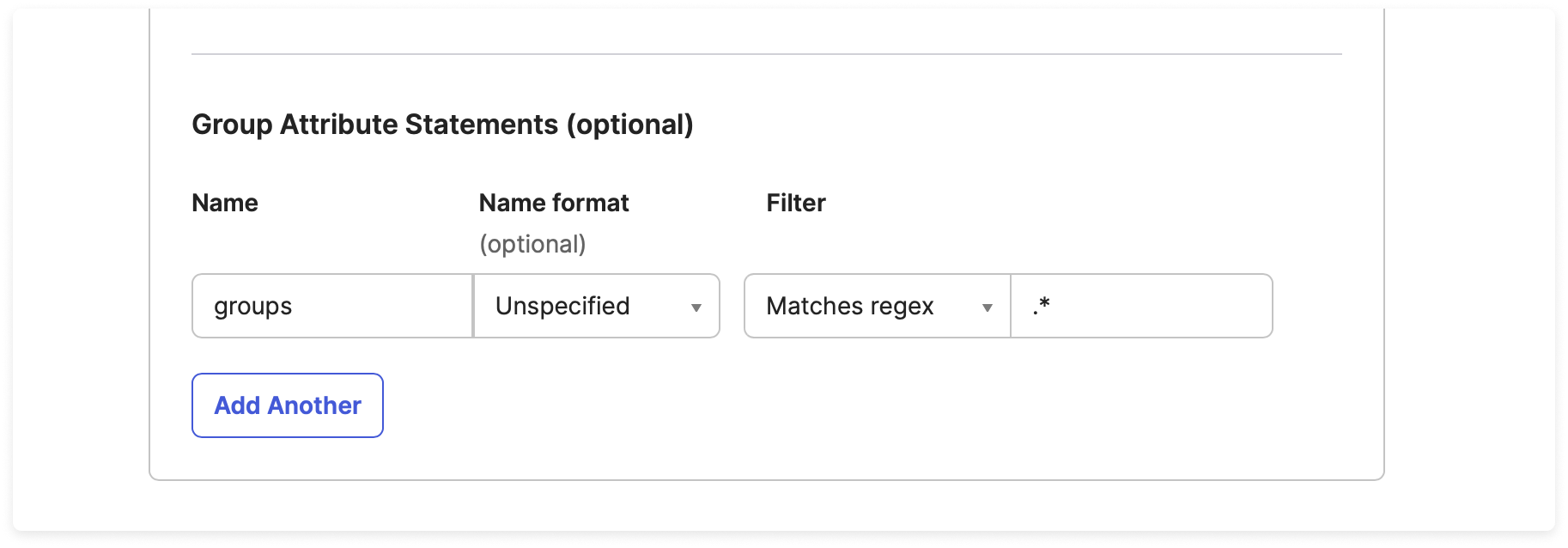
If you need help with your specific identity provider, contact
[email protected].
