Table of Contents
Overview #
WpStream’s latest update introduces LOGO placements on the player. You can now personalize the livestream or VOD player’s appearance, including colors, layout, and branding, in a few simple steps.
Accessing the Logo on Player Settings #
- Login to your WordPress dashboard.
- Navigate to WpStream → Settings.
- In the Settings, scroll down General Settings → Logo for the Video Player.
Uploading the logo #
- Click on “Upload Image” to upload your logo.
- Once your image is uploaded, you can decide if you want to use it or ‘Remove Image‘ to upload another.
Positioning the Logo #
- Choose the position of the logo under ‘Position of the video player logo’.
- Your options are Top Left, Top Right, Bottom Left, Bottom Right (of the player).
- By selection the position from the drop down, your changes will be saved automatically.
- Refresh the page with the player to see the change.
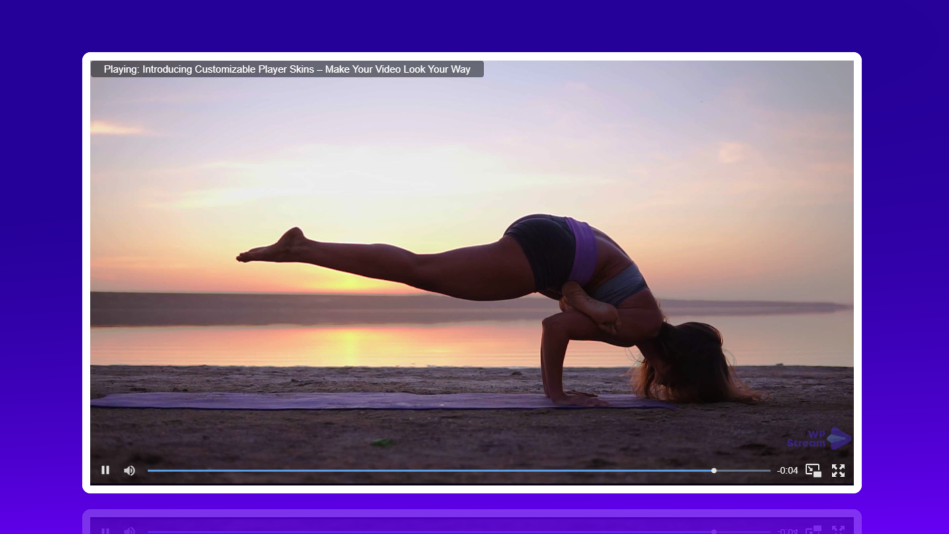
Result: Your Logo is now applied to all WpStream players on your site instantly – both Live Players and Video-On-Demand Players.
The logo and the position of the logo can be changed during livestreams and the streams will not be interrupted.
1. Top Left
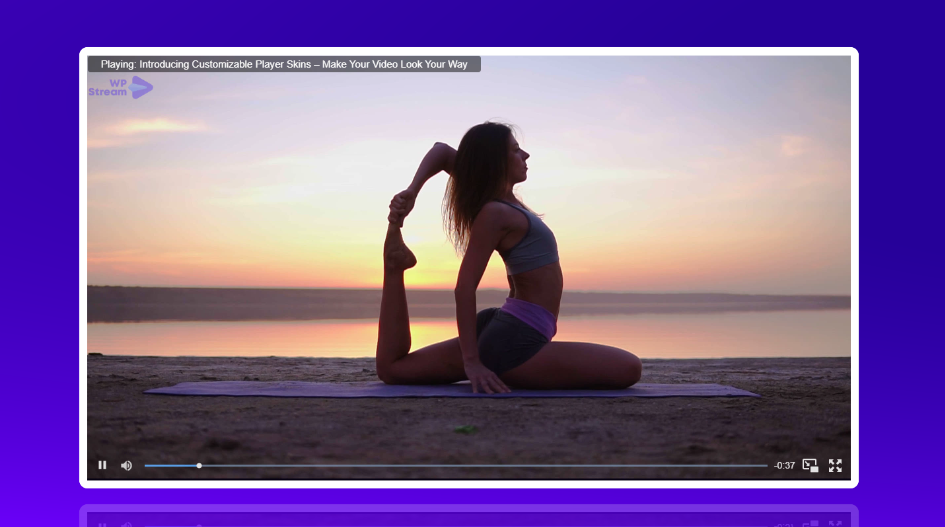
2. Top Right
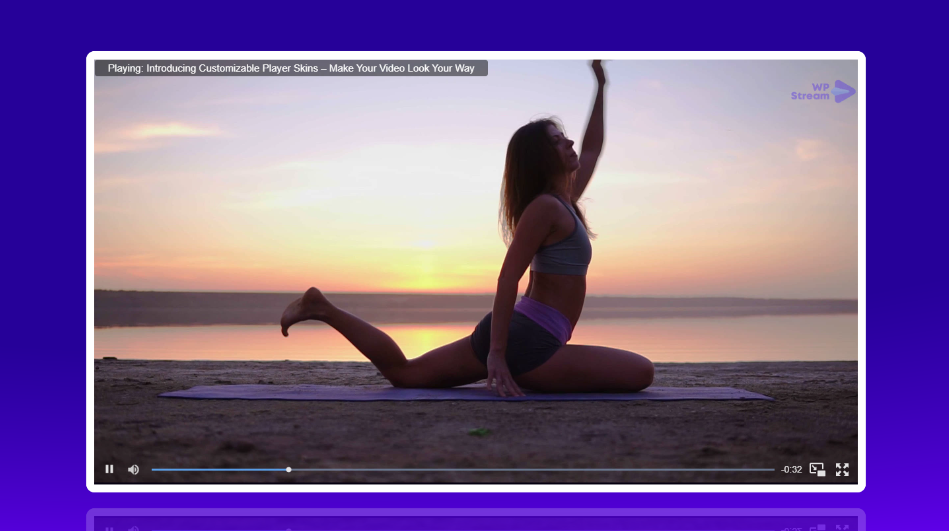
3. Bottom Left
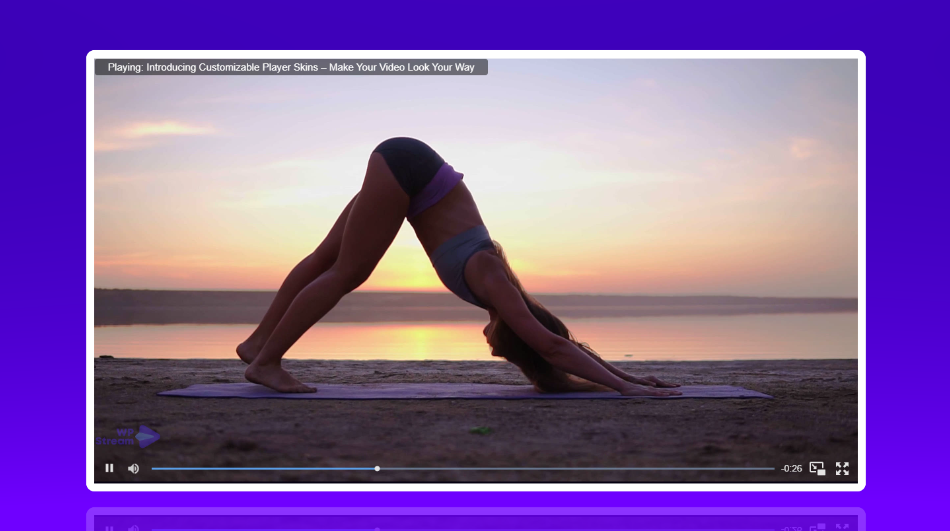
4. Bottom Right