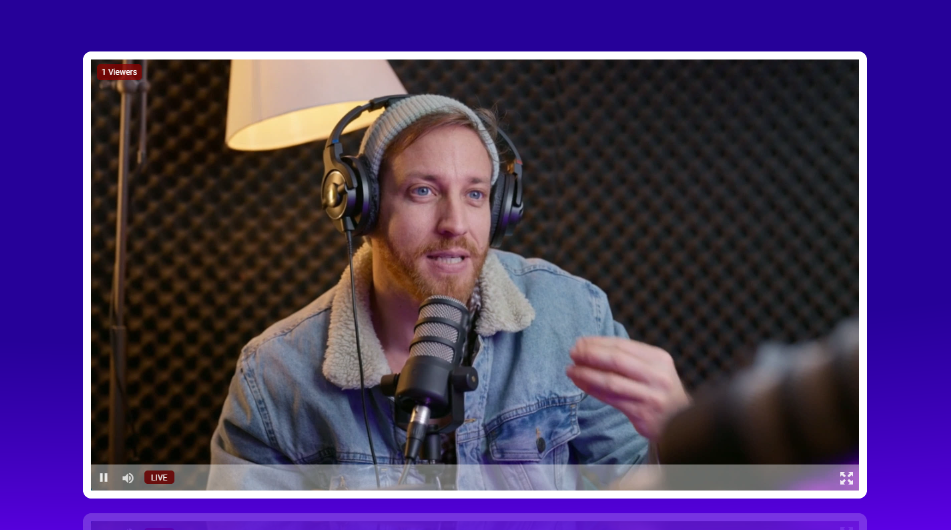
Overview #
WpStream’s latest update introduces customizable player themes/skins and the ability to add your LOGO on the player. You can now personalize the livestream or VOD player’s appearance, including colors, layout, and branding, in a few simple steps.
Accessing the Player Theme Settings #
- Login to your WordPress dashboard.
- Navigate to WpStream → Settings.
- In the Settings, scroll down General Settings → Video Player Skins.
Selecting a theme/skin #
- Open the drop down under the “Video Player Skins” section.
- Click on your preferred skin to select it. The changes will save automatically.
- Go back to your player and Refresh the page.
Result: The chosen skin is now applied to all WpStream players on your site instantly – both Live Players and Video-On-Demand Players.
The skins can be changed during livestreams and the streams will not be interupted.
Player Themes #
- Default – The default player you know and love is still available!
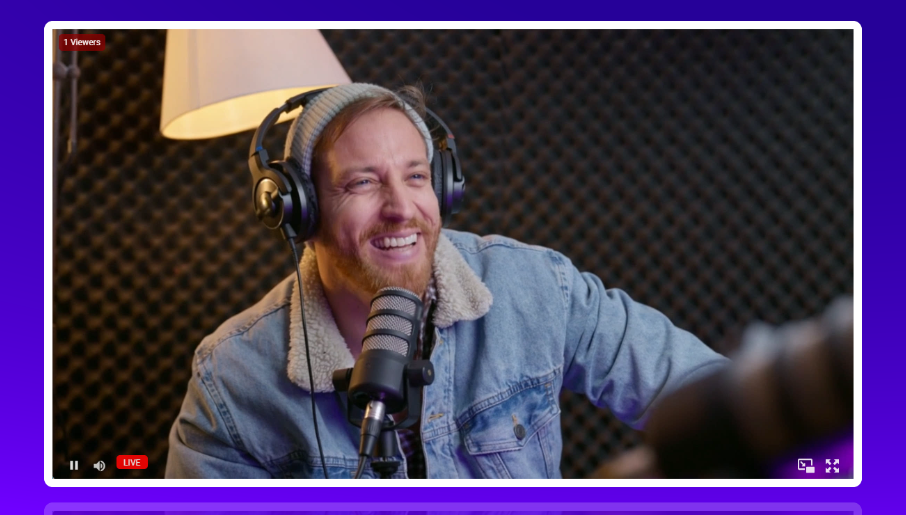
2. City

3. Forest
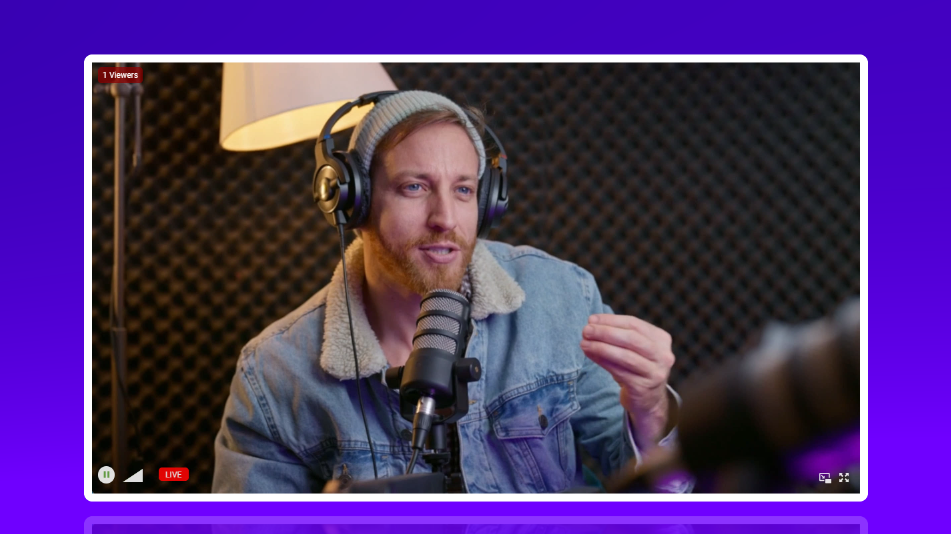
4. Fantasy
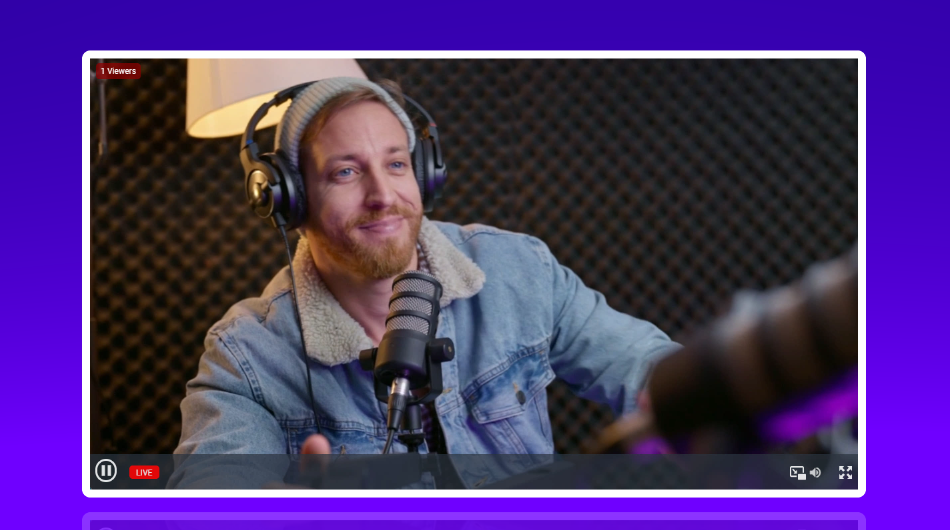
5. Sea