
[NEW] WP Media Cleanup Deletes Unused Images Hiding in Your Media Library
Tired of cluttered media libraries? WP Media Cleanup scans your site to remove unnecessary image variations and boosts site efficiency…
[NEW] WP Media Cleanup Deletes Unused Images Hiding in Your Media Library
 Joella Dunn
Joella Dunn
Joella Dunn
 John Turner
John Turner
John Turner
“How often should I back up my site?”
This question lands in my inbox more than almost any other. And honestly, there’s no shame in asking it.
Here’s what I’ve learned after years of managing WordPress sites: backup frequency isn’t just about preparing for catastrophic server crashes or malicious attacks.
Most of the time, you’re protecting against much smaller mishaps, like when a plugin breaks your checkout process or a theme update messes up your web design.
In this post, I’ll help you figure out the backup schedule that makes sense for your specific website. You’ll get a complete backup plan for your business needs.
Think of backups as a safety net. The more frequently you create them, the smaller your potential loss becomes.
When something happens to your website, your content disappears first. New blog posts, updated product descriptions, fresh testimonials — all the work you’ve done since your last backup vanishes.
If you publish content daily but only back up weekly, you could lose an entire week’s worth of effort in minutes.
For e-commerce sites, this hits especially hard. Every order, new customer registration, and contact form submission that happened after your last backup is gone.
Recreating lost work costs money and steals hours you planned to spend growing your business. Plus, there’s the mental exhaustion that comes with redoing work you thought was finished.
When customers visit a broken or outdated version of your site, they notice. Your credibility suffers, sometimes in ways that take months to repair.
On your website, content changes, users interact, and transactions happen around the clock. Your backup strategy needs to match that reality, ensuring your backup data remains current and accessible.
There’s no magic backup formula that works for every WordPress site. The right backup frequency depends on several factors specific to your situation.
Some sites publish multiple blog posts daily. Others update their About page twice a year. E-commerce stores might add new products weekly while updating inventory hourly.
Take an honest look at your content calendar. When was the last time you made significant changes to your site? This will affect your backup frequency.
E-commerce sites with high transaction volumes need frequent backups. Losing even a few hours of order data can cost thousands in revenue and create customer service nightmares.
Membership sites face similar challenges. New registrations, user activities, and forum posts accumulate quickly on active platforms.
Even simple contact forms matter. If your site generates several leads per day, losing those submissions because of a backup gap hurts.
Comments, reviews, and forum discussions change rapidly and often without your direct involvement. Active community sites can generate hundreds of new posts and interactions daily.
Some site owners install new plugins monthly. Others modify theme files, add custom code, or experiment with different configurations weekly.
The more you modify your site, the higher your risk of something breaking. Recent backups become important when you’re actively developing or tweaking functionality.
This might be the most essential question. Could you handle losing a day’s worth of data? An hour’s worth? Or does the thought of losing anything make you break out in a cold sweat?
From my perspective, if a website actively generates revenue or leads, the tolerance for data loss is basically zero. The anxiety alone isn’t worth the savings from less frequent backups.
Let’s break down practical backup schedules and who they work best for.
Daily backups work well for most active blogs, smaller e-commerce sites, and any site with regular user interaction.
In a daily backup, you’ll save the majority of new content and changes without being excessive. I generally recommend daily backups as a solid starting point for most sites (including my own). It’s the ideal backup frequency for most standard business websites.
If you publish content regularly, receive comments, or process transactions, daily backups provide good protection without overwhelming your server resources.
High-volume e-commerce stores need more protection. WooCommerce sites processing dozens of daily orders, active membership platforms, and busy forums generate critical data constantly.
The cost of losing several hours of transactions typically exceeds the resources needed for frequent backups. When every lost order represents real money and customer frustration, hourly backups become a business necessity.
If you make significant changes only occasionally, daily backups could be overkill. Weekly backups might work for simpler, brochure-style websites or personal blogs that update infrequently.
A monthly backup frequency works only for archived sites that rarely change or receive visitors.
For any active website, monthly backups create dangerous gaps. Too much can happen in 30 days — security breaches, server issues, or accidental changes. This should be the exception, not standard practice.
Manually managing the right backup frequency becomes tedious. You won’t want to manually download a copy of your site files and database every day, or worse, every hour.
This is where tools like Duplicator make the whole process manageable. It’s a well-reviewed backup plugin that supports automatic backup schedules.

Duplicator allows automated, scheduled backups at whatever frequency makes sense for your site — daily, weekly, monthly, or hourly. Configure it once, then trust it to handle the routine.
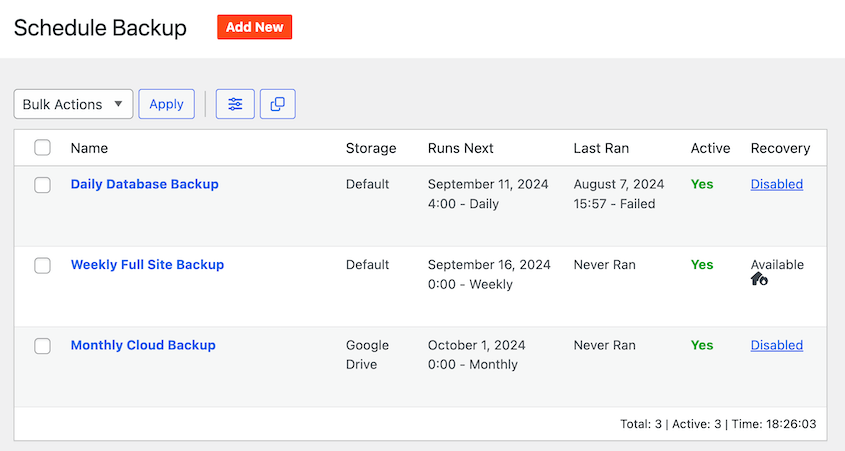
One thing I appreciate about Duplicator Pro is having confidence that backups are being handled reliably. No more sticky notes reminding me to run manual backups.
Easy integration with cloud storage services like Google Drive, Dropbox, and Amazon S3 means your backups automatically go off-site. This addresses a critical vulnerability: storing backups only on the same server as your website.
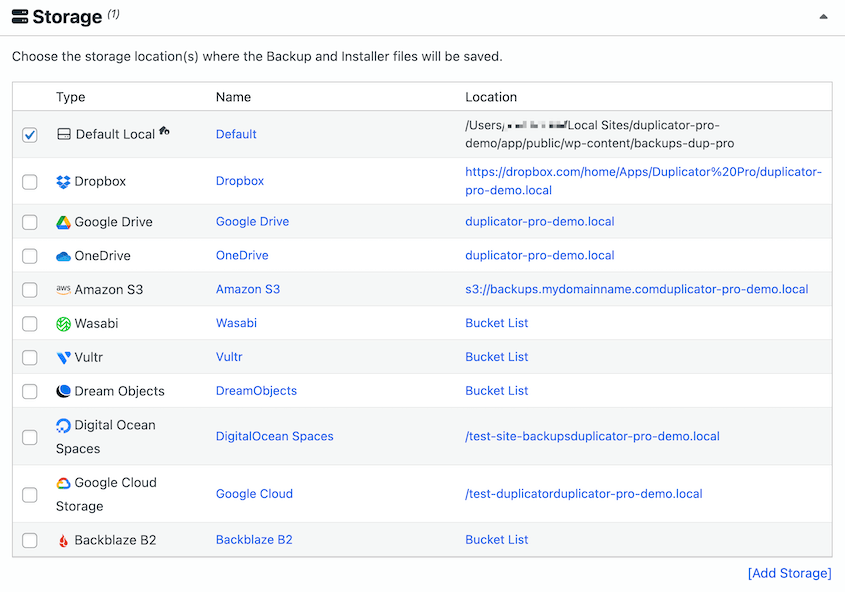
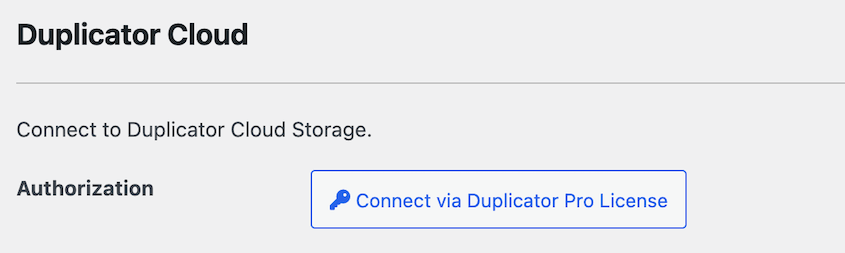
It even has built-in storage, Duplicator Cloud. Since it’s developed by the same team, you’ll find it easy to integrate the plugin with off-site cloud storage.
There are no API keys to copy-paste. You can get cloud storage with just your Duplicator Pro license.
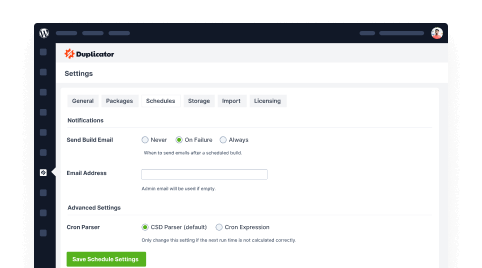
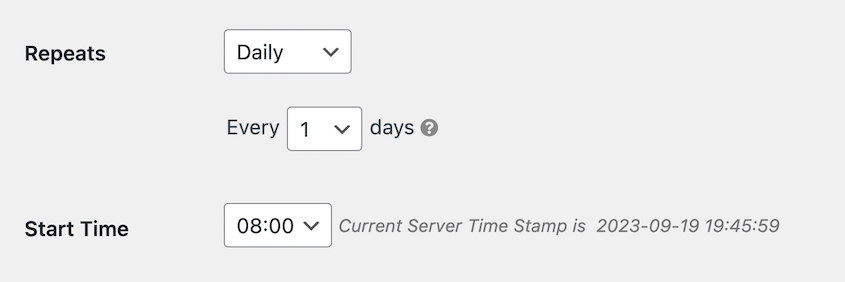
Configuring backup schedules in Duplicator doesn’t require advanced technical skills. The interface makes sense for business owners who want protection without becoming server administrators.
Email notifications for backup success or failure provide peace of mind or early warnings when something needs attention. You’ll know if a backup fails instead of discovering it during an emergency.
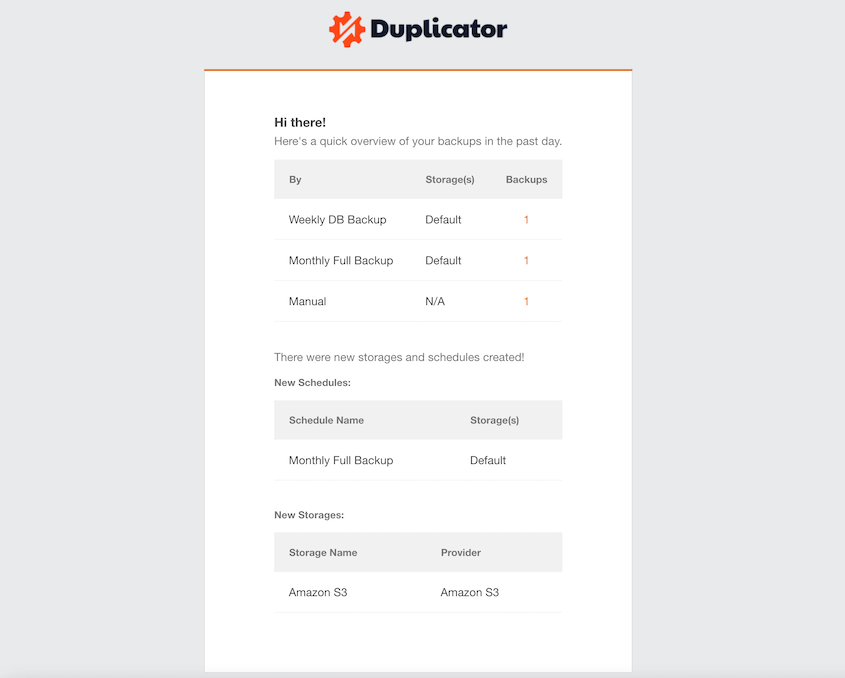
Duplicator Pro can also create different schedules for various parts of your site. You might back up your database more frequently than your entire website files, depending on your site’s specific needs.
Speaking of restores, you won’t struggle to roll back any backup data. Duplicator has one-click restores built into your WordPress dashboard.
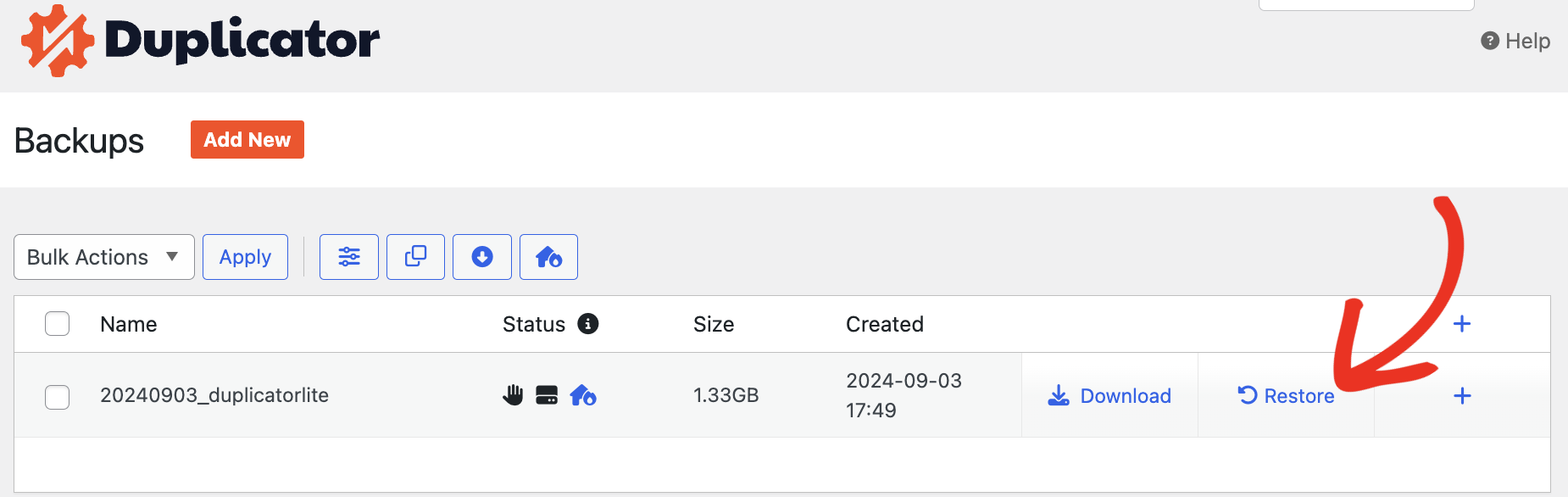
Unlike other backup plugins, Duplicator can restore your site even if you can’t access your dashboard. Use the disaster recovery feature or simply re-upload the backup files to your root directory!
Yes, if backups significantly impact your site’s performance or consume excessive backup storage without a proper retention plan.
However, the risk of insufficient backups usually exceeds the risk of backing up too frequently. You’ll just have to keep an eye on the limitations of your cloud storage location or server.
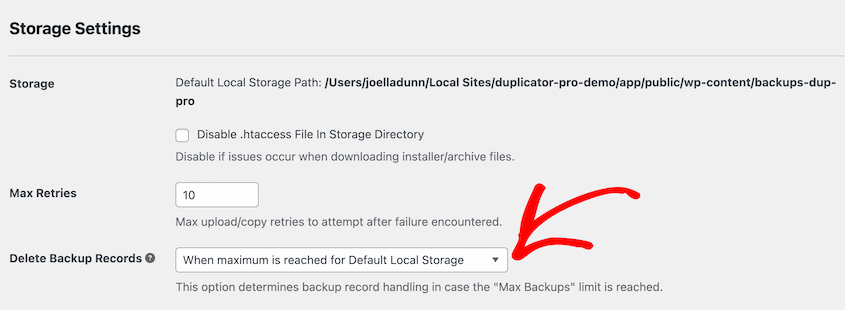
Keep in mind that Duplicator has great built-in backup cleanup tools. You can decide the exact number of backups to keep in each storage location.
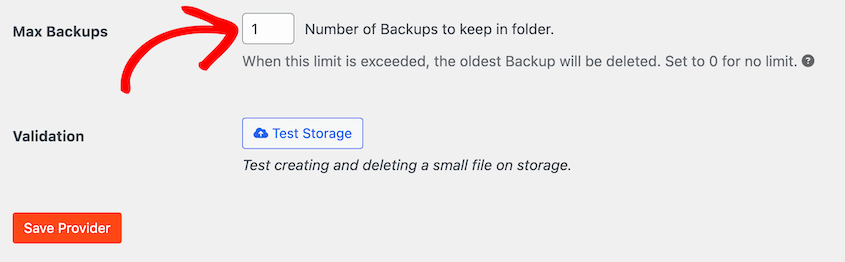
To keep your backup log clean, have Duplicator automatically delete backup records when this limit is reached.
This depends on your backup retention policy, which varies by site and business needs.
Consider how far back you might need to restore to resolve subtle problems. Malware sometimes goes undetected for weeks. Plugin conflicts might not surface immediately.
I often suggest keeping daily backups for a week, weekly backups for a month, and monthly backups for 3-6 months. This ensures you have restore points if you need them.
Duplicator Pro can automate the management of old backups by setting limits on how many you store. More critical sites generally warrant longer retention periods.
Incremental backups only capture changes made since the last backup (whether full or incremental). Individual backup files stay smaller and faster after the initial full backup. Differential backups capture changes made since the last full backup.
With an incremental backup, restoration requires a full backup plus all the following incremental backups in order. If one increment gets corrupted, it can compromise your entire restoration.
For differential backups, restoration only requires the last full backup and the latest differential backup, simplifying the process. But differential files grow progressively larger over time.
Duplicator primarily creates complete, reliable full-site backups. This makes the restore process straightforward and dependable — you’re not juggling multiple backup pieces during an emergency.
A good backup schedule matches your site’s update frequency and your risk tolerance.
Active sites often benefit from daily backups. Highly transactional sites like major e-commerce platforms may need backups multiple times per day. Less active sites might find weekly backups adequate.
The crucial element is consistency and reliability. My typical baseline for any website is daily backups, then I adjust upward if the site’s activity demands it.
The classic 3-2-1 backup rule requires 3 copies of your data on 2 different types of media, with 1 copy off-site.
Some people follow variations like 3-2-1-1-0, adding one copy offline and ensuring zero errors through testing. There is also the 4-3-2-1 rule, which adds an extra backup copy.
The main principle remains: you should diversify your backup locations and storage types to protect against various failure scenarios.
Personal computers benefit from regular data backup schedules similar to websites, though the frequency depends on your usage. For most users, daily automated backups work well, capturing documents, photos, and important files.
Users who create or modify files frequently might consider more frequent backups, while casual users could manage with weekly backups. The key is ensuring your backup system runs automatically and stores copies both locally and in cloud storage for maximum protection.
The goal is to determine what backup frequency works for your specific site based on activity and your tolerance for data loss.
Take a realistic look at your website. How frequently does critical information change? What would be the real impact of losing data since your last backup?
This isn’t about adding complexity to your workflow. It’s about establishing a reliable system that operates efficiently in the background, ideally with a tool like Duplicator handling the heavy lifting.
Review your current backup schedule honestly. Is it genuinely adequate for how your site operates today?
If not, I’d recommend upgrading your backup tool to Duplicator Pro. It creates custom backup schedules and automatically runs them.
When you know your data is protected, you can focus on growing your business instead of worrying about what might go wrong.
While you’re here, I think you’ll like these hand-picked WordPress guides:

Disclosure: Our content is reader-supported. This means if you click on some of our links, then we may earn a commission. We only recommend products that we believe will add value to our readers.