

Getting Started
Welcome to Easy Tabs Block, the no-code way to create responsive, customizable tabbed content directly from the Gutenberg editor. Follow this guide to get up and running in minutes.
1. How to Install Easy Tabs Block
- Download and Activate
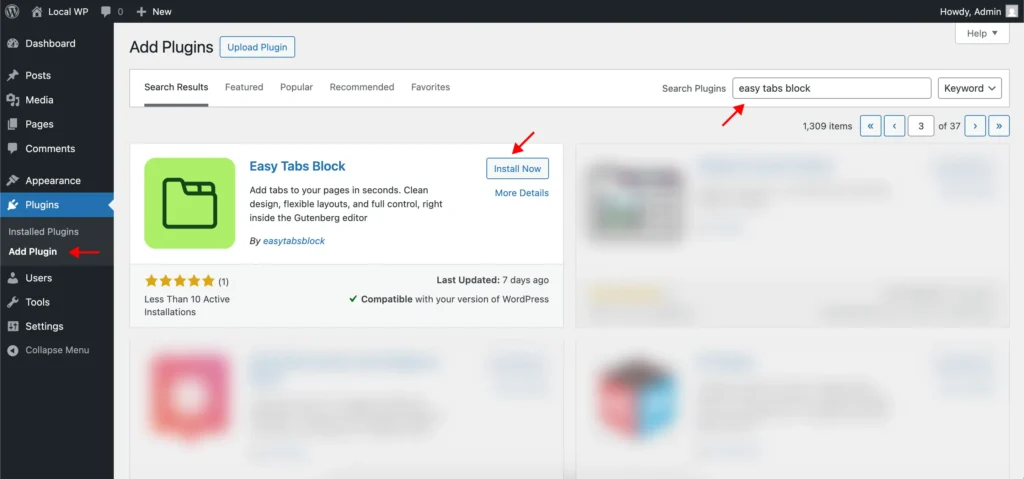
First, you need to navigate to Plugins > Add New in your WordPress dashboard. In the search bar, type ‘Easy Tabs Block’ and when it appears, click ‘Install Now’. After the installation is complete, click Activate to enable the plugin.
- Requirements
- WordPress 6.7 or higher
- Gutenberg (Block Editor) enabled
- A Gutenberg-compatible or block-based theme (e.g., Twenty Twenty-Four, Astra)
Note: The GeneratePress theme disables some Gutenberg features by default, so for full compatibility, you may need to use a block-based theme or adjust theme settings.
2. Adding Your First Tab Block
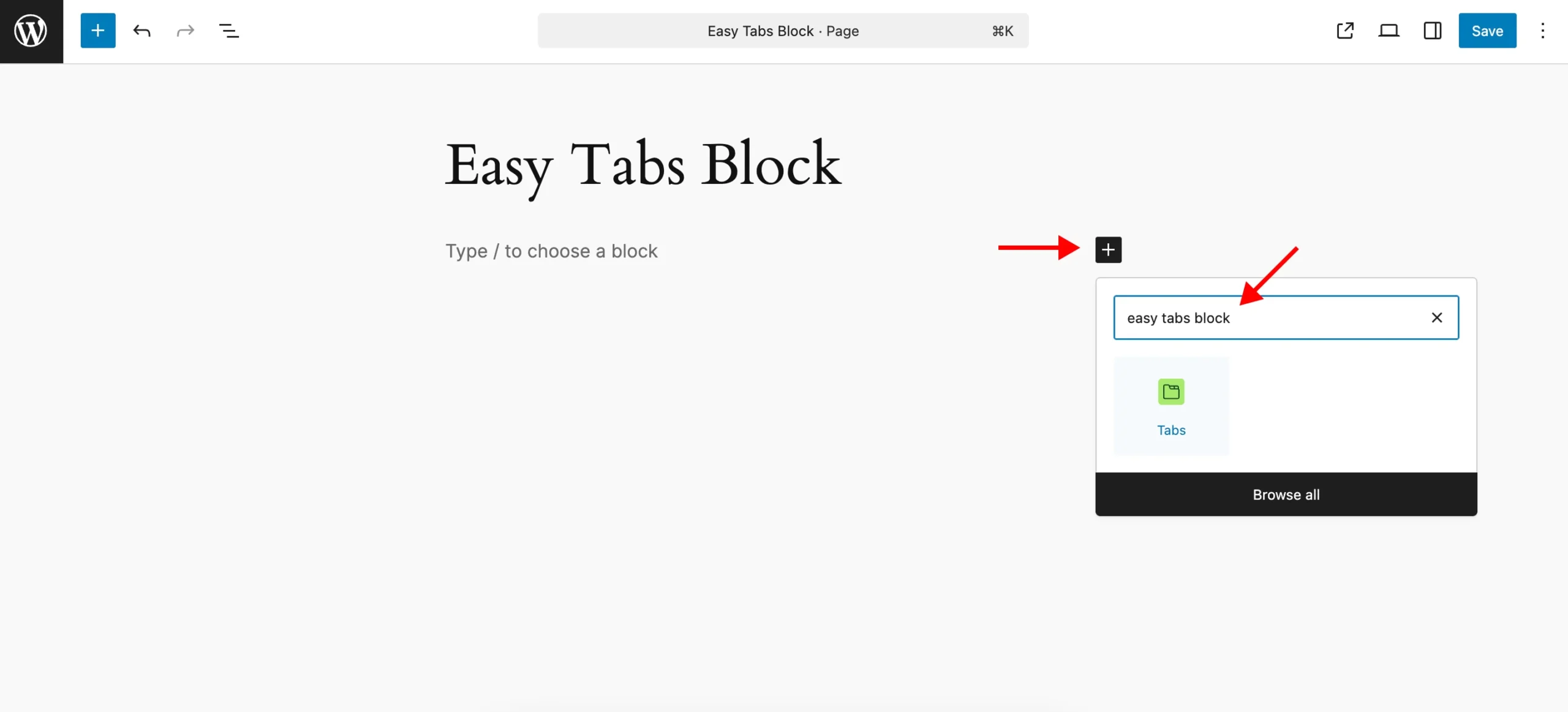
Just open the page or post where you want to add tabs. Then, click the + icon to add a new block. In the search bar, type “Tabs” and select the Easy Tabs Block from the list.
- Choose a pattern:
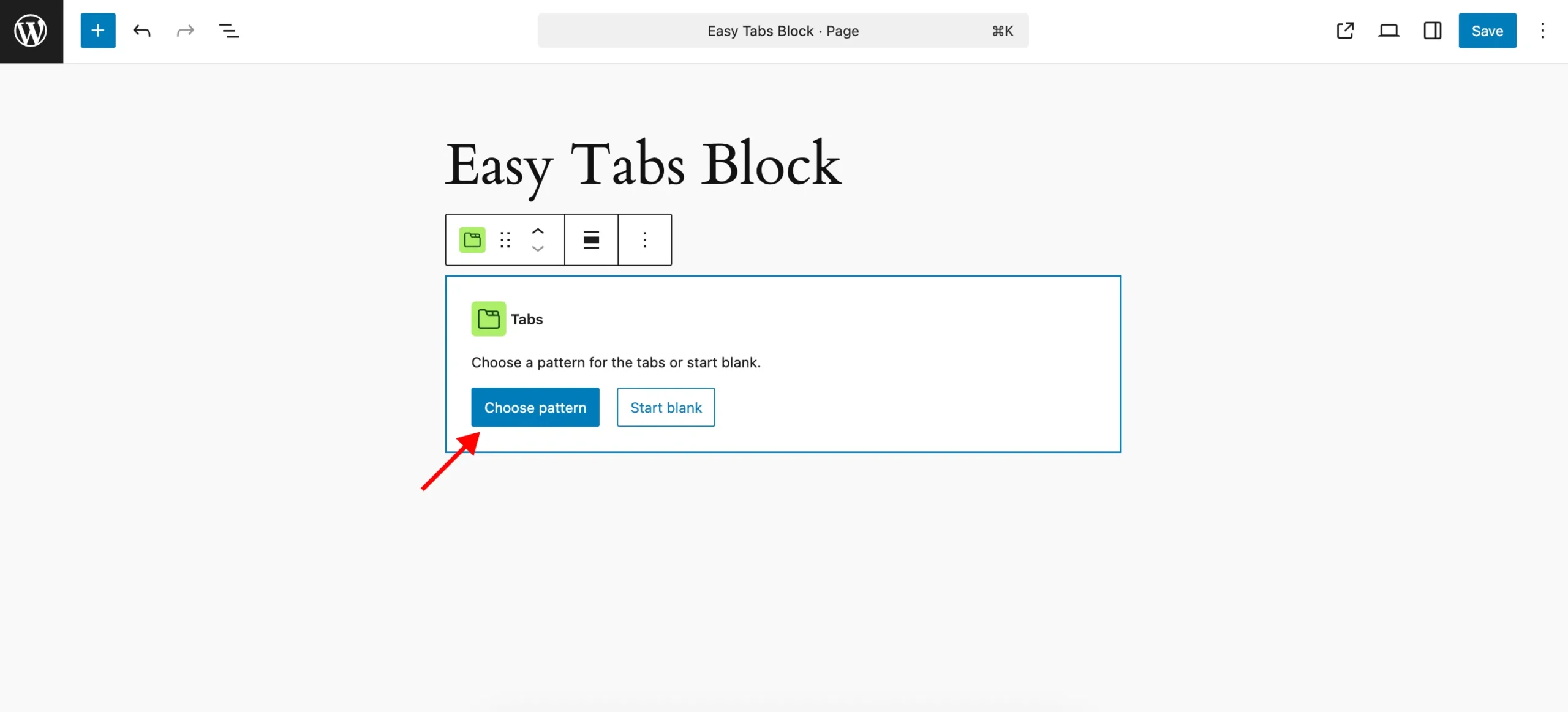
Start Blank: Create your tabs from scratch.
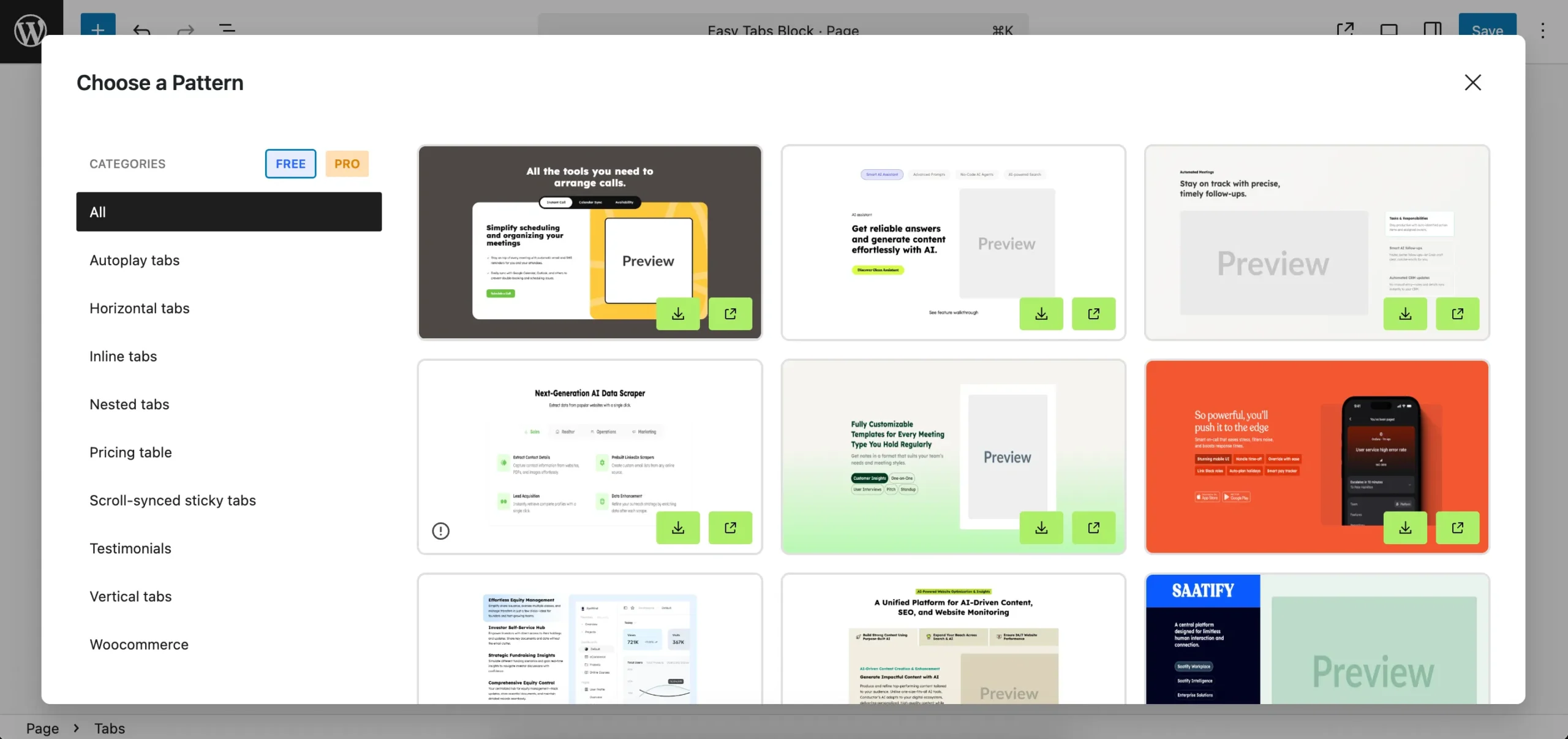
Pre-Built Patterns: Select from 30+ free designs.
3. How to Create and Manage Tabs
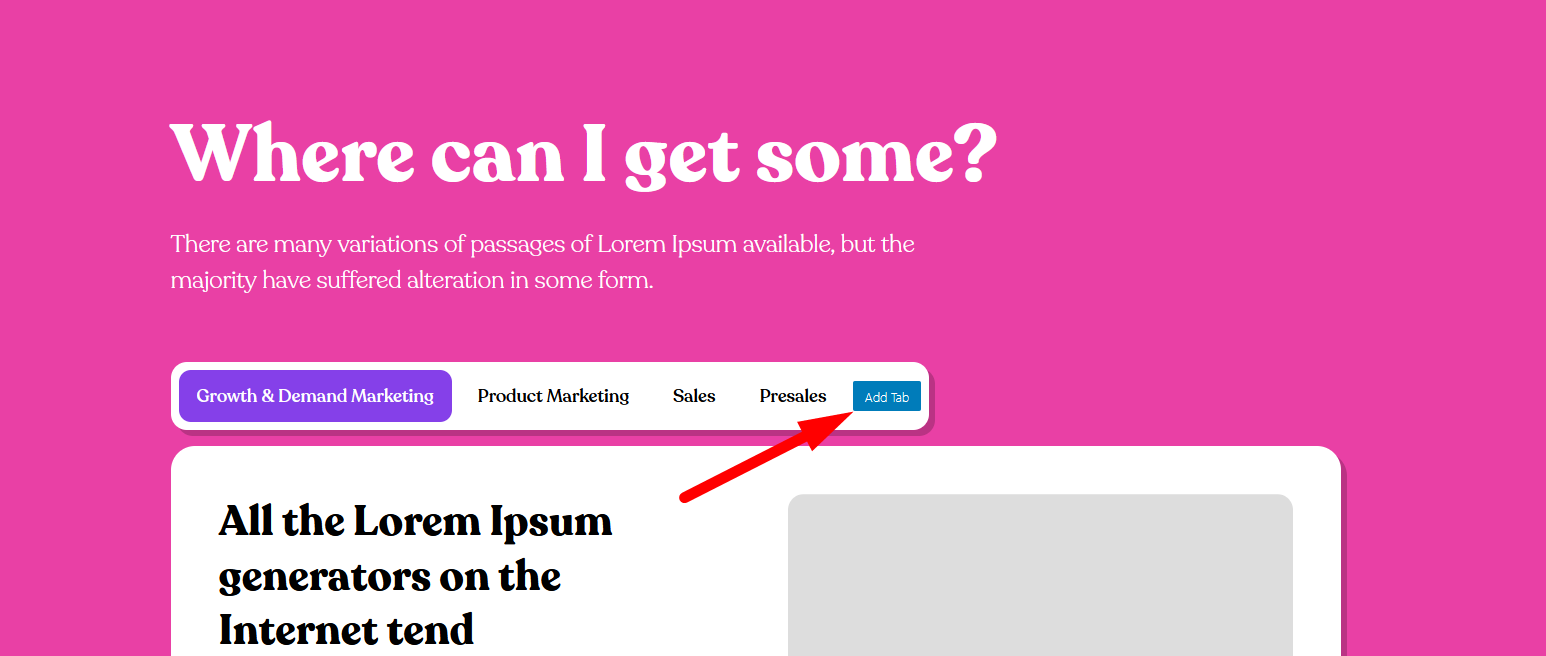
Add a Tab: You can add a new tab by clicking on the Add Tab button-
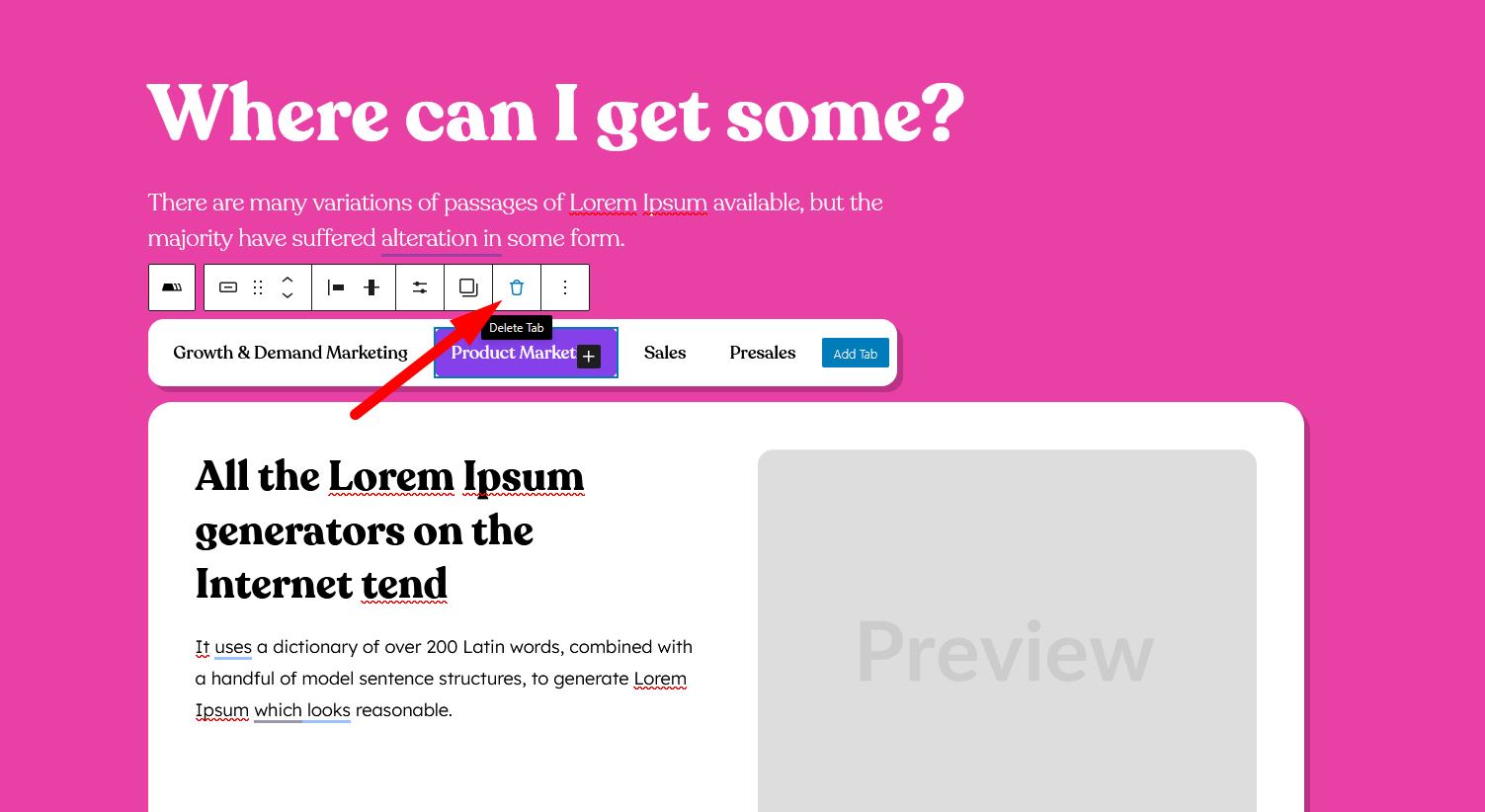
Remove a Tab: Hover and click the Delete Tab button-
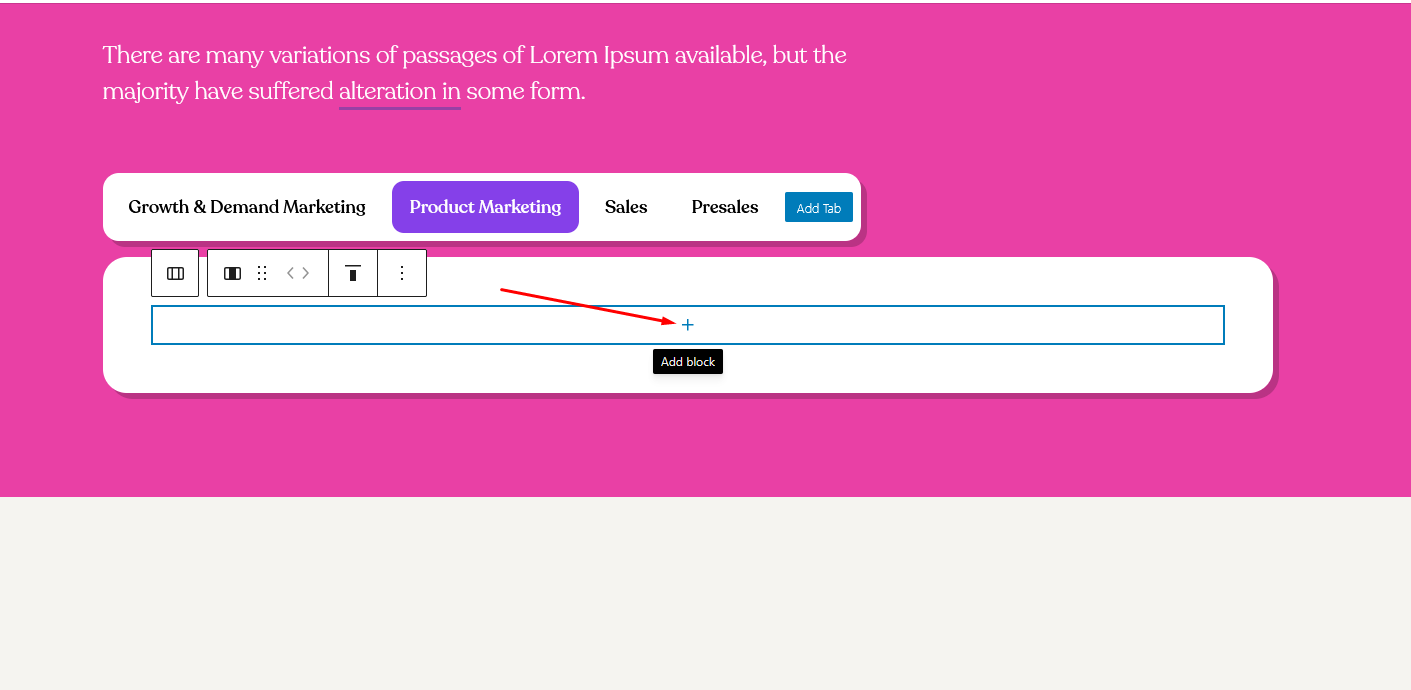
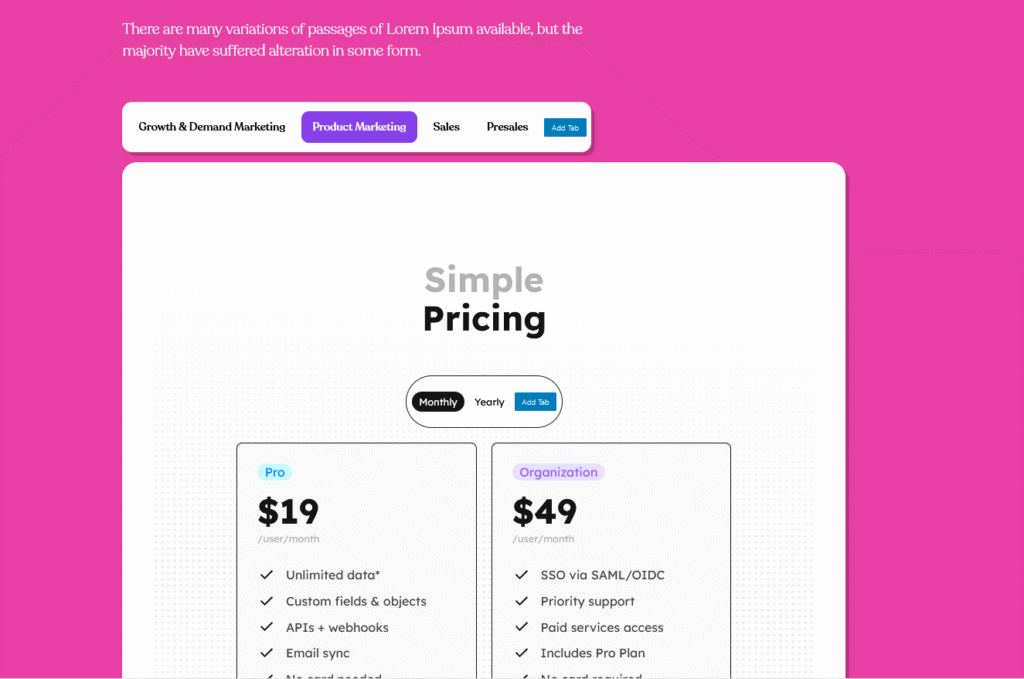
Nested Tabs: If you want to add another tab inside a tab, just click on the block button and select the Tab block inside the tab.
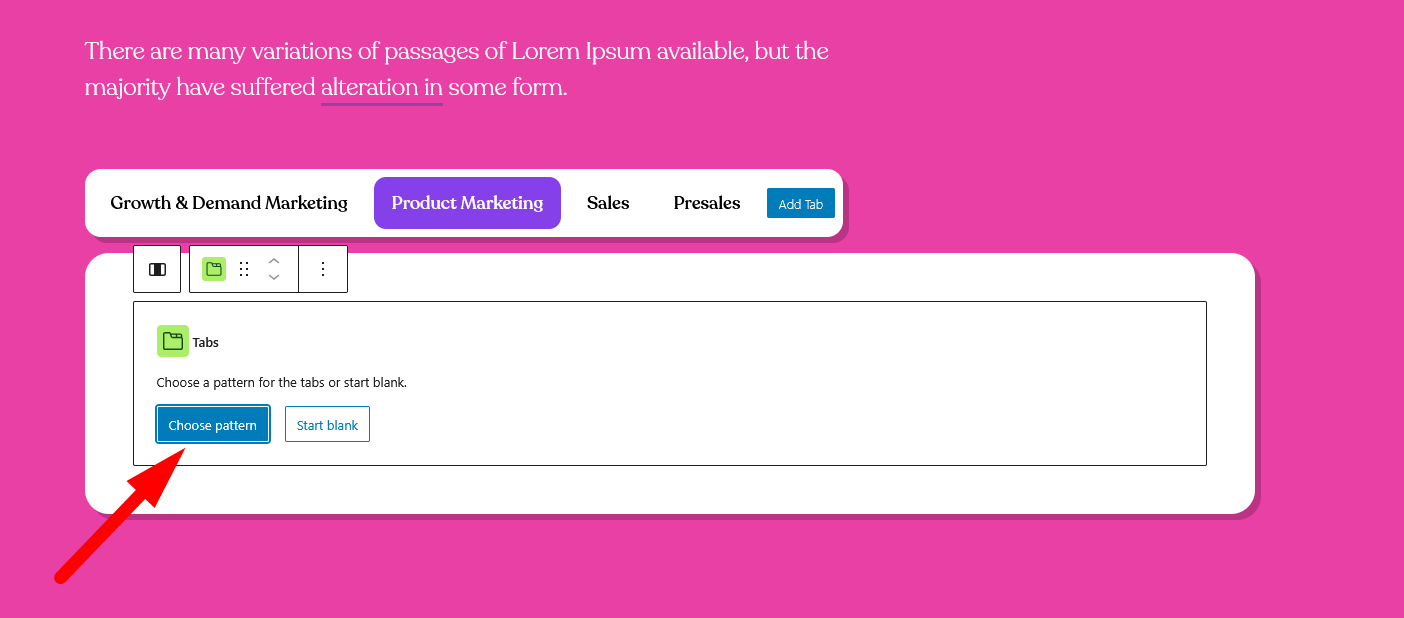
Then you can select a new pattern-
This is how it may look like –
4. How to Customize Your Tabs
Use the block sidebar settings to customize:
You can customize your Easy Tabs with several styling options. For Active & Hover Styles, you can adjust the background colors, text colors, and borders to match your design preferences.
Under Spacing & Typography, you have full control over padding, margin, font size, and font weight to ensure the tabs look just right. If you want to add visual elements, use the built-in Icon Block to insert any icon into your tabs.
Additionally, you can enhance user interaction by choosing animations like fade, slide, or grow effects.
5. Advanced Features (Pro)
Upgrade to unlock:
Autoplay with progress bar: You can set your tabs to switch automatically. It’s useful for showcasing featured content, slideshows, or timed announcements without needing clicks.
Sticky & Scroll-based tabs: Keep your tab buttons fixed at the top while users scroll. As they scroll through the content, the active tab updates automatically based on the section in view, giving a smooth and intuitive browsing experience.
URL-based tab activation: Link to a specific tab via URL.
Tab expander (Collapsible Tab): Lets you add collapsible content inside tab buttons. Only the active tab’s content expands while others stay hidden, keeping the layout clean and focused.
Unlimited Patterns: Access over 100+ modern tab layouts and easily tailor each to fit your brand.
6. Need Help?
- Documentation: Explore our full docs at easytabsblock.com/docs.
- Support: Visit the WordPress plugin support forum or email us at [email protected].
Happy tabbing!
