Issue
CSS changes do not appear immediately after adding them to websites.
Solution
Following are the suggested solutions.
Regenerate CSS
Follow the below steps:
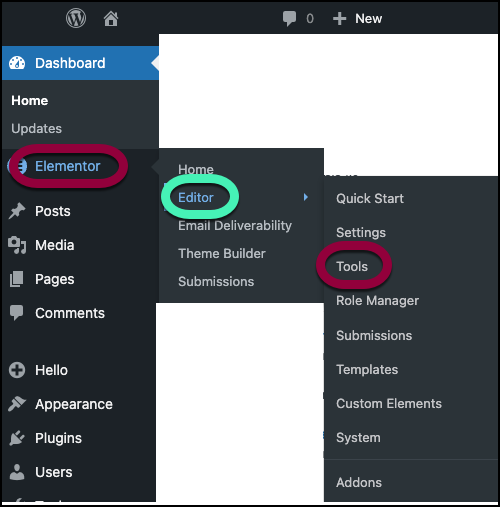
- From WP Admin, navigate to Elementor>Editor>Tools.
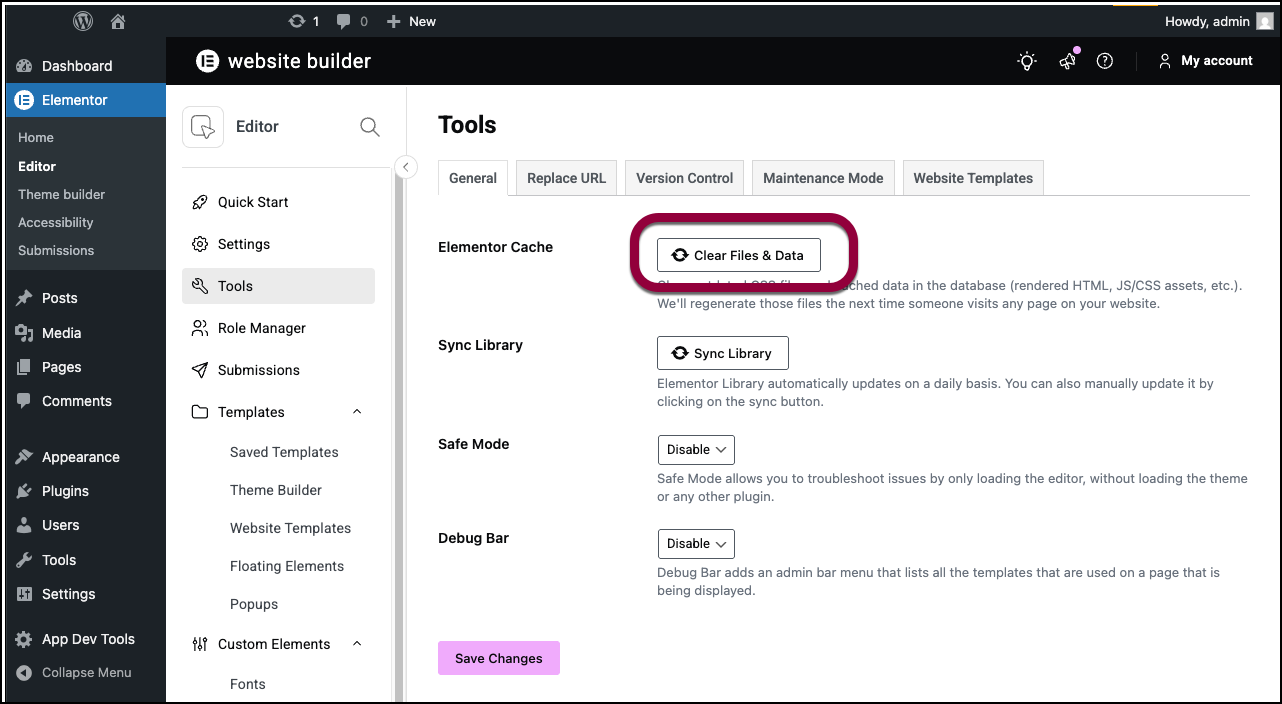
- In the Elementor Cache field, click Clear Files & Data.
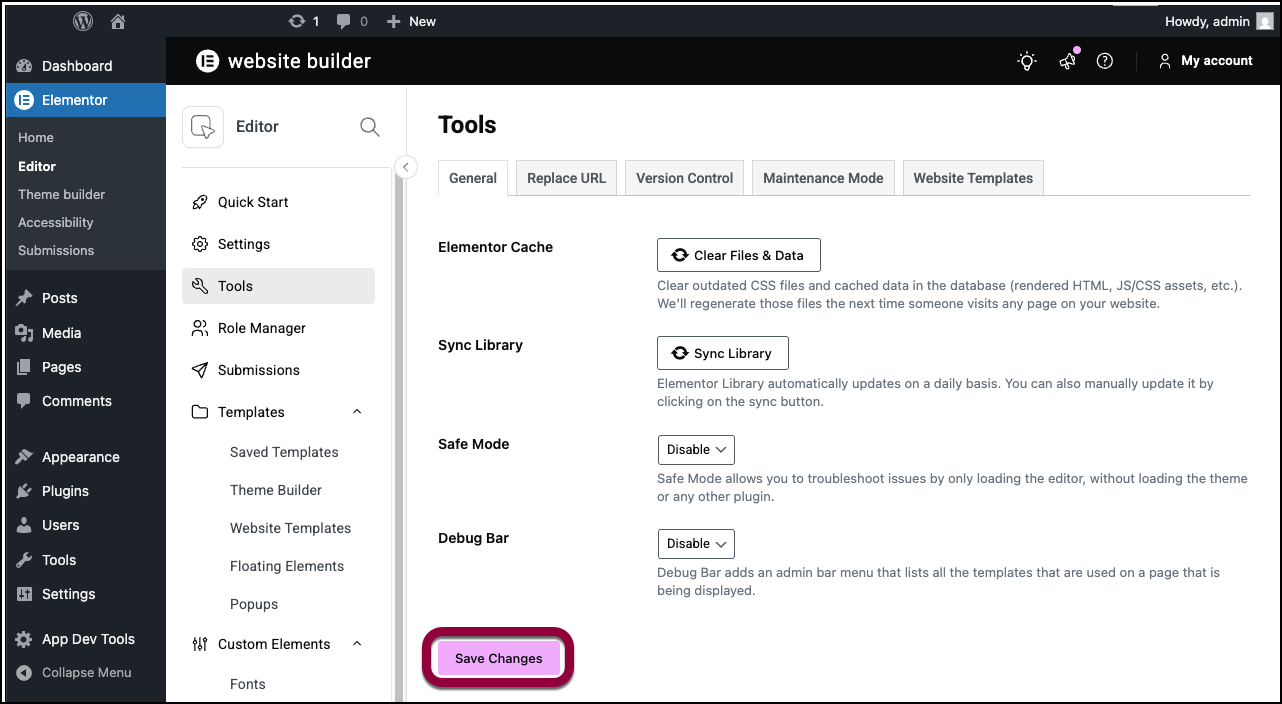
- Click Save Changes.
Clearing Site Cache
Check if you have any caching plugins on your site or any server level caching enabled. Clear those caches.
Clear Browser Cache
Clear browser cache or check the site in a private/incognito window.
Theme Compatibility
This issue can be because of the theme. You can try changing to the default theme of WordPress such as Twenty Twenty-One. If this solves the problem, contact the developers of your theme.
Multiple Builders
If you are using multiple page builders alongside Elementor, they can interfere with the Elementor’s performance. The other builder can override the content you have created with Elementor. This stops from displaying the CSS changes.
To solve this issue:
- Open the page having CSS issues.
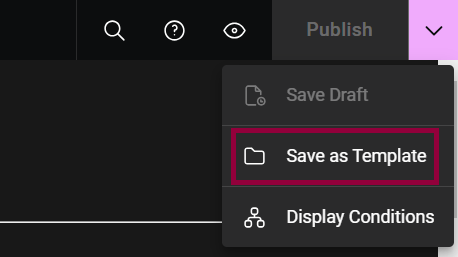
- From top-right, click Update >Save as Template.
- Go to Pages > Add New Page.
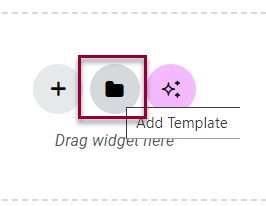
- Click the Add Template icon. The Library window opens.
- Click My Template. The list of available templates opens.
- For the desired template, click Insert.

This should solve the CSS issue.
Validate Custom CSS syntax
If your Custom CSS still isn’t working, there may be a syntax error in the code. Even a small typo – such as a missing bracket, semicolon, or incorrect selector – can prevent the CSS from applying.
To check your CSS for syntax errors:
- Copy your Custom CSS code.
- Go to the W3C CSS Validator:
https://jigsaw.w3.org/css-validator/#validate_by_input - Paste your code into the input field.
- Click Check.
- Review and fix any reported errors.
After correcting the errors, paste the updated CSS back into Elementor and save your changes.


