

Dividing the screen in Android is something that can help us to use the phone much more comfortably and efficiently. Thanks to this feature it is possible have two applications open at the same time on the device, which clearly improves productivity and the everyday user experience. Furthermore, if you have a mobile phone or tablet with a large screen, the benefits of this option are even greater, as viewing both apps is truly comfortable.
The way this function is integrated into phones has changed over time, but the most current models allow us to use it easily and directly at all times. Most customization layers respect the basic behavior of Android, so the process is usually very similar regardless of the device brand.
Now, We show you how you can split the screen on Android Step by step. This way, if at any point you want to have two apps open at the same time and work better with them, you can do so without installing anything extra and taking full advantage of this native system feature.
The split screen function is something that is present in the operating system since Android 7.0 Nougat. Therefore, the vast majority of users in the operating system will be able to use it currently, since they have a phone with one of the later versions of Android. This function is something that brands have integrated into both their phones and their tablets, so if you have a model with a recent version of Android, you will be able to use it without any problem.
It should be noted that Not all apps support split screenMost modern apps do support split-screen mode (browsers, social media, messaging, email, notes, etc.), but some older tools or games that require full-screen use may block this feature. In those cases, the system will display a warning indicating that the app does not support split-screen mode.
This is a function that we can use both vertically and horizontallyWhile on phones the screen is most commonly divided vertically (one app at the top and another at the bottom), when we turn the device horizontally the division is usually left and right. This is a feature that is often geared towards... productivity and multitaskingBy allowing you to have two apps open on Android, you can perform two tasks simultaneously. While it's not necessarily just for work, it's also perfect for... watch a video while chatting, compare products on two websites or have a guide open while you play.
What exactly is split screen on Android and what is it used for?

Split screen (or Split Screen) is a native Android feature that “split” the screen into two zones where different applications run simultaneously. Each area behaves like an independent window: you can scroll, type, navigate, or click buttons normally in both.
In real-world use, this option allows for practical situations such as:
- Having a browser and WhatsApp open at the same time to share links, copy text, or follow instructions while talking to someone.
- Write an email or document at the bottom while you check your notes, a website or a file at the top.
- Watch a YouTube video or a live stream on one half of the screen, while checking your social media on the other.
- Compare offers or prices of two online stores open at the same time in the browser or in their official apps.
- Plan a trip with Google Maps on one half and your notes app or task manager on the other.
With the increase in screen size and the improvement of hardware (more RAM and more powerful processors), Split-screen performance is usually smooth. even with relatively heavy apps, as long as you don't have many applications open in the background.
How to split screen on Android

The process of split screen on a phone The basic functionality of the operating system on a tablet is the same at all times. It doesn't matter if you have a phone or tablet with a physical button or one without, for example. The steps to use this function will be the same in all cases. The phone brand or the user interface it uses also doesn't matter, as this system is a standard feature of the operating system. Furthermore, it doesn't need to be activated first; you can use it directly whenever you want.
To understand it better, think of split screen as relying on the recent apps menuThat panel where you see the apps you've recently opened and from which you close them or switch between them. It's from there that Android offers the option to pin one app to the top and choose a second one for the bottom.
Basic steps to activate split screen with navigation buttons
When you want to use split-screen mode in your operating system, it's because you want to have two apps open at the same time on your phone or tablet. Therefore, the first thing to do in this case is... It's about opening those two apps you want to use.The split-screen feature on Android is something you can use with almost any app installed on your device, as long as it's compatible. Therefore, the possible combinations are very extensive. Simply select the apps you want and open them on your phone, one after the other.
Then, follow this general procedure when using the three classic navigation buttons (back, home and recent):
- Click on the button Recent apps (It's usually square or has three lines). All the apps currently open on your phone will be displayed on the screen.
- Find the app you want to place at the top and press and hold its icon or card until the option related to "Split screen" or "Divide screen" appears.
- Many mobile phones will display a message like this: "Drag to use split screen"When the notification appears, Drag that app to the top of the screen.
- The selected application will be pinned to the top of the screen, and the rest of the recent apps will remain visible at the bottom.
- Then Choose the other app you want to use On this split screen, tap on it at the bottom. At that moment, each one will be on screen, occupying approximately half.
This method is used in most Android skins, although the specific appearance of the button or menu icon may vary slightly depending on the brand. The important thing is that it's always done from within the skin. “Recent apps” + “Split screen” option.
How to use split screen with gesture navigation

Newer Android phones come with a built-in feature that It's called gesture navigationIf you use this feature, the navigation buttons (the three buttons at the bottom of the screen) won't appear. Instead, you'll use a series of gestures to move around the phone. Some users find these gestures convenient and don't use the navigation buttons.
If such navigation gestures are used on the phoneThe way to access the split screen function is different, although it is still based on the recent apps panel.
The general process is as follows:
- First, open the first application that you want to use, and then the second one so that both remain in the background.
- From any of those apps, Slide your finger from the bottom of the screen towards the center and hold for a moment to open the recent apps menu (it's the same gesture as to switch apps, but hold a little longer).
- In the recent apps view, locate the app you want to place at the top.
- Click on the app icon or on the small options icon that appears next to your name (it is usually a symbol with two rectangles or a context menu).
- In the pop-up menu that appears, tap on the option “Split screen” or similar.
- The app will be pinned to the top, and at the bottom you'll see the rest of your recent apps. Tap on the second app that you want to use to occupy the remaining part of the screen.
Depending on the manufacturer, the exact menu text may vary (“Split Screen”, “Split Screen View”, “Open in Split Screen”, etc.), but the logic is always the same: Use the recent apps panel, open the app menu, and choose the split-screen option..
Then you simply have to choose the other app that you want to open on Android at this time. So we are going to have both open on the screen, in the same way that we have seen in the previous section, only now we have made use of navigation gestures on the phone to open them. We can then enjoy the split screen on Android as normal.
When you can't use split screen and alternatives

Although split-screen is very widespread, There are situations in which you won't be able to use it And it's helpful to know them so you don't get frustrated:
- Some applications, especially full-screen games or protected video appsThey don't allow split-screen by design. In these cases, you'll see a message indicating that the app doesn't support this type of multitasking.
- If your mobile has very little RAMThe system may close one of the background apps to free up resources when you try to use two at the same time.
- On devices with very old versions of Android (prior to Nougat), the feature is simply not available natively.
In those cases, you can consider alternatives such as:
- use the function picture in picture (PiP) in compatible apps to have a floating video while you work with another app.
- Opt for web applications in the browser, which often does allow split screen even if its official app does not.
- On some manufacturers' phones (for example, certain Samsung models), take advantage of additional features of floating windows or advanced multi-window when available.
Disable split screen
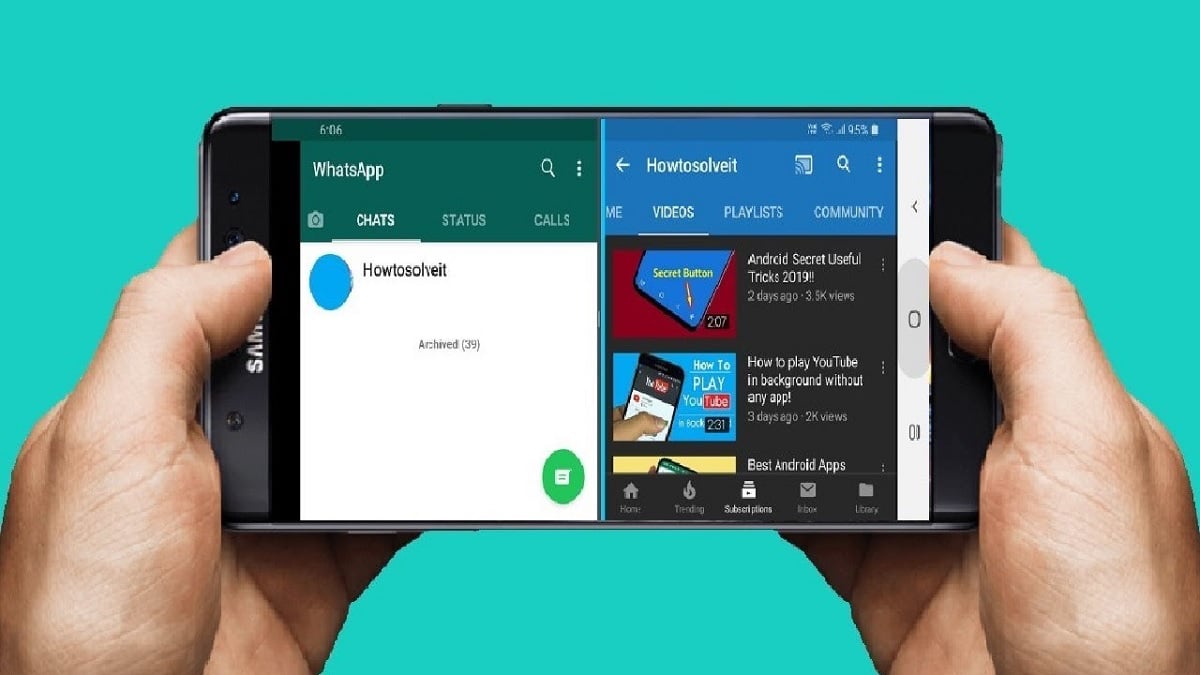
When we have finished using these two apps on the phone, it's time to get out of split screen. The first time we do this, the process can be somewhat complicated, but it's just a matter of getting used to it. When we use this function to divide the screen on Android on a frequent basis, you will see that getting out of it is something very simple and it will be something automatic at all times.
If you look at having two apps open on Android using split screen, between the two apps there is a lineIn some models this line is black, in others it may be gray. This line acts as a separator between the two halves and also serves as a control for both resizing and closing one of them.
To disable split screen To return to having a single app in full screen, you can usually do the following:
- Move that dividing line to the bottom of the screen if you're in portrait mode. The app that takes up less space will close or minimize, and the other will take up the entire screen.
- If you're using horizontal split-screen, then you'll need to move that line to one of the sides, so that one of the two apps that were open until now will be closed.
- On some phones, you also have the option to Exit split screen from the recent apps menuby tapping the app icon and choosing "View in full screen" or similar.
It doesn't matter which side you move the dividing line to when exiting landscape mode; the only thing that changes is which of the two apps will close first, so choose the side depending on whether you prefer to keep the top or bottom app open (or the left or right, in landscape mode).
The only thing we will have to do in this case It's about moving that line to the extremeWhen you do this, one of the two apps will close automatically, leaving only one on the screen—the one that has taken up all the available space. Then you can close both apps from the recent apps menu on Android, if you wish.
Change the size of each app in split screen
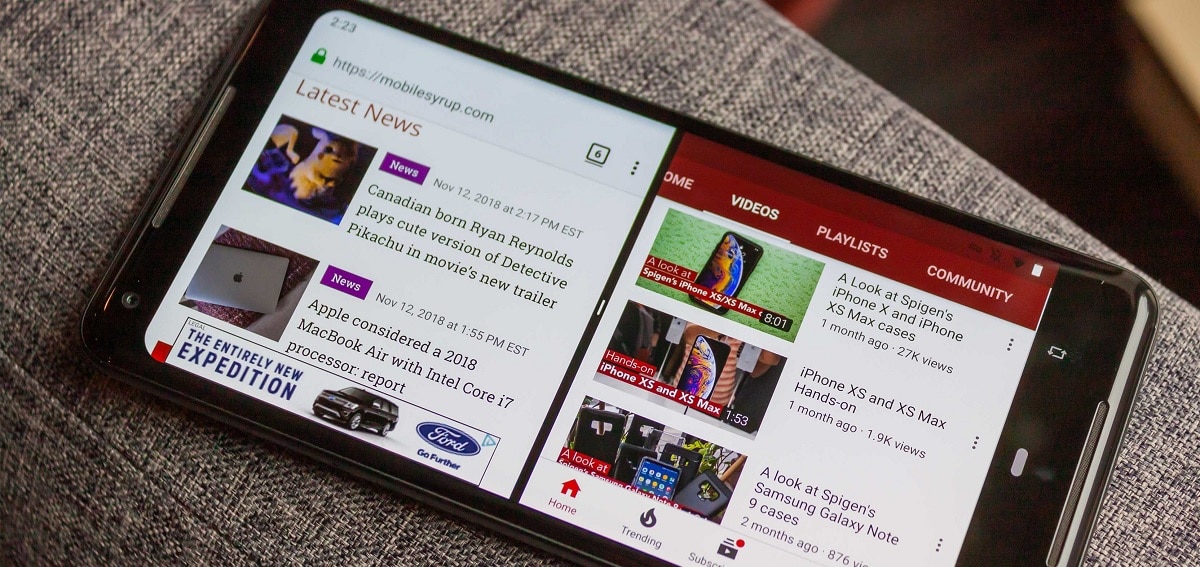
When we use the split screen function in Android, by default the apps each occupy one half of the screenFor most users, this will be sufficient and will allow them to work comfortably with both apps open on their phone. However, there are cases where one app is more important, such as when translating or transcribing text, following a map, or watching a video. In those cases, you might want one app to take up more screen space.
If this is the case, Android allows us whenever we want change the size of each of the apps It occupies space on the screen. Therefore, users will be able to adjust this to their needs at any time. As you know, there is a line separating the two apps on the screen, which is black or gray depending on the Android version and the user interface.
To adjust the space, simply:
- Place your finger on the dividing line between both applications.
- Swipe up or down if the screen is in portrait mode.
- If the screen is used horizontally, the line will move left or right.
By moving that line we are going to give more or less space to one of the two applicationsThis way, each user can have the screen divided in a way that's comfortable for them. Since we don't always want each element to occupy exactly half the screen, we can move this line to our liking and achieve the division that works best for us.
This is something you can do with any pair of apps you have open on Android, regardless of which ones, as long as they support split-screen. Furthermore, it works whether your screen is split vertically or horizontally. If it's in landscape mode, the line won't move up or down, but rather left or right, allowing you to adjust the size of each app on the screen.
Practical use cases and tricks to take advantage of split screen

Beyond knowing how to activate it, what's really interesting is take advantage of split screen in real-life situationsSome very useful examples are:
- Compare information or pricesOpen an online store on one half and another store or a comparison tool on the other. You'll be able to see features, photos, and prices simultaneously without constantly switching apps.
- Chat while you browse: Place your messaging app at the bottom and your browser or a social network at the top to comment in real time on what you're seeing.
- Taking notes during a video callIf your video calling app allows it, you can have it on one half and a notes or documents app on the other to jot down important information without losing sight of the conversation.
- Follow a step-by-step tutorial: Put the video or tutorial website on one half and the app where you are applying the steps (for example, a photo editing app or a game) on the other.
The larger the screen of your mobile phone or tablet, the more comfortable it will be to work this way. On tablets or mobile phones with very large screens, you can even use horizontal split screen so that each app has a large and well-proportioned area.
Use two Chrome windows with split screen

One of the most powerful uses of split screen is with web browsers. Google Chrome and other Chromium-based browsers allow you to open a second windowso that you can use two instances of the browser at the same time, each on one half of the screen.
This is very useful for:
- Compare information between two websites without jumping from tab to tab.
- Compare offers flights, hotels, or products from different sites.
- Plan a trip While in one half you see maps or searches and in the other half you have a form or a document where you write everything down.
One common way to do this is:
- First activate the Split screen with Chrome on one half, following the steps we have explained before.
- With Chrome now visible, tap on the three vertical dots menu in the upper right corner.
- If your browser version allows it, you will see an option like this: “New window” or similar. Play it.
- Automatically, The new browser window will occupy the other half of the screen, so that you will have two pages open at the same time in completely independent mode.
If your browser doesn't offer this specific option, you can always use split screen with two different browsers (for example, Chrome and another browser) or combine a browser and another related app (such as notes, email, or a shopping app).
Split screen in Google Maps and other related uses

Google Maps and other map apps also benefit greatly from split-screen functionality. Although the app itself has its own split-screen view to show, for example, map and Street View at the same time Within the same app, combining it with the system's split screen can provide even more possibilities.
Some interesting examples are:
- Maps + notes appWhile watching a tour, you can jot down addresses, points of interest, or reminders without having to switch between apps.
- Maps + navigation: Open Maps in one half and a browser in the other to check websites for restaurants, hotels or activities near the area you are exploring.
- Maps + MessagingPlan a route in Maps while chatting with your friends via WhatsApp or Telegram and quickly sending them locations.
If your device allows it, you can use the screen in landscape mode so that the map should occupy a good width on one side, and the secondary app is on the other side without the content appearing too small.
Relationship between split screen and picture-in-picture (PiP)
In addition to split-screen, Android incorporates another feature called picture in picture (Picture-in-Picture or PiP). Although sometimes confused, they are different functions:
- La split screen divide the space between two apps in large fixed areas (upper/lower or left/right).
- La picture in picture show a small floating window (for example, a video) on another application, which you can move around the screen.
Many video and navigation apps (such as certain streaming services or Google Maps itself in navigation mode) support Picture-in-Picture (PiP). This allows you to:
- See a video in a floating thumbnail while you write messages or check the browser.
- Follow the navigation directions in a small window while you check another app.
If you wish, from the system settings You can go to the applications section, select each compatible app, and decide whether or not to allow picture-in-picture. This way, you control which apps can be displayed in PiP mode and which cannot.
Tips for improving performance when using split screen
Using two apps simultaneously puts more strain on your device's hardware. To ensure the smoothest possible experience, it's recommended to follow these tips:
- Close applications you are not using from the recent items panel to free up RAM.
- Avoid combining in split screen two very heavy apps (for example, a demanding game and a high-resolution video app) if your mobile phone is not very powerful.
- Reduce the number of apps that update in the background while working with split screen, especially if you notice stuttering.
- Check that you have sufficient storage spacebecause when the internal memory is almost full, the system also becomes less agile.
With these small adjustments, split screen works more stably even on mid-range devices.
Mastering the split-screen function on Android allows your mobile phone or tablet to become a much more versatile tool: you will be able to work, study, plan and entertain without constantly switching between applications. Knowing how to activate, adjust, deactivate, and combine it with other features like picture-in-picture will help you get the most out of the system's multitasking capabilities.
