

aMule is a program that will remind you a lot of the famous eMule project for sharing files. Well, aMule is also a free (under GNU GPL) and cross-platform P2P exchange program with an interface that looks like an exact clone of eMule. It works with eDonkey and Kademlia networks and derives from the source code of xMule, which is itself a fork of lMule. The latter was the first attempt to port the eMule client to GNU / Linux.
The goal of its developers was to create a eMule multiplatform and they have certainly succeeded, since it is capable of working with GNU / Linux, Solaris, Mac OS X, Irix, FreeBSD, OpenBSD, NetBSD, and Windows, as well as supporting various architectures such as IA32, AMD64, SPARC, PPC, Xbox, etc. And currently there are two versions of aMule that you can find in the repositories of your favorite distros or on the official website of the project.
The first version is SVN development and the other is the stable version. The latter is more modern but in many cases it presents some problems, especially certain bugs that affect the automatic and unexpected closure of the application. Although with a script you could force it to open when it closes automatically, the truth is that it is somewhat uncomfortable and that intermittent functionality also slows down the downloads that stop every time the program is closed ... That is why it is better to use the stable version .
For more information you can consult your official website, and about the title of this article, say that new versions are no longer provided since 2016 and the project seems somewhat dead. But despite that, they exist still quite a few active users with aMule and the links to share continue to function. Currently there are other better sharing methods, such as sites like Mega or Torrent, but the slowness of aMule is compensated by the amount of files available that you will not find by other methods.
How to install aMule on your distribution:
To install aMule on your favorite distribution You can choose to use the package manager and official repositories of your distro to get the binary package and install it in a simple way. The problem with this is that it differs between one distribution and another, so to explain it, that's why it is best that you access the fantastic PTM Wiki that the developers of aMule have left us.
However, we are going to explain step by step the generic form that would be valid for any distribution since we start from a tarball with the aMule source code to unpack and compile it in our system. For this, it is necessary to verify that we fulfill a series of prerequisites, since the compilation needs many packages on which it depends. So the first thing is satisfy dependencies.
The first one is to download and compile wxWidgets what can you download from this link and later:
cd Descargas

tar -zxvf wxWidgets-2.8.10.tar.gz

cd wxWidgets-2.8.10

./configure --enable-unicode --enable-optimise

make

sudo make install

sudo ldconfig
By the way, it would be recommended that you do it with the GUI disabled using the –disable-gui option or do it from a tty. In case you ask us for another package that it depends on, we must also install it, since depending on the version or the distro it could vary.
Once we have that we go to compile aMule, downloading the tarball from here and once we have it locally:
cd Descargas

<i>tar -zxvf aMule-X.X.X.tar.gz</i> (replace X with the right version number..)

<i>cd aMule-X.X.X</i>

<i>./configure --disable-debug --enable-optimize</i>

<i>make</i>

sudo make install
Remember to replace the XXX with the name or version of the source package that you have downloaded in your case.
Start configuring aMule:
Now we can run aMule and start with the configuration, for this we can do it from the console:
./amule
When we open it for the first time we can see up all the icons with the different options available to you:
- Connect disconnect: is the button with which we can connect to a server to start downloads and searches, since we must be connected to one for this. Next we will see how to add reliable servers and connect ...
- Social: here we can see the list of available servers and their status, as well as a log or record about the connection we started.
- Search: in this section we can search by phrases or words for the content we want to download. We will also find tools to filter by file size, type, etc., to carry out more exact searches. Even if we want to search for it globally or in our area.
- Car Transfers & Spanish DGT (DMV/DVLA): it is in the tab where we see in real time how the downloads happen, providing information about the connections, the percentage downloaded and the estimated time for the download to finish, as well as other information. From here we can also change the priority by clicking with the right mouse button on the downloaded file, get information, delete it, pause it, resume it, etc.
- Shared files: They are the files that we are sharing, that is, at the moment we connect, the files that are in the ~ / .aMule / incoming directory will also be shared with the rest of the network users.
- Messages: we can use this chat to contact other users connected to the network, although the truth is not used much.
- Global Data: you can study the statistics to see what has been downloaded, network usage, etc.
- Options: It is the most important configuration options menu, although in principle I do not recommend that you touch anything because the default configuration is recommended. In fact, the only important settings that you should keep an eye on are the limits for Download and Upload, which you should set to 80% in the case of Upload so that it does not slow down downloads.
- About- Displays developer and version information.
Once we know the graphical interface, we move on to how to download.
Start downloading:
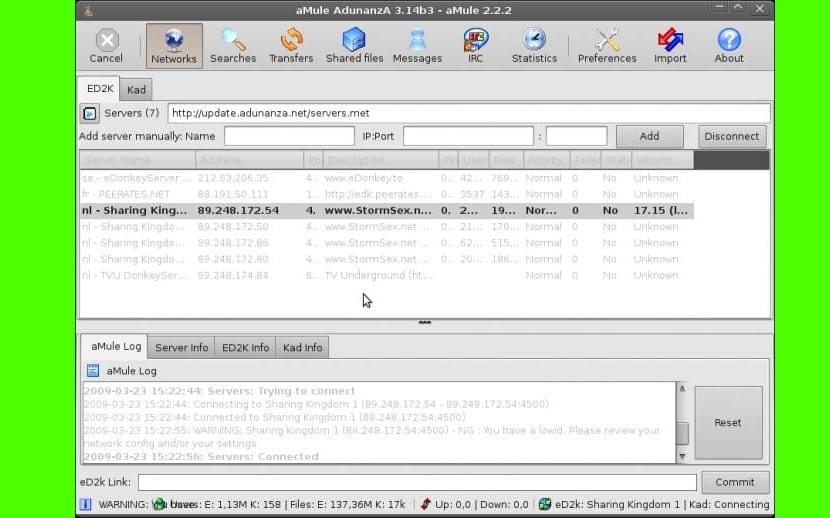
The first thing we will need to download is to add some reliable and secure serversFor that we can use the same ones as for eMule, since they are fully compatible. You can go to the Networks section and from there insert this link to add it:
http://emuling.net23.net/server.met
If that link does not work for you, you can choose to access this other, from which to download a .txt file with the link. I do not advise you to look other servers because they are probably not secure, unless you find them on the official eMule page, in which case you can trust them.
Once the list of servers appears we can click on one to connect and after connecting we can go to the Search tab to locate the file we want to download, and with a simple double click it will be added to the Traffic area, so you will already be downloading.
Do not forget to leave your doubts and comments...
