

Want to offer discounts on your payment forms? With Formidable Forms, you can easily add coupon codes to give customers special pricing on products and services. In this guide, we'll show you how to create and manage coupons on your payment forms.
Upgrade your WordPress site with powerful, flexible forms.
Download and install
To use the Coupons add-on, you'll need both the Formidable add-on and the Coupons add-on node installed.
Install the Formidable Coupons add-on
- Make sure you have Formidable Forms Pro installed and activated on your WordPress site.
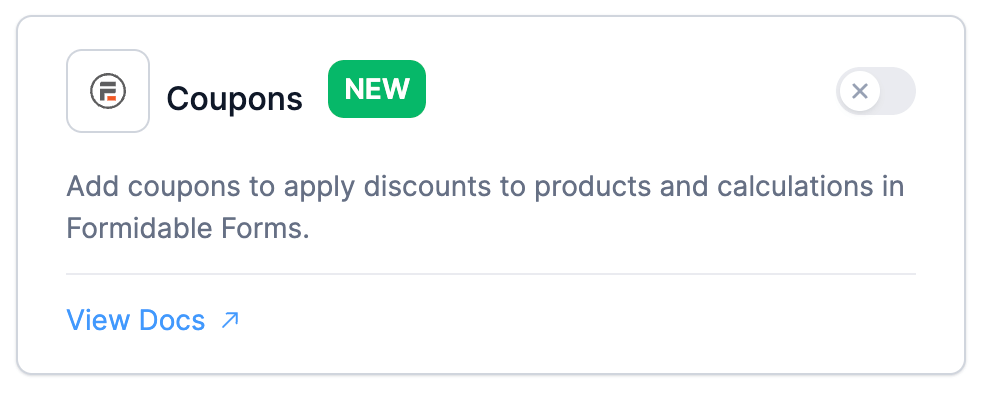
- Navigate to Formidable → Add-Ons and toggle on the Coupons add-on.
From Idea to Reality in Minutes. Build Powerful Forms, Dashboards, Apps and More.
Formidable Forms makes advanced site building simple. Launch forms, directories, dashboards, and custom WordPress apps faster than ever before.
Create a new coupon
Follow these steps to create a new coupon.
- Navigate to Formidable → Payments in your WordPress dashboard.
- Click on the Coupons tab at the top of the page. This will take you to the Coupons List page, where you can manage all your coupons.
- Click the Add New button in the top right corner. You'll be taken to the coupon creation page, where you can set up your discount.
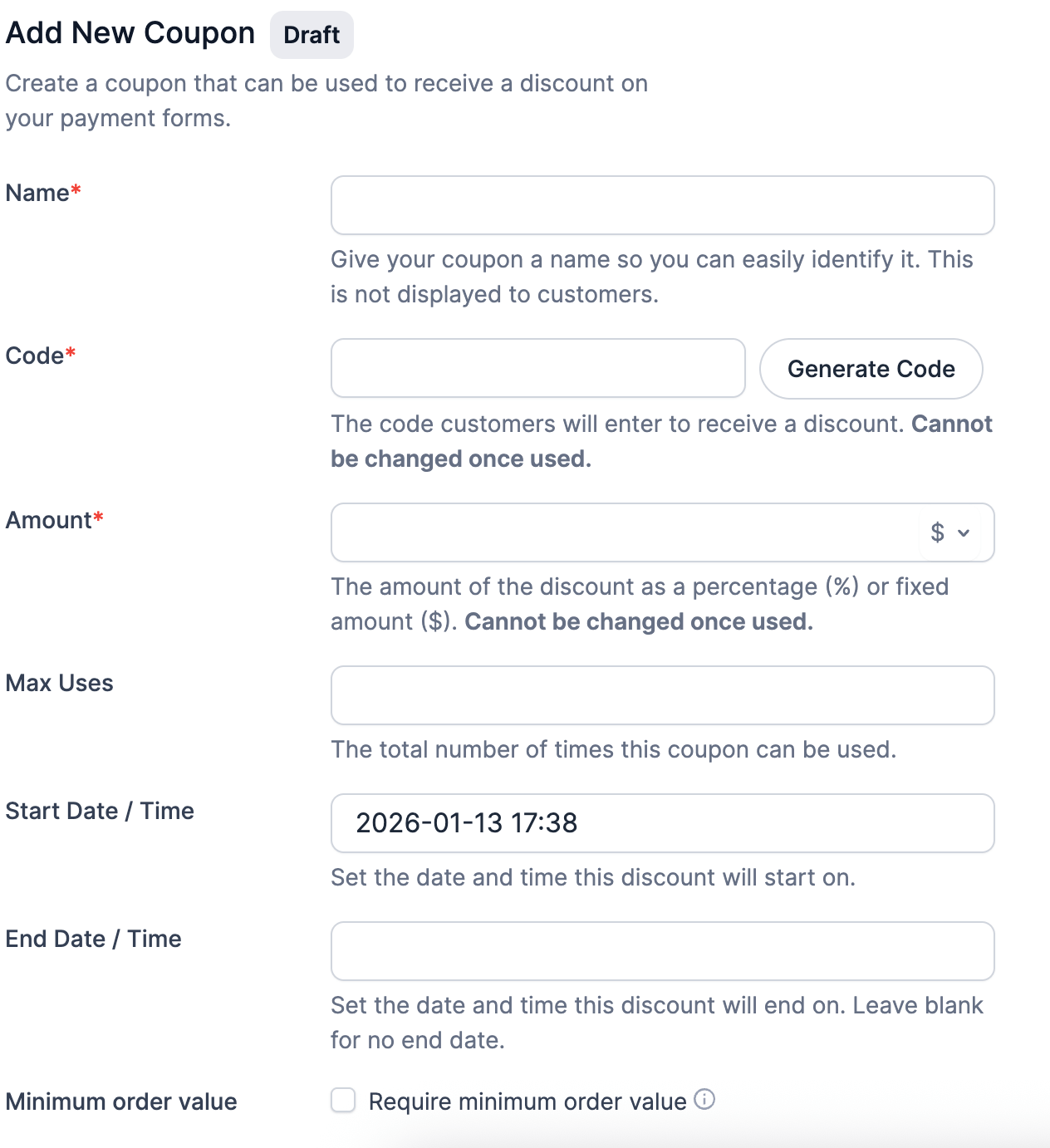
- Give your coupon a Name. This is not displayed to customers.
- Give your coupon a Code. This is what users will type into the coupon field to apply the discount. Coupon codes are case-sensitive, so make sure to communicate the exact code to your customers. You can also click on the Generate code button to assign a random value.
- Set the Discount Type to either a percentage discount or a fixed dollar amount. For a percentage discount, enter the percentage (like 20 for 20% off). For a dollar amount discount, enter the amount (like 10 for $10 off).
- Set a Minimum Order Value if you want the coupon to only apply when the total reaches a certain amount. Leave this blank if there's no minimum.
- Set the Max Uses if you want to limit how many times this coupon can be used. Leave it blank for unlimited uses.
- Set an End Date / Time if you want the coupon to stop working after a certain date. Leave it blank if the coupon should never expire.
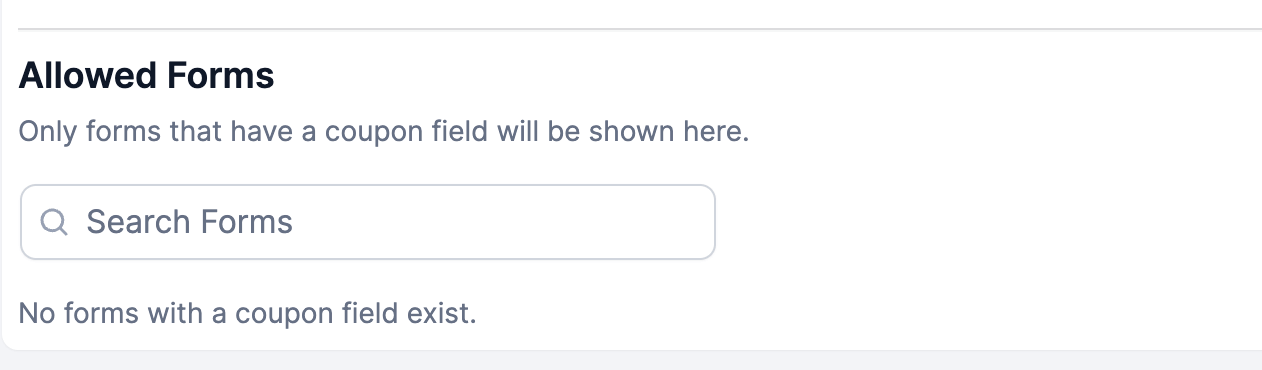
- Choose which forms this coupon can be used on in the Allowed Forms section. You can select specific forms or leave it blank if you're planning to restrict coupons through the coupon field's Allowed Coupons setting instead.
- Click Publish or Update to save your coupon.
Add a coupon field to your form
Once you have a coupon created, you can use the coupon on any form. Follow the steps below to add a coupon field to your payment form.
- Go to the form you want to add a coupon to and click the Build tab.
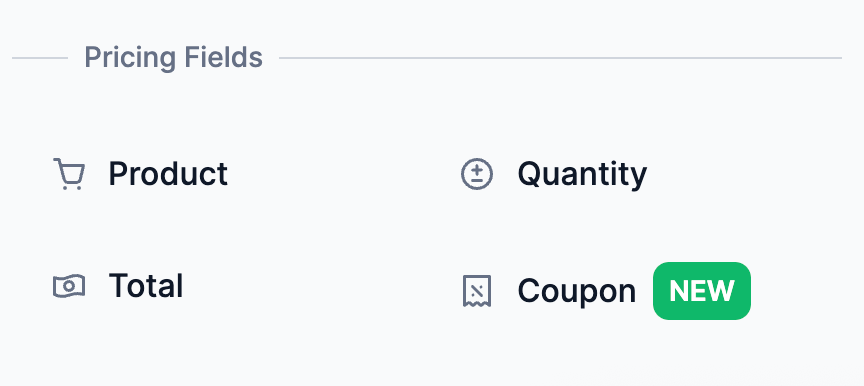
- In the form builder, look for the Coupon field under the Pricing Fields section and drag it onto your form. The coupon field includes a text input where users can enter their coupon code and a button to apply the discount.
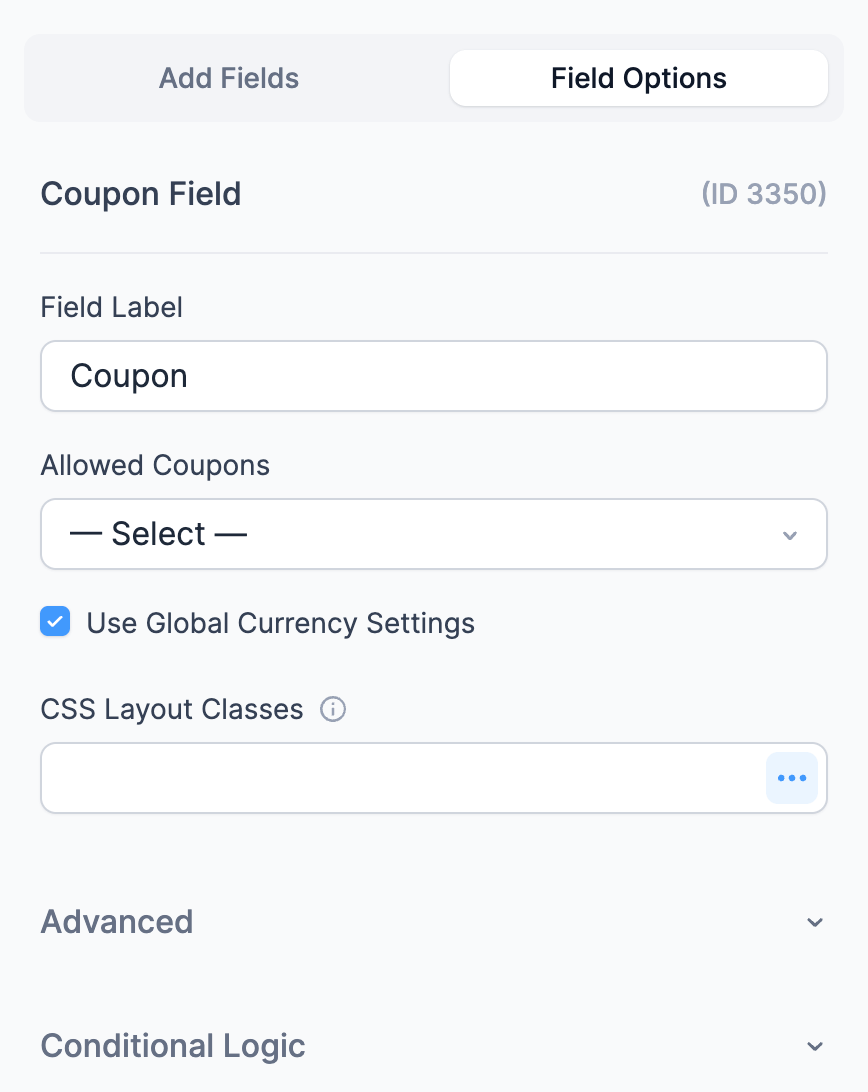
- In the Field Options panel on the right, you'll see the Allowed Coupons setting. This is where you can choose which coupons are available for this specific coupon field. You can either select specific coupons from the list or leave it blank to allow all coupons that are assigned to the form.
- Customize the Button Text on Advanced to change what appears as the text of the button. The default text is "Apply," but you can change it to whatever makes sense for your form.
- Click Update to save your form.
Use a coupon field with a calculated field as Total
- Add a coupon field under the Pricing Fields section and drag it onto your form.
- In the Field Options panel on the right, you'll see the Allowed Coupons setting. Make sure to check the current form to work with the coupon field.
- In your calculated field, use the following syntax:
[field1] - [couponfield]
Replace field1 and couponfield with the corresponding field ID for each field.
Manage your coupons
You can view and manage all your coupons from the Coupons List page.
- Navigate to Formidable → Payments and click the Coupons tab.
- On this page, you'll see a list of all your coupons with their codes, discount amounts, and usage information.
- Click on any coupon code to edit it. You can update the discount amount, change the allowed forms, adjust the usage limit, or modify any other settings.
- To delete a coupon, hover over it in the list and click Delete. This won't affect any entries that have already used the coupon, but it will prevent new uses of that code.
Set a default coupon with a URL parameter
You can automatically apply a coupon when someone visits your form by passing the coupon code in the URL. This is helpful for promotional campaigns or affiliate links.
- In your coupon field, set the Default Value to
[get param=coupon]. This tells the field to look for a coupon code in the URL parameter. - Now, when someone visits your form with a URL like https://yoursite.com/your-form/?coupon=TEST20, the coupon code "TEST20" will automatically be populated in the coupon field, and the discount will be applied when the page loads.
Example: If your form is at https://yoursite.com/checkout/ and you want to apply the coupon code "SAVE20", share this URL: https://yoursite.com/checkout/?coupon=SAVE20
Display coupon information
You can display coupon information in different ways using shortcodes. This is useful for confirmation messages, emails, or views.
To display the full coupon information with the code and discount amount, use the coupon field shortcode like this: [123] (where 123 is your coupon field ID). By default, this will show something like "test10 — $10.00 Off".
To display only the discount amount as a number, use the format attribute:
[123 format="number"]
To display only the coupon code without the discount details, use the show attribute:
[123 show="code"]
Limitations
WooCommerce limitations
If you're using coupons with WooCommerce integration, there are a few limitations to be aware of:
If you have multiple quantities set in your form, the coupon uses are tracked as a single use rather than counting each item separately.
If you have multiple items in your cart, each item can have a coupon applied to it.
There's currently no way to enforce a single coupon per WooCommerce cart when using Formidable Forms coupons.
Troubleshooting
Coupon not applying to the form total
If your coupon code is valid but the discount isn't being applied to your form total, check the following:
- Check if the coupon is assigned to the form. A coupon must be assigned to a form either through the coupon's Allowed Forms setting or through the coupon field's Allowed Coupons setting.
- Check the minimum order value. If your coupon has a minimum order value set, the form total must meet or exceed that amount before the coupon can be applied.
- Check the expiration date. If your coupon has an expiration date, make sure it hasn't passed.
- Check the usage limit. If your coupon has reached its usage limit, it can no longer be applied to new submissions.
Related developer hooks
- Customize the minimum order value error message with the frm_coupon_minimum_order_value_note hook.
- Customize the applied coupon discount text shown on the front end with frm_coupon_discount_text hook

