

Translate your forms into multiple languages using Polylang and the Formidable Polylang add-on.
Upgrade your WordPress site with powerful, flexible forms.
Download and Install
- Install the Polylang plugin.
- If you haven't already, install and activate the current version of Formidable Forms Premium on your WordPress site.
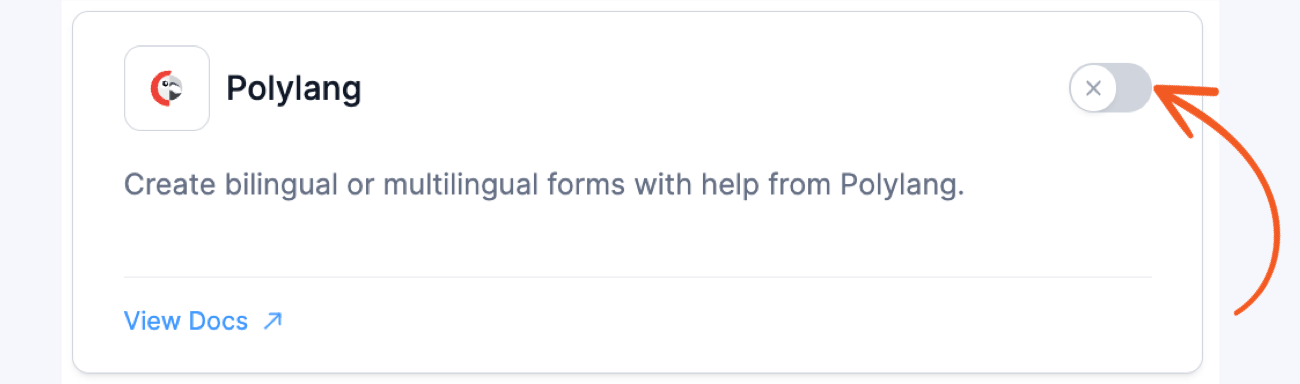
- After confirming your Formidable Forms license, proceed to the Formidable → Add-Ons page and toggle on the Formidable Polylang add-on.

From Idea to Reality in Minutes. Build Powerful Forms, Dashboards, Apps and More.
Formidable Forms makes advanced site building simple. Launch forms, directories, dashboards, and custom WordPress apps faster than ever before.
Translate a form
After the Polylang plugin and the Formidable Polylang add-on are activated, you may follow the steps below to translate your forms.
- Go into the form that you would like to translate.
- For best results, add separate saved values that are different than your option labels for any checkbox, radio or dropdown fields.
- Click on the Translate Form button under your form Settings → General page.
- Enter your translations and click the Save Changes button.
- Publish your form on a page and use Polylang to translate into any other languages you would like.


Sending translated emails
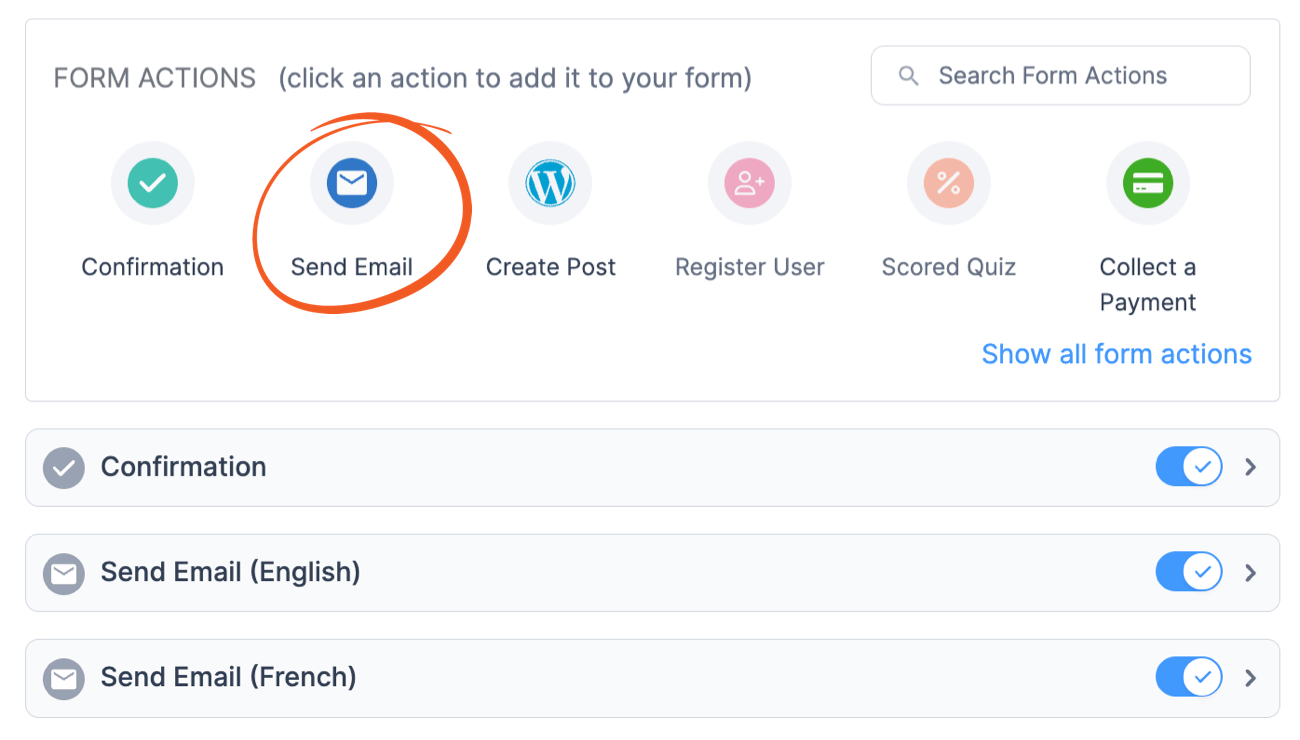
You must set up different email actions to send the correct email for each language. Each of these emails will be sent conditionally based on the language submitted.
- First, you'll need a shortcode to get the current language. Activate this code snippet and add it to your theme functions.php or inside the WPCode plugin.
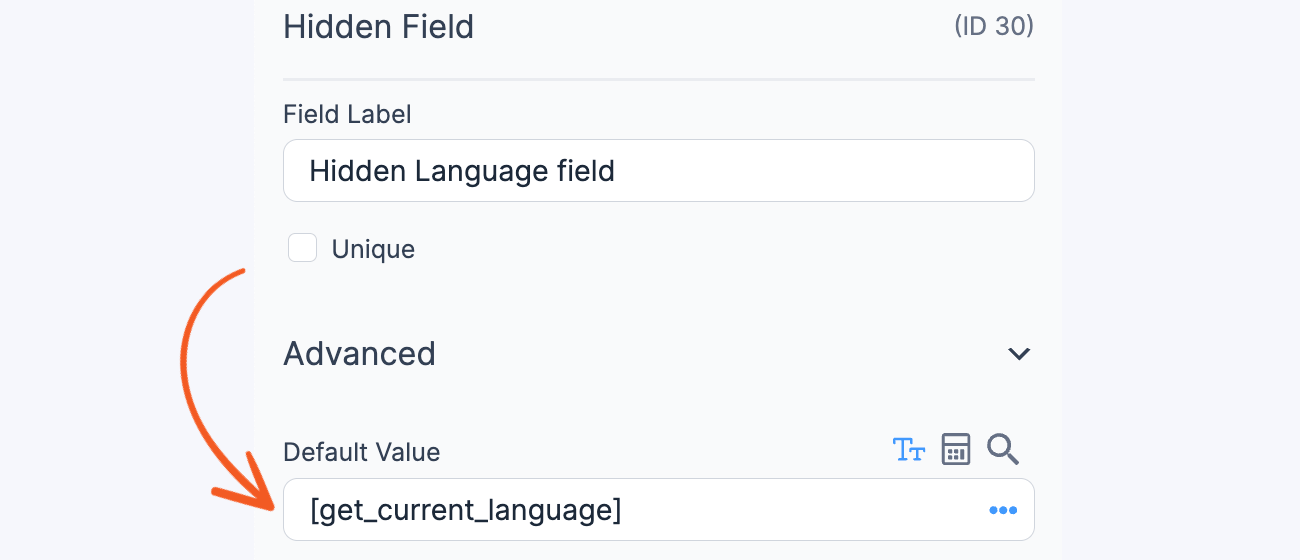
- Now, add a hidden field to your form. Use [get_current_language] as the default value.
- In your form Settings → Actions & Notifications, add an email action for each language you want to translate.
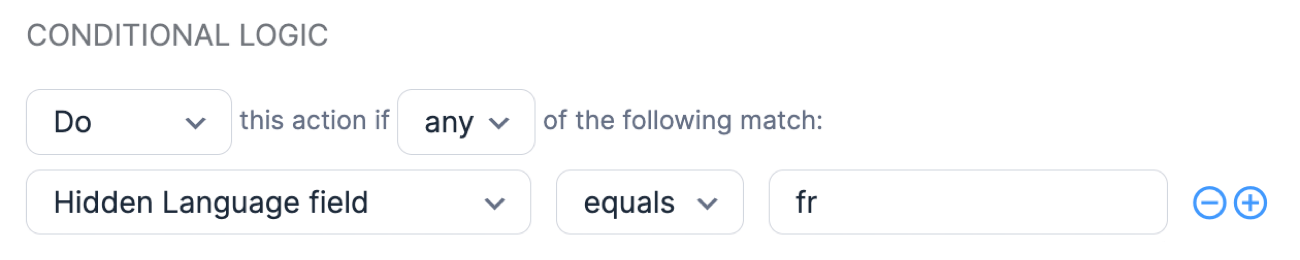
- To prevent every email from being sent, add conditional logic to each email action. This will ensure that the correct email notification is sent based on the recipient's language preference. For example, use en for English and fr for French. Your conditional logic will look like this:
Translate confirmation message
To translate the confirmation message shown after form submission, you must add a confirmation action for each language. These confirmation actions will be triggered according to the language selected during submission.
- To get the current language, add a hidden field to your form.
- Activate this code snippet and use [get_current_language] as the default value for your hidden field.
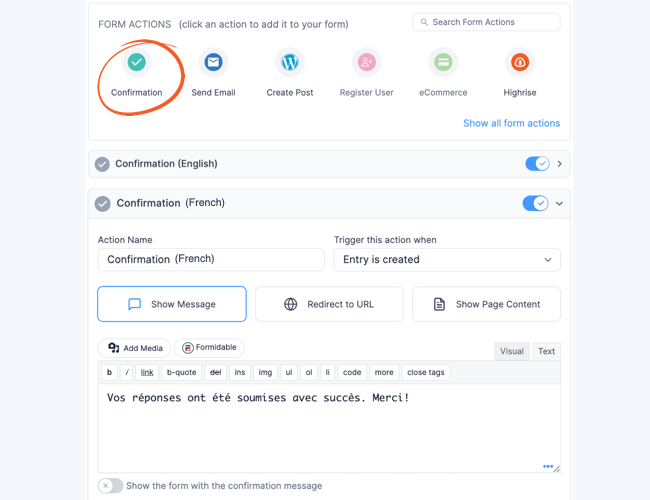
- In your form Settings → Actions & Notifications, add a confirmation action for each language you want to translate. Select the Show Message button to customize the message and add it to your translation.
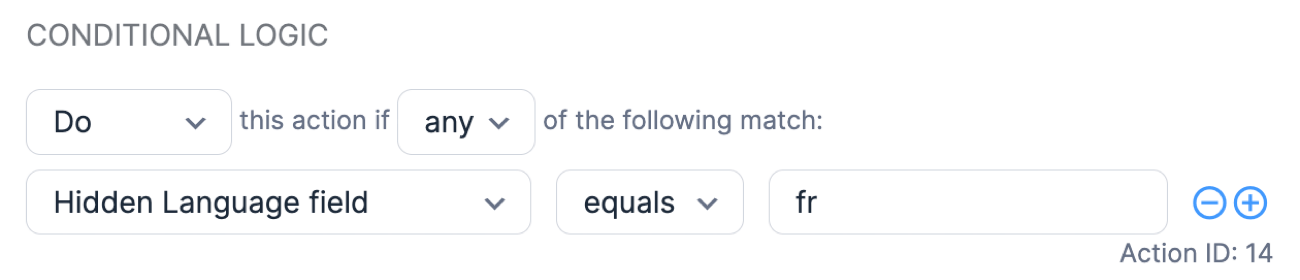
- Add conditional logic to each confirmation action to ensure the correct success message is sent depending on the language. For example, use en for English and fr for French. Your conditional logic will look like this:
Translate a value for display
You may want to translate a value before display. If you have already translated field labels and options, there is no need to translate them again. In a view, you can use [translate_value value="[25]"] or [translate_value value="[25 show=field_label]"]. Be sure to add the following code to your site.
add_shortcode( 'translate_value', 'trans_val_func' );
function trans_val_func( $atts, $content = '' ) {
  $atts = shortcode_atts( array( 'value' => '' ), $atts );
  $value = pll__( $atts['value'] );
  return $value;
}
Import and export translations
Formidable doesn't manage the translations when importing/exporting forms. You can import and export string translations directly in Polylang.
Troubleshooting
Many issues with translations can be resolved by making sure to set different saved values for option fields like checkboxes, radio buttons, and dropdowns. Learn more about adding separate saved values.
Additional customizations
Get the current language
Use the code snippet below to display the current language using the [get_current_language] shortcode.
Use [get_current_language] to get the current language by adding the code below.
add_shortcode('get_current_language', 'polylang_get_lang');
function polylang_get_lang() {
  return pll_current_language('slug');
}
Translate error message
Use this code example to translate the "The username field is empty" error message when Polylang is active and not set to English. It uses a custom function get_custom_login_message that returns a French translation.
add_filter('frmreg_login_error', 'translate_pll_login_error');
   function translate_pll_login_error( $message ) {
      if ( ! function_exists( 'pll_current_language' ) ) {
         return $message;
         }

         if ( 'The username field is empty.' === $message ) {
            $current_language = pll_current_language();
            if ( 'en' !== $current_language ) {
               $custom_message = get_custom_login_message( $current_language );
               if ( false !== $custom_message ) {
                  $message = $custom_message;
               }
            }
         }

         return $message;
   }

   function get_custom_login_message( $language ) {
      switch ( $language ) {
         case 'fr': return "Le champ du nom d'utilisateur est vide.";
      }

      return false;
   }

