

Want to automate your form workflows with powerful, flexible automation? With N8N and Formidable Forms, you can connect your forms to hundreds of apps and services to automate data processing, email notifications, database updates, and more.
Upgrade your WordPress site with powerful, flexible forms.
Download and install
To use the N8N integration, you'll need both the Formidable add-on and the N8N node installed.
Install the Formidable N8N add-on
- Make sure you have Formidable Forms Pro installed and activated on your WordPress site.
- Navigate to Formidable → Add-Ons and toggle on the N8N add-on.
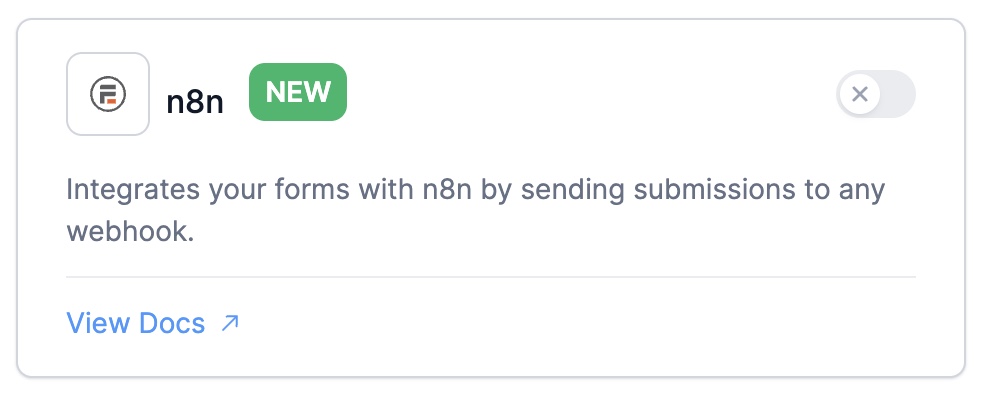
Install the Formidable Forms Trigger node in N8N
The Formidable Forms Trigger node is available as a community node in N8N. You'll need to install this node to receive data from your forms.
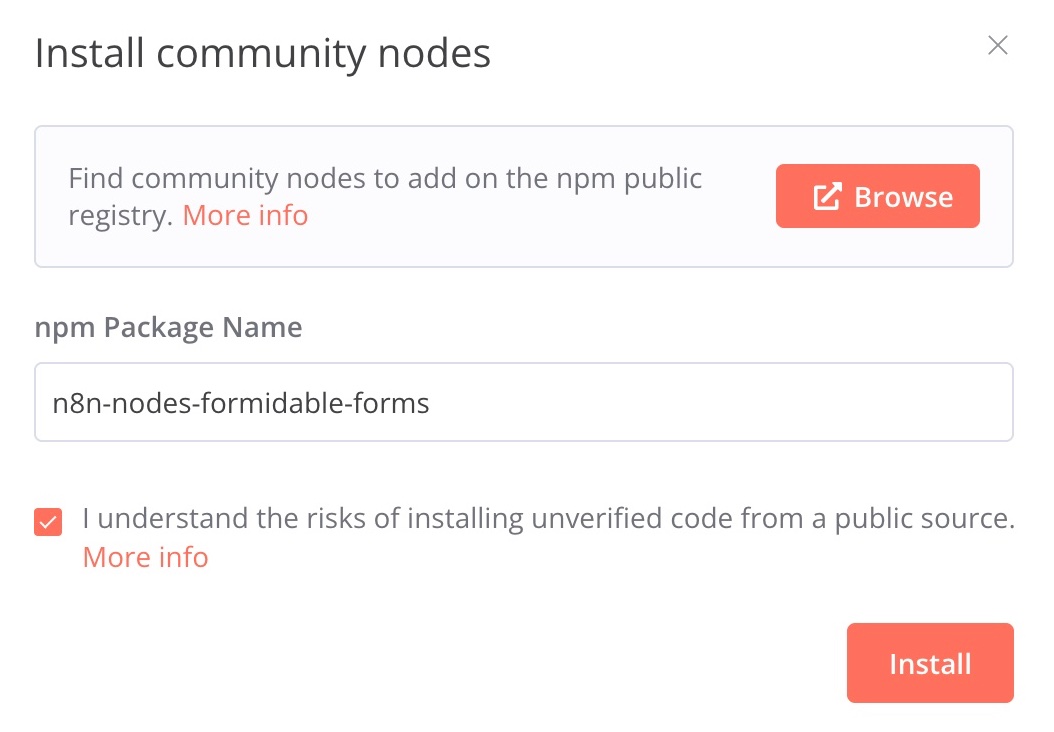
- Go to your N8N dashboard and navigate to Settings → Community Nodes.
- Click Install a community node.
- Enter n8n-nodes-formidable-forms in the package name field.
- Check the I understand the risks of installing unverified code from a public source checkbox.
- Click Install to add the node to your N8N instance.
From Idea to Reality in Minutes. Build Powerful Forms, Dashboards, Apps and More.
Formidable Forms makes advanced site building simple. Launch forms, directories, dashboards, and custom WordPress apps faster than ever before.
Set up N8N workflow
Once you've installed both the Formidable N8N add-on and the Formidable Forms Trigger node, you're ready to create your first workflow.
Create a workflow in N8N
- Log in to your N8N account and click on Workflows to start a new automation.
- Click Start from scratch on the canvas.
- Click on the + sign to add a node.
- Search for Formidable Forms Trigger and select it from the list.
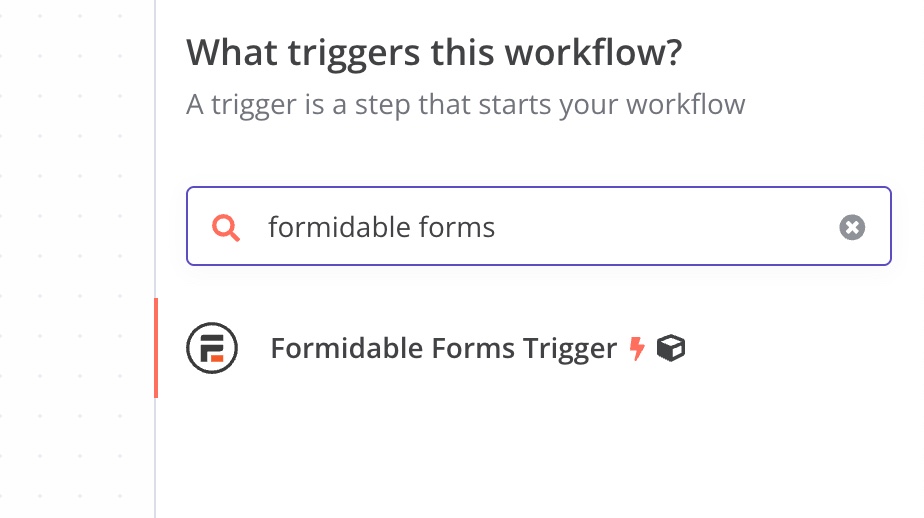
Configure the Formidable Forms Trigger node
The Formidable Forms Trigger node has two main settings:
- Webhook URL: This is automatically generated by N8N. You'll copy this URL and paste it into your Formidable form action.
- Authentication Token: This helps verify that requests are coming from your form.
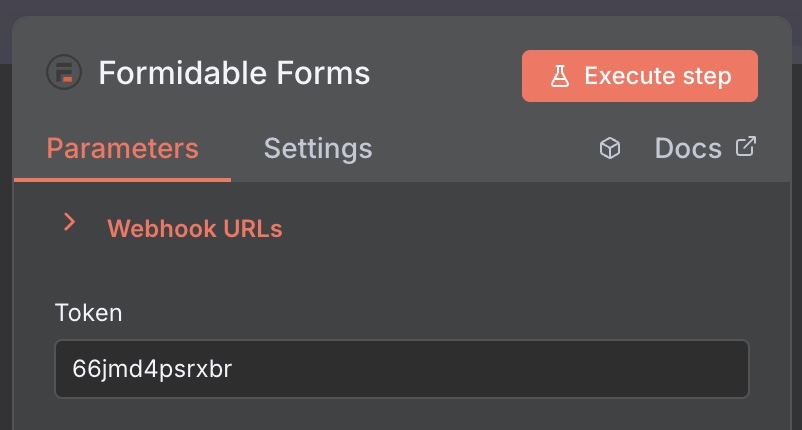
To get your webhook URL:
- Click on the Formidable Forms Trigger node in your workflow.
- Copy the Webhook URL shown in the node settings. You'll use this in the next step.
Connect Formidable Forms to N8N
Now you'll set up the form action in Formidable Forms to send data to your N8N workflow.
Add the N8N form action
- Go to Formidable → Forms and select the form you want to connect to N8N.
- Click the Settings tab and select Actions & Notifications.
- Select N8N from the list.
Configure the N8N action
The N8N action has several settings you can configure.
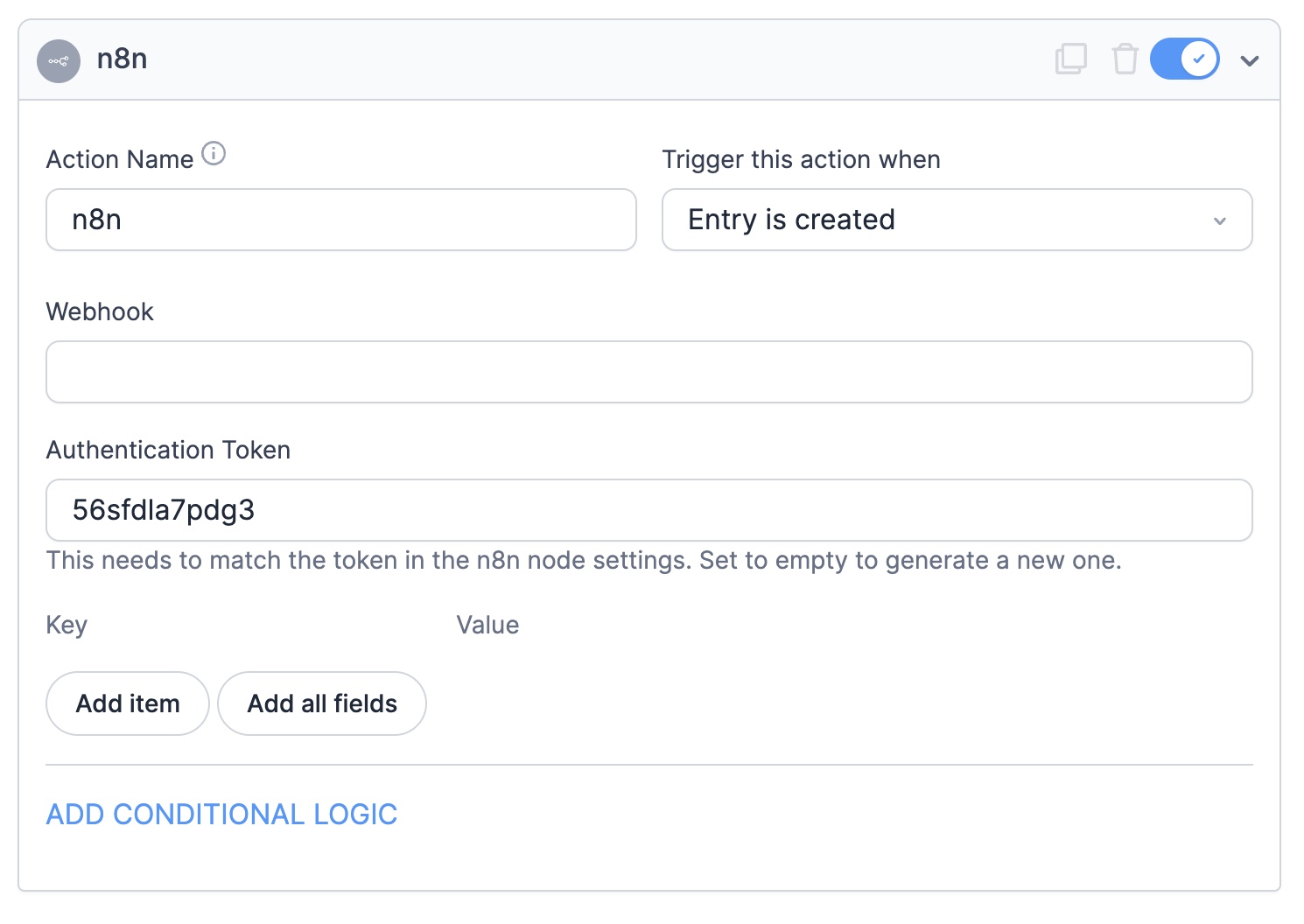
Action Name: Give your action a descriptive name. This is only visible on the back-end and helps you identify the action later.
Trigger this action when: Choose when to send data to N8N. You can select:
- Draft is saved: Sends data when a entry is marked as draft.
- Entry is created: Sends data when an entry is submited.
- Entry is updated: Sends data when an entry is modified.
- Entry is deleted: Sends data when an entry is removed.
- Entry is imported: Send data when the entry is imported from a CSV file.
- Entry is abandoned: Sends data when the entry is marked as abandoned when using the Form Abandonment add-on.
Webhook: Paste the Webhook URL you copied from your N8N Formidable Forms Trigger node.
Authentication Token: Copy the token shown on the action into the N8N Formidable Forms trigger node. This should match exactly.
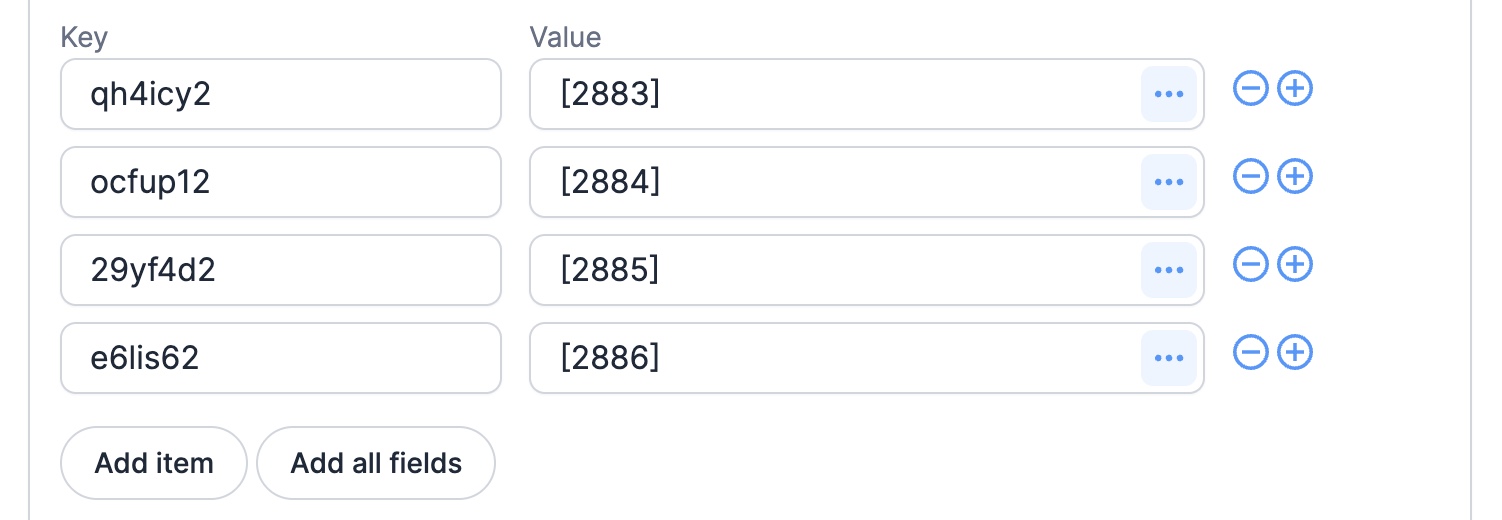
Key and Value mapping: Add the form fields you want to send to N8N.
- Click Add item to manually add fields one at a time, or click Add all fields to automatically add every field in your form.
- In the Key column, enter the key of the field.
- In the Value column, click the field to insert the field ID.
Add Conditional Logic (optional): You can use conditional logic to control when the N8N action runs based on specific conditions.
Click Update to save your action.
Test your workflow
After setting up both the N8N workflow and the Formidable form action, it's time to test the connection.
Test the N8N node
- In your N8N workflow, click on the Formidable Forms Trigger node.
- Click the Test Step button. The node will now listen for incoming data.
- The node will wait for a form submission.
Submit a test entry
- Go to your WordPress site and navigate to the form you connected to N8N.
- Fill out the form and click Submit.
- Go back to N8N and check the Formidable Forms Trigger node.
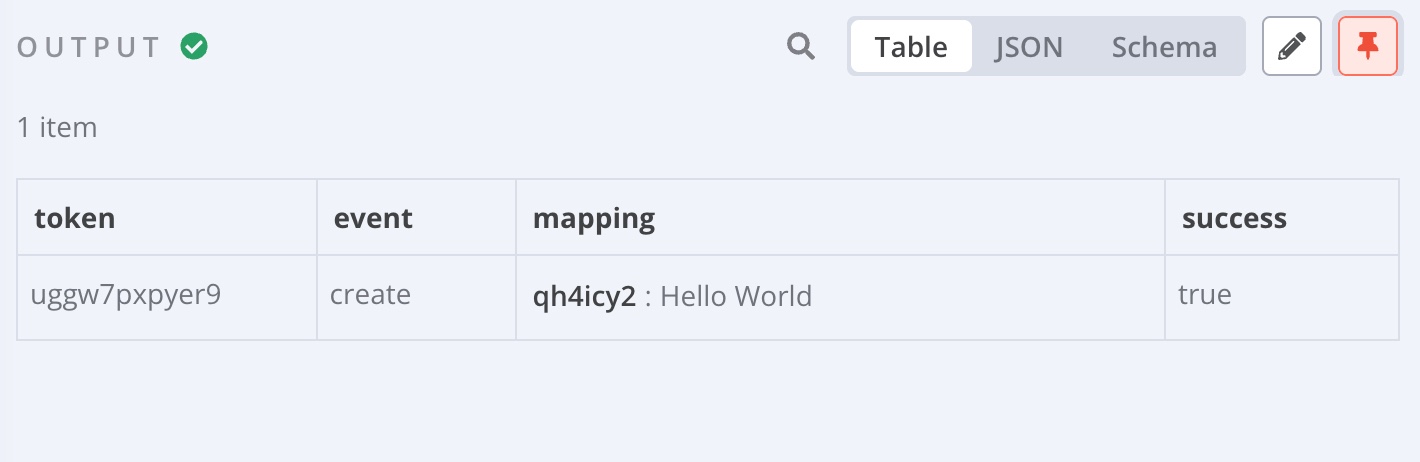
If everything is set up correctly, you'll see the form data in the OUTPUT section of the node. This means your form is successfully sending data to N8N.
Troubleshooting
Data not showing in N8N
If you submit a form but don't see data in your N8N workflow:
- Make sure the Webhook URL in the Formidable N8N form action matches the URL from your Formidable N8N node exactly.
- Check that the Authentication Token matches in both places.
- Verify that your N8N node is in "Execute Node" mode and listening for requests.
- Confirm that your form action is set to trigger on "Entry is created."
Authentication errors
If you're getting authentication errors in N8N:
- Check that the Authentication Token in your Formidable form action matches the token in your N8N node exactly.
Workflow not executing
If your workflow isn't running after a form submission:
- Make sure you've activated your workflow in N8N. Click the toggle switch at the top of the workflow to turn it on.
- Check that all required fields in your workflow nodes are filled out correctly.
- Review the N8N execution log for any error messages that might explain what went wrong.
Missing form fields in N8N
If some form fields aren't appearing in your N8N workflow:
- Verify that you've added those fields to the key-value mapping in your Formidable N8N action.
- Make sure you've executed the Formidable Forms Trigger node and submitted a test entry so N8N knows what data to expect.

