

The Styles section in Formidable gives you the ability to create and customize multiple styling templates that can be applied on a form-by-form basis. Coding experience is not necessary with our easy-to-use form styler.

Upgrade your WordPress site with powerful, flexible forms.
Access the Form Styler
For quick access to the Form Styler, navigate the Formidable → Forms list and click the icon in the Actions column.
From Idea to Reality in Minutes. Build Powerful Forms, Dashboards, Apps and More.
Formidable Forms makes advanced site building simple. Launch forms, directories, dashboards, and custom WordPress apps faster than ever before.
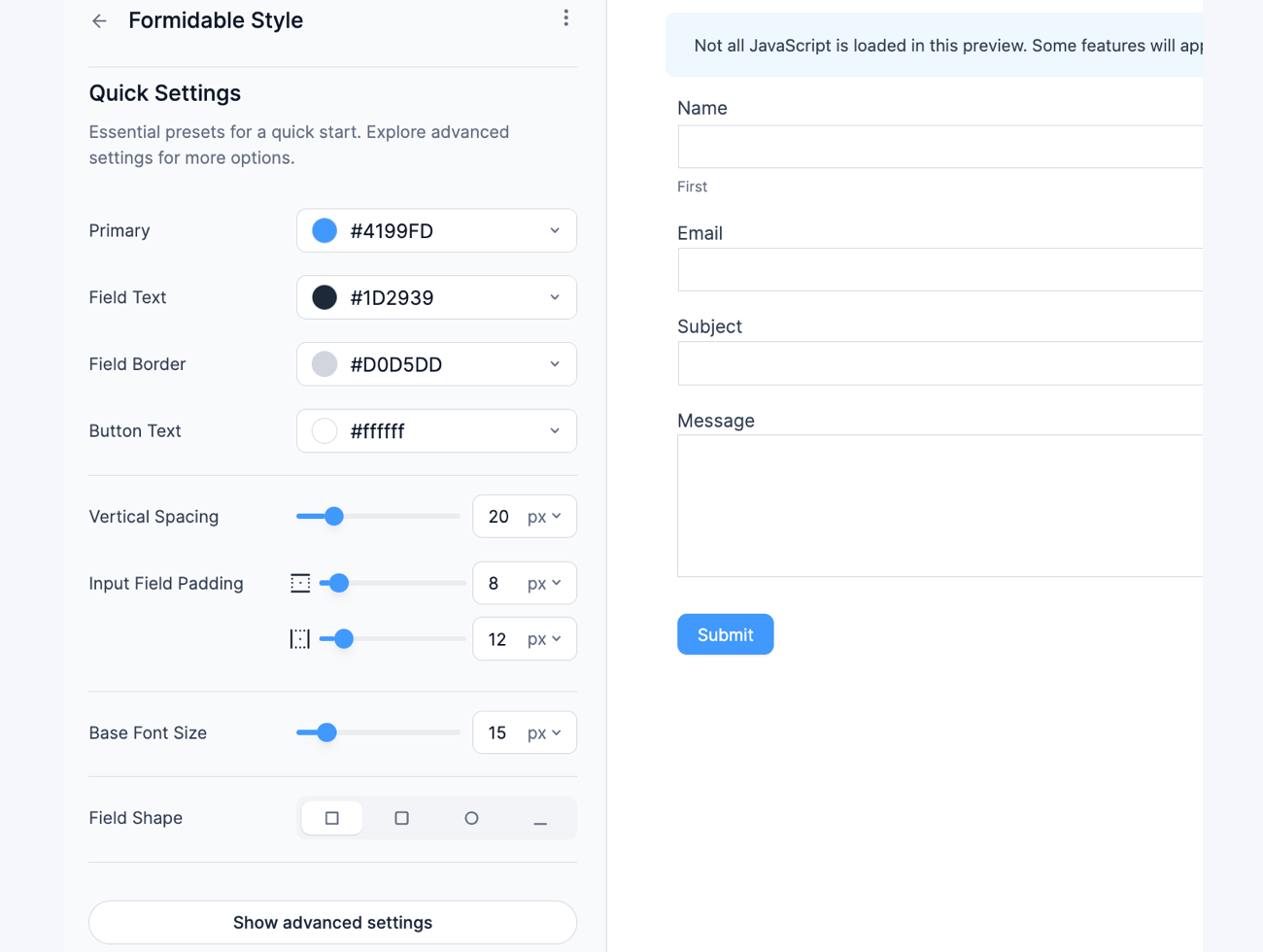
Quick Settings
The Visual Form Styler has styling options to customize the primary color theme, field text and border, button text, vertical spacing, input field spacing, and base font size.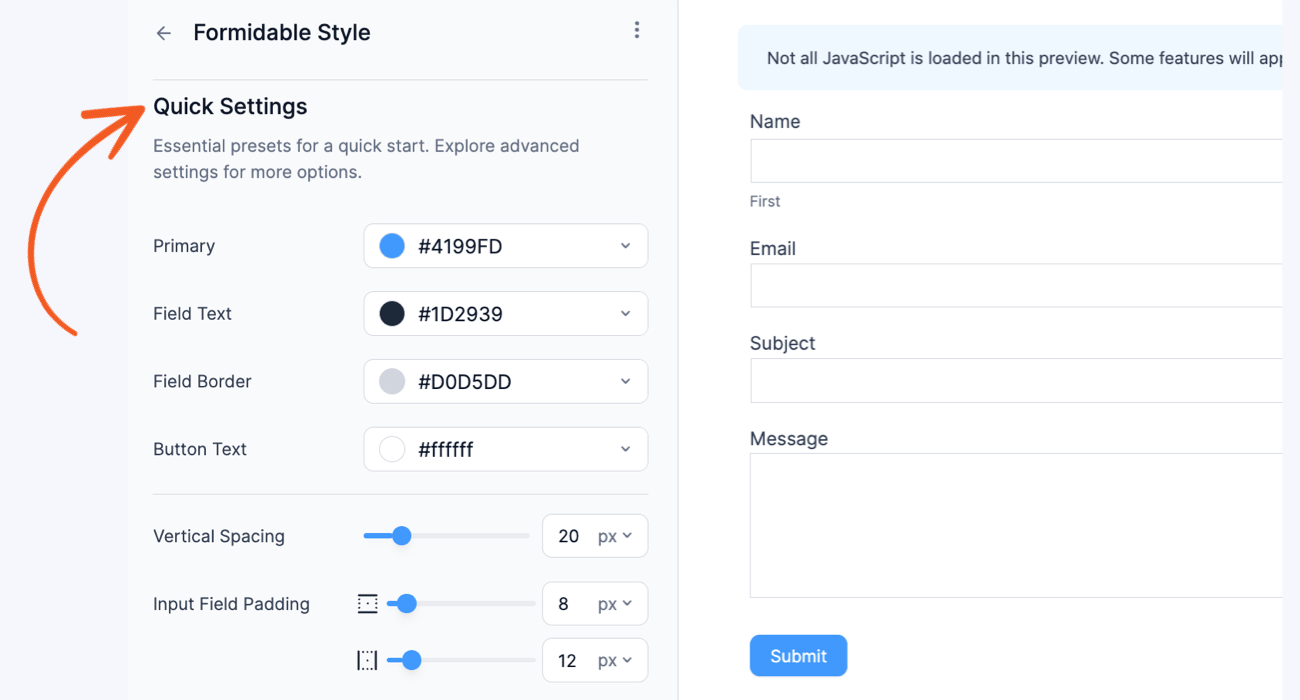
It also includes different field shape options for the form. You can choose between a rectangle, circle, or line. If the rounded edge is selected, you can set the corner radius.
Custom CSS area
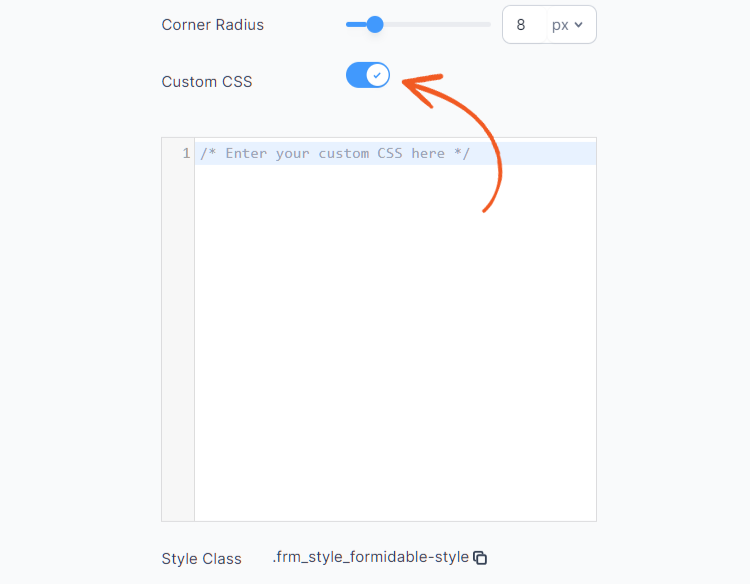
To further customize your form style, you can use the new Custom CSS area option. Toggle the box and start writing your code; it will be applied to the form style you are editing. The form style class is for reference only, you do not need to prepend your CSS with it.
Advanced Settings
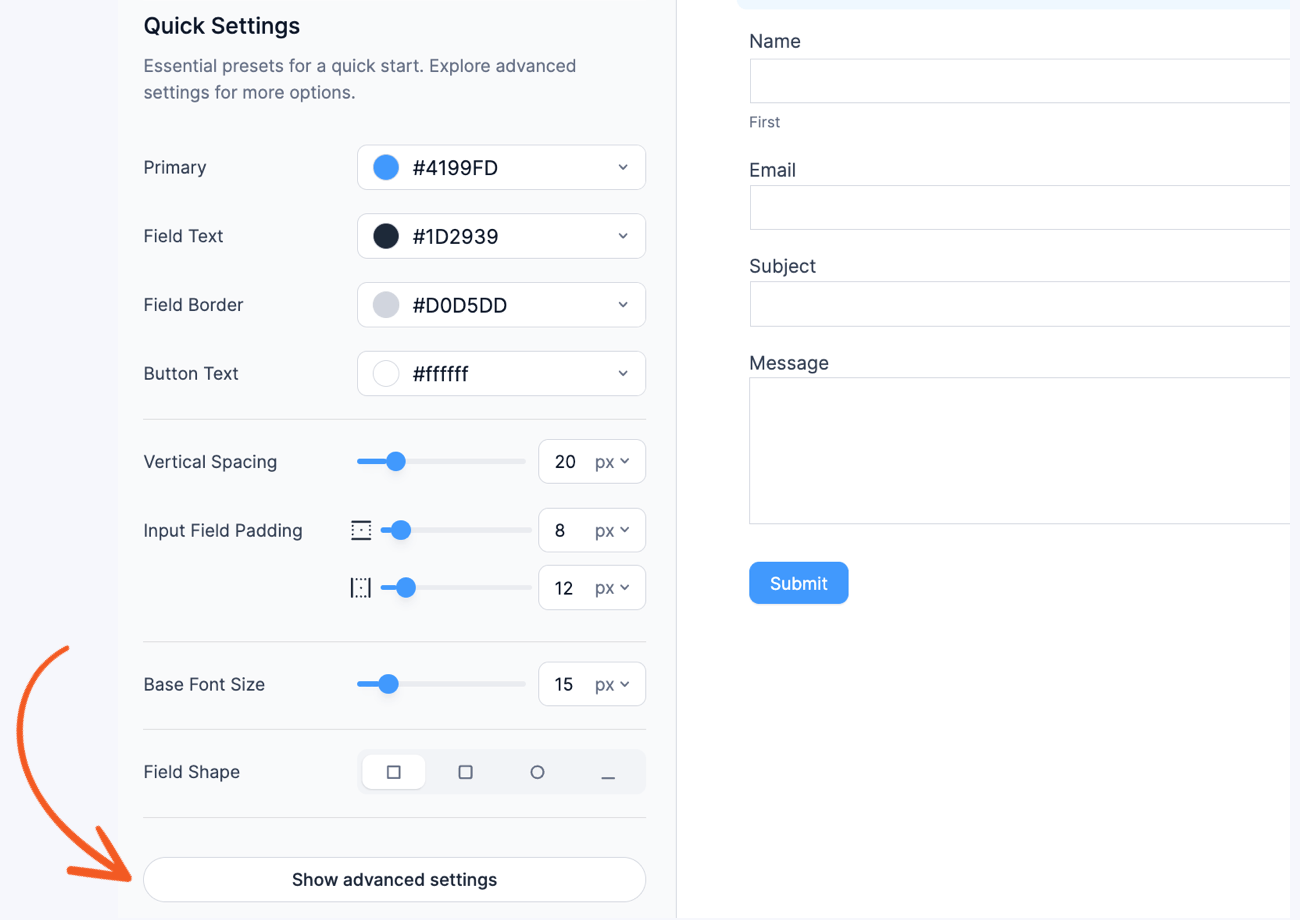
To access more detailed styling options for your selected template, follow the instructions below to navigate to the advanced settings.
- After accessing the Styles page, select your style template and click the Edit link.

- Click Show advanced settings button to explore the other options available.
- You will be redirected to the Advanced settings, where you may begin editing more specific styling settings for your chosen style template.

General Styles
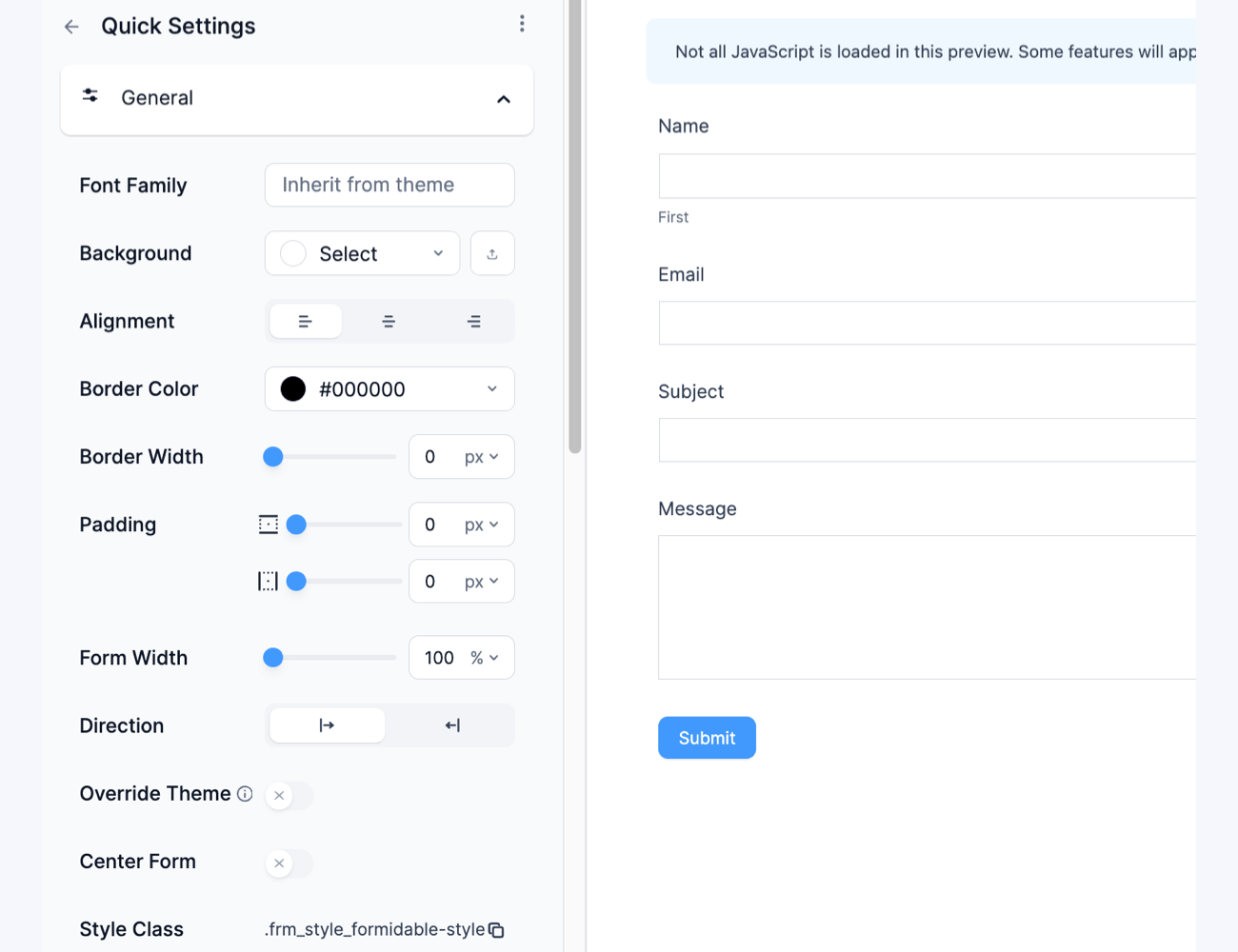
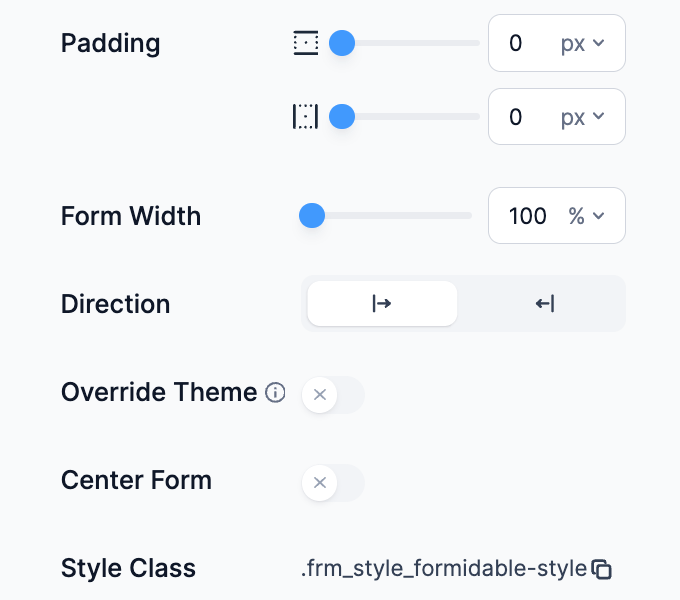
In General Styles, you can customize the font family, background image, background color, text alignment, border color, border width, padding, form width, and direction. It also includes settings to override the theme, center the form, and provide information about the style class.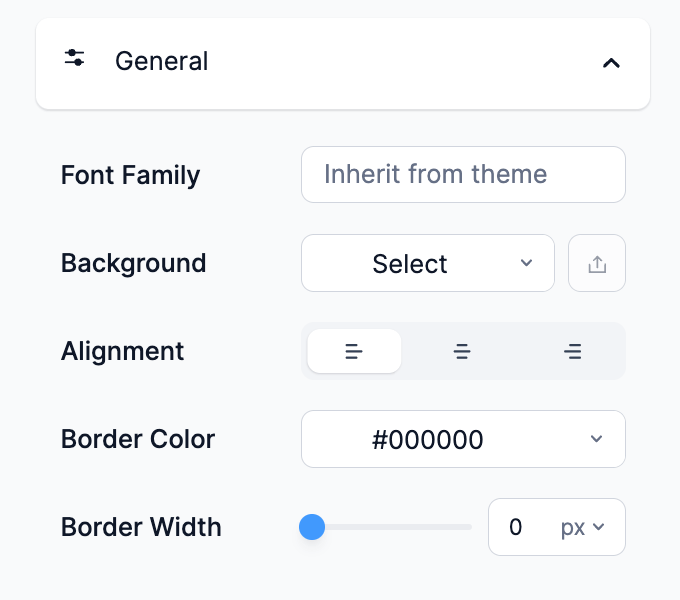
Form Title Styles
You can set font size of the form title, including adjusting the margin around it.
Form Description Styles
Set the color of the form description, and adjust the margin and padding around it.
Field Labels Styles
You can set the color, font size, and weight of the label text on your form. You can also adjust the position, alignment between left and right, width, and padding of the field label.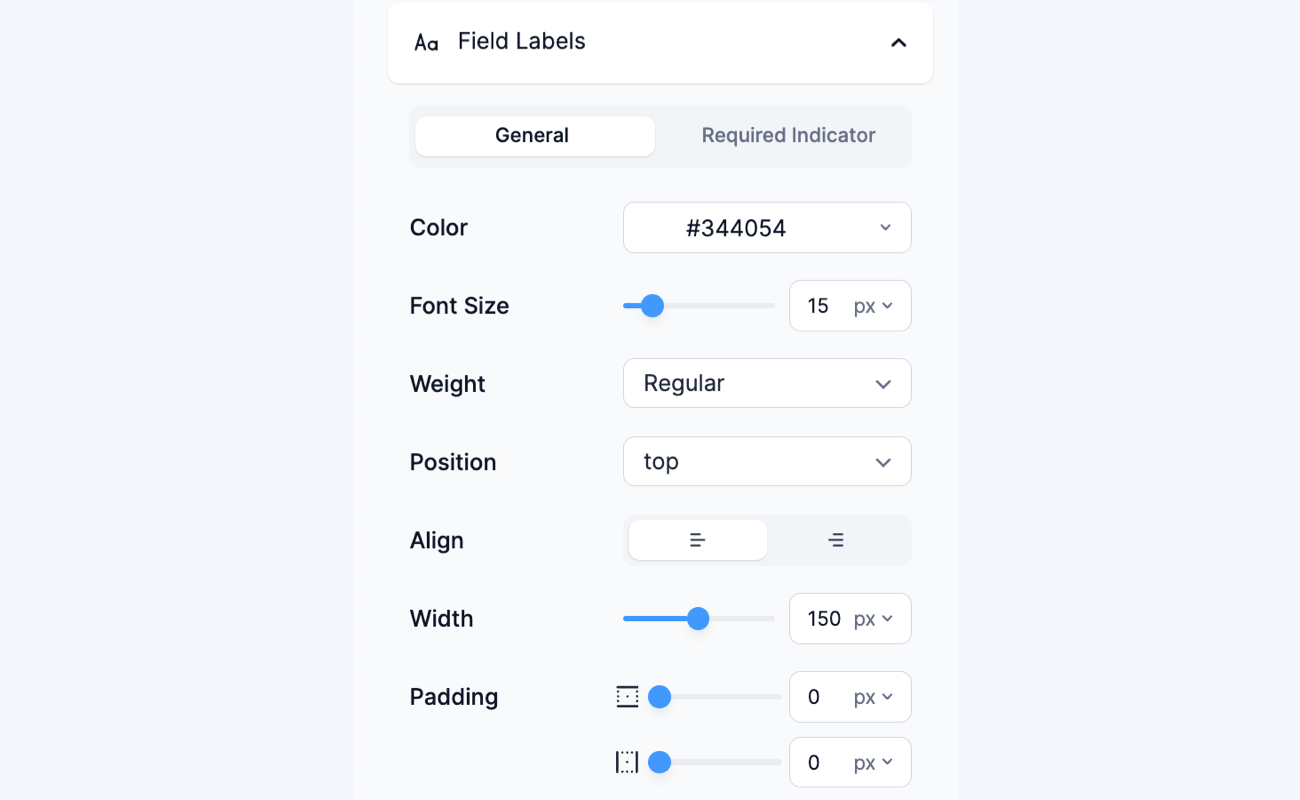
Field Description Styles
Set the color, font size, and weight of the description text on your form field. It includes selecting the style, aligning left and right, and the margin of the field description.
Field Colors Styles
Set the background color, field text color, and box shadow. It includes adjusting the color, width, and style of the border. Different settings are available depending on the field state such as active, read-only, and error.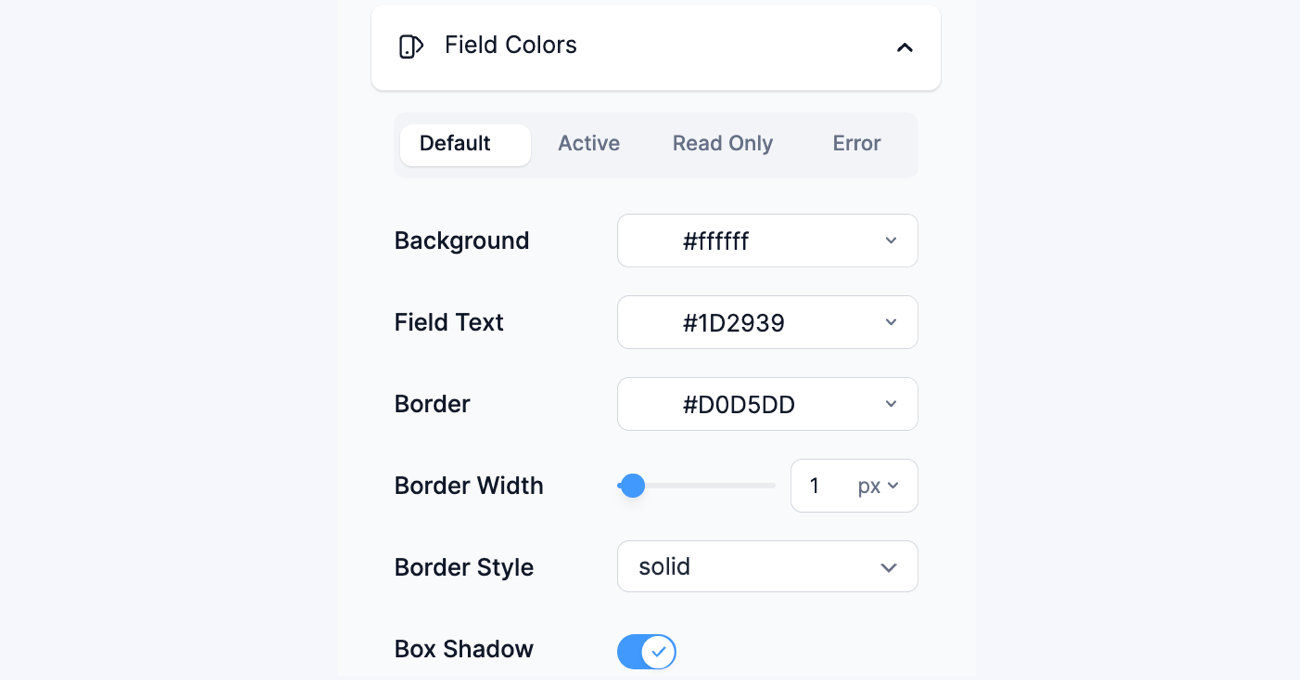
Field Settings Styles
Set the font size, weight, height, width, padding, margin, and corner radius. Toggle on auto dropdown width to expand the dropdown automatically depending on the size of the content.
Form Messages Styles
Set the background color, border color, font color, and font size of the success and error messages.

Create a new style
If you want to generate a new style template for your forms, follow the steps below.
- Choose a form and click the Style tab.
- Click the + New Style link.
- Add a style name. Click the Create new style button.
- You will be redirected to the Form Styler, where you may begin customizing your new style template.
- Click the Update button to save your changes.



If you need more styling options than the Form Styler provides, you may add custom CSS using the Custom CSS tab in your Formidable → Global Settings page or in your theme's style.css file. It will be applied to every form that uses Formidable styling.
Edit a style
If you want to update or change an existing style template, follow the steps below.
- Select your form, and click the Style tab.
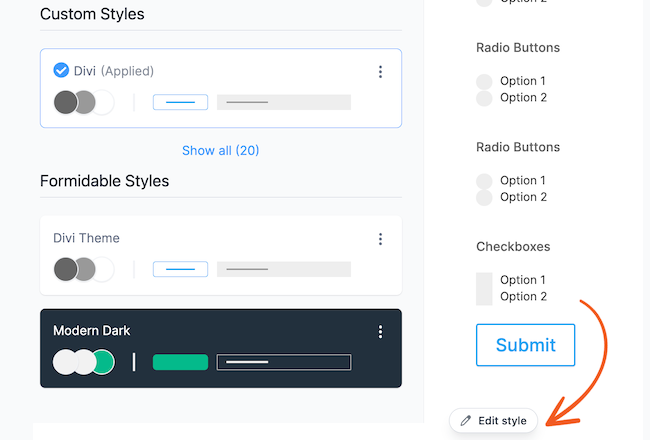
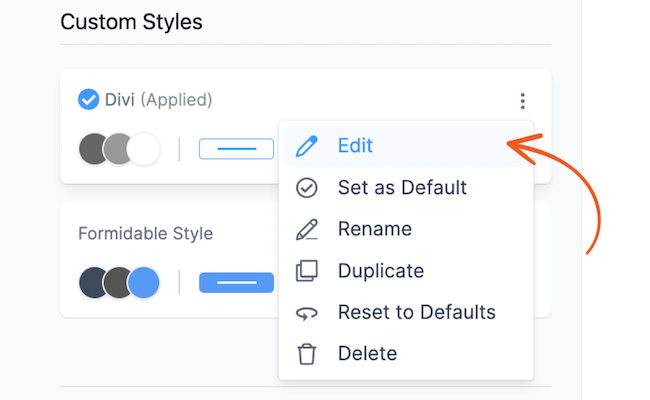
- Select your applied style template and click the Edit Style button.
Or by clicking the menu icon and selecting Edit. - You will be redirected to the Form Styler, where you may begin editing your chosen template.
- To find the style class associated with the template, go to the General section and look for Style Class.
- Click the Update button to save your changes.

If you update your style templates, but your form still does not reflect the changes you made, a possible reason might be that your theme's or another plugin's style rules conflict with the ones you set up. Overriding the theme styling is one approach to solving this.
Set a default template
Any template can be set as your default style. The default style will be applied automatically to any new forms unless the style template is changed.
- Go to the Formidable → Style tab.
- Choose a style template from the left sidebar. Click the menu icon and select Set as Default.
- The chosen style will then become the new default style.


Rename a style
If you want to rename a style template, follow the steps below.
- Select your form, and click the Style tab.
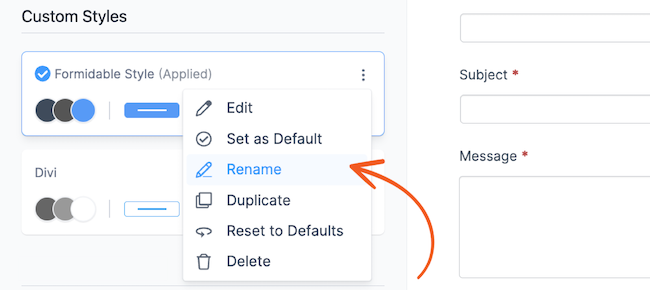
- Choose a style template. Click the menu icon and select Rename.
- Add a new style name. Click the Rename style button.
- The style template immediately updates to reflect the name change.

Duplicate a style
If you want to duplicate a style template, follow the steps below.
- Select your form, and click the Style tab.
- Choose a style template. Click the menu icon and select Duplicate.
- Add a new style name. Click the Duplicate style button.
- You will be taken to the Form Styler, where you may begin editing the template you have duplicated.
- Click the Update button to save your changes.


Reset a style
If you want to reset a style template to its default setting, follow the steps below.
- Select your form, and click the Style tab.
- Choose a style template. Click the menu icon and select Reset to Defaults.
- Click the Reset style button to reset the style to its default configuration.
- The style template immediately updates to reflect the changes.


Delete a style
Only styles that have not been specified as default styles can be deleted. To delete a style template, follow the instructions below.
- Select the style template from the Custom Styles section that you want to delete.
- Click the menu icon and select Delete.


Manage styles
To alter the styling on each form, follow the steps listed below.
- Choose a form and click the Style tab.
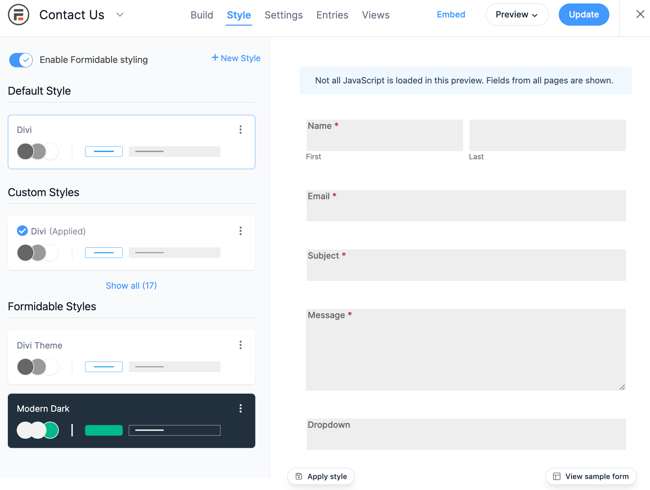
- In the left sidebar, you will see these sections:
-
- Default Style: The style template you have selected as default.
- Custom Styles: All the custom style templates you have created.
- Formidable Styles: All the Formidable style templates you can access.
-
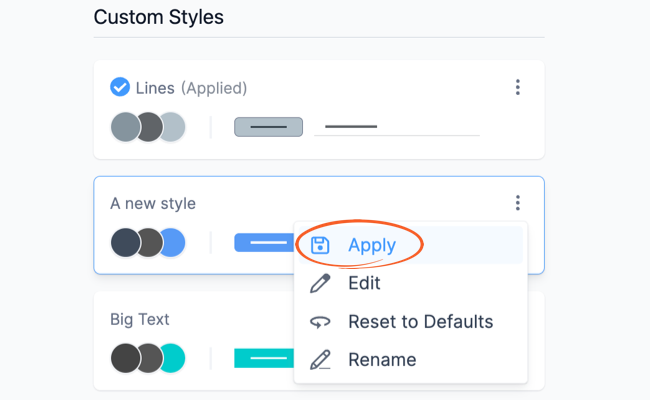
- Select a style template and click the Install and apply style button.
Or by clicking the menu icon and selecting Apply. - That's it! On the right side of the styler, a preview of your form is created automatically using the selected style template..
- If you need to manage the style templates for all your forms, go to Formidable → Global Settings → Manage Styles and choose the styling you want to apply for each form.


Override theme styling
If you find that your theme is influencing the look of your forms, you can instruct Formidable Forms to override your theme's styling. Follow the directions below to accomplish this.
- Select your form, and click the Style tab.
- Select your applied style template and click the Edit Style button.
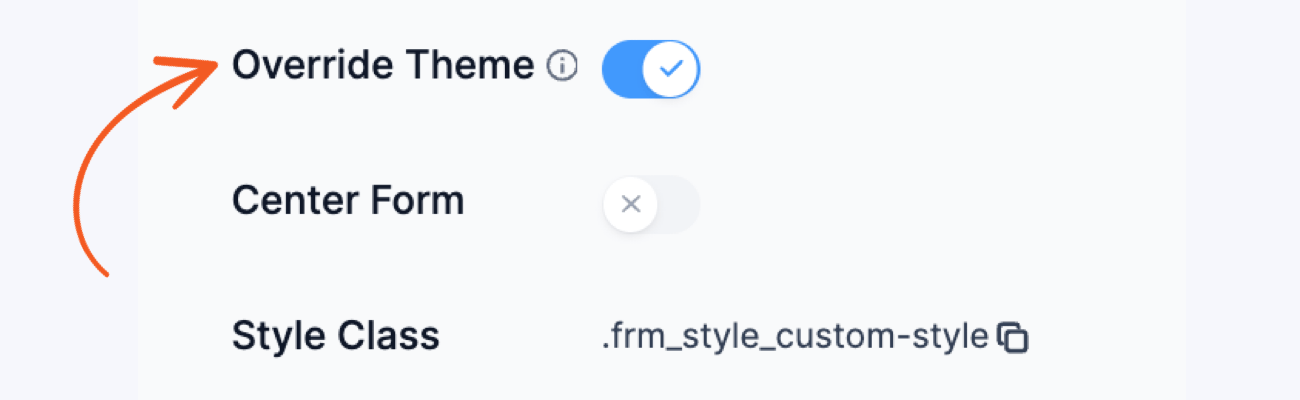
Or by clicking the menu icon and selecting Edit. - Check the Override theme styling box. Doing this will add !important to many of the lines in the Formidable Forms CSS stylesheet to prioritize your form's styling over your theme's styling.
- Click the Update button to save your settings.
Preview a style
You can preview how a style will appear on a form with the following options:
- View my form: Click this button to preview the style template on your current form.
- View sample form: Click this button to preview the style template on a sample form.


Styling options
Checkbox and Radio fields Style
Add custom styling to the checkbox and radio button fields of your form by selecting a custom text size, weight, and color for both field types. Choose between multiple rows or single row for the layout.
Button Style
By default, the button color is set to blue. This styling is applied to all buttons used on the site including multi-paged form buttons (Next and Previous), Repeater buttons (Remove and Add), and Submit button.

- Disable button styling: If disabled, you may not see the change take effect until you make two more styling changes or click Update button.
- On Hover and Click: Styling options for both On Hover and On Click are identical. Define the background color, border, text color.
The padding box is a shorthand property that can contain up to four values for top, right, bottom, and left.
Examples
Center a form on the page
If you would like to have your form centered on the page where it is displayed, go to your form Styles and select Center form on page. Please note that this will only work if the max width of the form is less than 100%, so you may also need to change Max Width under the General tab to 80% or lower.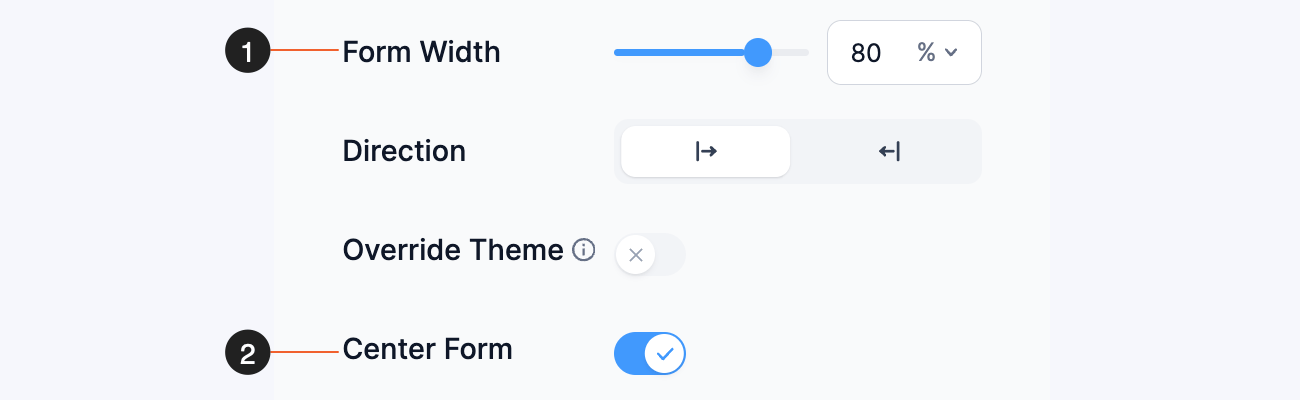
Only show bottom border in field
If you would like to remove the field borders and only show the bottom border for Default, Active, Error, and Inactive states, follow the instructions below:
- Go to Formidable → Styles.
- In the Quick settings, select the Line icon as the field shape.
- In Field Settings, change the Corners to 0px.
- In Field Colors:
- Change the Thickness to 0px 0px 2px 0px for Default and Error states.
- Check the box that says Remove box shadow for Default and Active states.
- Click the Update button and your fields should now look like this.


Styling placeholder text
To change the color of the placeholder text inside a field, go to Formidable → Styles → Field Colors. Look for the Read Only tab and select the color you want from the Text selector. Note: This will not work if you are styling a Dropdown placeholder text.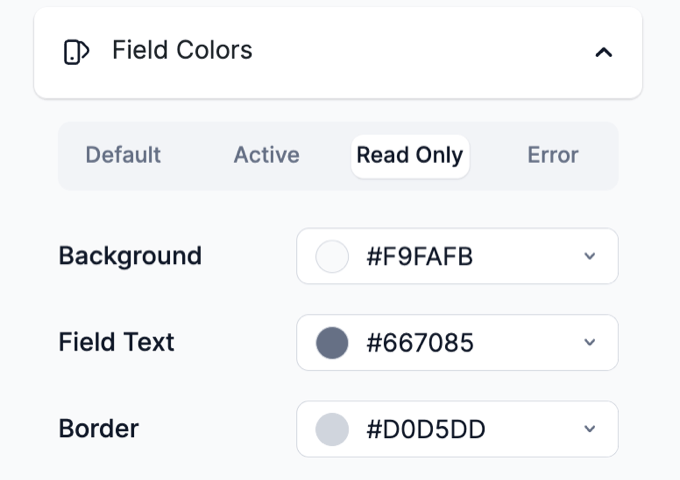

Set transparent colors
Need a transparent background on your form? Most of the color options in the styling settings will use 'transparent' for the color when left blank. Select the setting, remove the current color value, and save the style.
Set font family
If you would like to change the font that is used in your forms, navigate to Styles → General and refer to the image below to find the Font Family setting. Insert a single font or a series of comma-separated fallback font options in double quotes.
If you would like your theme to set the fonts, you can clear out this setting. If it is blank, this setting will be ignored.
To use a Google font, add it here the same way as if you were adding it in CSS. You will need to load the font in your theme. Once you use the font and test it on your site, the same CSS will work for your forms too.
Note: If a font is two words, be sure to use quotes around it.
Add side margins on buttons
You may have noticed that when you add "10px" into the Buttons → Margin setting, it only adds margin on the top and bottom of the buttons. To add margins on the right and left, use something like "10px 10px".
Enable RTL Support

If you would like your form to have RTL support enabled, follow the steps below:
- Navigate to Formidable → Styles.
- Go to General Styles:
- Select Right from Alignment.
- Select Right to Left from Direction.
- Go to Field Labels Styles:
- Select Right from Position.
- Select Right from Align.


However, keep in mind that this only enables support for your forms, not the rest of your website. Your theme also need to have RTL support.
Add a background image
To add an image for the background of your form, follow the steps below.
- Click the Upload background image button and select your preferred image.
- You can change the Image Opacity after you have uploaded an image. The background image opacity uses percent inputs like 100%, 50%, etc. Additionally, you can utilize floating values in the range of 0 and 1 (such as 0.5 and 1), where 0 turns the background image fully transparent, and 1 turns it fully opaque.


Change color opacity
The color picker is available for most of the sections in the Form Styler. You can select a color or insert the HEX, RGB, RGBA value in the input box. If you want to set the opacity, use the Alpha slider on the right side of the color picker.
Styling frm_color_block class
To change the default background color of the frm_color_block CSS layout class, go to your form Style → Field Colors. Look for the Border selector and choose a color.
Troubleshooting
Form looks different on a page
When the form styler shows you one result, and you see another result on the front-end, this means your theme is overriding some of the form styling.
- Make sure Formidable styling is enabled in the Global settings.
- Check the styling settings for the specific form to make sure the styling is not turned off.
- Turn on the option to override the theme styling as described above.
- Clear all caches including browser cache, and any caching plugins or server caching.
- If there are still problems, temporarily switch to a different theme to verify the conflict is coming from your theme. If you confirm this is a theme conflict, let us know and we can add it to our to do list.
- If the form has the same problem with a different theme, check the page HTML and resolve major HTML issues.
Form styling loaded via PHP
Each time the plugin is updated or the styling settings are saved, a new CSS file is generated in plugins/formidable/css/formidableforms.css. On some servers, this file cannot be generated based on file permissions or server permissions. When the file is not created, a dynamic version will be used with a URL like wp-admin/admin-ajax.php?action=frmpro_css.
Try the steps below to create the static css file. Save the form styling settings after each step.
- If you are required to enter FTP information when updating plugins, the plugin doesn't have permission to create this css file. Contact your web host for help disabling this FTP credentials requirement.
- Delete the Formidable Forms plugin and install it again. This may correct basic file permissions issues.
- Check the folder permissions on the formidable/css folder via FTP to make sure they are high enough to allow the folder to be writable.
- Save the styling settings again.

