


Coloring and blending tutorial
How to go from this and this to 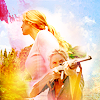
Program(s)+version: Photoshop CS3 (but most likely works with PS 7 and above too)
Involves: Curves, color balance, levels, layer masks, textures
Translatable: Mostly translatable; has a few selective coloring steps that are completely skippable
Steps: 57 (oh good lord)
Difficulty: Moderate/difficult -- I tried to make it clear where things are and how to find them, but the tut still assumes some basic knowledge of PS.
First, I crop and resize the first screencap:

I duplicate the layer (Ctrl + J) and set it to Screen, 50% opacity.

To give it some contrast, I duplicate the layer again and set it to Soft Light, 70% opacity.

Next, I crop and resize the second screencap, and paste it on top:

Obviously, there's some stuff I want to get rid of:

So I use a layer mask, using a black brush to paint over the parts I don't want:
 -->
--> 

The second cap is really dark, so I duplicate the layer twice, setting the first to Screen, 100% opacity and the second to Screen, 20% opacity.

To create some contrast, I duplicate the layer one more time and set it to Soft Light, 50% opacity.

I want to add a yellow-ish tint to part of the icon, so I use a Layer > New adjustment layer > Color Balance layer:
Midtones: -19 -5 -14
Shadows: -18 -11 -20
Highlights: +15 +19 +9
Make sure "Preserve Luminosity" is checked.

But I'm only really interested in adding that yellow tint to <-- this part of the icon, so I use Layer Mask again.
 -->
--> 

To brighten up the colors, I use a Layer > New adjustment layer > Curves layer:
RGB - Input: 122, Output: 143
Red - Input: 117, Output: 131
Green - Input: 125, Output: 131
Blue - Input: 255, Output: 255

Again, I'm only really interested in applying this to that bottom-right half, so I use another Layer mask:


Now I start filling up the surrounding white space. I first go back to the first screencap, crop out a piece of blue sky with clouds, and paste it on top of the icon:
 -->
--> 
I use another Layer mask to get rid of the parts covering Juliet screencap #2:


I copy and paste the piece of the first creencap again, moving it to the left to cover up the white space there too.
 -->
--> 
I use a Layer mask again to get rid of the parts covering Juliet:


There's still a sliver of white space in the top-left corner, so I copy the little piece of sky/tree, paste it, and then smudge the blue parts using a soft smudge brush at approximately 36 px diameter:
--> 
 -->
--> 

Again, I use a Layer mask to erase the parts covering Juliet:


I want to cover up some of the white space here:
So I copy a little bit of sky again and paste it there:
 -->
--> 
I use a Layer mask to remove the sides and corners:


Finally, I copy a bit more of the sky and paste it on top:
 -->
--> 
I used another Layer mask to remove parts of it to make it look more blended:


Now that the white space is covered, I can work on getting the coloring where I want it. I first use a Layer > New adjustment layer > Levels layer:
 -->
--> 
To brighten up the top-ish half of the icon (here: ), I use another Layer > New adjustment layer > Curves layer:
RGB - Input: 116, Output: 134
Red - Input: 122, Output: 132
Green - Input: 124, Output: 130
Blue - Input: 255, Output: 255
... with a Layer mask:


Then I use Layer > New adjustment layer > Color Balance to brighten up the icon:
Midtones: +32 +26 +17
Shadows: +7 +8 +5
Highlights: +20 +14 +12
Make sure "Preserve Luminosity" is checked.

Then I paste the following texture, setting it to Soft Light, 50% opacity.
 -->
--> 
To brighten the icon a tad more, I fill a new layer with #DCC18A, setting it to Soft Light, 20% opacity.
 -->
--> 
I create another fill layer with #FFB594, also setting it to Soft Light, 20% opacity.
 -->
--> 
I then paste the following texture, setting it to Soft Light, 30% opacity.
 -->
--> 
It looks a bit plain, and I want to add something artsy to it. So I paste the following texture, setting it to Multiply, 100% opacity.
 -->
--> 
I'm only really interested in keeping this part of the texture: , minus the stuff closer to the center too. So I use another Layer mask:


I want to make everything brighter, so I use a Layer > New adjustment layer > Curves layer again:
RGB - Input: 123, Output: 135
Red - Input: 127, Output: 135
Green - Input: 124, Output: 130
Blue - Input: 255, Output: 255

I then use a Layer > New adjustment layer > Selective Color layer, set at 70% opacity to kind of enhance the reds/yellows. This layer doesn't actually make much of a difference though, so you can skip it.
Red: -13 +9 +9 +0
Yellow: -17 +12 +11 +0

I use another Layer > New adjustment layer > Color Balance layer to brighten the colors some more. (This is also where I realize, too late, that all my coloring steps are redundant. XD)
Midtones: +21 +19 +7
Shadows: +25 +24 +21
Highlights: +23 +19 +19
Make sure "Preserve Luminosity" is checked.

Then I merge everything down (Ctrl + Shift + E) and sharpen it.

I want a little more... diversity in texture, I guess, so I added a little gray streak, set at Normal, 40% opacity.
 -->
-->  -->
--> 
Next, I want to illuminate the icon with a light texture, so I go to one of my favorite light textures, rotate it, blur it with Gaussian Blur, 5 px, and set it to Screen, 100% opacity.
 -->
-->  -->
-->  -->
-->  -->
--> 
I don't want to obscure Juliet, and I want to make the light look like it's kind of swirling around her, so I use another Layer mask:
 -->
--> 
I rotate the texture again and paste it, setting it to Screen, 100% opacity. This gives the icon some light in the bottom-left corner.
 -->
--> 
I use another Layer mask:
 -->
--> 
I then duplicate this layer, setting it to Screen, 30% opacity.

I use the light texture again, cropping and rotating it like so:

I paste it onto the icon and set it to Screen, 30% opacity.
 -->
--> 
The icon is looking a bit washed out with all the light textures, so I paste the following texture and set it to Soft Light, 50% opacity.
 -->
--> 
I add another Layer > New adjustment layer > Levels layer:


I only really want the layer to be applied to this part of the icon:

So I use another Layer mask, filling it in with black and using a white fuzzy brush to paint over the spot where I want the levels layer to show up:
 -->
--> 
There's a white/washed-out part here that I don't really like:

So I paste the following texture, setting it to Hard Light, 100% opacity, and using a layer mask to erase most of the texture except for the part I want:
 -->
-->  -->
--> 

Now I use my last icon-brightening texture, setting it to Soft Light, 80% opacity.
 -->
--> 
I use a Layer mask to remove the texture from the right half of the icon, where things are starting to look too magenta:


Here I use Layer > New adjustment layer > Selective Color again, but again, it's optional. I just want to enhance the blue in the top-right corner of the icon:
Cyans: +100 +100 +100 +100

I duplicate this layer twice, setting the first to 100% opacity and the second to 50% opacity.

I use a little white blob, set at Screen, 30% opacity, to add some light near Juliet's forehead.
 -->
--> 

In the corner of the icon, it looks a bit bumpy/rough:

So I merge everything down (Ctrl + Shift + E), duplicate the layer, and smudge that part of the icon.

So that's it!
I hope this was helpful and/or not too long and boring! Please let me know if there are any problems or mistakes, or if anything is unclear. Thank you! :D
Program(s)+version: Photoshop CS3 (but most likely works with PS 7 and above too)
Involves: Curves, color balance, levels, layer masks, textures
Translatable: Mostly translatable; has a few selective coloring steps that are completely skippable
Steps: 57 (oh good lord)
Difficulty: Moderate/difficult -- I tried to make it clear where things are and how to find them, but the tut still assumes some basic knowledge of PS.
First, I crop and resize the first screencap:
I duplicate the layer (Ctrl + J) and set it to Screen, 50% opacity.
To give it some contrast, I duplicate the layer again and set it to Soft Light, 70% opacity.
Next, I crop and resize the second screencap, and paste it on top:
Obviously, there's some stuff I want to get rid of:
So I use a layer mask, using a black brush to paint over the parts I don't want:
--> The second cap is really dark, so I duplicate the layer twice, setting the first to Screen, 100% opacity and the second to Screen, 20% opacity.
To create some contrast, I duplicate the layer one more time and set it to Soft Light, 50% opacity.
I want to add a yellow-ish tint to part of the icon, so I use a Layer > New adjustment layer > Color Balance layer:
Midtones: -19 -5 -14
Shadows: -18 -11 -20
Highlights: +15 +19 +9
Make sure "Preserve Luminosity" is checked.
But I'm only really interested in adding that yellow tint to
<-- this part of the icon, so I use Layer Mask again. --> To brighten up the colors, I use a Layer > New adjustment layer > Curves layer:
RGB - Input: 122, Output: 143
Red - Input: 117, Output: 131
Green - Input: 125, Output: 131
Blue - Input: 255, Output: 255
Again, I'm only really interested in applying this to that bottom-right half, so I use another Layer mask:
Now I start filling up the surrounding white space. I first go back to the first screencap, crop out a piece of blue sky with clouds, and paste it on top of the icon:
--> I use another Layer mask to get rid of the parts covering Juliet screencap #2:
I copy and paste the piece of the first creencap again, moving it to the left to cover up the white space there too.
--> I use a Layer mask again to get rid of the parts covering Juliet:
There's still a sliver of white space in the top-left corner, so I copy the little piece of sky/tree, paste it, and then smudge the blue parts using a soft smudge brush at approximately 36 px diameter:
--> --> Again, I use a Layer mask to erase the parts covering Juliet:
I want to cover up some of the white space here:
So I copy a little bit of sky again and paste it there:
--> I use a Layer mask to remove the sides and corners:
Finally, I copy a bit more of the sky and paste it on top:
--> I used another Layer mask to remove parts of it to make it look more blended:
Now that the white space is covered, I can work on getting the coloring where I want it. I first use a Layer > New adjustment layer > Levels layer:
--> To brighten up the top-ish half of the icon (here:
), I use another Layer > New adjustment layer > Curves layer:RGB - Input: 116, Output: 134
Red - Input: 122, Output: 132
Green - Input: 124, Output: 130
Blue - Input: 255, Output: 255
... with a Layer mask:
Then I use Layer > New adjustment layer > Color Balance to brighten up the icon:
Midtones: +32 +26 +17
Shadows: +7 +8 +5
Highlights: +20 +14 +12
Make sure "Preserve Luminosity" is checked.
Then I paste the following texture, setting it to Soft Light, 50% opacity.
--> To brighten the icon a tad more, I fill a new layer with #DCC18A, setting it to Soft Light, 20% opacity.
--> I create another fill layer with #FFB594, also setting it to Soft Light, 20% opacity.
--> I then paste the following texture, setting it to Soft Light, 30% opacity.
--> It looks a bit plain, and I want to add something artsy to it. So I paste the following texture, setting it to Multiply, 100% opacity.
--> I'm only really interested in keeping this part of the texture:
, minus the stuff closer to the center too. So I use another Layer mask:I want to make everything brighter, so I use a Layer > New adjustment layer > Curves layer again:
RGB - Input: 123, Output: 135
Red - Input: 127, Output: 135
Green - Input: 124, Output: 130
Blue - Input: 255, Output: 255
I then use a Layer > New adjustment layer > Selective Color layer, set at 70% opacity to kind of enhance the reds/yellows. This layer doesn't actually make much of a difference though, so you can skip it.
Red: -13 +9 +9 +0
Yellow: -17 +12 +11 +0
I use another Layer > New adjustment layer > Color Balance layer to brighten the colors some more. (This is also where I realize, too late, that all my coloring steps are redundant. XD)
Midtones: +21 +19 +7
Shadows: +25 +24 +21
Highlights: +23 +19 +19
Make sure "Preserve Luminosity" is checked.
Then I merge everything down (Ctrl + Shift + E) and sharpen it.
I want a little more... diversity in texture, I guess, so I added a little gray streak, set at Normal, 40% opacity.
--> --> Next, I want to illuminate the icon with a light texture, so I go to one of my favorite light textures, rotate it, blur it with Gaussian Blur, 5 px, and set it to Screen, 100% opacity.
--> --> --> --> I don't want to obscure Juliet, and I want to make the light look like it's kind of swirling around her, so I use another Layer mask:
--> I rotate the texture again and paste it, setting it to Screen, 100% opacity. This gives the icon some light in the bottom-left corner.
--> I use another Layer mask:
--> I then duplicate this layer, setting it to Screen, 30% opacity.
I use the light texture again, cropping and rotating it like so:
I paste it onto the icon and set it to Screen, 30% opacity.
--> The icon is looking a bit washed out with all the light textures, so I paste the following texture and set it to Soft Light, 50% opacity.
--> I add another Layer > New adjustment layer > Levels layer:
I only really want the layer to be applied to this part of the icon:
So I use another Layer mask, filling it in with black and using a white fuzzy brush to paint over the spot where I want the levels layer to show up:
--> There's a white/washed-out part here that I don't really like:
So I paste the following texture, setting it to Hard Light, 100% opacity, and using a layer mask to erase most of the texture except for the part I want:
--> --> Now I use my last icon-brightening texture, setting it to Soft Light, 80% opacity.
--> I use a Layer mask to remove the texture from the right half of the icon, where things are starting to look too magenta:
Here I use Layer > New adjustment layer > Selective Color again, but again, it's optional. I just want to enhance the blue in the top-right corner of the icon:
Cyans: +100 +100 +100 +100
I duplicate this layer twice, setting the first to 100% opacity and the second to 50% opacity.
I use a little white blob, set at Screen, 30% opacity, to add some light near Juliet's forehead.
--> In the corner of the icon, it looks a bit bumpy/rough:
So I merge everything down (Ctrl + Shift + E), duplicate the layer, and smudge that part of the icon.
So that's it!
I hope this was helpful and/or not too long and boring! Please let me know if there are any problems or mistakes, or if anything is unclear. Thank you! :D


