Is there a 64-bit (PPC64) Linux release for a late 2005 G5 Quad that just works? Well, it turns out that there is, MintPPC64! Look up “MintPPC” on Google and visit the site MintPPC64 for the complete story. The site is structured in a clean, straightforward way that makes it easy to navigate and use.
What is MINTPPC64? It is a value-added layer on top of a Debian 12 PPC64 Linux base. The net result has the wide and deep attributes of Debian 12, topped with the customized and lightweight, but incredibly powerful, LXDE desktop environment.
MintPPC64 also supports the XFCE4 and MATE desktop environments. There are others, but for G5s, it is best to stay to the lightweight side. LXDE seems to be the fastest of the three, and also the most visually attractive desktop, so I am using it. It is also the MintPPC64 default.
This post is about Linux on a late 2005 G5 Quad, because that is what I installed it on. My strong suspicion is that it will work well on most G5s, but I have not been able to test that.
So, it “just works” on a G5 Quad? Yes! … well, as long as your machine is equipped with a supported video card. So far, both nVidia cards I have tried (GeForce 6600 and Quadro FX 4500) work just fine. Neither ATI card I have tried works at all (Radeon X1900GT, Radeon X1950).
Note that both the legacy nVidia and legacy ATI video cards are supported by open source, non-proprietary drivers: “nouveau” for nVidia and “radeon” for ATI. Neither of these drivers comes anywhere near the performance of the original native drivers from nVidia and ATI, but both do a respectable job. The “nouveau” driver does a LOT better with the GeForce 6600 than with the higher spec’d Quadro FX 4500.
The nouveau driver is not perfect however. Note that dual monitor setups just don’t work. Only one monitor will ever light up, no matter what you try… and I have tried everything that I can think of, and everything that the Debian 12 PPC64 support group can think of. Nothing works, so don’t waste your time. If you need LOTS of onscreen real estate, make sure the single monitor you attach to the system is a big one! I note that 30” Apple Cinema HD displays are going for less than $US200 right now on eBay, so LOTS of onscreen real estate is not that hard to come by (and the 30” Cinema HD display looks fabulous with your G5 Quad).
But does it “just work”? Well again, yes, as long as you have a supported video card AND Debian doesn’t happen to be broken that day! …the Debian PPC64 port on which MintPPC64 is based is just that, an unofficial port. There is no “stable” branch; the whole thing is one big “unstable” branch that changes under your feet (to a limited extent) whenever new module versions / bug fixes are released. If one of these updates fails, Debian itself (the base of MINTPPC64) may be broken for a time, until a fix is submitted.
To accommodate this, the MintPPC64 web site has a banner across the top of the page that is either Green (Debian PPC64 is OK today) or Red (Debian has issues right now… wait for the banner to go green before installing).
Why do we care about the state of the Debian repository? Well, the Debian PPC64 installer is a “net installer”. The install CD/DVD is only a few hundred meg of and by itself – it downloads everything else from the Debian and MintPPC64 repositories. Hence the current state of the Debian repository is critical. If something is broken there, the MintPPC64 install is broken.
All that having been said, if the MintPPC64 website’s banner is green and you are using a supported video card, it will indeed “just work”. It is remarkably fast on a G5 Quad, but a lot of that is due to the fact that I am using the LXDE lightweight desktop – no KDE here (I do run a number of KDE apps, but not KDE itself). MintPPC64 is up and running on my LCS-cooled Quad, and it installed in about 2.5 hours – this time will vary significantly based on the loading of the repository sites at the time of the install.
Before finishing this post, I want to give a big shout out to Jeroen Diederen (@Jeroen Diederen on MacRumors.com), the author/maintainer of MINTPPC64. Jeroen is to be congratulated on a wonderful job. As the site says, MintPPC64 is pretty “slick”! Jeroen is incredibly knowledgeable and incredibly helpful. Thanks to Jeroen, some key software titles that are “broken” on Debian 12 PPC64 are fully operational on MintPPC64. In this case, I refer to the Abiword word processor, the gnumeric spreadsheet and the GIMP image editor. All are broken on the main Debian 12 PPC64 branch. All work just fine on MintPPC64.
A word of caution however to any Linux newcomers who may be reading this. Linux is not Windows or macOS. It is a LOT more “hands on”, often requiring a lot of manual, largely command line based, configuring/tinkering to get the best out of it. The learning curve is steep, but it is WELL worth it. There are plenty of Linux users on the MacRumors.com forums to help you, and of course, Google (and increasingly, ChatGPT and its peers) is your friend.
Is there a PPC64 Linux that just works on a G5 Quad? Yes, and its name is MintPPC64.
Summary: In my first post covering the install of Snow Leopard on a PPC Mac, I mentioned that I would follow up with more insights into issues with this unsupported configuration, and workarounds that I had found. This post provides those “insights”… more like “observations”, but at any rate, a follow up on what works and what doesn’t on Mac OS X Snow Leopard PPC running on my PowerMac G5 DP 2.3 GHz.
Body: In my last post on this topic, I detailed how to install Mac OS X Snow Leopard on a PPC Mac, specifically my 2006 PowerMac G5 Dual Processor 2.3 GHz. This is an unsupported configuration based on a developer preview, not the final released version of Snow Leopard. As you might guess, while much of it works very well, there are a number of things that do not work, either exactly as the would in the released version, or not at all. What follows below is a breakdown of some major of the issues I have found, and a limited number of workarounds for some of them.
Finder. Finder was completely rewritten in Cocoa for Mac OS X Snow Leopard, and its relative youth shows in the Developer Preview used as the basis for this installation. Here are some of the Finder issues I have found so far, and what I have done about them, so far…
No Text in Finder Windows: When your shiny new Snow Leopard install comes up and you open a Finder window, you may be surprised to see icons, but no text. As I quickly discovered, it is not that there isn’t any text, it is just that the text is white and the Finder window background is also white. White on white = invisible text!
To resolve this, I changed the Finder window background to the usual color I use for this purpose (a pale teal) and voila! the text becomes visible. All well and fine, but it is still white, and is presented with a purple highlight behind it, making it visible, but difficult to read.
I have found a workaround for this, but not a solution, at least not yet. The workaround is simple enough: apply a color highlight to each filename. In this case, I used the gray color and the result was much more readable. It is not perfect, but it is better. Regrettably, this has to be done manually to every folder and every new file, making it somewhat tedious.
I recalled that an older version of a program called PathFinder was capable of replacing Finder’s desktop with its own, and so I hunted down the Leopard version of it. I am a current user of the Apple silicon (M1) version of PathFinder and so I am already a registered user of the software. I installed the Leopard version and it ran like a champ. More to the point however, its file management windows present clean black text on a selectable color background. Exactly what was needed!
So, as a workaround to the “white on white” issue, I can accomplish most of Finder’s file management tasks through PathFinder instead. One down, lots to go!
Ejected Disk Icons Do Not Disappear from the Desktop: to install any Mac software you almost always end up mounting a DMG file and installing from there. When done, you eject the mounted DMG image and the icon disappears from the desktop… except that it doesn’t under Snow Leopard PPC! If you check with Disk Utility, you will see that the volume has in fact ejected, but the icon remains behind, digital detritus that can only be cleared by a Finder restart.
That is in fact the workaround – to remove the now untethered icons from the desktop, go to the Finder menu and select Quit Finder. This causes Finder to restart, removing the errant mounted disk icons.
Low Resolution Wallpaper: This is part of a broader issue with graphics in general (see below), but desktop wallpaper selected through the System Preferences Desktop and Screensaver panel is presented with visible pixelation in many cases. Some wallpapers look fine while others look terrible. To date, I have not discovered a workaround for this and it remains a low priority item to be resolved in time.
Applications. What about applications that you can run on your new Snow Leopard install? As a gross generalization I have found that most programs targeted to Leopard run well under Snow Leopard PPC. Here is a small list of programs I have tried that have worked successfully under Snow Leopard PPC:
AbiWord 2.4 – Abiword is the word processing component of the Linux Gnome Office suite, ported to Mac OS X. It is an excellent and easy to use open source word processor (think MS-Word, LibreOffice Writer), enough so that I wish some of the later versions had been ported as well (AbiWord is up to v3.0.5 as of 2021)
Adobe Reader 7.0.7 – Acrobat Reader is in a class of its own. It is THE golden standard for viewing PDF files.
Audacity 2.0.6 – Audacity is a powerful audio editor.
Bean 2.4.4 – Bean is a lightweight but suprisingly powerful and useful word processor. It is not format compatible with any other common word processing programs, so it may be difficult to share files created by it.
Carbon Copy Cloner 3.4.3 – This is another golden standard, this time for volume cloning. Super Duper, not listed here, is another program with a very similar feature set.
ChocoFlop 0.909 – ChocoFlop is one of the many repackagings of GIMP (see below) into a more Photoshop-like GUI. Limited and somewhat buggy, it is still quite useful nonetheless.
Classic Menu 2.8.1 – Do you like the classic multi-color Apple logo vs. the mono-color blue and black ones Apple favored with Tiger through Snow Leopard? Do you wish you could go back to it? Well, you can with Classic Menu! Classic Menu provides not just an original looking multi-color Apple logo but also a fully configurable cascading menu system just like Mac OS Classic had… hence the program name, Classic Menu. This program is absolutely invaluable.
CocoViewX 0.9.6 – A so-so image viewer, but CocoViewX has some great capabilities to create web photo galleries. It is worthwhile particularly for this later functionality.
Disk Order 3.0 – A classic “Commander” style dual pane file manager. It sports a clean, attractive and easy to use GUI, but struggles with a number of significant bugs that limit its usefulness.
ForkLift 1.2 – Forklift is another dual pane file manager, but significantly more powerful than Disk Order, and still fully supported and evolving, with versions available all the way up through Apple silicon. Forklift is not free, but the price is reasonable and the functionality makes it well worth the outlay. I find it particularly useful for its ability to seamlessly access FTP sites as if they were just another folder on your computer. I am still running Forklift to this day (v4.15) on my MacStudio under macOS Monterey.
GIMP 2.6 – After Photoshop, the GNU Image Manipulation Program (GIMP) is THE other classic image editor. Photoshop CS4 (the last PPC version) runs just fine, but it can no longer be used since Adobe took down the CS4 registration servers. So what do you do when you need to undertake some truly heavy duty image editing? You turn to GIMP, of course! GIMP is almost as powerful as Photoshop and is a free open-source offering. Its GUI is deep and complex, but GIMP will amply reward the time you put into learning how to use it. Like Photoshop, there is lots of help available. There is a wealth of “how to” information on the web, and you can purchase real physical books online or at a brick and mortar book store. For Snow Leopard PPC, GIMP requires X-Windows to be installed and running before starting GIMP itself. Note that X-Windows comes pre-installed with Snow Leopard PPC.
GraphicConverter X 5.9 – Graphic Converter is a well established near standard in the Macintosh universe for both image editing and … well … graphic conversion … graphic file format conversion, specifically. Have a PNG but need a JPG of the same thing? Graphic Converter gets the job done. This is a trivial example of course, but no matter how obscure the graphic format, Graphic Converter can usually handle it. Graphic Converter is still a living, breathing thing, with versions available all the way up through Apple silicon. Graphic Converter is not free, and it is not cheap, but it is worth every penny. I buy every upgrade and am never without it. It is the Swiss Army Knife of Macintosh image editing.
Iconverter v0.9 – Perhaps my favorite Macintosh program of all time! Iconverter will read in standard graphics files (GIF, JPG, PNG, etc.) and write them out as ICNS files. Effectively, any image can be turned into an icon file and then applied to any file or folder that you wish. I LOVE this program, and a large number of my folders now sport custom icons courtesy of this wonderful app. Fast forwarding the modern world for a minute, a very similar capability is available in the iconvertIcons.app program, which I purchased and run regularly on my macOS Monterey MacStudio.
ImageWell 3.4.1 – ImageWell is a quirky little image editor and watermark program that has all sorts of clever capabilities. The most useful, perhaps, is the ease with which you can overlay text onto any image.
JustLooking 3.3 – This is a full featured image viewer with the key attribute of being able to move back and forth seamlessly in a folder full of photos, showing the next or previous photo as you wish. Unlike many image viewers of the era, it does not require that the entire folder of images to be preloaded first, which makes it fast and light on resources.
LibreOffice 4.0.6.2 – LibreOffice is an open source office suite that features excellent file level compatibiity with MS-Office, and a surprising amount of GUI compatibility as well. As the name suggests, LibreOffice is free! The LibreOffice suite of programs features Writer (like Word), Impress (like PowerPoint) and Calc (like Excel), along with several other lesser known programs.
OnyX Leopard – OnyX has become a standard maintenance and tweaking program in the Macintosh world. OnlyX Leopard is the version of this classic for Snow Leopard PPC, allowing you to perform routine software maintainence on your Snow Leopard PPC Mac and tweak many aspects of its behaviour.
PathFinder 5.x – PathFinder is a very full featured multi-pane file manager that can optionally provide its own desktop as an alternate to Finder. It has been mentioned already (above) as a workaround for the “white on white” issue.
QuickFans 0.1 – Quickfans augments your menu bar with a readout of the CPU temperature and CPU fan speed, both regularly updated in real time. QuickFans is brought to you by Floodgap Systems, the same people who provide the TenFourFox G5 variant of Mozilla Firefox (see below).
Smultron-Leopard (v3.3) – This is the Leopard-specific version of Smultron, a very capable GUI text editor that is still alive and evolving, with versions available all the way up through Apple silicon. Smultron became a fast favorite of mine early on for its simple and uncluttered user interface and the extensive power that lies beneath it. This post is in fact being typed up in Smultron 2.2.5, running under Tiger on my PowerMac G5. I run Smultron 13.4.2 daily on my macOS Monterey MacStudio.
SoX Wrap – SoX is the famous Linux sound player/editor. SoX Wrap is the Mac OS X GUI interface to SoX. While somewhat difficult to use until you get used to it, SoX is almost in a class of its own with its deep and powerful audio feature set.
StuffIt Expander 10.0 – This is the Mac OS X version of the Mac OS Classic StuffIt program, THE standard archive format for classic Macintosh computers.
TenFourFoxG5 32.5 (“So Long, and Thanks for All the Fish”) – TenFourFox G5 is the most recent web browser you can get for (Snow) Leopard! Development of this Firefox variant ended in 2021, which makes it as close to current as you are going to get in the PPC world. TenFourFox G5 is based on Mozilla Firefox ESR 45. There are also two G4 variants of TenFourFox available, and both work well. Despite its relatively modern heritage, remember that many current web sites have become so “heavy” that even if TenFourFox has the capability to render a particular page, it may not have enough CPU “umphh” to do so in a reasonable period of time. In my opinion TenFourFox is the best browser out there for PPC Macs, but even so, there is a lot that a PPC Mac can no longer do as a result of insufficient CPU power. BTW, the “So Long, and Thanks for All the Fish” version name refers to the classic “Hitchhikers Guide to the Galaxy” series of books. TenFourFox G5 is brought to you by Floodgap Systems, the same people behind QuickFans (above).
The Unarchiver 2.3 – The Unarchiver is a classic “handle it all” archive creation and expansion program. It is still alive and evolving, all the way up through Apple silicon. If no other unarchiver can open a particular archive, Unarchiver probably can. It is like the Graphic Converter of archive files; it can handle them all (… well, most of them, anyway).
TinkerTool Classic Generation 2 – A Macintosh GUI and behavior tweaking program. Think of it as the parameter tweaking section of OnyX and you will be close. Tweak various system parameters, change default fonts, file locations, etc. This one is a classic – don’t run your Snow Leopard PPC Mac without it!
VLC 0.8.6b – VLC is THE classic video player, with roots in the Linux world. The user interface is not as intuitive as many would like, but it gets the job done VERY well.
WhatSize 10.3.91 – WhatSize does exactly what the name suggests: it recurses down a given disk’s folder hierarchy and tells you the amount of disk space that is occupied by that hierarchy, even breaking it down folder by folder. This allows you to quickly zero in on where all that disk space is going on your system.
Xee 2.2 – Like JustLooking, Xee is a full featured image viewer with the same ability to seamlessly move backward and forward in a folder full of images without the need of preloading. In addition, Xee incorporates a small but useful set of image editing capabilities.
Xfolders 1.6 – Xfolders is another “commander” style two-pane file manager, notable for its no-nonsense focused feature set and focused GUI. Xfolders is an excellent standalone file manager, particularly if you are a fan of the “Midnight Commander” style.
xv 3.10a – xv is the original image viewer/editor standard of the *nix world, dating back to the 1980s. As its *nix heritage might suggest, it requires X-Windows to be installed and running (X-Windows comes installed with Snow Leopard PPC). Despite its dated user interface, xv is a real powerhouse and comes with an excellent documentation set that will allow you to take maximum advantage of that power. As far as I can tell, there are no standard builds of xv for Mac OS X, perhaps due to its tortuous and multi-forked development history. I pulled down the latest source code, modified the make files and then built it myself on my PowerMacG5. If you have a hankering to run this venerable image editor/viewer, you may need to do the same.
This is by no means a complete list of software that will run under Snow Leopard PPC of course. Rather it is a quick list of programs that I had on hand that executed successfully in this new and unsupported environment. The FULL list is undoubtedly very long!
Graphics. Mac OS X Snow Leopard PPC provides a Graphical User Interface (GUI). This very obvious statement makes an equally obvious, but very important point. Graphics are required to have a good GUI, but… something is just not right with the graphics on my Snow Leopard PPC install. Graphics works as expected most of the time, but on occassion (for example, the wallpaper issue I mentioned above) it behaves oddly, producing shadowed and/or hazy images, or pixelated images that don’t seem to be presented at the correct resolution.
As an example, consider the two screen shots below. Both are of the About Pathfinder box, the first one viewed via Snow Leopard PPC’s Preview program and the second via the excellent Xee 2.2 image viewer. Preview’s rendition of the image is simply terrible; Xee’s rendition of the image is “normal” and looks as you would expect it to.
I have no explanation for this variable graphics performance, nor any workarounds to share … yet! The investigation continues.
Networking: First the good news. Networking works! Snow Leopard PPC happily hops onto the internet, the web and so on. Now the bad news. File Sharing doesn’t work… at all. In fact, when you open the Sharing control panel, the System Preferences application locks up (displays the spinning beach ball) and must be killed and restarted to get it back.
I have tried various Terminal commands to enable file sharing manually. They do seem to succeed, and I can even see that File Sharing has an “enabled” check mark beside it in the Sharing control panel, but File Sharing remains stubbornly inoperative. I have no solutions at the moment!
That wraps this post up. Considering everything above, Snow Leopard PPC is an interesting “science experiment” but there are enough issues with it that I am not sure it is reasonable to consider it as a full time environment for your PowerMac. HOWEVER…
In the course of this work, I stumbled upon another Snow Leopard type environment for PPC Macs – Sorbet Leopard. Snow Leopard PPC starts from a pre-release of Snow Leopard and works backward. Sorbet Leopard starts from the final released version of Leopard and moves forward. Since Leopard was fully supported on PPC, this sounded much more promising. I will be installing Sorbet Leopard next and will report back on whether that promise was kept. Stay tuned!
p.s.> The above has been cross-posted to my Retro Computing blog (http://www.retro-computing.com). Navigate over and have a look – lots of other good stuff there!
The title probably caught your attention: Snow Leopard on a PowerPC Mac… wait a minute, Apple didn’t support that combination! This is true, but like so many other unsupported hardware/software configurations, this combination is possible. This post describes how I was able to get a developer preview of Snow Leopard up and running on my PowerMac G5 DP 2.3 GHz.
In 2006 I purchased my first personal Mac, a PowerMac G5 Dual Processor 2.3 GHz. I still have the machine, and I still love it to this day. At the time of purchase, Apple had already announced the transition to Intel processors, and so I had to choose between a wholly new Intel Mac or a “tried and true” PowerPC Mac. I went with the PowerPC Mac, specifically the PowerMac G5 DP 2.3 GHz, reasoning that with the Intel transition just announced, and PowerPC still the dominant customer-owned architecture, Apple would support the PowerPC architecture for many years to come.
My PowerMac G5 was delivered with the then current Mac OS X 10.4 Tiger. Roughly one year later, in 2007, Apple released Mac OS X 10.5 Leopard, with both PowerPC and Intel support. I duly upgraded. To this day I like Tiger better, but still I upgraded to get the latest and the greatest. Then came news of Snow Leopard… and it sounded wonderful. A whole release dedicated not to scads of new features, but rather optimization, refinement, better multi-processor utilization, and so on. It was a gutsy move, one that only Steve Jobs could pull off… and he did!
There was just one small problem. Released in 2008, Snow Leopard supported only the Intel architecture – my nearly new PowerMac G5 had just been stranded at Mac OS X Leopard! All of those wonderful enhancements in Snow Leopard were suddenly beyond reach, now and forever. I was crushed. How could Apple do this to me, to all of us on PowerPC Macs?
By 2008 I accepted my fate and made the leap to Intel as well, buying a Xeon-based Mac Pro to replace the PowerMac G5 as my “daily driver”. It was delivered with Snow Leopard, which as advertised, was quite a bit more refined than Leopard.
Fast forward to today. For a variety of reasons that I won’t dive into here, I had to dig out and start using my old 2008 MacBook Pro, since it is, believe it or not, the most current Macintosh laptop I own (my “daily driver” these days is a desktop model, the wonderful Mac Studio). My MacBook Pro still runs the Snow Leopard that it sported for most of its useful life. I was once more struck by the elegance and grace of Snow Leopard. It has always been one of my favorite Mac OS X releases.
Just out of curiosity, I pulled up the latest Wikipedia page on Snow Leopard and read all about it again. I followed a few links I found there and read a few stories related to Snow Leopard as well. One of them stopped me in my tracks… early developer Preview (DP) releases of Snow Leopard had supported the PowerPC architecture and those releases were still available on the internet if you knew where to look!
Instantly engaged, I decided to hunt down these DP releases of Snow Leopard and see if I could install one. I ended up finding two major sets of them: one that had been completely preconfigured and installed on a PowerBook G4 and one that could, with enough tweaking, be installed on any PowerPC Mac. Being an inveterate tweaker these days (I have used many of the upgrade scripts provided by “dosdude” to pull the above-mentioned Mac Pro all the way up to the very unsupported macOS Mojave) this did not concern me at all.
I had to try to upgrade my PowerMac G5 to a Snow Leopard DP release. If successful, it would salve the deep unhappiness that has lingered to this day over Apple’s decision to strand PowerPC Macs at the bloated Leopard release. Two paths were possible: an easier one (the preconfigured, known to work on a PowerBook G4, DMG file) and a harder one (lots of tweaking needed). I decided to start with the easier one, which I fully expected to fail, and then move on to the harder one.
As you may have guessed, I never made it to the harder one. The easier one worked first time! It’s author made no claims beyond “it works on this PowerBook G4 – your mileage may vary”. To that claim, I can now add that it works as well on a PowerMac G5 DP 2.3 GHz with 4.5 GB of RAM, booted off of the original 250 GB spinning hard drive that the machine was delivered with.
Now for some specifics (this post would not be of a lot of use without them!). I got the preconfigured DMG from the ever-useful Macintosh Repository (www.machintoshrepository.org). Simply search for “Snow Leopard” and then look for the result that includes “Developer Preview Seeds”.
Select it and you will be presented with a page detailing Snow Leopard on PowerPC Macs, per the screen shot below:
Scroll down and find the preconfigured DMG version in the list of available downloads on this page.
At this point, you will encounter the first of two issues that must be overcome to successfully install Snow Leopard on your PowerPC Mac. This DMG is a full operating system release. It is big – nearly 4 GB. In order to download a file of this size, Macintosh Repository requires that you (a) be a registered member of the site and (b) be a financial contributor to the site. The minimum contribution is $CAD 10.00. Ordinarily, I would be quite unhappy with having to pay for what is effectively abandonware these days, but since I have benefited from Macintosh Repository for many, many years, I did not begrudge them this small amount this time. I was already a registered member of the site, so I contributed my $CAD 10.00 and downloaded the DMG. Be ready to wait – multi GB files can take quite some time to download! However, all went well and I soon had the DMG on my Mac and ready to go.
Now for the second issue you may encounter: this one may or may not be an issue for you. The “recipe” I am presenting in this post requires two HDD partitions on your Mac, one booted to and running something prior to Snow Leopard (typically Leopard itself or Tiger) and one that you will install Snow Leopard onto. In my case, I had two hard drives in my PowerMac G5, so I had no issue. The first is a new’ish SSD that boots Mac OS X Tiger, while the second is the older and slower spinning HDD that was delivered with the machine originally. I simply dedicated the second of these to Snow Leopard; problem solved! Fair warning: this second partition, wherever you get it from, is completely erased during the Snow Leopard install process, so bear in mind that you need to save off or move any current contents.
With the DMG of Snow Leopard on the desktop of the first partition (the one from which the currently running Mac OS X had been booted) start up Disk Utility. If it is not already there, drag the DMG file into the file list on the lower left of the Disk Utility volumes pane. See the screen shot below:
Single click the DMG entry in the list and run the “Scan Image for Restore” command from Disk Utility’s “Images” menu. This will take a while to run (10+ minutes on my machine) and should produce a success message at the end similar to the one in the screen shot below:
Next, drag the partition you want to install Snow Leopard onto into the Destination entry field and then the DMG file into the Source entry field. See the screen shot below:
Next, and very importantly, click the checkbox that says “Erase Destination”. Unless this is done, only the files are copied and the result does not boot successfully. With “Erase Destination” clicked, Disk Utility does a block by block image copy, producing a bootable image on the Snow Leopard partition.
You are almost there! Now click Restore and sit back and watch as Snow Leopard is copied onto your destination partition in a remarkably short period of time. On my machine, the Scan for Restore took over ten minutes, but the actual copy of Snow Leopard to the destination partition took only two minutes or so.
When the copy completes, and the checksum verification is also concluded, you are done. Snow Leopard is on your second partition and ready to boot. You should see that second partition on your desktop under the name “Unamed1”. In my case, I immediately renamed it to “SnowLeopardPPC”, but this is not necessary; do whatever makes sense to you.
The last step is easy. Go to Control Panels, Startup Disk and select “Mac OS X 10.6 on SnowLeopardPPC” as your startup volume. Restart.
With any luck, you will be greeted with the startup dialogs of a fresh Mac OS X Snow Leopard installation! Work through those and eventually you will be presented with a working Snow Leopard desktop. See “About this Mac” screenshot below:
I was delighted at this result, but at this point, I stopped and played around a bit with configuration items, tweaking the desktop settings to my liking, checking the network configuration and so on. Finally, I restarted and Snow Leopard came right up! Mission accomplished!
Is it perfect? No. It is a Developer Preview, not the final released product. It has bugs, and some of them are quite significant. I will publish another post on the ones that I have encountered so far, and any workarounds that I have managed to get going, but a few key ones are mentioned below. Also, you are now running a wholly unsupported combination of hardware and software, and while most Tiger and Leopard apps will run successfully in this new environment, some will not. In my testing, the “will not” set included Microsoft Office and Photoshop CS4, two of my most used app sets! I am guessing that a fresh install of Microsoft Office may solve one of these problems, but Photoshop CS4 will never run in this environment again due to Adobe’s removal of the registration servers for it!
I also quickly discovered that the default font color for my fresh new PPC Snow Leopard Finder is (of all things!) white. This may not sound serious at first glance, but since Finder window backgrounds are also white, you end up with white text on a white background and it therefore appears as if there are no file/folder names being presented. Changing the window background color to something darker makes the text visible again, but this is a half way step at best. I will keep digging on this and see what I can do to get the Finder default text color back to black.
Of greater concern is that the Sharing control panel simply locks up (spinning beachball). Hence, there is no simple way to enable file sharing, which means that if your Snow Leopard equipped PowerMac G5 is on a home network, it will remain invisible to all the other Macs on that network. In a lab like the Happy Macs lab, this is a critical blow, and I will focus my initial “Snow Leopard on PPC” efforts on correcting this.
That is it then – with quite minimal effort I have resolved a problem that dates all the way back to 2008 – Snow Leopard is finally running on my PowerMac G5 DP. Now I need to configure, tweak, etc. to turn the result into a fully usable environment. As I make additional progress, I will post pointers on this here in this blog.
Do you have a PowerMac G5 DP or a PowerBook G4? You too can run Snow Leopard on it. If you have some other PowerPC G4 or G5 Mac, try out the above and see if it works. If it does, we can add it to the “it works” list. If it doesn’t, it would be great to know this as well, and what doesn’t work can be added to the “it doesn’t work” list. So, if you try a Snow Leopard install on some other PowerPC Mac, please take a moment and drop us a comment here so that everyone can benefit from your findings.
Enjoy Snow Leopard on your PowerPC Mac!
p.s.> The above has been cross-posted to my http://www.retro-computing.com blog as well. Navigate there and have a look!
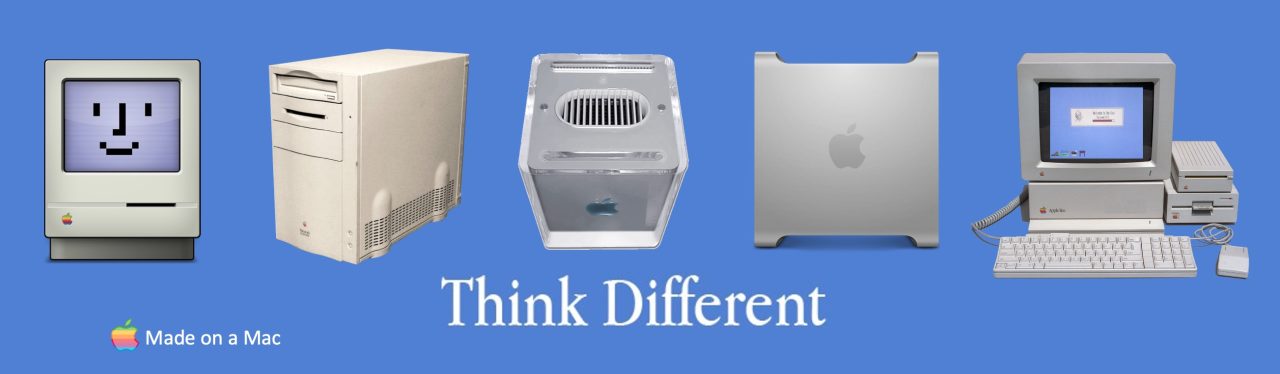


 Quadras, Cubes and G5s
