

Noticeboard tutorial
Last week I asked for help with my problem and for a tutorial but nobody had one although  jordy540 offered some suggestons so I said I'd write a tutorial if I got it to work out alright and I think it is okay so here goes nothing.
This is only my second tutorial ever so I hope you can understand it and go easy on me please. I did this in PSPX but I am sure it is fully translatable as I didn't use anything fancy.
Edit: I've editted this slightly to show a better version of the header, the exact same principle was applied.
Go from Eight of these, this and this to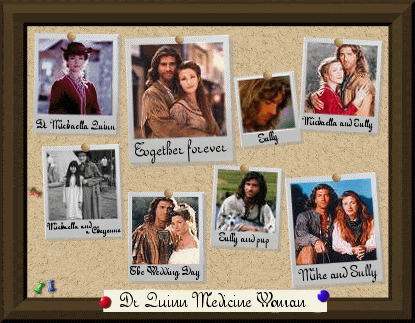
I am writing this tutorial on the assumption that if you are going to use photographs then you know how to put them into polaroid brushes etc so excuse me if I skipped a step or two.
I started with this and resized it to the size my friend wanted (which is smaller than an average header but you can choose your own size) and I added the subject to the strip on the bottom of the noticeboard leaving me with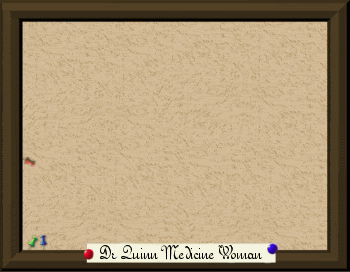
Next I took the seven different polaroids I had and I started placing them on the noticeboard but first I rotated most of them about 3-7 degrees either left or right to give it an authentic feel which left me with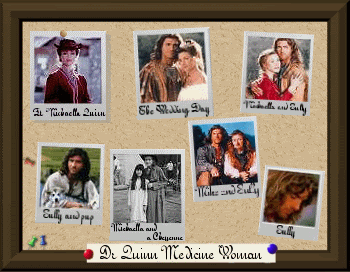
Next I went to Effects - 3D Effects - Drop Shadow (sorry I don't know the Photoshop equivalent) and I chose a dark grey colour and added a drop shadow to each picture with these settings: Vertical 3, Horizontal 5 leaving me with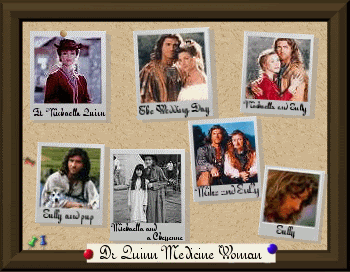 Do play around with it though and do what looks right for you or you could skip this step altogether, your choice.
Next I wanted to make a pin to use to make it look like they were really pinned to the noticeboard so I took this image and used the round selection tool and selected the pin in the middle and copied and pasted it into a new image which left me with
Once I'd got the pin in a new image I resized it to a size that fitted what I was working with and I copied and pasted it onto the noticboard and moved it about until it was in the right place at the top of the photo and I repeated this step until there was a pin in each photograph like so and that's it, you're done.
I know there was a little inconsistency with the tutorial and the pictures as the one picture already had a pin and drop shadow but that was from when I was messing around and I forgot to start over to do the tutorial.
I hope this tutorial helped/gave you some ideas.
jordy540 offered some suggestons so I said I'd write a tutorial if I got it to work out alright and I think it is okay so here goes nothing.This is only my second tutorial ever so I hope you can understand it and go easy on me please. I did this in PSPX but I am sure it is fully translatable as I didn't use anything fancy.
Edit: I've editted this slightly to show a better version of the header, the exact same principle was applied.
Go from Eight of these, this and this to
I am writing this tutorial on the assumption that if you are going to use photographs then you know how to put them into polaroid brushes etc so excuse me if I skipped a step or two.
I started with this and resized it to the size my friend wanted (which is smaller than an average header but you can choose your own size) and I added the subject to the strip on the bottom of the noticeboard leaving me with
Next I took the seven different polaroids I had and I started placing them on the noticeboard but first I rotated most of them about 3-7 degrees either left or right to give it an authentic feel which left me with
Next I went to Effects - 3D Effects - Drop Shadow (sorry I don't know the Photoshop equivalent) and I chose a dark grey colour and added a drop shadow to each picture with these settings: Vertical 3, Horizontal 5 leaving me with
Do play around with it though and do what looks right for you or you could skip this step altogether, your choice.Next I wanted to make a pin to use to make it look like they were really pinned to the noticeboard so I took this image and used the round selection tool and selected the pin in the middle and copied and pasted it into a new image which left me with
Once I'd got the pin in a new image I resized it to a size that fitted what I was working with and I copied and pasted it onto the noticboard and moved it about until it was in the right place at the top of the photo and I repeated this step until there was a pin in each photograph like so
and that's it, you're done. I know there was a little inconsistency with the tutorial and the pictures as the one picture already had a pin and drop shadow but that was from when I was messing around and I forgot to start over to do the tutorial.
I hope this tutorial helped/gave you some ideas.
