

What’s New in Pinnacle Studio

An overview of the Audio Editor
Get an overview of Pinnacle Studio’s Audio Editor features and learn how they can be used to add, edit and enhance the audio portions of your video projects.
How to use Blend Modes
Learn how to use blend modes in Pinnacle Studio 25 to layer your tracks more creatively than ever for eye-catching transitions and special effects!
How to use Smart Object Tracking
Learn how to mask people, animals, cars and more, on screen, with new AI-powered smart object tracking, exclusive to Pinnacle Studio 25 Ultimate.
What’s new in Pinnacle Studio
Check out the greatly enhanced stability, performance, and usability that makes the new Pinnacle Studio 26 faster, better, and more efficient than ever!
Beginner Editing Techniques in Pinnacle Studio
Discover Pinnacle Studio
New to Pinnacle Studio? Get an overview of the product and an introduction to the 10 basics steps in the video editing workflow, from importing your clips to exporting your movie.
Getting started with Pinnacle Studio
Whether you are new to video editing, or just need a refresher, this tutorial will cover the basics of what you need to get started with Pinnacle Studio.
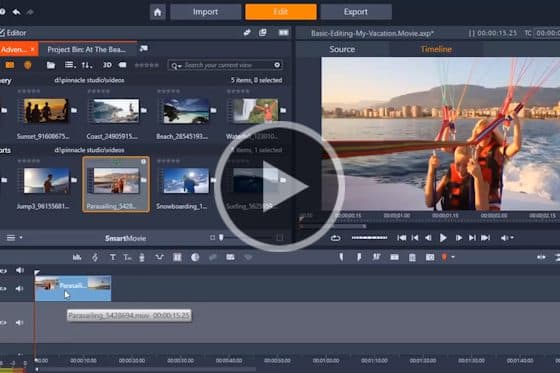
Introduction to basic video editing techniques
Get an introduction to the basic video editing tools in Pinnacle Studio: how to adjust clips and enhance footage, and how to use presets and transitions.
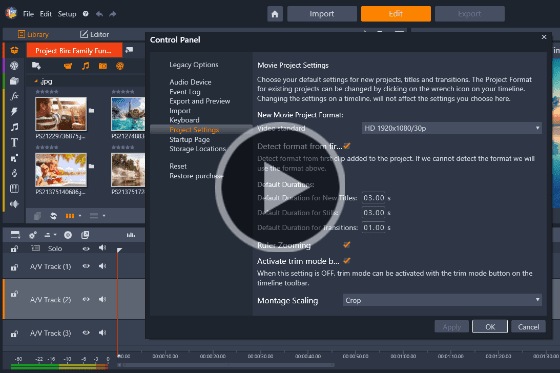
Setting up your project
Starting your first Pinnacle Studio project? Learn the basics of setting up your project, creating project bins and how to adjust default settings.
Easy photo slideshows
Looking to create a photo slideshow? Learn the shortcuts to video editing with Pinnacle Studio’s SmartMovie feature and Montage templates.
How to split, cut and trim videos
Learn how to split, cut, and trim your video clips in Pinnacle Studio to remove segments from the beginning, middle or end of your video project.
Cropping and resizing video clips
This tutorial will show you how to use Pinnacle Studio’s Crop tool to crop, zoom, resize or create a picture-in-picture effect.
Rotating video clips in Pinnacle Studio
Do videos shot on your phone end up the wrong way? This tutorial will teach you about rotating video clips and photos in Pinnacle Studio.
How to use the different editing modes
Learn about Pinnacle Studio’s various editing modes and see how each mode works differently when you trim clips or add new media to the timeline.
How to add music to videos
Learn how to use Pinnacle Studio’s ScoreFitter tool to easily add music tracks that automatically adjust to match the length of your project.
How to use transitions
Learn how to use transitions in Pinnacle Studio. This simple editing technique is an easy way to make your video projects look polished and professional.
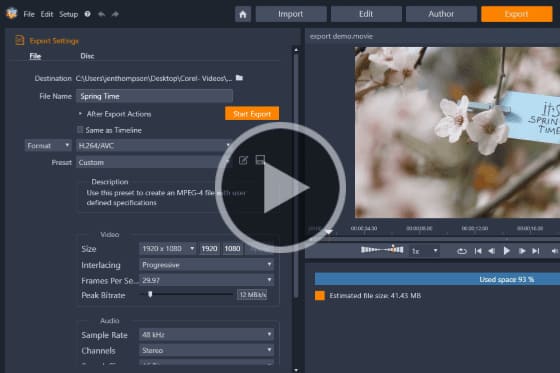
How to export videos
Get step-by-step instructions on how to export your Pinnacle Studio video projects, to view on your computer or upload to a social media site.
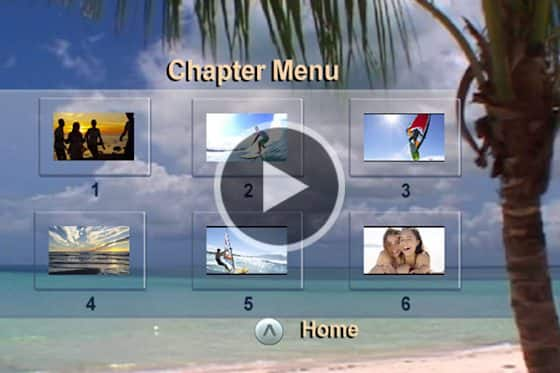
How to burn your movies to disc
Learn how to use Pinnacle Studio’s MyDVD, the easy disc creation program that lets you turn your videos into professional-looking multimedia disc projects.
How to add titles
Learn how to use Pinnacle Studio’s pre-made title templates and then modify the font style and add effects and motion to get exactly the look you want.
Using Templates and Overlays in Pinnacle Studio
How to use Pinnacle project templates
Get started quickly with Pinnacle project templates that have effects, transitions and text boxes built in – just add your photos and videos!
How to create an animated lower third
Learn how to create an animated lower third in Pinnacle Studio by combining the powers of keyframing, shapes, masks, text, blur effects and more.
How to make motion titles in Pinnacle Studio
Learn how to make professional motion titles in Pinnacle Studio by adding text to motion graphics. Includes tips for changing colors and adding effects.
How to create custom animated overlays
Learn how to create custom animated overlays in Pinnacle Studio to gain followers, introduce episodes, and enhance branding on your social channels.
How to use animated overlays in Pinnacle Studio
Learn the basics of adding animated video overlays to your Pinnacle Studio projects, plus tips for customizing them to create unique effects.
Creating project templates
See how to easily create your own Pinnacle Studio custom templates that can be used for future projects like tutorials or promo videos.
Dynamic split screen with keyframes
Learn how to use keyframes in Pinnacle Studio Ultimate to add motion to your split screen videos and show multiple video streams simultaneously.
Creating split screen videos
Learn how to use the Split Screen feature in Pinnacle Studio to show multiple video streams simultaneously.
Easy photo slideshows
Looking to create a photo slideshow? Learn the shortcuts to video editing with Pinnacle Studio’s SmartMovie feature and Montage templates.
Working with Text and Titles in Pinnacle Studio
How to create an animated lower third
Learn how to create an animated lower third in Pinnacle Studio by combining the powers of keyframing, shapes, masks, text, blur effects and more.
How to add titles
Learn how to use Pinnacle Studio’s pre-made title templates and then modify the font style and add effects and motion to get exactly the look you want.
Advanced title effects
Learn how to add creativity and visual impact to your Pinnacle Studio projects by enhancing your titles with motion, effects, and shape backgrounds.
Create custom motion 3D titles
Learn how to use the 3D Title Editor to create custom titles in Pinnacle Studio. You can control the look of the text and how it moves across the screen.
Using the Title Editor
The redesigned title editor in Pinnacle Studio gives you unprecedented control over every letter. Learn how to use it in this tutorial!
How to make motion titles in Pinnacle Studio
Learn how to make professional motion titles in Pinnacle Studio by adding text to motion graphics. Includes tips for changing colors and adding effects.
Speed and Motion in Pinnacle Studio
Synchronize your video to a beat
Learn how to synchronize your video to a beat in Pinnacle Studio, to highlight key moments or climax in the action or transition between images.
Super speed illusion with the Flash effect
Turn your video stars into superheroes like Flash or Quicksilver! This tutorial will show you how to create a super speed illusion in Pinnacle Studio.
Stop Motion Animation in Pinnacle Studio
Create big screen-style animations and full-HD stop motion videos with Stop Motion Animation in Pinnacle Studio.
Creating a time-lapse video in Pinnacle Studio
This tutorial covers the techniques of creating a time-lapse video in Pinnacle Studio, from shooting your photos to exporting your final video.
Video masking with motion tracking
This tutorial will show you how to use Pinnacle Studio’s Motion Tracking and Mask Object features together to add cool effects to your videos.
Add motion with Pan and Zoom presets
This tutorial will show you how to use Pinnacle Studio’s Pan and Zoom presets that allow you to easily add motion and focus on key parts of your video.
Time remapping in Pinnacle Studio
Learn how to use Pinnacle Studio’s time remapping controls to adjust the speed of your video clips to speed up, slow down or even reverse some scenes.
Effects, Filters and Transitions in Pinnacle Studio
Appear and disappear effect in Pinnacle Studio
This easy Pinnacle Studio special effect will give the illusion that your video subjects are appearing or disappearing behind an object like a tree, pole or wall.
Advanced picture-in-picture effects in Pinnacle Studio
By adding advanced picture-in-picture effects such as pan and zoom, color grading and custom motion, you can easily enhance your Pinnacle Studio projects.
Adding outlines, glows and shadows to green screen footage
Enhance your green screen footage with outlines, glows and shadows using the NewBlue Chroma Key Pro filters, only available in Pinnacle Studio Ultimate.
How to create custom transitions
Learn how to create your own custom and unique transitions, such as horizontal and vertical wipes, to make your next Pinnacle Studio project really stand out.
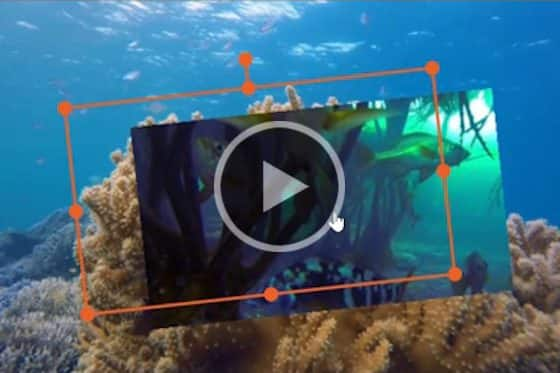
Picture-in-picture effect in Pinnacle Studio
This short tutorial will give you a quick look at at using Pinnacle Studio to easily create a picture-in-picture effect.
An overview of the Track Transparency feature
This tutorial will give you a look at the Track Transparency feature in Pinnacle Studio Plus and Ultimate.
Easy green screen effects with Chroma Key
In this tutorial we’ll show you how to use the chroma key tool in Pinnacle Studio to create easy green screen effects in just a few simple steps.
How to add Seamless transitions
Learn how to enhance your transitions using Pinnacle Studio’s Seamless Transitions effect to smoothly blend like colors or objects from one clip to the next.
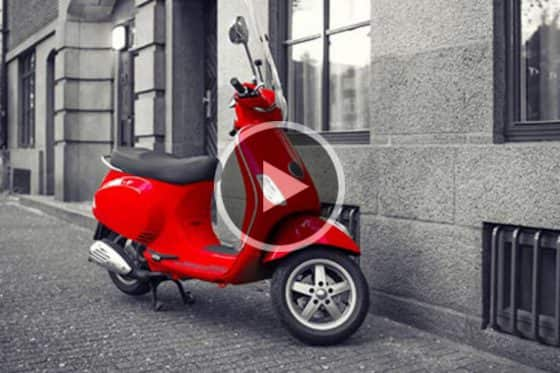
Creating a selective color effect
Learn how to use Pinnacle Studio’s Selective Color feature to add a unique effect by highlighting one color while turning the background to black and white.
How to use paint effects
Learn how to transform your video into a cartoon animation with Pinnacle Studio’s painting and drawing effects like oil paint, cartoon, pencil sketch and more!
How to use Morph transitions
Learn how use Morph Transitions, only in Pinnacle Studio Ultimate, to seamlessly blend video clips with a metamorphosis effect.
Create a tiny planet effect in Pinnacle Studio
Learn how to create tiny planet or rabbit hole effects, with the enhanced 360° photo editor in Pinnacle Studio Ultimate.
How to use transitions
Learn how to use transitions in Pinnacle Studio. This simple editing technique is an easy way to make your video projects look polished and professional.
Color Effects and Corrections in Pinnacle Studio
Removing the green line from YouTube videos
Have you had a green line appear at the bottom of your 4K YouTube videos? Here’s how to remove it with Pinnacle Studio.
How to use the Selective Vectorscope
Learn how to view color shifts across clips, and correct and perfect skin tones using the Selective Vectorscope in Pinnacle Studio Ultimate.
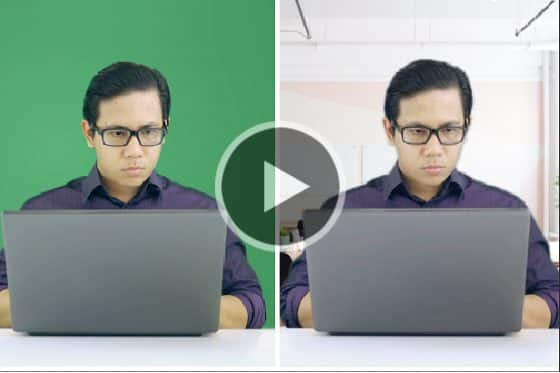
How to improve the quality of green screen footage
Is your green screen footage too dark or shadowed? Learn how to use the NewBlue Chroma Key filter in Pinnacle Studio to fix imperfect green screen footage.
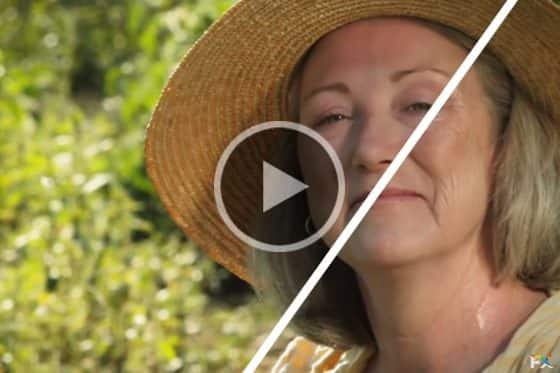
Skin touch ups in Pinnacle Studio
Learn how to use the Skin Touch Up plugin from NewBlue Essentials IV to remove blemishes and smooth out wrinkles.
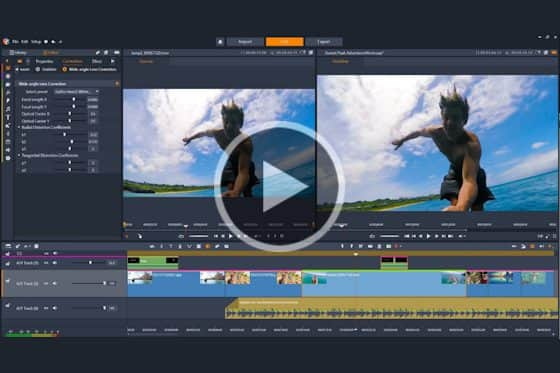
Wide-angle lens correction
Pinnacle Studio’s wide-angle lens correction feature has presets for select cameras and manual controls that allow you to reduce distortion.
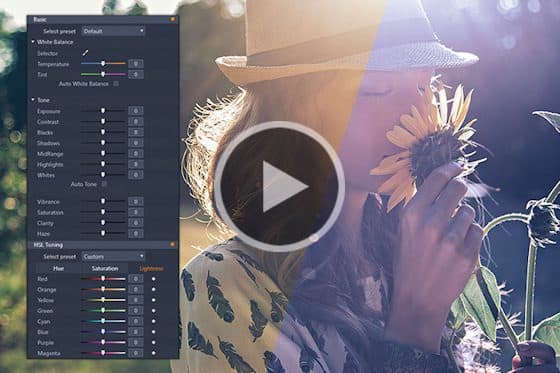
Color grading in Pinnacle Studio
Learn how to use Pinnacle Studio’s color grading tools to set the tone and mood with color correction, color wheels, LUT, waveform scope, and more.
How to create and apply LUTs
Learn how to alter the mood, add drama and cinema-grade color grading effects to your Pinnacle Studio projects by applying LUT color grading profiles.
Creating a selective color effect
Learn how to use Pinnacle Studio’s Selective Color feature to add a unique effect by highlighting one color while turning the background to black and white.
Masking Techniques in Pinnacle Studio
Dynamic video masking
Explore how you can take video masks to the next level with new controls to evolve masks frame-by frame! (Pinnacle Studio Ultimate only)
How to use video masking
Learn how to enhance subjects, hide unwanted objects, and create unique transitions using text and video masks in Pinnacle Studio Ultimate.
Video masking with motion tracking
This tutorial will show you how to use Pinnacle Studio’s Motion Tracking and Mask Object features together to add cool effects to your videos.
How to use Smart Object Tracking
Learn how to mask people, animals, cars and more, on screen, with new AI-powered smart object tracking, exclusive to Pinnacle Studio 25 Ultimate.
Pinnacle Studio Capture, Import and Export
DVD menu and disc authoring with Pinnacle Studio
Learn about Pinnacle Studio’s disc authoring tools and how they are used to create a DVD menu, create and edit chapters and export your movie to disc.
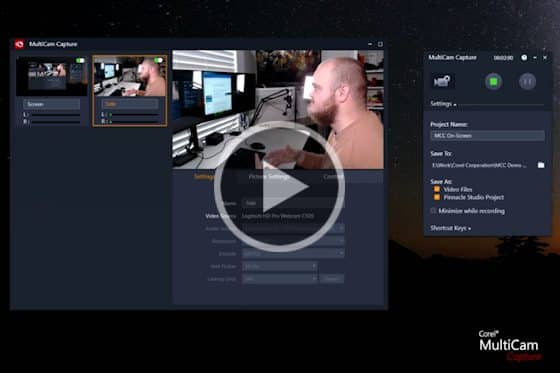
How to use MultiCam Capture Lite
Learn how to record your screen and webcam simultaneously and create engaging tutorial videos with MultiCam Capture Lite in Pinnacle Studio.
How to create animated GIFs in Pinnacle Studio
In this tutorial we’ll show you how easy it is to export your Pinnacle Studio videos as animated GIFs for easy sharing on social media or via email.
How to export videos with transparency
Learn how to export your Pinnacle Studio videos with transparency using Alpha Channel for creative effect or as overlays for new projects.
How to burn your movies to disc
Learn how to use Pinnacle Studio’s MyDVD, the easy disc creation program that lets you turn your videos into professional-looking multimedia disc projects.
How to export videos
Get step-by-step instructions on how to export your Pinnacle Studio video projects, to view on your computer or upload to a social media site.
Audio and Music in Pinnacle Studio
How to use Audio Ducking
Learn how to use Audio Ducking in Pinnacle Studio to balance multiple audio clips, like a voiceover track and background music, for pro-quality audio.
How to add music to videos
Learn how to use Pinnacle Studio’s ScoreFitter tool to easily add music tracks that automatically adjust to match the length of your project.
An overview of the Audio Editor
Get an overview of Pinnacle Studio’s Audio Editor features and learn how they can be used to add, edit and enhance the audio portions of your video projects.
Intermediate and Advanced Editing Techniques in Pinnacle Studio
Using the Multi-camera Editor to sync and edit videos
This step-by-step tutorial shows how to use the Multi-cam Editor to work with up to 6 cameras to create more dynamic videos.
Using keyframes for greater editing control
Go beyond basic editing and see how you can use the power of keyframes to elevate the professionalism of your Pinnacle Studio projects.
360° video editing
Go full circle with Pinnacle Studio Ultimate’s 360° video editing tools to trim, correct color, add titles or graphics and edit your 360° videos.
Three and four-point editing
Learn how to use Pinnacle’s three and four-point editing to mark the in and out points of your clips and identify precisely where to place them on your timeline.
Nesting clips in Pinnacle Studio
See how to use Clip Nesting in Pinnacle Studio to declutter your timeline, and make applying effects to grouped clips quick and easy!
Dynamic video masking
Explore how you can take video masks to the next level with new controls to evolve masks frame-by frame! (Pinnacle Studio Ultimate only)
Add motion with Pan and Zoom presets
This tutorial will show you how to use Pinnacle Studio’s Pan and Zoom presets that allow you to easily add motion and focus on key parts of your video.
Time remapping in Pinnacle Studio
Learn how to use Pinnacle Studio’s time remapping controls to adjust the speed of your video clips to speed up, slow down or even reverse some scenes.
Advanced title effects
Learn how to add creativity and visual impact to your Pinnacle Studio projects by enhancing your titles with motion, effects, and shape backgrounds.
Create custom motion 3D titles
Learn how to use the 3D Title Editor to create custom titles in Pinnacle Studio. You can control the look of the text and how it moves across the screen.
Using the Title Editor
The redesigned title editor in Pinnacle Studio gives you unprecedented control over every letter. Learn how to use it in this tutorial!
Creating project templates
See how to easily create your own Pinnacle Studio custom templates that can be used for future projects like tutorials or promo videos.
How to use Blend Modes
Learn how to use blend modes in Pinnacle Studio 25 to layer your tracks more creatively than ever for eye-catching transitions and special effects!
How to use Smart Object Tracking
Learn how to mask people, animals, cars and more, on screen, with new AI-powered smart object tracking, exclusive to Pinnacle Studio 25 Ultimate.
Advanced Video Editing Projects in Pinnacle Studio
How to create an animated lower third
Learn how to create an animated lower third in Pinnacle Studio by combining the powers of keyframing, shapes, masks, text, blur effects and more.
Make a cinemagraph in Pinnacle Studio
See how easy it is to make a cinemagraph in Pinnacle Studio and grab attention on your website or social media with these subtle image animations.
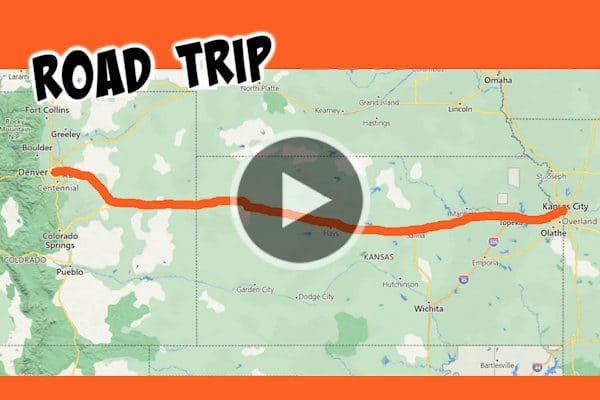
How to make an animated travel line
Want to add some extra impact to your vacation or road trip videos? Learn how to create an animated travel line along a map route using Pinnacle Studio.
Super speed illusion with the Flash effect
Turn your video stars into superheroes like Flash or Quicksilver! This tutorial will show you how to create a super speed illusion in Pinnacle Studio.
Stop Motion Animation in Pinnacle Studio
Create big screen-style animations and full-HD stop motion videos with Stop Motion Animation in Pinnacle Studio.
Creating a time-lapse video in Pinnacle Studio
This tutorial covers the techniques of creating a time-lapse video in Pinnacle Studio, from shooting your photos to exporting your final video.
How to make motion titles in Pinnacle Studio
Learn how to make professional motion titles in Pinnacle Studio by adding text to motion graphics. Includes tips for changing colors and adding effects.
How to create custom animated overlays
Learn how to create custom animated overlays in Pinnacle Studio to gain followers, introduce episodes, and enhance branding on your social channels.
How to use animated overlays in Pinnacle Studio
Learn the basics of adding animated video overlays to your Pinnacle Studio projects, plus tips for customizing them to create unique effects.
Dynamic split screen with keyframes
Learn how to use keyframes in Pinnacle Studio Ultimate to add motion to your split screen videos and show multiple video streams simultaneously.
Make a Star Wars scrolling text intro
Learn how to recreate the classic Star Wars scrolling text effect in Pinnacle Studio, with a few easy steps to add motion and perspective to your text.
Pinnacle Studio Training by Studio Backlot
How to keyframe picture-in-picture effects
In this Pinnacle Studio tutorial, you will learn master DVE techniques from Paul Holtz on how to create powerful, key-framing effects.
How to find your files
Have you been unable to locate missing files in Pinnacle Studio? Paul clears up the mystery for editors once and for all.
Creating a hand wipe effect using Chroma Key
This tutorial demos a unique use of Chroma-Key in Pinnacle Studio to create the famous “hand wiping off dirt” effect seen on TV.
Animate text typing in a circle
Paul Holtz from Studio Backlot shows you how to use Pinnacle Studio’s 360 video editing tools to animate typing text around a circle or arc.
What’s New in VideoStudio
What’s new in VideoStudio
See what’s new in VideoStudio 2023, including new title motion options and title effects, parallax transitions, new format support and more.
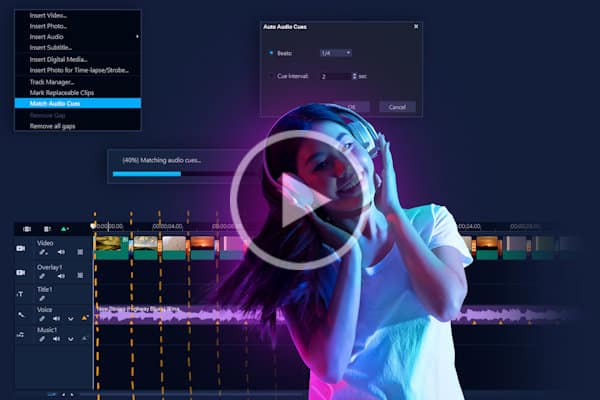
How to use audio cues
Learn how to use audio cues in VideoStudio to emphasize key moments in your video projects by matching your clips to the beat of a music track.
Adding effects and motion to titles in VideoStudio
Take your titles to the next level! Learn how to add animation, special effects, and motion to create professional-looking titles in VideoStudio.
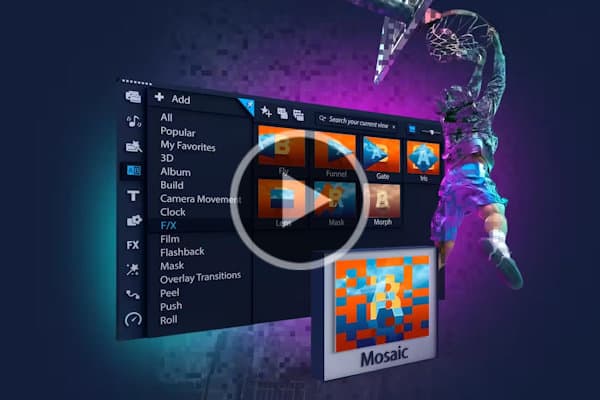
Adding and customizing transitions
Adding transitions is a quick and easy way to add some visual impact and interest to your videos. Learn how to add and customize transitions in VideoStudio.
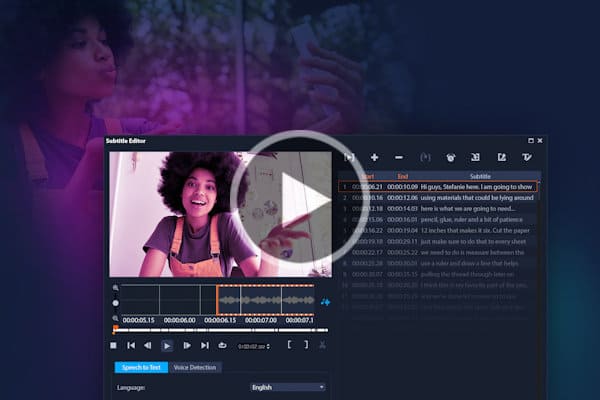
Speech to Text converter
With VideoStudio’s new speech-to-text converter, creating captions is easy! Instead of creating subtitles manually, this tool will do it automatically.
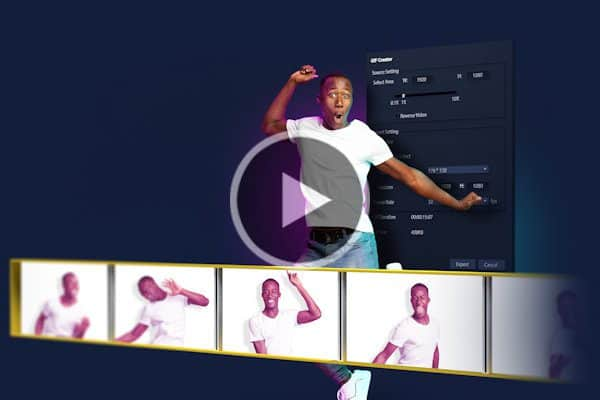
Creating GIFs in VideoStudio
With VideoStudio’s GIF creator, you can easily capture a section of your video and convert it to a short repeatable clip that you can share with anyone.
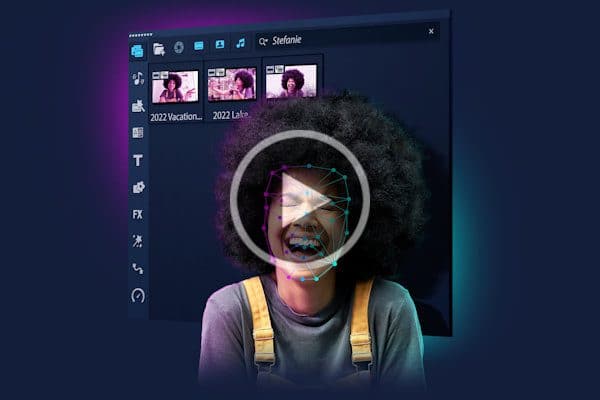
Face Indexing in VideoStudio
The Face Indexing feature in VideoStudio Ultimate automatically identifies faces in your video clips, so you can easily select scenes with specific people.
How to use face-tracking AR stickers
With the charismatic new AR Stickers in VideoStudio you can easily add instant personality to reaction videos, vlogs, gaming videos, and more.
Face Effects in VideoStudio
Try out the new Face Effects in VideoStudio to smooth and brighten skin for subtle enhancements or play with eye size and face width for a comical effect.
Beginner Editing Techniques in VideoStudio
Getting started with VideoStudio
New to VideoStudio? This tutorial will give you an overview of the interface and highlight some of the key editing features.
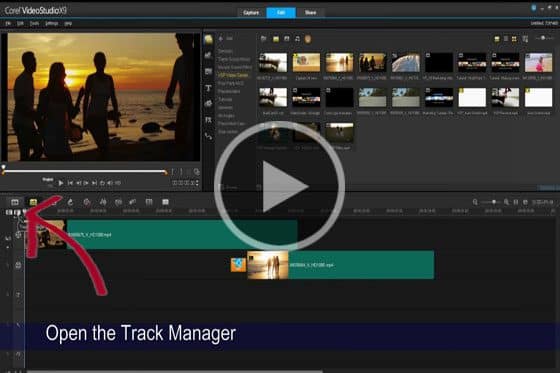
Using the Track Manager
This short tutorial will show you how to add or remove tracks using the Track Manager in the VideoStudio timeline editor.
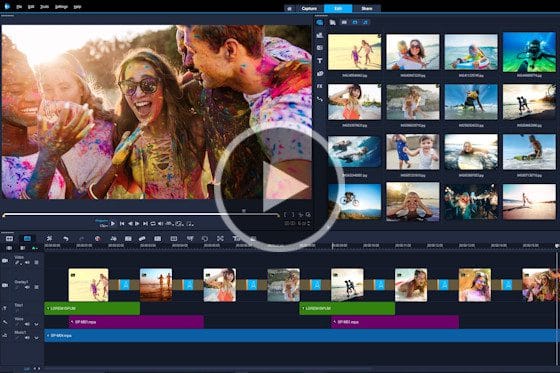
VideoStudio editing quick tips
Crop video, resize, and position your media. Rotate, trim, enhance, and more. Here are some helpful quick tips for VideoStudio.
Easy movies with Highlight Reel
Learn how to create quick videos and show off the highlights of your latest adventure with VideoStudio’s smart movie creator—Highlight Reel.
How to merge videos
Learn how to merge videos in VideoStudio by using transitions to blend smoothly from one video clip or image into the next for professional results.
How to export video in VideoStudio
VideoStudio makes it easy to share your video – upload directly to social media sites or export for viewing on all kinds of devices.
Audio and music tools in VideoStudio
Learn the basics of adding and editing audio in VideoStudio, layering clips, balancing audio levels, adding royalty-free soundtracks, and more.
How to add video effects and filters
Adding filters and effects is an easy but creative way to enhance your clips or correct flaws in your video. This VideoStudio tutorial will show you how.
Adding and customizing transitions
Adding transitions is a quick and easy way to add some visual impact and interest to your videos. Learn how to add and customize transitions in VideoStudio.
Creating basic titles
Titles can help make your VideoStudio projects more professional and easier to follow. Learn how to create and edit basic titles in this tutorial.
How to rotate video clips in VideoStudio
In this tutorial, we’ll show you how to quickly and easily rotate video clips in VideoStudio, to correct videos that have been filmed in portrait mode.
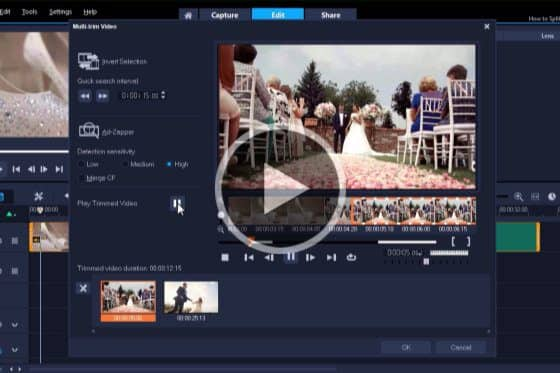
How to split, cut and trim video clips in VideoStudio
In this tutorial you will learn how to remove segments from the beginning, middle or end of your video using the split, cut and trim tools in VideoStudio.
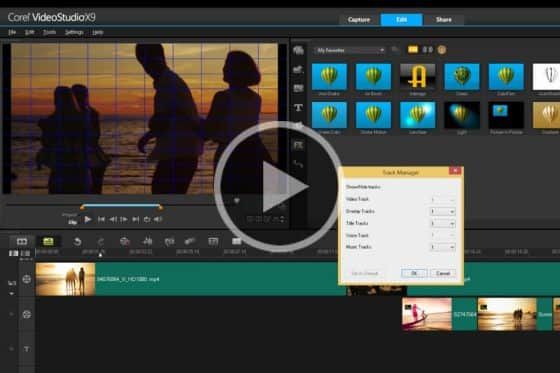
Timeline editing overview
This tutorial covers the basics of timeline editing – the different features and views, how to navigate and how to use the Track Manager.

How to create slideshows
Whether you are using an Instant Project template or FastFlick slideshow maker, creating a slideshow in VideoStudio is as easy as 1-2-3!
How to import video into VideoStudio
The first step in any video project is learning how to import your video clips. This VideoStudio tutorial will show you how.
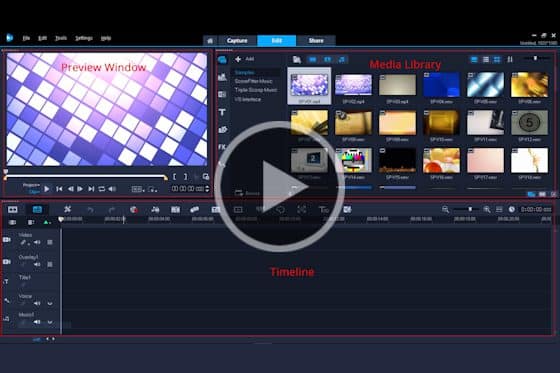
Get to know the VideoStudio workspace
Get to know the VideoStudio workspace, including the Capture, Edit and Share tabs as well as the different tools and options available in each.
Using Templates and Overlays in VideoStudio
How to use face-tracking AR stickers
With the charismatic new AR Stickers in VideoStudio you can easily add instant personality to reaction videos, vlogs, gaming videos, and more.
How to create slideshows
Whether you are using an Instant Project template or FastFlick slideshow maker, creating a slideshow in VideoStudio is as easy as 1-2-3!
How to use Instant Project Templates
See how you can save yourself time and energy by re-creating popular video styles in minutes with new Instant Project Templates in VideoStudio 2021.
Creating custom templates in VideoStudio
This tutorial will show you 2 ways to create custom templates in VideoStudio: building a template from scratch and modifying a pre-made template.
How to create split screen videos
With VideoStudio’s Split Screen feature you can show multiple video streams simultaneously – just drag and drop your clips into the template.
Split screen video with keyframes
Learn how to create dynamic split screen videos in VideoStudio Ultimate. Create your own layouts, customize with keyframes, and save as a template.
Creating motion titles in VideoStudio
Learn how to add text to motion graphics to create professional motion titles in VideoStudio. Includes tips for adding effects and changing colors.
Creating a lower thirds animation in VideoStudio
Learn how to create a lower thirds animation in VideoStudio and get tips for saving custom motion paths and motion graphics for future projects.
How to use animated overlays in VideoStudio
Learn how to use animated video overlays to make your VideoStudio movies more dynamic! Plus get ideas for advanced creative options and effects.
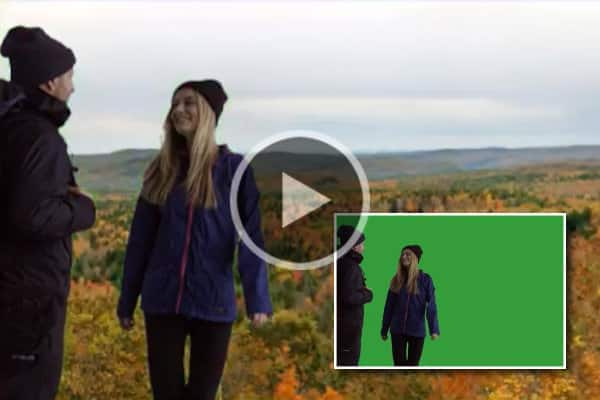
How to use Chroma Key, masks and overlays
Learn how to use Chroma Key, masks and overlays to add transparency, borders and frames, or green screen special effects in VideoStudio.
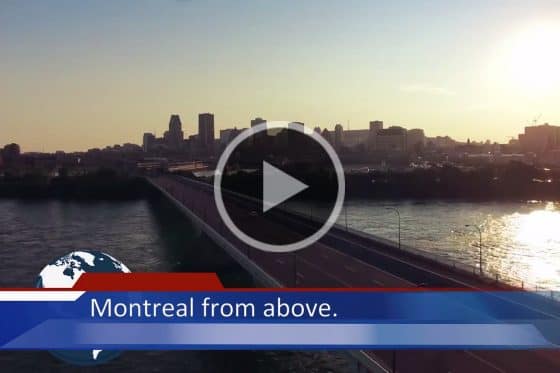
How to use overlay templates
Learn how to use overlay templates in VideoStudio to turn your video clips into a news broadcast-style video. Download free overlay samples to follow along!
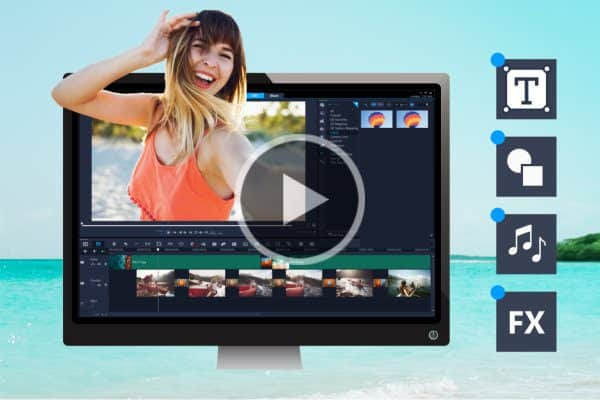
Creative content in VideoStudio 2020
Explore the brand new creative content included with VideoStudio 2020, such as titles, video backgrounds, animated graphics, sound effects and more.
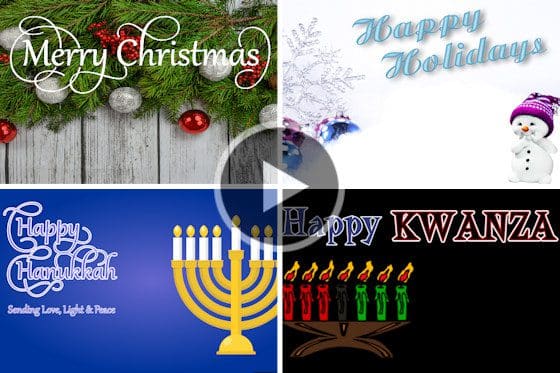
Create a holiday video greeting
Learn how to make a greeting card for the holidays with this VideoStudio template pack. Just select your template and music, add your photos and share!
How to use graphics in video projects
Learn how to use graphics to enhance your VideoStudio projects, how to add effects and motion, plus how to create your own lower thirds and custom titles.
Working with Text and Titles in VideoStudio
Speech to Text converter
With VideoStudio’s new speech-to-text converter, creating captions is easy! Instead of creating subtitles manually, this tool will do it automatically.
Creating basic titles
Titles can help make your VideoStudio projects more professional and easier to follow. Learn how to create and edit basic titles in this tutorial.
Adding effects and motion to titles in VideoStudio
Take your titles to the next level! Learn how to add animation, special effects, and motion to create professional-looking titles in VideoStudio.
Creating custom title presets
Learn how to use VideoStudio’s enhanced Title Editor to create custom titles with motion, text and graphics, and then save them as presets to use again.
Creating motion titles in VideoStudio
Learn how to add text to motion graphics to create professional motion titles in VideoStudio. Includes tips for adding effects and changing colors.
Creating a lower thirds animation in VideoStudio
Learn how to create a lower thirds animation in VideoStudio and get tips for saving custom motion paths and motion graphics for future projects.
How to add subtitles
Learn how to quickly add subtitles to your videos using the Subtitle Editor and Title Tab in VideoStudio to make your videos easier to follow!
How to make 3D titles
Create stunning graphics titles, and control textures, lighting, motion, and more to create the dramatic cinematic opening you want the world to see. Exclusive to VideoStudio Ultimate.
Overview of Boris Title Studio
Get a quick look at Boris Title Studio in VideoStudio Ultimate and see how to use this 2D and 3D titling tool for fast and creative animations.
Using the NewBlue Titler Pro in VideoStudio Ultimate
Get a quick tour of the NewBlue Titler Pro interface and see how easy it is to create professional-looking, animated titles.
Working with extruded text and shapes
This tutorial will show you how to create true 3D animations with the help of Boris Title Studio in VideoStudio Ultimate.
Effects, Filters and Transitions in VideoStudio
Face Effects in VideoStudio
Try out the new Face Effects in VideoStudio to smooth and brighten skin for subtle enhancements or play with eye size and face width for a comical effect.
How to add video effects and filters
Adding filters and effects is an easy but creative way to enhance your clips or correct flaws in your video. This VideoStudio tutorial will show you how.
Adding and customizing transitions
Adding transitions is a quick and easy way to add some visual impact and interest to your videos. Learn how to add and customize transitions in VideoStudio.
Using Painting Creator
Learn how to use VideoStudio’s Painting Creator tool to record your brushstrokes and create animated paintings to add to your video projects.
How to add weather effects to video
Learn how to add and customize the weather filters in VideoStudio to create weather effects like wind, rain, clouds, lightning and snow.
Using Morph transitions in VideoStudio
Learn how to use the Morph Transitions in VideoStudio to transition between scenes and merge video so that there is no discernible beginning or end.
Seamless transitions
Learn how to use Seamless Transitions in VideoStudio to create smooth transitions by aligning similar colors or objects in one scene with the next.
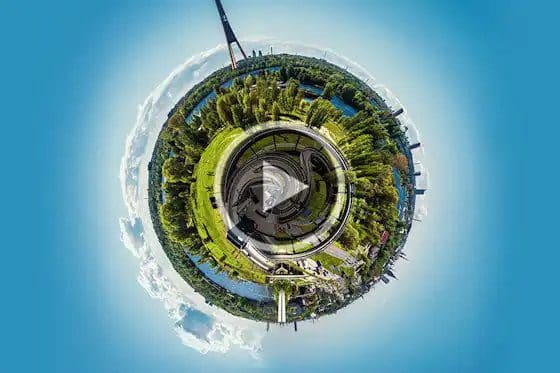
Create tiny planet and rabbit hole effects in VideoStudio
Learn how to easily create Tiny Planet or Rabbit Hole effects in VideoStudio, then use keyframes to adjust zoom and rotation for truly unique results!
Add a picture-in-picture effect
Make your videos look more professional and polished by adding a picture-in-picture effect. Here are 2 methods to create this effect in VideoStudio.
Advanced picture-in-picture effects in VideoStudio
Make your VideoStudio projects more dynamic by adding advanced picture-in-picture effects such as pan and zoom, color grading and custom motion.
Advanced green screen effects with Chroma Key
Learn how to create advanced green screen effects by using the Chroma Key filter from NewBlue to fix imperfect green screen footage.
Using visual effects filters
Learn how to use the ProDAD Vitascene visual effects filter in VideoStudio Ultimate to add high-quality effects, filters and transitions to your videos.
Create effects with track transparency
Learn how to add custom fade in, fade out and superimposed effects to your VideoStudio projects with the Track Transparency feature.
Magnifying glass effect
Looking for a creative way to highlight parts of your video? Video expert Gripps shows you how to create a magnifying glass effect.
How to create a cloning effect
In this tutorial you’ll learn how to apply a simple cloning technique with tips from video editing expert Gripps.
How to use the Adorage and VitaScene filters
In this tutorial, video expert Gripps will show you how to use the proDAD Adorage and VitaScene filters that are included with VideoStudio X8 Ultimate.
Handscript animation ProDAD plugin
This tutorial will show you how to use a ProDAD plug-in to add dynamic handwritten text animation to your video projects.
How to use Chroma Key, masks and overlays
Learn how to use Chroma Key, masks and overlays to add transparency, borders and frames, or green screen special effects in VideoStudio.
VideoStudio Speed and Motion
How to add a freeze frame effect
Add extra impact to your video with VideoStudio’s Freeze Frame feature that allows you to temporarily stop the action to focus on a single frame.
How to make stop motion video
This tutorial will show you how to create a stop motion animation video in VideoStudio, starting with how to capture frame-by-frame videos, to exporting the final video.
How to make a time lapse video
In this tutorial, you’ll learn about the process of creating a time lapse video, starting with tips for shooting time lapse photos, to rendering the final video.
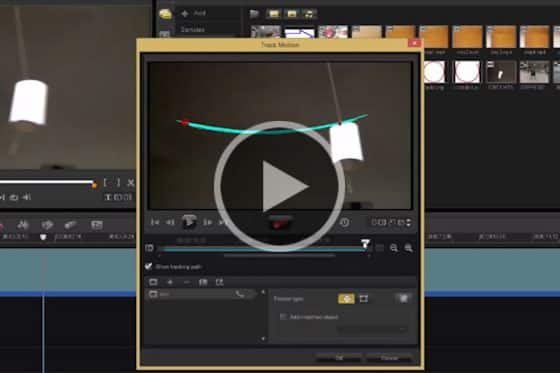
Turning natural motion into animation
The Track Motion feature in VideoStudio allows you to capture a natural motion path, for example a bouncing ball, and turn it into a custom animation you can apply to titles and video clips.
Motion tracking text
This tutorial will teach you about motion tracking text in VideoStudio and you’ll see how easy it is to make a title follow a moving person or object.
Motion tracking multiple objects
Learn how to add motion tracking to multiple objects in your VideoStudio projects, using advanced keyframing to fine tune the object attributes.
Introduction to motion tracking
This tutorial introduces you to motion tracking in VideoStudio with a simple project to familiarize you with the options of the motion tracking feature.
Multi-point motion tracking
See how you can use multi-point motion tracking to add moving text or graphics, or apply a blur to objects you want to obscure.
Adjusting video speed with Time Remapping
See how to add high-speed or slow motion effects, freeze the action or reverse scenes with the Time Remapping controls in VideoStudio.
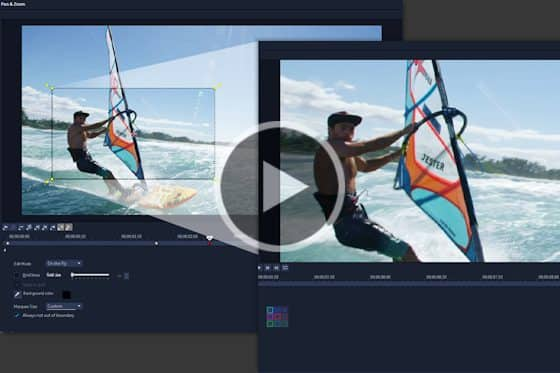
How to use Pan and Zoom
Learn how to zoom in on the action, create custom motion paths, or pan across a scene with the pan and zoom controls in VideoStudio.
Creating custom motion paths
Learn how to create and save custom motion paths and apply them to other elements in your project, or reuse them in future VideoStudio projects.
Adding custom motion effects
Learn how to customize the movement of your graphics, titles, and overlays along a defined path with enhanced Customize Motion feature in VideoStudio.
Creating a lower thirds animation in VideoStudio
Learn how to create a lower thirds animation in VideoStudio and get tips for saving custom motion paths and motion graphics for future projects.
Intermediate and Advanced Editing in VideoStudio
Creating GIFs in VideoStudio
With VideoStudio’s GIF creator, you can easily capture a section of your video and convert it to a short repeatable clip that you can share with anyone.
Understanding video blend modes
Learn how to use blend modes in VideoStudio to specify how overlay clips blend with the background to produce unique and amazing effects.
360° video editing
With the enhanced 360° video editing features in VideoStudio, you can import, edit and preview, then export directly to YouTube, your VR headset, and beyond!
How to blur faces or objects
Need to censor a video? Here are 2 different VideoStudio motion tracking methods that you can use to blur faces and objects in your video clips.
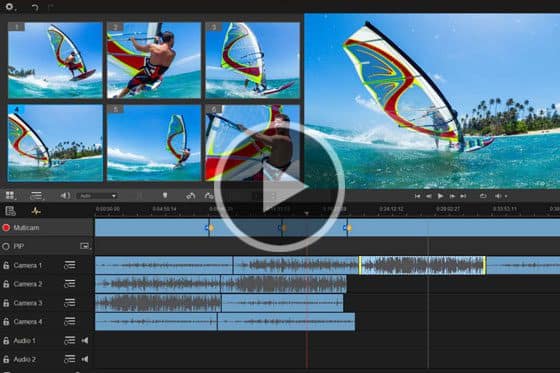
Multi-camera editing
This step-by-step tutorial shows you how to switch angles, cut and delete, add transitions and easily align clips with the Multi-cam editor.
Split screen video with keyframes
Learn how to create dynamic split screen videos in VideoStudio Ultimate. Create your own layouts, customize with keyframes, and save as a template.
How to Ripple Edit
Learn how to use Ripple Editing to keep your titles, overlays and audio in sync when making an edit in the middle of your VideoStudio project.
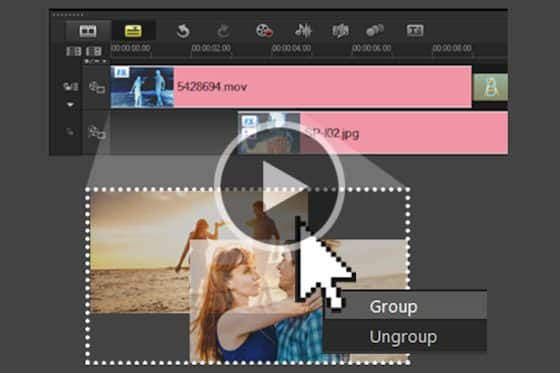
Grouping objects for easy edits
Learn how to make easy edits, using VideoStudio’s grouping capabilities to easily move your clips across the Timeline or apply effects to a group of clips.
Converting 360° video to standard video
This VideoStudio tutorial will show you how to convert your 360° video to standard video for playback and set the viewing angles.
Working with portrait videos
Here are 3 creative ways to work with portrait-oriented video clips by applying masks and using backgrounds in VideoStudio Ultimate.
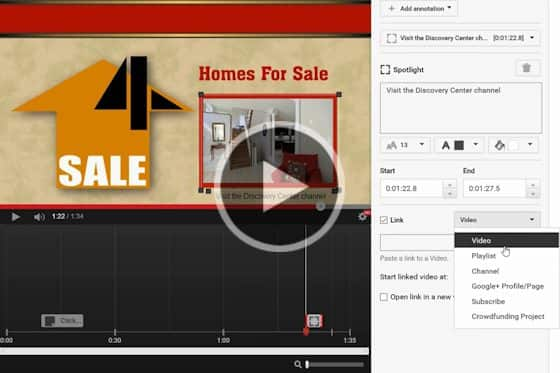
Adding clickable links to YouTube videos
Add clickable links to YouTube videos by creating hotspots with VideoStudio and adding text and links with YouTube video manager.
Speed up the editing process
Enjoy a fast and fluid editing experience in VideoStudio by enabling Smart Proxy allowing you to edit HD content without slowing down your computer!
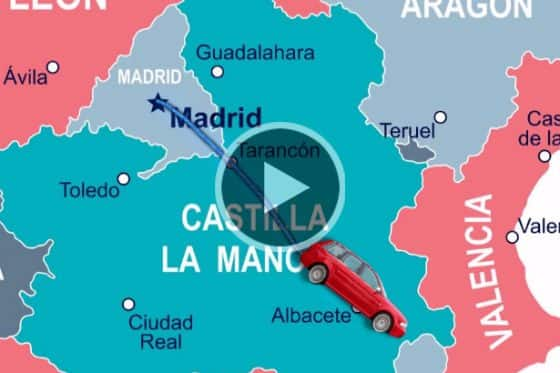
Mapping routes with the proDAD RotoPen
Learn how to animate a vehicle along a path, like a moving travel line on a map, using the proDAD RotoPen filter, only available in VideoStudio Ultimate.
How to edit Ultra HD videos
This tutorial will show you how to maximize your high definition footage in VideoStudio Pro and create an Ultra HD 4K resolution project.
How to make HD and Ultra HD backgrounds
Learning how to make HD and Ultra HD backgrounds opens up infinite possibilities in how you customize your videos. This tutorial will show you how.
How to set up HD video editing: Part 1
Learn how to optimize the settings for HD video editing in VideoStudio and how to save these settings as a template for future projects.
How to set up HD video editing: Part 2
In this video we will explore some of more technical details of your video clips and how to optimize them for your HD project in VideoStudio.
Advanced Video Editing Projects in VideoStudio
Make a cinemagraph in VideoStudio
Learn how to make a cinemagraph in VideoStudio by combining a still image with subtle motion to grab attention on your website or social media.
Make your own promo video
In this tutorial we’ll walk you through the steps to create a short promotional video for your business, starting with a storyboard to the finishing touches on the final video.
Creating a ghost effect
Learn how to shoot your footage and use various editing tools to add a spooky, supernatural effect to your VideoStudio projects.
Creating an old-fashioned silent movie
Learn how to speed up your clips, add title slates, and apply filters in VideoStudio to create an old-fashioned silent movie-style of video.
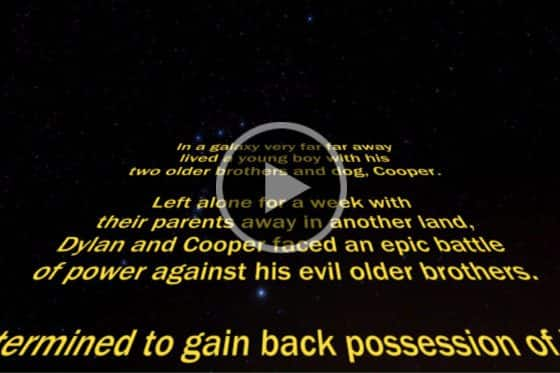
Create a Star Wars intro text effect
Here’s how to easily replicate the famous scrolling Star Wars intro text effect using the title editor and custom motion options in VideoStudio.
How to make stop motion video
This tutorial will show you how to create a stop motion animation video in VideoStudio, starting with how to capture frame-by-frame videos, to exporting the final video.
How to make a time lapse video
In this tutorial, you’ll learn about the process of creating a time lapse video, starting with tips for shooting time lapse photos, to rendering the final video.
Creating motion titles in VideoStudio
Learn how to add text to motion graphics to create professional motion titles in VideoStudio. Includes tips for adding effects and changing colors.
Creating a lower thirds animation in VideoStudio
Learn how to create a lower thirds animation in VideoStudio and get tips for saving custom motion paths and motion graphics for future projects.
Creating custom templates in VideoStudio
This tutorial will show you 2 ways to create custom templates in VideoStudio: building a template from scratch and modifying a pre-made template.
How to use animated overlays in VideoStudio
Learn how to use animated video overlays to make your VideoStudio movies more dynamic! Plus get ideas for advanced creative options and effects.
Split screen video with keyframes
Learn how to create dynamic split screen videos in VideoStudio Ultimate. Create your own layouts, customize with keyframes, and save as a template.
Audio and Music in VideoStudio
How to use audio cues
Learn how to use audio cues in VideoStudio to emphasize key moments in your video projects by matching your clips to the beat of a music track.

Introduction to Audio Ducking
See how to use Audio Ducking in VideoStudio to balance the levels of two audio tracks, like music and voiceover.
How to record a voiceover
Learning how to record a voice over is essential for creating effective educational and descriptive movies. Learn how to use the Voiceover tool in VideoStudio.
Audio and music tools in VideoStudio
Learn the basics of adding and editing audio in VideoStudio, layering clips, balancing audio levels, adding royalty-free soundtracks, and more.
VideoStudio Capture, Import and Export
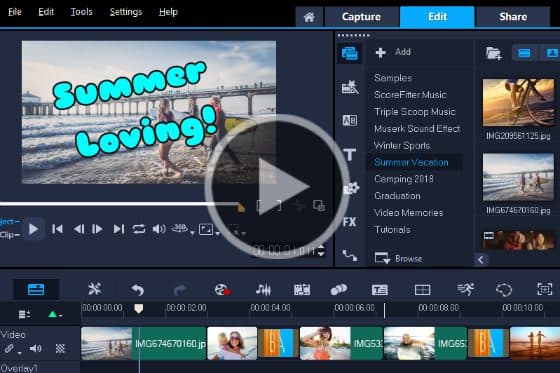
How to share and transfer video projects
Learn how to use the Smart Package feature in VideoStudio to easily share your draft video projects with a friend, or work on them on a different device.
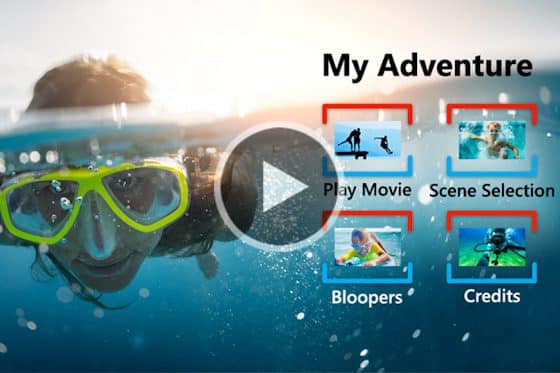
How to burn your videos to DVD
This tutorial will show you how to burn your VideoStudio projects to DVD and AVCHD with 100+ customizable menus, chapters, and music.
Live screen capture
Record your screen and capture both system and microphone audio to create training videos, content for presentations, and more.
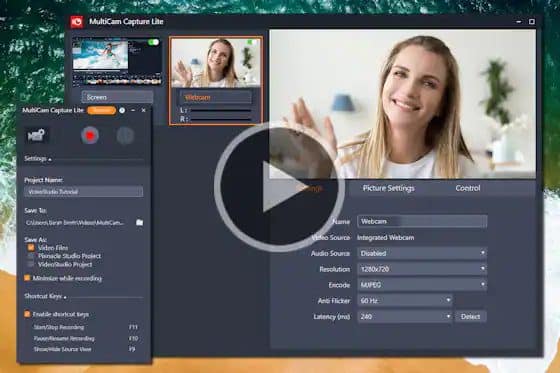
MultiCam Capture Lite
Learn how to use MultiCam Capture Lite in VideoStudio to record two different sources like your screen and webcam at the same time – great for how-to videos!
Exporting videos with transparent background
Learn how to export your overlays, motion graphics, masks or text with a transparent background using the alpha channel capabilities in VideoStudio.
How to export video in VideoStudio
VideoStudio makes it easy to share your video – upload directly to social media sites or export for viewing on all kinds of devices.
How to import video into VideoStudio
The first step in any video project is learning how to import your video clips. This VideoStudio tutorial will show you how.
Creating GIFs in VideoStudio
With VideoStudio’s GIF creator, you can easily capture a section of your video and convert it to a short repeatable clip that you can share with anyone.
Masking Techniques in VideoStudio
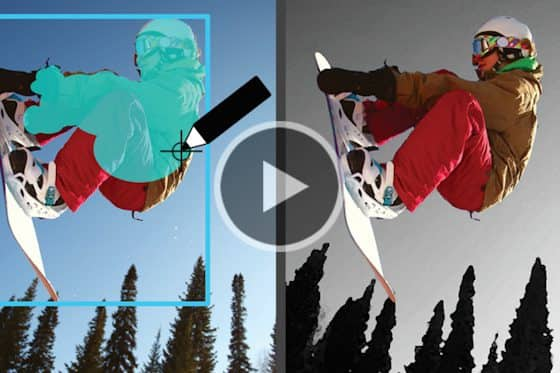
Masking objects with Mask Creator
Learn how to use VideoStudio’s shape and brush tools to create a masked area so you can apply effects to the selected area or object.
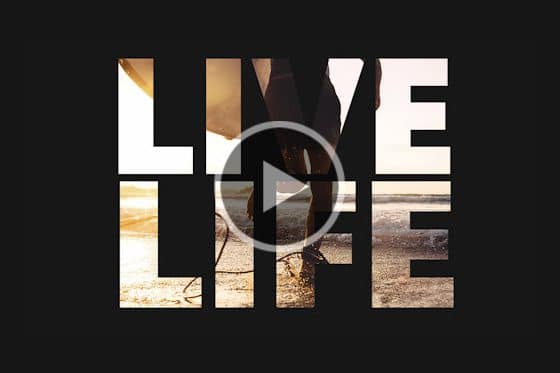
Creating video and text masks in VideoStudio
Learn how to use the enhanced Mask Creator in VideoStudio Ultimate to create your own text masks or still masks from select areas of your video.

Video masking in VideoStudio
Learn how to use the masking tools in VideoStudio Ultimate to create text masks, title reveals and overlays or to blur faces and backgrounds.
How to use Chroma Key, masks and overlays
Learn how to use Chroma Key, masks and overlays to add transparency, borders and frames, or green screen special effects in VideoStudio.
Color Effects and Corrections in VideoStudio
Face Effects in VideoStudio
Try out the new Face Effects in VideoStudio to smooth and brighten skin for subtle enhancements or play with eye size and face width for a comical effect.
Adding color backgrounds and patterns
In this short tutorial we’ll show you how to add color chips, color patterns and backgrounds from the VideoStudio library.
Improving the color in your video
Are your videos looking a little dark or faded? With the Color Corrections options in VideoStudio you can fix this quickly and easily.
Improve video quality
In this tutorial we’ll show you how to use the various settings in VideoStudio’s Options panel to adjust color, speed and length of your video clips.
Remove the fisheye effect
Want to add or remove a fisheye effect from your video footage? Here’s how, with the Lens Correction filter in VideoStudio.
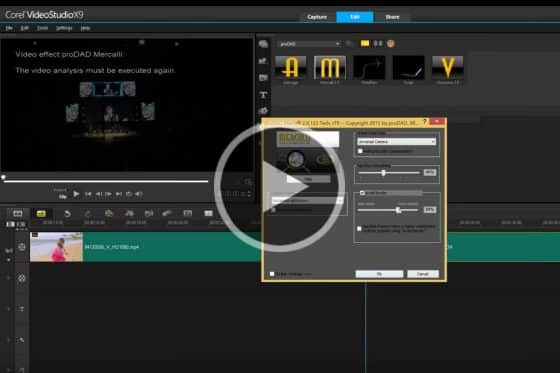
Remove the shake from your videos
This tutorial will show you how to use the ProDAD Mercalli SE filter in VideoStudio Ultimate to stabilize your shaky video.
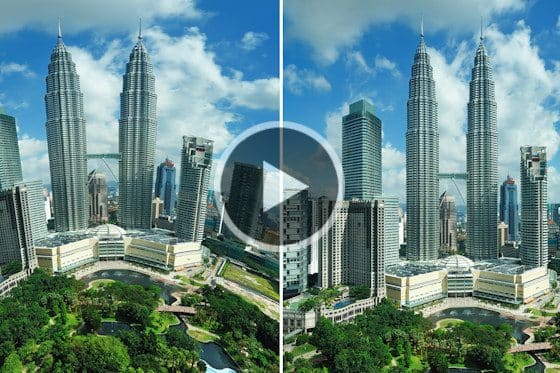
How to fix lens distortion
With VideoStudio’s wide-angle lens correction you can quickly and easily remove distortion from wide angle cameras or action cameras.
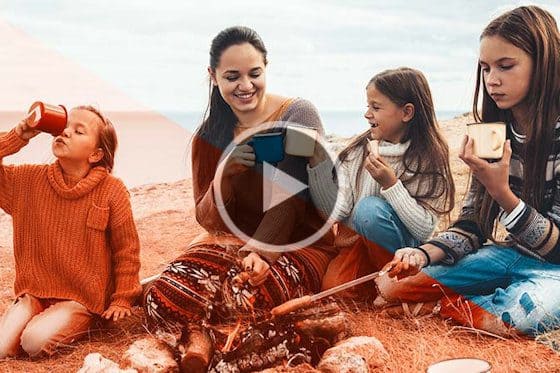
Color grading in VideoStudio
Learn how to use the color grading controls in VideoStudio Ultimate to correct color, adjust hue and exposure, apply Look Up Profiles (LUTs) and more.
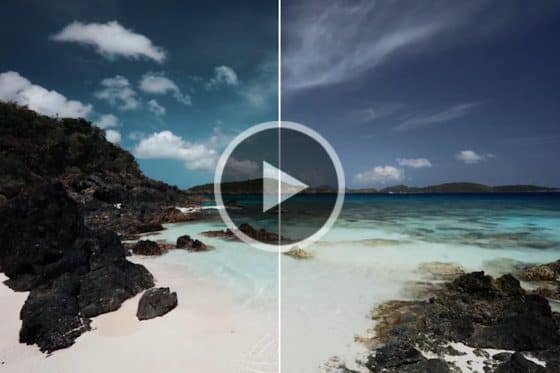
Using LUTs in VideoStudio
With VideoStudio’s LUT profiles you can easily make color corrections, apply modern color transformations and even mimic popular movie styles.
VideoStudio Training by Studio Backlot
Welcome to a free preview of training provided to us by our friends at Studio Backlot. With hundreds of course and tutorials available, and access to much more, Studio Backlot produces contest for all skill levels to help you quickly learn new effects and become proficient with VideoStudio. Learn more about courses and take advantage of the free 10-day all-access pass to Studio Backlot when you purchase VideoStudio. When you join the Studio Backlot community your membership entitles you to watch every tutorial, download any stock, participate in our community forums and a host of other benefits.
Creating a tracking mask with Mask Creator
Learn how to create a high-end production effect using a tracking mask, where a logo is revealed as the Jeep passes by.
Creating custom motion backgrounds
Our friends at Studio Backlot share some master tips for how to create your own custom motion backgrounds using standard video editing software tools.
Create a custom animated wipe
In this VideoStudio tutorial, Paul Holtz shows you how to use a Chroma key and some prepared graphics to create your own custom animated graphic wipe.