Docker allows us to isolate applications without need to include the environment or OS, which means, we can isolate a service like nginx without need to dedicate a whole operating system for it, without even dedicated libraries. Applications (images) are isolated within containers to be used and customized as explained in this tutorial.
Some Docker components:
- dockerd: is the Docker daemon which manages
- Docker Hub repositories: public repository hosting all containers shared by the community. You not always need to create a container, you can enjoy ready containers from the Docker Hub repositories.
- Docker images vs Docker containers: A Docker image is the initial live software we’ll use within a container from which we can apply our changes (and create a new image including them if we want). We can not edit or change data within images but we can run them within containers and export a new image with the required customization.
Installing Docker
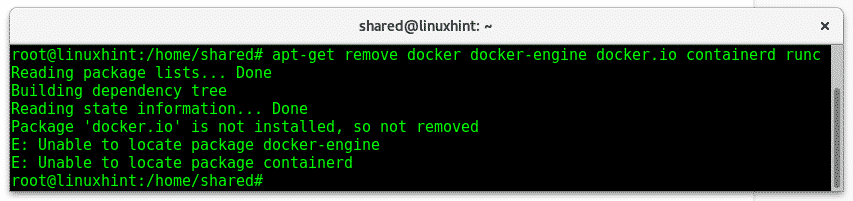
Before setting up Docker we need to make sure old versions are not installed, previously to Docker installation run:
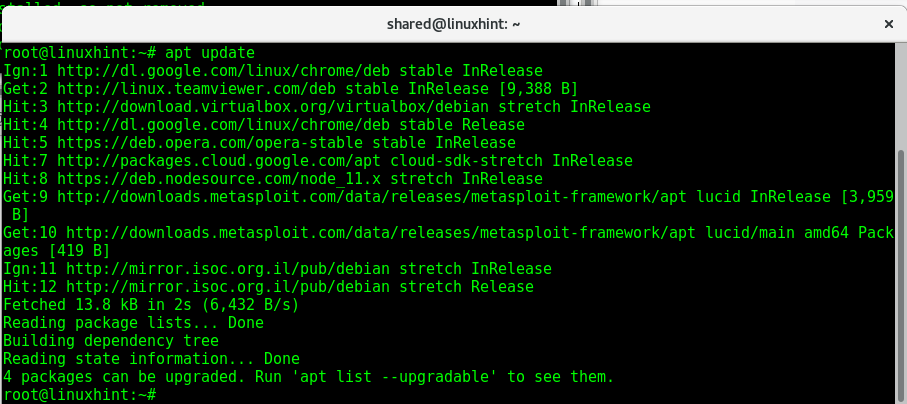
Then update repositories by running:
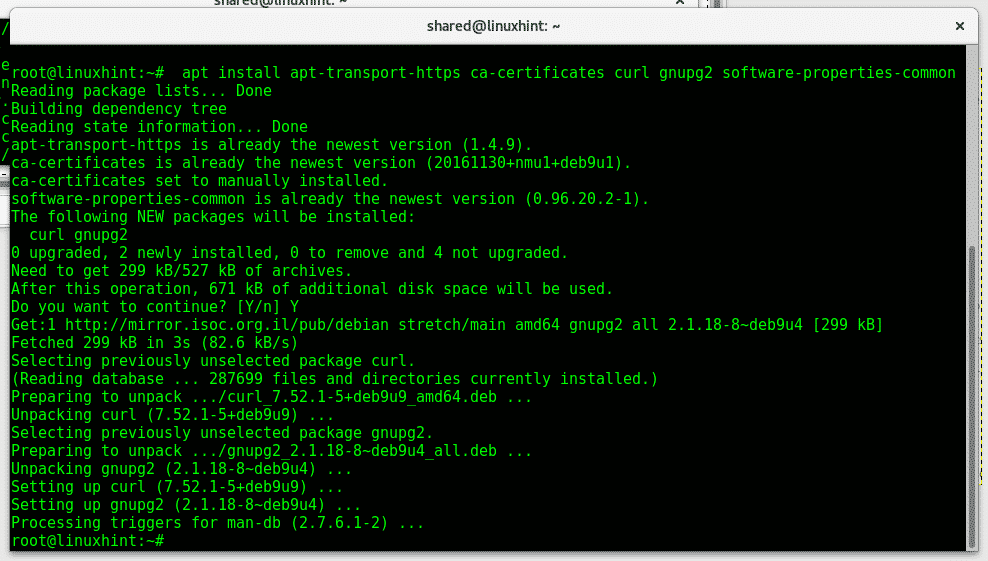
Let’s install packages to allow docker installation through https, execute:
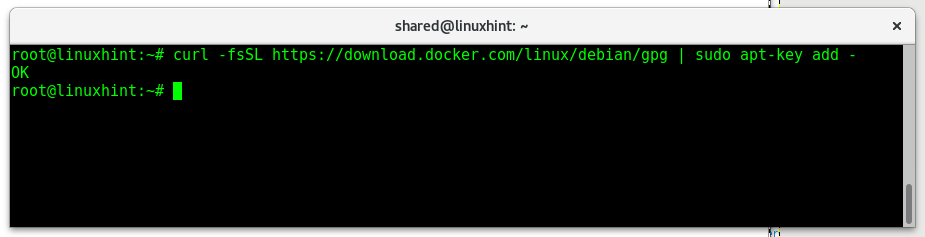
Now add Docker keys, type:
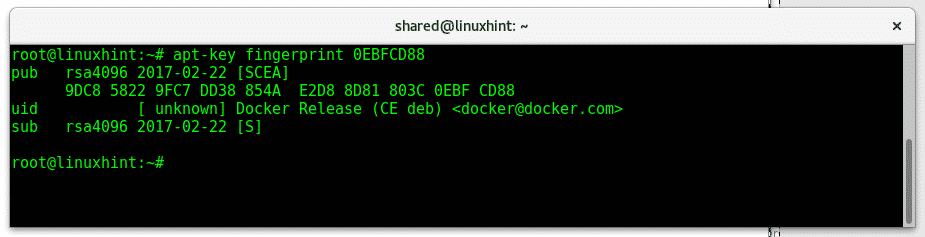
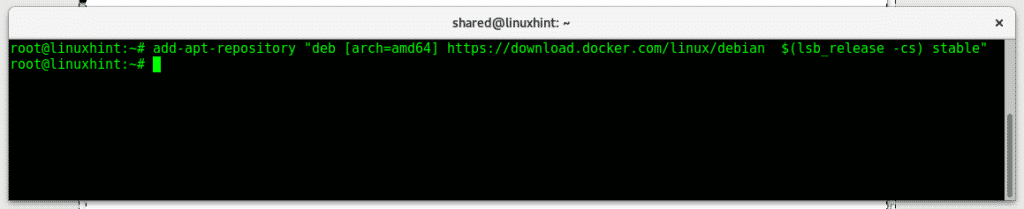
Now add Docker repositories by running:
$(lsb_release -cs) stable"
Update repositories by running:
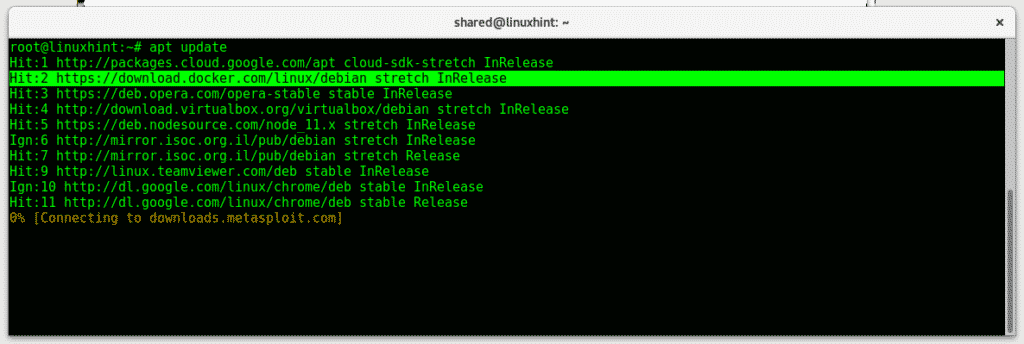
As you see the Docker repository was added successfully. To install Docker execute:
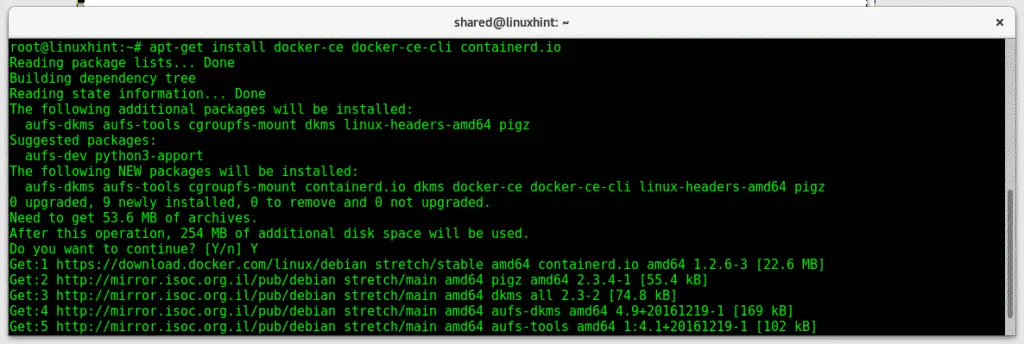
Press Y when requested to continue.
Run a simple instruction to check Docker was installed properly by running:
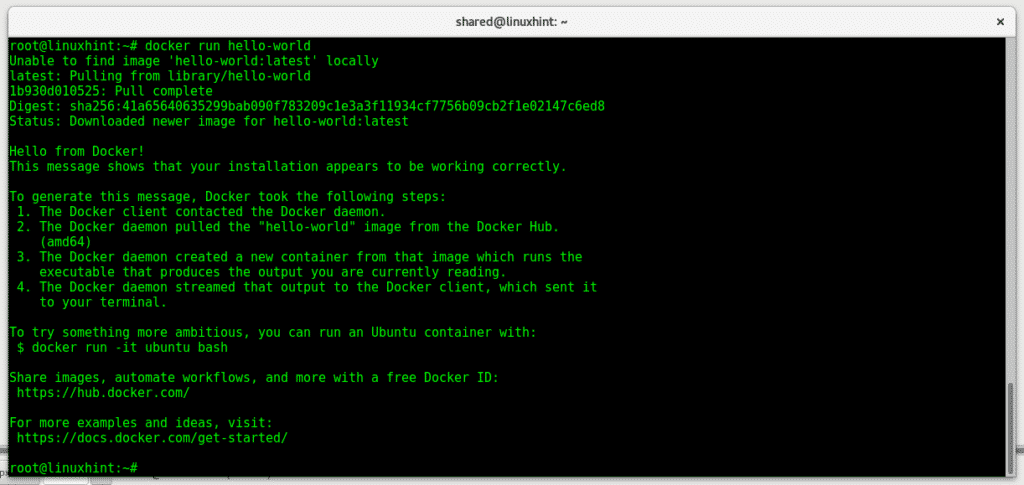
As you see the hello-world image wasn’t found locally therefore Docker CE will download it from the Docker Hub repositories. The test image shows the installation works properly and that the Docker daemon was contacted by the client.
Docker basic commands
docker start: start/run an existing container.
docker stop: stop a started or running container.
docker build: Build a docker image.
docker run: Run commands within a Docker container.
docker search: search docker images within Docker Hub repositories.
docker pull: this command is used to pull images from the Docker Hubor other defined source.
docker commit: create a new container from an existing one including modifications.
docker ps: shows docker containers
docker image ls: shows Docker images.
Running Snort with Docker CE on Debian 9
For this example I will use a Snort IDS (Intrusion Detection System) container, To install the Snort container from the Docker Hub run:
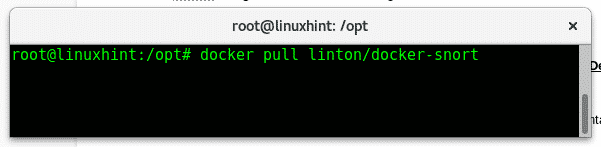
Give the container access to the network by running:

Use vi to edit Snort rules, type:
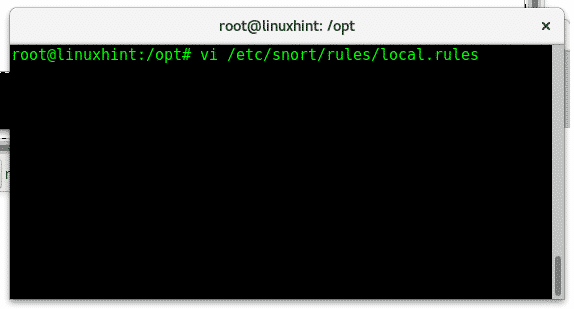
Now let’s add a rule to Snort which will report pings to our system, to check if it works properly.
Once vi was opened, press ALT+I to insert new content and add the following line:

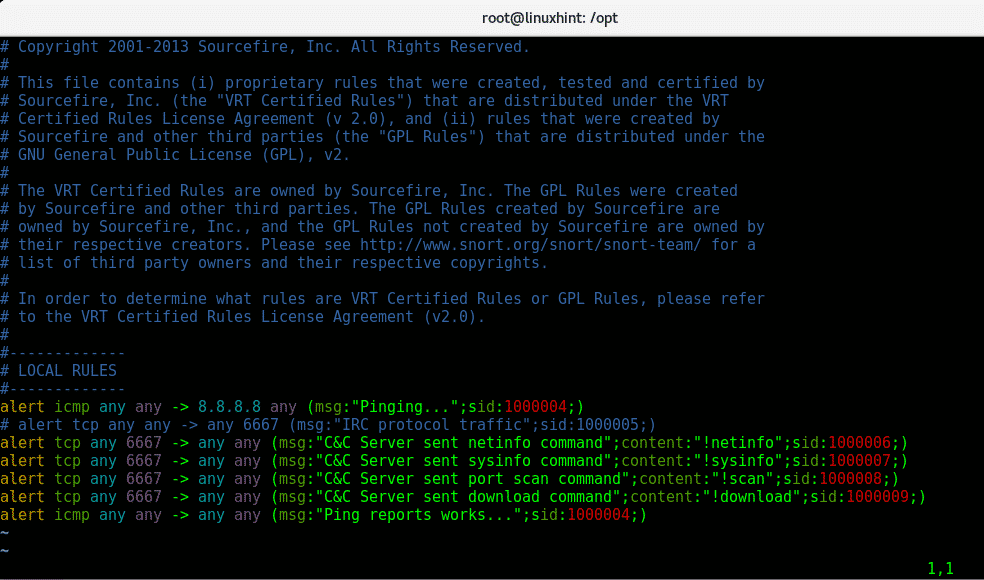
Once the rule was added type “😡” to save and exit.
Now lets run:
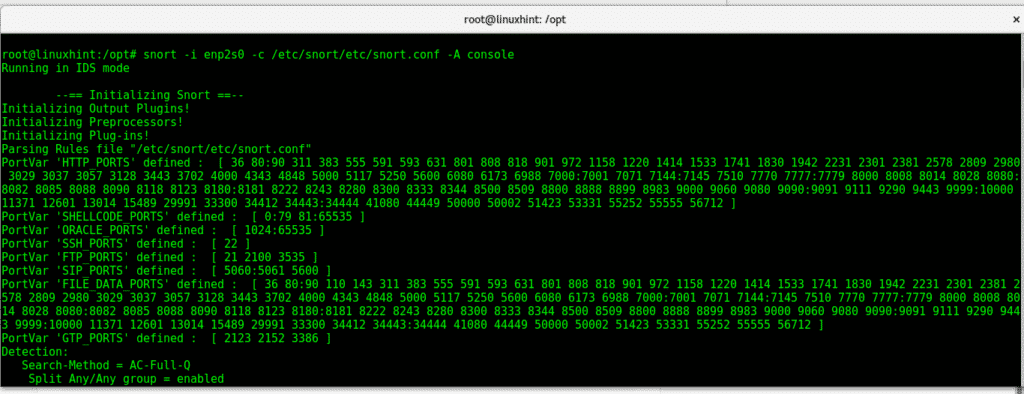
Note: replace enp2s0 with your network device.
Now if you ping your device live alerts will prompt showing the rule we added. For more information on Snort you can check Configure Snort IDS and Create Rules and Snort Alerts.
To exit a container just run exit
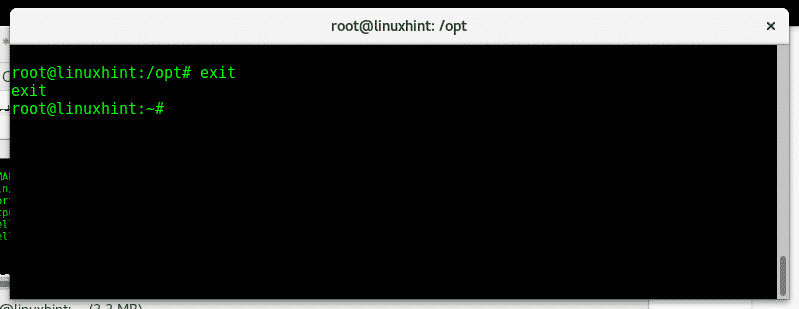
If you want to list the available containers run:

Creating a new image from a container
As said before a docker image is the original and immutable source of the software, while the container is it’s persistent version in which we can save modifications with the command commit. We will download an Ubuntu image, modify it and create a new one including our modification:
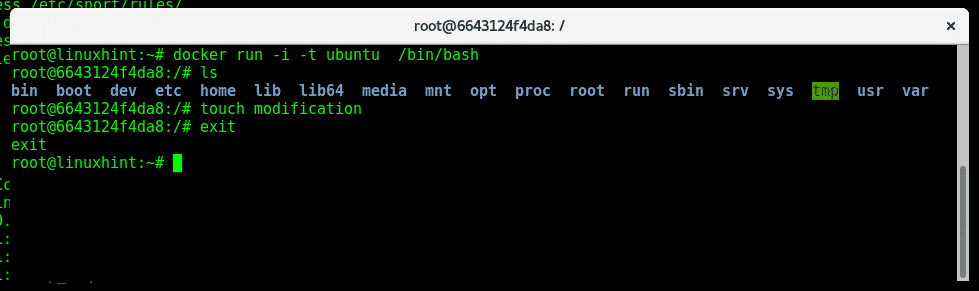
First to download the Ubuntu image run:
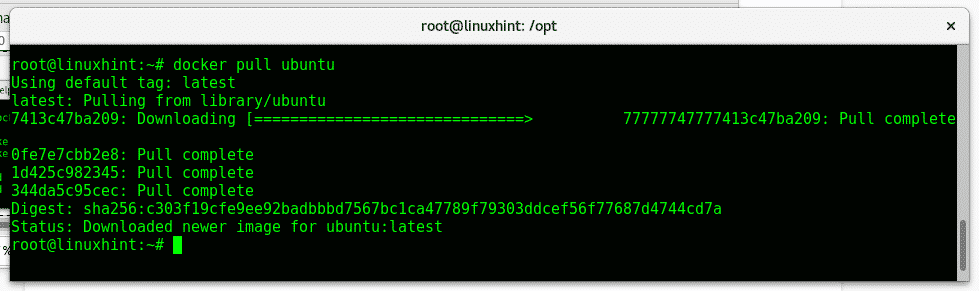
Once downloaded run it by typing:
Create a file which will represent the modification by running:
Then exit typing:
exit
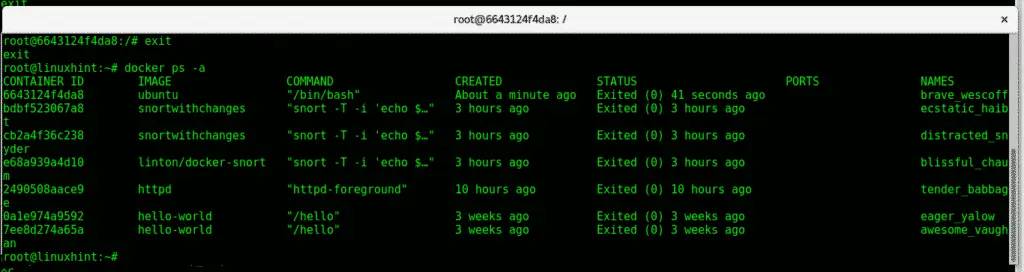
Check the container ID by running:
Use the command docker commit and the container ID to create a new image from your modified container:

Note: replace 6643124f4da8 for your container ID.
Now let’s run the new image:
Check if our file remains there:

And as you see the changes are persistent, the file remains there.
Conclusion:
Docker is great, not as an alternative but as main resource to replace virtual machines. While we can break our containers, we can’t break the system hosting it, installation, configuration and customization processes can be easily avoided by using this tool without need to clonate partitions or filesystems worrying about hardware compatibility.
Docker literally reduces the work from Gigabytes to MB and prevents a lot of problems associated with OS virtualization with advantages from developers to final users.
Thank you for following LinuxHint.com, keep following us for more tutorials and updates on Linux, networking and security.

