Blog

Your blog is the voice of your brand. The Master Addons Blog Posts Element is a complete design and query engine for your content. Go beyond basic grids. Choose between elegant Grid Layouts or dynamic, interactive Carousel displays. Filter posts by category, author, or tag. Control exactly which meta info shows, style every single element from the thumbnail overlay to the pagination buttons, and create a reading experience that keeps visitors engaged. Whether you’re building a news portal, a portfolio blog, or a resource center, this element gives you the power to present your content strategically and beautifully.

Flexible Layouts & Display Modes

Flexible Layouts & Display Modes

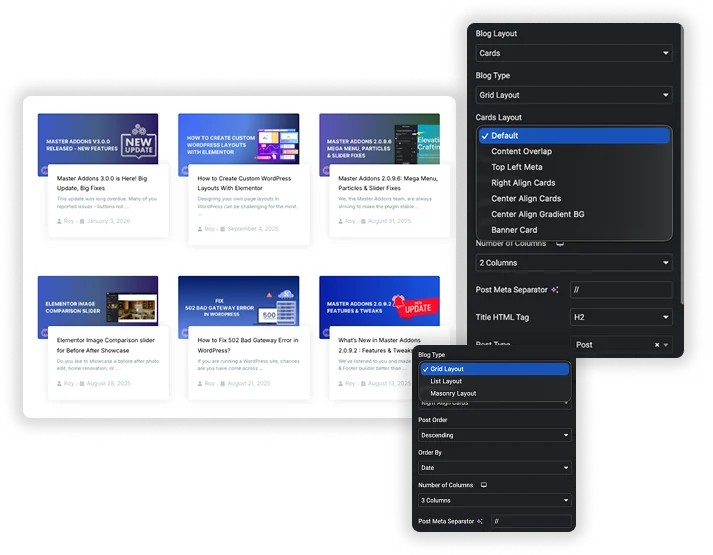
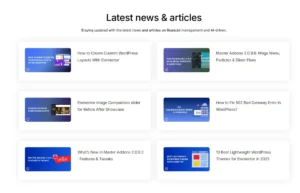
Start by defining how your posts will be arranged. Select a Blog Layout: a classic Grid or a modern Cards layout with variations like Content Overlap, Top Left Meta, or Banner Card. Then, decide on the Blog Type: a static Grid Layout or an interactive Carousel. If choosing a grid, set the Number of Columns (from 1 to 6) and the Columns Spacing. For a carousel, unlock a suite of smooth animation controls. This foundational choice lets you match the layout to your page’s purpose – a dense grid for archives, a sleek carousel for featured content.

  • Multiple Layout Presets: Choose from Cards, Content Overlap, Banner Card, and other styled layouts.
  • Grid vs. Carousel: Display posts in a static, responsive grid or a sliding, animated carousel.
  • Column Control: Set the exact Number of Columns for grid layouts and adjust the gutter with Columns Spacing.

Smart Post Query & Filtering

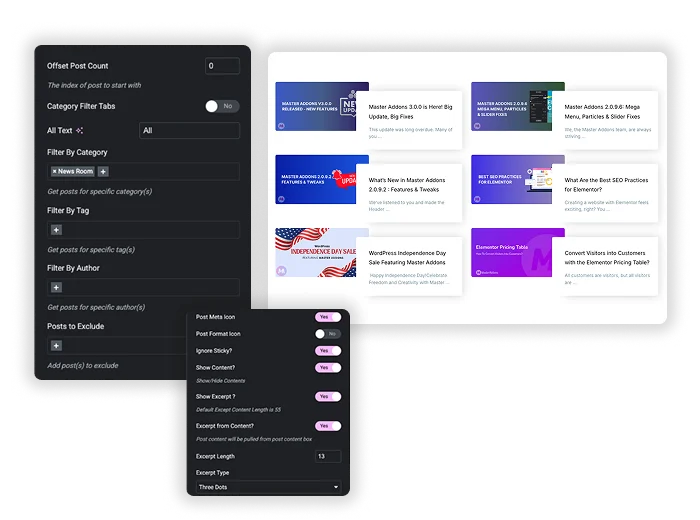
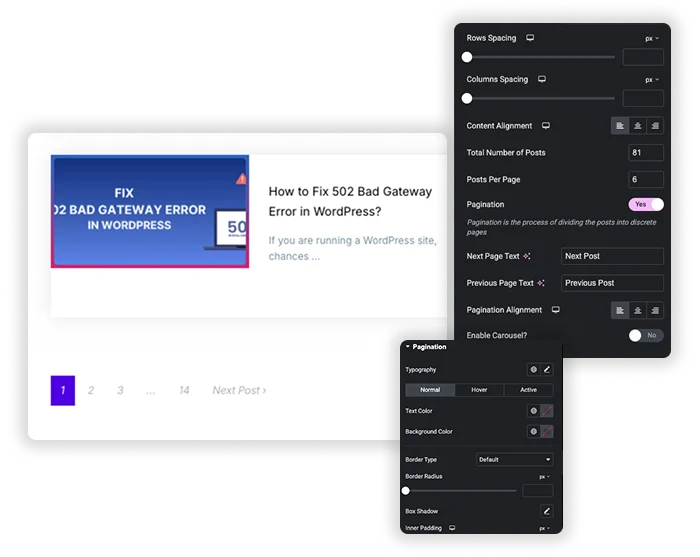
Take full control over which posts appear. Set the Total Number of Posts and Posts Per Page. Choose the Order By (Date, Title, etc.) and Order (Ascending/Descending). Use powerful filters to curate content: select specific Categories, Tags, or Authors. Exclude specific posts or set an Offset Post Count to skip the latest ‘X’ posts. You can even enable Category Filter Tabs above the grid, letting visitors filter content by category themselves, turning your blog into a dynamic, user-driven resource.

  • Advanced Filtering: Include or exclude posts by Category, Tag, Author, or specific post IDs.
  • Custom Sorting: Order posts by Date, Title, Comment Count, or other parameters.
  • Front-End Filter Tabs: Add interactive category tabs that users can click to filter the grid in real-time.
  • Pagination Control: Split long lists into pages with customizable Posts Per Page count.
Smart Post Query & Filtering
Thumbnail Image Styling

Thumbnail Image Styling

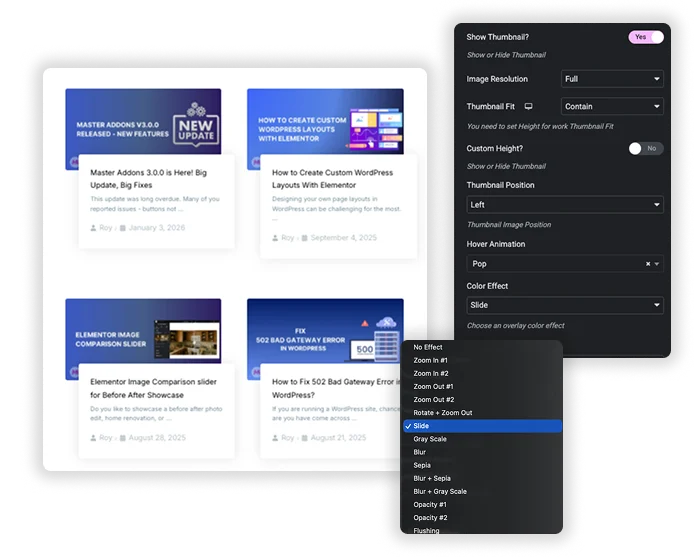
The post image is a major visual hook. Control its Image Resolution and how it fits its container with Thumbnail Fit (Cover, Contain). Apply a Border Radius to create rounded corners or circular images. Add a colored Overlay on hover or permanently. Use CSS Filters for effects like grayscale or blur. Choose from Thumbnail Shapes and apply Hover Animations (like zoom or fade). You can even set a Custom Height for all thumbnails to enforce a uniform, polished grid.

  • Image Fit & Crop: Use Cover to create uniform image blocks or Contain to show full images without cropping.
  • Hover Effects: Apply zoom, fade, or color effect animations when users hover over a post.
  • Overlay Colors: Add a semi-transparent color overlay on images to improve text readability.
  • Shape Customization: Go beyond rectangles with custom shapes for your thumbnails.

Advanced Carousel & Navigation Settings

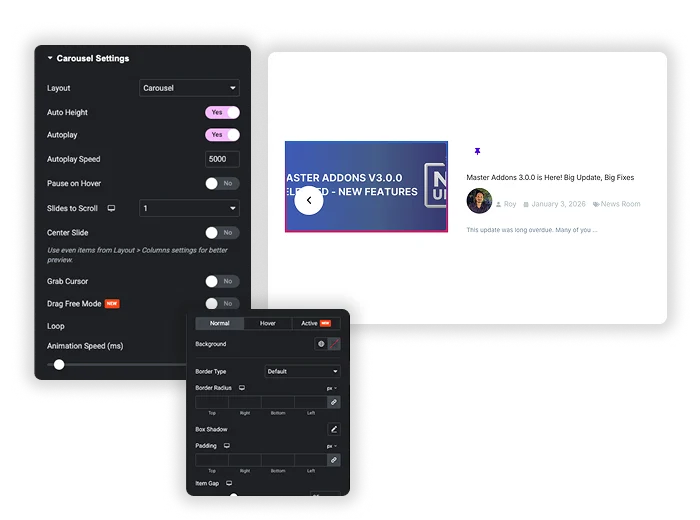
When you enable the Carousel blog type, you gain a full set of interactive controls. Enable Autoplay and set its speed. Choose Slides to Scroll and enable Loop for infinite scrolling. Add user-controlled Navigation with fully stylable Arrows (position them inside, outside, or centered) and optionally a Scrollbar. Enable Grab Cursor for a tactile feel and Pause on Hover for better usability. This transforms your blog posts into an engaging, interactive highlight reel.

  • Professional Carousel Behaviors: Control Autoplay Speed, Loop, Animation Speed, and Slides to Scroll.
  • Multiple Navigation Options: Use arrow buttons, a scrollbar, or both for user control.
  • Mobile Considerations: Option to Hide Arrow on Mobile for a cleaner touchscreen experience.
  • Interactive Feel: Features like Grab Cursor and Center Slide (for a focused active item) enhance engagement.
Advanced Carousel & Navigation Settings
Pagination Styling

Pagination Styling

For grid layouts with many posts, professional pagination is key. The element includes styling controls for pagination buttons. You can style the page number and navigation buttons, likely controlling their Typography, Color, Background, Border, and Active state to match the overall design of your blog grid. This creates a seamless, polished experience for users browsing through multiple pages of your content.

  • Consistent Design Language: Style pagination to look like a natural extension of your blog grid.
  • Clear Active State: Design the currently active page number to be visually distinct.
  • Improved Usability: Well-designed pagination encourages visitors to explore more of your content.
Template Viewer
Facebook
Twitter
WhatsApp
Copy Link
Buy Now
Card Layout
Card Layout

Frequently Asked Questions For Blog

Learn the most asked queries users have about Blog and find answers in one place.
Can I use this to display a custom post type (like Portfolio or Products)?

Yes. In the Posts Settings or Advanced Settings, there should be an option to select the Post Type. You can change it from the default “Post” to any registered custom post type (like “portfolio” or “product”). This makes the element incredibly versatile for showcasing any type of content on your site.

Typically, the Title is linked by default. To make the whole card clickable, you would often need to add custom JS to link the entire container. Some blog widgets offer a “Whole Box Link” option, but if not present here, it requires a simple custom JS snippet.

The Number of Columns setting is responsive. You can set different column counts for desktop, tablet, and mobile in Elementor’s responsive editing mode. For example, set 4 columns on desktop, 2 on tablet, and 1 on mobile. Also, ensure Thumbnail Fit is set to “Cover” for consistent image blocks.

  • Show Content: Displays the full post content from the editor, which can be very long.
  • Show Excerpt: Displays a short, predefined summary. You can set the Excerpt Length (e.g., 55 words). It’s best to use excerpts in grid layouts to keep cards uniform and tidy.
How does the “Category Filter Tabs” feature work?

When enabled, it reads the categories of the posts in your query and displays them as interactive buttons (tabs) above the grid. Clicking a tab instantly filters the grid to show only posts from that category, without reloading the page. It’s a fantastic UX feature for sites with diverse content.

Yes, especially with Loop enabled. However, for performance with very large numbers of posts (like 50+), the Grid layout with pagination or “Load More” might be better. The carousel is ideal for showcasing 5-15 featured or recent posts.

Absolutely. You can place multiple Blog Post widgets on a single page, each with its own query, layout (one grid, one carousel), and styling. This is perfect for creating a “Featured Posts” carousel at the top and a “All Posts” grid below.

Trending Elementor Widgets & Extensions

Build sophisticated websites in less time.

WP Forms

Home Design and display your WPForms with complete creative control, directly from the Elementor editor....
View Demo

Popup Trigger

Home The Random Image widget for Elementor allows you to create a sequence of images...
View Demo

Off-Canvas Content

Home Add sleek, sliding side panels to your Elementor site without any coding. The Off-Canvas...
View Demo
Random Image Settings

Caldera Forms

Home Embed your Caldera Forms with total design freedom, right inside Elementor. This handy element...
View Demo
Random Image Settings

Gravity Forms

Home Perfectly integrate and beautifully style your Gravity Forms within the Elementor editor. This element...
View Demo
Changelogs

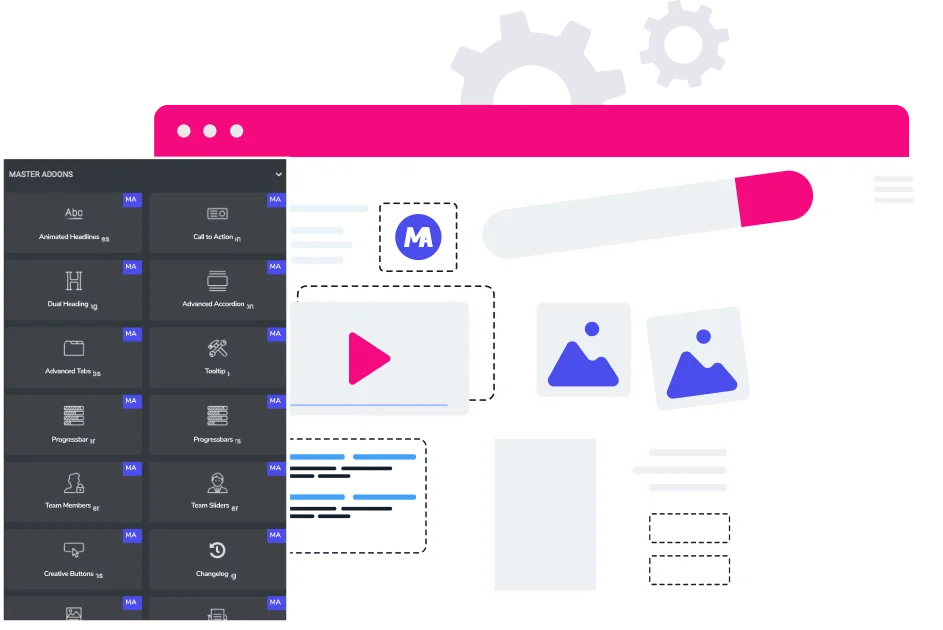
Home Keep your users, clients, or customers in the loop with a professional and organized...
View Demo