Progress Bars
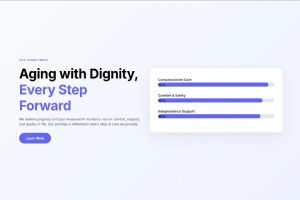
Numbers tell, but visuals sell. When you need to show expertise, project completion, or campaign goals, a plain percentage falls flat. Master Addons Progressbars Element turns statistics into clear, compelling visuals. Create single bars or entire groups to showcase skills, fundraising targets, or process milestones. Control every bar’s value, color, and style independently. Then, design the labels and numbers to match your site. It’s the simplest way to add credibility and clarity, proving progress at just a glance.
Progress Bar Management & Individual Value Control
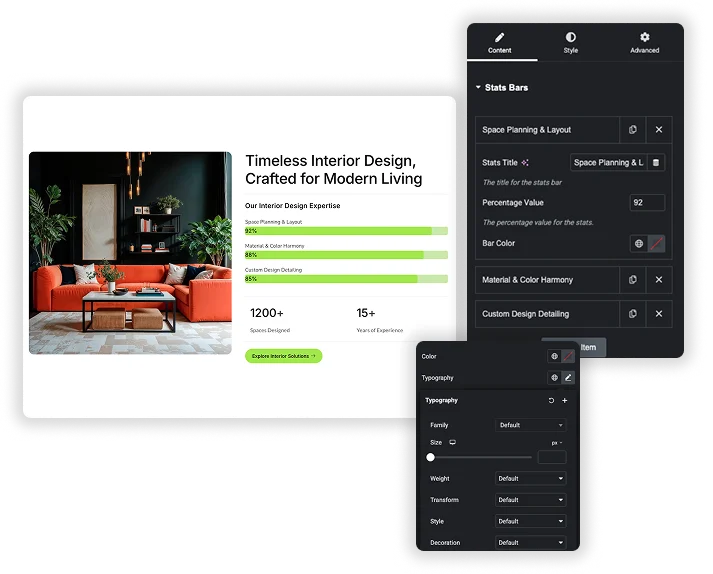
Need one bar or ten? No problem. Start with the Progress Bars repeater and click Add Item to create as many progress bars as you need. For each bar, set a clear Title (like “Web Design”) and its exact Percentage Value (like 87). You can even assign a unique Bar Color to each one directly from the content panel. Rearrange or delete bars anytime.
- Unlimited Bars: Add, remove, and reorder progress bars freely with the + Add Item button.
- Individual Bar Customization: Set a unique Title, Percentage Value, and Bar Color for every single bar in the list.
- Live Value Adjustment: Change the percentage number anytime, and the bar fill width updates automatically.
Visual Progress Bar Styling & Structure Design
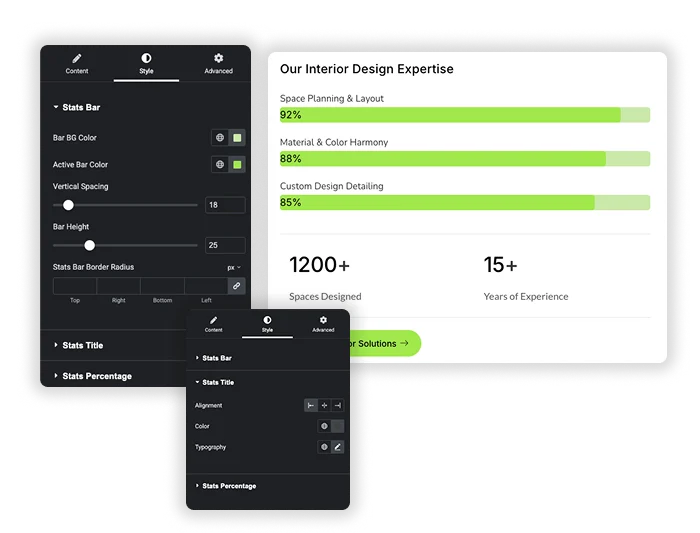
Control the Progress Bar Height to make them bold and thick or slim and subtle. Set the Bar BG Color (the empty track) and the vibrant Active Bar Color (the filling portion). Use the Border Radius controls to create sharp rectangular bars or soft, pill-shaped meters. Adjust the Vertical Spacing between bars in a group to ensure a clean layout that’s easy to read.
- Dual-Color System: Independently set the background color and the active fill color for clear contrast.
- Bar Dimensions: Control the Bar Height and the Border Radius for perfect shape and proportion.
- Smart Spacing: Use Vertical Spacing to add breathing room between stacked progress bars.
Frequently Asked Questions For Progress Bars
Can I animate the bars so they fill up when the user scrolls to them?
This is a standard and expected feature for progress bars. Typically, the bars would be static in the editor but animate from 0% to their set value when they come into the viewer’s sight on the live page. The Master Addons already has this feature. But there is no option for you to change the animation.
What’s the best use for these progress bars?
They are incredibly versatile! Common uses include:
- Skills & Expertise: On an “About Us” or resume page.
- Project Status: Showing completion percentage for campaigns or goals.
- Fundraising Trackers: Visualizing donations against a target.
- Pricing & Feature Tables: Highlighting plan limits (e.g., “Storage: 80% used”).
Are the progress bars responsive on mobile?
Yes. The bars, their height, spacing, and text typography should all scale down appropriately on mobile devices. You can use Elementor’s responsive editing mode to fine-tune the Bar Height or Font Sizes specifically for mobile if needed.
Can I use a gradient for the active bar color instead of a solid color?
No. At present there is no option to choose gradient color instead of a solid color for Elementor the progress bar. If you prefer to use Gradient color then we have a solution for you. Please drop us a message.
Trending Elementor Widgets & Extensions
Build sophisticated websites in less time.
Popup Trigger
Off-Canvas Content
Caldera Forms