Source Code
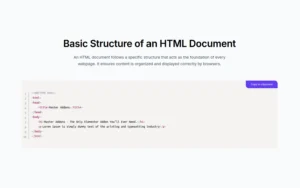
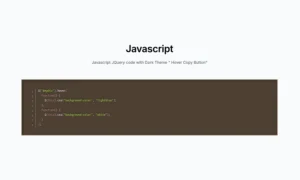
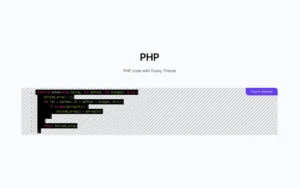
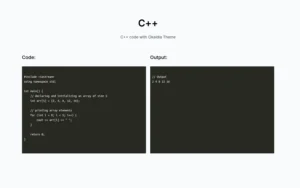
Share code snippets on your Elementor site the right way – beautifully formatted and easy for visitors to use. This Source Code element lets you display HTML, CSS, JavaScript, PHP, or any of 80+ programming languages with clean syntax highlighting. Just pick your language, choose a color theme that fits your style, and paste your code. It even adds a handy “Copy” button so users can instantly grab your code with one click. It’s the perfect tool for tutorials, documentation, developer portfolios, or any site where you need to showcase code cleanly and professionally.
Wide Language & Theme Support
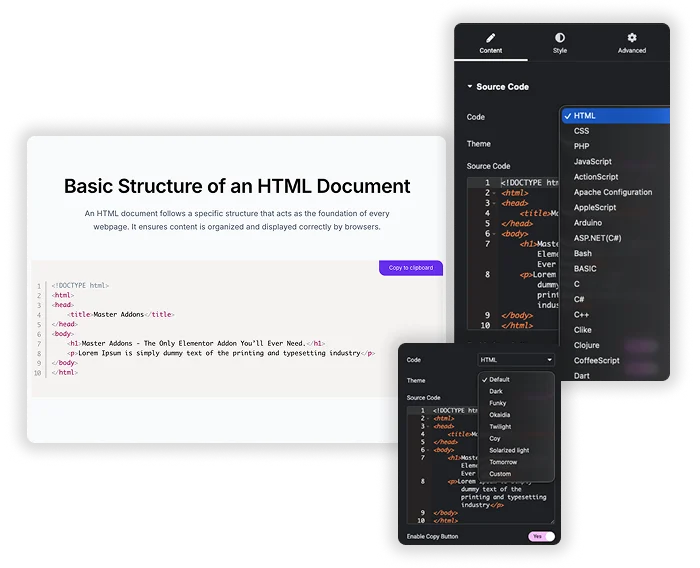
Display code in over 80 different programming and markup languages, each with accurate syntax highlighting. Choose from 8+ visual themes to match your site’s dark or light aesthetic, making your code readable and visually appealing.
- Perfect for tutorial blogs that cover multiple languages like HTML, CSS, JS, and PHP.
- Use a dark theme for a modern, developer-friendly look.
- Ensure code is easy to read and understand at a glance, improving the learning experience.
One-Click Copy Functionality
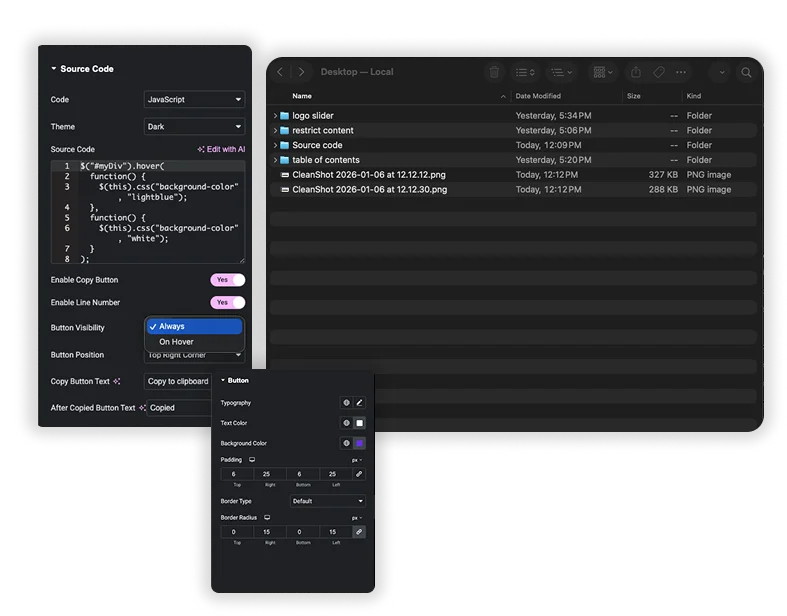
Include a user-friendly button that lets visitors copy your code to their clipboard instantly. Customize the button’s text, position, and the confirmation message that appears after copying, removing the need for them to manually select and copy.
- Greatly improves the user experience for developers who want to reuse your snippets.
- Increase engagement by making your valuable code easy to take and use.
- Show a “Copied!” confirmation to give users clear feedback.
Full Visual Customization
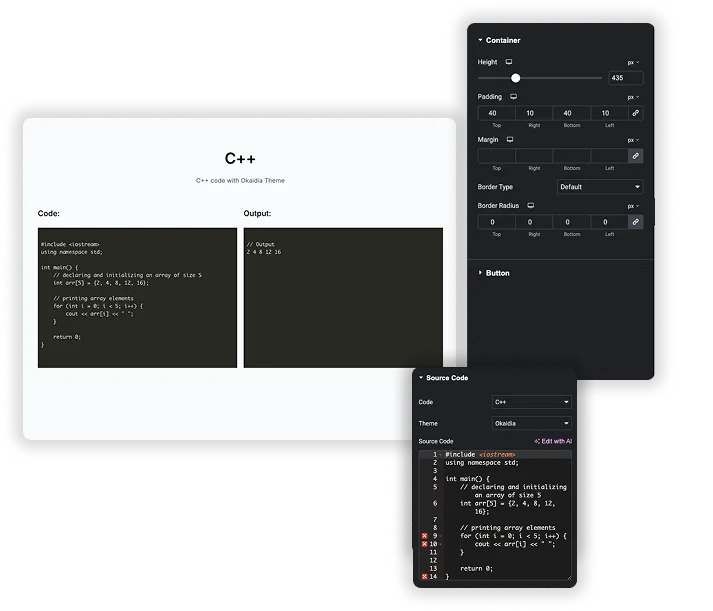
Style every part of the code block to seamlessly blend with your design. Adjust the container’s padding, margins, and borders, and independently design the copy button’s colors, typography, and corner rounding.
- Match the code block’s background and borders to your site’s color scheme.
- Design a prominent copy button that encourages clicks.
- Control the spacing around the code for a clean, integrated look on the page.
Frequently Asked Questions For Source Code
How do I change the programming language for syntax highlighting?
In the content settings, use the “Code” dropdown menu to select the correct language for your snippet (e.g., HTML, CSS, PHP). This ensures the keywords and syntax are colored accurately.
Can I hide the line numbers next to the code?
Yes. You can disable line numbers by setting the “Enable Line Number” option to “No.” This gives you a cleaner block of code if line numbers aren’t necessary for your example.
Where can I position the copy button?
You can choose the button’s position, such as the “Top Right Corner” of the code block. You can also control its visibility, setting it to always show or perhaps appear only on hover.
Is the displayed code editable by website visitors?
No. The code is presented as a static, styled block for viewing and copying. Visitors cannot edit the source code directly on your page; it is for display purposes only.
Can I use my own color scheme instead of the pre-set themes?
The element offers several pre-designed themes (like “Tomorrow”). To use completely custom colors, you would likely need to add custom CSS, as the styling options primarily control the container and button, not the internal syntax colors.
Does the copy button work on mobile devices?
Yes, the copy functionality is designed to work on all devices. The button is touch-friendly, and the copy command will execute when tapped on a phone or tablet.
Trending Elementor Widgets & Extensions
Build sophisticated websites in less time.
Popup Trigger
Off-Canvas Content
Caldera Forms