

Beskrivelse
🏆 The #1 Plugin for user-generated content
User Submitted Posts (USP) provides a front-end form that enables visitors to submit posts and upload images. Just add the following shortcode to any Post, Page, or Widget:
[user-submitted-posts]
That’s all there is to it! Your site now can accept user generated content. Everything is super easy to customize via Plugin Settings page.
🚀 Enable visitors to submit posts from the front end of your site
✨ Form Fields
The submission form may include any/all of the following fields:
- Navn
- E-post
- URL
- Innleggstittel
- Innlegg stikkord
- Post Category
- Post Content
- Custom Field 1
- Custom Field 2
- Custom Checkbox
- Challenge Question
- Google reCAPTCHA (v2 or v3 Invisible)
- Cloudflare Turnstile (Invisible)
- Post Images
- Agree to Terms
🚀 The first and best plugin for user-submitted content
✨ Core Features
- Simple to set up and display the form anywhere on your site
- Display the form on multiple posts and pages, or even site-wide
- Redirect users to any URL or stay on current page after submitting posts
- Set post status as draft, pending, publish, or publish after x number of posts
- Option to receive email notifications for submitted posts
- Customize email notifications with various post data
- Include email links to edit and delete posts
- Display a basic login/register/password form
🚀 Enable your visitors to share their own posts and images
✨ Form Features
- Display form anywhere via shortcode or template tag
- Display only the fields that you want on the form
- Set each displayed form field to be required or optional
- Automatic client-side form validation provided by Parsley
- Stops spam via input validation, your choice of captcha, and hidden field
- Choose Google reCAPTCHA, Cloudflare Turnstile, or Challenge Question
- Choose Google reCAPTCHA v2 («I am not a bot») or v3 (Invisible)
- Optionally require users to be logged in to use the form
🚀 Dial in the perfect form for your visitors
✨ More Features
- Lightweight, fast, and secure
- Translated into 20+ languages
- Option to submit posts as WP Posts or Pages
- Provides option to enable a custom form and styles
- Customize success, error, and file upload messages
- Includes shortcode to display a list of submitted posts
- Includes shortcodes to control access and restrict content
- Includes template tags to display submitted post content
🚀 Simple to use, lightweight, and flexible
✨ Image Uploads
- Enable visitors to upload any number of images
- Specify minimum and maximum number of allowed images
- Specify minimum and maximum width and height for images
- Automatically set submitted images as Featured Images
- Automatically display submitted images on the front end
- Includes template tags to display submitted images
- Includes shortcodes to display submitted images
- Form displays thumbnail previews of images
🚀 The easiest way to enable user content
✨ Pro Version
Pro version includes many powerful features, with unlimited custom forms, unlimited form fields, multimedia file uploads, and much more. Pro features include:
- Unlimited forms
- Unlimited form fields
- Unlimited file uploads
- All field types, including textarea, checkboxes, radio, select, file(s), plus input types like text, password, url, search, email, month, time, color, date, range, number, and more
- Build post-submission forms, user-registration forms, and contact forms
- Build COMBO forms (e.g., forms that submit posts AND register users)
- Supports unlimited Custom Post Types
- Supports custom Taxonomy fields
- Supports Custom Post Status
- Supports Post Formats
- Custom error messages
- Custom redirects
- Advanced security features
- Advanced shortcode to display submitted posts on the front end
- Plus everything the free version can do and more!
🚀 Visit Plugin Planet to learn more and get USP Pro »
✨ Translations
User Submitted Posts supports translation into any language. Current translations include the following languages:
Arabic                - usp-ar
Bengali               - usp-bn_BD
Chinese (Simplified)  - usp-zh_CN
Chinese (Traditional) - usp-zh_TW
Czech                 - usp-cs_CZ
Dutch                 - usp-nl_NL
French (France)       - usp-fr_FR
German                - usp-de_DE
Greek                 - usp-el
Hebrew                - usp-he_IL
Hindi                 - usp-hi_IN
Irish                 - usp-ga
Italian               - usp-it_IT
Japanese              - usp-ja
Korean                - usp-ko_KR
Norwegian             - usp-no
Panjabi               - usp-pa_IN
Persian               - usp-fa_IR
Polish                - usp-pl_PL
Portuguese (Brazil)   - usp-pt_BR
Portuguese (Portugal) - usp-pt_PT
Romanian              - usp-ro_RO
Russian               - usp-ru_RU
Serbian               - usp-sr_RS
Slovenian             - usp-sl_SI
Spanish (Spain)       - usp-es_ES
Swedish               - usp-sv_SE
Turkish               - usp-tr_TR
Urdu                  - usp-ur
Note: Most of the default translations are made via Google Translate. So they are automated and may be a little rough. Feel free to make your own translation as desired. Need a translation into your language? Let me know!
✨ Privacy
User Data: This plugin enables users to submit post content. It collects data only from users who voluntarily submit content via the USP form. The only involuntary data that is collected is the IP address of the person submitting the form. The plugin provides an option to disable IP collection completely.
Cookies: This plugin uses simple cookies to enable dynamic form functionality. No cookies are used for any other purpose.
Services: This plugin provides an option to enable Google reCaptcha, which is provided by Google as a third-party service. For details on privacy and more, please refer to official documentation for Google reCaptcha. This plugin also provides an option to enable Cloudflare Turnstile, which is provided by Cloudflare as a third-party service. For details on privacy and more, please refer to official documentation for Cloudflare Turnstile. No other outside services or locations are accessed/used by this plugin.
✨ Developer
User Submitted Posts is developed and maintained by Jeff Starr, 15-year WordPress developer and book author.
✨ Support Development
I develop and maintain this free plugin with love for the WordPress community. To show support, you can make a donation or purchase one of my books:
- The Tao of WordPress
- Digging into WordPress
- .htaccess made easy
- WordPress Themes In Depth
- Wizard’s SQL Recipes for WordPress
And/or purchase one of my premium WordPress plugins:
- BBQ Pro – Blazing fast WordPress firewall
- Blackhole Pro – Automatically block bad bots
- Banhammer Pro – Monitor traffic and ban the bad guys
- GA Google Analytics Pro – Connect WordPress to Google Analytics
- Head Meta Pro – Ultimate Meta Tags for WordPress
- Simple Ajax Chat Pro – Unlimited chat rooms
- USP Pro – Unlimited front-end forms
Links, tweets and likes also appreciated. Thanks! 🙂
Skjermbilder
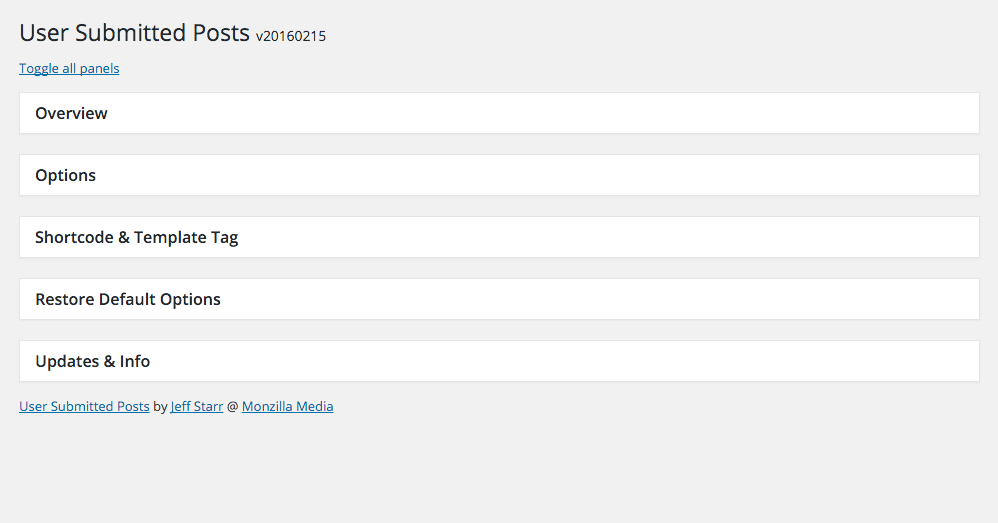
USP Settings Screen (panels toggled closed) 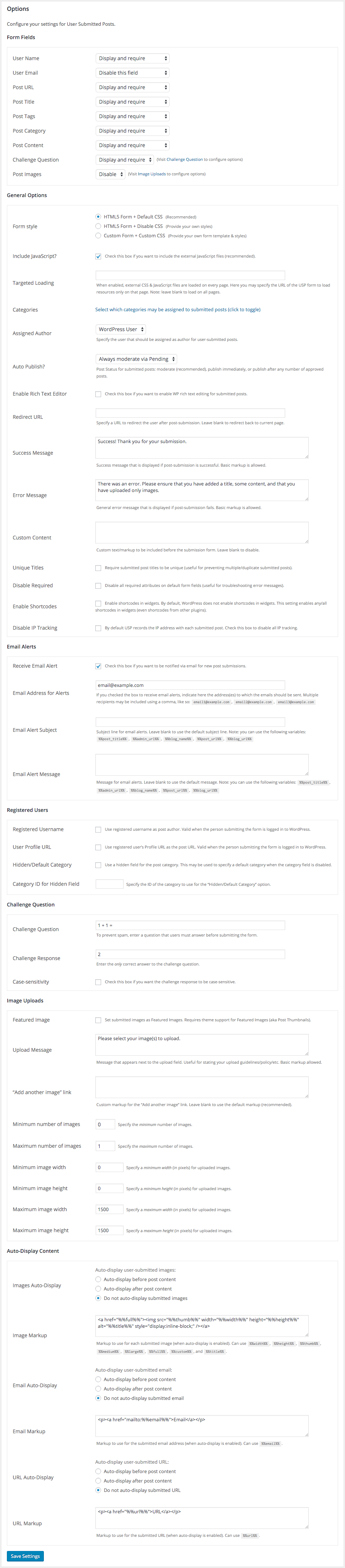
USP Plugin Settings, showing default options (panels toggle open/closed) 
USP Form (with all fields enabled) 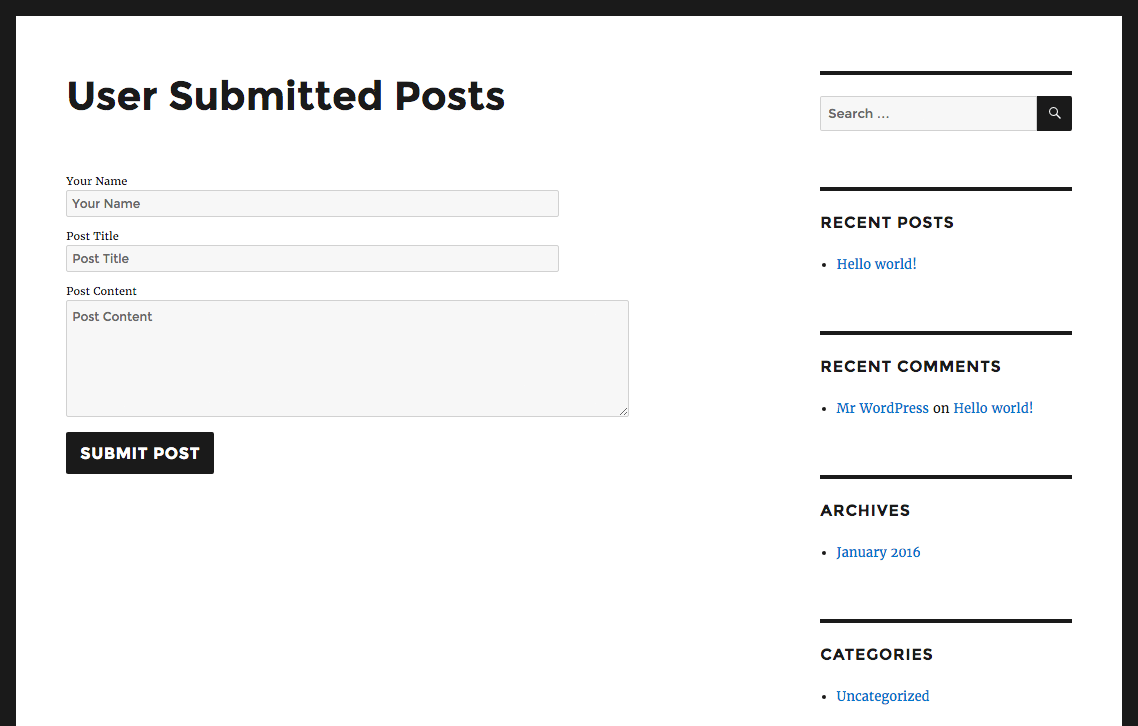
USP Form (with just a few fields enabled) 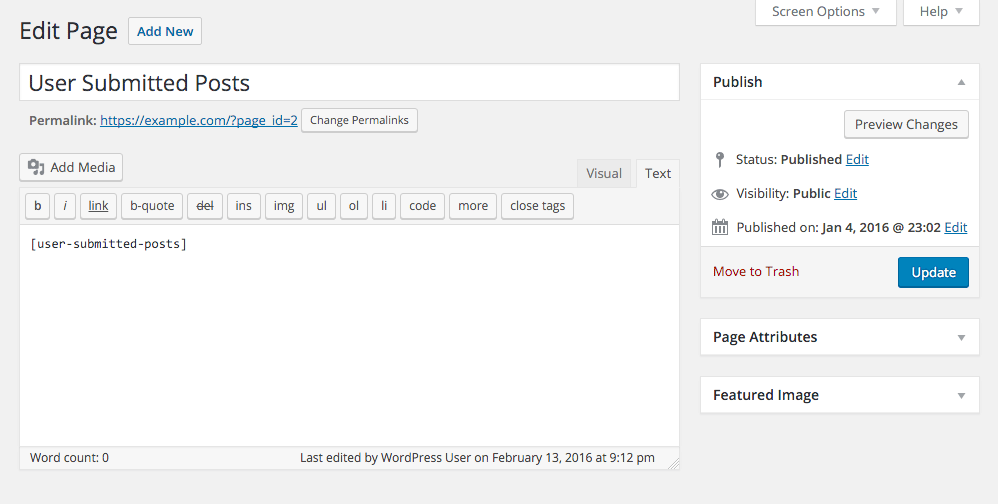
Example showing how to display the form on a Page (using a shortcode)


Installasjon
How to install the plugin
- Upload the plugin to your blog and activate
- Configure your options via the plugin settings
- Display the form via shortcode or template tag
More info on installing WP plugins
Display the form
To display the form on any WP Post, Page, or widget, add the shortcode:
[user-submitted-posts]
Or, to display the form anywhere in your theme, add the template tag:
<?php if (function_exists('user_submitted_posts')) user_submitted_posts(); ?>
Important: When copy/pasting the shortcode, use the plain-text editor or block. Using the Visual/RTE Editor may introduce unwanted artifacts when copy/pasting from a web page. Specifically, if you copy the above shortcode and paste it directly into a visual editor or block, the shortcode may be wrapped in code tags. And when the shortcode is wrapped in code tags, the form will display very poorly on the front end.
Customize the form
There are three main ways to customize the form:
- Visit the plugin settings to show/hide fields, configure options, etc.
- Enable the custom form template (check out «Custom Submission Form» below)
- Developers can use action and filter hooks
Custom Submission Form
Out of the box, User Submitted Posts provides a highly configurable submission form. Visit the plugin settings to control which fields are displayed, configure options, and so forth.
There are cases however, where advanced form configuration may be required. In order to allow for this, USP makes it possible to create a custom submission form. Here are the steps:
First, copy these two plugin files:
/user-submitted-posts/resources/usp.css
/user-submitted-posts/views/submission-form.php
Then, paste those two files into a directory named /usp/ in your theme:
/wp-content/themes/your-theme/usp/usp.css
/wp-content/themes/your-theme/usp/submission-form.php
Lastly, visit the plugin settings and set the «Form style» option to «Custom Form + CSS».
You can now customize the two files as desired. The files will not be overwritten when the plugin is updated. For help with making basic changes to the custom form, check out the USP FAQs at Perishable Press.
Alternately, you can set the option «Form style» to «HTML5 Form + Disable CSS» to use the default USP form along with your own CSS. FYI: here is a list of USP CSS selectors.
Or, to go further with unlimited custom forms, check out USP Pro. USP Pro provides a form builder within the WP Admin Area, where you can add any fields, labels, text, and so forth.
Display submitted posts
User-submitted posts are handled by WordPress as regular WP Posts. So they are displayed along with your other posts according to your theme design.
Display custom fields
To display submitted custom fields, visit the plugin settings and configure the «Auto-Display» options.
Also, here is a Helper Plugin to display Custom Fields. It is designed for use with the Pro version, but also works great with the free version.
For more flexibility, you can use a variety of WP Template Tags (e.g., get_post_meta()) to display custom fields.
Display submitted images
To display submitted images, visit the plugin settings and configure the «Auto-Display» options.
Display a Featured Image
To display a Featured Image (aka Post Thumbnail) for each submitted post, visit the plugin settings > Image Uploads > Featured Image.
Shortcodes
User Submitted Posts provides a set of useful shortcodes. Check out the «Display the Form» panel in the plugin settings for examples and quick information.
[user-submitted-posts]                        : displays the form on any Post or Page
[usp-login-form]                              : displays a login/register/password form
[usp_display_posts]                           : displays list of all submitted posts
[usp_gallery]                                 : displays a gallery of all submitted images for the current post
[usp-reset-button url="https://example.com/"] : displays a button to reset the form
[usp_access cap="read" deny=""][/usp_access]  : limits access to specific user capability
[usp_visitor deny=""][/usp_visitor]           : limits access to visitors (not logged in) only
[usp_member deny=""][/usp_member]             : limits access to logged-in users
Here is more information about these shortcodes:
[user-submitted-posts]
Displays the post-submit form. This shortcode does not accept any attributes.
[usp-login-form]
Displays the login/register/password form. This shortcode does not accept any attributes.
To add Google reCaptcha to the form, you can use a free reCaptcha plugin, for example:
[usp_display_posts]
Displays a list of all submitted posts. This shortcode accepts two optional attributes, «userid» and «numposts». Examples:
[usp_display_posts]                           : default displays all submitted posts by all authors
[usp_display_posts userid="current"]          : displays all submitted posts by current logged-in user
[usp_display_posts userid="1"]                : displays all submitted posts by registered user with ID = 1
[usp_display_posts userid="Pat Smith"]        : displays all submitted posts by author name "Pat Smith"
[usp_display_posts userid="all"]              : displays all submitted posts by all users/authors
[usp_display_posts userid="all" numposts="5"] : limit to 5 posts from all users
[usp_display_posts post_type="page"]          : display only submitted pages
The shortcode attributes can be used to customize the post list as desired. Note that the Pro version of USP provides many more options for the display-posts shortcode.
[usp_gallery]
Note: This shortcode works only when added to a submitted post. It does nothing when added anywhere else.
Displays a gallery of all submitted images for the current post. Customize via the following attributes:
size    = image size as thumbnail, medium, large or full -> default = thumbnail
format  = whether to make the image a linked image       -> default = image (can use image or image_link)
target  = whether to open linked image in new tab        -> default = blank (can use blank or self)
class   = optional custom class name(s)                  -> default = none
number  = the number of images to display for each post  -> default = 100
post_id = an optional post ID to use                     -> default = false (uses global/current post)

Check out the source code inline notes for more info
[usp-reset-button]
Displays a button to reset the form. Accepts the following attributes:
class  = classes for the parent element (optional, default: none)
value  = link text (optional, default: "Reset form")
url    = the URL where your form is displayed (required, default: none)
custom = any attributes or custom code for the link element (optional, default: none)
Note that the url attribute accepts %%current%% for the current URL (useful when the form is displayed in the sidebar).
[usp_access]
Limits access to specific user capability. Example:
[usp_access cap="read"]
    Content for users that have "read" access
[/usp_access]
The cap attribute specifies the required capability or capabilities (comma-separated). This shortcode also accepts an optional deny attribute. The deny attribute displays a message to users who are denied access. Tip: to include markup in the deny message, you can use {tag} to display <tag>. Check out the «Display the Form» panel in the plugin settings for examples and more info.
[usp_visitor]
Limits access to visitors (not logged in) only. Example:
[usp_visitor]
    Content for for users who are not logged in
[/usp_visitor]
This shortcode accepts an optional deny attribute. The deny attribute displays a message to users who are denied access. Tip: to include markup in the deny message, you can use {tag} to display <tag>. Check out the «Display the Form» panel in the plugin settings for examples and more info.
[usp_member]
Limits access to logged-in users. Example:
[usp_member]
    Content for for users who are logged in
[/usp_member]
This shortcode accepts an optional deny attribute. The deny attribute displays a message to users who are denied access. Tip: to include markup in the deny message, you can use {tag} to display <tag>. Check out the «Display the Form» panel in the plugin settings for examples and more info.
Template tags
User Submitted Posts provides a set of useful template tags:
/*
    Display the Post-Submission Form
    Usage: <?php if (function_exists('user_submitted_posts')) user_submitted_posts(); ?>
*/

user_submitted_posts()


/*
    Display the Login/Register/Password Form
    Usage: <?php if (function_exists('usp_login_form')) usp_login_form(); ?>
*/

usp_login_form()


/*
    Display a configurable list of submitted posts
    Usage: <?php if (function_exists('usp_display_posts')) echo usp_display_posts(array('userid' => 'all', 'numposts' => -1)); ?>
*/

usp_display_posts()


/*
    Check if post is a submitted post
    Returns true or false
    Usage: <?php if (usp_is_public_submission()) return true; ?>
*/

usp_is_public_submission()


/*
    Get all image URLs
    Returns an array of image URLs that are attached to the current submitted post
    Usage: <?php $images = usp_get_post_images(); foreach ($images as $image) echo $image; ?>
*/

usp_get_post_images()


/*
    Display all images
    Outputs a set of <img> tags for images attached to the current submitted post
    Usage: <?php usp_post_attachments($size, $beforeUrl, $afterUrl, $numberImages, $postId); ?>
    Parameters:
        $size         = image size: thumbnail, medium, large or full -> default = full
        $beforeUrl    = text/markup displayed before each image URL  -> default = <img src="
        $afterUrl     = text/markup displayed after each image URL   -> default = " />
        $numberImages = number of images to display for each post    -> default = false (display all)
        $postId       = an optional post ID to use                   -> default = uses global post
*/

usp_post_attachments()


/*
    Display submitted author name and URL
    This tag displays one of the following:
        - The author's submitted name as a link (if both 'User Name' and 'User URL' fields are included in the form)
        - The author's submitted name as plain text (if 'User Name' is included in the form, but 'User URL' is not included)
        - The author's registered username as a link to the author's post archive (if 'User Name' is not included in the form)

    Usage: <?php usp_author_link(); ?>
*/

usp_author_link()


/*
    Get an array of image URLs, wrapped in optional HTML
    Syntax: <?php if (function_exists('usp_get_images')) $images = usp_get_images($size, $format, $target, $class, $number, $post_id); ?>
    Usage:  <?php if (function_exists('usp_get_images')) $images = usp_get_images(); foreach ($images as $image) echo $image; ?>
    Parameters:
            $size    = image size as thumbnail, medium, large or full -> default = thumbnail
            $format  = whether to make the image a linked image       -> default = image (can use image or image_link)
            $target  = whether to open linked image in new tab        -> default = blank (can use blank or self)
            $class   = optional custom class name(s)                  -> default = none
            $number  = the number of images to display for each post  -> default = 100
            $post_id = an optional post ID to use                     -> default = false (uses global/current post)

    Check out the source code inline notes for more info
*/

usp_get_images()
These template tags should work out of the box when included in your theme template file(s). Keep in mind that for some of the tags to work, there must be some existing submitted posts and/or images available.
The source code for these tags is located in /library/template-tags.php and shortcode-login.php.
Content Restriction
USP provides three «Access Control» shortcodes to control access and restrict content. Here are some examples to give you an idea of how it works.
Display form and/or content only to users with a specific capability:
[usp_access cap="read" deny="Message for users without read capability"]
    [user-submitted-posts] // Put the USP form or any other content here.
[/usp_access]
Display form and/or any content to logged-in users:
[usp_member deny="Message for users who are not logged in"]
    [user-submitted-posts] // Put the USP form or any other content here.
[/usp_member]
Display form and/or any content to visitors only:
[usp_visitor deny="Message for users who are logged in"]
    [user-submitted-posts] // Put the USP form or any other content here.
[/usp_visitor]
You can add and use Access Control shortcodes on any WP Post or Page. Tip: you can find this information (and more) in the plugin settings > Display the Form > Access Control.
Upgrades
Visit the WordPress Plugins screen, locate the plugin, and click «Update» 🙂
Restore Default Options
To restore default plugin options, either uninstall/reinstall the plugin, or visit the plugin settings > Restore Default Options.
Uninstalling
This plugin cleans up after itself. All plugin settings will be removed from the WordPress database when the plugin is deleted via the WP Plugins screen.
Note: This plugin never deletes any posts. When the plugin is uninstalled/deleted or options reset to default, only the plugin settings are removed. All submitted posts and related meta data must be removed manually.
Pro Version
USP Pro includes many more awesome features and settings, with unlimited custom forms, unlimited custom fields, multimedia file uploads, and much more.
Like the plugin?
If you like USP, please take a moment to give a 5-star rating. It helps to keep development and support going strong. Thank you!
Ofte stilte spørsmål
-
Can you add this feature or that feature?
-
Please check the Pro version of USP, which includes many of the most commonly requested features from users. The free version also may include new features in future updates.
-
How to set submitted image as the featured image?
-
Here are the steps:
- Visit USP settings > Options panel > Image Uploads > Featured Image
- Check the box and click «Save Settings» to save your changes
Note that this setting merely assigns the submitted image as the Featured Image; it’s up to your theme’s single.php file to include
the_post_thumbnail()to display the Featured Images. If your theme is not so equipped, check out this tutorial at WP-Mix. -
How to require login?
-
To require login to use the form, visit the plugin settings and enable the option to «Require User Login». That will display the submission form only to logged-in users.
For more fine-grained control, head on over to the Installation tab and scroll down to the section on «Content Restriction».
-
How do I change the appearance of the submission form?
-
The easiest way to customize the form is via the plugin settings. There you can do things like show/hide specific fields, control the number and size of submitted images, customize the Challenge Question, and so forth.
Also in the plugin settings, you can choose one of the following form configurations:
- HTML5 Form + Default CSS (Recommended)
- HTML5 Form + Disable CSS (Provide your own styles)
- Custom Form + Custom CSS (Provide your own form template & styles)
To learn how to set up the Custom Form + Custom CSS, visit «Custom Submission Form» under the Installation tab.
For advanced customization, developers can use USP action and filter hooks.
To go further with unlimited custom forms, check out USP Pro. USP Pro provides a form builder within the WP Admin Area, where you can add any fields, labels, text, and so forth.
-
Can I include video?
-
The free version of USP supports uploads of images only, but some hosted videos may be included in the submitted content by simply including the video URL on its own line. Check out the Embeds documentation for more info. Note that USP Pro enables users to upload video and other file types supported by WordPress.
-
How do I reset the plugin settings?
-
To reset plugin settings to factory defaults:
- Visit «Restore Default Options» in the plugin settings
- Check the box and save your changes
- Deactivate the plugin and then reactivate it
- Plugin settings now are restored to defaults
Restoring default settings does not delete any submitted posts. Even if you completely remove the plugin, the submitted posts will not be deleted. You have to remove them manually, if desired.
-
Can you explain the setting «Registered Username»?
-
When «Registered Username» is enabled:
- If the user is logged in, their registered username is used as the Post Author
- If the user is logged out, the setting «Assigned Author» is used as the Post Author
When «Registered Username» is disabled:
- The setting «Assigned Author» always is used as the Post Author for all users (whether logged in or not)
-
How can I translate this plugin?
-
Currently the easiest and most flexible method is to use GlotPress to translate USP. That is the recommended translation route going forward, but for the time being you may also translate using a plugin such as Loco Translate. FYI, USP’s translation files are located in the
/languages/directory. -
Why am I not receiving the Email Alerts?
-
Normally the plugin sends an Email Alert each time a post is submitted. If that is not happening in your case, you will need to troubleshoot your setup. Here is a guide on Troubleshooting Email that should help.
-
How to disable fancy category/tag select script?
-
USP uses the Chosen.js library to enhance the behavior and appearance of the Category and Tag fields. The enhanced fields will be displayed when either/both of the following are true:
- The option «Multiple Categories» is enabled (for Category field)
- The option «Use Existing Tags» is enabled (for Tag field)
If you want to disable the fancy Chosen script for these fields, you can do so by adding the following code snippet to your WordPress site:
<script>var usp_disable_chosen = true;</script>Save changes and done. Also just FYI, here is a guide that explains how to add custom code to WordPress.
-
How to change the language for Google reCaptcha?
-
By default, the Google reCaptcha field is displayed in English. To change that to some other language, first locate the two-digit abbreviation for your language here. Then add the following code to your theme (or child theme) functions.php, or add via custom plugin:
function usp_recaptcha_querystring($query) { return 'en'; }
add_filter('usp_recaptcha_querystring', 'usp_recaptcha_querystring');
Notice where it says
en, that is the two-character language code you want to replace with your own. Then save changes and done. -
Where can I check out a demo of the USP form?
-
There is a simplified USP Demo at Perishable Press. Note the demo form is non-functional, just there to give you a general idea. The actual form provided by the plugin has more features, functionality, etc.
-
How to allow blank targets in post content?
-
By default, USP removes any
target="_blank"attributes in submitted post content. This is a recommended security feature. It is possible however to allow blank targets:function usp_content_patterns($array) { return array(); } add_filter('usp_content_patterns', 'usp_content_patterns');That code can be added via theme (or child theme) functions.php, or add via custom plugin.
-
Add the code snippet provided here.
-
mod_security is preventing saving changes?
-
If mod_security is installed on your server, it may prevent saving changes in the plugin settings. For a further explanation and quick copy/paste code solution, check out this forum post. Thanks to tomlandon for sharing the code solution.
-
How do the edit-post and delete-post links work?
-
When
%%edit_link%%is included in the Email Alert settings, a link will be included in the email alert that takes capable users to the Edit Post screen for the submitted post. Likewise when%%delete_link%%is included in the Email Alert settings, a link will be included that enables capable users to delete the submitted post. Note that these links work only for users who have sufficient capabilities (e.g., Editor, Admin) AND are logged into WordPress when the link is clicked. For more details and tips, check out the USP FAQs at Perishable Press. -
Action and filter hooks
-
Here are some of the most commonly used action and filter hooks provided by User Submitted Posts:
Filters:
usp_post_status
usp_post_author
usp_form_shortcode
usp_mail_subject
usp_mail_message
usp_new_post
usp_input_validate
usp_require_login
usp_default_title

Actions:
usp_submit_success
usp_submit_error
usp_insert_before
usp_insert_after
usp_files_before
usp_files_after
For more, check out the list of action hooks for User Submitted Posts. And of course, check the source code for even more. If you need a hook that is not available, let me know via the contact form below.
-
Custom Fields attached to submitted posts
-
Each submitted post attaches a variety of custom fields, including:
is_submission– indicates that the post is a user-submitted postuser_submit_image– the URL of the submitted image (one custom field per image)user_submit_ip– the IP address of the submitted-post authoruser_submit_name– the name of the submitted-post authoruser_submit_url– the submitted URLusp_custom_field– configurable Custom Field
For a more complete list, submit a test post and visit the «Edit Post» screen. There you can toggle open the «Custom Fields» meta panel and view all attached custom fields.
-
More FAQs
-
Want to read some more FAQs? Check out the USP FAQs at Perishable Press
-
Questions? Feedback?
-
Send any questions or feedback via my contact form. Thanks! 🙂
Vurderinger


Bidragsytere og utviklere
«User Submitted Posts – Enable Users to Submit Posts from the Front End» er programvare med åpen kildekode. Følgende personer har bidratt til denne utvidelsen:
Bidragsytere
“User Submitted Posts – Enable Users to Submit Posts from the Front End” har blitt oversatt til 2 språk. Takk til oversetterne for deres bidrag.
Oversett “User Submitted Posts – Enable Users to Submit Posts from the Front End” til ditt språk.
Interessert i utvikling?
Bla gjennom koden, sjekk ut SVN-repositoriet, eller abonner på utviklingsloggen med RSS.
Endringslogg
Thank you to everyone who shares feedback for User Submitted Posts!
If you like USP, please take a moment to give a 5-star rating. It helps to keep development and support going strong. Thank you!
🚀 Unlock powerful features and build unlimited forms with USP Pro »
20260217
- Further improves security for category field
- Tests on WordPress 6.9 + 7.0 (nightly)
20260207
- Adds
%%post_cats%%to email alerts - Improves security for category field (Thanks type5afe)
- Fixes bug with numbers in email alerts
- Updates plugin settings page
- Improves readme.txt documentation
- Tests on PHP 8.4 and 8.5
- Tests on WordPress 6.9 + 7.0 (nightly)
Full changelog @ https://plugin-planet.com/wp/changelog/user-submitted-posts.txt
