


Python GUIs: Kivy's Complex Widgets — Learn How to Use Kivy's Complex UX Widgets in Your Apps
Kivy is a powerful framework for developing multi-touch GUI applications using Python. It provides a set of rich built-in widgets which you can use to build complex GUI applications.
In a previous tutorial we covered thebasic Kivy widgetssuch as text inputs, buttons and checkboxes. In this tutorial, we will take things further, exploring some more of the more complex widgets that Kivy provides. These include:Bubble,DropDown,FileChooser,Popup,Spinner,RecycleView,TabbedPanel,VideoPlayer, andVKeyboard. With them, you can add advanced features to your Kivy apps.
Writing an Outline Kivy App
We'll start this tutorial with a simple application skeleton, which we will then modify below. Save the following code in a file namedapp.py:
Here, we've created a Kivy application with an empty window. TheBoxLayoutacts as the root widget, this will act as the container to add our complex widgets to. Thebuild()method sets the window's background color to a dark teal shade and adjusts the window size to 360x640 pixels, which is a mobile-friendly size.
To learn more about creating your first Kivy app, check out theGetting Started With Kivy for GUI Developmenttutorial.
Providing Option Selections WithSpinner
TheSpinneris a dropdown selector that allows users to choose one option from multiple choices. This is ideal when working with a list of simple text choices. Below is an example that builds aSpinnerthat lets you select from different parts of this website.
TheSpinnerwidget works as a simple dropdown list, allowing users to select one option from multiple text choices. We've set theSpinnerto start with"Home"as the defaulttextand provided other options ("Latest","FAQ","Forum","Contact", and"About") as a list of values.
You need to repeat the"Home"option invaluesso that you don't lose it when you select another option.
Run it!You'll get an app that looks as shown below.
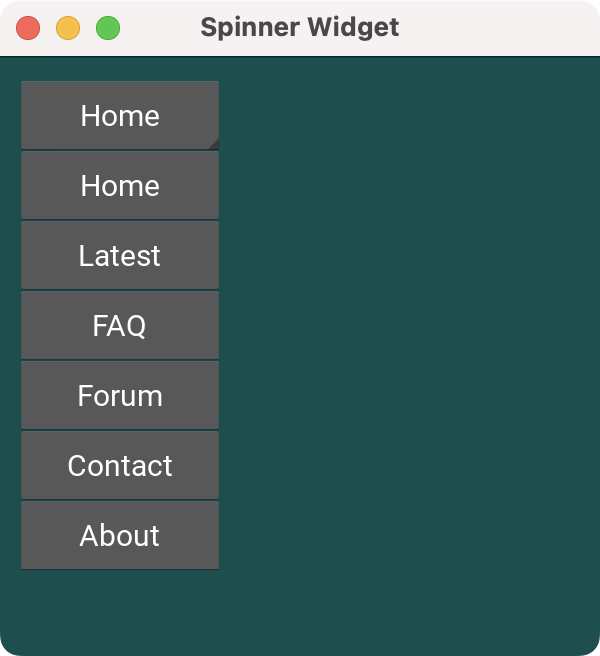
A Kivy app showing aSpinnerWidget
The dropdown spinner allows users to select from predefined choices. You can use this widget to create elements that work like dropdown list, optimizing space and providing a clean UI.
Providing Options WithDropDownList
TheDropDownwidget provides a more complex menu component that allows users to choose from multiple options. Like spinner, this provides an intuitive way for users to select from a set of choices, but here you can display more than just text. This makes it more complex to use, but allows for more flexibility.
Below is an example of using the widget to create a dropdown list that lets you select your favorite GUI library, displayed on a series ofButtonobjects.
In this example, we have aDropDownwidget that lets the user to select a library from a list of options. You populate the dropdown with four options"Kivy","PyQt6","PySide6", and"Tkinter", which are displayed inButtonobjects.
We set each button to trigger thedropdown.select()method when clicked, passing the button's text as the selected value.
Then, we anchor the dropdown to aLibrarybutton. When we press theLibrarybutton, the dropdown menu opens, displaying the options. Once we select an option, theon_selectevent updates the main button's text to reflect the chosen library.
Run it!You'll get a window with a dropdown list in the lower left corner. Click in the dropdown widget to change the current selection.
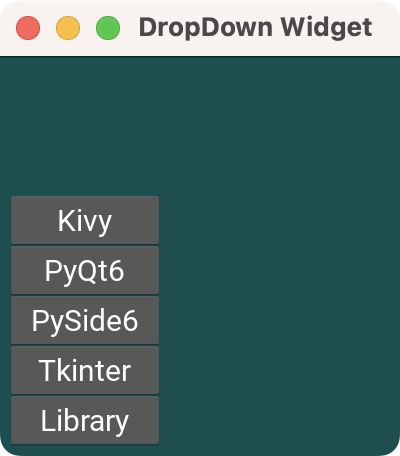
A Kivy app showing aDropDownwidget
Accessing Files WithFileChooser*
Thefilechoosermodule provides classes for describing, displaying and browsing file systems. In this module there are two ready-made widget views which present the file system as either a list, or as icons. The example below demonstrates these both in action.
In this example, we create file chooser widgets to browse and select files using two different views:
- Icon view(
FileChooserIconView) - List view(
FileChooserListView)
The icon view displays files as wrapped rows of icons, clicking on a folder icon will navigate down into that folder. The list view presents them in a list-tree like format, where clicking on a folder will show files and folders nested under it.
Run it!On macOS, you'll see a window that looks something like the following. Try clicking on the folder icons and entries in the list view to see how navigation works in the two examples.
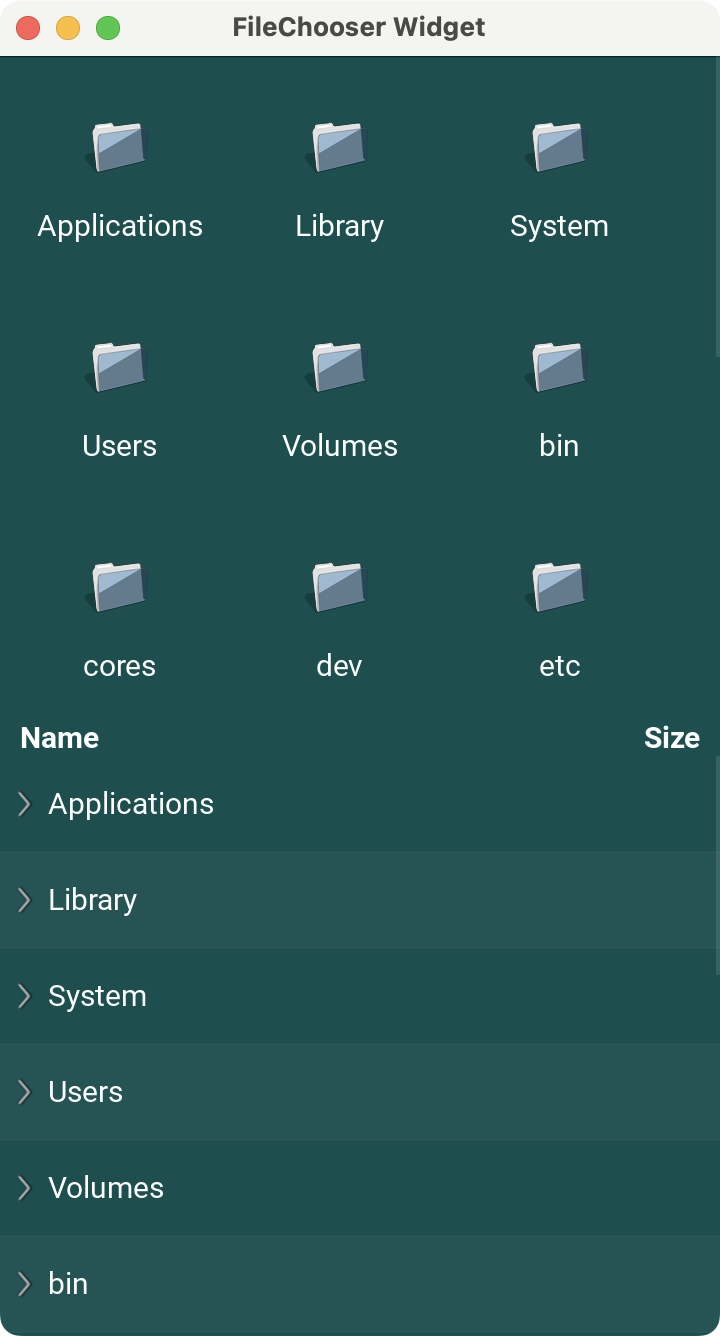
A Kivy app showing file chooser widgets
Building Quick Dialogs WithPopup
ThePopupwidget allows us to display modal dialogs with custom content, layouts and widgets. They can be used to show messages or ask for input. The following popup message displays a simple message, with a title, message and OK button.
In this example, you create aPopupwidget that displays information as a modal dialog. When the user clicks theOpen Popupbutton, theshow_popup()method is triggered, creating aPopupthat occupies 60% of the screen in both directions.
We setauto_dismisstoFalse, which means the popup won't close if we click outside of it. The popup contains theHello, World!message and anOKbutton. When we click the button, we dismiss (close) the popup. Popups are effective for displaying alerts, confirmations, or other information in a Kivy app.
Run it!You'll get a window with a button labeled "Open Popup". Click on theOpen Popupbutton to display the popup window.
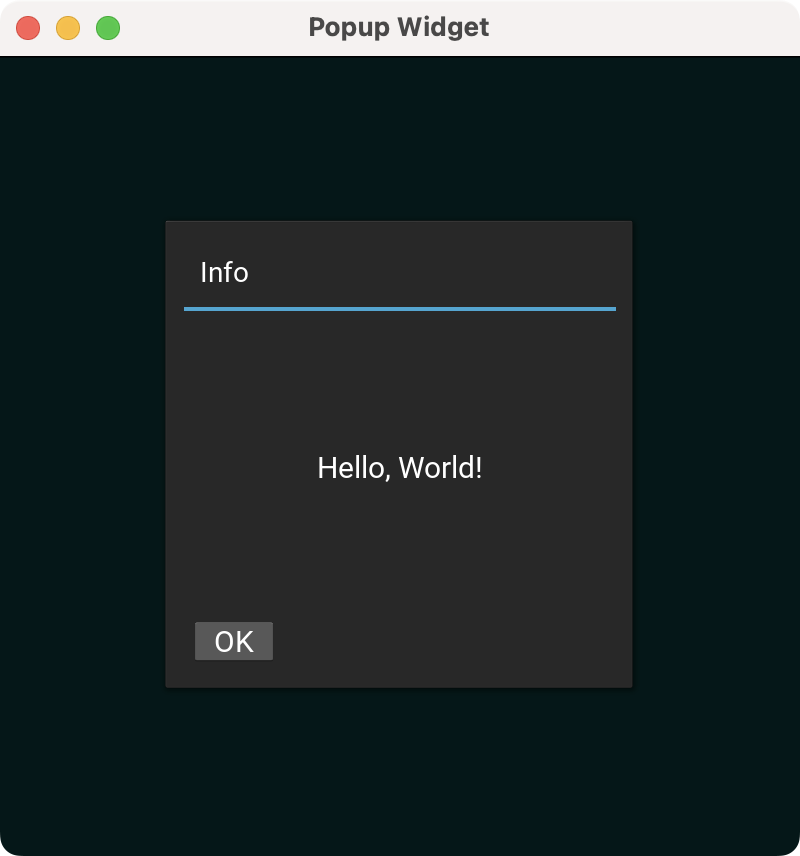
A Kivy app showing a popup dialog
Creating Contextual Popups WithBubble
TheBubblewidget is a UI element commonly used for contextual popups, tooltips, or chat applications. Below is a quick Kivy application that shows some text and lets you click on it to change its format. We'll start by importing the necessary objects and subclassing theBubbleclass:
TheFormattingBubbleclass inherits fromBubbleand provides text formatting options for a label. It initializes with a specific size, arrow position, and horizontal layout. The bubble will contain two buttons:BoldandItalic. When pressed, these buttons apply the respective formatting to the target text by triggering theon_format()method. This method wraps the text in Kivy's markup tags[b]...[/b]for bold and[i]...[/i]for italic.
TheBubbleAppclass represents the Kivy application. It sets up aFloatLayoutwith a centeredLabeldisplaying a message. When the user taps the label, theshow_bubble()method creates and positions aFormattingBubbleabove the tapped location.
The app also ensures that only one bubble is visible at a time by removing existing ones before showing a new one. Additionally, tapping outside the label dismisses any active bubbles using thedismiss_bubbles()method.
Run it!The app features a dark teal background and a mobile-friendly window size. TheBubblewidget appears when we click the text.
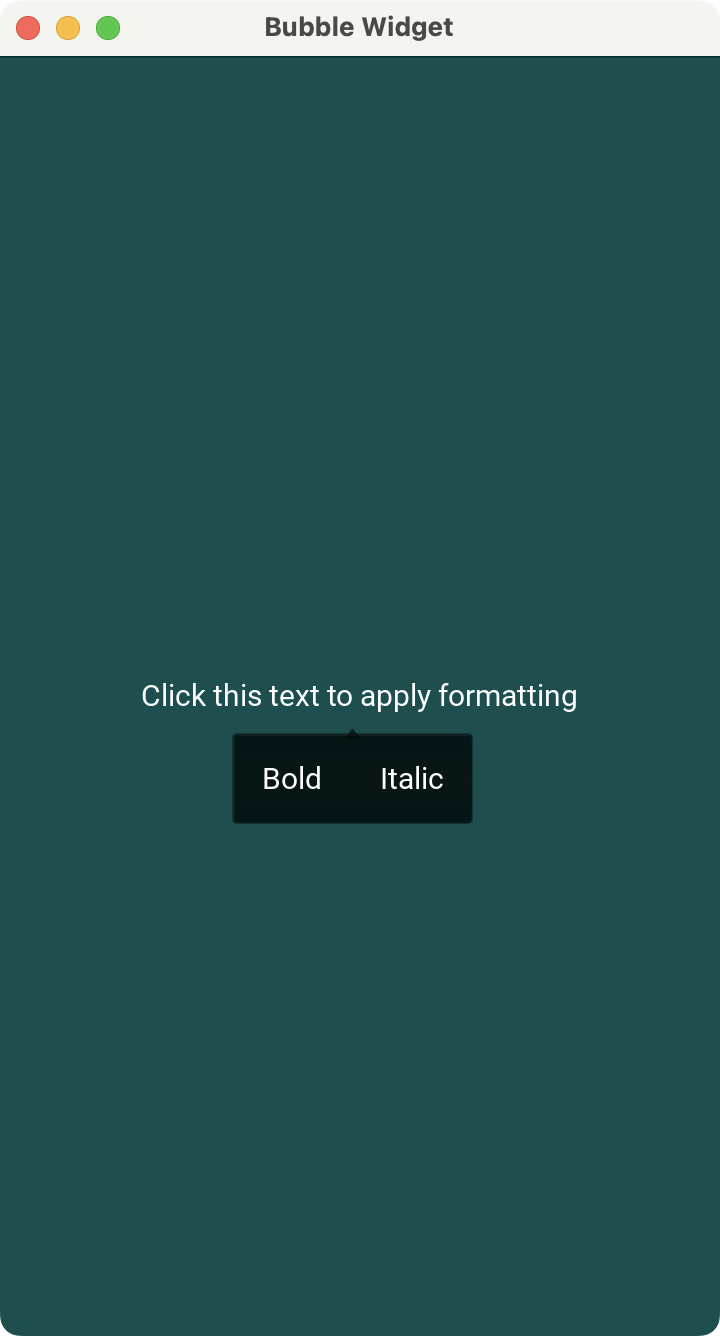
A Kivy app showing aBubblewidget
Displaying Data WithRecycleView
TheRecycleViewwidget efficiently displays data by recycling views or graphical elements. Instead of creating a widget for every item in the dataset,RecycleViewreuses a small number of widgets to display visible items only, improving performance.
To illustrate, let's create a view that lets you inspect a database of employee profiles. The data is stored in a CSV file that looks like the following:
You can read and load this data with thecsvmodule. To visualize the data, you can create a view with theRecycleViewwidget. For the individual views, you can use theButtonwidget, which will let you display the employee's profile:
In this example, we subclassRecycleViewto display the list of employees loaded from a CSV file. The_read_from_csv()method opens the file and reads the data using thecsv.DictReader()class, which converts each CSV line into a dictionary whose keys come from the file header line.
Thedataattribute is key for the app to work because it'll hold the data that we want to display. To arrange widgets in aRecycleView, we use aRecycleBoxLayout. Theviewclassattribute lets us set the widget that we'll use to display each data item.
It's important to note that for theRecycleViewto work properly, we should setviewclassat the end when the data is already loaded and the layout is set up.
Then, we populate theRecycleViewview with buttons, each displaying an employee's name. Clicking a button triggers_create_callback(), which generates a callback that opens a popup displaying the selected employee's profile details.
Run it!You'll get a nice-looking window listing the employees. Click a button to view the associated employee's profile. Scroll down to load more profiles.
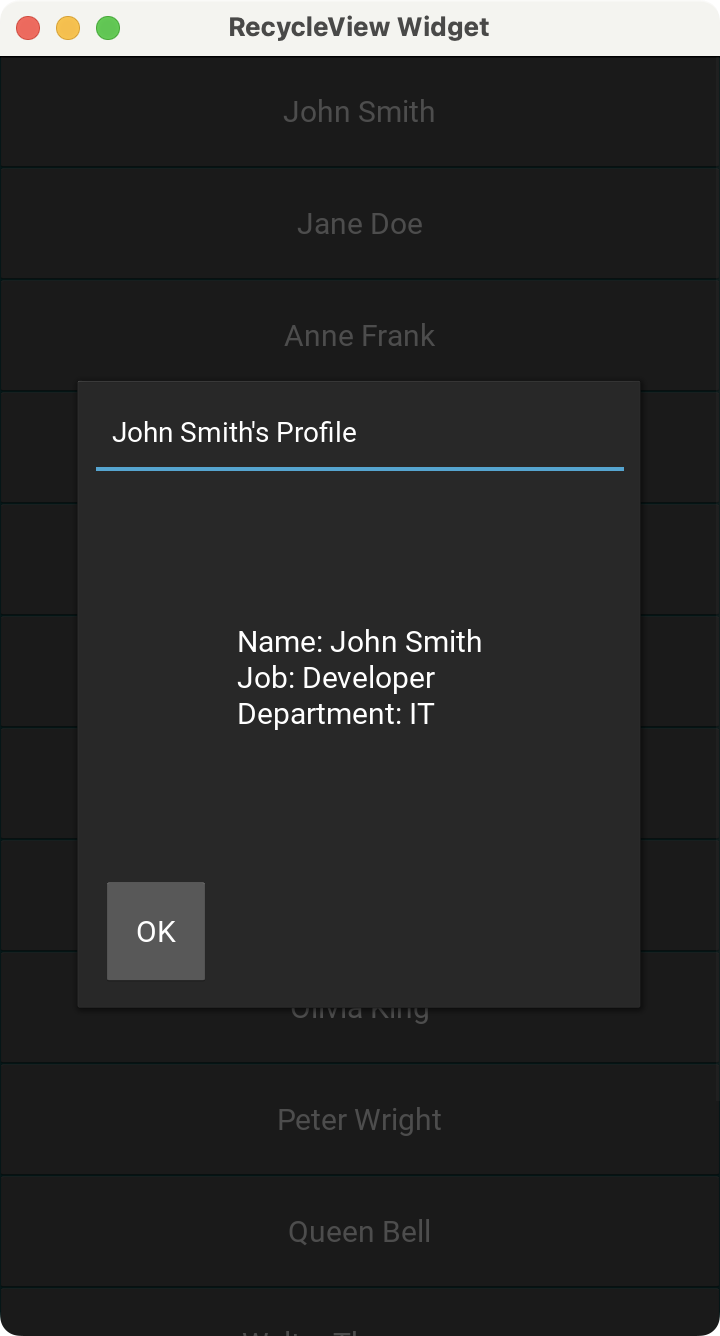
A Kivy app showing aRecycleViewWidget
Building Tabbed UIs WithTabbedPanel
TheTabbedPanelwidget lets us organize content into tabs, to improve navigation and optimize the use of space. This is commonly used in settings dialogs where there are lots of options available.
In this example, we create a Kivy app that shows a tabbed interface using theTabbedPanelwidget. It disables the default tab and manually adds three tabs:General,Editor, andProfile, each represented by aTabbedPanelHeaderobject.
Inside the tabs, we place aBoxLayoutto hold a label that displays a description as a placeholder tab content. Tabs allow us to organize content into visually distinct sections within an application's UI.
Run it!Your app will display three tabs. When you click the tab header, the app shows the tab's content. The active tab shows a light blue line at the bottom.
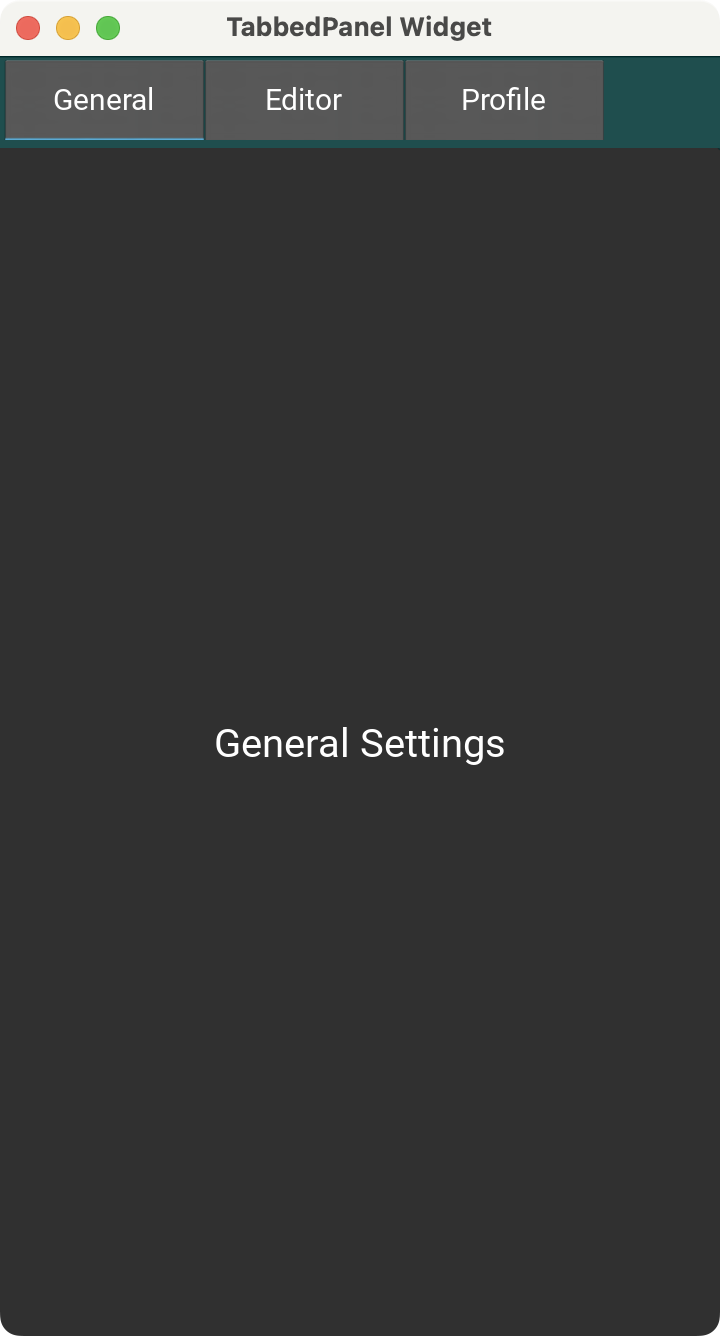
A Kivy app showing aTabbedPanelWidget
Try and add some more widgets to each tab panel.
Allowing User Input WithVKeyboard
TheVKeyboardwidget allows you to create a virtual keyboard that is useful for touchscreen applications that require the user to type in text. Below is a short app that demonstrates a virtual keyboard in action. When you type text using the keyboard, it is displayed on the label.
In this example, we manually add a virtual keyboard to our app's interface using theVKeyboardwidget and display typed text using a label.
When a key is released, thekeyboard_on_key_up()method processes the input. Printable characters are appended to the label text. Backspace removes the last character, and the spacebar inserts a space.
You typically wouldn't use theVKeyboardwidget as in the example above. Input widgets, likeTextInput, will automatically bring up the virtual keyboard when focused on mobile devices.
We ignore special keys likeEnter,Shift,Alt,Ctrl, andEscape. This allows us to interact with a virtual keyboard and see the input displayed dynamically in the label.
Run it!A virtual keyboard appears at the button of the app's window, allowing you to enter text in touch-based devices. When you type on the virtual keyboard at the bottom of the app's window, the label reflects what you've typed.
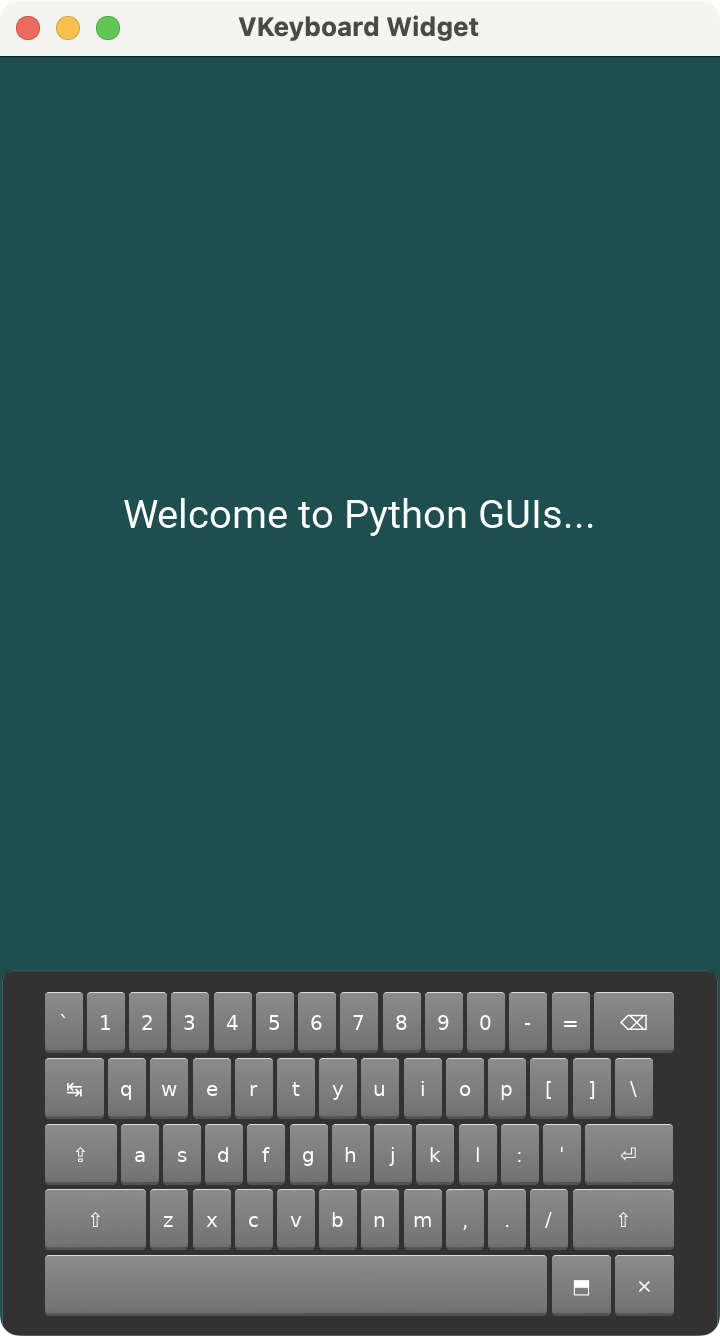
A Kivy app showing aVKeyboardWidget
Conclusion
Kivy provides a rich set of complex UX widgets that you can use to create cross-platform applications. Using the examples above as inspiration you should now be able to useBubble,DropDown,FileChooser,Popup,Spinner,RecycleView,TabbedPanel, andVKeyboardin your own apps. See if you can extend these examples further, adding more widgets or functionality to them.
https://www.pythonguis.com/tutorials/kivy-complex-ui-widgets/
