Image

Global2 is a blogging environment managed by the Department of Education and Training (DET). It is licenced for Catholic and State schools across Victoria. It is the largest Edublogs campus in the world. Providing the functionality of WordPress, plus the added benefits of moderation, filtering, class management and network administration.

The Basics

There are three things needed to start a website using Global2: start an account, create a site and write your first post.

Creating an Account

The first thing that you do is create an account. Go to the Global2 homepage (http://global2.vic.edu.au). This site has a range of resources, as well as a stream of news from the Victorian State Government’s Digital Learning Department. There is also a ‘Log In’ button in the top lefthand corner. Clicking Log In takes you to a screen where you can either enter your pre-existing credentials or register for a new account.

Registering for an account takes you to a screen which requires you to enter a username, valid email address and decide if you want to start a site or just create an account. Usernames can only contain lowercase letters (a-z) and numbers, while the email account used must relate to your educational institution, for the domains associated with state and Catholic schools have already been entered into the system. It is important to think about what personal information is posted online and this starts with a username. You are also required to agree to the terms of service listed.

If you chose to start a site, not just a username, then you will be taken to a separate page, where you will be required to create your web address and site title. The address must be at least four characters long and include a mixture of letters and numbers. There is also a range of privacy settings to help define the audience of the site. The department recommends the ME WE SEE model in breaking down these differences:

  • just the blog owner, “ME”
  • members allocated to see the blog, people who have been sent the link and  a password to the blog or all other Victorian schools who have a Global2 blog “WE”
  • The whole internet world. “See”

Other than the address, the rest of this information can be changed at any point (Settings > Reading). Therefore, it is a good idea restricting permissions to just the owner until comfortable in sharing with the world.

Once signed up and/or signed in, users are taken to the reader in the Global2 dashboard reader. This space is a hub for the wider Global2 community. It allows users to search class blogs or the wider public for posts. It also provides a number of options associated with feeds, including Global2 blogs being followed, as well as posts from all the sites associated with the user.

To switch between the dashboards of different sites attached to the site, drag the cursor over My Sites at the top of the page to reveal links to other available sites.

Setting Up Your Profile

After creating a username, the next step is to adjust your personal details. To access profile settings, either click on the username in the top right-hand corner or via Your Profile sub-menu (Users > Your Profile). In Your Profile add and adjust personal options, such as name, email address, biographical information and password. To change the avatar, go to Users > Your Avatar. You can upload a range of file types, including JPEG, GIF and PNG. It is important to be wary what information and images are displayed openly online, it can, therefore, be useful to create a cartoon avatar that says who you are, using a site like Avatar Maker, but not necessarily give away your whole identity.

Writing a Post

Once a username set, details adjusted and avatar added, the next step is to write a post. To start a new post, go to ‘+ New’ button at the top of the page. This will reveal a dropdown list, from which you choose ‘Post’. This will then open up a new page in which to start writing. This working space is divided into three sections, with the administrative dashboard on the left, the writing space in the centre and post settings on the right.

The main text space involves a WYSIWYG visual editor that means “what you see is what you get”. This allows users to view something close to the finished product while writing. Using the formatting toolbar, you can change the heading styles, justify the text and insert lists. In addition to this, there is an option to add Insert Read More tags, a functionality used to restrict content shown on the blog post page and archive pages.here is a toggle at the end of the toolbar to reveal an advanced toolbar. Additional features include: clearing the formatting and inserting special characters. This is also where table and font plugins are added. There will be more on this later on.

There is a toggle at the end of the toolbar to reveal an advanced toolbar. Additional features include clearing the formatting and inserting special characters. This is also where table and font plugins are added. There will be more on this later on. In addition to formatting, there is a toggle to cycle between the visual and text-based editor. In addition to formatting, there is a toggle to cycle between the visual and text-based editor.

The text editor is needed when directly inserting embed codes. Although quite a few sites, such as YouTube, Facebook, Twitter and Soundcloud, just need a URL to embed content. Edublogs has a range of resources associated with embedding content from other applications. As with the visual editor, a formatting toolbar provides basic tags to insert into the text. However, there are many more tags that can be used but are not necessarily included. Although the visual editor comes up as default, there is the option in the profile settings to change this.

Associated with composing a post, there is a range of settings, relating to viewing, organising and formatting posts. The first option relates to publishing. These settings provide a range of options, such as the status of the post, its visibility once on the web and when it is scheduled to be published. In regards to visibility, there are four choices:

  • Posting publicly: this makes the post visible to the world wide web
  • Password protected: although the URL is publicly visible, only with the password can access the content
  • Private posts: this means only members of the site can view the post
  • Sticky posts: this keeps the post to the start of the feed

Scheduling allows you to set when the post will be published. This is useful if you want to publish at a regular time each week. There is also a series of buttons for saving a draft, seeing a preview or publishing the post.

In addition to publishing settings, there are two ways of organising posts, either using categories or tags.

Categories often capture broader themes and are used provide a structure to the site. They can incorporate different levels and sub-categories, therefore, there is usually a limit to how many you would use.

Tags, on the other hand, are usually keywords that might be pertinent. Although these may be used in multiple posts, they are usually more fluid and less about hierarchy.

Clicking on All Posts in the Posts menu (Posts > All Posts) allows users to search through posts. This can be filtered by date and categories. There is also the option to view based on published, draft and trash. Dragging the cursor over the title of a post reveals the action link menu, which includes options, such as view and edit. There is also an option to view the publishing settings via the Quick Edit function. In addition to modifying information, such as date, title and author, there is the ability in All Posts to adjust the categories, tags, status and protection associated with post.

Another option associated with writing a post involves choosing the format. Post Formats are a feature that relates to the way posts are labelled and styled within the theme. They are a standardised format that allows users to change the theme without also adjusting posts. The catch with formats is that some themes build on all of them, some just a few, while others do not recognise any at all. For example, the Flounder theme differentiates the colours and icons depending on the format. See this Edublogs post for further explanation and examples.

Create a Page

Whereas posts provide dynamic content, organised around tags and categories, a page is a static element of a site. They are designed to support information that does not change very often, such as information about the site, or contact details.

Although pages have many aspects that are similar to posts, such as Features Image, Editors and Publishing Box, there are no tags and categories.

To create a page, go back to the + New button at the top of the page. This reveals a drop-down list, from which you choose Page. Clicking this will open up a new page. Adding content is the same as a post. The difference is in how pages are assembled. Rather than using tags and categories, Page Attributes allows for hierarchical organisation. This is where a page acts as a parent to another to support meaning and usability.  Hierarchy is also important in regards to the creation of the URL, which is associated with search engine optimisation and a reminder that WordPress is more than just a blogging platform. (When it is quoted that a quarter of the web is ‘built on WordPress’, this is referring to the rich media companies and retail sites that use WordPress as a content management system.)

In regards to editing pages, All Pages has many of the same aspects as aspects as All Posts, in that users are able filter, search, bulk edit and trash. There is also the option of applying a quick edit, which can be useful when managing hierarchy.

Adding Media

Beyond adding text, links and formatting, there are a number of options for adding media to posts and pages. The first step is to upload the files to the media library. When you click + New at the top of the page, there is the option to add media. At the top of the Post and Page pages there is also a Add Media button. If you are in the Media Library there is an also an Add New button.

In regards to media, you can upload documents, videos, audio, images and a few other formats, such as .xml and .kmz. The maximum file size allowed is 50mb (a particular constraint when it comes to video), while there is a 2gb limit for the site overall. You are also able to add a range of information, such as title, caption and description, as well as apply basic edits to images. Other than embedding a media player to play video and inserting images, media is added as a link within the text.

Associated with the inserting of media is the ability to organise different file types. In regards to images, you are able to create a gallery which inserts a range of images as one object, while with audio and video there is the means to create playlists. There is no option for organising documents, however there are various plugins that allow you to present media and documents in a number of ways. This will be covered a little bit later.

The last option associated with posts, pages and media is the ability to set a Featured Image. To do this click on Feature Imaged in the Insert Media screen. Select image to be featured and click Set Featured Image in the bottom right-hand corner. Like Post Formats, a Featured Image is associated with themes. Some themes use the image as a thumbnail, others on the homepage. See this Edublogs post for examples.

Comments

One of the features of blogs is their dynamic nature, comments add to this. They provide a means of continuing the conversation. When a new site is created, comments are turned on by default. However, they usually involve a process of approval by the administrator of the site. The first step in all of this is writing a comment.

To post a comment on a post or a page, go to the end of the page where it suggests to leave a reply. Enter your credentials. These are often used as a point of credibility, as well as a means for following up. If you already have logged in with a Global2 account, you will not need fill in these details. Write your comment into the text box. Enter the anti-spam words to identify that you are not a robot. Again, this is not required if you are logged in. Tick the Notify me of followup comments via e-mail box if you want to be emailed of any follow-up comments. Click Submit Comment. You will then be shown your comment with message that ‘Your comment is awaiting moderation.’ You will also be provided with a unique URL associated with the comment.

Unlike posts and pages, comments do not have a built-in editor. If users wish to add formatting and links, HTML tags will be recognised.

Moderating Comments

Once a comment has been posted, it often needs to be approved. Watch the following video for an overview of the steps involved in managing comments:

Comments are managed in the Comments menu (Comments > All Comments). If there are comments waiting to be moderated, the dashboard provides notification. The site also generates an email notification too. Similar to All Posts and All Pages, All Comments provides a list of the comments. There is a red mark next to those that have yet to be approved. Dragging your cursor over a comment will reveal the comment action link menu, providing such options as Approve, Reply and Edit. Click Approve to make the comment visible on the site. If there are errors or issues then you can also edit the comment. A basic summary of these changes are kept in the history of the comment. There is also the option to click Reply here and write a response. Like pages, comments are organised hierarchically.

There are a few other options provided in All Comments in regards to moderation. For example, if you have multiple comments to approve or mark as spam, you can select the checkbox associated with each item one and select Approve from the Bulk Actions drop-down menu. You can also use the various filters to sort comments, including the ability to see those that are ‘Pending’ or ‘Approved’.

In regards to spam, Edublogs utilises Akismet, a third-party service, which automatically filters comments for you. However, there is also the option to check comments for spam manually too.

Personalise

Blogs are about publishing content, a part of this is how this content is presented. There are a number of ways that Global2 blogs can be personalised, whether it be the look of the site, the settings associated with the different elements or the way in which users interact.

Change the Theme

A theme controls how a site looks and feels. There are over 350 different themes available, with each organised around three core ingredients: header, content and sidebar(s). There are also different options associated with layout and the number of columns.

The various alternatives can be can be organised into a range of different categories, such as responsive, magazine, portfolio and slider. Each highlights a particular possibility. There is also the option to search by popularity and newest.

To change a theme open the Themes menu (Appearance > Themes). Use search box at the top of the screen to find different themes, while you can also filter by category. Click on a theme to open a window with more information. There is also an option in this view to scroll through the various themes, one at a time. Once you have identified a theme, click on Live Preview to see how it looks or Activate it to apply to your site.

Searching for a theme can take time. If there are particular features you are looking for then it can be good to use the WordPress.org Library to filter by specific feature. However, not every theme that is available there is available in Edublogs and not every theme is found in the WordPress.org Library. Another thing to consider is that a theme is not just about how it looks in a preview, it is also about what you are able to change. Ian O’Byrne suggests working with a range of dummy data to get a feel.

Live Preview Editor

The Live Preview Editor allows users to explore what can be changed within the theme. If you want to make adjustments to the theme you are currently using then use the Customise sub-menu (Appearance > Customize). This sandpit environment allows you to click on various links and explore the possibilities. These changes do not go live until you click Save & Activate. Watch this video for a short introduction to customising themes:

Although there are a number of options available, these depend on the theme chosen. However, the usual features available include site identity, colours, media, menus, widgets and static front page.

Site Identity

There are three elements to consider in regards to identity:

  • Site Title: a title displayed on the site and in the browser, but separate from the URL.
  • Tagline: a catchphrase associated with the site
  • Site Icon: the icon displayed in the browser

In addition to this, some sites provide the means for a logo. Both icons and logos can easily be made using Google Drawings. Click here to create a copy of a template to get you started.

Colours

Most themes provide the option to change the colours. This is usually associated with the header text, which usually incorporates the site title and tagline, as well as background colour. There is the option to make further changes, but this involves editing the backend via the Custom CSS Plugin.

Media

In regards to media, there are two spaces where images are used: in the header and as a background. Depending on the theme, the header is either placed above the background image or in front of it. The size of this image varies on the theme. For example, Moesia presents a full page header, while Edublogs Default provides a strip between the title and menu bar. Although each theme will specify a set dimension, there is a built-in cropping function which helps adjust most images to the required size.

In addition to this, you can add multiple images to the header which are then randomised or use moving GIF images to add movement. Alternatively, you can also hide the header, meaning that the text is then just pushed up. Some themes, like Accelerate, build in a slider that allows you to continually rotate through a series of images, while the Meta Slider Plugin also allows you to add a slideshow to posts, pages and as a widget.

The other type of media is the background. This is placed behind the body text. By default, the background is usually a solid colour, which can be changed in the theme colours. When adding an image, there is a number of presets, such as Fill Screen, Fit to Screen and Repeat. You can also position the image, which is important if it is larger than the page.

An important consideration when adding an image are the colours used by the theme. Some themes, like Afterlight, resolve the clash between image and text by placing an overlay on top of the background, others place the text within a solid box over the background. Unless there is a clear reason why sometimes it can be best to leave the background blank or use a very subtle image.

In the end, some themes focus on headers, others incorporate background images, some even make use of featured images. Whatever theme you use it is best to explore the use of media as not every image is going to work with every site. In addition to using personal images, there is a wealth of content that is available for modification and reuse at sites such as Flickr, Pixabay and Noun Project. It is also good practice to record where you found such images when you upload it at the very least as a point of reference.

Menu

Another element that can be changed is the site menu. This allows users to organise pages, categories, tags and links.

There are several steps to follow when creating a menu. Firstly, consider the placement. Although usually placed at the top, some themes provide other options, such as in the header, the subheader or in the footer. There is also the possibility of adding to the sidebar via the Custom Menu widget.

To create a menu, click on Add a Menu, give it a name and click Create Menu. Menus can be made up of a number of items, such as links, pages, posts, categories and tags. You simply find the item and click the + button to add it to the list. In addition to this, clicking on an item allows you to adjust the settings. This includes adding a Title Attribute which defines what comes up when the cursor passes over the link. As with pages and categories, menus are organised hierarchically. There is an option at the end of the list to reorder items. This allows for movement up and down, but also left and right which controls the depth.

A few other points to note about menus is that outside the Live Preview, the options to modify the menus can be accessed directly through the Appearance menu (Appearance > Menu). Also, some themes allow you to add a second menu displaying links to various social media platforms.

Widgets

Widgets are small bits of code that serve a number of purposes, including the ability to find information on the site, track visitors, foster engagement and provide summaries of news and content. Watch the following video for a summary:

There are several steps to follow when setting up widgets. As with menus, every theme offers different options associated with placing widgets, with the most common being in the sidebar and in the footer. To begin adding, click on a location and add widgets to the list. To setup different location, you click back and choose an alternative option. Once added, widgets can easily be rearranged by clicking and dragging them up and down the list. There is also a Reorder option, which not only allows you to move items up and down, it also provides the ability to move widgets between locations. Like with menu items, clicking on the triangle attached to each widget reveals a particular set of options. There is also an option here delete unwanted widgets. This is important as some themes come pre-populated. Check out the Edublogs Support Guide for a full list of the available widgets, what they do and the settings for each.

Static Front Page

Another option that can be customised is whether the front page of the site is static or dynamic. If you choose static, there is the option to define which page will be your front page, as well as which page will be for posts. For example, you might have a static welcoming page and then have posts going to a blog page.

Other Options

One of the strengths of WordPress is its ability to do so much. However, with this comes a level of complexity. As I have stated several times, there are various theme-based options. These are often quite unique. For more guidance on some of these nuances, check out the WordPress.org site as there are various forums and guides there to get you on your way.

Settings

Whereas the Appearance menu allows you to personalise the ‘look and feel’ of the site, the Settings menu allows users to change the way that the site works.

There are a number of settings:

  • General: Outlines many of the basic settings, including those decided at the start, such as site title and tagline. There is also an opportunity to adjust the administrative email address associated with the site, as well as the date and time settings, which impacts on the deciding when posts are published.
  • Writing: Decides on the defaults associated with categories and Post Formats for new posts. There is also an option to format certain text, such as nested XHTML and emoticons.
  • Reading: Defines posts shown on the site, how many are listed on each page, what content is shown and the overall visibility of the site. These settings are separate from the options in regards to the visibility settings in the publishing section of both posts and pages.
  • Discussion: Sets in place the rules for conversing on the site. Whether it be the default settings regards commenting, options associated with who can comment, such as whether they need to fill out their name or if comments are turned off automatically after 14 days, how often administrative emails are generated, what happens before a comment appears, and conditions associated with moderation and blacklisting.
  • Media: Defines the size and settings associated with a particular size of images, such as a thumbnail, medium size and large size.
  • Akismet: Decides how strict the spam filter is to be applied and whether to show the number of approved comments.
  • Blog Avatar: Similar to the icon, identifies the avatar shown when the blog is listed, such as in the widget bar.
  • Admin Bar: Defines which users see Admin Bar at the top of their page. Note, if users have to be logged in to see it then start at the Global2 site and select the site from the list.
  • Google Analytics: Links the site to a Google Analytics account. This provides detailed data how users are engaging with the site.

Compared to other blogging platforms, there are a lot of variables provided in the settings, with only more added as various plugins are installed. The intent is to provide creators with control over their content.

Customise

Although Global2 allows users to create posts and personalise how a site looks, one of its most powerful features are the ways that it can be customised. Whether it be adding additional functionality or creating a series of blogs linked to a central hub, there are a number of things that you can do with Global2.

Plugins

Plugins are small applications which extend the functionality of the site. This is what differentiates Global2 and WordPress from other blogging platforms, like Blogger and Medium.

There are a number of plugins available, including those addressing appearance, forms, media, administration, social media and widgets. One plugin that crosses many of these categories is Jetpack.

Jetpack

Jetpack packages up a number of features and functions available in WordPress.com. It makes it easy to publicise posts, share with social media, post by email, display related posts, publish using Markdown language and automatically proofread posts. One consideration though is that being associated with WordPress.com, Jetpack requires you to sign in with a WordPress.com account to use it. This, therefore, limits the use of Jetpack by students. Global2 also blocks access to some Jetpack modules, such as single-sign on and 2-step authentication.

Other Plugins

Although Jetpack may not be appropriate for everyone, many of the features are available individually within other plugins. Some options available for plugins include:

  • Custom CSS – Enables users to modify the theme by adding a custom stylesheet
  • Supreme Google Webfonts – Provides the option to change font type and size within the visual editor
  • Table of Contents – Automatically adds a table of contents to posts, pages and sidebars.
  • Compfight Safe Images – Allows users to find and add Creative Commons images and adds the appropriate attribution.
  • Meta Slider – Enables the addition of a slideshow to posts, pages and sidebars.
  • Podcast – Enhances WordPress’ existing audio support by adding iTunes feeds, media players, and an easy to use interface.
  • Embed Any Document – Allows users to easily embed any document into posts and pages.
  • TinyMCE Advanced – Provides extra features to the visual editor and organises them using a series of menu tabs.
  • AddThis Social Share – Adds a series of share buttons to the base of every page and post.

See the Edublogs for a complete description of what is available. This also includes links to additional support pages for each.

Installing a Plugin

To install, go to the Plugins menu. Scroll through the options or refine the choices using the categories or search box. If the description provided is not enough, click through to the documentation to find more information. To add the plugin, click Activate. Additional settings are added to the dashboard depending on the plugin, this might include a menu or a sub-menu in Settings. This is where the plugin can be refined. For example, the Compfight Safe Image plugin adds a sub-menu in Settings, which allows changes to what is searched, the different sizes associated with images and the template used when inserting into the document.

Opportunity is provided to use these added functions in the post editor or new items. In the case of Compfight, a small button is added above the editor. When clicked, a window containing a search bar is opened. After a term is entered, a summary of items is provided. There is then the choice of sizes, including small, medium, larger, as well as the option to make the image a featured image.

To remove a plugin, go to the Plugins menu and click deactivate. This turns the plugin off and removes the functionality from the dashboard. However, the content created is kept in case you wish to reactivate at a later stage.

Student Blogs

Another way Global2 can be customised is through collaboration. Along with adjusting your profile and setting an avatar, something discussed earlier, the User menu allows new users to be added and create new sites. This includes adding users and assigning different roles within the site through the Add New sub-menu, as well as managing the users that already exist through the All Users sub-menu. This is important when creating something like a collaborative blog where multiple people add content to the one site. The other function provided through the User menu is the ability to create new blogs and users in bulk. Global2 (and Edublogs) take this feature a step further by providing the power to create student users and blogs.

Creating Student Sites

One of the unique aspects to Edublogs and Global2 is the ability to create student sites linked to a class space. This provides teachers with a level of control to moderate posts and comments, as well as provide technical support where needed. Sue Waters provides a good introduction to these features:

To set up student blogs, start by identifying a site to act as a central hub through which student blogs will be managed. This might be a new site or a pre-existing one. Once decided, create a class. This is done via the My Class menu (My Class > Create a Class). There are various settings to then work through. First, confirm the site is to become a hub. Then decide how this site will be used, whether posts and comments will be moderated, the privacy settings applied to all the blogs and the ability to interact through the Dashboard Reader.

For some, if students are going to have their own spaces, then they do not allow students to post on the class site. Alternatively, though, the class site can be used for different purposes. For example, using the Houston theme allows this central site to be turned into a social media stream, where students can share. The difference between this and something like Google Classroom is that you have more control over the space, as well as the ability to easily archive posts and comments.

When creating student accounts and new users, it is important to consider the details that might be provided through the username and URL. A simple rule to follow is to avoid putting three pieces of personal information, this includes things such as tagging names on photos in the metadata. One answer schools often follow is to continue the conventions associated with student emails, as this creates consistency for students. Edublogs provide further suggestions here. It can also be useful to save these addresses, usernames and URLs in a spreadsheet as multiple student sites can quickly become unwieldy. This can also be useful when mail merging account cards or adding blogs to a custom reading list.

The other option in regards to setting up class blogs is for students to join a pre-existing class. This involves clicking Join a Class and entering the class URL or using an invite URL generated by a teacher, which allows a user to join directly.

In addition to students, a new teacher can be added to multiple student blogs via the Users Menu (Users > Add New). This is useful in the case of a shared class or if there is someone linked to all the blogs across the school. Whatever the reason, what is important is that this user is allocated the role of ‘teacher’.

Working with Student Sites

Once students have a site, they are able to create content, upload media, personalise the look and feel of their site and customise the way it works. The limitation they face is in publishing content. If the teacher has chosen for the blog to be moderated in the My Class settings (My Class > Settings), students will be given a Submit for Review button. This notifies the teacher(s) that there is content to be published. When selected, all comments are also moderated by the teacher(s).

When a post is submitted, a student is still able to make changes and resubmit. However, once something has been approved. students need to contact a teacher to have the status changed back to draft in order to make changes.

There are several ways for teachers to be notified of content to be approved. One way is the Reader (Dashboard > Reader). By default, the Reader is shown when a user goes to the Dashboard menu. Not only does this connect with the wider Global2 community, but provides a summary of a user’s interactions. By clicking on pending, users can scroll through comments and posts that require approval. Pages are not moderated here.

Another place to approve content is My Sites (Dashboard > My Sites). This provides a summary of the sites you are associated with. This includes various links to site and dashboards, as well as content that is pending review. There is also a number of bulk actions that can be applied here, such as adding users, deleting sites or removing yourself as a user. This list can also be filtered by those needing moderation or approval.

An alternative to using My Sites is Student Blogs (My Class > Student Blogs). Rather than listing all the sites you are associated with, Student Blogs focuses on the blogs associated with the class.

There is also the option of installing the Review Notification plugin to receive emails associated with content needing to be approved.

In regards to the approval process, it needs to be noted that when moderating, media content should be checked, especially in regards to the meta-data. Edublogs provide the following suggestions in regards to images and media:

Avoid the use of any photos that can identify individual students.  A safe compromise is to only use photo taken from behind students.

Don’t use student photos for their avatars.

If you do use any photos of students – don’t use their name in the file name and don’t refer to the student by name, even their first name, in the caption under the photo or in the post.

In addition to student privacy, it is important to be mindful of copyright when sharing online.

Beyond moderating content, there are other benefits to connecting through a classroom blog.  Being a member of the site provides the means to support students, especially in the backend. There are also options to produce a range of reports which can be useful in capturing a snapshot. They are located via the Users menu (Users > Reports). They are different to the usual site statistics in that they provide a summary of the raw user data. These reports provide links to comments, posts and users, although they do not include the actual content. Teachers can drill down to analyse a specific blog or provide a summary across all blogs. They can also be downloaded as a PDF or a CSV.

There are limits though as to what a teacher can do, such as resetting passwords. For security reasons, this functionality is not available. However, Edublogs provide a useful step-by-step guide focusing on the ‘Lost Your Password’ function. This is one of the reasons that DET stipulates that each user is required to have an email account to allow them to manage their account.

Wiki

Another option available for publishing content is as a wiki. Different to a post and page, a wiki is designed to be constructed collaboratively, with no set author or owner. What is different about the Global2 Wiki Plugin, compared to platforms like Wikispaces, is that it utilises many of the standard WordPress features, such as comments and password protection, as well as adding the ease of editing and collaboration associated with wikis. Like posts, wikis in Global2 are organised using tags and categories, while like pages, they are structured hierarchically. Two features that are unique to wikis in regards to sharing content is the ability to control privileges and the option to receive email notifications.

To create a wiki page, click + New at the top of the screen and select Wiki or Add Wiki under the Wiki menu (Wiki > Add Wiki). This opens an editing page similar to that used when creating a post or a page. Here you are able to add any of the usual content, including various features added vial the plugins.

When sites are moderated as a part of a class blog, wikis will show the Submit for Review button. However, the notifications do not flow through like a post. Although wikis turn up in the pending feed of the Reader, listed as a ‘post’, they do not show up as pending in summary pages of My Sites (Dashboard > My Sites) or Student Blogs (My Class > Student Blogs). To review this way, go to the list of wikis under the Wikis menu (Wikis > Wikis) and open the wiki to approve.

Once published, wikis can be viewed and edited in the native editor. This is organised around a series of tabs linking to discussions, a summary of the revision history, options to edit within the wiki editor or in the Global2 editor, as well as the option to create a new page. The wiki editor has many of the same features as the standard WordPress editor, only not all plugins and additional functionality is available.

In regards to moderation, once a wiki has been approved, students are able to freely edit the document and create additional pages without submitting for review. It is for this reason that it is important to tick the box for email notifications associated with each wiki post. There are also a number of settings that can be changed (Wikis > Wiki Settings). They relate to what the different are called, how they are organised, and the users associated with privileges.

With the rise of collaborative applications, such as Google Docs or Microsoft OneNote, the collaborative nature of wikis has been compromised. However, within Global2, wikis offer an organic alternative to pages with the benefits of WordPress.

Odds

There is a range of other affordances and functions available which support users with customising their site beyond the usual steps.

Press This

Press This is a bookmarklet that allows you to grab content from the web and then add more text within a basic editor before the information is posted to the site. It is located within the Tools menu (Tools > Available Tools). This can be useful when curating web content or recording a quick idea. To use this function, drag the bookmarklet to the bookmark bar. When there is content you want to capture, highlight it and click on Press This. This will open the content in a basic window, which allows basic editing and the addition of tags, categories and media. Although the tool will grab the text, it will also strip it of formatting, including lists and hyperlinks. Also, Press This provides no means of saving to draft, with the only option being to publish.

Links

Another feature is the ability to add links. There are several methods for doing this. One way is to go to ‘Add New’ in the Links menu (Links > Add New). At the very least, you need to include a web address. However, there are a number of other options for information, including adding a title, description and relationship. Just as with posts, pages, media and wikis, links can be organised using categories. A good example of this is the STEM Education in Victoria site, which separates links into the following categories: blogs, curriculum, engineering, industry, mathematics, museums, science, space, STEM, sustainability, technology and video. This can be useful when the links are provided as a resource.

In addition to manually adding links, there is the option of importing an OPML file, the same type of file used with feed readers. This option is found in Import sub-menu (Tools > Import). You can also download the public links from any WordPress site by adding ‘/wp-links-opml.php’ to the end of the URL. There are a range of online editors, such as Code Beautify, which allow users to paste the code in, make any changes to the OPML file and then resave it.

To display links, add the ‘Links’ widget to your site. This provides a number of options in regards to what to include and how links are ordered.

Import/Export

One of the benefits of Global2 is the ease in which site data can be easily exported (Tools > Export). This can be useful when archiving a project or class blog, as well as moving platforms. Global2 also provides the functionality to import in content (Tools > Import). This includes content from other sites and spaces, such as Blogger and RSS. Each process has a different set of procedures associated with it, whether it be uploading an XML file or adding specific credentials.

Subscribers

Another feature of Global2 is the ability to allow visitors to subscribe. Although users can follow posts through the Reader or add the site to an RSS reader, subscribing provides a way of receiving updates via email.

There are a number of ways that subscriptions can be modified. The general settings allows users to set the different fields associated with the digest email, such as who it is from, the reply address to be used, what the subject line will read, which post types will be included and how often emails will be sent out. There is also an option to activate a permanent subscribe button on the site, as well as receive notifications of any changes to the subscription list.

The options associated with Mail Template allow adjustments to the style of the digest email (noting that it might be a collaborative blog), including colours, incorporation of images and the addition of a footer and/or header. There is the also possibility to customise the confirmation email sent to new subscribers, as well as send a preview in order to test what it looks like.

In addition to placing a permanent button at the bottom of the site or in the widgets, subscribers can also be added manually (Subscriptions > Add Subscribers). This is useful if transferring subscribers from a separate platform, such as MailChimp, or automatically adding people, rather than expecting them to sign up.


So there is my guide to all things Global2, what about you? Is there something that I might have missed? Something that you would add to the conversation? As always, feel free to leave a comment.

As we read we compose, without thinking about it, a kind of running commentary or marginal jotting that adds more words to the words on the page. There is always already writing as the accompaniment to reading. J. Hillis Miller ‘The Obligation to Write’

Jennifer Hogan recently wrote a post about the 13 things to consider when blogging. Here is a summary of her list:

  1. Every journey is unique
  2. Make time to learn each day
  3. Blog regularly
  4. Forgive yourself when you don’t post
  5. Put your social profile links on your blog
  6. Schedule posts ahead of time
  7. Create graphics for your blog
  8. Actively engage on twitter
  9. Have an About Me page
  10. Include links to previous posts in your blog posts.
  11. Comment and leave comments
  12. Chunk content, use clean fonts and leave blank spaces
  13. Keep a blog idea list.

I started writing a response, then realised that it might be better to just write my own list. So here is my list of the basics that I think every blogger should know:

  1. Why: Everyone can write a post, that is not the point. What matters is why blog. Maybe it is personal? A particular project? Collaborative? A professional portfolio? The investigation of a subject? Curation? There are many faces to blogging and they are developed over time.
  2. Expression: Hogan makes the point, every blog is unique. One of the ways this uniqueness shines through is the voice on the screen. This could be choice of format, the length of posts or the use of tone. The challenge, find the expression that suites you best.
  3. Way of Being: For some blogging is about the daily habit of writing. Others suggest a routine of once a week. What must not be ignored though is the right not-to-blog when needs be. Whatever the frequency, the focus should be on capturing ‘fringe-thoughts’. Blogging to me is better considered as a way of being, of thinking, of seeing.
  4. Portability: There are so many platforms to choose from. Blogger. Edublogs. Medium. WordPress. WP.com. Jekyll. Tumblr. Weebly. Some look good, others are easy to use. What matters the most to me is portability. A few years ago, I moved from Blogger to WordPress, I could not travel in reverse though. Although you may not think that it matters, when it does, you will be happy. Many were burnt by Posterous. Who knows what will happen with Medium?
  5. Look and Feel: With the world of RSS and AMP, It is easy to ignore how posts are presented. This is the allure of Medium, every post looks slick and clean. Although most platforms provide useful defaults which do the job, it is important to clean up any widgets or features that may not be needed. This includes adding an About Me page and links to other sites on the web.
  6. Content: Just as it is important to consider expression, it is important to consider different content that can be embedded to add to posts. This might be creating images, adding a Storify, recording audio or video, visualising data, customising a map, showing it with a GIF or developing a dynamic resource.  Each provides a different way of representing ideas.
  7. Connect: There are many options when it comes to engaging with a blog. This might be writing a formal comment, but it also might be engaging on social media. What matters is connecting with others in the creation of community. This might be remixing an idea or linking to a post. What is important is developing a community.
  8. Workflow: In part, this will be decided by your platform, but think about how you go about writing. Maybe ideas will start with a physical journal? Maybe you might write notes in an app. Whatever it is, make sure that it works for you and works with the devices that you use. Personally, I usually start out with a Google Doc and then transfer to WordPress when I am ready to publish, but there is no right or wrong way.

So they are my blogging basics? What about you? Maybe you prefer Hogan’s list or maybe you have something different altogether. As always, comments welcome.


NOTE: For all of my blogging resources, click here.

Image

Simon Keily recently shared a post with me exploring the question,

What do you think the digital future of education entails?

Here are some of my initial thoughts:

  • What is technology? When comments are made that technology is failing us or even harming us, we need to consider what we actually mean by ‘technology’ and in what contexts.
  • Is anything really new? Bryan Alexander highlights that many of our ‘futures’ and supposed revolutions are simply revisions of the past, a topic that Audrey Watters’ touches on again and again in her writing.
  • Do we shape our tools or do our tools shape us? It can be easy to define technology as being somehow static and outside of our influence, when it is a part of dynamic assemblage, changing and forever influencing. The challenge is balancing influence with impact.
  • How do we balance between cognitive and critical concerns? Thinking about Doug Belshaw’s eight elements of digital literacies, so often the focus is on cognition and how technology works, rather than culture and criticality. For example, WhatApp may allow users to easily connect and communicate, but in process involves handing over your personal contacts to Facebook. What does this mean and is it ok?
  • What if the answer is development, not improvement? Too often answer with edtech is efficiency and maintaining the status quo. Models like SAMR focus on modification and redefining, over understanding the context and responding to the needs of the situation. The focus should be pedagogy and developing from there.

So they are some of my thoughts, what about you? What do you think that the digital futures of education entail? I encourage you to leave your thoughts on Keily’s post and continue the conversation there.

Image

Steve Brophy has been digging into the art of deliberate habits lately, whether it be having a clear morning routine, 750 word and setting up his workspace to nullify distraction. During the recent episode of Design and Play he posed the question:

What are the daily habits that you do as a learner?

This got me thinking. I have spoken about the process involved in learning and the tools I depend upon, but never thought about the daily activities which help me as a learner.

Combing the Curation

A few years ago, Doug Belshaw wrote a post, ‘Curate or be Curated‘. In it he reflected on the rise of algorithms in curtailing and constraining the content that we consume. Although I do not subscribe to several newspaper subscriptions, I use Feedly which captures posts from over two hundred blogs (see my list here). I will be honest, I used to read everything, now I skim first then check out those pieces that catch my interest – I am human. If the posts are too long I send them to Pocket. I then either save them to Diigo or capture specific aspects in a Wikity card. In addition to this, I have a number of newsletters and summaries that are sent to me via email (this is something I have reflected on elsewhere).

Lurking and Listening

Another habit that I do every day is be actively open to interesting ideas. Curiosity breeds curiosity. In part I pick up some of this perspective from the blogs I read, but I think that it also comes from engaging in the world around. David Culberhouse describes this as spending time at the idea well. This might involve chatting with people at lunch or asking clarifying questions of others. I think that this is why I love professional development sessions and conferences so much. It isn’t always the intended learning opportunities, but the often ‘hidden’ incidental learning at the periphery.

Thoughtfully Thinking

Michael Harris talks about the theory of loose parts, which focuses on the importance of changing environment to foster independent thinking.

Nature is an infinite source of loose parts, whereas the office or the living room, being made by people, is limited.

Where possible I try and to make sure that I get some sort of thinking time each day. A few moments where I stop doing what I am doing and do something different. This might involve going for a walk or listening to music. Warren Berger describes this as ‘Time Out’ in his book A More Beautiful Question. This is something that Pearman and Brophy also touch upon in the podcast. What is important is disrupting the flow of things.


So they are some of habits that I keep. I am not sure that I am as deliberate as Brophy, however they work for me. What it does leave me thinking is how this compares with the learning environment in school? So what about you? What are your habits? As always, comments welcome.

Image

Mark Scott, Secretary of the NSW Department of Education, recently closed the National Coaching Conference for Educators with a suggestion to move away from false appeal associated with social media. Instead, he encouraged educators to spend their time focusing on ‘deep work’. To support this, Scott spoke about the work of Cal Newport. Ignoring the segmented nature of schools (see Richard Wells) or what we focus on (see Audrey Watters), the debate around reclaiming our attention is not new. However, Newport’s call to close accounts has been doing the rounds. After watching his TED Talk though, three questions puzzled me: what is social media, what is work and how do I differentiate the changes in my mind?

What is ‘social media’ anyway?

The message is clear, get off social media, your career depends upon it. Newport explains that interesting opportunities are not dependent on being online and in fact social media is harmful (see for example Doug Belshaw’s post on Facebook). Although I did not go and close all my accounts, Newport’s video did lead me to reflect on the place of social media within my life. However, as I watched the TEDTalk I thought that maybe I was misunderstanding his message. With his reference to RSS, it seemed that he was suggesting getting rid of all dynamic content? In many respects, social media is just as ambiguous as digital literacies. Is it how we use it? Is there something baked into applications or inherent in various web formats? Does it depend on if the application calls itself a media company? Are applications like ClassDojo or Seesaw examples of social media too? This was all confounded by the fact that Newport, someone who proudly flaunts the fact that he has never had a social media account, himself has a blog.

Finish at Five

Late in the presentation, Newport shares how he rarely works beyond five. This is such an interesting point, which leaves me wondering when ‘work’ starts and stops? People like David Culberhouse and Steve Brophy get up early in the morning to read, to write, to reflect. If they do not check email, does that mean that it is not ‘work’? What is work? My other concern is with the work that we ask people to do. As an educator, I feel uncomfortable telling an specialist teacher with 400+ that the reason they are working long hours to get reports written is because they are not committing themselves to ‘deep work’. Deep work is often associated with flow, I have never entered such a state while compiling reports. Maybe some work is always shallow?

Minds Changed

One of the concerns that Newport raises is that the instant gratification provided by social media rewires the brain.

The more you use social media in the way it’s designed to be used — persistently throughout your waking hours — the more your brain learns to crave a quick hit of stimulus at the slightest hint of boredom.

Our inability to commit ourselves to concentrating for lengthy periods of time means that we are unable to complete deep work. Maybe it is just me, but being a parent has taught me to seize the minute. If my daughter is asleep on my knee or I am waiting for pick up I often use my phone to dip into some reading. I get moments. I make the most of them to dig down into awesome ideas that I may not get the chance to do at ‘work’. In regards to putting on headphones or going into an office speaks of privilege? Then again, maybe it is just my broken brain.


In the end, I may have been hooked in by the click-bait nature of the New York Times and the TED Talk? Not sure. Maybe at some point I need to stop doing such shallow readings and dive into a deep reading of Newport’s book?

Image

Digciz is a conversation centered around ideas of Digital Citizenship. The focus this week is on hospitality, in particular, the openness, risk and vulnerability relating to existing in online spaces. My response involves a series of short reflections:

Context First

Peter Skillen recently reflected on a situation where he corrected someone. He was sorry for the way it went about. This had me thinking about my own conversations with Skillen, especially around computational thinking and Twitter. One of the things that I have taken away is the place of technology to change the way we think and act. The problem is there are contexts where the conversations move away from the ideals. Although I agree with Skillen (and Papert) about the power of Logo and Turtle to explore mental models, especially after reading Mindstorm, sometimes when you are asked for simple material you put aside your bias to share a range of visual resources. In this situation, technology is only one part of the equation. First and foremost is pedagogy and the place of coding as a lunchtime club. The focus then becomes about entertainment, engagement and ease of instruction. The ripe conditions for initiatives such as CS First and Code.org.

Crossing Imaginary Lines

There are some learning experiences which seem to stay with us long after the lights have been turned off. In regards to online learning, my participation with Rhizo14 was one such experience. I neither knew exactly why I was there or what the protocols were. Stepping out into the unknown, my focus was to hold my judgements for as long as possible. Sadly, I think that I went a little too hard. Caught up in the flow, I critiqued everything a bit too much. (If you read any of Jenny Mackness’ research, apparently there were some heated conversations on Facebook which I was not a part of.) This questioning even included Dave Cormier and his assessment methods. Although this was a risk he fostered, it felt as if you knew you had crossed the line even if there were none. Maybe this is the reality online, the challenge I guess is knowing when to take your shoes off at the door and apologising if you happen to forget.

Tribes and Tribulations

In the book Teaching Crowds, Jon Dron and Terry Anderson unpack the different ways that people gather within online spaces. One way that really stands out to me in regards to open online spaces is the idea of tribes. At the intersection between groups and sets, tribes involve bringing people together around complex ideas and interests, tied together by certain rules and expectations. When I think about my participation online, I would say that I am a part of many tribes, some of which I collected here. The challenge with tribes is that they do not always talk to each other, sometimes even working against each other. Indirectly though they influence each other in a number of ways. For example, when communication is shared openly, it carries the risk of being appropriated by other communities. This bleeding and breaking can be construed as negative, but it also has a positive outcome of extending our thinking.

Mapping Our Digital Bits

David White and Alison Le Cornu offer a more fluid typology with their notion of digital visitor and resident. White and Le Cornu suggest that our use of different spaces on the web fluctuates between two states: that of the visitor whose use is often short term and task orientated compared with the resident who sees their participation as being an important part of their lived experience. Amy Collier goes beyond the notion of residency to describe the web and instead suggests the ideas of kindred spirits and belonging. I wonder if a different way of seeing the divide is from the perspective of APIs and the little bits of ourselves that exist around the web. In discussing the notion of personal APIs, Kin Lane provides the following breakdown:

  • Profiles – The account and profile data for users.

  • People – The individual friends and acquaintances.

  • Companies – Organizational contacts, and relationships.

  • Photos – Images, photos, and other media objects.

  • Videos – Local, and online video objects.

  • Music – Purchased, and subscription music.

  • Documents – PDFs, Word, and other documents.

  • Status – Quick, short, updates on current situation or thoughts.

  • Posts – Wall, blog, forum, and other types of posts.

  • Messages – Email, SMS, chat, and other messages.

  • Payments – Credit card, banking, and other payments.

  • Events – Calendar, and other types of events.

  • Location – Places we are, have been, and want to go.

  • Links – Bookmarks and links of where we’ve been and going.

As with White and Le Cornu’s mapping, Lane’s emphasis is on the journey, rather than a destination. Mapping our APIs provides the potential to dig down into our particular uses. The problem is, I am still trying to work out exactly how to go about this.


So they are some of my thoughts on the risks and vulnerabilities associated with belonging in open online spaces. What about you? What do you have to add to the conversation? As always, comments welcome.

Image

I was recently involved in conversation online in regards to re-imagining the conference experience. There were so many points made, such as:

  • Provide multiple opportunities to practice and experience new skills.
  • Focus on practical techniques and take-aways.
  • Create conditions for collaboration and relationship building.
  • Accelerate ongoing learning and professional dialogue
  • Allow teachers to engage in different elements of choice, action and design.
  • Centre around a transformative statement.

All in all, the focus was on the conference and the time afterwards, yet it left me wondering about the time before and what can be done to start the conversation beforehand?

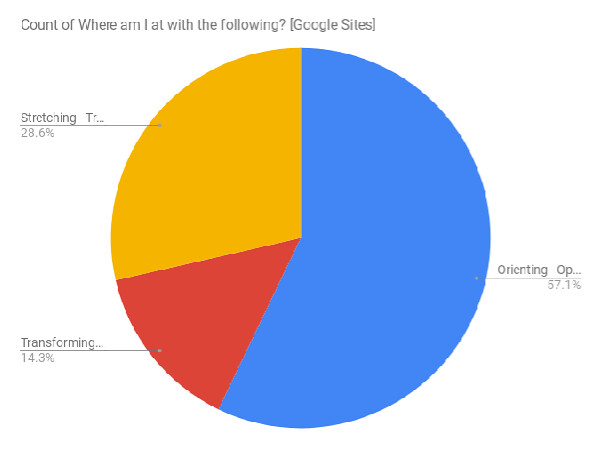
When I think about sessions I have run, I usually start by doing a temperature check of those in the room. This provides attendees with an opportunity to think about their own context and provides me with an insight.

Sheets Screenshot
“Sheets Screenshot” by mrkrndvs is licensed under CC BY-SA

Even though I consider myself flexible, personalising my presentation dependent on the needs in the room, too often the overall structure is set.

I wonder then if there is a possibility to engage people before the day? Peter DeWitt talks about flipping staff meetings, is there a potential to flip the conference experience? Some conferences encourage presenters to create short videos to fit the constraints of various social media platforms. For example, I made this short video for Digicon last year:

Another alternative to providing people with a taste of what to expect is via a podcast. This is something that both Domains17 and Digicon have done lately. Recording interviews with various keynotes and guest presenters. However, these creations usually focus on promotion. (Although I must say, the interviews for Domains17 were quite informative.)

Based on the fact that conferences usually have a cut-off date to accepting people, what if attendees were sent some sort of correspondence containing some sort of provocation, such as a video or a short podcast, as well as a questionnaire to start the dialogue?

Fine we plan with a problem in mind, but to truly develop any understanding of the ‘archetypal customer’ there needs to be some sort of data and feedback. I recognise that this would be a change from the way things are done now, that not everyone will respond, but wouldn’t a few responses be better than we have now, which is no response at all?

Building on Ewan McIntosh’s idea of a pre-mortem,

A period of safe reflection to consider all the potential causes for the future death of our idea and give us a chance to take some preventative measures to alter our ideas, and make them more likely to thrive in the real world.

Asking questions before the conference allows a kind of pretotyping, where the focus can be on the right ‘it’.

In regards to those conferences where attendees vote with their feet, then this dialogue could simply be around a transformational statement that drives the conference. A summary of this information could then be provided to the presenters.

In Thomas Guskey’s evaluation of professional development, he provides five critical levels:

  1. Participants’ Reaction
  2. Participants’ Learning
  3. Organisation Support and Change
  4. Participants Use of New Knowledge and Skills
  5. Student Learning Outcomes

Starting the conversation earlier provides an opportunity for participants to identify their own desired outcomes beforehand. In many respects, this process can go beyond conferences and has the potential to develop professional development at all levels. See for example the way in which the #educoachOC chat team provide a post before each chat as a means of starting the conversation before the chat.

So what about you? What strategies have you used to engage learners early to help guide the process? Where do you see this process being a problem? As always, comments welcome.

Image

I was lucky enough to recently attend a session run by Claire Sutherland for the Alannah and Madeline Foundation around the topic of ‘safe schools‘. I have worked with AMF before in regards to eSmart. Today’s focus was on the trends, policies and resources to support schools around cybersafety. Personally, I have mixed feelings about cybersafety as a topic, as there are some who approach it from the perspective of fear. So here are some of my notes and observations on the presentation …

Issues

When it comes to children and technology, there are a number of issues to consider:

In regards to schools and liability, It is important to understand that if you are aware of an issue, you are responsible. In Victoria, this is covered in the PROTECT Guidelines.

3Cs

For the Alannah and Madeline Foundation cybersafety can be broken down into three aspects:

  • Contact: Do you appreciate who you are sharing with? There is a difference between a ‘friend’ and a ‘follower’, while many of our connections come via acquaintances. We may think that we are not providing much information online, however once we work across multiple platforms, people (and computers) can easily join the dots and develop quite an extensive profile.
  • Conduct: How do you act when you are online? Do you THINK before you post, that is do you consider if what you are sharing is ‘True, Helpful, Inspiring, Necessary and Kind’. Research says that 1:5 students have been involved in cyberbullying online. The challenge is to look out for one another, respecting the rights of others. One suggestion is to ask before tagging, especially in regards to changes in regards to auto-tagging within Google Photos.
  • Content: What information do you share online? Is it personal or private? How authentic is it? How positive is your digital footprint? What is your response to fake news and surreptitious advertising? To plagarism, is it constructive? This can all be challenging as we move into a world that no longer forgets. Something captured by Black Mirror where everyone’s experiences are captured all of the time or we are continually judged by everything that happens in our life.

Associated with the 3C’s, there are four different types of spaces: messaging app, social media, games and dating apps. What entices students is whether they are free, accessible, social and allow experimentation. Constantly changing, these spaces are a part of the yo-yo craze where students move when adults move in.

Challenges

Some of the challenges associated with cybersafety include: raising awareness with parents, teachers and students, monitor the use of technology, building online resilience and empathy, celebrating the positive, as well as empowering bystanders to stand up by providing anonymous reporting systems. To be proactive, schools need to be as explicit as possible when it comes to policy. This means it does not matter which teacher is consulted. Associated with all this, it is important to document issues when they arise.

Resources

Here are a collection of resources – both from the session and some links of my own – to go further in regards to cyber safety and digital citizenship:


So what about you? What are you doing to make school safer? Are there any tips, tricks or resources that you would share? As always, comments welcome.

Image

Introduction

YouTube is a video sharing platform. Started by a few employees of PayPal in 2005, Google purchased the site in 2006 for US$1.65 billion. For a complete history, watch this video documenting the impact that platform has had:

The sort of content that can be found on YouTube includes TV shows clips, music videos, documentaries, audio recordings, trailers and vlogging. With a blur between amateur and professional content, the quality can differ drastically from one video to the next.

Searching YouTube

The most common use of YouTube is watching content. This is recognised by the site, for when users first enter, they are greeted with an array of recommendations. If there is no history to base suggestions upon or account signed in, then the summary provided is of generic trending content and live recommendations.

To find specific content, there is a search bar at the top of the screen. The usual search terms associated with Chrome apply. After an initial search, there is a filter button which allows users to drill down further. This includes such parameters as date, type, duration, features and means of sorting. Filtering provides a way of search content via types, such as channels and playlists.

Beyond this, users can search via Google and click on the video tab. This will provide content across the web. To restrict this to YouTube, preface the search with “site:youtube.com”. For further insight into discovering content, YouTube has a channel collecting together various search stories.

Playing Video

Once users have found content, there are a number of ways to playback video. The obvious answer is within the browser. One catch with the browser is the distraction littered around the video, whether it be comments, information and related content. An answer to this is to play in fullscreen. This can be done by clicking the button at the bottom right of the viewing screen. Another way of doing this is to replace the ‘watch?v=’ in the URL with ‘embed’. Just as replacing ‘/edit’ with ‘/present’ in Slides will open the presentation in full screen mode, so to will adding embed to the URL in YouTube. This approach can be useful when sharing links with students.

There are a number of other third party applications which do similar things too. They often remove distractions on the screen while viewing, including Watchkins, View Pure and Quitetube. Richard Byrne has unpacked these in more detail. If viewing through the Chrome Browser, there are also a number of extensions to support viewing. These include Distraction Free YouTube and Turn Off the Lights.

In addition to avoiding the distractions, there are a number of other options to support viewing, including subtitles, video quality and playback speed. These options can be useful for supporting students who may struggle to understand the speaker or when reviewing a lengthy instructional video.

Sharing Video

After watching, there are a number of ways to share videos with others. Underneath the title and publisher is a share button which, when clicked, reveals a series of options. The first thing to note is that there is the means to share from a particular point. Clicking the checkbox next to the specific time will add a small bit of code to the end of the URL.

Once the choice about the URL is decided, there are three options provided around sharing, the first is via social media. There are a number of platforms provided to share with. Once clicked, they will open a separate pop-up box. An account with each is needed to post.

The second option is to embed content into a blog post or a website. To do this, click the embed button and choose from the settings provided as to the size of the video, whether suggested videos are shown and the title and actions are included. There is also a privacy-enhanced option which prevents information being captured associated with viewers unless the video is played. Once these decisions have been made, copy the code for the iframe and insert the HTML where applicable. There are a few other changes that can be made directly to the code, such as automatically playing or turning on captions. Playing an iframe will work on most sites, however applications like GSuite and Facebook often skip this process by providing their own process of searching for content and then embedding it.

Personalising

YouTube provides a number of ways to personalise your experience. The first step involves signing into YouTube with a Google account. This allows some basic ways to engage with content, including the ability to like and dislike each video, as well as subscribe to channels.
Image
“YouTube Viewing and Sharing Permissions” by sylviaduckworth is licensed under CC BY-NC-ND

These options help YouTube build a basic profile to cater content for different tastes and interests. For users to take this a step further, there is a need to not only sign in, but create a channel in the Creator Studio.

Creating a Channel

Channels are at the core of the way YouTube works. Some assume that ‘Channel’ insinuates publishing content, but it means much more than that. Importantly, it provides a means of curating content and adjusting the way YouTube works for you. There are a number of ways to start this process, but the most obvious way is to click on user button in the top right and choose Creator Studio.

Choosing to create an account asks users to agree to separate terms and conditions. There is also the option to create a branded channel, such as a school or a project. Whatever the choice, you will be required to enter in a mobile phone number to verify the account.

Once the channel has been created, users are able to personalise their experience associated with with the Creator Studio. The first changes relate to the dashboard. This is the noticeboard of the channel and can be changed to show what is relevant and interesting. This is done by adding, deleting and modifying the various widgets.

The next point of personalisation is the channel itself. To find this, users click on the View Channel button below the channel name. Here a description and channel art can be added. Descriptions can be one thousand characters in length, while the recommended size for the channel art is 2560 x 1440.

A quick and easy application for creating this art is Google Drawings. One of the things to be mindful of is the dimensions of the different screens. Text, therefore, needs to be added to the centre. A template can be found here.

Another point of personalisation are the Channel Settings. This is where the choice whether the likes, subscriptions and playlists are either kept private or made visible on the channel page. Clicking on the cog next to the subscribe button will open up this menu.

The option is also given to customise the layout of the channel. Clicking yes will provide the ability to add different sections, provide a list of featured channels and add a discussion tab for general comments. The sections include a range of options associated with videos, channels and playlists.

When users visit a channel, there are two views: returning subscribers and new visitors. The difference between the two views is that the first thing that new visitors are shown is a trailer. This is designed to provide a visual introduction to the channel. The trailer can either be specific video or the latest upload.

Playlists

Beyond the channel page, playlists provide users a number of ways to personalise their experience. There are a number of ways they are created. The most obvious is pressing the ‘Add To’ button next to Share beneath a video. This opens a box allowing users to either add the video to a preexisting playlist or to start a new one.

Another option is to automate the creation of playlists. To do this, users click on a playlist they own and open the Playlist Settings. Beyond the basic settings, which allows users to adjust privacy and ordering, there is a tab labeled Auto Add. Here there are options for setting multiple rules focusing on description, title and tags, so that new videos fitting any of these rules will automatically be added. An example of such automation is YouTube’s EDU channel. This is generated from various channels that are generated around different year levels and subject areas.

In addition to automated playlists, there is the option to build on and adjust public playlists. This can be useful when wanting to add to somebody else’s playlist or refine a list to keep it more focused. To copy, click on the title of the playlist so that it opens as the whole page. Then click on the three dots in the top right-hand corner. There, you are given the option to ‘Add All To’. Once clicked, you are able to add the videos to a new playlist. This could be used to create a refined list for students.

Playlists are offer a useful to collect together a number of videos. So it needs to be noted that just as a single video can be embedded in a website, so to can a playlist. To do this, click on the playlist title so that it opens in a list view. Then click on the share button and copy the embed code.

Customising YouTube

YouTube Editor

The most obvious space to customise YouTube is in the creation of content. This is done within the Creator Studio. The easiest way to add content is via the upload button at the top of the screen. Otherwise, videos can be created from photos with the creation of slideshows or as a project which involves combining different content together.

Next, add information about the content, including title, description, tags, privacy settings and sharing. The advanced settings tab allows users to adjust a number of settings, such as showing comments, ability to embed and the category associated with the video. The defaults for these settings can also be adjusted in the channel settings.

Once uploaded, there is the option to edit content within YouTube. This includes the ability to adjust colour, stabilise jerky camera motion, change speed, trim length, apply filters and blur out particular content.

In addition to video, users can add a soundtrack with content provided from an extensive audio library. There is a slider to balance between original audio and the added music. The video editor allows for more nuances in regards to audio and sound effects.

Another option possible with YouTube is the ability to add clickable content to videos. This includes providing links to other content and users, as well as engaging the viewer with polls. This can occur during videos and at the end.

The last option in regards to editing video is the ability to add subtitles and closed captions. This then then leads into the various options associated with the videos

There is a Creator Studio app for mobile devices, which allows users to check out statistics, respond to comments and get customised notifications, while the core mobile YouTube app allows you to upload video, apply simply filters and add a soundtrack. Neither provides the options made available through the web.

YouTube Live Stream

Live streaming was added to YouTube in 2011 as a way of recording events in real time. This was designed in part for such things as gaming and concerts. Although the video can be trimmed later on, there is no post-production added, the video goes out as is. Recently, Hangouts on Air was also added as another means of sharing. Although Hangouts can still be used for conducting video conferences and chat, the recording aspect is now done through YouTube. At the recent I/O announcements, 360 streaming was also announced.

To create a stream, users go to the Creator Studio > Live Streaming > Event. If this is the first time then YouTube requires the completion of a verification process. A once off, this is done by telephone, either by sending a text or via an automated voice call. When complete, an event can then be scheduled.

Once a new event is created, there is a range of basic information and settings that can be adjusted, including the title, title, tags, privacy and description. In regards to types of video, users can choose between Hangouts on Air, which utilises the webcam, or custom encoding options, which allows for high quality experience by bringing together a number of audio visual sources.

There are a range of advanced settings that can also be adjusted, many which flow through from the channel upload defaults. These options include category, comments and licensing.

Stream Now provides more options around production, third-party encoders, analytics and engagement. This includes the ability to add cards to the video with further content, live chat to interact with viewers, as well as adjusting the workspace associated with streaming by moving around the various elements on the streaming page.

Although it is possible to stream via mobile devices, the options differ depending on what platform users are working from.

Collaborating in YouTube

In addition to being able to create content, YouTube offers a range of ways to collaborate, whether it be in the creation of playlists, sharing private videos and adding videos to a communal channel.

Playlist

In the settings there is the option to add collaborators to a playlist. This either involves directly adding the accounts for the various users or sharing a link which people can access. Larry Goble has shared how collaborative playlists can be used to provide feedback to student videos shared via YouTube.

Sharing Videos

Another means of collaborating is by uploading a private video and sharing it with various users. There are two options provided, one to share directly with users or to share with anyone within an organisation if the account is in a domain. This can be a useful function when sharing videos just within a school.

Collaborative Channels

Although individuals can have a channel content is posted, another way of collaborating is through a shared channel. This is Brand Account. It is attached to a user’s primary channel. With multiple owners, there is no need for a separate username or password. The most obvious use of this is a school account.

The first step is creating this is going to YouTube Settings > Overview > Create a New ChannelAs with any channel, there is a requirement to verify the account. This channel can then be set up like any other channel, with the difference being multiple users can be added. To add users, go to YouTube Settings > Overview > Add and Remove Managers.

Here users are taken to the myaccounts.google.com page where they are able to adjust the information attached to the account. This includes the adding roles and managing permissions.

There are three roles associated with users attached. Owners control all aspects of the channel, while managers can add videos. Communication managers have no privileges associated with YouTube and is a role associated with other platforms, such as Google Photos and Google+.

Transferring Ownership

The other way of setting up a Brand Account is by transferring the content an existing Google Account. To do this, go to YouTube Settings > Advanced > Move channel to Brand Account. Users are then required to select the Brand Account they would like the content transferred to. This can be useful if starting from scratch or wanting to transfer ownership.

Admin Settings

Another way in which YouTube can be customised is through the Admin Console. This allows schools and businesses to adjust content based on those users who are signed in.

There are three forms of restrictions that can be applied in regards to what content can be searched, as well as what might show up in the recommendations.  This includes restricted where content is blocked, moderate where users can only watch approved videos and unrestricted where users can browse all of YouTube when signed-in. Beyond this, there is a setting to moderate and approve content for users.

These restrictions can be applied to the whole organisation or just for particular groups. In addition to this, there is the option to turn Hangouts on Air / YouTube Live on or off.

There are also settings in User Contents where search settings can be adjusted, whether it be restricting searches to Safe Search or applying certificates to particular sites.

Although all these various settings are within GSuite, YouTube is not a part of the core services and has its own terms of service. Therefore, further permissions from parents about posting content is needed.

Other Links

A more automated way of sharing content is using a service such as IFTTT and Buffer, which allows users to create recipes which are run via all sorts of triggers, such as videos liked or new content posted.

Creator Academy – Learn tips from savvy creators as they showcase their secrets and level up your YouTube skills with Creator Academy lessons

Creating Video Content – A post unpacking some alternatives to creating video outside of YouTube.

Nat and Friends explains what happens to a video after you upload it and when you watch something.

197 Educational YouTube Channels You Should Know About – A collection of channels organised into subject areas.

Summarize.tech – A site that provides AI-powered video summaries.

Image


I recently attended the 5th National Coaching Conference for Educators held at the Melbourne Cricket Ground. I was not exactly sure what I would get from the conference. Having completed a course with Growth Coach International around leadership coaching a few months ago, I was interested in following up with my development as a coach. I was also interested in exploring strategies to support my work with schools and teachers with implementing technology. What I got was so much more.

There were so many thought provoking presenters, including Simon Breakspear, Rachel Lofthouse, Christian van Nieuwerburgh and Deb Netolicky. However, to riff on Marshall McLuhan, the medium was the message, with coaching being that medium. In regards to coaching and the conference, there were many ideas bandied. For me though three themes stood out: purpose, context and curiosity.

Purpose

So many conversations started with why, such as:

  • Investing in the capacity of people.
  • Improving instructional leadership to lift up schools.
  • Doing less, but doing it better.
  • Creating the conditions for effective learning
  • Focusing on impact, not just activity.
  • Unleashing the human potential.
  • Supporting the implied ‘other’ client, the learner in the classroom.
  • Developing teachers in their own context.

The consensus though was that coming up with a single purpose is as much about the answer, as it is about working through a process co-construction to understand what coaching means within a particular context.

Context

Schools are not simple places, nor are they all the same, each incorporates a range of complexities and influences. This includes the influence of space, such as the doings, sayings and relatings. The nuances associated with context was demonstrated through the case studies presented by Deb Netolicky and Alex Guedes. The challenge outlined when it comes to coaching is clarifying what is wanted and what is currently working.

A part of working out what works is identifying various strategies to support implementation and facilitation. How we talk to each other was pointed out as being central to any organisation, with conversation central to any coaching approach. Other possibilities shared included reflecting on video of teaching, recording audio and creating transcripts of coaching sessions. The reality though is that coaching is just one way of working together.

The message made time and again was that the context that must not be forgotten is that of the coachee. It is important to respect every conversation as it comes from a different perspective. Whatever kind of coaching is occurring, it is important that it is built on a respectful relationship.

Curiousity

No matter the intent or the context, schools need to provide coachee’s with a permission to be curious. Coaching, mentoring and guidance often occurs in the midst of play, sometimes literally in the playground. Some suggestions included supporting vulnerability, inquiry-based conversations, providing a safe place, encouraging dialogue, being non-judgemental and fostering the conditions of permanent beta. One of the challenges that impede much of this are the procedures which schools cannot get out of. Breaking with the culture of judgementoring and cruel optimism, Rachel Lofthouse talked about making practice privileged.


Having long attended various edtech conferences, one of the things that stood out was that I was in unfamiliar surrounds. Although I often participate in the monthly EduCoachOC chat and have acted as a mentor before, I have limited formal experience in regards to coaching.  Yet by its nature as being about coaching, the conference itself created an open environment in which to learn.


Some other links worth checking out:

  • A reflection from Scott Millman
  • A Storify of the conference
  • A collection of presentations from the conference
  • A post on cruel optimism from Jon Andrews
  • A monthly chat associated with coaching
  • A look into identity and coaching by Deb Netolicky