Wolfram Function Repository
Instant-use add-on functions for the Wolfram Language
Function Repository Resource:
Generate a cellular automaton evolution with initial conditions chosen by a click
ResourceFunction["DynamicCellularAutomaton"][rule,t] generates an array plot of the evolution of the cellular automaton with specified rule from zero initial condition for t steps and allows the choice of different initial conditions with a click. | |
ResourceFunction["DynamicCellularAutomaton"][rule,{t,x}] allows offsets up to x on on the left and on the right. |
Create a rule 30 evolution by evaluating the input and clicking in the graphics:
| In[1]:= | ![ResourceFunction["DynamicCellularAutomaton"][30]](https://www.wolframcloud.com/obj/resourcesystem/images/027/027871b5-112d-42ee-9487-ede4cc20b8f0/22d5600277ea470b.png) |
| Out[1]= | 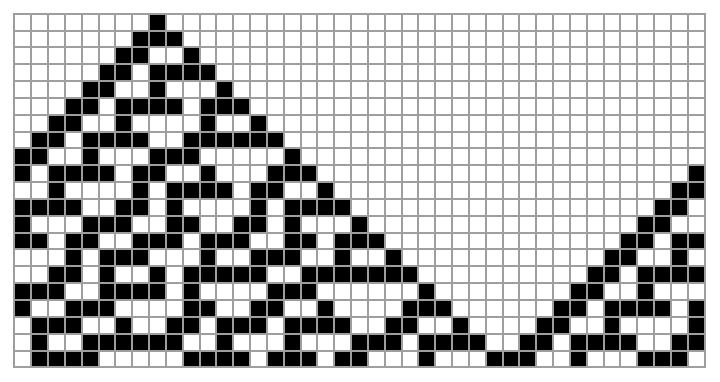 |
Click several times to use more complex initial conditions:
| In[2]:= | ![ResourceFunction["DynamicCellularAutomaton"][30]](https://www.wolframcloud.com/obj/resourcesystem/images/027/027871b5-112d-42ee-9487-ede4cc20b8f0/47ef40cefbd78045.png) |
| Out[2]= | 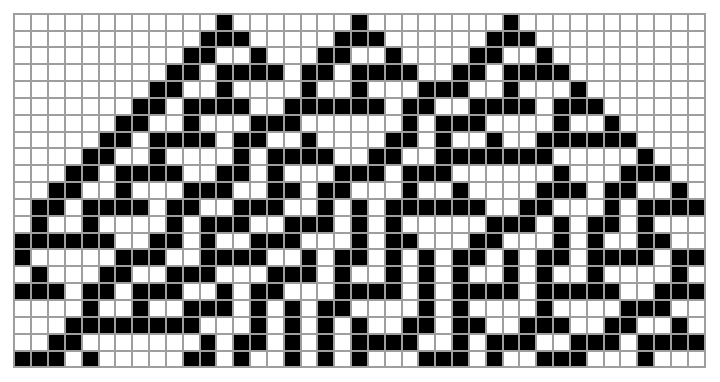 |
Specify a rule by number:
| In[3]:= | ![ResourceFunction["DynamicCellularAutomaton"][110]](https://www.wolframcloud.com/obj/resourcesystem/images/027/027871b5-112d-42ee-9487-ede4cc20b8f0/7ab3455c411ecf34.png) |
| Out[3]= | 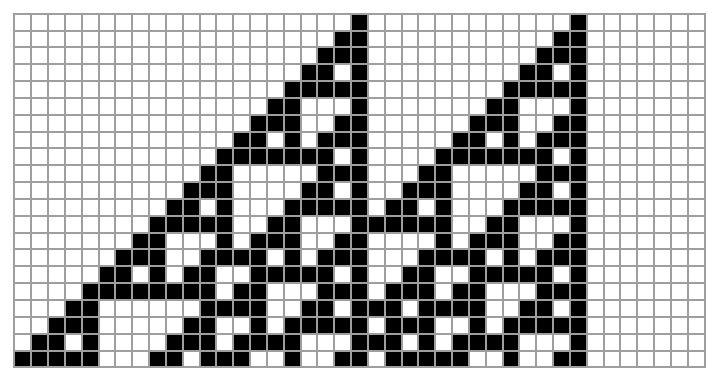 |
Specify the rule as a string:
| In[4]:= | ![ResourceFunction["DynamicCellularAutomaton"]["Rule30"]](https://www.wolframcloud.com/obj/resourcesystem/images/027/027871b5-112d-42ee-9487-ede4cc20b8f0/499a32d20ac4da3b.png) |
| Out[4]= | 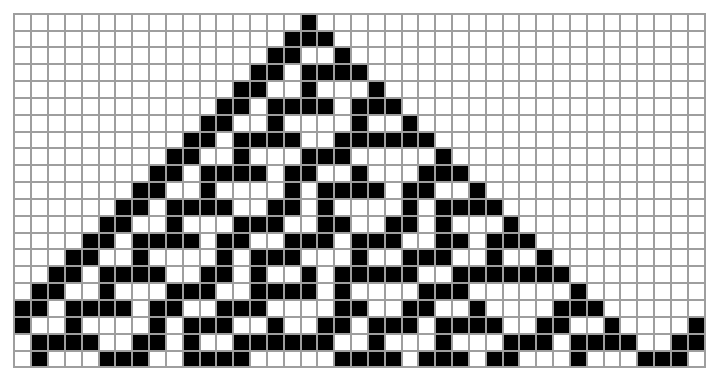 |
Specify the number of steps:
| In[5]:= | ![ResourceFunction["DynamicCellularAutomaton"][30, 10]](https://www.wolframcloud.com/obj/resourcesystem/images/027/027871b5-112d-42ee-9487-ede4cc20b8f0/773abdd6cb6c8cde.png) |
| Out[5]= | 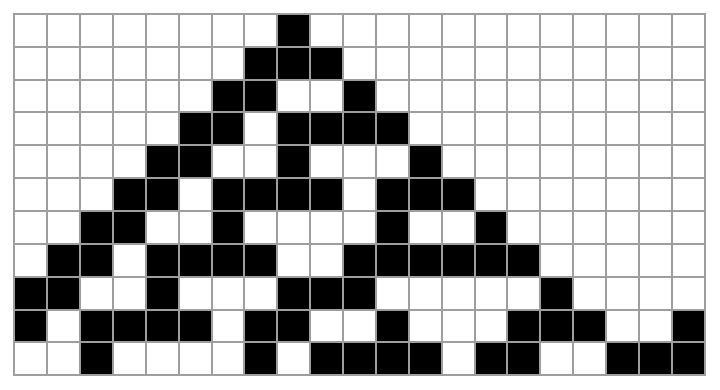 |
Alternatively:
| In[6]:= | ![ResourceFunction["DynamicCellularAutomaton"][30, {10}]](https://www.wolframcloud.com/obj/resourcesystem/images/027/027871b5-112d-42ee-9487-ede4cc20b8f0/7d1f7e8f9123dac6.png) |
| Out[6]= | 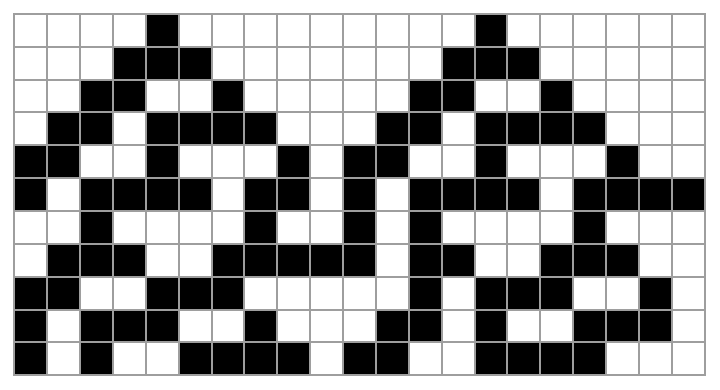 |
Create a wider canvas to specify more complex initial conditions:
| In[7]:= | ![ResourceFunction["DynamicCellularAutomaton"][30, {10, 30}]](https://www.wolframcloud.com/obj/resourcesystem/images/027/027871b5-112d-42ee-9487-ede4cc20b8f0/0d29794cdbc89927.png) |
| Out[7]= | 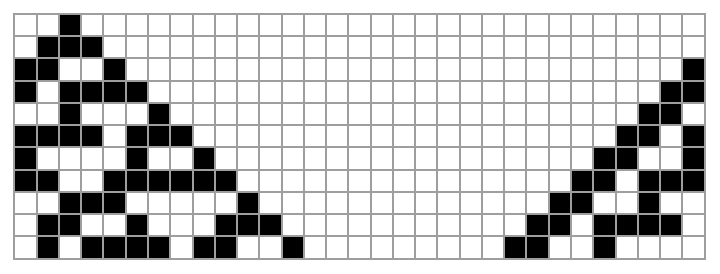 |
Use options of ArrayPlot:
| In[8]:= | ![ResourceFunction["DynamicCellularAutomaton"][30, ColorRules -> {1 -> Pink, 0 -> Yellow}]](https://www.wolframcloud.com/obj/resourcesystem/images/027/027871b5-112d-42ee-9487-ede4cc20b8f0/0089262413eda85e.png) |
| Out[8]= | 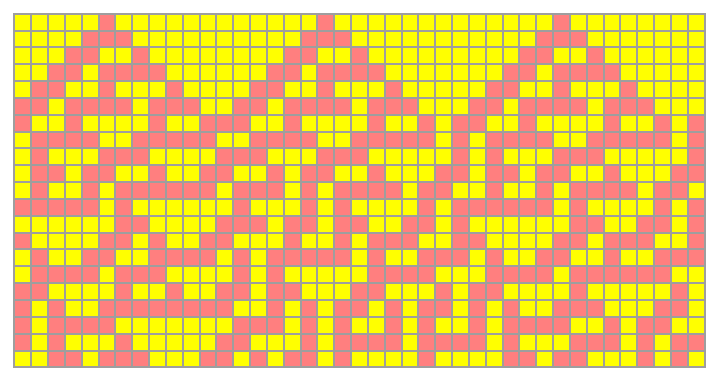 |
Turn off the mesh:
| In[9]:= | ![ResourceFunction["DynamicCellularAutomaton"][30, Mesh -> False]](https://www.wolframcloud.com/obj/resourcesystem/images/027/027871b5-112d-42ee-9487-ede4cc20b8f0/74069c865f1e90d9.png) |
| Out[9]= | 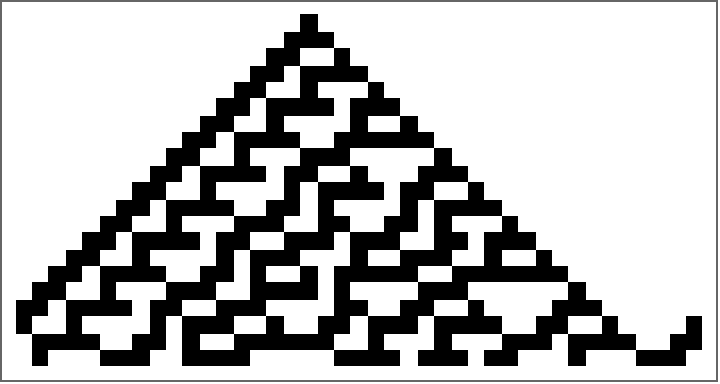 |
Specify the image size:
| In[10]:= | ![ResourceFunction["DynamicCellularAutomaton"][30, ImageSize -> Small]](https://www.wolframcloud.com/obj/resourcesystem/images/027/027871b5-112d-42ee-9487-ede4cc20b8f0/605af779b9c22ff2.png) |
| Out[10]= | 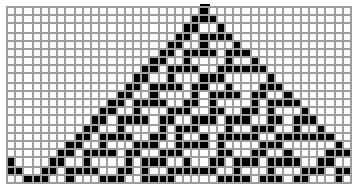 |
This work is licensed under a Creative Commons Attribution 4.0 International License
