Wolfram Function Repository
Instant-use add-on functions for the Wolfram Language
Function Repository Resource:
Highlight the changes between two expressions
ResourceFunction["ExpressionLineDiff"][expr1,expr2] highlights changes between expr1 and expr2. |
| "TrimmingThreshold" | 2 | the maximum number of consecutive unchanged lines to display |
| "IndentSize" | 1 | the number of spaces to use per indentation level |
| "PageWidth" | 100 | the desired formatting width of the output |
| PerformanceGoal | "Quality" | control the level of detail in the highlighting |
| "MergeThreshold" | 2 | minimum length of consecutive unchanged characters required to merge into surrounding changes |
Highlight the differences between two expressions on a per-line basis:
| In[1]:= | ![expr1 = Cell[BoxData[RowBox[{"1", "+", "1"}]], "Input", CellLabel -> "In[1]:=", CellTags -> {"neat"}, CellID -> 731245485];
expr2 = Cell[BoxData[RowBox[{"1", "+", "1"}]], "Input", CellLabel -> "In[2]:=", CellTags -> {"neat"}, CellID -> 731245435];](https://www.wolframcloud.com/obj/resourcesystem/images/460/460142d4-8f38-460b-9bc1-01564deba704/0185a3a624d0fa62.png) |
| In[2]:= | ![ResourceFunction["ExpressionLineDiff"][expr1, expr2]](https://www.wolframcloud.com/obj/resourcesystem/images/460/460142d4-8f38-460b-9bc1-01564deba704/78d0ca9447326750.png) |
| Out[2]= | 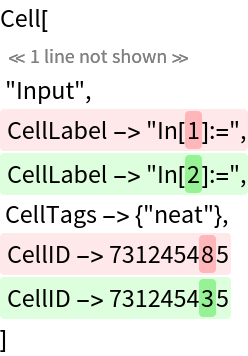 |
Check larger expressions:
| In[3]:= | ![expr1 = ResourceFunction["BirdSay", All, ResourceVersion -> "2.0.0"];
expr2 = ResourceFunction["BirdSay", All, ResourceVersion -> "3.0.0"];](https://www.wolframcloud.com/obj/resourcesystem/images/460/460142d4-8f38-460b-9bc1-01564deba704/0b49cfd3d0aacbf5.png) |
| In[4]:= | ![ResourceFunction["ExpressionLineDiff"][expr1, expr2]](https://www.wolframcloud.com/obj/resourcesystem/images/460/460142d4-8f38-460b-9bc1-01564deba704/2e7f83b46c544706.png) |
| Out[4]= | 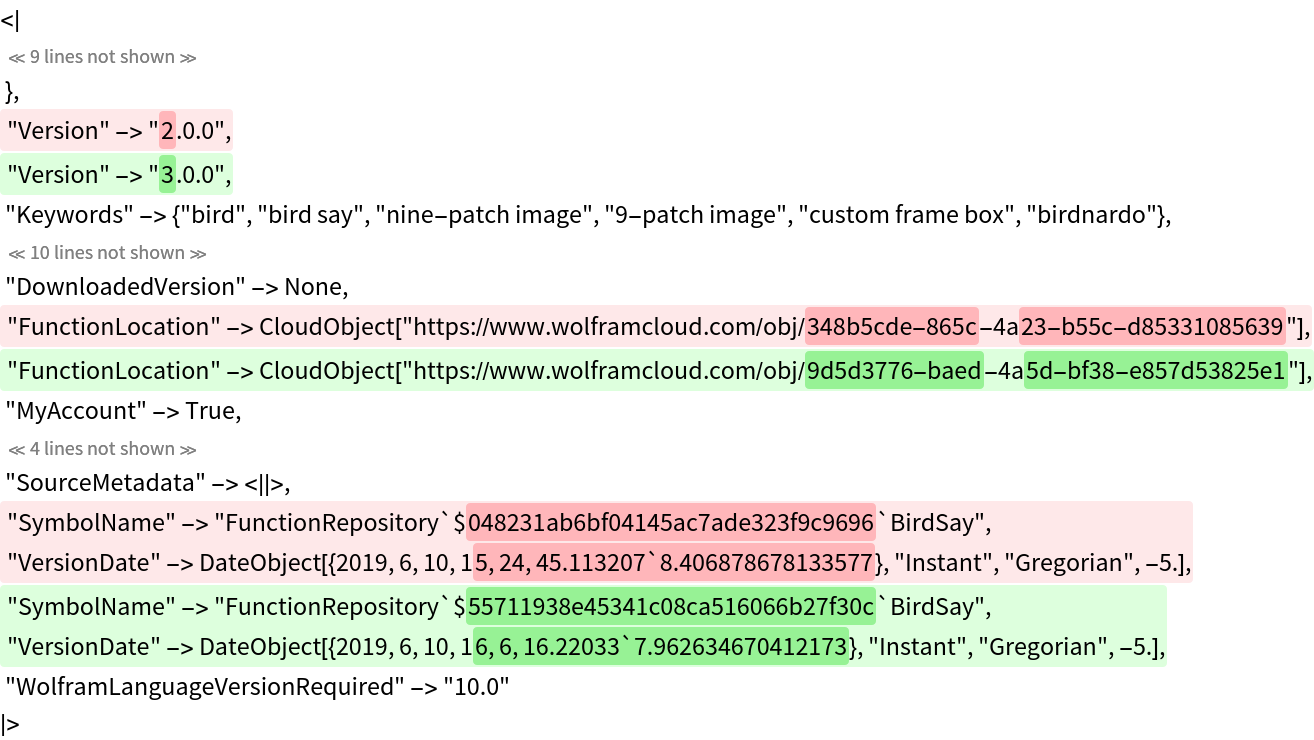 |
Control the maximum number of consecutive unchanged lines to display:
| In[5]:= | ![expr1 = ResourceFunction["BirdSay", All, ResourceVersion -> "2.0.0"];
expr2 = ResourceFunction["BirdSay", All, ResourceVersion -> "3.0.0"];](https://www.wolframcloud.com/obj/resourcesystem/images/460/460142d4-8f38-460b-9bc1-01564deba704/1284c7d002c7fc5f.png) |
| In[6]:= | ![ResourceFunction["ExpressionLineDiff"][expr1, expr2, "TrimmingThreshold" -> 3]](https://www.wolframcloud.com/obj/resourcesystem/images/460/460142d4-8f38-460b-9bc1-01564deba704/6ebc409436c34351.png) |
| Out[6]= | 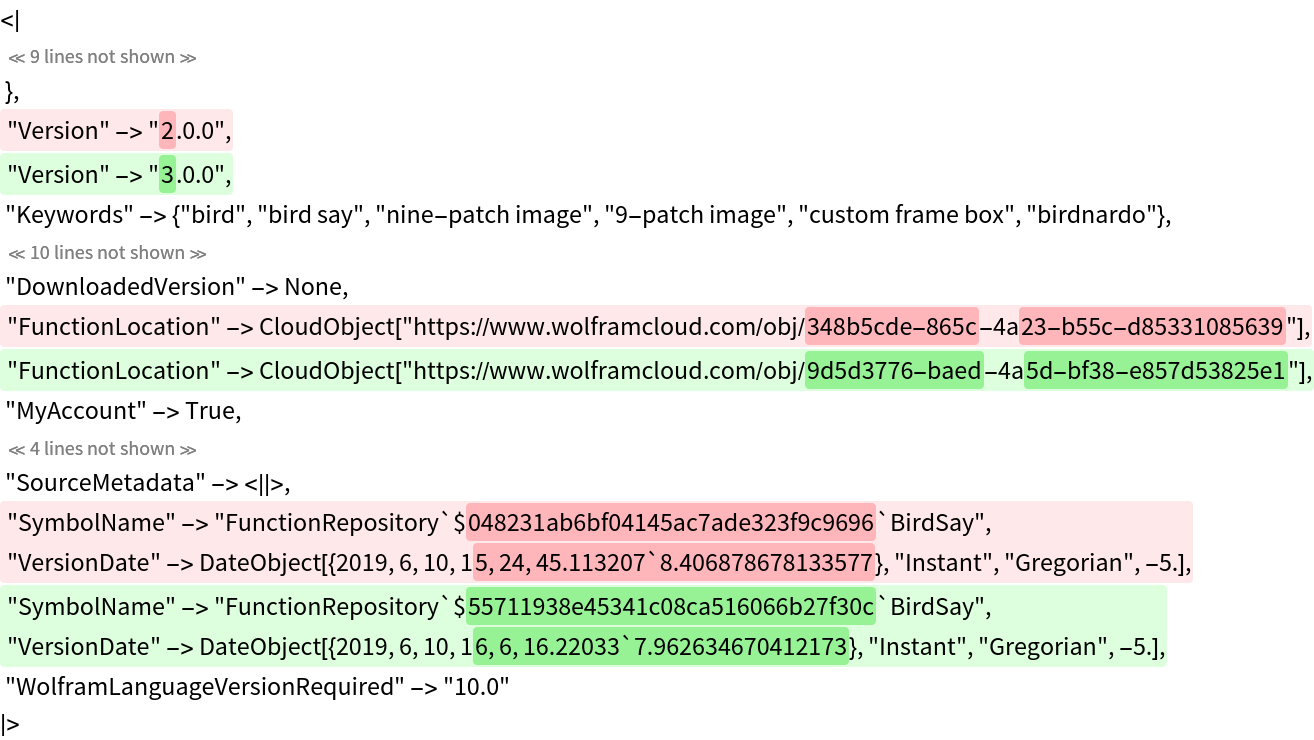 |
Show all lines:
| In[7]:= | ![ResourceFunction["ExpressionLineDiff"][expr1, expr2, "TrimmingThreshold" -> None]](https://www.wolframcloud.com/obj/resourcesystem/images/460/460142d4-8f38-460b-9bc1-01564deba704/73a8b8a395f9c789.png) |
| Out[7]= | 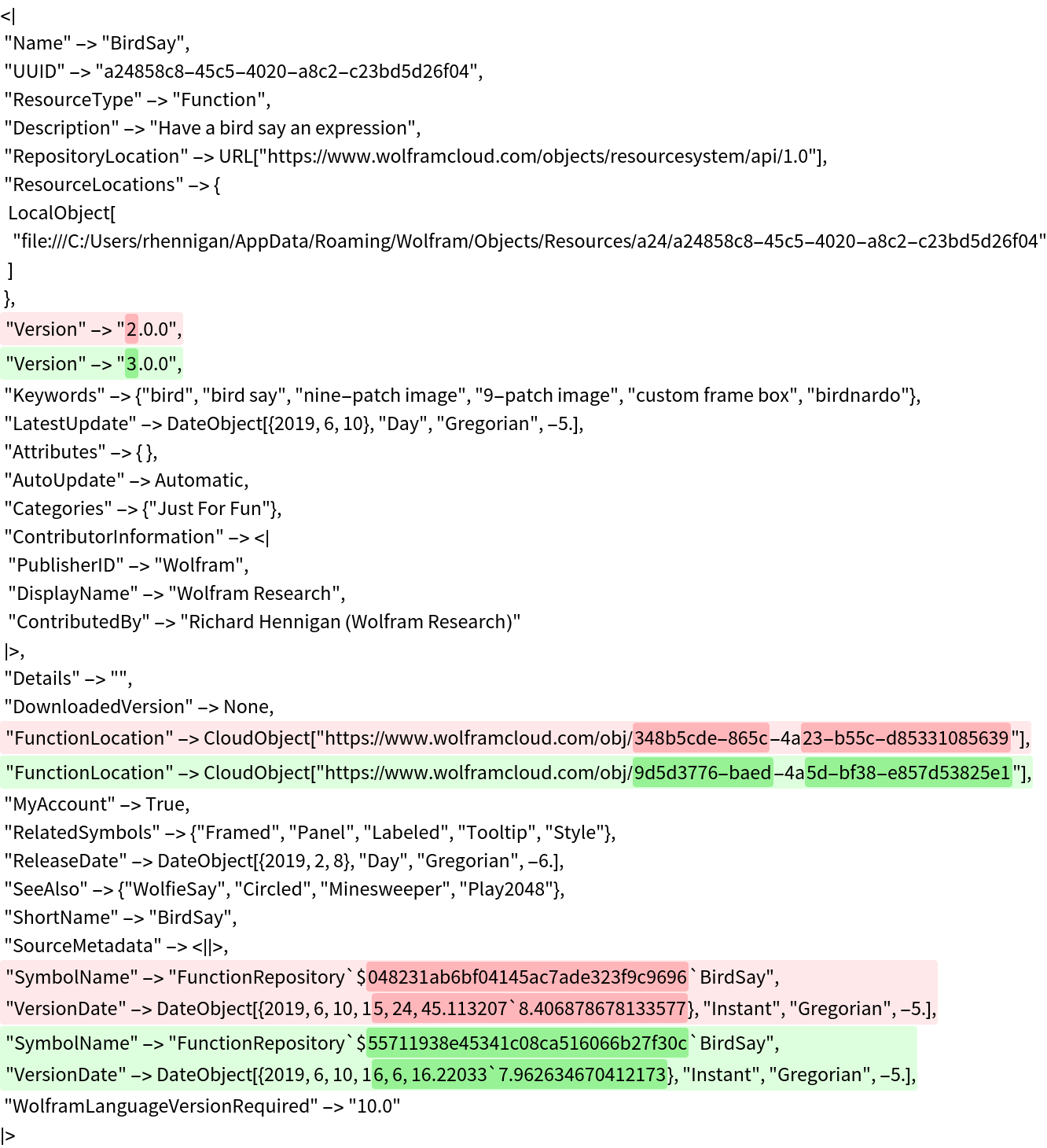 |
Adjust the amount of indentation:
| In[8]:= | ![expr1 = ResourceFunction["BirdSay", All, ResourceVersion -> "2.0.0"];
expr2 = ResourceFunction["BirdSay", All, ResourceVersion -> "3.0.0"];](https://www.wolframcloud.com/obj/resourcesystem/images/460/460142d4-8f38-460b-9bc1-01564deba704/736720e6b4fcdf72.png) |
| In[9]:= | ![ResourceFunction["ExpressionLineDiff"][expr1, expr2, "IndentSize" -> 8, "TrimmingThreshold" -> None]](https://www.wolframcloud.com/obj/resourcesystem/images/460/460142d4-8f38-460b-9bc1-01564deba704/4c5955a944fbc3c8.png) |
| Out[9]= | 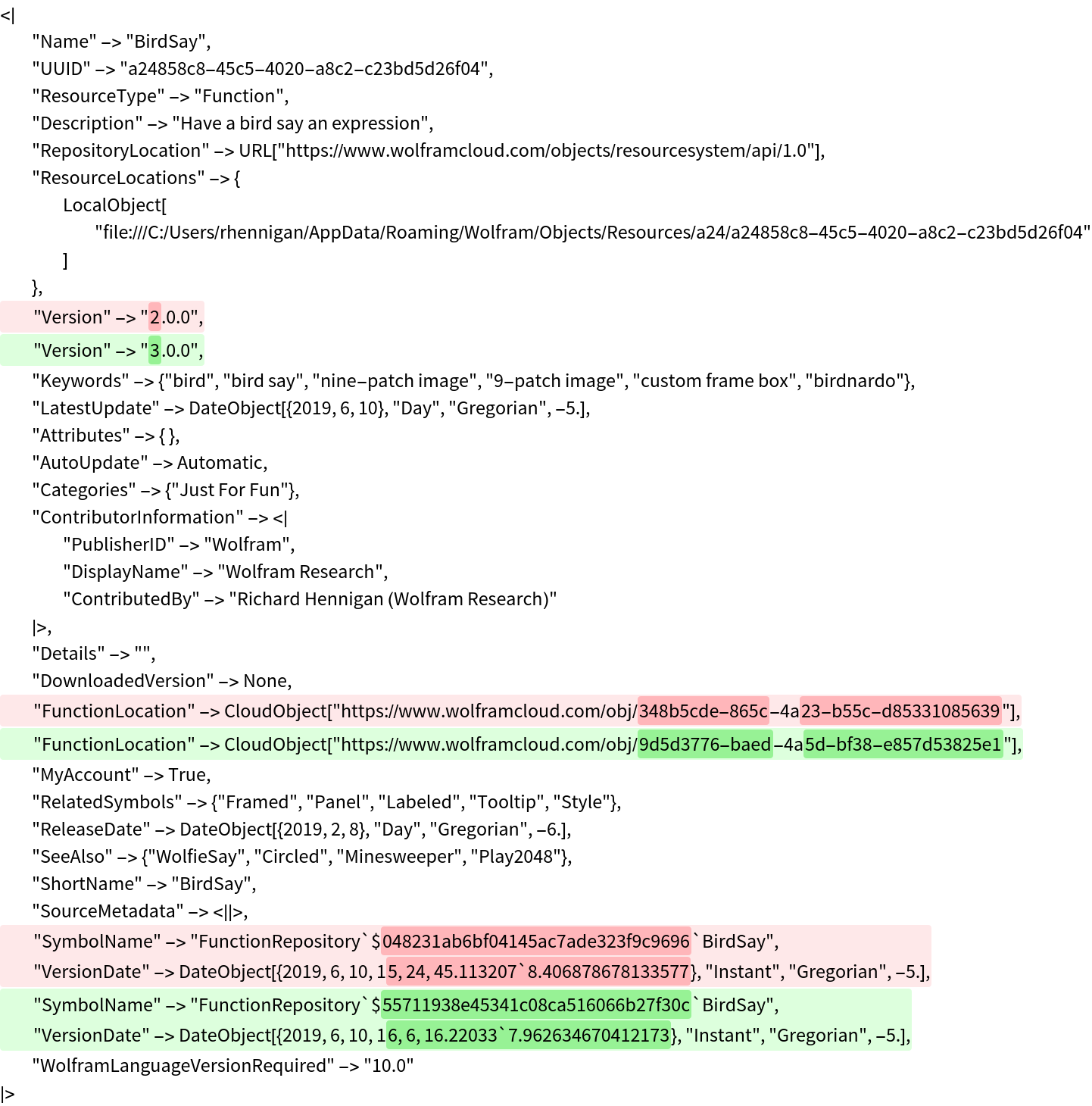 |
Reducing the page width will increase the number of lines:
| In[10]:= | ![expr1 = ResourceFunction["BirdSay", All, ResourceVersion -> "2.0.0"];
expr2 = ResourceFunction["BirdSay", All, ResourceVersion -> "3.0.0"];](https://www.wolframcloud.com/obj/resourcesystem/images/460/460142d4-8f38-460b-9bc1-01564deba704/568b4ccc62d25cf5.png) |
| In[11]:= | ![ResourceFunction["ExpressionLineDiff"][expr1, expr2, "PageWidth" -> 30]](https://www.wolframcloud.com/obj/resourcesystem/images/460/460142d4-8f38-460b-9bc1-01564deba704/49aa3bc15c14cf41.png) |
| Out[11]= | 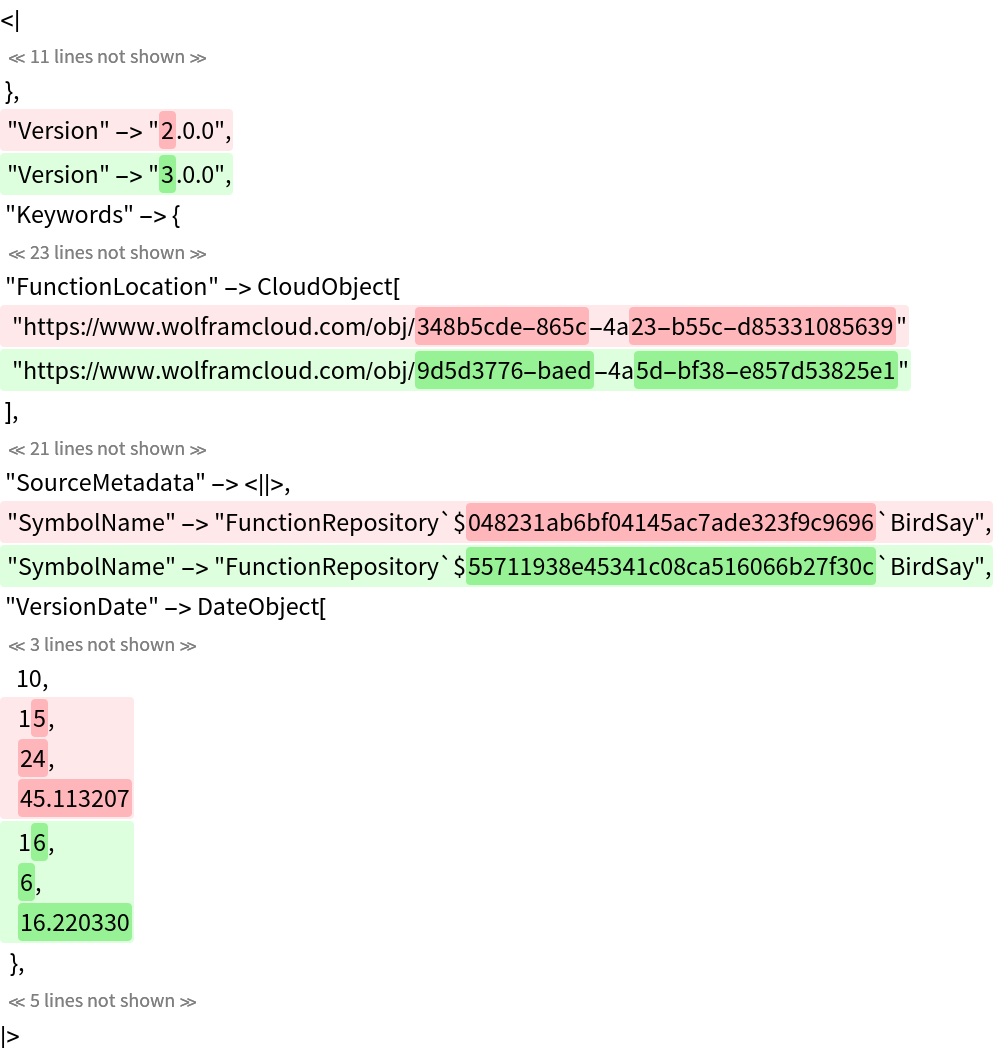 |
Conversely, a larger page width will decrease the number of lines:
| In[12]:= | ![ResourceFunction["ExpressionLineDiff"][expr1, expr2, "PageWidth" -> 150]](https://www.wolframcloud.com/obj/resourcesystem/images/460/460142d4-8f38-460b-9bc1-01564deba704/0e236e9a7722030e.png) |
| Out[12]= | 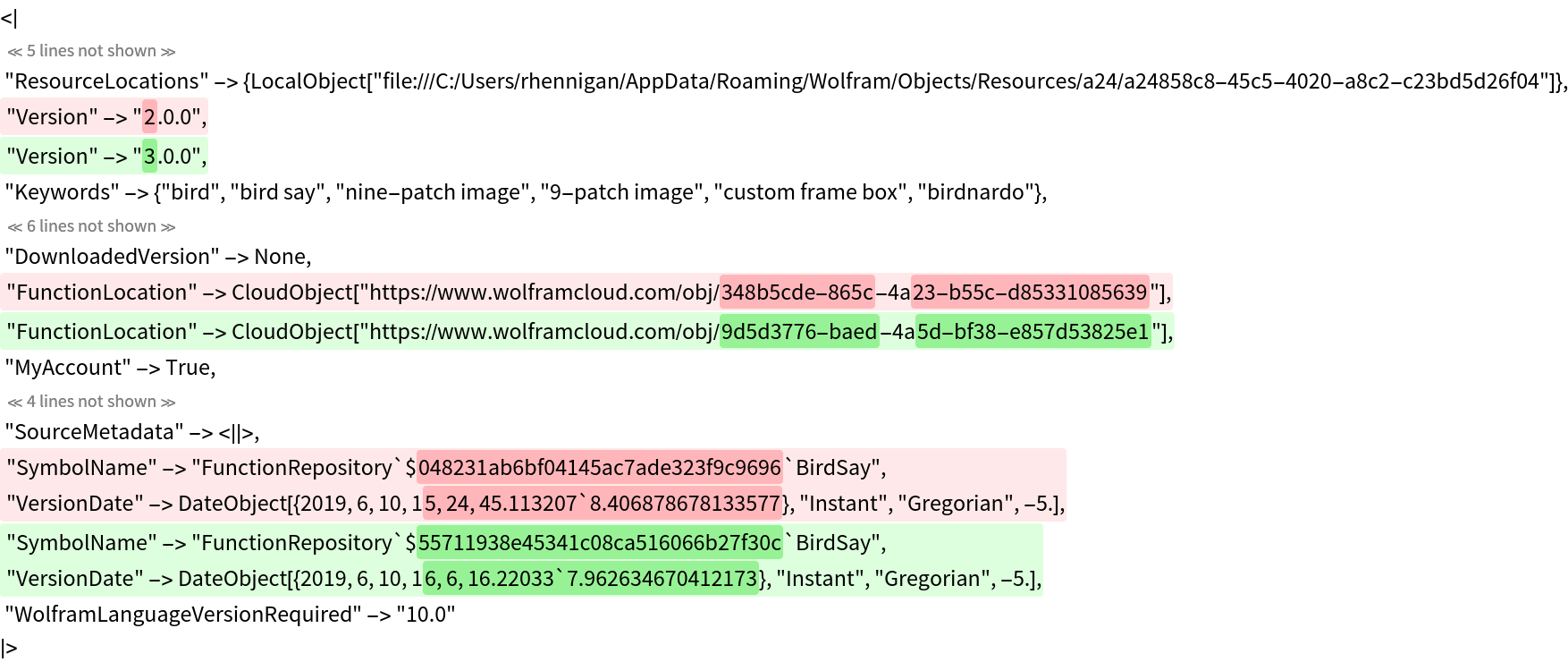 |
By default, ExpressionLineDiff will use darker colors to highlight per-character changes:
| In[13]:= | ![expr1 = ResourceFunction["BirdSay", All, ResourceVersion -> "2.0.0"];
expr2 = ResourceFunction["BirdSay", All, ResourceVersion -> "3.0.0"];](https://www.wolframcloud.com/obj/resourcesystem/images/460/460142d4-8f38-460b-9bc1-01564deba704/1b8070580e0978d4.png) |
| In[14]:= | ![ResourceFunction["ExpressionLineDiff"][expr1, expr2]](https://www.wolframcloud.com/obj/resourcesystem/images/460/460142d4-8f38-460b-9bc1-01564deba704/1f6d3d55bd45f0b2.png) |
| Out[14]= | 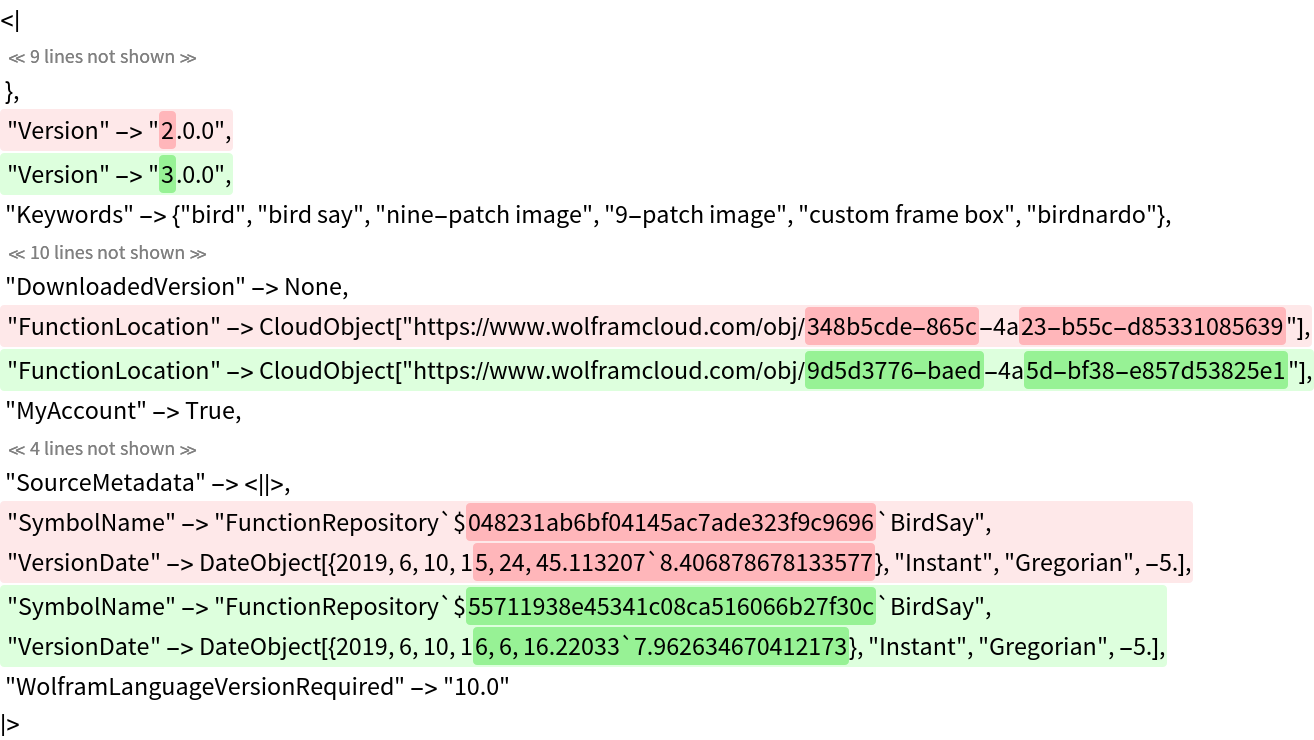 |
With the option setting PerformanceGoal→"Speed", only per-line highlighting will be used:
| In[15]:= | ![ResourceFunction["ExpressionLineDiff"][expr1, expr2, PerformanceGoal -> "Speed"]](https://www.wolframcloud.com/obj/resourcesystem/images/460/460142d4-8f38-460b-9bc1-01564deba704/1173676d6fbc207c.png) |
| Out[15]= | 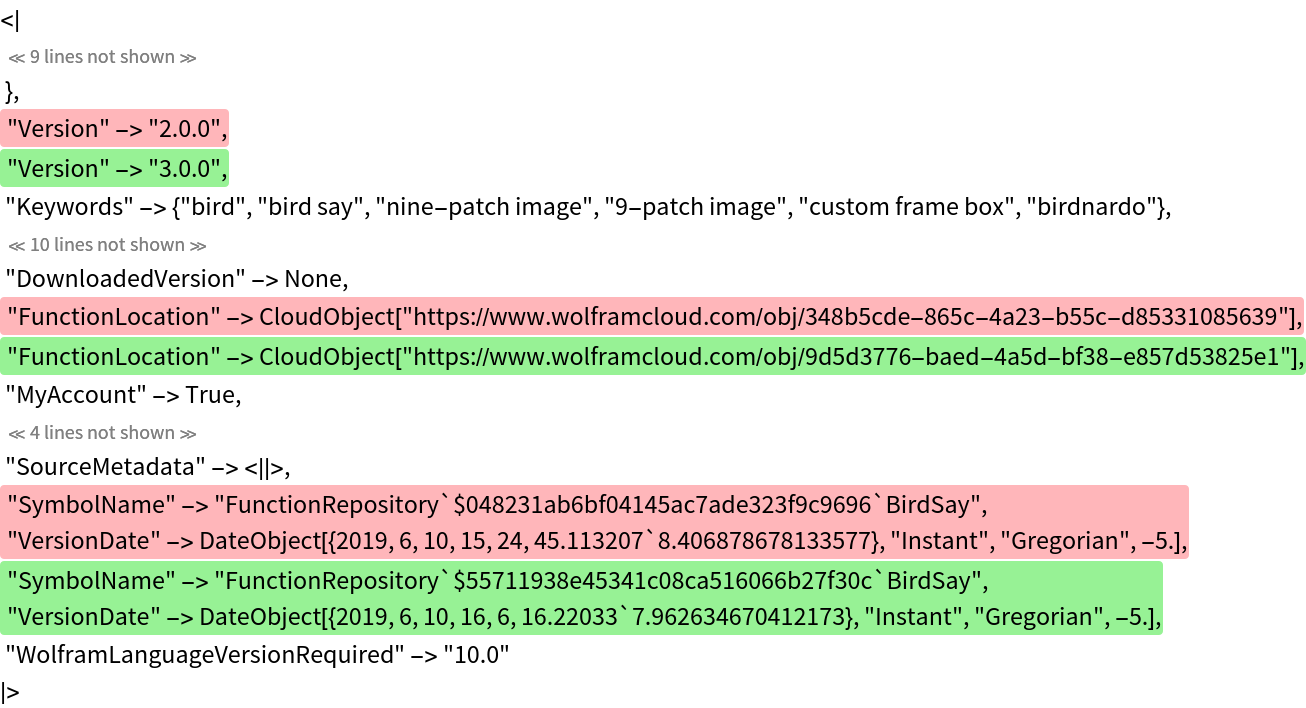 |
Control how many unchanged characters get merged into surrounding changes:
| In[16]:= | 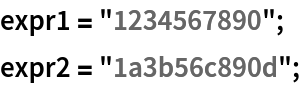 |
| In[17]:= | ![ResourceFunction["ExpressionLineDiff"][expr1, expr2, "MergeThreshold" -> 2]](https://www.wolframcloud.com/obj/resourcesystem/images/460/460142d4-8f38-460b-9bc1-01564deba704/078332ae39f63408.png) |
| Out[17]= | 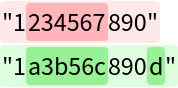 |
| In[18]:= | ![ResourceFunction["ExpressionLineDiff"][expr1, expr2, "MergeThreshold" -> 1]](https://www.wolframcloud.com/obj/resourcesystem/images/460/460142d4-8f38-460b-9bc1-01564deba704/7bbd1b93af165307.png) |
| Out[18]= | 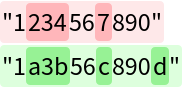 |
A merge threshold of zero highlights exact changes:
| In[19]:= | ![ResourceFunction["ExpressionLineDiff"][expr1, expr2, "MergeThreshold" -> 0]](https://www.wolframcloud.com/obj/resourcesystem/images/460/460142d4-8f38-460b-9bc1-01564deba704/20795251797e8932.png) |
| Out[19]= | 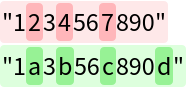 |
Quickly find why two expressions that otherwise appear identical are different:
| In[20]:= | ![expr1 = PieChart[{1, 2, 3}]](https://www.wolframcloud.com/obj/resourcesystem/images/460/460142d4-8f38-460b-9bc1-01564deba704/2b68fb07615d28e5.png) |
| Out[20]= | 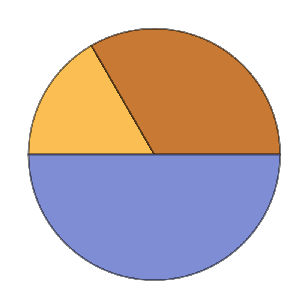 |
| In[21]:= | ![expr2 = PieChart[{1, 2, 3}]](https://www.wolframcloud.com/obj/resourcesystem/images/460/460142d4-8f38-460b-9bc1-01564deba704/7f02d5c53c235266.png) |
| Out[21]= | 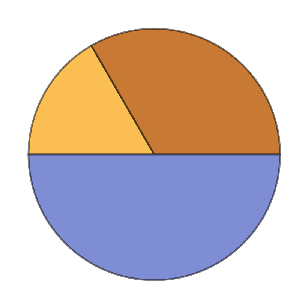 |
These are not in fact SameQ:
| In[22]:= |  |
| Out[22]= |  |
The difference is due to underlying Dynamic elements that use different local variables:
| In[23]:= | ![ResourceFunction["ExpressionLineDiff"][expr1, expr2]](https://www.wolframcloud.com/obj/resourcesystem/images/460/460142d4-8f38-460b-9bc1-01564deba704/48fd1e6b90c49b1e.png) |
| Out[23]= | 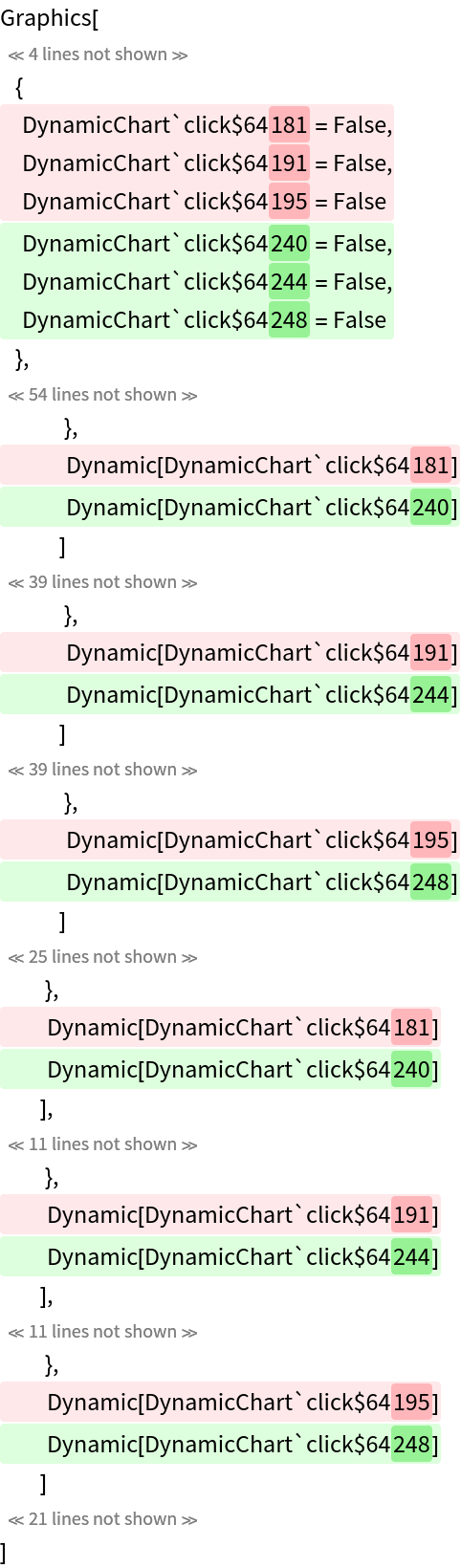 |
ExpressionLineDiff compares InputForm strings, so highlighting does not necessarily align with subexpressions:
| In[24]:= |  |
| In[25]:= | ![ResourceFunction["ExpressionLineDiff"][expr1, expr2]](https://www.wolframcloud.com/obj/resourcesystem/images/460/460142d4-8f38-460b-9bc1-01564deba704/04755a870103ac89.png) |
| Out[25]= | 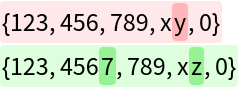 |
This is comparable to using SequenceAlignment on the string representations:
| In[26]:= | ![SequenceAlignment[ToString[expr1], ToString[expr2]]](https://www.wolframcloud.com/obj/resourcesystem/images/460/460142d4-8f38-460b-9bc1-01564deba704/5eb52ff0a363890d.png) |
| Out[26]= |  |
| In[27]:= | ![% /. {a_String, b_String} :> Column[{Item[a, Background -> LightRed], Item[b, Background -> LightGreen]}]](https://www.wolframcloud.com/obj/resourcesystem/images/460/460142d4-8f38-460b-9bc1-01564deba704/31c1f3b60679efe4.png) |
| Out[27]= |  |
For flat lists, SequenceAlignment can identify changes per element:
| In[28]:= | ![SequenceAlignment[expr1, expr2]](https://www.wolframcloud.com/obj/resourcesystem/images/460/460142d4-8f38-460b-9bc1-01564deba704/7abf9a05863c2a8c.png) |
| Out[28]= |  |
| In[29]:= | ![% /. {a_List, b_List} :> Column[{Item[a, Background -> LightRed], Item[b, Background -> LightGreen]}]](https://www.wolframcloud.com/obj/resourcesystem/images/460/460142d4-8f38-460b-9bc1-01564deba704/04d547a8b844c230.png) |
| Out[29]= |  |
With the option setting PerformanceGoal→"Speed", ExpressionLineDiff only looks for changes on a per-line basis and does not highlight detailed changes:
| In[30]:= | ![expr1 = Range[25];
expr2 = ReplacePart[expr1, 13 -> 31];](https://www.wolframcloud.com/obj/resourcesystem/images/460/460142d4-8f38-460b-9bc1-01564deba704/2bc46a7bafda0c7d.png) |
| In[31]:= | ![ResourceFunction["ExpressionLineDiff"][expr1, expr2, PerformanceGoal -> "Speed"]](https://www.wolframcloud.com/obj/resourcesystem/images/460/460142d4-8f38-460b-9bc1-01564deba704/136045706bad8564.png) |
| Out[31]= |  |
Using a smaller page width can increase the accuracy of highlighting at the cost of readability:
| In[32]:= | ![ResourceFunction["ExpressionLineDiff"][expr1, expr2, "PageWidth" -> 10, PerformanceGoal -> "Speed"]](https://www.wolframcloud.com/obj/resourcesystem/images/460/460142d4-8f38-460b-9bc1-01564deba704/26e3390ab290f30b.png) |
| Out[32]= | 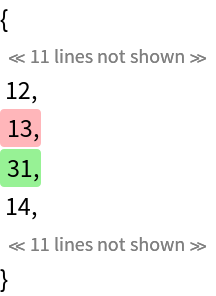 |
For small expressions, it's better to use the default option setting PerformanceGoal→"Quality" to add additional per-character highlighting:
| In[33]:= | ![ResourceFunction["ExpressionLineDiff"][expr1, expr2, PerformanceGoal -> "Quality"]](https://www.wolframcloud.com/obj/resourcesystem/images/460/460142d4-8f38-460b-9bc1-01564deba704/2852b755a9b96608.png) |
| Out[33]= |  |
This work is licensed under a Creative Commons Attribution 4.0 International License
