
myROOMZ - User Guide
All the features of myROOMZ explained
Introduction
This user guide will provide you the following information:
- Find an available desk / parking by selecting your building / floor
- Book a desk / parking for the whole or half day (morning or afternoon)
- Manage your desk / parking bookings
The type of workspaces supported are meeting rooms, shared desk, parking slots and huddle spaces.
Please click on the pictures if you want to see them in full size.
Home page
Once logged, the user interface of myROOMZ looks like the following:

Building, Floors and Workspaces
On the left of the web application, you will see the list of buildings of your organization and another link to your personal bookings.

Once you have selected your building, a list of every floor will appear, which contains a column per workspace type (meeting room, shared desks, parking slots, huddles).
The number represent the number of available spaces / total number

Plan
When a plan has been configured for a floor, you have the possibility to see the current occupancy, based on the presence (coming from a ROOMZ Sensor) and the reservation (coming from the Booking System).
You can scroll to zoom the plan up to 5x.

List
Rooms
When a floor or all floors of a building is selected, then you can see the occupancy of the meeting rooms in a list:

Desks
List view is also available for desks :

Parking slots
List view is also available for parking slots:

Huddles
List view for huddles :

People
Colleagues who booked a desk on a floor are displayed inside the people list.
A click on the name of your colleague will show all the bookings of this person. If you click on the name of the desk, it will be highlighted on the plan.

Desk / Parking booking (half / full day)
If half days bookings are enabled for your building, you have the possibility to book a space for the “Full day”, “Morning” or “Afternoon”

The Plan will show you directly if a desk, parking slot is available when you click on “Full day”, “Morning” or “Afternoon” for the selected period of time.

Clicking on one specific workspace will provide the following detailed information. To reserve the space, first choose if you want to book it for the Full day, Morning or Afternoon and then click on the button “BOOK”.

If you book a space only for the half day (morning or afternoon) you can see all the daily booking details and if the workspace is booked or available for the rest of the day.
Once a space is booked, it is not available for other users during the selected time period. You have the possibility to release your reservation any time if you do not need to use the desk any more.

Booking Manager
As a booking manager (special role) you are able to release any desk / parking booking made from anybody. Also, you are able to book a desk / parking for someone else even if the settings are turned off. To get the booking manger role, you need to contact your ROOMZ Administrator.
My Bookings
On the left panel of the application, there is a button called Bookings :

If you click on it, you will find your upcoming reservations ordered by dates.

By clicking on a booking, the date and location in the navigation will be changed to match the booking and the desk you booked will be highlighted in purple on the plan.
To release it, you can just click on the desk on the plan and click Release, as you would do with any other desk.

Search a colleague
The search bar on the top of the application allows you to find colleagues in your organisation.
Once the results are displayed, you can either add a colleague as favorite by clicking on the heart icon or list all the bookings of this person by clicking on the whole row :

All the bookings of the selected person are now listed and you can click on each of them to highlight the associated space on the plan.

Book a space for a colleague
If your company has activated this feature, you will have the possibilty to book a desk / parking slot for your colleagues.
Inside the workspace modal, you can click on your name to choose someone else.
Your favorites colleagues will appear directly, and you also have the possibility to search other ones.

The bookings menu will now be divided in two sections if you booked desks, Parking slots for someone else :
- Personal bookings
- Bookings for other
Release a desk for someone else
As an administrator, you can release a desk for someone else. To do this, go to the desired desk and then select “Release”. The person who has booked the table will then receive an e-mail informing them that their booking has been released.

Favorites (colleagues)
You can access the list of the favorites from the left menu and click on one of them to see their upcoming bookings :

Note : At the time being, you can only add colleagues as favorite.
Filters
On the right of the date, you will find a button allowing you to access the filters.
Once you have set filters, they will be saved in your user profile. When you log in on another device, the filters you have set will be active there as well.

After clicking on it, you will see by default the list of filters that apply to all types of workspaces.

By selecting a filter, you will be able to see the number of matching workspaces at the top of the block and the workspace list will automatically update.
The counters on the left are thus altered and the workspaces that no longer correspond will disappear from the plan.
If you choose a specific workspace type, new filters tailored to these can now be selected.

Username Menu
On the top right of the application, you will find a menu where you can select your language and Log Out of your account.

Regions
If your company uses myROOMZ to manage buildings in multiple countries, it may use regions to group buildings.
In this case, you will initially have to choose your desired region when you log in to myROOMZ.

After choosing your region and your desired language, you arrive in myROOMZ in the selected region.
You can switch regions at any time in the user menu.
Allocated spaces
Spaces configured as allocated are displayed with a locker in the details or the list:
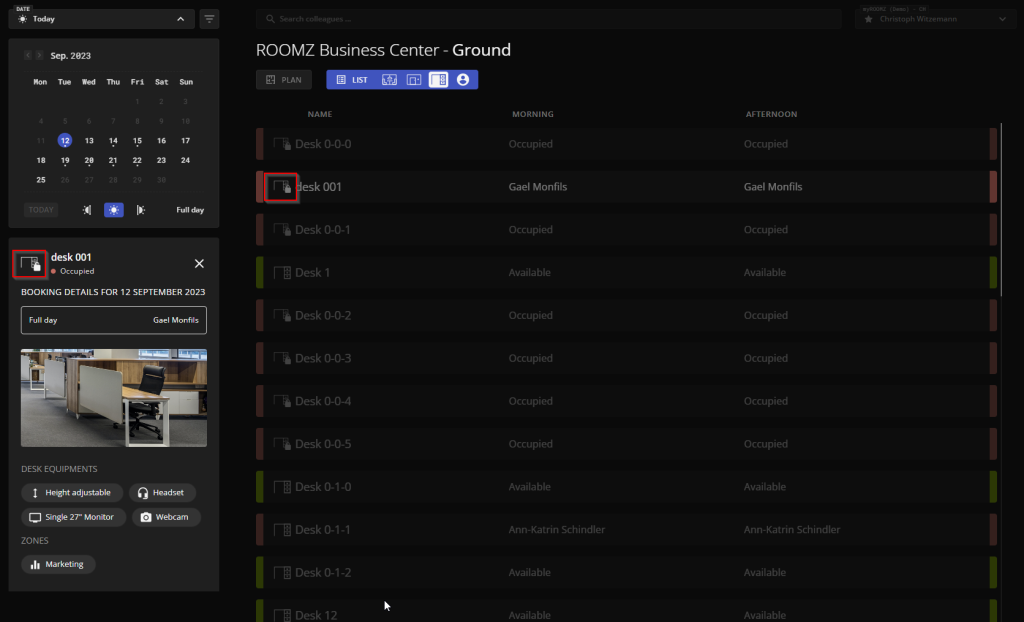
If the space is allocated to an employee, their name is displayed on the workspace modal, such as a bookable space. It is also possible to find the location of someone’s allocated space using the search functionality.
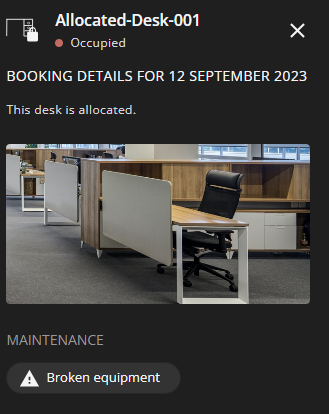
An allocated desk can also be configured as generic. In this case, it might be described with tags to describe to reason of the assignment.
Changelog
November 2025 – Filters are now saved
- Once you have set filters, they will be saved in your user profile. When you log in on another device, the filters you have set will be active there as well.
November 2024 – Booking Manager gets more rights
- Booking manager is able to book a desk / Parking for someone else even if the settings are turned off
March 2024 – Booking Manager
- Booking manager is able to release a desk for someone else
November 2023 – Release a desk
- Admin function: Release a desk for someone else
June 2023 – Allocated spaces V2
- Allocation day per day
- Multiuser allocation possible
October 2022 – Parking slots
- Support Parkingslots
July 2022 – Allocated desks
- Allocated desks support
- Search colleagues who have allocated desks
March 2022 – Filter workspaces by tags
- Quickly find a workspace that suits your needs
August 2021 – Book a desk for a colleague
June 2021 – Search colleagues, favorites
- Search colleagues
- Set colleagues as favorites to quickly view their upcoming bookings
May 2021 – People list
- See which colleagues are present / booked a desk on each floor
April 2021 – List view, Zoom, UI enhancements
- Desks and huddles can now be viewed in a list view
- Each plan can be zoomed up to 5x
- My desk bookings UI has been improved
February 2021 – Half day bookings per building, UI enhancements
- Half day bookings are now set per building
- Navigation between buildings and floors has been improved
Feedbacks
We will be pleased if you can provide us a feedback about myROOMZ at http://feedback.my.roomz.io
