

Description
LightSync Pro connects Adobe Lightroom Cloud directly to WordPress — no manual exports, no ZIP files, no FTP uploads.
Sync your Lightroom albums straight into the WordPress Media Library with automatic WebP compression and smart organization.
Built for photographers, artists, and creative professionals who want their Lightroom collections available in WordPress without manual work.
Key Features
- Direct Adobe Lightroom Cloud integration – OAuth 2.0 authentication
- Automatic photo import – Import from one Lightroom album to WordPress Media Library
- WebP optimization – Automatic compression for faster page loads
- Manual sync – One-click sync whenever you update your Lightroom album
- Album taxonomy – Organize imported photos by Lightroom album name
- Version switching – Relink WordPress attachments to different Lightroom versions
- Non-destructive updates – Previous images archived safely when switching versions
How It Works
- Connect your Adobe Lightroom Cloud account via secure OAuth
- Select one Lightroom album to sync
- Click “Sync Now” to import photos to WordPress Media Library
- Photos are automatically optimized to WebP format
- Update Lightroom, click Sync Now again — WordPress updates automatically
Privacy & Security
LightSync Pro uses Adobe’s official OAuth 2.0 API for secure authentication. Your photos transfer directly from Adobe to your WordPress site.
External Services:
* Adobe Lightroom API – Required for fetching photos from your Lightroom Cloud account
* LightSync Pro Broker – Handles OAuth token exchange securely (your Adobe credentials never touch your WordPress site)
No photos are stored on external servers. All images are imported directly to your WordPress uploads folder.
Important Notes
- Works with Adobe Lightroom Cloud only (not Lightroom Classic)
- Free version supports one album and manual sync
- Unlimited photo imports per month
- Photos remain in WordPress if you disconnect Adobe
External Services
This plugin connects to external third-party services to provide its functionality. Please review the information below to understand what data is transmitted and when.
Adobe Lightroom API (lr.adobe.io)
This plugin connects to Adobe’s Lightroom API to fetch your photos from Adobe Lightroom Cloud.
What data is sent:
* OAuth access token (for authentication)
* Your Lightroom catalog ID and album ID
* Requests for photo metadata and image renditions
When data is sent:
* When you click “Sync Now” to import photos
* When the plugin requests photo metadata or downloads images
* When refreshing your album list
Service provider: Adobe Inc.
* Service URL: https://lr.adobe.io
* Terms of Use: https://www.adobe.com/legal/terms.html
* Privacy Policy: https://www.adobe.com/privacy/policy.html
LightSync Pro Broker Service (lightsyncpro.com)
This plugin uses a broker service to securely handle OAuth authentication with Adobe. Adobe OAuth requires a client secret that cannot be safely stored in WordPress plugins, so the broker handles this securely.
What data is sent:
* OAuth authorization code from Adobe (during initial connection)
* Requests to exchange authorization codes for access tokens
When data is sent:
* When you first connect your Adobe account
* When the OAuth token needs to be refreshed
What data is NOT sent:
* Your photos are never sent to the broker
* Your WordPress content is never sent to the broker
* OAuth tokens are not logged or stored on the broker
Service provider: Tag Team Design LLC
* Service URL: https://lightsyncpro.com
* Privacy Policy: https://lightsyncpro.com/privacy
* Terms of Service: https://lightsyncpro.com/terms
Data Storage
All photos are downloaded directly from Adobe to your WordPress uploads folder. No photos or WordPress content are ever stored on LightSync Pro servers.
Screenshots
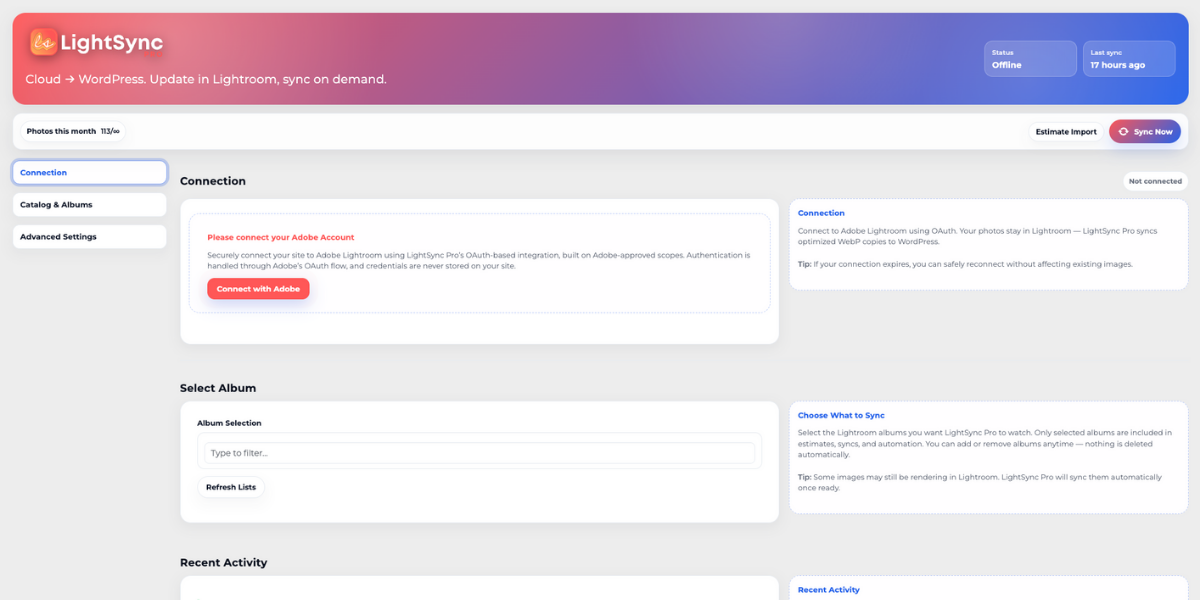
Connect your Adobe Lightroom Cloud account securely using OAuth 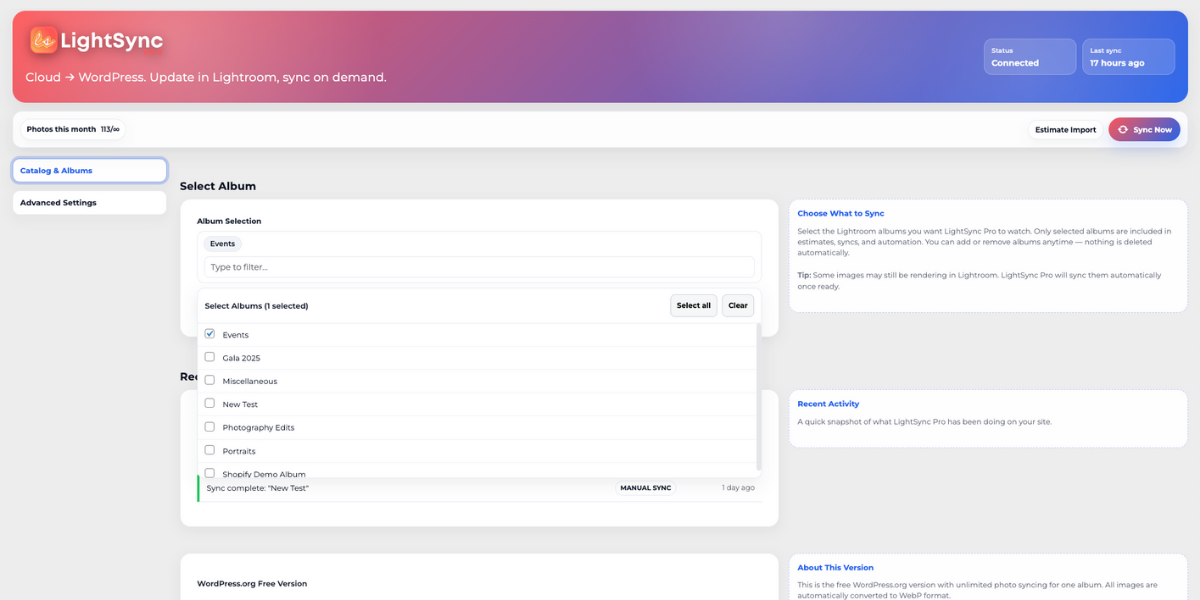
Select one Lightroom album to sync with WordPress 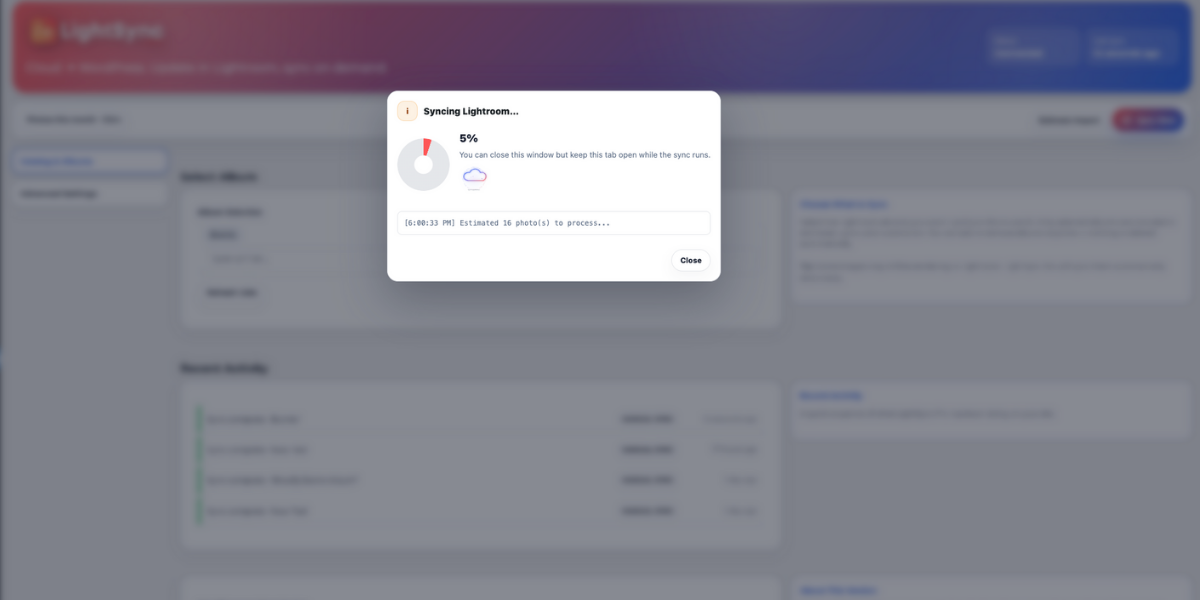
Photos imported directly into WordPress Media Library with WebP optimization 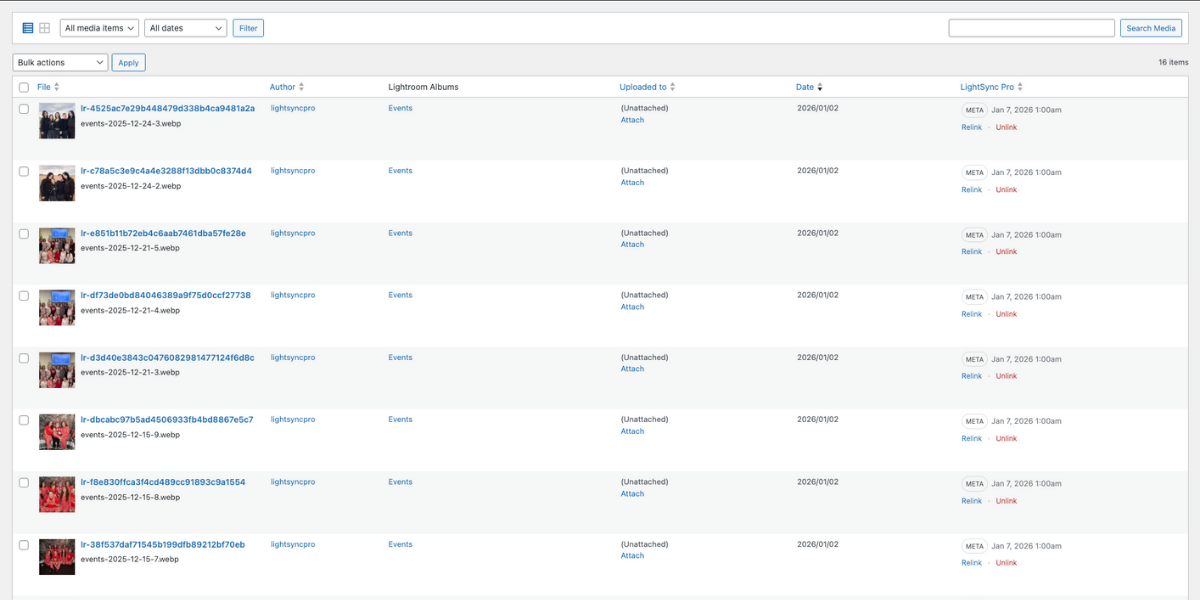
Switch between different versions of the same photo from Lightroom 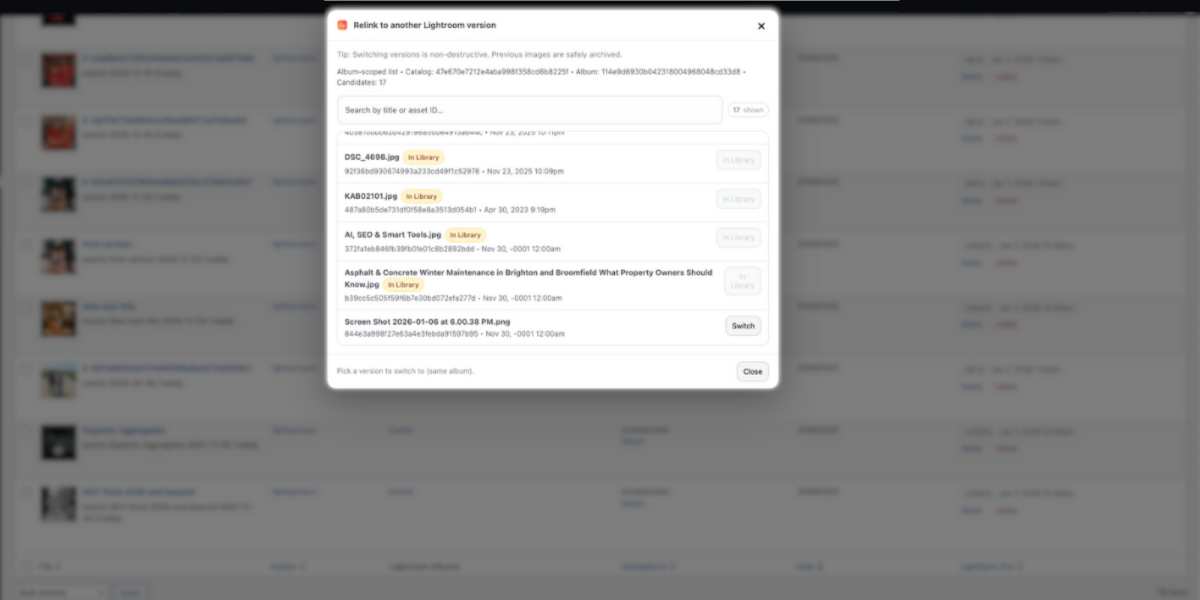
Manual sync interface with one-click import


Blocks
This plugin provides 1 block.
- LightSync Pro Gallery
Installation
Automatic Installation
- Go to Plugins Add New in WordPress
- Search for “LightSync Pro”
- Click Install Now, then Activate
- Navigate to LightSync Pro in the admin menu
Manual Installation
- Download the plugin ZIP file
- Go to Plugins Add New Upload Plugin
- Choose the ZIP file and click Install Now
- Activate the plugin
After Installation
- Go to LightSync Pro Connection
- Click “Connect with Adobe”
- Sign in with your Adobe account
- Grant permissions to LightSync Pro
- Select your Lightroom catalog and one album
- Click “Sync Now” to import photos
FAQ
-
Does this work with Lightroom Classic?
-
No. LightSync Pro is designed for Adobe Lightroom Cloud (the subscription-based cloud service). It does not support Lightroom Classic or locally-stored catalogs.
-
Are my photos stored on LightSync Pro servers?
-
No. Photos transfer directly from Adobe’s servers to your WordPress site. LightSync Pro does not store, cache, or host your images. The broker service only handles OAuth authentication.
-
How many albums can I sync?
-
The free version supports one album. You can change which album you’re syncing at any time.
-
How many photos can I import?
-
There is no monthly limit. You can import unlimited photos from your selected album.
-
Can I sync automatically on a schedule?
-
No, the free version supports manual sync only. Click “Sync Now” whenever you want to import new or updated photos from Lightroom.
-
What happens to my photos if I disconnect Adobe?
-
All photos already imported to WordPress remain in your Media Library. You simply won’t be able to sync new photos until you reconnect.
-
What is the LightSync Pro Broker?
-
The broker is a secure service that handles OAuth token exchange with Adobe. Your Adobe client secret is stored securely on the broker server and never exposed to your WordPress site. This follows OAuth security best practices.
-
Can I switch between different versions of the same photo?
-
Yes. If you have multiple versions of a photo in Lightroom (edits, crops, etc.), you can relink a WordPress attachment to a different version without losing the original.
-
What image format is used?
-
All photos are automatically optimized and converted to WebP format for better performance and smaller file sizes.
-
Is my data private?
-
Yes. LightSync Pro is fully GDPR compliant. No tracking, analytics, or external data storage. Photos go directly from Adobe to your WordPress uploads folder.
-
What permissions does LightSync Pro need from Adobe?
-
LightSync Pro requests read-only access to your Lightroom Cloud catalogs and albums. It cannot delete, modify, or upload photos to Lightroom — only read and download.
Reviews
There are no reviews for this plugin.
Contributors & Developers
“LightSync Pro for Lightroom” is open source software. The following people have contributed to this plugin.
Contributors

Translate “LightSync Pro for Lightroom” into your language.
Interested in development?
Browse the code, check out the SVN repository, or subscribe to the development log by RSS.
Changelog
1.2.5
- Added mapping integrity verification on plugin activation
- Added uninstall.php to protect mapping data from accidental deletion
- Improved data safety for upgrade/downgrade scenarios
1.2.4
- Renamed plugin to “LightSync Pro for Lightroom” for brand consistency
- Updated admin menu label to match new naming
- Improved deactivation notice messaging
1.2.3
- Fixed PHP 7.4 compatibility
1.2.2
- Fixed file path detection to use WordPress functions instead of constants
1.2.1
- Improved code prefixing for WordPress.org compliance
- Enhanced external services documentation
- Better compatibility with Pro version upgrades
- Fixed date/time display in media relink modal
1.2.0
- Initial public release
- Adobe Lightroom Cloud OAuth integration
- One album sync support
- Unlimited photo imports
- Automatic WebP optimization
- Manual sync (Sync Now button)
- Version switching and relinking
- Album taxonomy organization
