はじめに
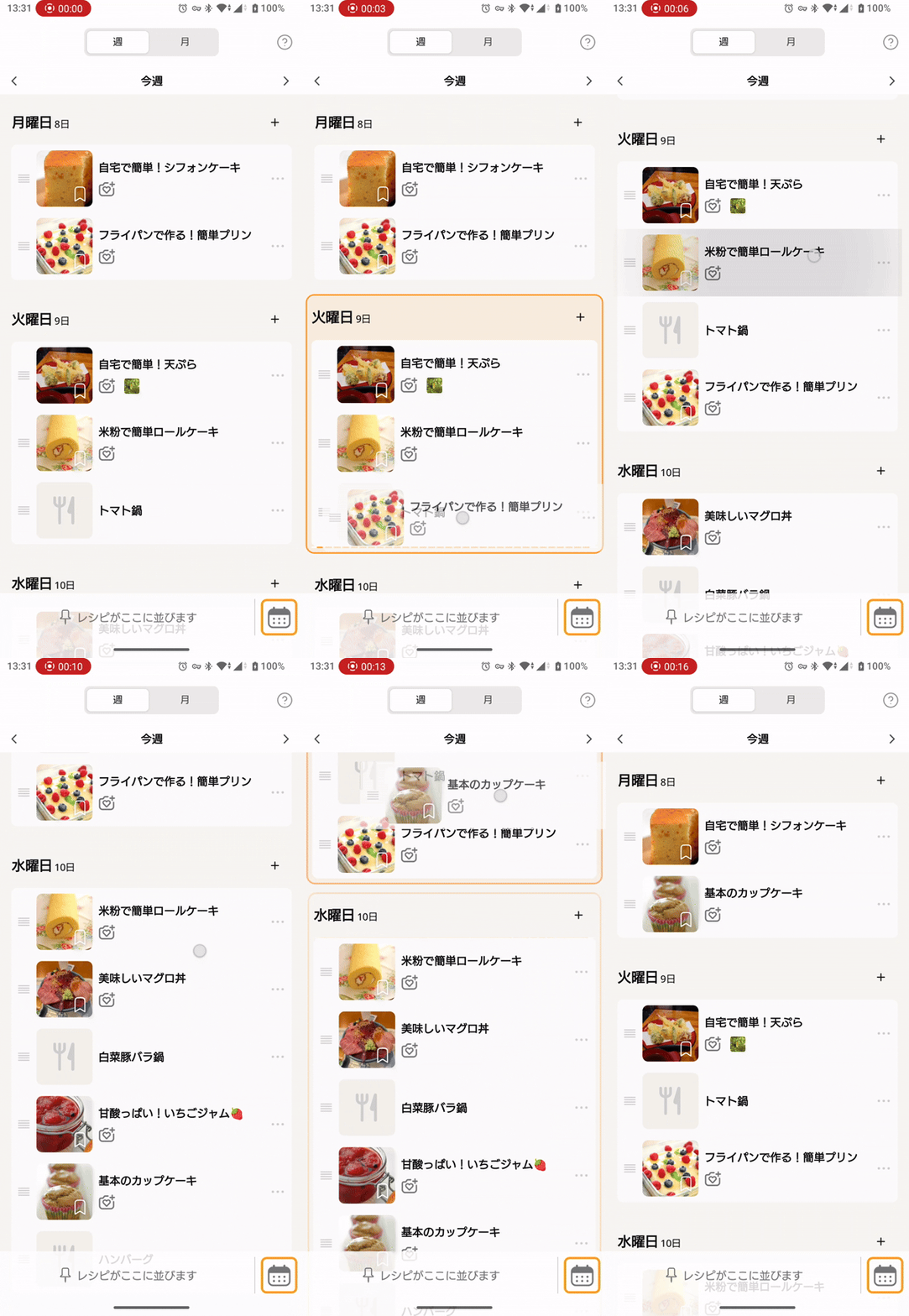
こんにちは。レシピ事業部でアルバイト中の松本 (@matsumo0922) です。クックパッドでは、作るレシピを日付ごとに管理できる、プラン機能をつい先日リリースしました。この機能は Full-Compose で作成されており、日付間のレシピの移動/並び替えに Drag and Drop を採用しています。Drag and Drop は本来リストの並び替えに用いるものでは無いですが、今だに Compose ではリストの並び替え API が充実していないのに加え、視覚効果が貧弱なものが多いのが現状です。そこで Drag and Drop を応用的に並び替え UI に用いることで、直感的で視覚的にもわかりやすい UI/UX を実現することができました。今回は Compose で Drag and Drop を用いて、リストの並び替えを実装する方法と知見をご紹介します。
Drag and Drop の基本
Drag and Drop(以下 DnD)は、ユーザーが要素をドラッグし、別の位置にドロップすることで、並び替えや移動などの操作を直感的に行える UI パターンです。広義では View 間や画面間、アプリ間でのデータのやり取りが可能な機能のことを指します。そのため一般的なリストパターンである「選択と移動」とは異なる機能であることに注意が必要です。プラン機能では、ある日付に登録されたレシピ(アイテム)を別の日付(セクション)へ視覚的に移動させる必要があったため、通常の並び替えではなく DnD を採用することにしました。
Compose での DnD は二つの修飾子で実装することができます。
- Modifier.dragAndDropSource
- Modifier.dragAndDropTarget
それぞれ Drag の起点となる Composable と Drop 先の Composable を指します。今回は簡単のために二つの Composable 間でテキストデータをやり取りする実装を考えてみます。
なお、本記事の最終目的は DnD を用いてリストの並び替え UI を実装することなので、基本的な DnD の仕組みや実装を理解されている方は「並び替えへの応用」まで読み飛ばしていただいて構いません。
dragAndDropSource
データの送信元となる Composable につける修飾子です。送信したいデータはテキストや画像、バイナリなど複数ニーズがあると思いますが、すべて ClipData クラスでラップして送信します。送信元がわかるように事前に示し合わせた label を付けてインスタンスを生成し、DragAndDropTransferData を返してあげることで DnD がスタートします。label はユーザーへの Description としても用いられることに注意してください。今回は “Hello!” というテキストデータを送信してみます。
private const val LABEL = "DnD sample data for Cookpad."

Box(
    modifier = Modifier
        .size(128.dp)
        .background(Color.Red)
        .dragAndDropSource { _ ->
            DragAndDropTransferData(ClipData.newPlainText(LABEL,"Hello!"))
        }
)
上記のコードでドラッグの検知もすべて行ってくれます。ドラッグのタイミングを自分でコントロールしたい場合は、detectDrag... などの Modifier で自分で Drag を検知し、startTransfer を呼び出してあげることで DnD を開始することができます。以下の例は、長押し後のドラッグのみを検知する例です。この Composable 自体が Clickable である場合などに活躍します。
Box(
    modifier = Modifier
        .size(128.dp)
        .background(Color.Red)
        .dragAndDropSource(
            block = {
                // clickable と両立させるために、長押し後のドラッグのみ検知する
                detectDragGesturesAfterLongPress(
                    onDrag = { _, _ ->
                        /* no-op */
                    },
                    onDragStart = { _ ->
                        val clipData = ClipData.newPlainText(MEAL_PLAN_DAD_ITEM_LABEL, id)
                        val data = DragAndDropTransferData(clipData)

                        startTransfer(data)
                    },
                )
            },
        )
)
DnD を開始すると、デフォルトでは当該の Composable を半透明にしたものが視覚効果として提供されます。これを変更したい場合は、drawDragDecoration パラメータのラムダ内で DrawScope が提供されているので、これを用いて任意の視覚効果に変更することができます。
dragAndDropTarget
データを受信する Composable につける修飾子です。受け取り状態を Boolean で返す shouldStartDragAndDrop と、DragAndDropTarget という DnD の状態を受け取るコールバックをパラメータに指定します。今回は受け取ったデータをそのまま表示するので、onDrop() 内で先ほど示し合わせた Label かどうかを確認した上で、receiveItem にセットしています。返り値はデータを消費した場合は true、消費しなかった場合は false を返します。
var receiveItem by remember { mutableStateOf("") }

Box(
    modifier = Modifier
        .size(128.dp)
        .background(Color.LightGray)
        .dragAndDropTarget(
            shouldStartDragAndDrop = { true },
            target = object : DragAndDropTarget {
                override fun onDrop(event: DragAndDropEvent): Boolean {
                    val clip = event.toAndroidDragEvent().clipData
                    val item = clip.getItemAt(0).text.toString()

            if (clip.description.label != LABEL) return false

                    receiveItem = item
                    return true
                }
            }
        ),
    contentAlignment = Alignment.Center
) {
    Text(receiveItem)
}
DragAndDropTarget では DnD の開始や終了、Drag が受け取り可能範囲に入ったか出ていったかなどの情報も取得することができます。詳しくはドキュメントをご覧ください。
- onStarted: ドラッグが開始された時に呼ばれる。このターゲットがデータを受け入れ可能かを返す。
- onEntered: ドラッグ領域に入った時。
- onMoved: 領域内で移動中。
- onExited: 領域から出た時。
- onDrop: ドロップされた時。ここでデータを取得する。
- onEnded: ドラッグ操作が終了した時。
基本コード全体
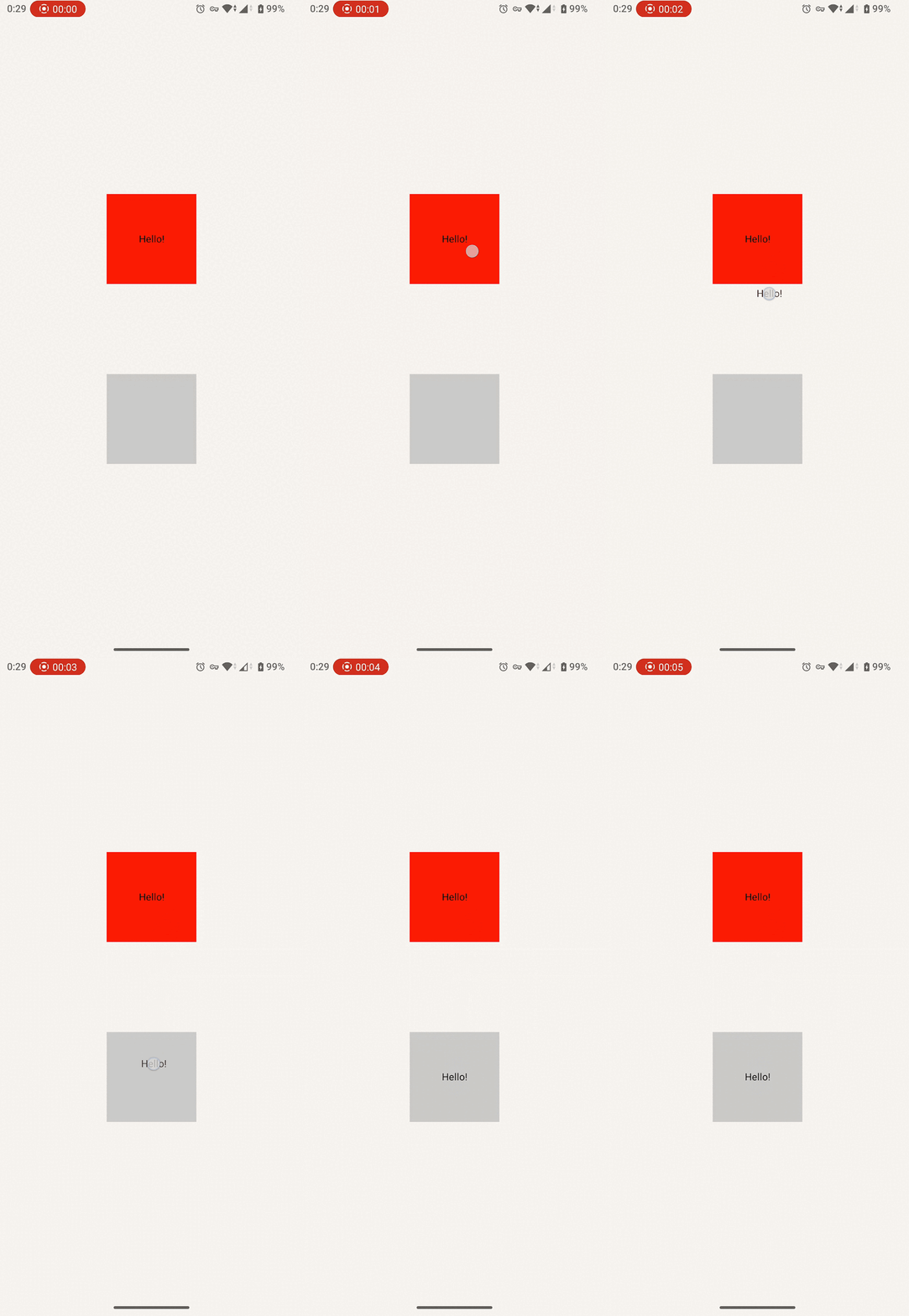
前述のコードをまとめて動かしてみます。赤い Box が source、グレーの Box が target です。
var sendItem by remember { mutableStateOf("Hello!") }
var receiveItem by remember { mutableStateOf("") }

Column(
    modifier = Modifier.fillMaxSize(),
    horizontalAlignment = Alignment.CenterHorizontally,
    verticalArrangement = Arrangement.spacedBy(
        space = 128.dp,
        alignment = Alignment.CenterVertically,
    )
) {
    // 送信側
    Box(
        modifier = Modifier
            .size(128.dp)
            .background(Color.Red)
            .dragAndDropSource { _ ->
                DragAndDropTransferData(ClipData.newPlainText(LABEL, sendItem))
            },
        contentAlignment = Alignment.Center,
    ) {
        Text(sendItem)
    }

    // 受信側
    Box(
        modifier = Modifier
            .size(128.dp)
            .background(Color.LightGray)
            .dragAndDropTarget(
                shouldStartDragAndDrop = { true },
                target = object : DragAndDropTarget {
                    override fun onDrop(event: DragAndDropEvent): Boolean {
                        val clip = event.toAndroidDragEvent().clipData
                        val item = clip.getItemAt(0).text.toString()

                        receiveItem = item
                        return true
                    }
                }
            ),
        contentAlignment = Alignment.Center,
    ) {
        Text(receiveItem)
    }
}
リッチな視覚効果
上記のコードを改良することで視覚的にセクション間の移動を実現することができます。しかし、視覚効果は最低限でユーザーにとって分かりやすい UI になっているとは言い切れません。もう少しリッチな視覚効果が欲しいところです。プラン機能では日付毎にセクションが独立しているので、ドロップされる日付を拡大 & ハイライトすることで、より分かりやすい UI を実現できました。今回は DropTarget に拡大して枠線をつけてみます。
前述の通り、DragAndDropTarget では DnD の開始や終了、Drag が受け取り可能範囲に入ったか出ていったかを取得することができるので、これを利用します。isFocused という変数で Drop 可能時に受け取り側の Composable を大きく、そして枠線を表示するようにしてみましょう。Modifier の適用順序に注意してください。
// Drop 可能領域に入っているか
var isFocused by remember { mutableStateOf(false) }

val focusedScale by animateFloatAsState(
    targetValue = if (isFocused) 1.2f else 1f,
    label = "focusedScale",
)

val focusedColor by animateColorAsState(
    targetValue = if (isFocused) Color.Red else Color.Transparent,
    label = "focusedColor",
)

val dragAndDropTarget = remember {
    object : DragAndDropTarget {
        // Drop した時
        override fun onDrop(event: DragAndDropEvent): Boolean {
            val clip = event.toAndroidDragEvent().clipData
            val item = clip.getItemAt(0).text.toString()
            receiveItem = item
            isFocused = false
            return true
        }

        // Drop 可能領域に入った時
        override fun onEntered(event: DragAndDropEvent) {
            isFocused = true
        }

        // Drop 可能領域から出て行った時
        override fun onExited(event: DragAndDropEvent) {
            isFocused = false
        }

        // DnD が終了した時
        override fun onEnded(event: DragAndDropEvent) {
            isFocused = false
        }
    }
}

// 受信側
Box(
    modifier = Modifier
        .size(128.dp)
        .graphicsLayer(
            scaleX = focusedScale,
            scaleY = focusedScale,
        )
        .border(
            width = 2.dp,
            color = focusedColor,
        )
        .background(Color.LightGray)
        .dragAndDropTarget(
            shouldStartDragAndDrop = { true },
            target = dragAndDropTarget,
        ),
    contentAlignment = Alignment.Center,
) {
    Text(receiveItem)
}
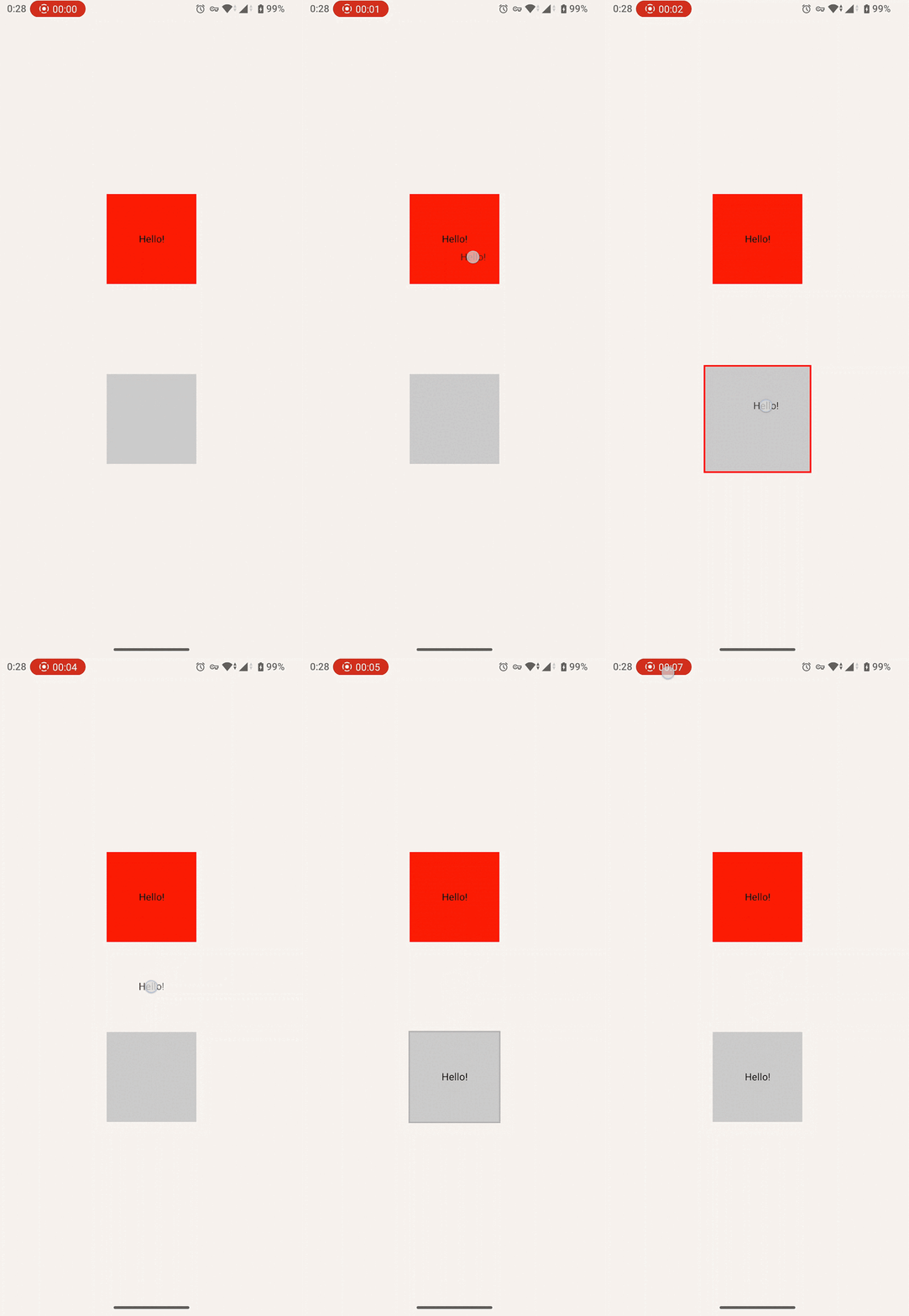
このように、単にデータを受け取るだけでなく、ちょっとした視覚的なフィードバックを加えることで、UX を向上させることができます。スマートフォンなどのタッチデバイスでは、自分の指で画面の一部が隠れてしまいがちです。そのため、ドロップ先が「受け入れ可能です!」とリアクションすることでアフォーダンスの向上や操作ミスの防止、ひいては操作への納得感に繋げることができるはずです。
特にプラン機能のような、画面内に複数のドロップターゲット(日付)が存在するケースでは、このような細やかなインタラクションがアプリの使い心地を大きく左右するかもしれません。
並び替えへの応用
上記のコードを改良することで視覚的にセクション間の移動を実現することができます。しかし、私たちが開発していたプラン機能では日付内(セクション内)でのアイテムの並び替えも実現する必要がありました。ここからは DnD を活用したリストの並び替えについて解説していきます。
サンプルデータとしてプラン機能と同じように、セクションの中にアイテムを保持する構造を定義します。
@Stable
data class SectionData(
    val id: String,
    val label: String,
    val items: List<ItemData>,
)

@Stable
data class ItemData(
    val id: String,
    val label: String,
)

val sections = remember {
    mutableStateListOf(
        SectionData(
            id = "section-1",
            label = "Section 1",
            items = listOf(
                ItemData("A", "Item A"),
                ItemData("B", "Item B"),
                ItemData("C", "Item C"),
            )
        ),
        SectionData(
            id = "section-2",
            label = "Section 2",
            items = listOf(
                ItemData("D", "Item D"),
                ItemData("E", "Item E"),
                ItemData("F", "Item F"),
            )
        ),
        SectionData(
            id = "section-3",
            label = "Section 3",
            items = listOf(
                ItemData("G", "Item G"),
                ItemData("H", "Item H"),
                ItemData("I", "Item I"),
            )
        )
    )
}
このデータを表示してみます。Section と Item という Composable を用意しました。Section 全域を DropTarget にして、Item を DragSource にします。前述した DnD の視覚効果も合わせて実装してみましょう。
@Composable
private fun Section(
    sectionData: SectionData,
    modifier: Modifier = Modifier,
) {
    var isFocused by remember { mutableStateOf(false) }

    val focusedScale by animateFloatAsState(
        targetValue = if (isFocused) 1.05f else 1f,
        label = "focusedScale",
    )

    val focusedColor by animateColorAsState(
        targetValue = if (isFocused) Color.Red else Color.Transparent,
        label = "focusedColor",
    )

    val dragAndDropTarget = remember {
        object : DragAndDropTarget {
            override fun onDrop(event: DragAndDropEvent): Boolean {
                isFocused = false
                return true
            }

            override fun onEntered(event: DragAndDropEvent) {
                isFocused = true
            }

            override fun onExited(event: DragAndDropEvent) {
                isFocused = false
            }

            override fun onEnded(event: DragAndDropEvent) {
                isFocused = false
            }
        }
    }

    Column(
        modifier = modifier
            .graphicsLayer(
                scaleX = focusedScale,
                scaleY = focusedScale,
            )
            .border(
                width = 2.dp,
                color = focusedColor,
            )
            .dragAndDropTarget(
                shouldStartDragAndDrop = { true },
                target = dragAndDropTarget,
            ),
    ) {
        Text(
            text = sectionData.label,
            style = MiseTheme.typography.titleSmall,
        )

        sectionData.items.forEach { item ->
            Item(
                modifier = Modifier
                    .fillMaxWidth()
                    .dragAndDropSource { _ ->
                        DragAndDropTransferData(ClipData.newPlainText(LABEL, item.id))
                    },
                itemData = item,
            )
        }
    }
}

@Composable
private fun Item(
    itemData: ItemData,
    modifier: Modifier = Modifier,
) {
    Box(
        modifier = modifier.background(Color.LightGray, RoundedCornerShape(8.dp)),
        contentAlignment = Alignment.Center
    ) {
        Text(
            text = itemData.label,
            style = MiseTheme.typography.bodyMedium,
        )
    }
}
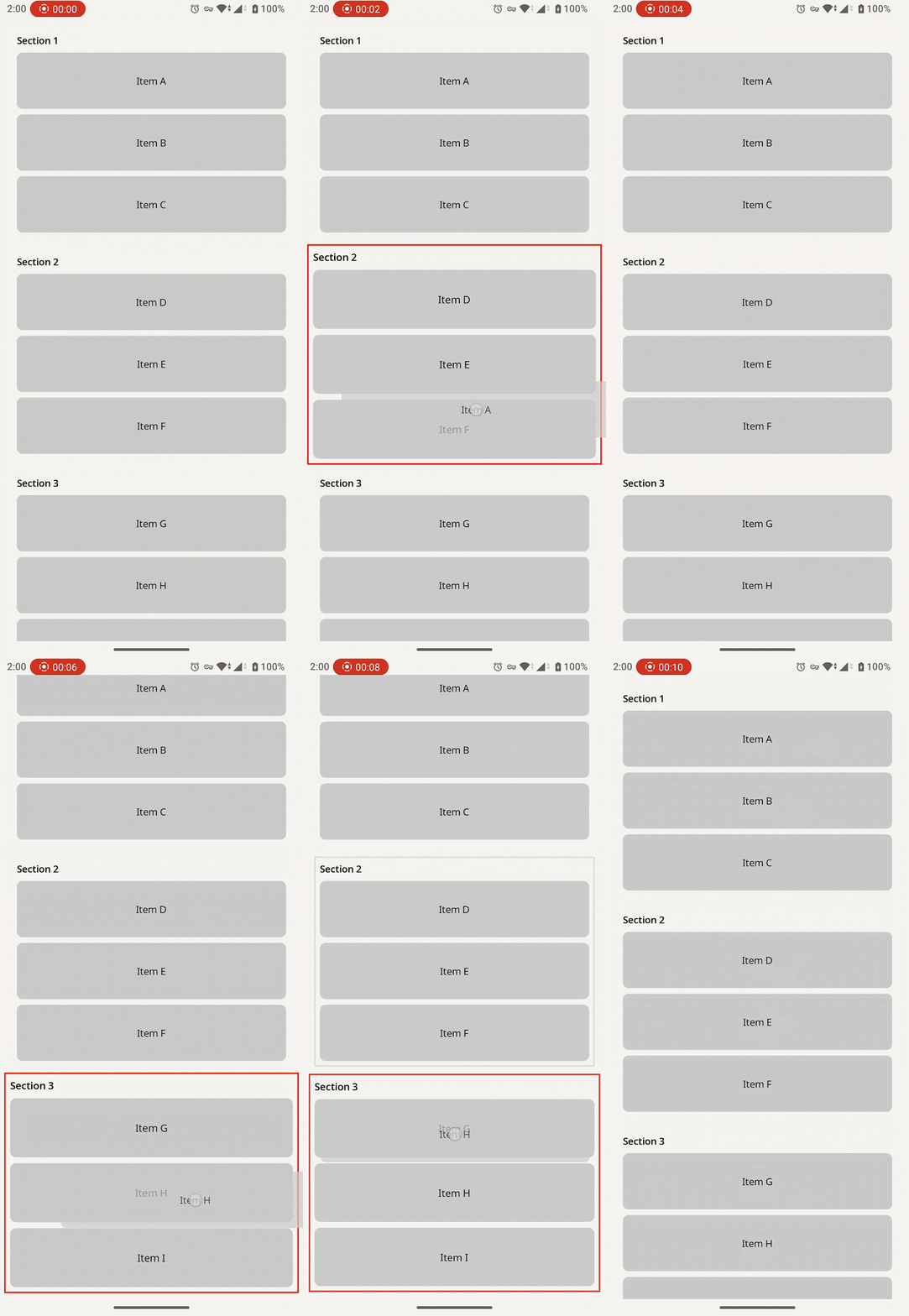
プラン機能のような UI ができました。この実装をベースに並び替えのロジックを追加していきます。
最初にも述べた通り、DnD は本来リストの並び替えなどに用いるものではないため、Item の Index を取得できる便利メソッドなどは存在しません。提供されるのは DragAndDropTarget から得られるドラッグ中及びドロップされた座標のみです。この座標からアイテムを並び替えるべき Index を計算によって求めることになります。
DragAndDropTarget から取得できる座標は画面全体から見た座標なので、セクション自体のY座標とHeaderの高さ、アイテムの高さから Index を求めることができます。DropTarget からみた相対座標ではないので注意してください。ComposableのY座標や高さは Modifier.onGloballyPositioned、Modifier.onSizeChanged から取得することができます。
fun computeSlotIndex(yLocalInParent: Float): Int {
    // DropTarget の Items Column の相対座標に計算し直す
    val yLocal = yLocalInParent - currentHeaderHeight - currentParentTop
    if (yLocal < 0f) return 0

    for (index in currentItems.indices) {
        val itemId = currentItems[index].id

        // onGloballyPositioned で取得した Bounds
        val bounds = currentRowBounds[itemId] ?: continue

        // この Item の相対座標
        val rowTop = bounds - currentHeaderHeight - currentParentTop
        val rowBottom = rowTop + currentRowHeight

        // この Item 内で上部分にあればこの Item の前、
        // 下部分にあればこの Item の後ろの Index を返す
        if (yLocal in rowTop..rowBottom) {
            return if ((rowBottom - rowTop) / 2 < yLocal) index + 1 else index
        }
    }

    return if (yLocal > currentItems.size * currentRowHeight) {
        currentItems.size
    } else {
        -1
    }
}
DragAndDropTarget は remember されているため、外側の変数の変化を受け取ることができません。そこで rememberUpdatedState を用いて最新の値を受け取ることができるようにします。remember に key を設定することでもこの問題は解決できますが、値の更新があるたびに Callback を作り直してしまい、挙動が不安定になってしまうため rememberUpdatedState を使用します。
@Composable
private fun Section(
    sectionData: SectionData,
    onItemDropped: (itemId: String, index: Int) -> Unit,
    modifier: Modifier = Modifier,
) {
    var isFocused by remember { mutableStateOf(false) }
    var hoveredSlotIndex by remember { mutableIntStateOf(-1) }
    var parentTopInRoot by remember { mutableFloatStateOf(0f) }
    val rowBoundsInRoot = remember { mutableStateMapOf<Any, Float>() }
    var headerHeight by remember { mutableFloatStateOf(0f) }
    var rowHeight by remember { mutableFloatStateOf(0f) }

    // Callback の中でも最新の値が受け取れるように UpdatedState 化
    val currentItems by rememberUpdatedState(sectionData.items)
    val currentHeaderHeight by rememberUpdatedState(headerHeight)
    val currentParentTop by rememberUpdatedState(parentTopInRoot)
    val currentRowHeight by rememberUpdatedState(rowHeight)
    val currentRowBounds by rememberUpdatedState(rowBoundsInRoot)
    val currentOnItemDropped by rememberUpdatedState(onItemDropped)

    // 中略

    val dragAndDropTarget = remember {
        object : DragAndDropTarget {
            override fun onDrop(event: DragAndDropEvent): Boolean {
                val clip = event.toAndroidDragEvent().clipData
                val itemId = clip.getItemAt(0).text.toString()
                currentOnItemDropped.invoke(itemId, hoveredSlotIndex)
                isFocused = false
                return true
            }

            override fun onEntered(event: DragAndDropEvent) {
                isFocused = true
            }

            override fun onExited(event: DragAndDropEvent) {
                isFocused = false
                hoveredSlotIndex = -1
            }

            override fun onEnded(event: DragAndDropEvent) {
                isFocused = false
                hoveredSlotIndex = -1
            }

            override fun onMoved(event: DragAndDropEvent) {
                val yLocal = event.toAndroidDragEvent().y
                hoveredSlotIndex = computeSlotIndex(yLocal)
            }
        }
    }

    // 中略
}
Section Composable の引数に onItemDropped というラムダを渡すようにしました。この内部で並び替えのロジックを記述します。以下ではローカルで並び替えるために複雑な処理を行っていますが、実際には API などに並び替え情報を送ることが多いかもしれません。
// 移動元のセクションとアイテムを探す
val sourceSectionIndex = sections.indexOfFirst { sec ->
    sec.items.any { it.id == itemId }
}
if (sourceSectionIndex == -1) return@Section

val sourceSection = sections[sourceSectionIndex]
val movedItem = sourceSection.items.find { it.id == itemId } ?: return@Section

// 移動先のセクションのインデックスを探す
val targetSectionIndex = sections.indexOfFirst { it.id == section.id }
if (targetSectionIndex == -1) return@Section

// データの更新処理
// 同じセクション内での移動か、別のセクションへの移動かで分岐
if (sourceSectionIndex == targetSectionIndex) {
    // 移動元から削除
    val currentItems = sourceSection.items.toMutableList()
    currentItems.remove(movedItem)

    // 移動先に挿入
    val safeIndex = index.coerceIn(0, currentItems.size)
    currentItems.add(safeIndex, movedItem)

    sections[sourceSectionIndex] = sourceSection.copy(items = currentItems)
} else {
    // 移動元から削除
    val newSourceItems = sourceSection.items.toMutableList()
    newSourceItems.remove(movedItem)
    sections[sourceSectionIndex] = sourceSection.copy(items = newSourceItems)

    // 移動先に挿入
    val targetSection = sections[targetSectionIndex]
    val newTargetItems = targetSection.items.toMutableList()
    val safeIndex = index.coerceIn(0, newTargetItems.size)
    newTargetItems.add(safeIndex, movedItem)
    sections[targetSectionIndex] = targetSection.copy(items = newTargetItems)
}
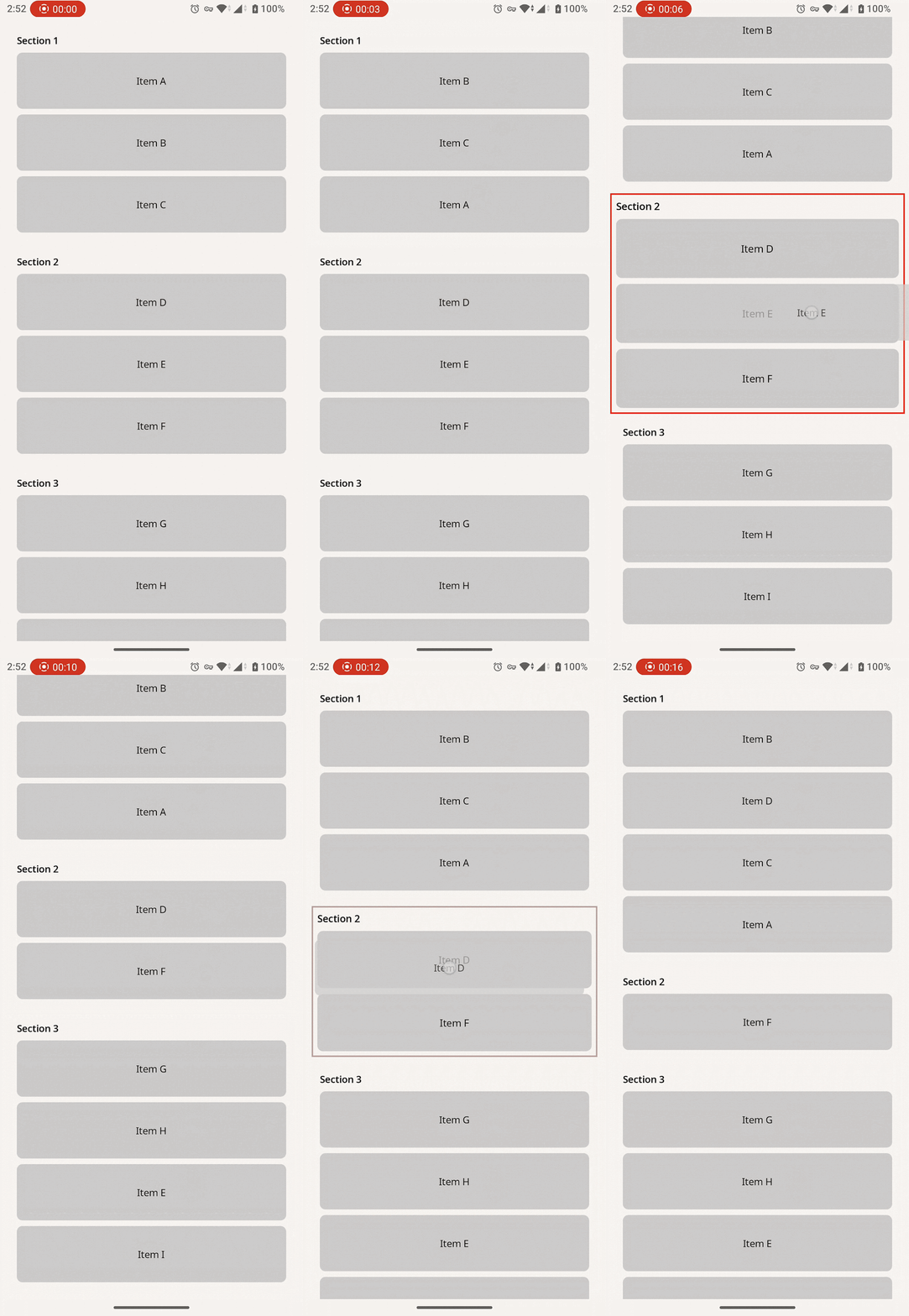
これでアイテムを並び替えることができるようになりました。今回の実装には含まれていませんが、プラン機能ではこれらの実装に加え、ドロップ予定の Index にオレンジ色の破線を表示し、どのアイテムの間に配置されるのか分かりやすくしています。hoveredSlotIndex の箇所に線を表示するだけなので、小さな実装コストで UX を改善することができるかもしれません。
並び替えの機能自体はこれで完成ですが、リストの並び替えUIにおいてもう一つ大事な機能を実装する必要があります。ドラッグ位置に応じた、オートスクロールです。RecyclerView などで提供されている並び替え API を利用しているとどうしても忘れがちですが、リストの並び替えを実現する以上画面外へ並び替えるユースケースも十分に想定されます。こちらも便利メソッドなどは提供されていませんので、自分たちで実装する必要があります。
前述の通り、ドラッグ中の座標は DragAndDropTarget より取得できるので、位置に応じて連続でスクロール API を呼べば良さそうです。Section 内に以下の処理を書くことで、ドラッグが自身の上にある場合にスクロール処理を担当させるようにします。そのため、Section と Section の間に padding などがあった場合はスクロールが途切れてしまうので注意してください。
LaunchedEffect(isFocused, currentDragY) {
    if (!isFocused || currentDragY == 0f) return@LaunchedEffect
    val scrollThresholdPx = with(density) { 120.dp.toPx() }
    val scrollAmount = 20f
    val containerTop = scrollableContainerBounds.top + parentTopInRoot
    val containerBottom = scrollableContainerBounds.bottom + parentTopInRoot
    while (isActive) {
        val dragPosition = currentDragY
        when {
            dragPosition < containerTop + scrollThresholdPx -> {
                coroutineScope.launch {
                    scrollState.scrollBy(-scrollAmount)
                }
            }
            dragPosition > containerBottom - scrollThresholdPx -> {
                coroutineScope.launch {
                    scrollState.scrollBy(scrollAmount)
                }
            }
            else -> break
        }
        delay(10)
    }
}
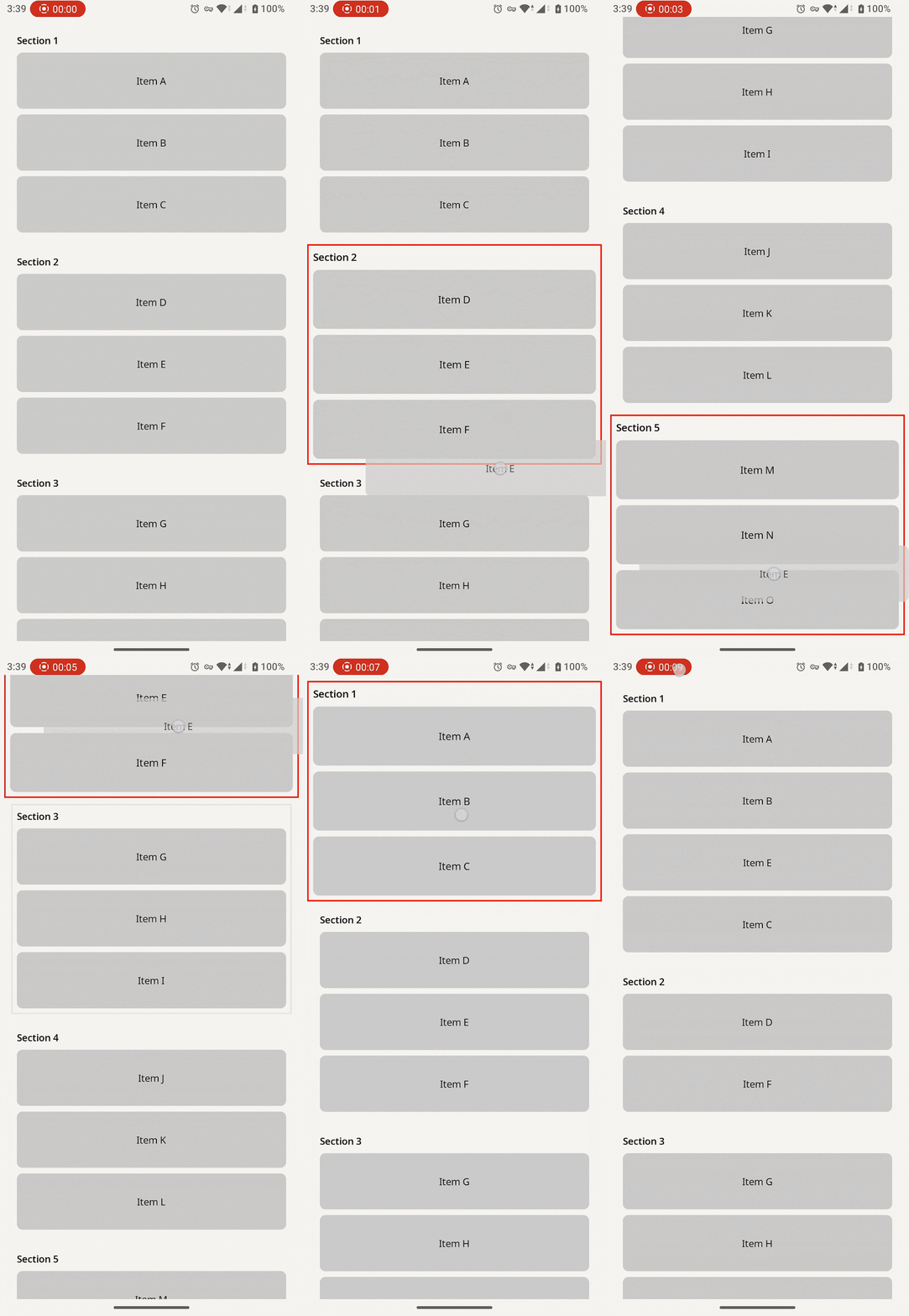
これでオートスクロールも実装し、標準の並び替え API などと同等以上の挙動を実装することができました 🎉
まとめ
今回は Compose での Darg and Drop の実装とリスト並び替え UI への応用についてご紹介しました。Compose が Stable となって5年近く経過しますが、リストの並び替え API は充実していないのが現状です。Drag and Drop の機能自体は並び替えに適した物ではありませんが、応用次第で高い UX を維持したまま並び替えを実装することができるので、参考になればと思います。
最後に、クックパッドでは現在絶賛採用活動中です。毎日の料理を楽しみにしたい皆様からのご応募をお待ちしております!